
<meta_description>
Learn how to change photo background to white using free desktop tools, online editors, and mobile apps with simple step-by-step methods.
</meta_description>
<page_summary>
This guide explains how to change photo background to white for product images, IDs, and portraits using PC, browser, and mobile tools.
</page_summary>
You may need to change photo background to white for resumes, professional profiles, product listings, and official ID photos to maintain a clean, professional look. Having a clean white background makes the image look polished and professional across different platforms and requirements.
In this article, we will walk you through different tools, from desktop software to an online photo editor, to change the background color to white. The tools mentioned below will help you edit your photos with minimal editing skills, instantly and accurately.
Part 1: Comparison Table: Different Ways to Change Photo Background to White
The table below will help you make an informed decision on the right tool to change the image background to white.
| Feature | Wondershare UniConverter | Adobe Photoshop | GIMP | Remove.bg | Photopea | Canva | Magic Eraser | Background Eraser | Snapseed |
| Platform | Desktop & Online | Desktop | Desktop | Browser | Browser | Desktop, Browser & Mobile App | iOS | Android | Android & iOS |
| Ease of Use | Very easy | Difficult | Moderate | Easy | Easy | Easy | Easy | Moderate | Easy |
| AI/automation | AI-powered | Limited automation features | No | AI-powered | AI-powered | Limited Automation feature | AI-powered | AI-powered | AI-powered |
| Output Quality | Very High | Very high | Good | Good | Good | Depends on image quality | Good | Good | Good |
| Free Trial | Yes | No | Yes | Yes | Yes | No | Yes | Yes | Yes |
Part 2: How to Change Photo Background to White on PC and Mac?
You can change the picture background to white in a desktop app that gives you a range of control from AI-assisted tools to manual features using tools like Wondershare Uniconverter, Adobe Photoshop, and GIMP.
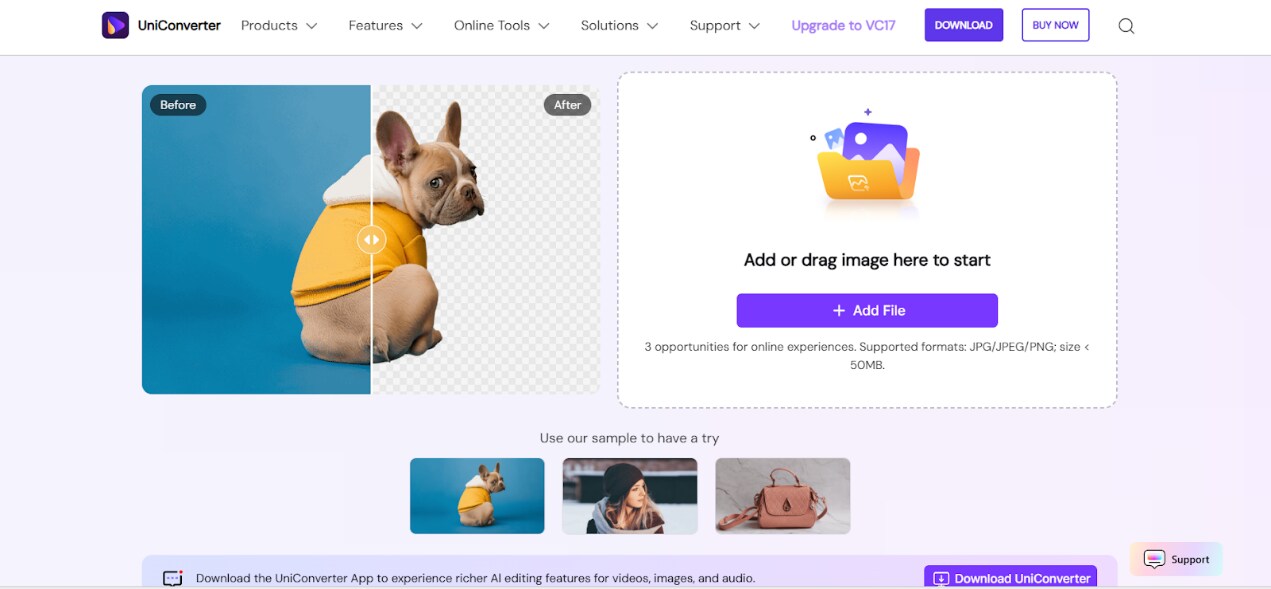
Wondershare UniConverter is a desktop picture, audio, and video editing tool with built-in AI-powered functionality to change the photo background to white. It edits images with a combination of automatic detection and manual refinement for a high-quality, precise output. You can use Wondershare UniConverter for modifying portraits, product images, and other graphics without complicated steps and minimal technical expertise.
How to Change Photo Background to White with Wondershare UniConverter
Follow the step-by-step guide below to add a white background to a photo using UniConverter:
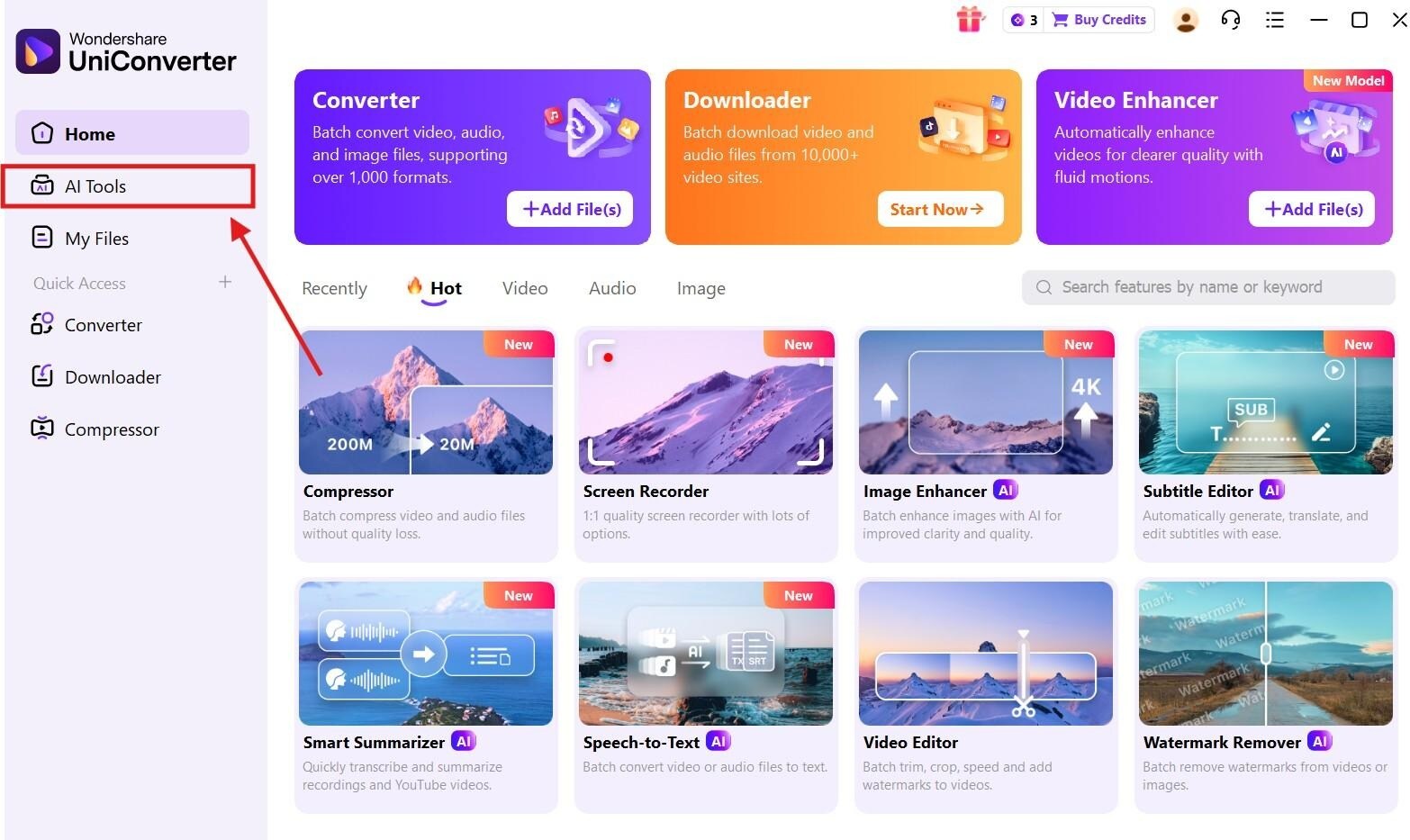
Step 1. On the Wondershare UniConverter dashboard, click on the “AI tools” button on the left-hand menu.
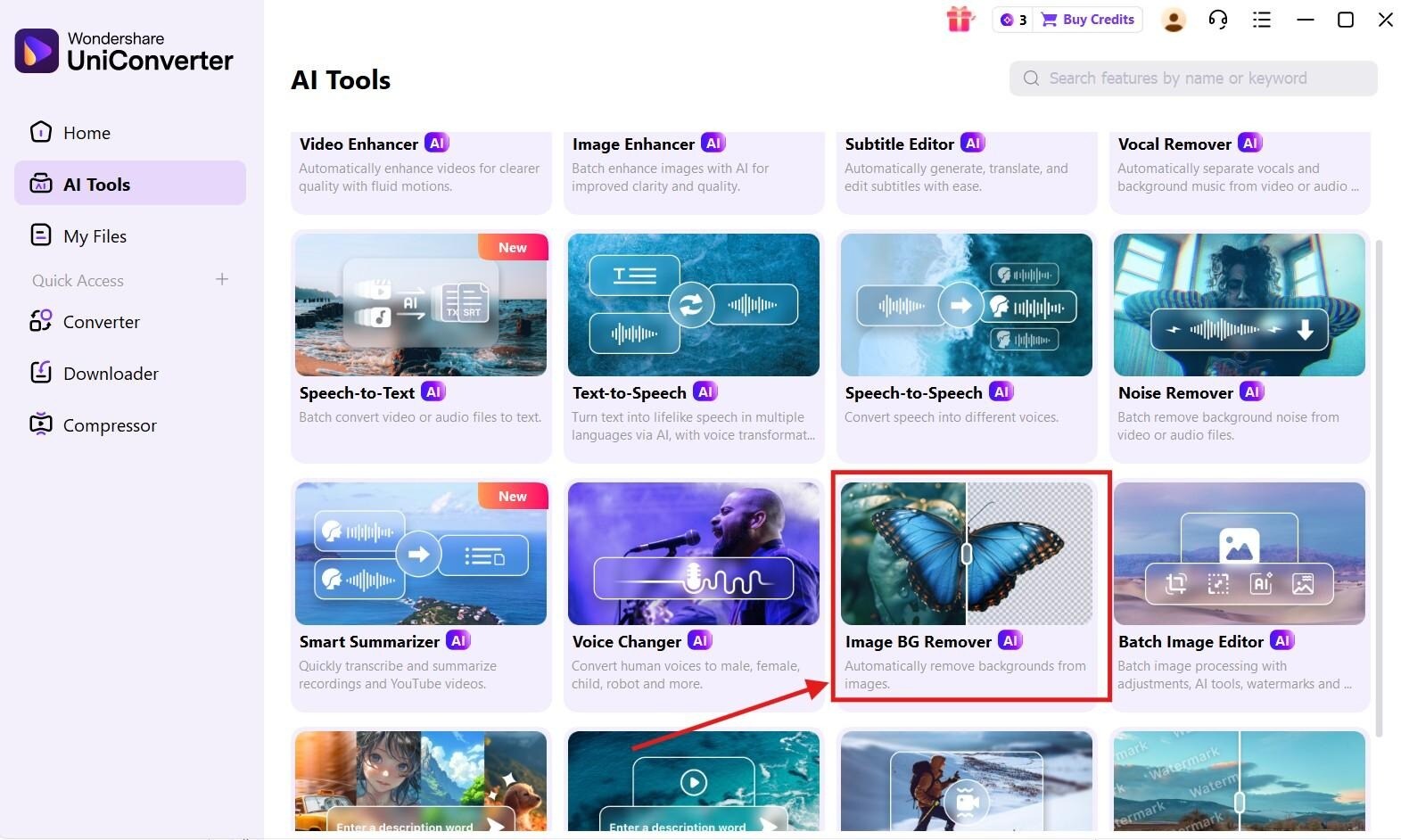
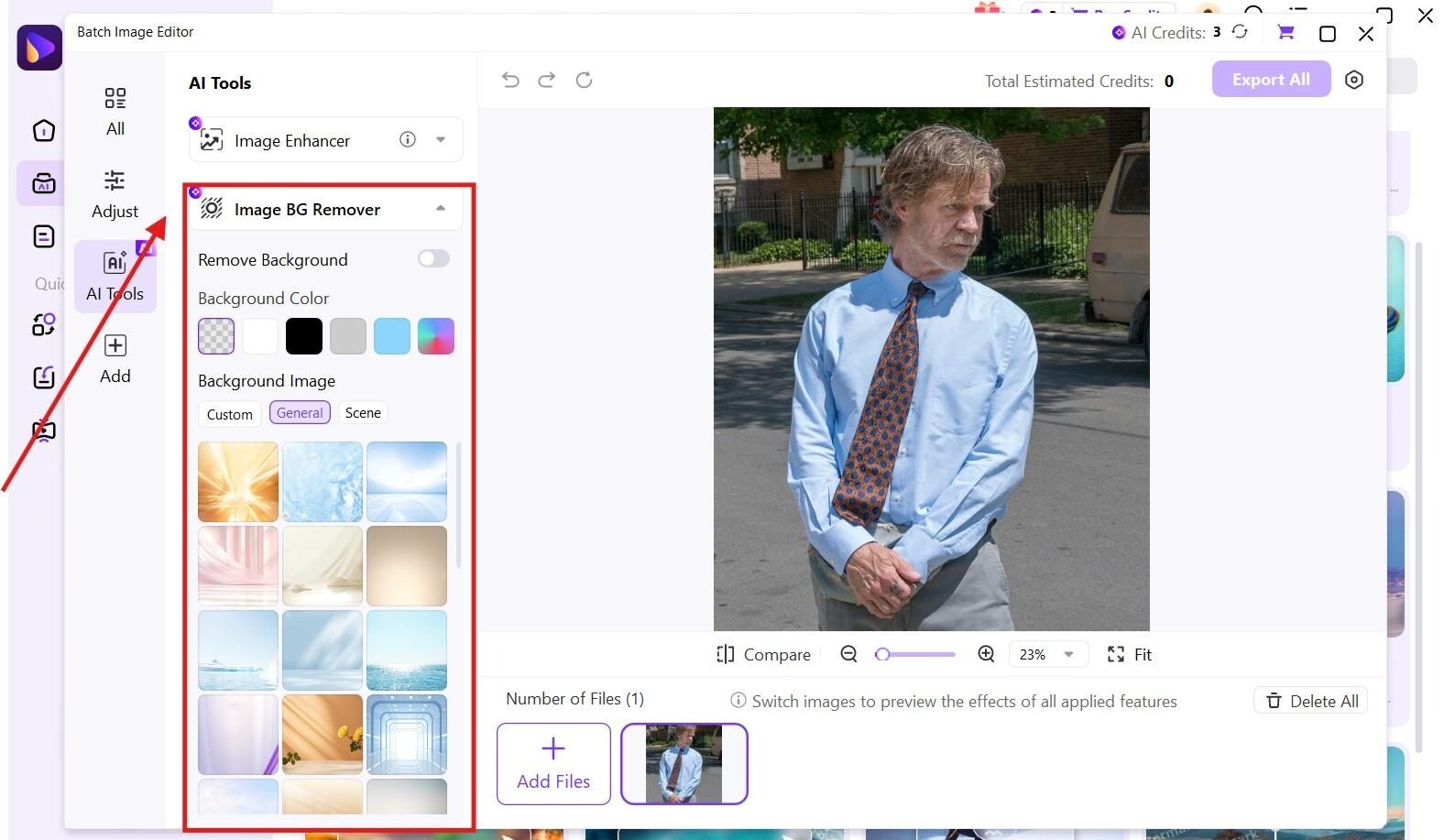
Step 2. Scroll down and click on “Image BG Remover.”
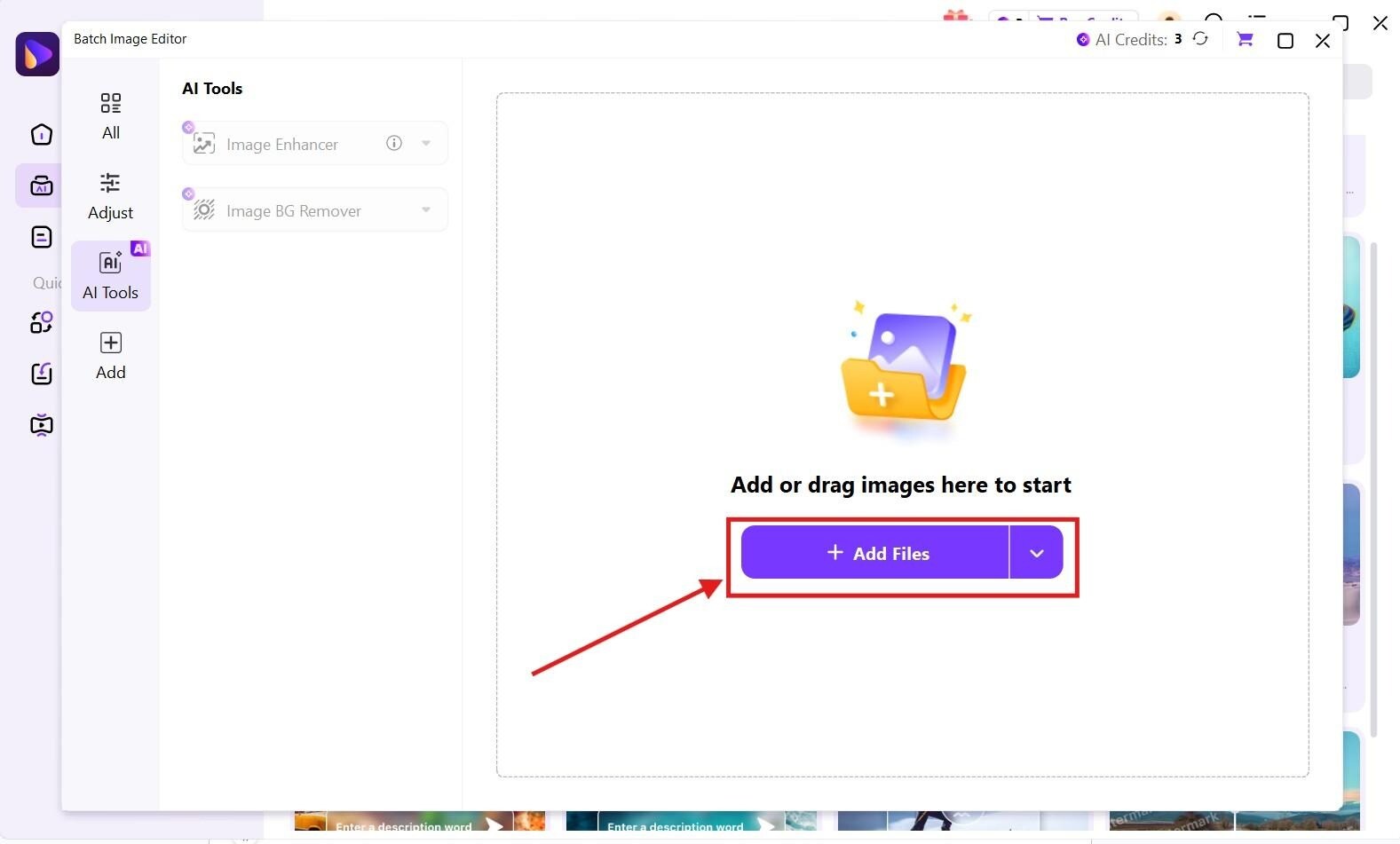
Step 4. Use the “Image BG remover” and choose the background you want for the image. If you want any refinements to your pic, you can use the tools in the menu bar to add them to your image.
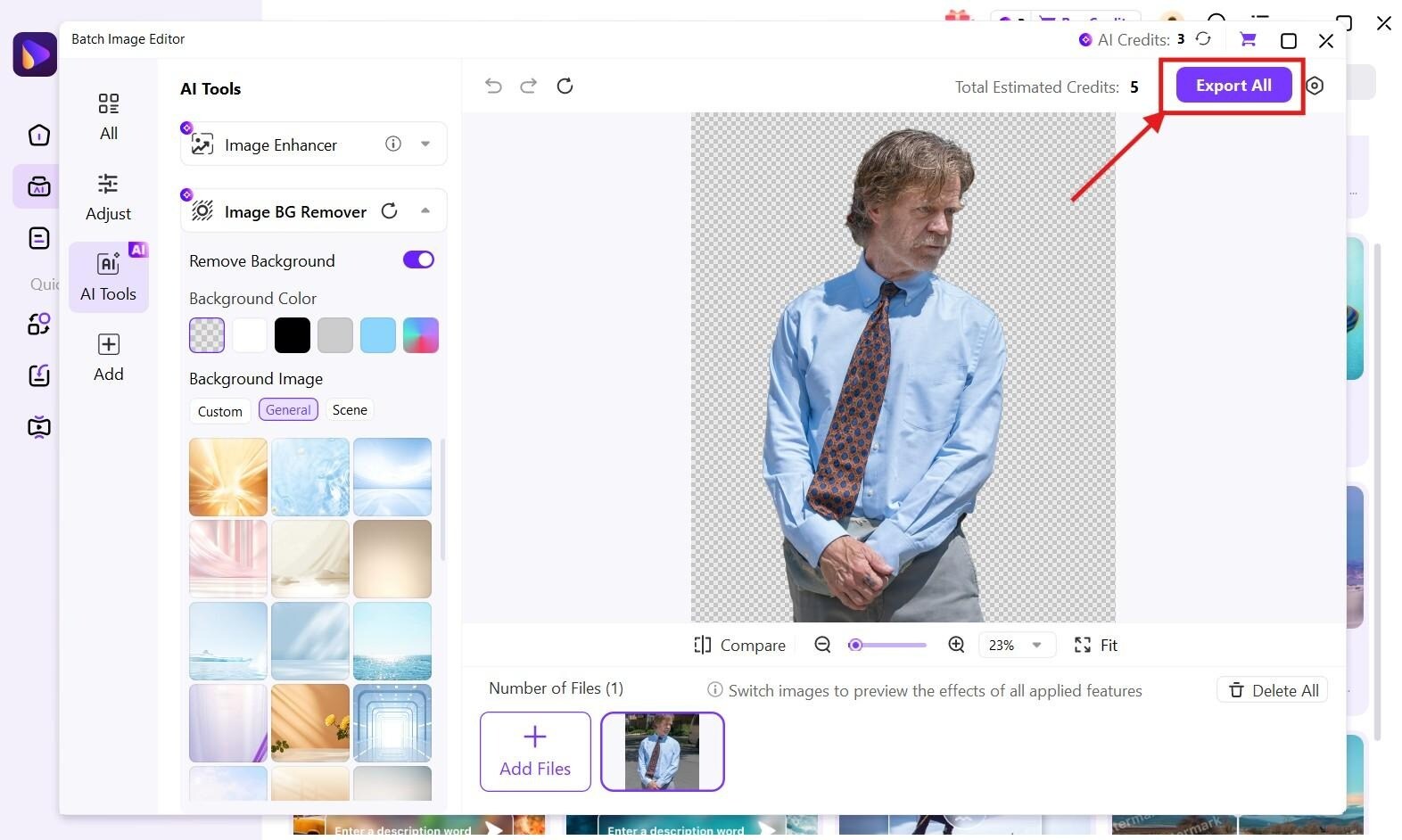
Step 5. Once the processing is complete, you can click on “Export All” to save the edited image to your device.
Key Features
You can use the Thumbnail maker to create a thumbnail for your social media.
With the AI-based image enhancer, you can smooth pixelated edges, refine imperfections, and enhance the visual impact of your picture.
You can upload, edit, and export images in multiple formats like PNG, SVG, TIFF, and WebM.
With the Watermark Editor, you can add and remove watermarks on your images without compromising quality.

Adobe Photoshop is a highly professional photo editing tool that lets you remove and change the background with industry-standard professional levels. With the different selection tools like mask layers and edge refining features, you can accurately edit your images for a high-resolution output. However, the initial subscription cost and the complex manual steps make it overwhelming for beginners.
Key Features
AI-assisted selection tools for quick selection and subject selection.
Non-destructive editing workflow using multiple layers for precise editing.
Refine edges with multiple brush options for smooth outlines.
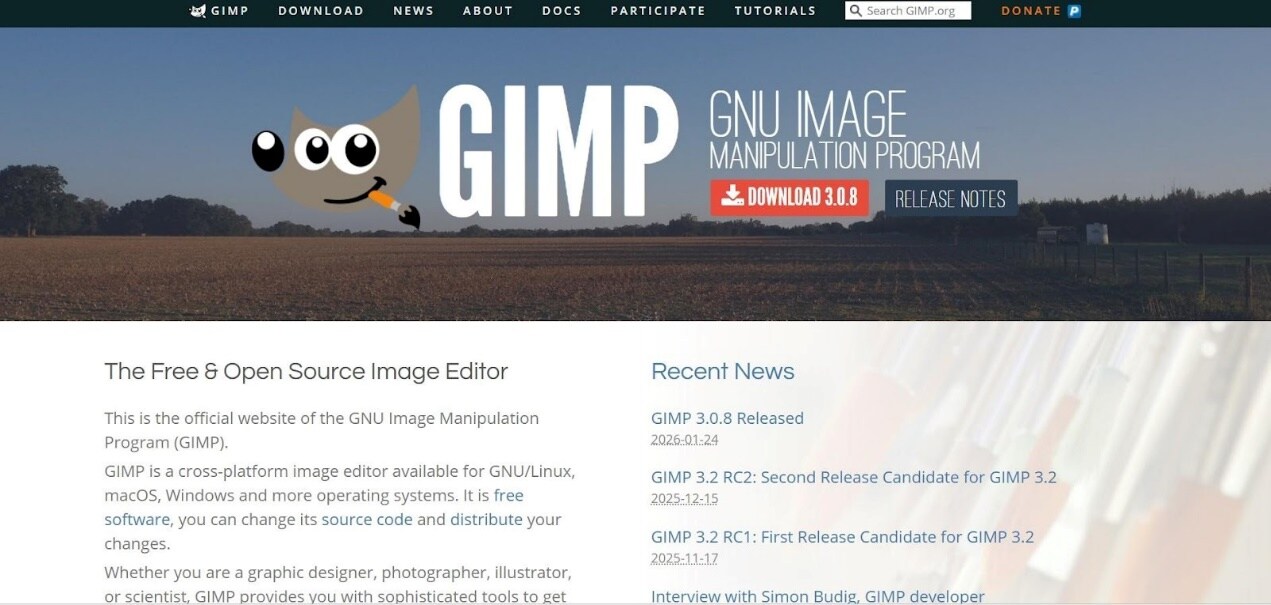
GIMP (GNU Image Manipulation Program) is a free, open-source image editor that lets you manually select and modify the background using Free Select and Layer Masks. Due to the absence of AI and automation engines, you will have to perform a majority of the steps manually.
Key Features
Manual background removal tools with Mask, Brushes, and Layers.
Extensive plugin ecosystem for advanced functionalities.
Editing tools give you complete control over the workflow and editing process.
Part 3: How to Change a Photo Background to White Online?
Platforms like Remove.bg, Photopea, and Canva are quick ways to make a photo background white without installing software on your system. They work on your browser and use AI-powered engines to instantly change and deliver high-quality output.
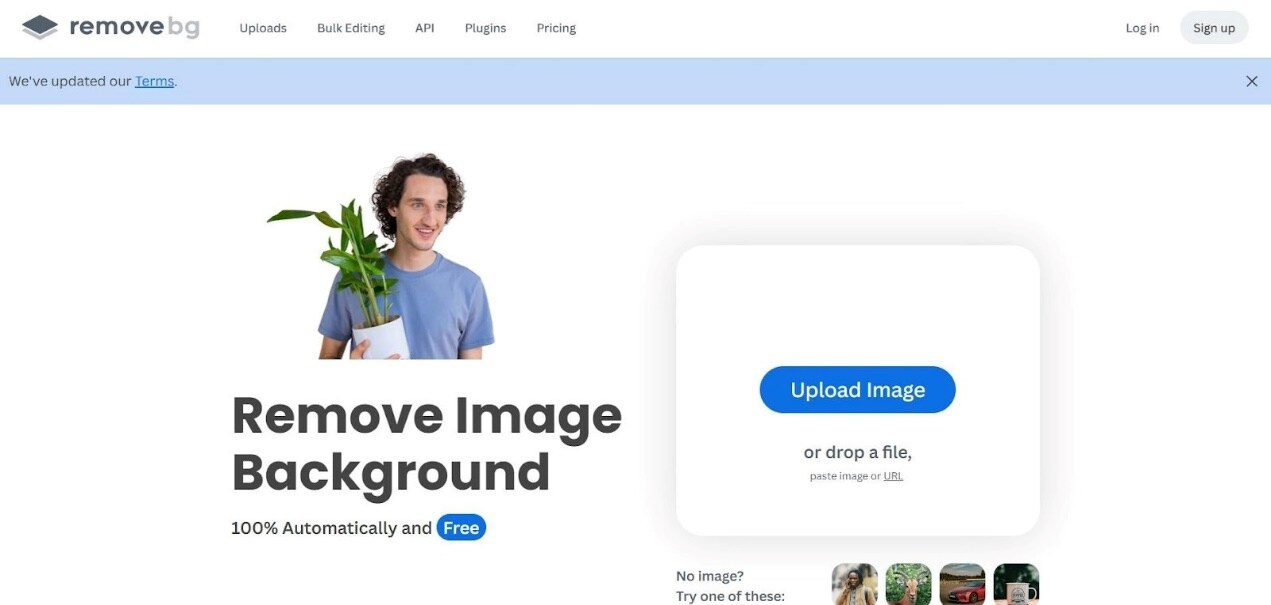
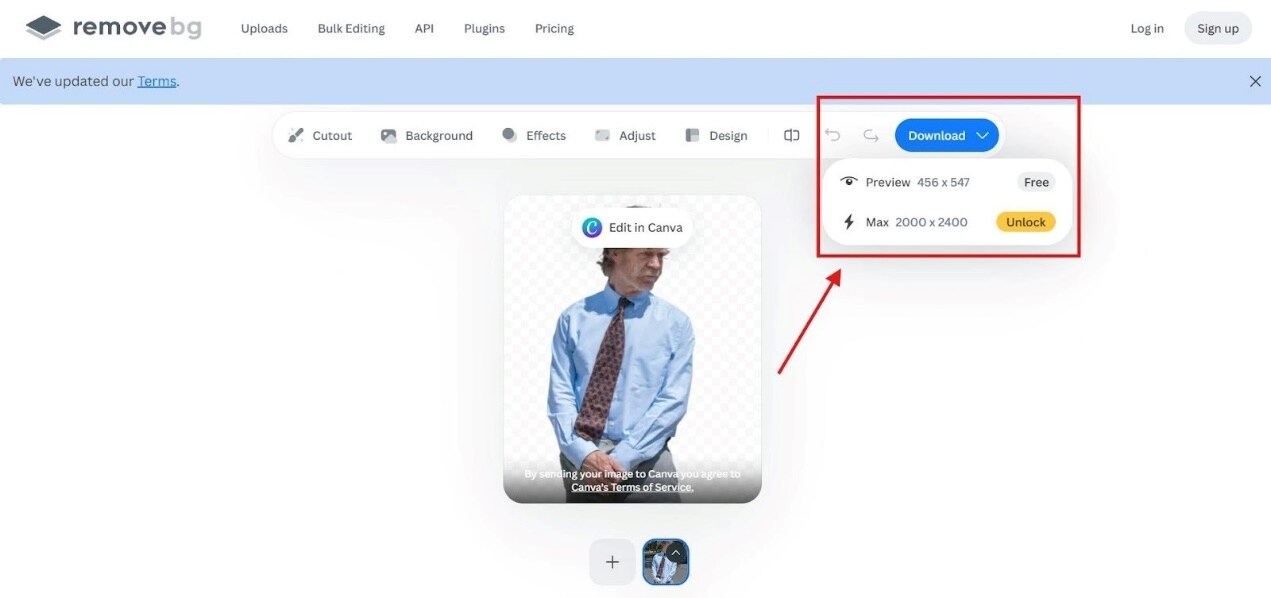
Remove.bg is a popular and simple-to-use online background remover that automatically detects the main subject and removes the background with one click. You get to access a vast library of plugins that help you improve the overall effectiveness of the editing process. However, the free version only lets you download low-quality images.
How to Change Photo Background to White with Remove.bg
Follow the step-by-step guide below to add a white background to a photo using Remove.bg:
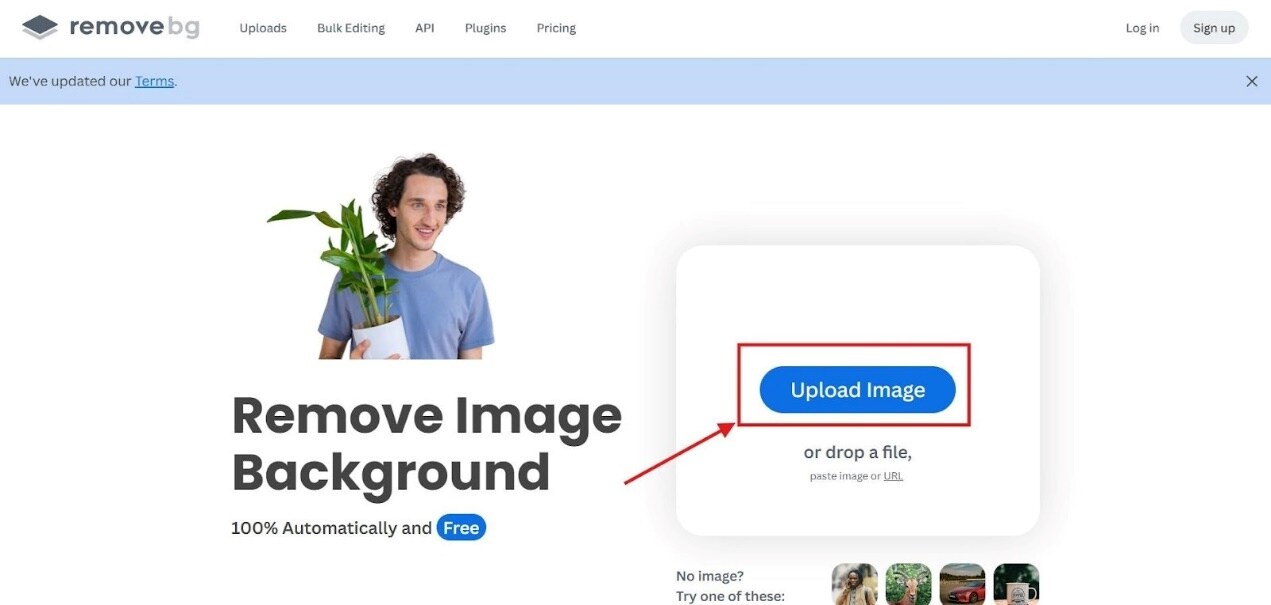
Step 1. Click on the “Upload Image” button on the Remove.bg website.
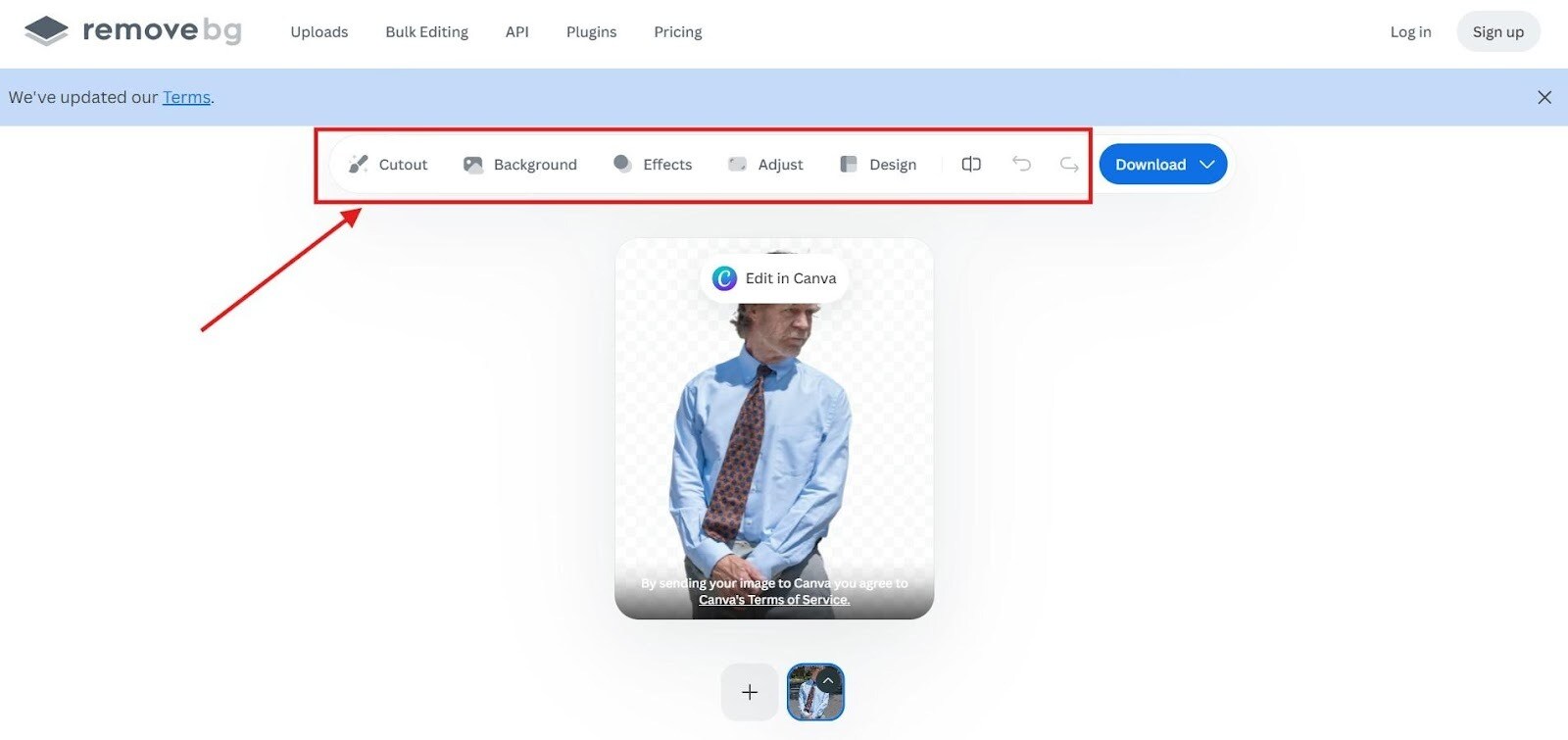
Step 2. Use the tools at the top of your screen to refine the image, like adjusting or changing the design of your background.
Step 3. Click on the “Download” icon to save the edited image to your system.
Key Features
With the API integration functionality, you can embed Remove.bg in your product environment.
Supports batch upload and processing.
You can replace the background with a different design and color.

Canva is a versatile platform that lets you remove the background and add any design or color as per your requirement. You can upload images and background designs to its server securely and not worry about privacy issues. However, the background removal is not effective in complex images.
Key Features
You can perform other editing functionalities, like enhancing and resizing the image.
Allows you to export the image in multiple formats, like JPG and PDF.
Automated background remover with color picking options for the background.
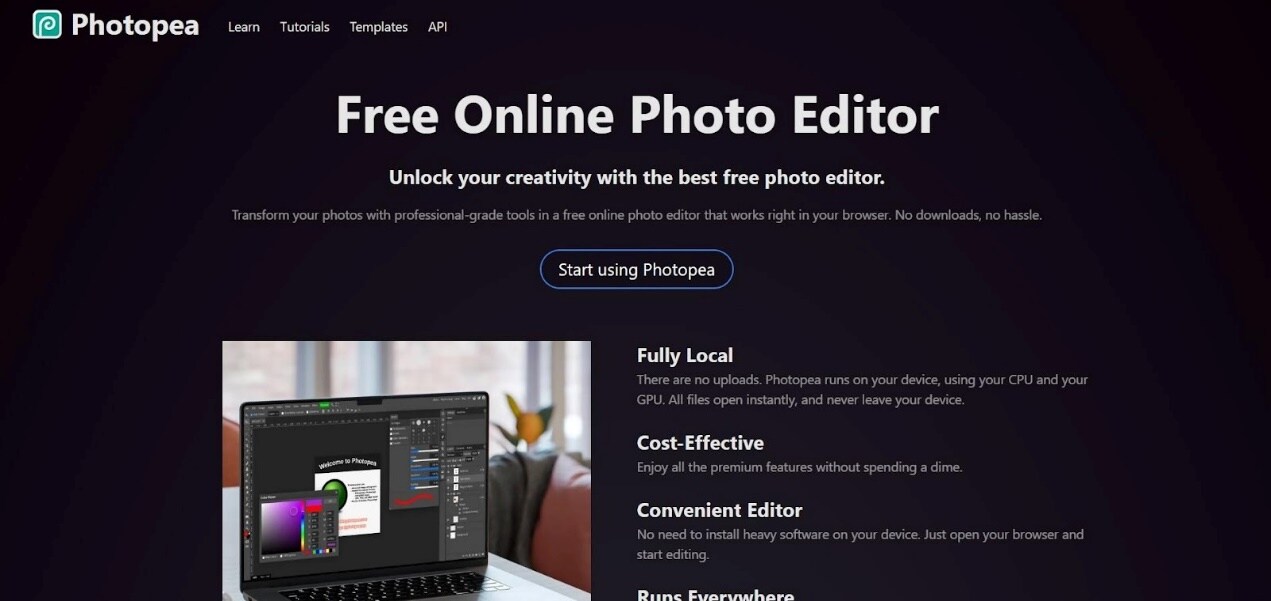
Photopea is a browser-based online photo editor to change the background color to white with manual control. You can select and mask the subject just like in Adobe Photoshop, giving you a high-quality output. However, the performance of the tool depends on your browser and device capabilities.
Key Features
You can toggle between manual and semi-automated selection tools.
Layer and mask support for non-destructive editing workflow.
Powerful editing tools for enhancing your image.
Part 4: How to Change Photo Background to White on Android and iOS?
Mobile photo editors make it easy to change the photo background to white while you are on the go. With tools like Magic Eraser, Background Eraser, and Snapseed, you can export and share edited and enhanced images on your social media within minutes.
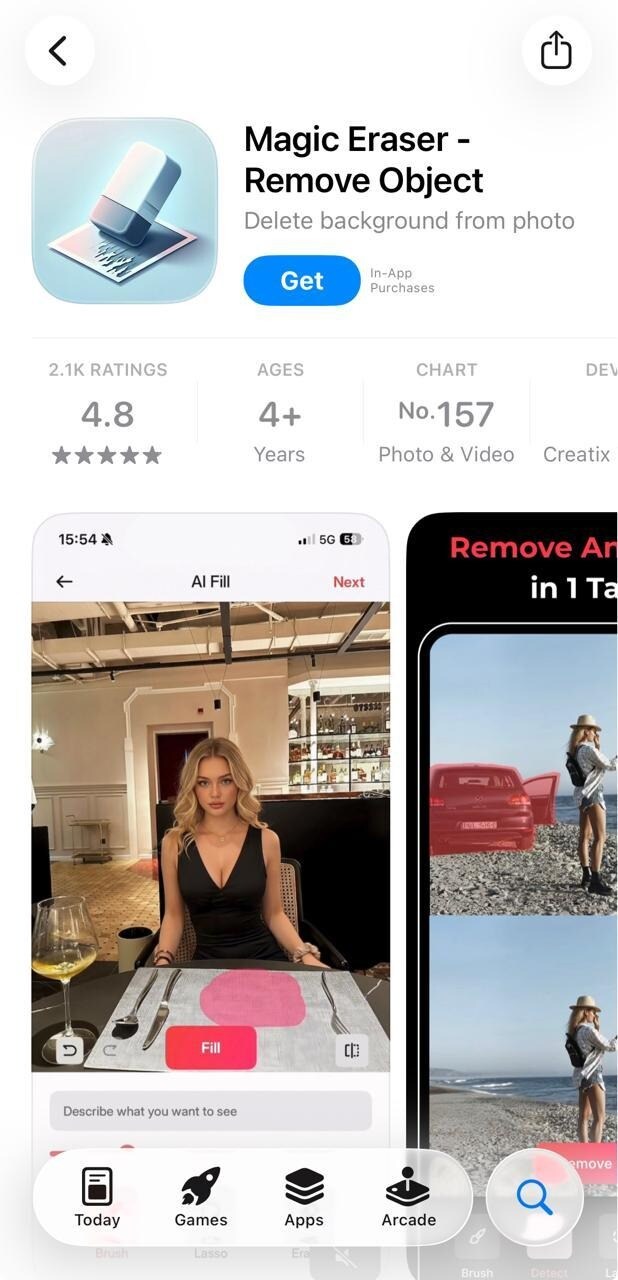
Magic Eraser is a comprehensive app for iPhones and iPads that automatically detects and removes the background, similar to Remove.bg. You can set the background to white color, or refine the image with manual editing tools.
How to Change Photo Background to White with Magic Eraser
Follow the step-by-step guide below to add a white background to a photo using Magic Eraser:
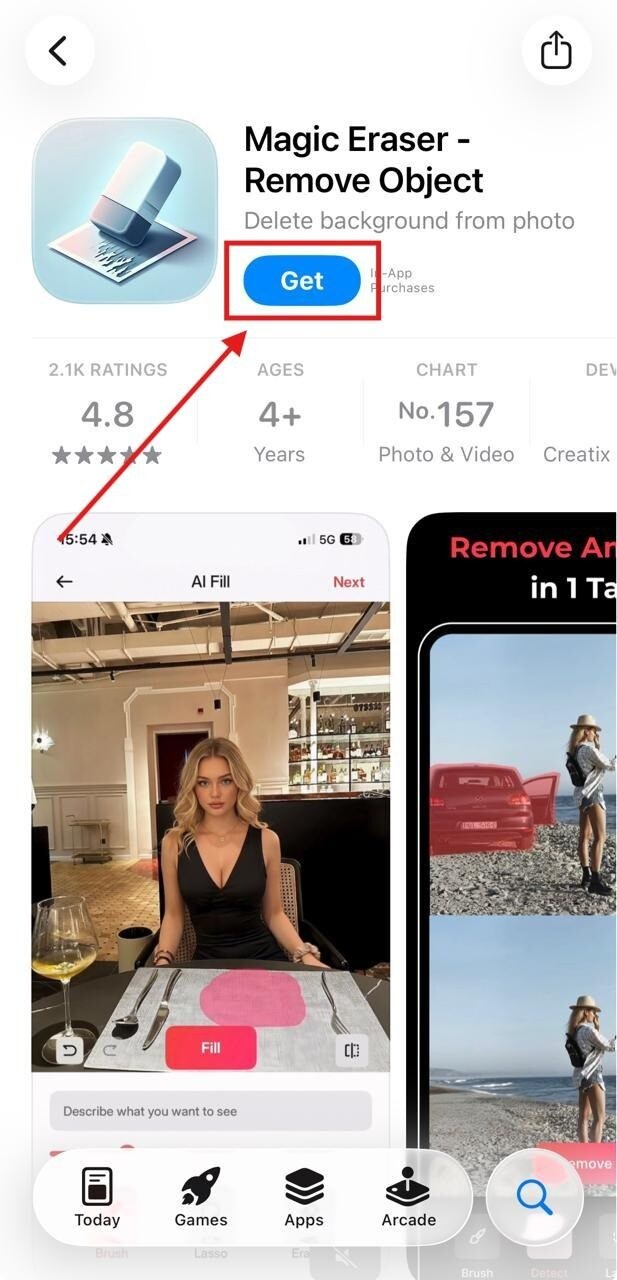
Step 1. Install Magic Eraser on your phone.
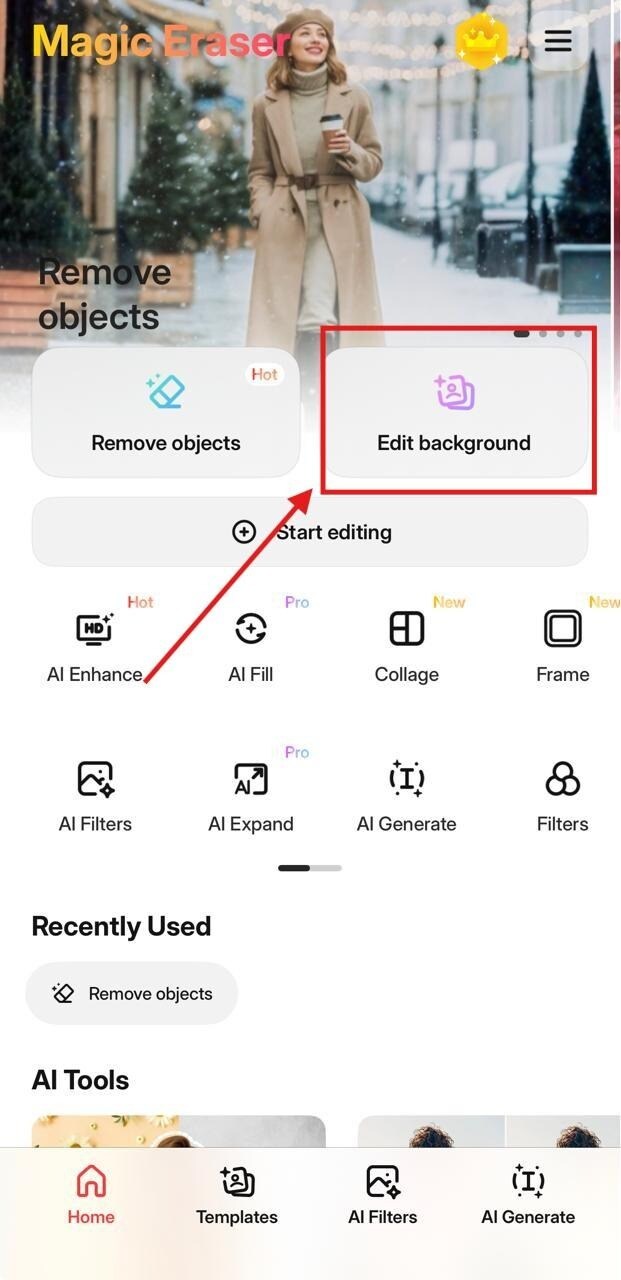
Step 2. Click on the “Edit Background” option.
Step 3. Upload your image using the “Photos” button.

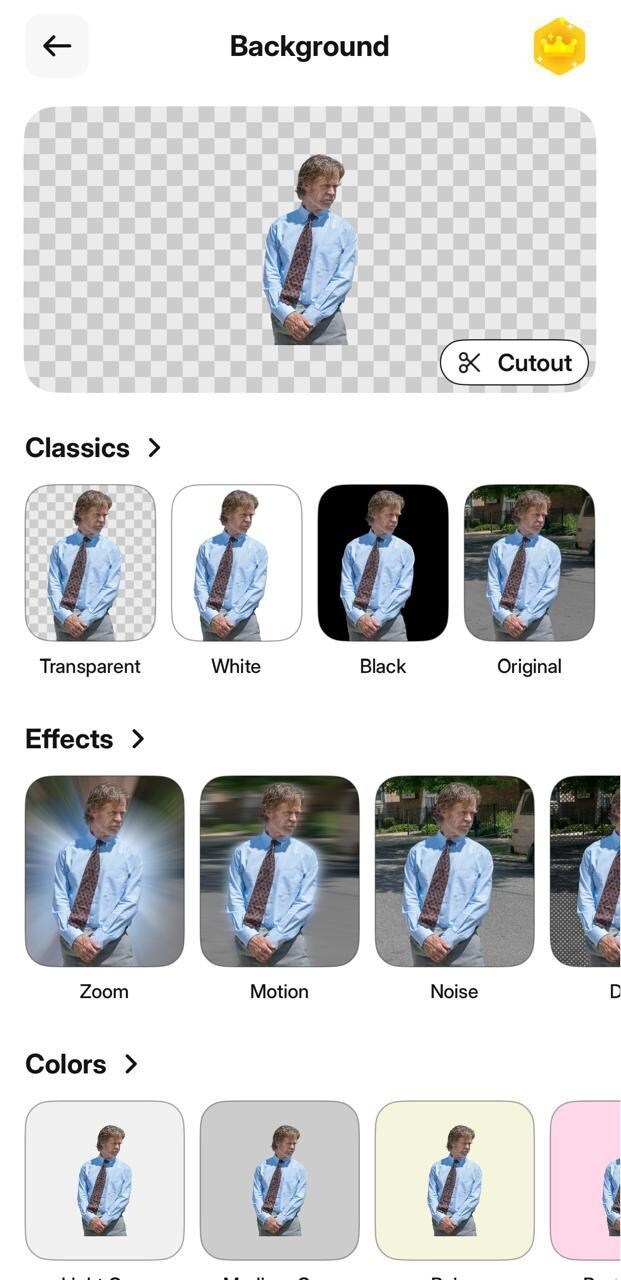
Step 4. You can choose the background effect or colour you want from the options here. If you want a transparent background, you can simply press on the image preview at the top.
Step 5. Click on “Done” to save the image to your device.
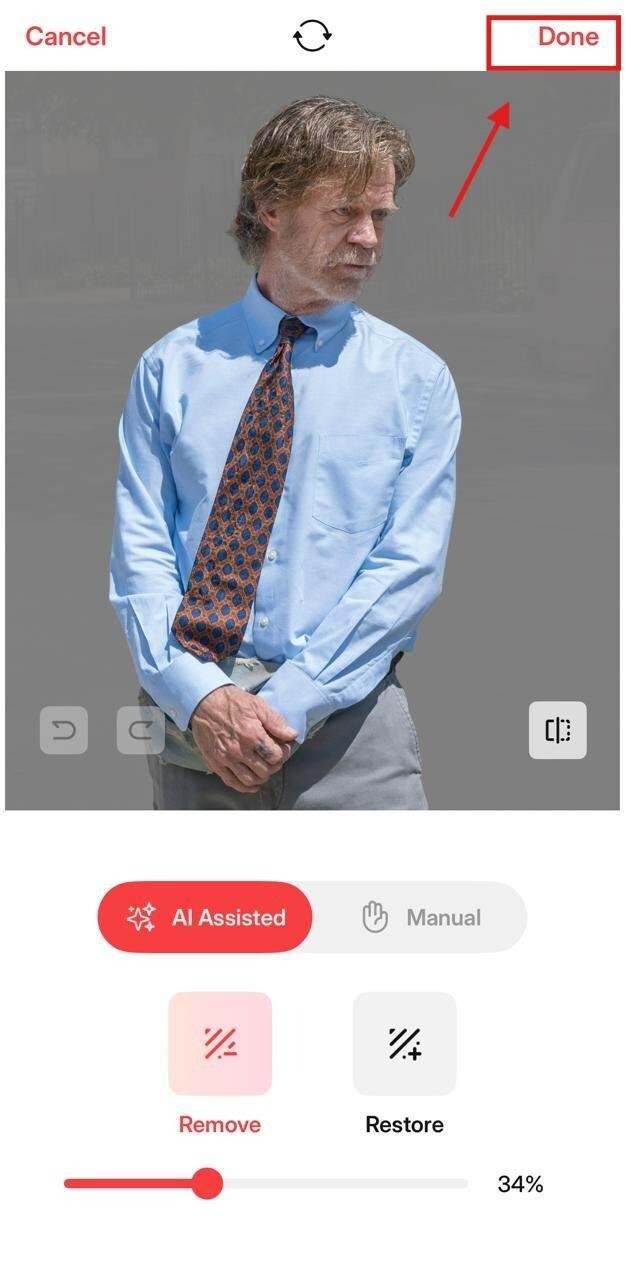
Key Features
You can add a white background to a photo instantly with the AI-powered model.
Use the manual refine brush tool for precise editing.
Allows you export the image in PNG with either a transparent or white background.
Background Eraser (Android)
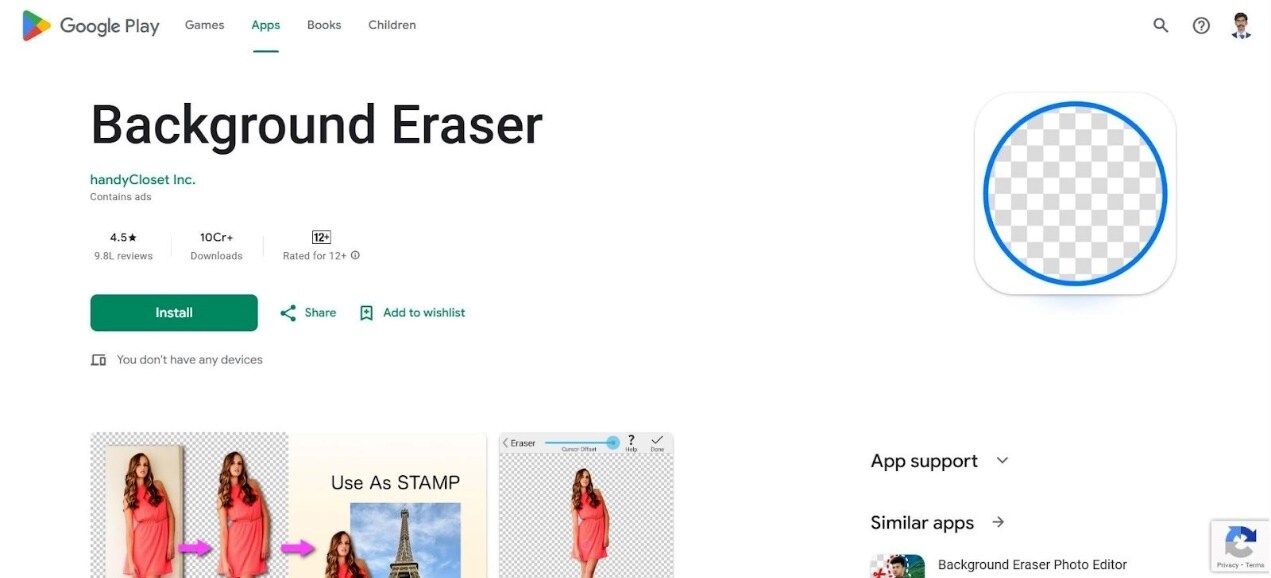
Background Eraser is a dedicated app for Android users that lets you toggle between manual and automated background removals. You can replace the background with different colors or designs as per your needs. It is a simple, user-friendly, and lightweight tool that is suited for quick edits.
Key Features
You can zoom and erase the background for a precise and high-quality output.
Supports images in PNG as well as JPEG format.
Lightweight tool with quick and instant outputs.
Snapseed (iOS and Android)
Snapseed is a professional tool that lets you add a white background to a photo on your mobile device. It is suitable for professional refining and exporting high-quality images that can be used for posting on social media and other professional platforms. However, ads and pop-ups are distracting to your workflow.
Key Features
Allows you to fill the background with a custom color and effects.
Large library of templates, stickers, and effects.
Built-in integration with collage and design tools.
<faqs>
FAQs
Does changing a photo background to white affect image resolution?
No, changing the photo background to white does not affect the resolution of the image. However, you should ensure that you compress and export the image in the right resolution to protect the image clarity.
Can I change the background to white without losing fine details?
Yes, with the help of edge refinement or AI masking in Wondershare UniConverter, you will not lose fine details when changing the background colour to white. Additionally, manual cleanup will ensure precise output for complex edges.
Why does my white background look gray after editing?
The white background looks gray after editing due to shadows, color spills, or improper lighting in the source image.
Are white background photos better for printing?
Yes, white background photos are cleaner when it comes to printing. Further, they reduce ink usage and help subjects stand out clearly on paper.
Can I use the same cutout on different backgrounds later?
Yes, when you save the subject with a transparent background in PNG format, you can reuse it later on any background color in the future.
</faqs>
Conclusion
Changing a photo background to white is no longer about technical skills or expensive software. Modern background removal tools provide clean, professional-looking output instantly that you can use for personal use or product listings. You can choose the right tool that matches your convenience, needs, automation solution, or performance. With Wondershare UniConverter, you can change image backgrounds confidently to get polished results every time.

