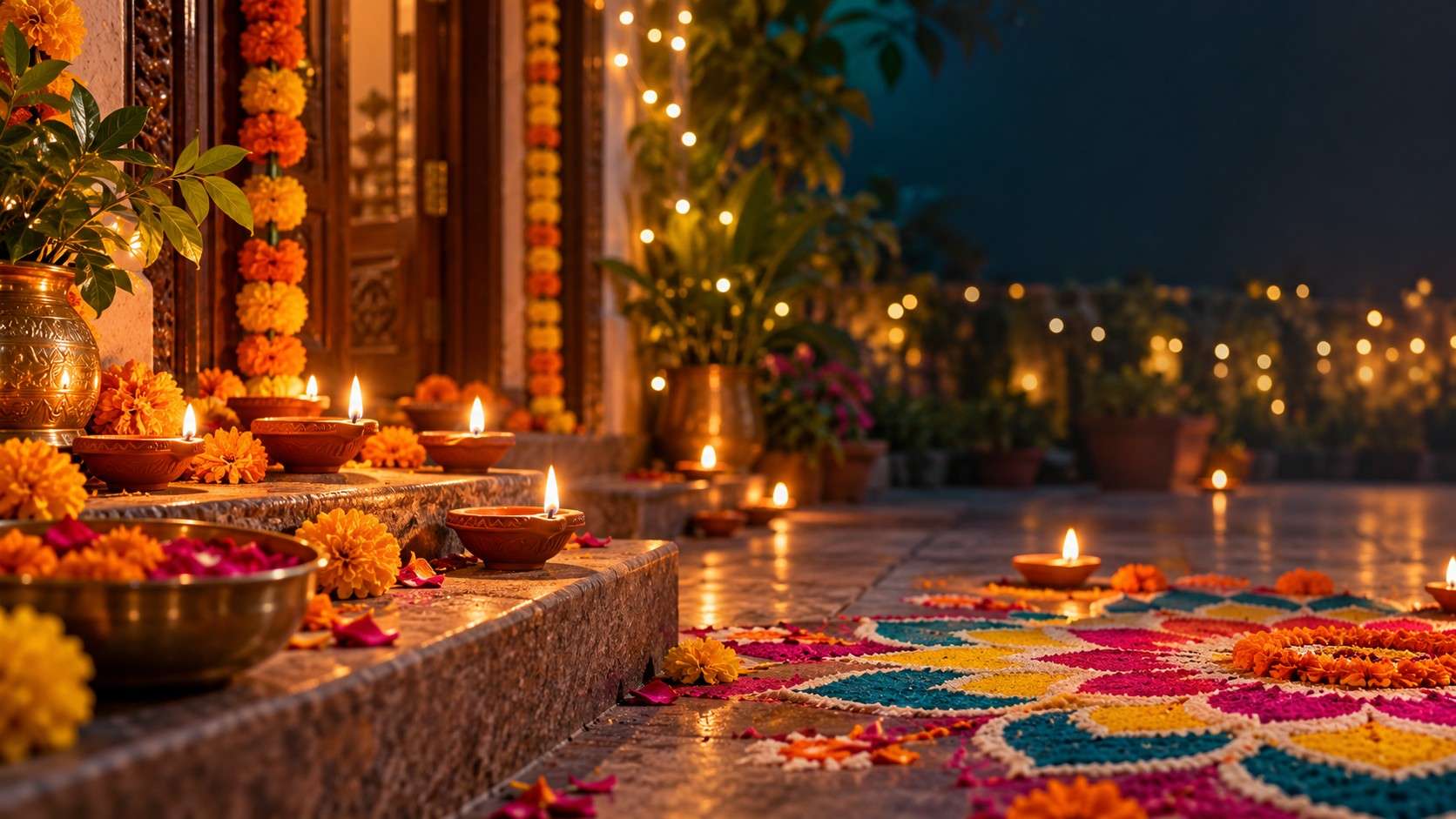
Looking for a Happy Diwali video download you can send to family today? Choose a finished greeting if you want something ready to share, or an editable template if you want to add a name or photo. For your own montage, start with footage of diyas, rangoli, or celebrations. Here is how to find the right file and get it ready for sharing in 2026.
In this article
- Which Kind of Diwali Video Do You Need?
- Where to Download Free Happy Diwali Videos
- How to Download Happy Diwali Greeting Videos
- Choose a Greeting That Fits the Occasion
- Happy Diwali Video Download for WhatsApp Status
- Animated Diwali Videos and HD/4K Greetings: What Changes?
- Convert and Compress Diwali Videos with UniConverter
- FAQs About Happy Diwali Video Download
- Find a Greeting Worth Sending
Which Kind of Diwali Video Do You Need?
A six-second diya clip is useful editing material, but it is not the same thing as a complete greeting. Decide what you want to send before choosing a source.
| Content type | What you get | Best next step |
|---|---|---|
| Stock footage | A filmed or rendered festival scene, often without greeting text | Add it to your own edit or use it behind a message |
| Animated greeting | Moving typography, lamps, particles, or festive artwork | Check the full message and save an available finished video |
| Ready-made status video | A complete phone-oriented greeting, sometimes with music already included | Preview the wording, framing, sound, and sharing terms |
| Editable template | A project whose message, photos, or other elements you can change | Personalize it in the editor and export your finished video |
For a personal message, a finished greeting or template is the most direct starting point. For a video project, stock footage gives you more freedom over the final composition.
Where to Download Free Happy Diwali Videos
These sources serve different jobs. Choose by the result you want, rather than the number of clips in a search grid.
| Source | Content type and useful starting point | How to save it | What to check |
|---|---|---|---|
| Pexels Diwali videos | Live-action diyas, rangoli, lights, and celebrations | Open an individual clip and use its download option | Orientation, available resolution, sound, and the Pexels License |
| Pixabay Diwali videos | Festival footage and animated greeting candidates | Preview the asset and use its available download | On-screen wording, AI-generated labels, and the Content License |
| Canva Diwali mobile video templates | Editable greetings with layouts for phones | Customize your design, then export a video | Free versus Pro elements, music licensing, and export settings |
| MyNameArt Diwali status collection | Ready-made greeting and status ideas | Use the offered saving option where available | The page is labeled 2025; inspect the actual artwork, download availability, and sharing terms |
Start with a real clip, not another search page
For a landscape project, Pexels lists Diwali Celebration with Traditional Diyas as 3840 × 2160, 16:9, and 11 seconds. For a portrait composition, Diwali Celebration: Sparklers and Diyas is listed as 2160 × 3840, 9:16, and 7 seconds. Check the preview for a greeting message and any included audio before choosing either clip.
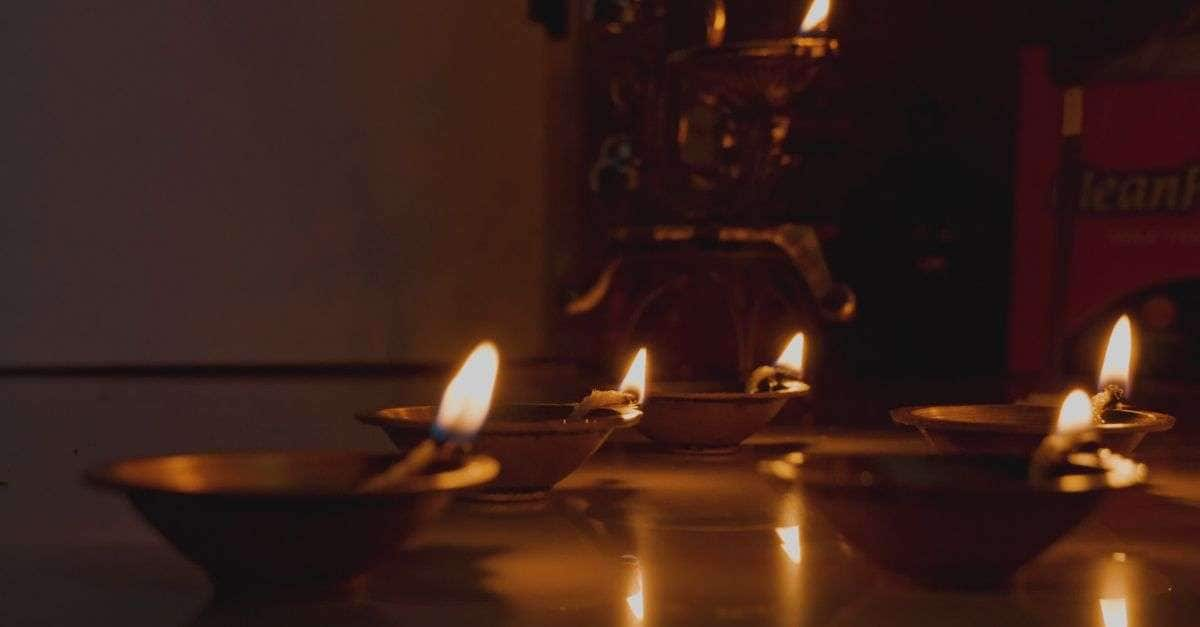
Preview: Suhas Hanjar / Pexels. The footage does not automatically include a greeting message.
Pixabay also has a Diwali greeting asset to preview. Read every word in the video: a polished animation can still contain an old year, an unsuitable language, or a name you cannot change.
Check the free version before committing
Pexels' license allows free personal and commercial use without mandatory attribution, subject to restrictions such as no implied endorsement or resale of unaltered copies. Pixabay's Content License permits free use and adaptation subject to prohibited uses and possible additional rights.
For Canva, check for premium graphics and audio before personalizing the template; your export options depend on the elements and account you use.
How to Download Happy Diwali Greeting Videos
Download footage or a ready-made greeting
- Choose the individual asset. Search for the subject you need, such as “Diwali diya,” “Happy Diwali animation,” or “Deepavali greeting.”
- Watch the full preview. Check the greeting, language, year, orientation, ending, and whether audio is actually present.
- Review the license and download choices. Select an available version that fits your intended use.
- Use the source's saving option. Download the actual file rather than a search-page thumbnail or a screen capture of its preview.
- Open the saved result. Verify the whole message is readable, the file plays completely, and the sound is appropriate.
A Pinterest pin can help you find an idea, but follow it back to the creator or asset page for download permission and an original file.

Preview: HarvinderSinghBoparai / Pixabay. Inspect the full clip and its audio before sharing.
Personalize a Canva greeting before exporting
Open a suitable Diwali video template, replace its sample wording, and preview every page. In the design, select Share → Download → MP4 Video, then download the result. Canva's official video export instructions explain the current controls and plan conditions.
If Canva Free prompts for an upgrade after you change MP4 quality, try the default quality setting, as its help page advises. Replace premium elements with suitable free ones if you want to keep the design within the free options.
Already have a supported video URL? Use UniConverter Downloader
UniConverter's link downloader provides a desktop route when you already have an authorized, supported video link:
- Copy the individual video's URL and open Downloader in UniConverter.
- Paste the link and keep Download Video selected.
- Choose Save to, then click Download.
- Open Finished, locate the saved file, and check its picture, duration, and sound.
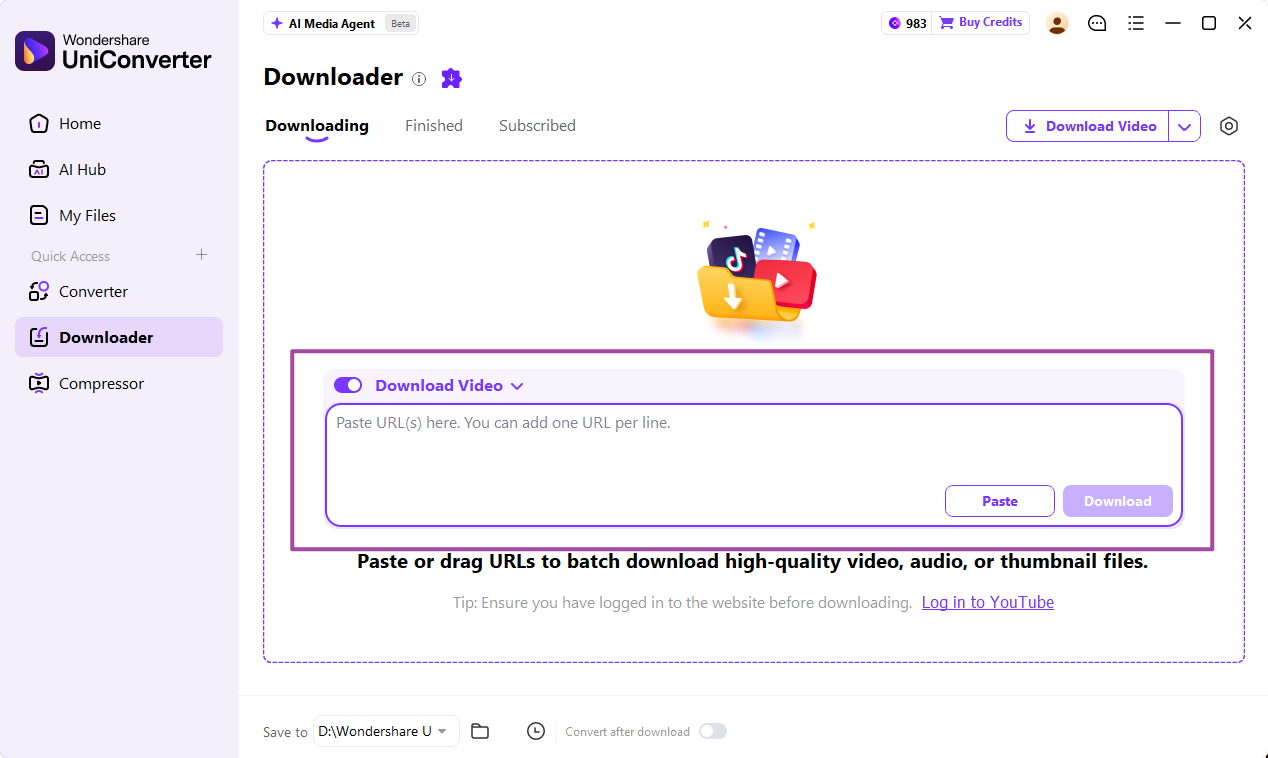
Official Windows interface example. Source compatibility must be established for the actual link; this screenshot does not demonstrate support for every library listed above.
For stock assets and templates, use the provider's download or export when it supplies the file you need. For supported links, the Downloader guide explains UniConverter's controls. You can then prepare the local video for sharing without moving to another application.
Choose a Greeting That Fits the Occasion
For family wishes, a warm diya scene with one readable message can be enough. For a client greeting, leave room for your business name without covering the main artwork. Fireworks and celebration footage suit energetic intros; a quieter lantern or rangoli scene gives overlaid wishes more breathing room.
- Keep it personal: check the language, name, and year visible in the actual clip. Choose wording your recipients would use.
- Keep the composition simple: one focal point and a short message are easier to follow on a phone than several competing text effects.
- For a playful greeting: use an original joke or animation whose sharing terms fit your use.
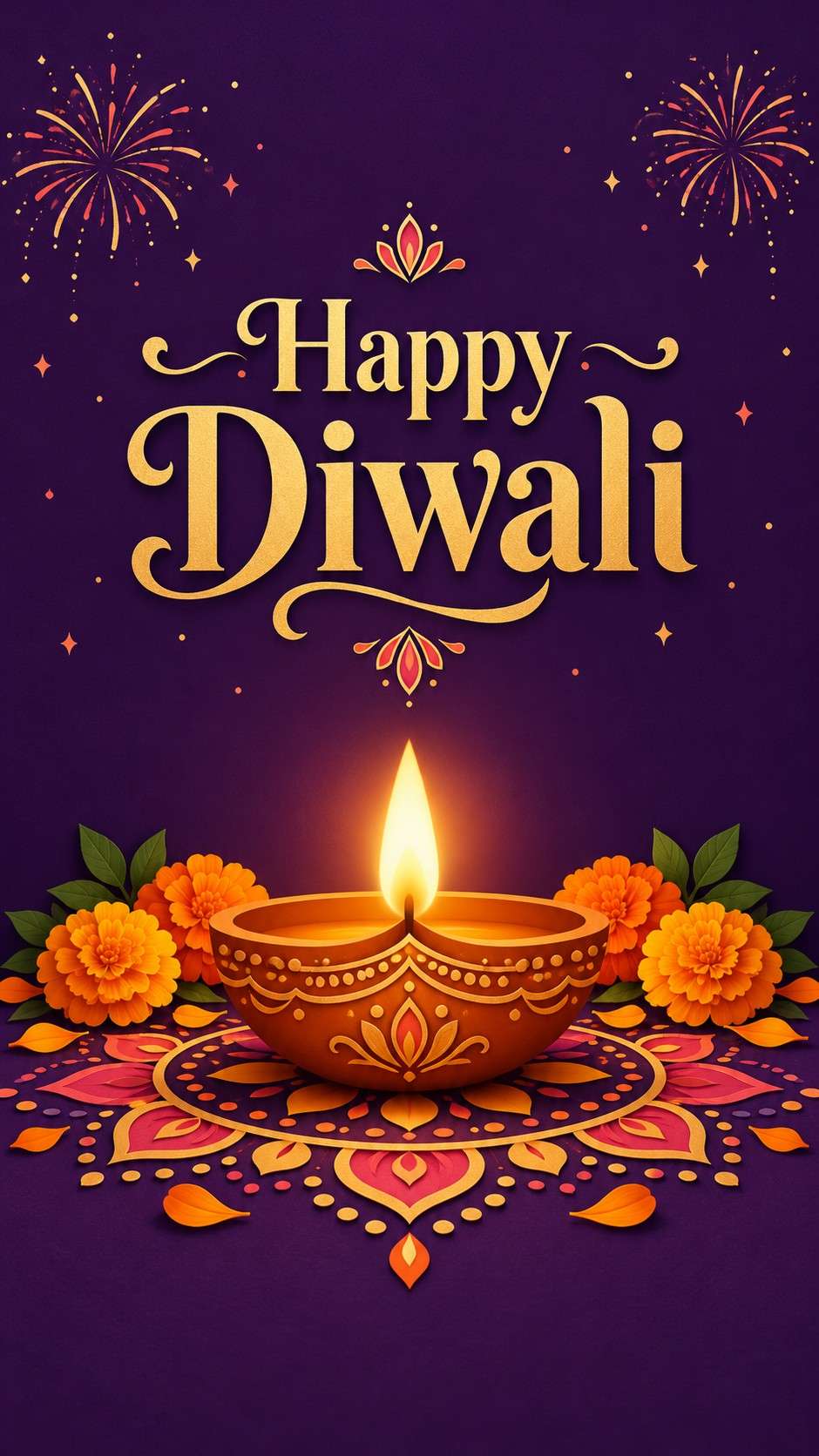
Still illustration of an animated-style greeting layout; the article does not supply an animated or editable version of this image.
For a Deepavali video download, search both “Diwali” and “Deepavali,” then preview the greeting to choose the wording your audience prefers.
Happy Diwali Video Download for WhatsApp Status
For Diwali videos for WhatsApp, preview the greeting at the size someone will actually watch it. A landscape shot may look beautiful on a laptop but lose its main diya or text when cropped to a phone screen. A vertical 9:16 composition is a useful starting point; fitting a wide clip instead may leave borders.
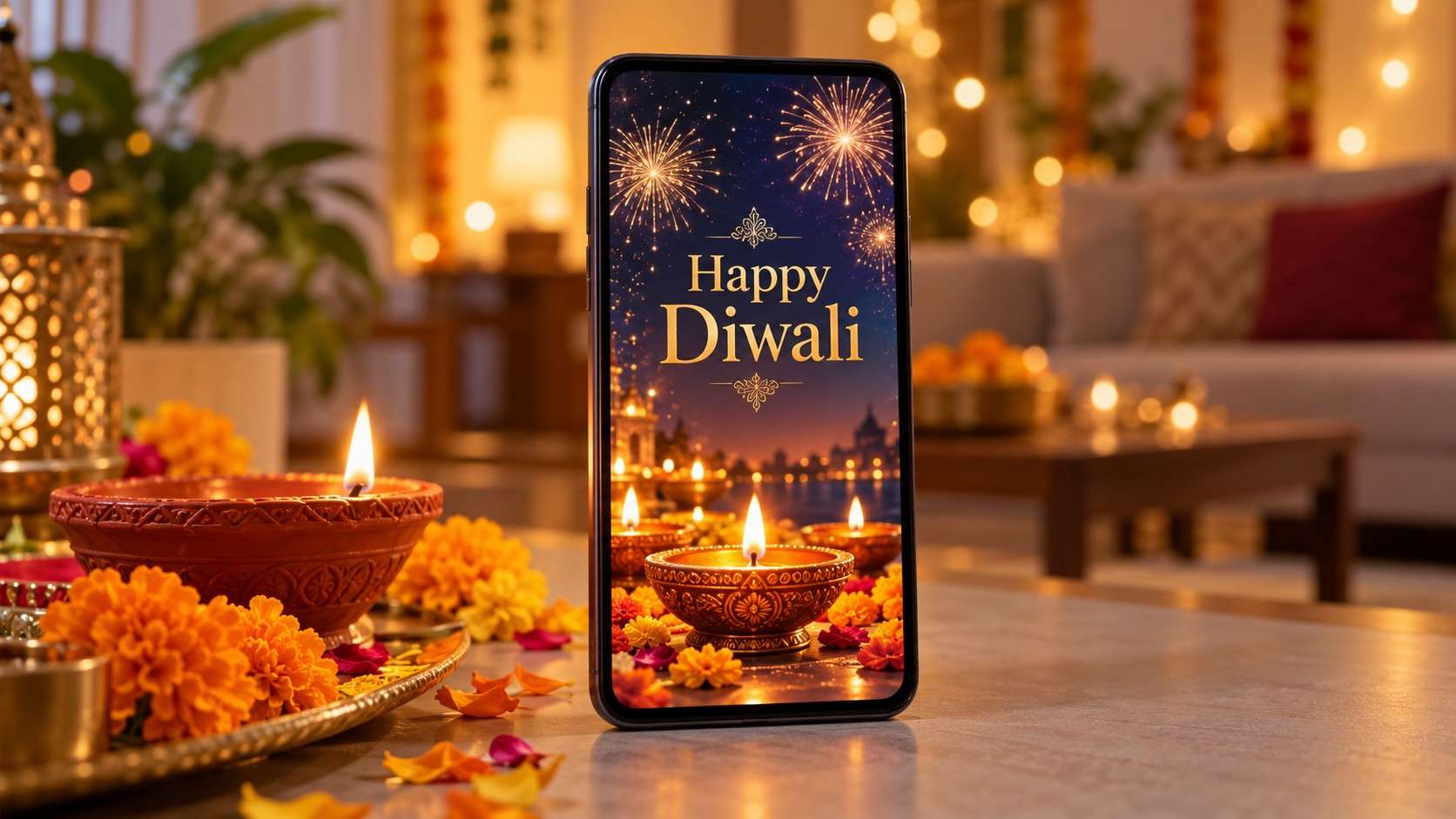
Illustrative phone composition, not a WhatsApp screenshot. Keep the message well inside the edges.
Before posting your short Diwali greeting:
- Check duration in the current app. WhatsApp's current iPhone help lists video statuses up to 90 seconds; follow the current guidance and trimming controls on your device.
- Read it at phone size. Keep the greeting large, high-contrast, and clear of the top and bottom edges where interface elements may overlap it. If fireworks compete with the words, choose a calmer background.
- Listen to the actual file. Preview music may differ from the downloaded audio, and stock footage may be silent.
- Check music rights. A search for “Diwali songs for status” does not establish permission to reuse a recording. Confirm the source's terms or use available in-app music under its applicable conditions.
- Test the upload as well as playback. A file that opens on your phone can still encounter an upload problem. Check the audience before posting, then review the result for clipped text, missing sound, or reduced quality.
On iPhone, the official WhatsApp instructions use Updates → Add status, followed by video selection, trimming, audience selection, and sending. Controls vary by platform. WhatsApp also warns that Status media quality may be lower than the original, so a 4K source does not establish 4K delivery.
Animated Diwali Videos and HD/4K Greetings: What Changes?
Animation describes the content; HD and 4K describe frame size. An animated greeting can be HD or 4K, and a 4K video can simply show a real diya with no message or animation.
Choose HD when it provides enough detail for the intended phone or display. Retain a 4K master when you need a large-screen version or room to crop. Inspect the text at the final viewing size: tiny lettering remains hard to read even in a high-resolution file.
For editable projects, check the actual export conditions. Canva's current help lists 1080p as the default MP4 quality for free accounts and describes paid-plan conditions for changing output quality. Do not assume that a template preview or a “4K” search result gives you a free 4K export.
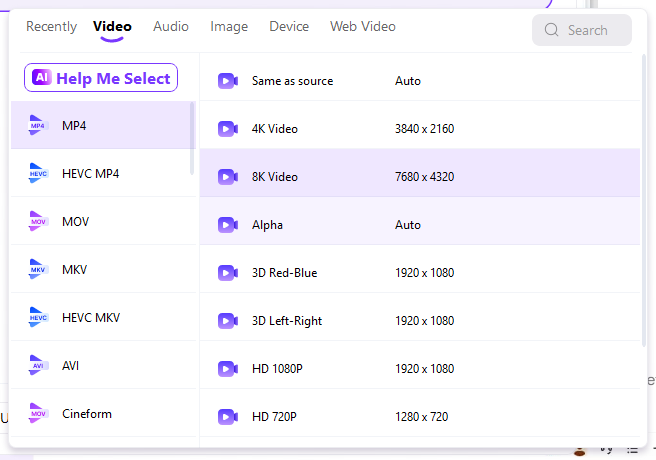
A format menu example. Increasing frame size does not recover missing source detail or create a vertical composition.
Convert and Compress Diwali Videos with UniConverter
Once you have a licensed local video, use UniConverter when its format or size creates a practical problem. If it already plays and shares correctly, keep that copy. The following workflow uses the Windows interface.
Prepare your Diwali greeting for sharing
Use local conversion for a compatible delivery file, or compression when you need a smaller copy. Keep the original and check the result before sharing.
Explore UniConverter MP4 ConversionStep 1. Import the downloaded clip
Open Converter and choose Add Files or Add Folder, or drag your video into the workspace. Confirm that the file is the actual greeting you want to send, not its preview or a different download.
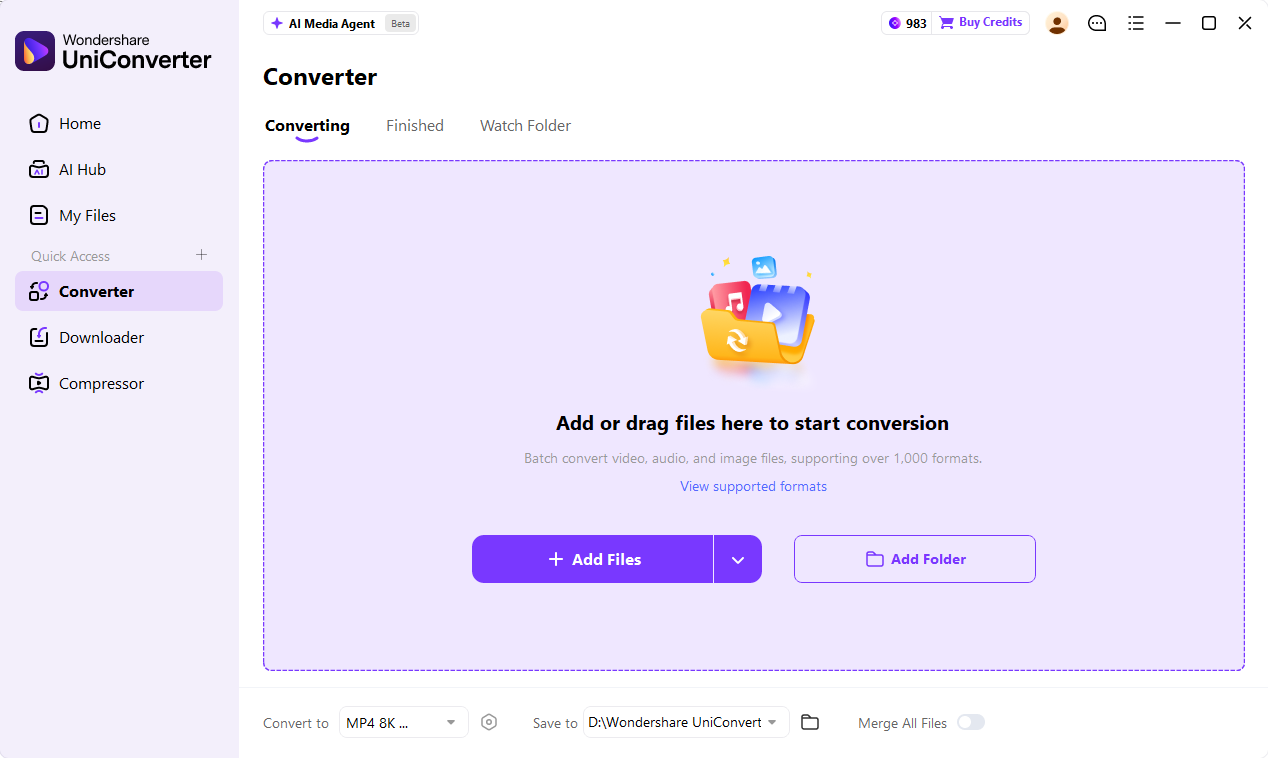
Official interface example using sample media. The source file remains your downloaded Diwali video.
Step 2. Choose a suitable output
Use Convert to to select an MP4 output and an appropriate available resolution, as in the format menu example above. Open the settings control for available video and audio options. MP4 with H.264 video and AAC audio is a useful general compatibility candidate; check the destination and test the file.
Step 3. Convert and inspect the result
Confirm your output settings, select Convert All, and find the saved output in Finished. Check wording, orientation, duration, sound, and playback. Keep the original until the new copy has passed your sharing test. The official conversion guide covers these controls; the MP4 format explanation explains why the container and codec are different properties.
Step 4. Compress only if needed
Open Compressor, add the local clip, and open Compression Settings. Choose an available goal such as Size Ratio, Max. File Size, or Quality Level. Use Preview, confirm with Apply, then choose Save to and Compress All.
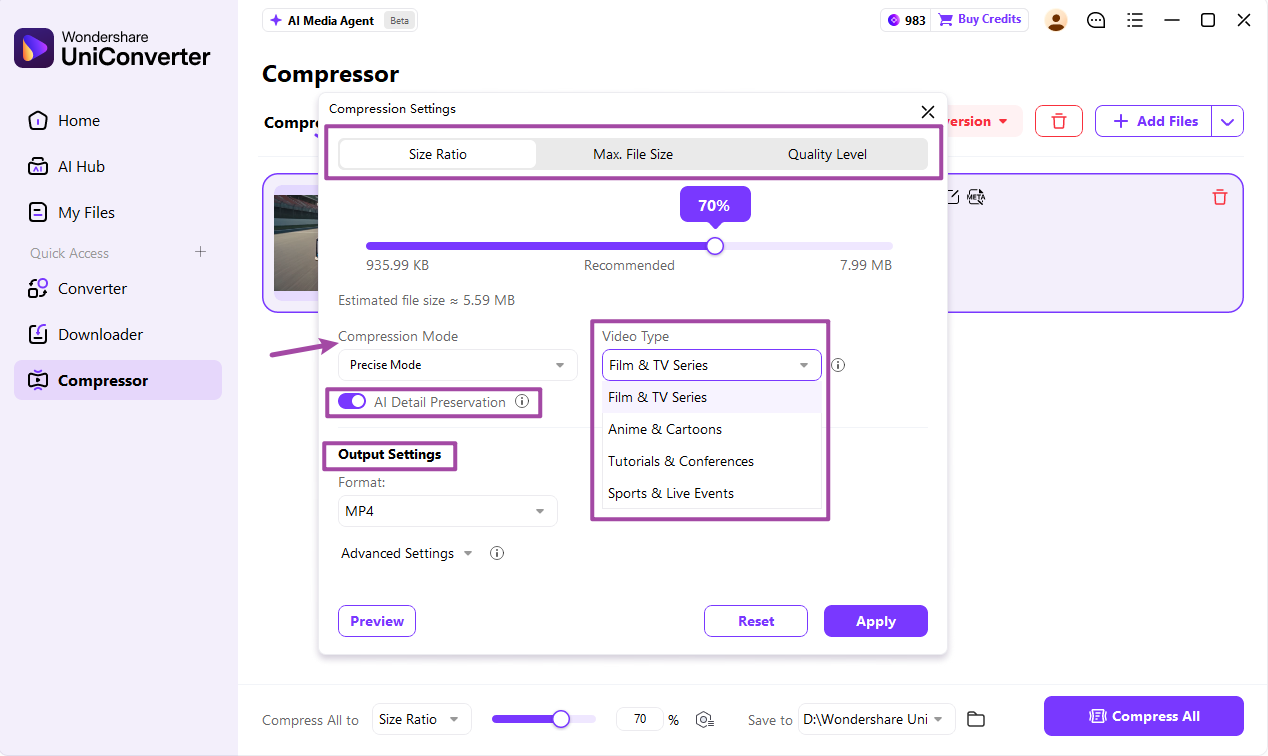
Official compression interface. Choose settings for your file rather than copying sample values.
Inspect candle flames, rangoli detail, gradients, and fine greeting text after compression. These can become smeared or blocky if you reduce the file too aggressively. Compare actual output size and picture quality, then test the result in the intended app. See the compression guide for the current workflow.
If upload still fails: check the app's message, the file's playback, and the connection before reducing quality again. If the source copy is damaged, return to the original provider and save a new copy.
Explore UniConverter video compression when a smaller sharing copy is the remaining task.
Before You Send: A Final Phone Check
Open the exact file you plan to share, rather than relying on the editor's preview:
- Read the greeting from beginning to end, including any name or year.
- Listen for unexpected music, silence, or an abrupt ending.
- Confirm that the important text survives the final framing.
- Test the upload and check the intended audience.
- Keep the original and its source information beside the sharing copy.
Do this before you need to send the greeting. A quick test gives you time to fix the file or choose another clip without rushing through the message itself.
FAQs About Happy Diwali Video Download
-
Where can I download Happy Diwali videos for free?
Start with Pexels and Pixabay for free Diwali footage and greeting candidates. Canva offers editable Diwali templates, but you need to export a completed design and check for premium elements. For ready-made greetings, inspect the actual wording, year, music, and saving options rather than assuming every search result is a finished free video.
-
How can I download Diwali greeting videos?
Open an individual greeting or asset page, preview the complete video, and review its available download and license. Save the offered file and play it before sharing. If you are using an editable template, personalize it and export the finished project. A preview, a thumbnail, and an editable design link are different deliverables.
-
Where can I find animated Diwali videos?
Look through Pixabay's Diwali results for animated assets and Canva's Diwali collections for editable animated greeting candidates. Check the preview rather than relying only on the search term. Some listings are ordinary live-action footage, and a still greeting image is not a video. Confirm the available output and asset terms before saving.
-
How do I download a Diwali video for WhatsApp Status?
Choose a suitable licensed video from its original source, save it to your device, and select it through WhatsApp's status controls. Preview the wording, framing, audio, duration, and audience before sending. A vertical composition is useful for phone viewing, but current app requirements and the final upload test determine whether it works.
-
Can I download Happy Diwali videos in HD or 4K?
Some individual Pexels and Pixabay assets provide HD or 4K options; others do not. Check the actual download choices and saved resolution. Template export quality also depends on the editor and plan. Keep a high-quality original for editing, then make a suitable sharing copy instead of assuming every platform will preserve 4K.
-
Are free Diwali videos safe to use in commercial projects?
Some are licensed for commercial use, but “free” alone is insufficient. Pexels and Pixabay publish licenses with conditions, and template assets or music can have separate restrictions. Check the source, identifiable people or brands, audio, and intended use. Keep the download and license information for the specific assets you choose.
-
How can I convert a downloaded Diwali video to MP4?
Import the local video into UniConverter's Converter, select an appropriate MP4 output through Convert to, adjust available settings, and run Convert All. Review the output in Finished and test it on the destination device or app. Preserve the original framing and keep the source file; changing a filename extension does not convert it.
-
How can I compress a Diwali video for sharing?
Add the local file to UniConverter's Compressor, choose an available compression goal, preview the result, and run compression. Check the actual output size and inspect text, flames, and dark backgrounds for visible damage. If the file already shares correctly, further compression may offer little benefit and can reduce quality unnecessarily.
Find a Greeting Worth Sending
A useful Happy Diwali video download starts with choosing the right thing: footage for an edit, a finished greeting to send, or a template to personalize. Preview the words and music, save the file, and test it on the screen that matters. Use UniConverter for supported-link downloading or to convert and compress a sharing copy when needed. Then send your wishes and get back to the celebrations.