

Updated October 15, 2026 · Covers UniConverter V18.0.0 for Windows and macOS. Release availability can vary during rollout.
What Is Wondershare UniConverter?
UniConverter, formerly Wondershare Video Converter Ultimate, is desktop software for handling the practical work around media files: making a video compatible with a device, reducing a file to an upload limit, improving a soft image, cleaning a recording, or preparing a batch of clips for delivery.
Its main benefit is the range of related tools available in one application. For example, you can record a tutorial, clean its audio, create subtitles, and convert or compress the finished file. These are separate tools you can use in sequence; they do not imply that every task runs as one automatic pipeline.
| At a glance | What to know |
|---|---|
| Product | Wondershare UniConverter |
| Current major version | UniConverter 18; this guide covers V18.0.0 |
| Desktop platforms | Windows and macOS, with feature-specific system requirements |
| Media types | Video, audio, images, subtitles, and supporting text workflows |
| Main strengths | Format conversion, batch processing, compression, AI enhancement, and media cleanup |
| Access model | Free download with trial limits; paid desktop plans and AI Credits for eligible operations |
| Online option | Selected browser tools are available separately; their limits differ from the desktop application |
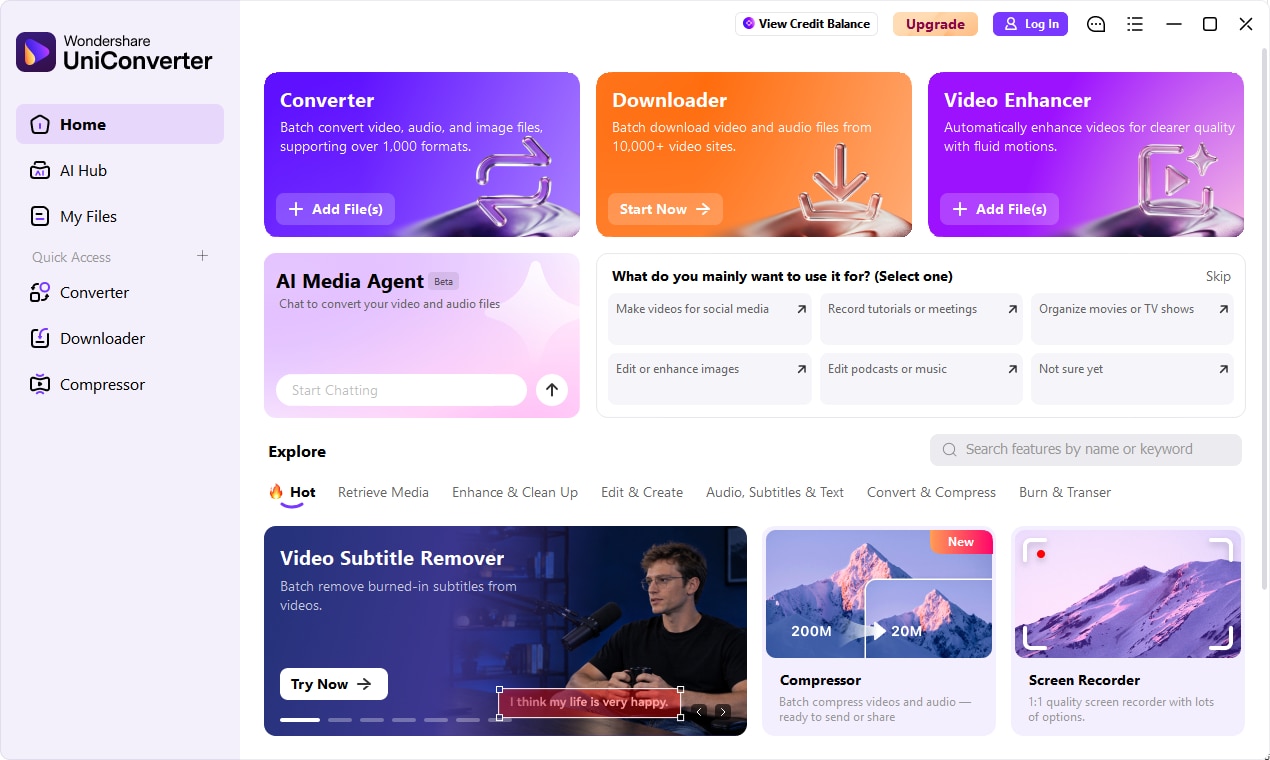
Choose UniConverter when you need several media tasks in one place, especially repeated conversion and preparation work. For complex multitrack storytelling, advanced compositing, or a full production timeline, a dedicated video editor may still be useful alongside it.
What Is New in UniConverter 18?
UniConverter 18 focuses on more controllable output, less repetitive batch work, and improved AI cleanup. Its new capabilities sit alongside the conversion, compression, recording, editing, and AI tools already available in the product.
- Audio Passthrough: copy compatible original audio streams into the output without re-encoding them.
- Watch Folder: apply a saved conversion rule automatically to new files arriving in a monitored folder.
- Compression controls: choose Size Ratio, Max File Size, or Quality Level, and preserve subtitle and audio tracks in supported output formats.
- Conversion performance: updated NVIDIA processing on Windows and HDR processing on Windows and Mac; Windows also gains CPU usage control.
- Video cleanup: remove burned-in subtitles more selectively, process longer videos with Ultra erasing, and use upgraded moving-object processing.
- AI enhancements: more stable face enhancement, faster Quality Enhancement Ultra processing at selected scales, and bidirectional object tracking in Video Blur.
- AI Media Agent: describe conversion goals or rules in natural language for a batch of local media files.
AI Auto Fix, Photo Straightener, Image Eraser AI Brush, and the initial Video Blur module were introduced in V17.6 and are included in V18. They should not all be described as brand-new V18 features. See the UniConverter 18 release page for the version overview and the update record below for the distinction between new and improved capabilities.
Supported Platforms and System Requirements
UniConverter has separate Windows and Mac desktop versions. The application's basic installation requirements are lower than the requirements of some AI tools. Check both before downloading.
| Requirement | Windows | Mac |
|---|---|---|
| Base operating system listing | Windows 11, 10, 8, 7, and Vista | macOS 10.13 or later, including macOS 26 Tahoe |
| Processor | CPU above 1 GHz | Intel processor or Apple silicon; native Apple silicon support |
| Memory | 4 GB minimum; 8 GB or more recommended | 4 GB minimum; 8 GB or more recommended |
| Free disk space | At least 2 GB | At least 2 GB |
| Video Enhancer, Video Eraser, Image Eraser | Windows 10 or later | macOS 10.15 or later |
| AI Video Blur | Windows 8 or later | macOS 12 or later |
| AI Media Agent | Windows 10 or later | macOS 13.5 or later |
The base OS list does not mean every V18 tool runs on every listed system. Allow additional storage for source files, exports, temporary files, and any required models. AI processing and high-resolution conversion also depend on the selected model, codec, graphics hardware, and drivers.
Use the UniConverter for Windows product page or UniConverter for Mac product page to select an installer. The UniConverter technical specifications provide the detailed format and device tables. GPU support for ordinary conversion is not the same as GPU eligibility for a particular local AI model.
Linux does not have a UniConverter desktop edition. Browser tools offer selected tasks without a desktop installation; this does not make the full V18 toolkit a Linux, Android, or iOS application.
Complete UniConverter Feature List
The following inventory covers the main tools and grouped capabilities available across UniConverter's desktop toolkit. Some entries are tasks within a larger module rather than separate applications. OS support, output formats, and license or credit requirements still apply.
Conversion and delivery
| Tool or capability | What it does |
|---|---|
| Video and audio Converter | Convert media to compatible formats and presets; extract audio; adjust output parameters. V18 adds audio passthrough and Watch Folder. |
| Video and audio Compressor | Reduce file size individually or in batches, with controls for size ratio, maximum size, and quality. |
| Image Converter | Batch-convert still images and adjust dimensions. Input and output support differ by platform. |
| Edit Media Metadata | Search, add, and edit supported movie, television, music, audiobook, and home-video metadata. |
| AI Media Agent | Interpret goals and rules, then plan and run supported local video/audio conversion tasks. |
Video creation, capture, and organization
| Tool or capability | What it does |
|---|---|
| Downloader | Save supported online video, audio, thumbnails, playlists, and channel content that you are permitted to download. V18 expands account, chapter, subtitle, and supported HLS workflows. |
| Instagram Downloader | Save supported Instagram media through its dedicated entry where available. |
| Screen Recorder | Capture a screen, application, webcam, or audio; Windows also provides a game-recording mode. |
| Video Editor | Trim, crop, rotate, adjust speed, add effects or watermarks, and make everyday video and audio adjustments. |
| Cutter and Merger | Split video/audio by supported rules or combine clips into one file; chapter-related options depend on the task. |
| Intro & Outro / Add Watermark | Apply repeated opening or closing clips and add text or image branding to supported videos. |
| Player | Preview and play supported media as part of file checking and preparation. |
AI enhancement, cleanup, and privacy
| Tool or capability | What it does |
|---|---|
| AI Video Enhancer | Quality enhancement, upscaling, face and anime enhancement, night-scene tools, denoise, color correction, de-flicker, stabilization, frame interpolation, and Motion Blur tools. |
| AI Image Enhancer | AI Auto Fix, quality and face enhancement, image upscaling, photo repair, colorization, and scene-focused corrections. |
| AI Video Eraser | Watermark, object, and burned-in subtitle removal; fixed-area and moving-object workflows serve different tasks. |
| AI Image Eraser | Remove selected objects, watermarks, text, or background people; use manual selection or AI-assisted selection. |
| AI Video Blur | Detect faces or track a selected object for blur or mosaic effects; V18 adds bidirectional object tracking. |
| AI Video Background Remover | Remove or replace supported video backgrounds without setting up a green screen. |
| AI Image Background Remover / Replacer | Isolate a subject and create a transparent, solid-color, or replacement background. |
Audio, subtitles, and text
| Tool or capability | What it does |
|---|---|
| AI Noise Remover | Reduce unwanted background noise in supported audio and video recordings. |
| AI Vocal Remover | Separate vocals and accompaniment for music preparation, practice, or reuse. |
| Subtitle Editor | Generate, edit, translate, and style subtitles, including bilingual subtitles; translation covers 145 languages. |
| AI Speech-to-Text | Transcribe supported audio or video to editable text, with batch and speaker-related options. |
| AI Text-to-Speech | Create spoken audio from text, using available voices, voice settings, emotion controls, and voice-cloning options. |
| Speech-to-Speech | Convert recorded speech into a different voice using the available voice-conversion options. |
| Smart Summarizer | Create transcripts and summaries from supported video, audio, or YouTube content. |
| AI Script Generator | Draft a video script from a topic or prompt. |
Image creation and supporting utilities
| Tool or capability | What it does |
|---|---|
| Batch Image Editor | Crop, resize, rotate, adjust, convert, and watermark multiple pictures. |
| Image Generator / Thumbnail Maker | Create or transform images using supported prompts, references, and templates; thumbnail tasks are available within Image Generator. |
| GIF Maker | Create GIFs from video clips or images. |
| DVD Burner | Create supported disc outputs and work with DVD, ISO, or DVD-folder tasks. |
| CD Converter / CD Burner | Extract supported audio-CD tracks or create audio discs, with suitable hardware. |
| Transfer / VR Converter | Move supported media to compatible devices or prepare supported VR-oriented output. |
Where did familiar shortcuts go? In V18, Video Stabilization is inside Video Enhancer, TikTok downloading is handled through Downloader, and thumbnail creation is inside Image Generator. These homepage changes do not mean the underlying capabilities were removed. MP3 Cutter is a Mac-specific entry.
How Video, Audio, and Image Capabilities Fit Together
UniConverter's format support spans more than 1,000 video, audio, and image formats and presets across the toolkit. That breadth is not a promise that every individual AI module accepts every format.
| Media type | Typical inputs and outputs | Common tasks |
|---|---|---|
| Video | MP4, MOV, MKV, AVI, and WebM; codec support depends on the container and platform. | Playback compatibility, 4K/8K conversion, compression, cleanup, subtitles, and delivery. |
| Audio | MP3, WAV, M4A, AAC, FLAC, AIFF, and other supported audio formats. | Extract a soundtrack, convert a music library, reduce noise, separate vocals, transcribe, or create narration. |
| Images | Common input types include JPEG, PNG, WebP, BMP, TIFF, HEIC/HEIF, and AVIF; output choices vary by OS and tool. | Batch conversion, resizing, upscaling, restoration, background removal, and image cleanup. |
Video conversion: compatibility, quality, and track preservation
Choose a container and codec for the destination device or platform, then adjust resolution, bitrate, frame rate, and other available settings. UniConverter supports high-resolution media, including 4K/8K conversion and HDR-related processing. Platform-specific capabilities, including Dolby Vision on Mac, should be checked for the intended input and output combination.
V18 Audio Passthrough can preserve supported AC3, E-AC3, TrueHD, DTS, DTS-HD, and FLAC audio streams in compatible output combinations. It requires a compatible container and encoder setup; selecting MP4, MOV, or MKV alone does not guarantee that every audio codec can pass through. Passthrough preserves the audio stream, not necessarily the entire video without re-encoding.
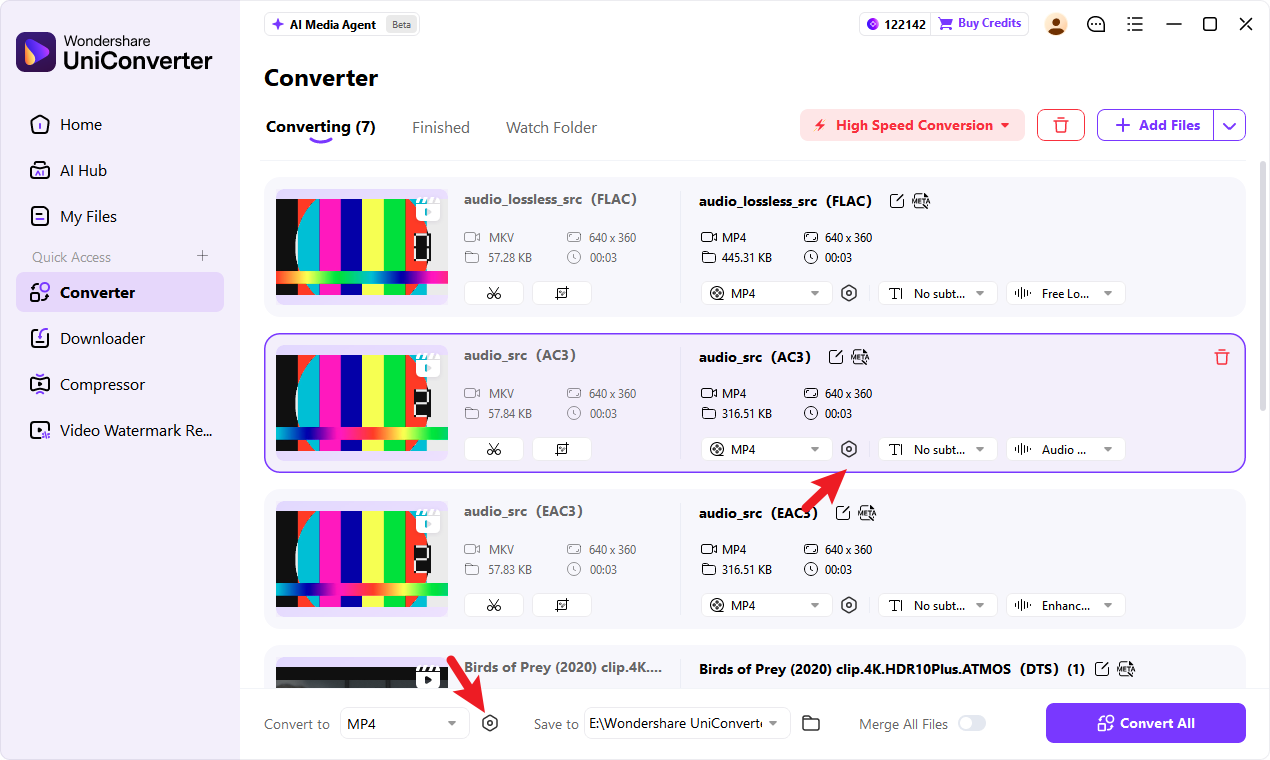
Metadata, chapters, audio tracks, and subtitle tracks can also be retained in supported workflows. These are separate preservation capabilities: keeping metadata is different from changing it in Edit Media Metadata, and keeping an audio track is different from passing its encoded stream through unchanged.
Compression: start with the delivery requirement
| Goal | Use it when | What to check |
|---|---|---|
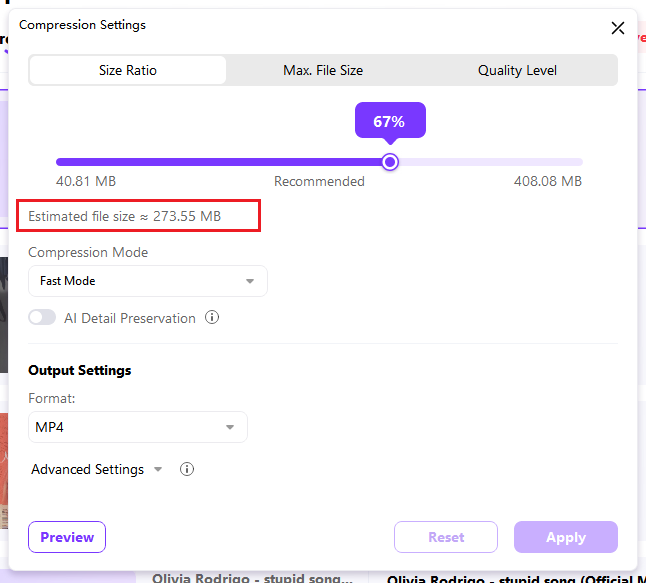
| Size Ratio | You want a smaller proportion of the original file size. | Whether the result remains clear enough for the intended viewing size. |
| Max File Size | An upload form or delivery service specifies a size limit. | The exported size; estimates can differ from the final result. |
| Quality Level | You want to prioritize visual quality rather than a precise size. | In V18, this option supports MP4 output. |
Fast and Precise modes offer different processing approaches. AI Detail Protection allocates more encoding resources to important regions, but it is a conditional option: V18 requires H.264 with CPU processing and compatible size-oriented settings. It is not available for every codec or mode. Subtitle and multiple-audio-track preservation likewise depends on output support.
Audio and image preparation
For audio, use audio conversion when the main issue is format compatibility, Noise Remover for unwanted background sound, and Vocal Remover to separate a performance from its backing track. Speech-to-Text, Text-to-Speech, and subtitle tools address language and accessibility tasks.
For images, use Image Converter or Batch Image Editor for routine file preparation. Use Image Enhancer when the problem is softness, noise, faded color, damaged photos, or insufficient resolution. Converting a JPEG to PNG changes its file format; it does not automatically restore missing detail.
AI Enhancement: Video Quality, Photo Restoration, and Cleanup
AI enhancement improves how media looks or sounds; conversion changes how it is encoded or packaged. Choose the enhancement tool for the specific issue, preview a representative sample, and then process the full batch.
Video enhancement models and specialist tools
| Mode or tool | Main purpose | Practical selection advice |
|---|---|---|
| Quality Enhancement — Standard | General quality improvement with an emphasis on essential processing. | Start here for routine improvements before choosing a generative option. |
| Quality Enhancement — Ultra (Gen AI) | Generative detail reconstruction with a natural-looking result as its goal. | Check textures, faces, and fine text in the preview. V18 improves processing performance at 1× and 2×. |
| Quality Enhancement — Topaz Ultra (Gen AI) | A premium enhancement option emphasizing sharpness and detail. | Compare the preview and credit estimate for your footage; this is a mode within UniConverter, not the standalone Topaz application. |
| Face, Anime, and Night Scene Enhancement | Models aimed at particular subject matter or capture conditions. | Choose based on what is wrong with the source rather than selecting a model solely by its name. |
| General Video Denoise, Color Enhancement, and Video De-flicker | Target noise, color, or temporal brightness problems. | Use representative difficult scenes to judge whether the correction helps. |
| Video Stabilization and Frame Interpolation | Address camera shake and motion continuity respectively. | Check framing and motion artifacts; available settings depend on the selected tool. |
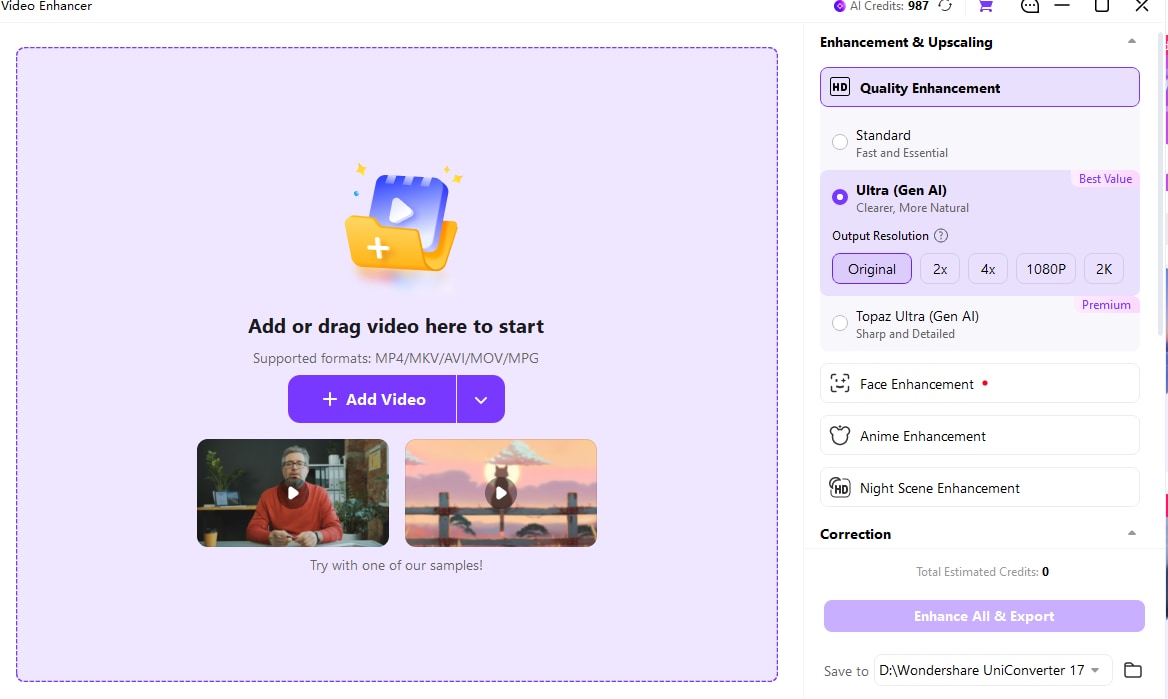
Output size is a separate choice. Depending on the model, the interface provides original-size output, scaling factors, or target resolutions. A 4× setting describes a scale factor; it does not guarantee a fixed 4K or 8K output for every source. V18 also improves face-detail stability in soft or partially occluded footage.
Face Enhancement Ultra uses cloud processing and supports inputs up to 1080p, 60 fps, and two hours under the documented release limits. The local Face Enhancement Standard option on Windows has separate hardware requirements, including an eligible NVIDIA RTX 30-series or later GPU and GPU acceleration enabled.
Image enhancement and old-photo restoration
AI Auto Fix analyzes an image and applies a tailored correction. For more control, Image Enhancer provides Gentle and Detail (GenAI) quality modes, Face Enhancer, Image Upscaler, Advanced Repair, Enhanced Repair, Old Photo Colorizer, and Color Corrector.
Scene-focused tools address blur, text clarity, noise, lighting, glare, cloudy photos, and old-photo restoration. Photo Straightener helps correct tilted photographed or scanned prints. Available upscale factors and output sizes depend on the model and source image.
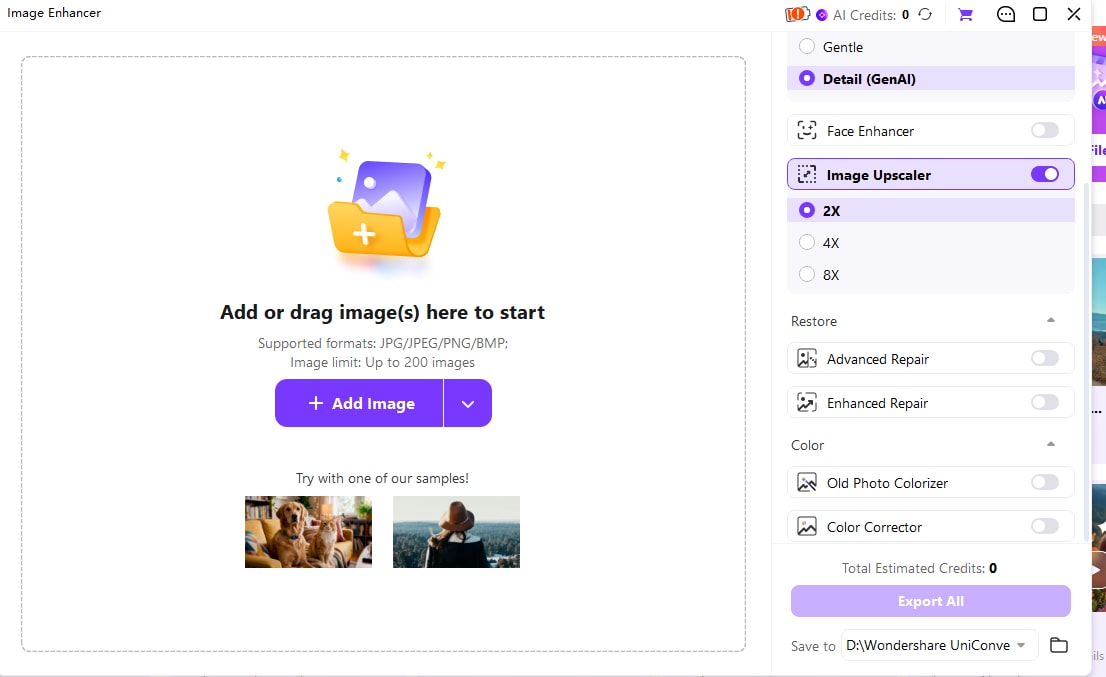
Generative tools can create new visual detail and change texture or color. An enhanced face or restored photograph should therefore be judged as an interpretation of the source, rather than a guaranteed recovery of the original detail.
Content removal and privacy blur
Video Eraser offers fixed-area and moving-object workflows. In V18, Ultra Subtitles mode detects text within the selected region and applies erasing where subtitles appear. It works best for conventional burned-in subtitles in a fixed area, rather than animated or moving text. Ultra supports videos up to two hours at 1080p, with a 60 fps processing limit.
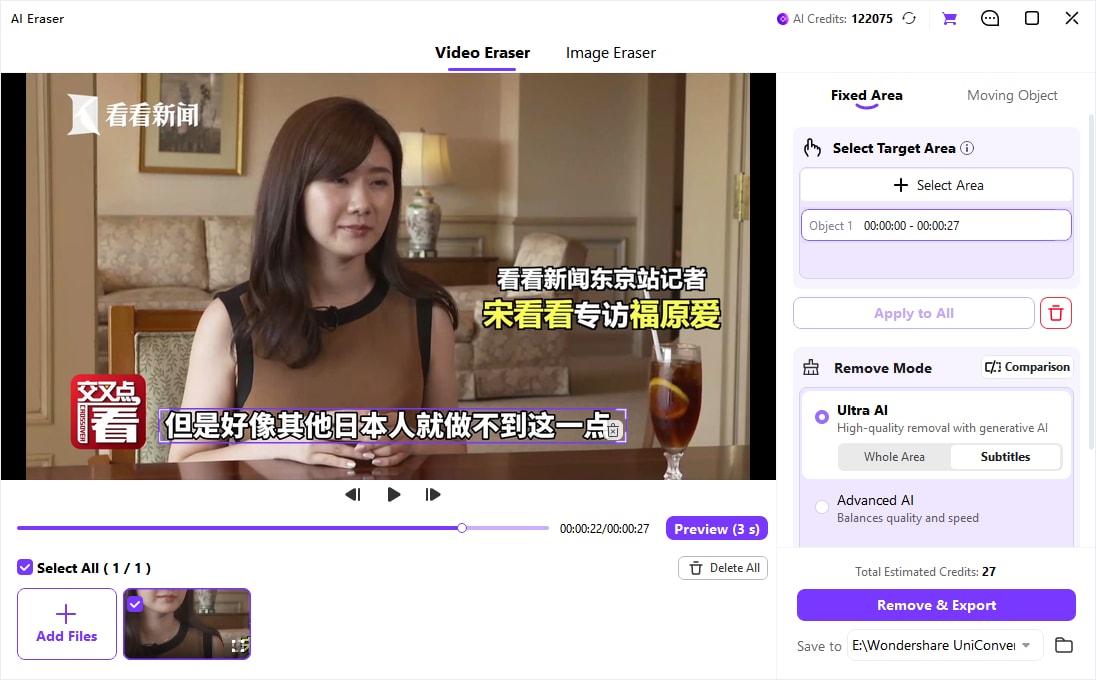
Ultra uses a three-second paid preview, and both preview and export consume AI Credits. For moving objects, use the dedicated moving-object workflow. Image Eraser provides AI-assisted selection, including AI Brush, to reduce the amount of manual outlining.
AI Video Blur serves a different purpose: it obscures a face or object instead of reconstructing what is behind it. V18 can track selected objects both before and after the selected frame. Preview the full clip, especially where a subject turns, disappears, or is occluded, before sharing privacy-sensitive footage.
Batch Processing, Watch Folder, and AI Media Agent
UniConverter offers three different ways to reduce repetitive work: a conventional batch queue, a monitored folder, and a conversational conversion assistant.
| Approach | Best for | How it works |
|---|---|---|
| Batch queue | A known set of files you want to process now. | Import files, configure shared settings, review exceptions, and start the batch. |
| Watch Folder | New files that arrive repeatedly and need the same conversion. | Bind an input folder to an output format, preset, and destination; start monitoring. |
| AI Media Agent | A mixed set of files with a shared goal or conditional rules. | Describe the result in natural language, review the plan, and let the Agent invoke supported conversion tools. |
Batch processing across the toolkit
Batch support extends beyond conversion to compression and selected editing, enhancement, image, and metadata tasks. Limits are tool-specific. The documented Image Enhancer workflow accepts up to 200 images; Edit Media Metadata accepts up to 50 media files; AI Media Agent accepts up to 50 valid files per task. These numbers are not a universal batch limit for UniConverter.
In the V18 Compressor, changing the batch settings applies those settings across the queue. Set the shared options first, then adjust individual exceptions. For mixed source material, review output dimensions, track retention, and final size before processing the full set.
How Watch Folder works
- Open Converter and select the Watch Folder tab.
- Add an input folder and choose the output format, conversion preset, and destination.
- Start monitoring with an eligible account and plan.
- Add new media to the folder; UniConverter detects it and adds it to the conversion queue.
- Review completed and failed jobs, and pause or resume monitoring when needed.
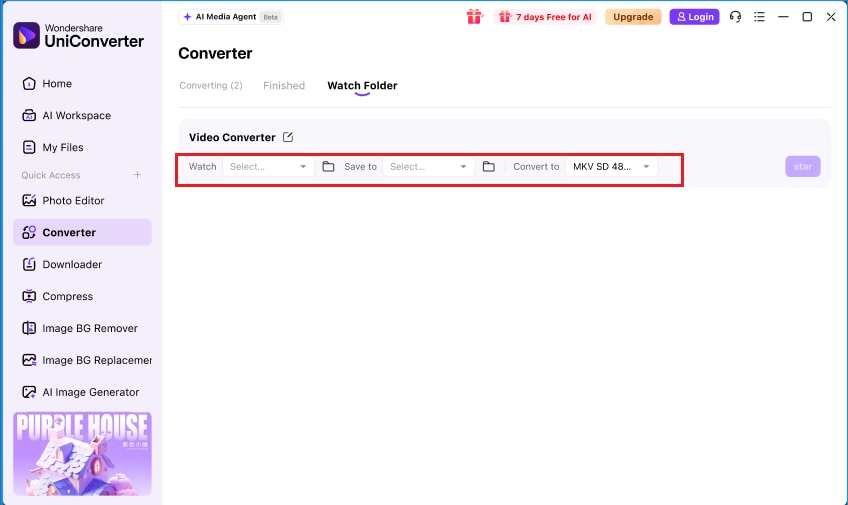
Watch Folder includes duplicate-file protection for the same folder and preset. Changing the preset can cause an existing file to be converted again. It automates conversion; it should not be treated as an unattended chain of every enhancement, editing, and export feature.
What AI Media Agent can do
For example, you can ask: “Convert these videos to MP4 for playback on my phone, and keep each output below 100 MB.” The Agent examines the added media, plans supported conversions, and checks measurable output conditions. Review its plan and the actual exported files.
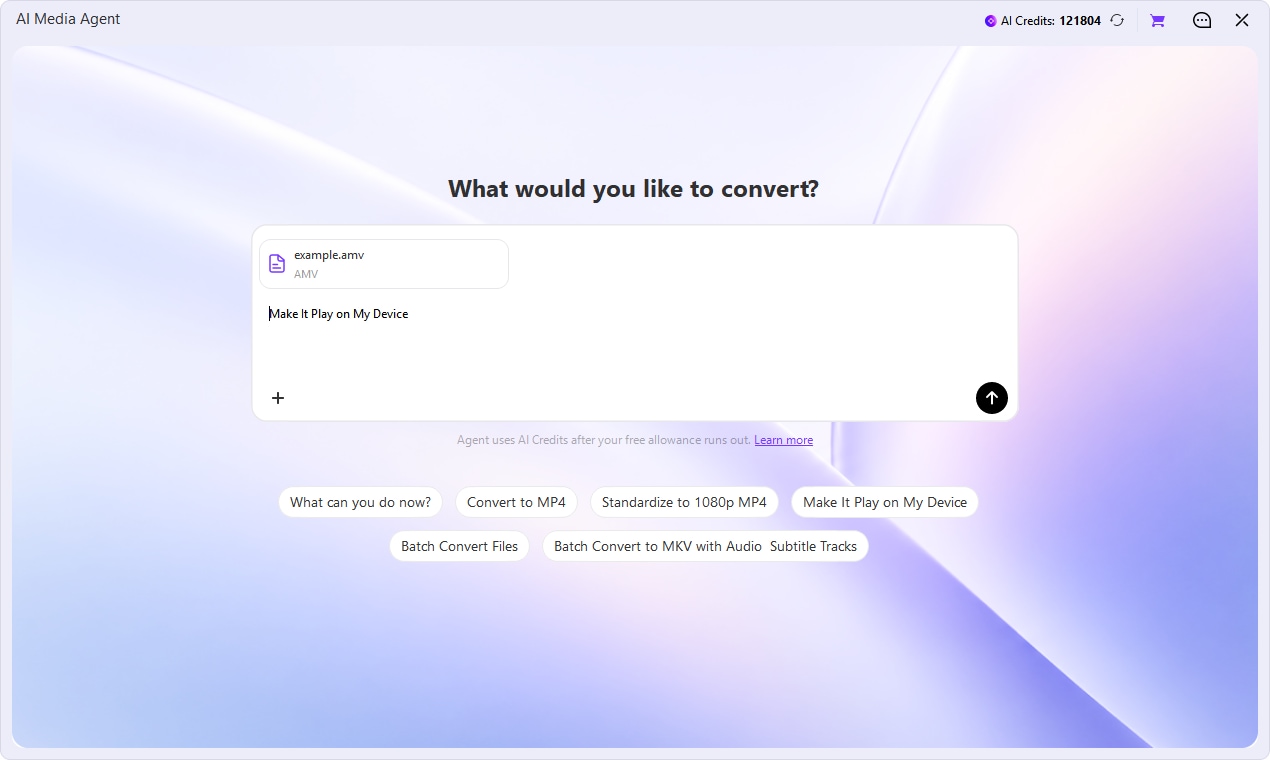
In V18, AI Media Agent supports local video and audio conversion, not a general-purpose autonomous editing service. A folder import scans its top level; image and DVD jobs are outside this initial scope. It requires an internet connection and an eligible signed-in account. Starting a new task or closing the application clears the current conversation rather than preserving a permanent task history.
Agent processing and tool access are billed separately. The documented V18 rule provides an initial 100,000-token allowance, then charges one AI Credit per 50,000 accumulated tokens. One basic-tool file can be processed free; additional files require an eligible UniConverter plan. Check the in-app entitlement and usage display before running a larger task.
UniConverter Online vs. Desktop: Which Should You Use?
Use an online tool for a quick supported browser task; choose desktop for broader file handling, repeated batches, and V18 automation. Online features and desktop features are not interchangeable subscriptions or identical versions of one interface.
| Consideration | UniConverter Online tools | UniConverter Desktop |
|---|---|---|
| Setup | Open the relevant tool in a compatible browser. | Install the Windows or Mac application. |
| Scope | Selected conversion, compression, enhancement, and other web tools. | Broader toolkit for conversion, capture, editing, enhancement, organization, discs, and device tasks. |
| Batch and automation | Capabilities and limits vary by web tool. | Tool-specific batch queues, Watch Folder, and AI Media Agent. |
| Formats and file limits | Upload size, format, resolution, and free-use limits are specific to each tool. | Broader local-file handling; individual tools and AI models still have limits. |
| Processing location | Depends on the particular web tool; check its upload and processing information. | A mix of local operations and cloud-backed features. Local conversion and desktop Video Blur differ from cloud generative enhancement. |
| Connectivity | Browser access requires an internet connection. | Some local media tasks run locally; sign-in, online downloads, cloud AI, and Agent functions require connectivity. |
| Payment | Follow the offer shown in the web tool. | Desktop license terms and AI Credits apply to eligible operations. |
For a single compatibility task, start with the online video, audio, and image converter. For repeated delivery work, large local libraries, Watch Folder, or a broader set of AI models, use desktop. Do not assume one online tool's free allowance or upload cap applies to every other tool.
UniConverter vs. Topaz, HitPaw, VideoProc, and HandBrake
The right choice depends on the task. The following is an editorial assessment of suitable use cases based on the products' documented capabilities, not a controlled speed or image-quality benchmark. HitPaw is a product family, so Univd and VikPea are listed separately.
| Product | A suitable use case | What to compare before choosing |
|---|---|---|
| UniConverter 18 | You repeatedly convert, compress, enhance, clean, subtitle, or organize different media types and want these tools in one desktop application. | Check OS-specific tools, output compatibility, AI Credit costs, and whether Watch Folder or AI Media Agent fits the job. |
| Topaz Video / legacy Video AI | Video enhancement is the main job, with emphasis on model selection, restoration, denoise, upscaling, and frame-rate work. | Compare model controls, hardware or cloud requirements, and results on your own clips. A specialized enhancer can complement a broader media toolkit. |
| HitPaw Univd | You want a conversion-focused media tool for common video/audio preparation tasks. | Compare the exact conversion, compression, editing, and format options you need against UniConverter. |
| HitPaw VikPea | You want enhancement and restoration models for portraits, old footage, low light, or generated video. | Evaluate available restoration, stabilization, and frame-interpolation tools. VikPea and Univd are different products; check the license for each. |
| VideoProc Converter AI | You want conversion, compression, recording, downloading, and AI enhancement in a general media application. | Compare acceleration support, AI tools, platform differences, and the output settings required by your work. |
| HandBrake | You want a free, open-source transcoder with encoding presets, queueing, subtitle controls, and quality settings. | A strong option for focused transcoding on Windows, Mac, or Linux; choose another tool when the job specifically needs generative restoration or a broader creation toolkit. |
A practical selection method: test the same short clip in the relevant tools, use comparable output settings, and compare the exported result, processing time, final size, and total cost. Vendor speed multipliers use different baselines and should not be treated as a direct ranking.
UniConverter's Topaz Ultra enhancement mode is also different from buying the standalone Topaz product. Compare the available controls, usage terms, and output results for each route.
UniConverter Pricing, Download, and Free Trial
UniConverter is free to download, but the desktop trial is limited. Full desktop access and AI processing are separate purchasing considerations. The amount you pay depends on the platform, license duration, region, current offer, and AI usage.
| Option | What it covers | What to check |
|---|---|---|
| Free download / trial | A way to test the application and supported sample tasks before buying. | Tool-specific export, duration, file-count, watermark, and AI Credit limits. |
| 1-Year Plan | Desktop access during the subscription, with upgrades during the active subscription. | Renewal price, device/platform coverage, and the AI Credits included in the current offer. |
| Perpetual Plan | Continued use of the purchased V18 version and its V18.x updates. | Future major-version upgrades are not automatically included; check the offered AI Credit allowance. |
| AI Credits / AI plan | Usage allowance for eligible AI operations. | Buying credits alone does not unlock unrestricted core conversion, compression, or download features. |
Current V18 anniversary offer
The official V18 anniversary page lists the following USD offers, checked October 15, 2026. The campaign runs October 15–31, 2026. These are promotional display prices, not a quote for every region or a promise about renewal pricing.
| Plan | Windows offer | Mac offer | Included AI allowance |
|---|---|---|---|
| 1-Year Plan | US$47.49 for one year | US$56.99 for one year | 600 bonus AI Credits |
| Perpetual Plan | US$71.99, one-time | US$77.39, one-time | 1,000 bonus AI Credits |
| 1,000 Credits Pack | US$29.99 per month | US$29.99 per month | 1,000 recurring AI Credits; core desktop features are not included |
Check the checkout for the final currency, taxes, billing terms, and renewal price. After the campaign ends, use the current purchase pages below rather than treating this dated offer as the ongoing price.
See current UniConverter pricing for Windows, current UniConverter pricing for Mac, and the AI Credits options for the payable price and plan inclusions. Check the first billing period, renewal amount, applicable tax, and whether any optional trial renews into a paid add-on. A promotional price should not be assumed to be the renewal price.
How to download and test UniConverter
- Choose the official Windows or Mac download below and install the version offered for your system.
- Open the tool you need and import a representative file.
- Review the selected output settings and any trial or AI Credit notice.
- Run a short test, preview or export as permitted, and inspect the result before processing a full batch.
Free download does not mean unlimited free exports or unlimited AI use. For example, the currently published trial comparison lists video conversion limited to one-third of the source length and compression limited to one file of up to five minutes. The active offer and in-app entitlement screen govern the available trial.
How AI Credits work
Credit consumption varies by feature and may depend on duration, output settings, or the selected model. Review the estimate shown for the operation. In V18, Video Eraser Ultra charges one AI Credit per second for both preview and export; its three-second preview is chargeable. AI Media Agent has a separate processing allowance and requires desktop tool access for additional files, as explained above.
A desktop license, a credit balance, and an optional AI subscription are related but distinct. Check all three when comparing plans. Existing customers can start from the V18 page to review their upgrade options; eligibility depends on the original purchase and plan.
Frequently Asked Questions
-
1. What is Wondershare UniConverter used for?
Wondershare UniConverter is used to convert, compress, enhance, edit, record, and organize video, audio, and images. Its desktop toolkit also includes subtitles, transcription, noise removal, background removal, media cleanup, and supporting utilities. -
2. What is the latest version of UniConverter?
UniConverter 18 is the latest major version covered by this guide, updated October 15, 2026. This article describes V18.0.0. Availability of a particular build can vary by platform, language, and rollout channel. -
3. Is UniConverter free?
UniConverter is free to download with trial limits. Unlimited use of core paid features requires an eligible desktop plan, and selected AI operations consume AI Credits. Online tools have their own free-use conditions. -
4. Does UniConverter work on both Windows and Mac?
Yes. UniConverter has Windows and Mac versions, but some tools have higher OS requirements or platform-specific behavior. AI Media Agent requires Windows 10 or later or macOS 13.5 or later; Video Blur requires Windows 8 or later or macOS 12 or later. -
5. Does UniConverter support Linux?
There is no UniConverter desktop edition for Linux. Selected UniConverter online tools may be used through a compatible browser, subject to the requirements of the individual tool. -
6. Can UniConverter convert 4K and 8K video?
Yes, UniConverter supports 4K and 8K video conversion in compatible workflows. Performance depends on the source, output codec, settings, hardware, and acceleration support. High-resolution conversion support does not mean every AI model accepts 4K or 8K input. -
7. Can UniConverter preserve original audio and subtitles?
V18 Audio Passthrough can retain supported original audio streams without re-encoding when the output container and codec are compatible. Subtitle and multiple-audio-track preservation are also available in supported workflows, but unsupported output formats can require a fallback. -
8. Can I use UniConverter without an internet connection?
Some local media operations can run locally after required setup. Online downloading, cloud AI models, account-related operations, and AI Media Agent require connectivity. Desktop does not mean that every feature processes media offline. -
9. What is the difference between batch conversion and Watch Folder?
Batch conversion processes a set of files you add to a queue. Watch Folder monitors a selected folder and applies a saved conversion preset to new files automatically. Starting Watch Folder requires an eligible account and plan. -
10. Can AI Media Agent edit any type of file automatically?
No. The V18 AI Media Agent focuses on supported local video and audio conversion, with up to 50 valid files per task. It does not provide a general-purpose editor for images, DVDs, or arbitrary media workflows. -
11. Can UniConverter remove burned-in subtitles?
Yes. V18 Video Eraser Ultra includes Subtitles mode, which detects text inside a region you select and erases it where it appears. It is intended for conventional fixed-position subtitles, and results can vary with animation or complex backgrounds. Ultra preview and export use AI Credits. -
12. Is UniConverter better than HandBrake or Topaz?
The better choice depends on the task. HandBrake suits free, focused transcoding. Topaz is a candidate for specialized video enhancement. UniConverter suits people who want conversion, compression, enhancement, cleanup, and related media tools in one application. Compare a sample file rather than relying on a universal ranking. -
13. Does a perpetual UniConverter license include future major versions?
A perpetual license covers continued use of the purchased major version and its included updates, such as V18.x. Future major versions are not automatically included. Subscription and promotional upgrade terms may differ. -
14. Can UniConverter AI restore the exact original details?
AI enhancement can improve perceived clarity, but generative models may create or change details. They cannot guarantee recovery of the exact original information. Compare previews carefully, especially for faces, fine text, and detailed textures.
UniConverter V18 Update Record
This record describes the V18.0.0 launch release covered in this guide. The English SEO-channel rollout is dated October 15, 2026; availability is phased rather than simultaneous across every language and channel.
| Area | V18.0.0 update | Important distinction |
|---|---|---|
| Converter | New audio passthrough and Watch Folder; improved output settings, NVIDIA processing, HDR handling, and Windows CPU controls. | The documented NVIDIA tests show processing-time reductions of up to about 90% versus V17 in selected Windows conversions without effects. Results vary by hardware and settings. |
| Compressor | Reorganized size/quality goals, AI Detail Protection, and supported subtitle/multiple-audio-track retention. | AI Detail Protection requires compatible H.264 CPU settings. File-size estimates are not exact guarantees. |
| Downloader | Authorized YouTube account-content access, chapter splitting, expanded subtitle options, supported M3U8 downloading, and a more accessible Smart Mode switch. | M3U8 support covers compatible accessible on-demand streams; encrypted streams, DRM, live streams, and fMP4 segments are outside this release scope. Subtitle availability and reliability vary. |
| Video Enhancer | Improved face-detail stability and faster Quality Enhancement Ultra processing at 1× and 2×. | Generative face enhancement began in V17.6; the V18 work is a further improvement. |
| Video Eraser | Ultra extends to two-hour 1080p videos; new precise subtitle mode, upgraded moving-object processing, and revised preview billing. | Ultra preview is three seconds and chargeable. Fixed-area subtitle removal does not provide moving-text tracking. |
| Video Blur | Bidirectional object tracking covers frames before and after a selected frame. | The original Video Blur module was added in V17.6. |
| AI Media Agent | New tool for goal- and rule-driven local video/audio conversion. | Requires supported OS versions, connectivity, and eligible account access; up to 50 valid files per task. |
| Home and AI Hub | Task-oriented discovery and updated tool groupings. | Some old homepage shortcuts now lead through their parent module. |
| Image tools carried forward | AI Auto Fix, Photo Straightener, and Image Eraser AI Brush are included. | These were introduced in V17.6, rather than first appearing in V18. |
For version-focused detail, visit what is new in UniConverter 18. For earlier releases, see UniConverter 17 and UniConverter 16. The official version history provides ongoing release information as updates are published.
Try UniConverter with your own media
Start with one file, check the output, and choose the tools that match your next conversion, enhancement, or delivery task.

