UniConverter
AniEraser
Remove unwanted objects instantly.
Try Now
AniSmall
AniSmall - Video Convert & Resize
High-speed video & audio conversion
OPEN

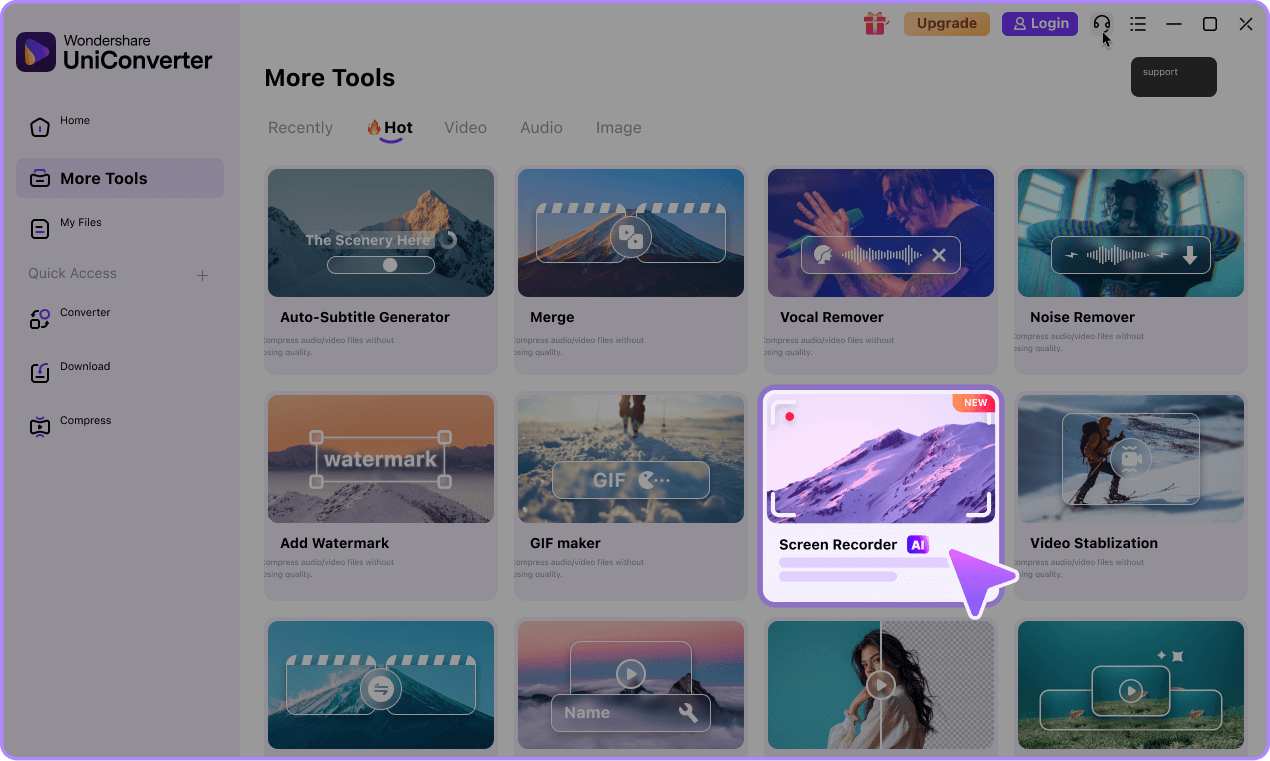
Free Screen Recorder, Pro Quality

Record your screen, meetings, or gameplay up to 4K. Get smoother performance with auto window capture, webcam mirror, and noise reduction.

NEW IN V17
4K Game Recording
Scheduled Recording
AI Noise Reduction
For Windows 11/10/8/7
For macOS 10.13 or later(including macOS 26 Tahoe)
star5 4.9/5 from 1,662 reviews
brand-logo

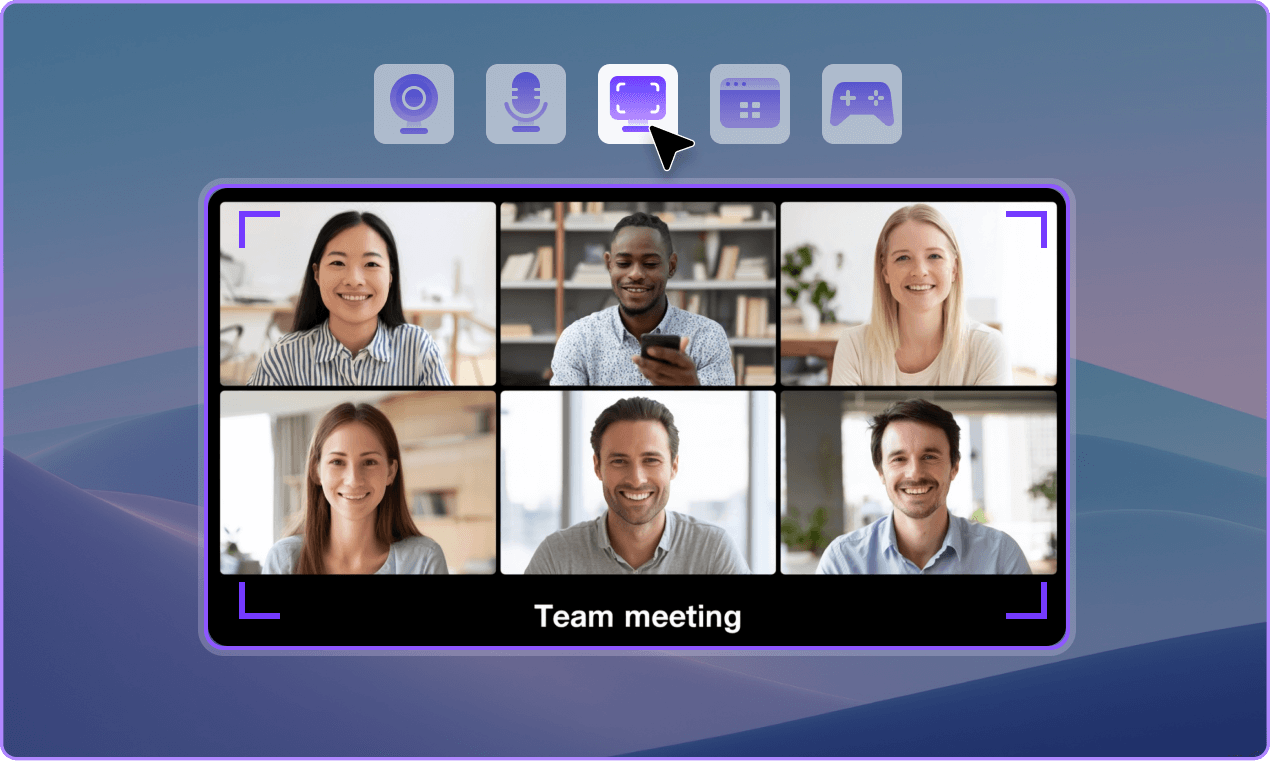
UniConverter Screen Recorder Lets You Record Anything with Ease

Screen Recording
Game Recorder
Application Recorder
Webcam Recorder
Audio Recorder
Picture-in-picture recording

Free Screen Recording Software for Every Creator

Capture your screen, webcam, and audio in high resolution with UniConverter screen recording software — ideal for tutorials, meetings, gameplay, and more.

Seamless HD Recording: Capture every detail smoothly without lag or frame drops.
Flexible Capture Options: Record your screen, webcam, or system audio as needed.
AI Noise Reduction: Deliver clear, professional voiceovers with smart audio enhancement.
Built-in Editing Tools: Trim clips, add annotations, or highlight key moments effortlessly.

The Best Software to Record Gameplay on Windows

Capture gameplay, webcam, and mic at once with UniConverter — the ultimate game recorder. Record, commentate, and share epic moments in smooth, high-quality 4K.

4K Game Capture: Record gameplay in stunning 4K clarity with crisp detail.
Lag-Free Performance: Enjoy smooth recording optimized for gaming, with zero frame drops.
Multi-Source Recording: Capture gameplay, webcam, and microphone at the same time for live reactions.
Direct GPU Capture: Leverage GPU-powered recording for sharper visuals and higher stability.
Creator-Ready Output: Export high-quality clips for walkthroughs, reviews, or highlight reels.

Record One Application While You Keep Working

UniConverter Screen Recording lets you record a specific application window while continuing other tasks. Stay focused, stay flexible — perfect for streaming tabs, meetings, and software demos.

App-Window Recording: Record one specific app while continuing other tasks in the background.
Streaming Capture: Record streaming videos from apps and browsers while multitasking.
Meeting Recording: Record Zoom, Teams, or Skype windows without interrupting your workflow.
Custom Output Settings: Set frame rate, resolution, and format before recording.
Stable Performance: Enjoy smooth, reliable recording with UniConverter screen recording software.

High-Quality Webcam Recording Made Easy

Wondershare UniConverter lets you record video with webcam in high quality. This versatile webcam recorder supports USB and Network IP cameras, making it a great webcam recorder free solution. Combine with screen capture for a full screen recorder with facecam experience.

Original-Quality Webcam Recording: Capture webcam video with full clarity and sharp detail.
Voice Recording: Record voices without quality loss for commentary or narration.
Network & Input Device Support: Record from Network IP cameras and other external input devices.
Facecam & Screen Capture: Combine webcam recording with screen recording for tutorials, gameplay, or presentations.

System & Microphone Audio Recording

Wondershare UniConverter is an audio recorder software that lets you record screen with audio and capture microphone input. This audio recorder and voice recorder delivers high-quality recordings with automatic noise reduction.

System Audio Recording: Capture system sounds clearly for tutorials, games, or media.
Microphone Recording: Capture voices clearly without sacrificing sound quality.
Simultaneous Audio Capture: Record system audio and microphone together.
Automatic Noise Reduction: Automatically reduces background noise for clear, professional recordings.

Picture-in-Picture Video Capture

UniConverter's picture-in-picture recording lets you record your screen and webcam simultaneously with flexible overlay placement. Perfect for tutorials, reactions, gameplay, or presentations, it ensures synchronized capture for a professional look.

Custom Overlay Layout: Drag, resize, and position the webcam overlay freely.
Screen & Webcam Sync: Keep screen and face-cam recordings perfectly aligned.
Preset Layout Templates: Use ready-made PiP templates for quick setup.
Dynamic Frame Switching: Switch webcam size or position during recording.
Transparent Overlay: Enable background removal or overlay transparency.

Advanced Screen Recording Features
to Enhance Your Recording Experience

auto recording scheduler

Auto Recording Scheduler

Never miss an event. Schedule recordings for meetings, lectures, and webinars in advance.

Set exact recording time Auto stop when done Calendar-friendly setup
switch screens while recording

Switch Screens While Recording

Freely switch between monitors during your recording — capture exactly what you need.

Seamless monitor switching No interruption to recording Ideal for multitask workflows
ai noise reduction

AI Noise Reduction

Remove background noise in real time for clean, professional-quality audio.

Real-time noise removal Echo suppression Voice enhancement
mac app audio recording

Mac App Audio Recording

Record only the sound from your selected Mac application for precise, noise-free recordings.

Record audio from the app only Sync audio with video Clear, professional output
draw while recording

Draw While Recording

Add real-time annotations to your screen recordings for clearer explanations and engaging tutorials.

On-screen drawing & highlighting Add text & shapes instantly One-click erase & undo
cursor effects for tutorials

Cursor Effects for Tutorials

Enhance clarity and viewer focus with four professional cursor animations.

Ripple on click Cursor spotlight Highlight clicks
auto recording scheduler

Auto Recording Scheduler

Never miss an event. Schedule recordings for meetings, lectures, and webinars in advance.

Set exact recording time Auto stop when done Calendar-friendly setup
switch screens while recording

Switch Screens While Recording

Freely switch between monitors during your recording — capture exactly what you need.

Seamless monitor switching No interruption to recording Ideal for multitask workflows
ai noise reduction

AI Noise Reduction

Remove background noise in real time for clean, professional-quality audio.

Real-time noise removal Echo suppression Voice enhancement
mac app audio recording

Mac App Audio Recording

Record only the sound from your selected Mac application for precise, noise-free recordings.

Record audio from the app only Sync audio with video Clear, professional output
draw while recording

Draw While Recording

Add real-time annotations to your screen recordings for clearer explanations and engaging tutorials.

On-screen drawing & highlighting Add text & shapes instantly One-click erase & undo
cursor effects for tutorials

Cursor Effects for Tutorials

Enhance clarity and viewer focus with four professional cursor animations.

Ripple on click Cursor spotlight Highlight clicks

Frequently Asked Questions

  • Yes, UniConverter screen recording program for Windows supports ultra-high-definition 4K screen recording at 30fps, 60fps for gaming. The Game Recorder feature ensures smooth, lag-free recording even at maximum quality settings with hardware acceleration.

  • UniConverter's Game Recorder uses hardware acceleration (GPU encoding) to record gameplay without impacting performance. It supports DirectX 8/9/10/11/12 and OpenGL games, ensuring smooth recording even at 4K 60fps without black screens or stuttering.

  • Go to Settings → General→Record Timer, then set your recording start date/time, duration, recording area, and audio sources. UniConverter Screen Recording software will automatically start and stop recording at the specified times, perfect for capturing webinars and meetings when you're away.

  • Yes! As the best screen recording software, UniConverter includes AI-powered microphone noise reduction that automatically removes background noise, keyboard sounds, and echo in real-time. Simply enable it in Audio Settings and adjust the sensitivity level (Low/Medium/High) based on your environment.

  • Yes, UniConverter captures system audio and mic simultaneously for clear meeting recordings.

  • Go to the Webcam Recorder feature and set the webcam overlay in recording settings to capture both screen and webcam feed.

  • Yes, UniConverter Windows and Mac Screen Recorder captures both system audio and microphone input simultaneously, giving you full control over your recording's audio sources.

uniconverter-horizontal-white

Start Recording Professional Videos Today

Join millions of smart creators who capture and edit videos faster with UniConverter

UniConverter AI Video screen-recoder
modal-leave-download modal-leave-download