A ghost drifting behind the window needs different footage from a pumpkin animation filling a garage door. The right Halloween projection video combines a suitable scene, a downloadable file, and settings your player can handle. Here is where to find the clips and how to get them ready.
In this article
Where to Download Free Halloween Projection Videos
Open individual assets from these four sources. Search results can include paid footage and clips that need editing.
| Source | Best starting point | Download and license check |
|---|---|---|
| Pixabay | Ghost animation and atmospheric clips | Use the asset's download option; review the Content License. |
| Mixkit | Pumpkin scenes and spooky backgrounds | Check the available free resolution and whether the Free or Restricted License applies. |
| Vecteezy | Halloween motion graphics and backgrounds | Choose a Free asset. Its Free License requires attribution and includes usage limits. |
| HeavyM | A coordinated pack of 100 projection loops | Email delivery; the current page lists 1080p MOV/H.264 files and availability until November 1. |
Two useful examples: Pixabay's ghost/ghoul clip is described by its contributor as a seamless loop. Mixkit's pumpkin-and-lantern clip offers a free 720p personal-use version, with a separate premium 4K option. Neither listing guarantees compatibility with your player.
How to Download Halloween Projector Videos
Use the library's download button when available
Preview the clip, check its license, choose an available free resolution, and save the file. For an email-delivered pack, follow the provider's delivery instructions. Keep the source and license information with your downloads.
Download a supported video link with UniConverter
Already found an eligible clip online? UniConverter Downloader lets you paste a supported video URL and save it to your computer. Multiple links can be entered one per line, making it useful when you are gathering several Halloween scenes.
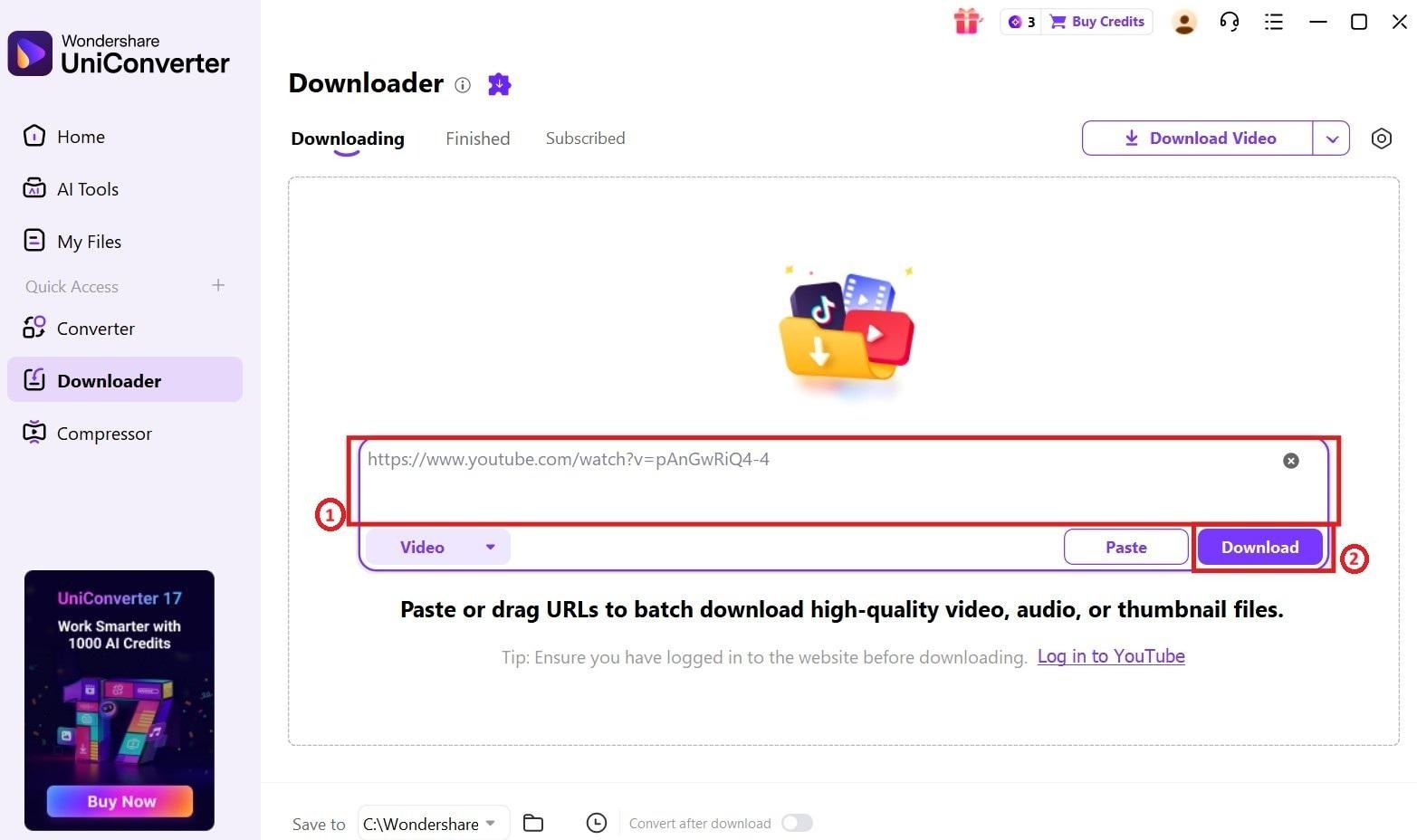
Step 1. Copy the individual video link and open Downloader.
Copy the full URL of a video you are authorized to save. Open UniConverter Desktop and select Downloader from Home or the left navigation. Use an individual video address rather than a search, collection, or checkout page.
Step 2. Paste the link and set the destination.
Paste the URL into the input field and keep Download Video selected. Use Save to to choose a folder you can find later. For a batch, enter one supported URL per line.
Step 3. Start the download and monitor progress.
Click Download, then review the task in Downloading. Check the task status before submitting the same link again. Available download options depend on the source.

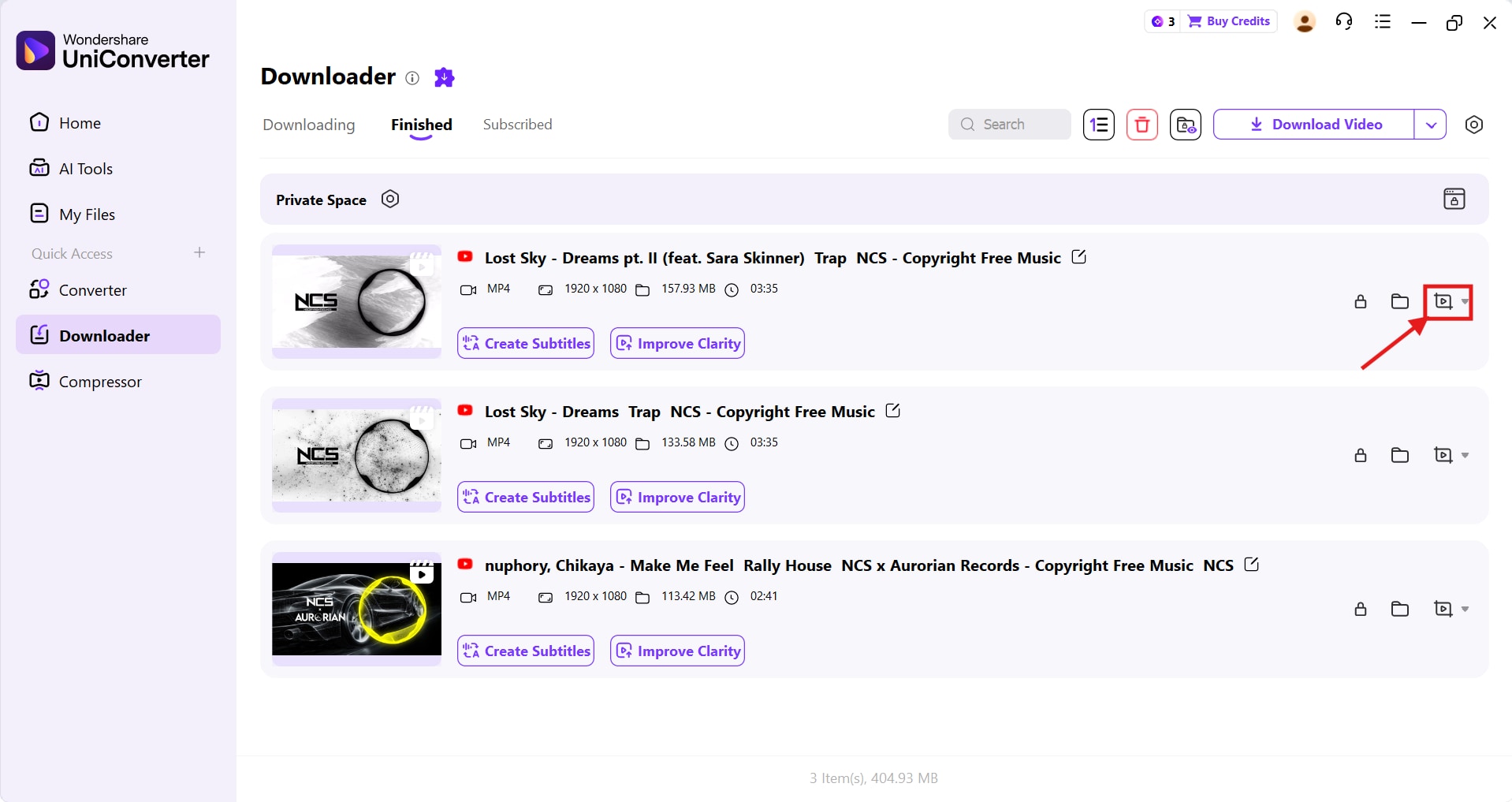
Step 4. Find the saved file and check playback.
Open Finished and locate the local video. Check that it contains the intended scene, complete duration, and expected sound. Then copy it to your playback device or prepare a compatible version.
Optional: convert after downloading
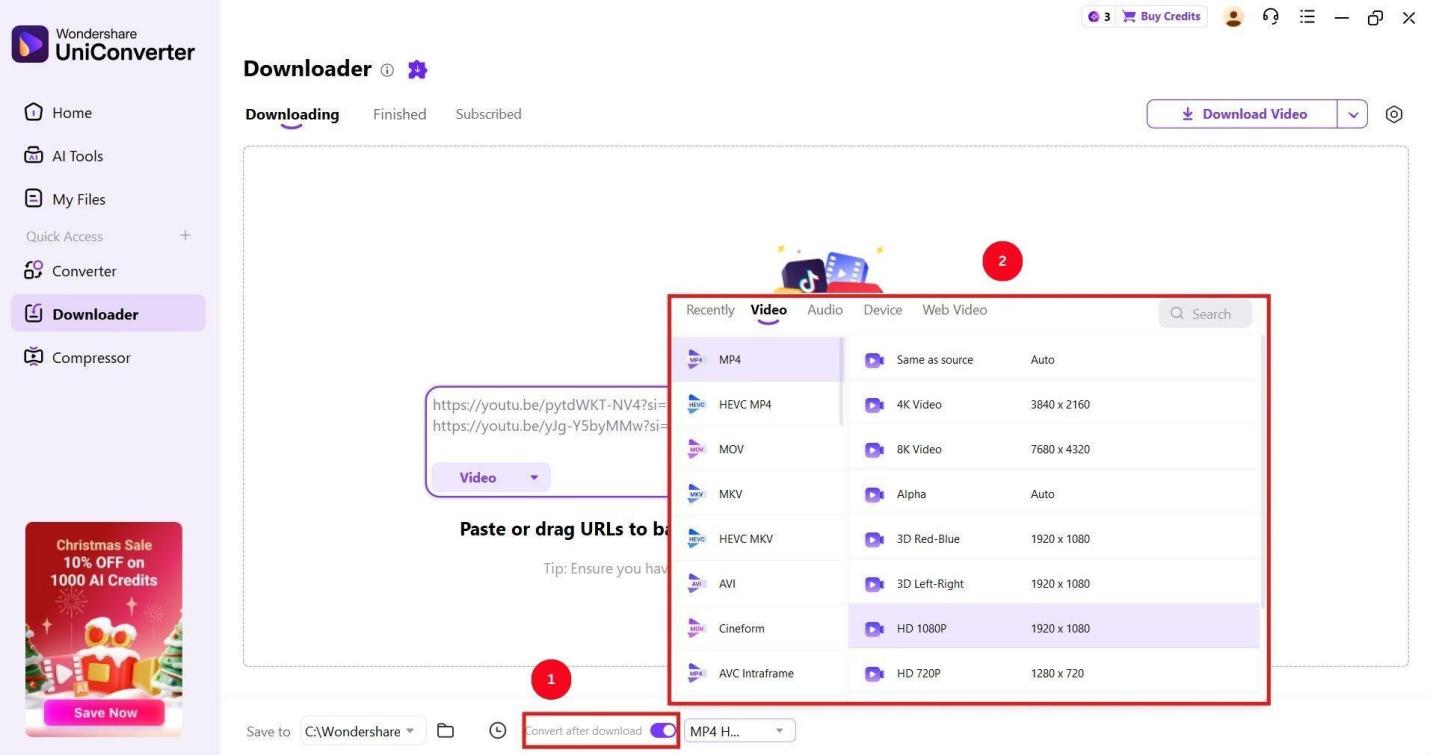
When your player needs another format, enable Convert after download and configure an available output. This connects saving and conversion without making you look for a second application. Choose settings your player supports; keep the original when possible.
Choose Halloween Projector Videos for Your Surface
A Halloween projection video creates a decorative scene on a physical surface. The best choice is the one that stays readable from the audience's position—not necessarily the most detailed clip.
| Display | Look for | Test on location |
|---|---|---|
| Window ghosts and floating spirits | An isolated bright subject on a dark background | Keep the whole figure inside the window; use suitable projection fabric or a scrim. |
| Garage doors and outdoor walls | Large jack-o'-lanterns, skeletons, bats, and bold silhouettes | Check whether ridges, brickwork, or porch lighting obscure the action. |
| Haunted-house windows and doorways | Scenes that can be framed inside each opening | A rectangular movie does not automatically align with the building. |
| Parties and photo backdrops | Fog, candlelight, haunted scenery, or slower seamless backgrounds | Check the repeat point, audience suitability, and audio level. |
| Hologram-style displays | Isolated subjects with an appropriate projection screen or mesh | Test the viewing angle and light spill. The effect is a projection illusion. |
For a window, imagine where the ghost's head and hands will land before downloading. For a garage door, choose shapes you can recognize from the sidewalk. A green-screen clip needs editing first; the projector will otherwise display the green background.
Prepare Your Clips for Projector Playback
1. Match the file to the device playing it
With HDMI playback, the connected laptop or media player decodes the video. With direct USB playback, the projector's built-in player must support the file. A USB socket alone does not confirm movie playback.
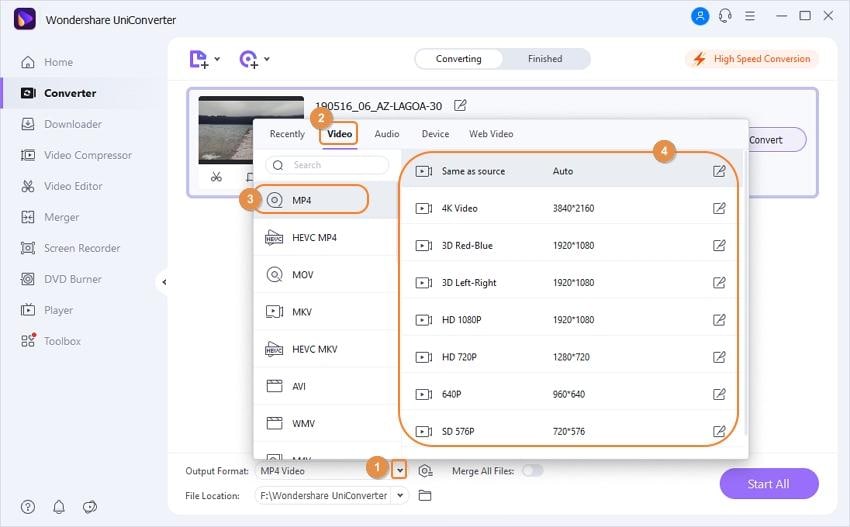
If conversion is necessary, import the local clip into UniConverter's Converter and choose a supported output through Convert to. See the video conversion guide for current controls.
| Setting | Practical starting point |
|---|---|
| Video format | MP4 with H.264 video is a useful compatibility candidate; confirm the exact manual requirements. |
| Audio | Use a supported codec, such as AAC where listed, or play silently if the display needs no sound. |
| Resolution | 1080p for a compatible Full HD setup; 720p may suit lower-resolution playback. Retain 4K when the playback chain supports it or cropping requires it. |
| Frame rate | Keep the source rate within the player's supported limits. |
| Aspect ratio | Preserve proportions. Fit, crop, or mask deliberately instead of stretching the subject. |
Official Epson file-support documentation illustrates why playback limits are model-specific. An MP4 extension alone does not establish compatibility.
2. Compress only when size is a problem
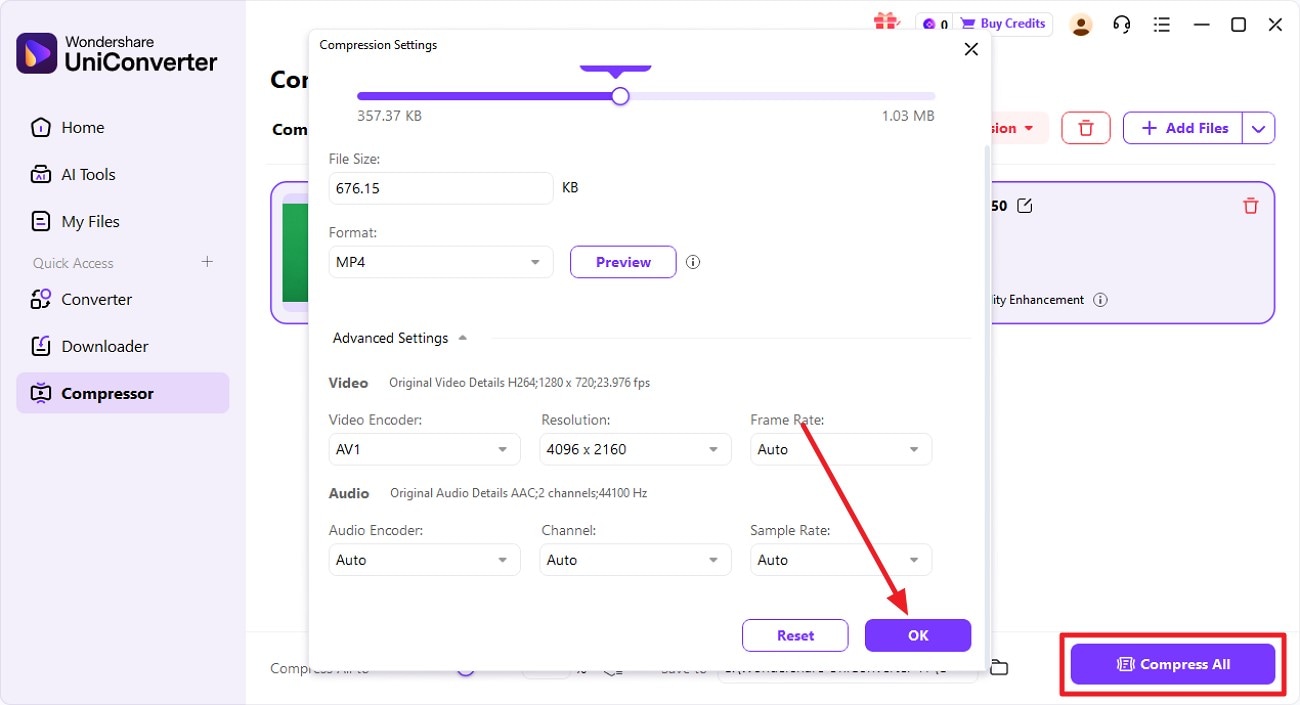
Use UniConverter's video compressor when storage or a documented player limit requires a smaller file. Adjust the available output settings, then inspect the result. Aggressive compression can make dark fog look blocky or turn smooth shadows into visible bands.
3. Check the loop on the actual projection
Enable repeat-one or playlist repeat in your player. Repetition does not remove a jump between mismatched first and last frames. Choose a true loop, or edit the transition before playback; trimming at a keyframe alone does not make it seamless.
Want to add an eerie soundtrack to your projection? Explore our guide to spooky Halloween sounds to download and choose audio that suits your scene.
- Framing: Keep heads, hands, and moving objects within the intended surface.
- Repeat: Watch at least three cycles for pauses, black frames, or obvious cuts.
- Lighting: Check from the audience's position after dark, with the actual porch and room lights.
- Playback: Test the local file, sound, and full sequence on the hardware you will use.
If the picture is distorted, adjust projector placement or its supported image-correction controls. Higher contrast cannot correct the image's geometry. If USB playback remains unreliable, a compatible external player connected through HDMI may be a more practical route.
Projection Loops vs. Regular Halloween Stock Videos
| Question | Purpose-made projection loop | Regular Halloween stock footage |
|---|---|---|
| What is it for? | A repeated decorative scene | An editing component or background |
| Will it loop? | May have a designed repeat point; verify it | Often has an obvious beginning and ending |
| Will it fit the surface? | May offer a suitable layout; still needs alignment | May need fitting, cropping, or mapping |
| What about resolution and rights? | Check the pack's specifications and license | Check the individual asset and free/paid version |
Use purpose-made loops when you want a display you can repeat with minimal editing. Use stock footage when you need raw material to build your own scene. Either can work if the framing, license, and playback settings fit.
FAQs About Free Halloween Projection Videos
-
Where can I download Halloween projection videos for free?
Start with Pixabay, Mixkit, and Vecteezy, then check the individual clip's free download and license. HeavyM currently advertises a seasonal email-delivered loop pack. Availability can change, so confirm it on the source page. A category result may include ordinary stock footage or premium assets alongside free projection candidates.
-
What are the best free Halloween videos for projectors?
Choose by surface: isolated ghosts and silhouettes suit window illusions; large pumpkins and bold animation suit walls and garage doors. Atmospheric loops work behind party displays. Preview the full clip for framing, audience suitability, and its repeat point. A purpose-made loop may save preparation time, but still needs a playback test.
-
Can I use Halloween projection videos on windows and garage doors?
Yes, with suitable framing and a usable projection surface. Windows commonly need projection fabric or a scrim; garage-door texture can affect the picture. Check the result from the audience's position. A video made for a rectangular screen will not automatically line up with separate windows, doors, or architectural features.
-
What resolution is best for Halloween projector videos?
Choose a resolution the playback device supports. Full HD 1080p is a practical starting point for compatible setups, while 720p may suit smaller or lower-resolution displays. Use 4K when the playback chain supports it or you need cropping room. Focus, contrast, ambient light, and surface texture also affect the result.
-
How do I make a Halloween projection video loop?
Enable repeat-one or playlist repeat on the playback device, then inspect several cycles. This repeats the file but does not fix an abrupt transition between the ending and beginning. For smoother playback, choose a purpose-made seamless loop or edit the transition, and check for pauses on the actual player.
-
Which video format works best for a projector?
Follow the projector or external player's manual. MP4 containing H.264 video and AAC audio is a useful candidate where supported. Compatibility also depends on resolution, frame rate, and file limits. For HDMI playback, the connected device handles decoding; for direct USB playback, the projector's built-in player must support the file.
-
Can I use free Halloween projection videos commercially?
Some assets allow commercial use, while others have restrictions. Pixabay uses its Content License; Mixkit distinguishes Free and Restricted video licenses; Vecteezy's Free License requires attribution and has limits. Check the individual asset's current terms for your business display, ticketed event, or published video, and retain the relevant license information.
-
How do I convert a Halloween video to a projector-compatible format?
Import the downloaded file into UniConverter's Converter, choose an output the player supports, and adjust the available video and audio settings. Keep the original and convert a copy. Test the result on the projector before replacing your working file; changing a filename extension does not perform a conversion.
-
How do I download a Halloween video from a link with UniConverter?
Copy an authorized, supported individual video URL, open Downloader in UniConverter Desktop, paste it, and click Download. Locate the result in Finished and test the local file. If the link is unsupported, use the source's official download. Conversion and compression are follow-on options when the saved file needs preparation.
Find the Clip, Save It, and Test the Display
A successful Halloween projection video free download ends with a file that actually works on your setup. Start with a suitable source, check the license, and save the clip. For supported video links, use UniConverter Downloader; convert or compress only when the playback device needs a different delivery file.