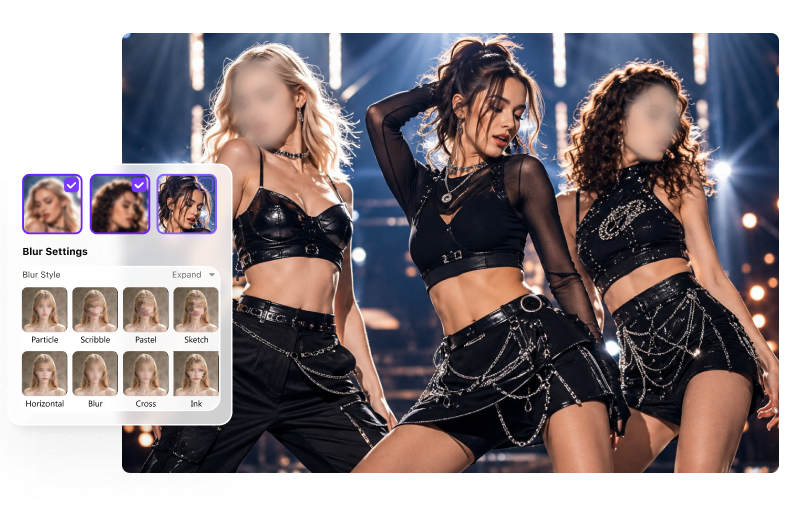
Face Blur
Automatically detect faces and blur selected people or all detected faces.
Handle common privacy and censorship tasks—from face blur and license plate blur to moving-object tracking, video background blur, and sensitive-information masking.
Automatically detect faces and blur selected people or all detected faces.
Select a plate once and let AI keep the blur on it as the vehicle moves.
Keep the subject clear while blurring private or distracting surroundings.
Track and blur selected logos, screens, labels, badges, or other targets.
Use mosaic, pixel, soft blur, or stickers to censor faces and details.
Hide usernames, emails, API keys, addresses, documents, and screen data.
Use AI where it saves the most time, then keep control over which people or details are hidden, how strong the blur looks, and what happens before export.
Import your footage and let AI scan the video for faces. Review detected face thumbnails, select a specific person, or blur every detected face at once.
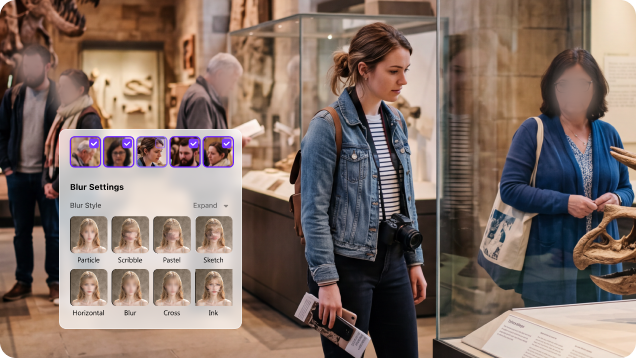
Draw a box around a license plate, logo, screen, username, document, label, address, badge, or another target. UniConverter tracks the selected object and keeps the blur aligned as it moves.
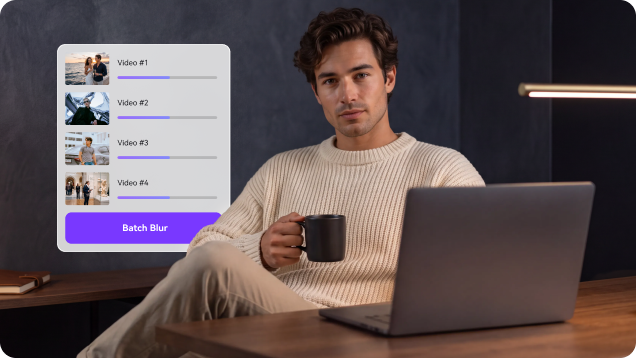
Add several videos, switch between clips to review targets and settings, then process and export them without rebuilding the same workflow from scratch.
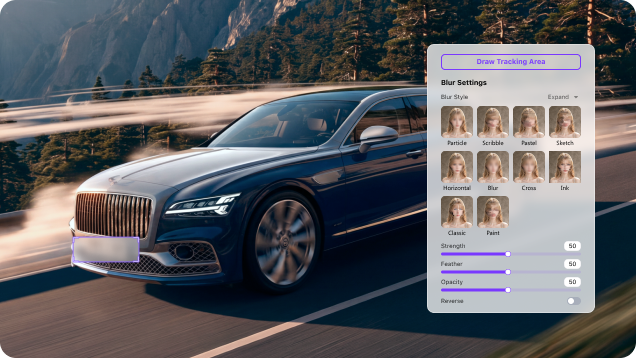
More control than a basic blur filter. Control how strongly each target is hidden and how naturally the blur blends into the frame. Switch between mosaic, soft blur, pixel, and sticker effects, then refine the result before export.
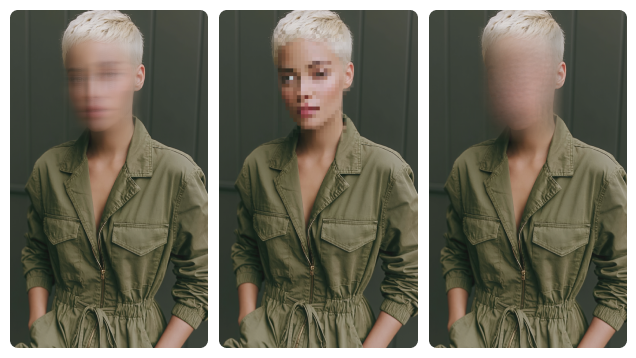
Use AI Video Blur to detect faces automatically or track a selected object, then customize the blur and preview the result before export.

Open AI Video Blur and add one or multiple videos. Select the clip you want to process from the file queue.

Choose detected faces in Face mode, or draw a box around a license plate, logo, screen, label, or other target in Object mode. Then select a blur style and fine-tune the effect.

Preview the tracking and blur coverage. If everything is hidden correctly, choose a save location and export the video or the full batch.
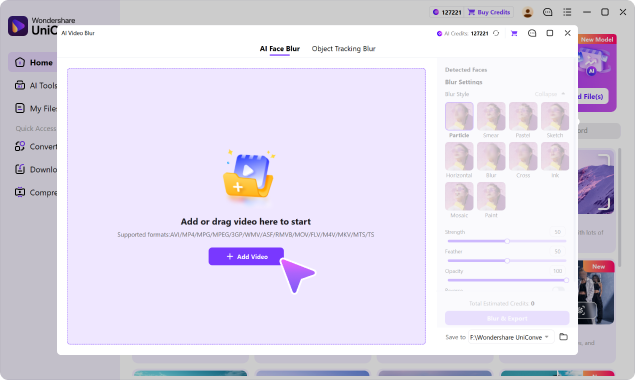
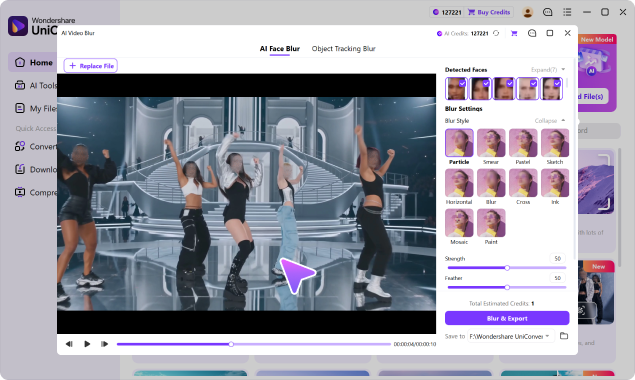
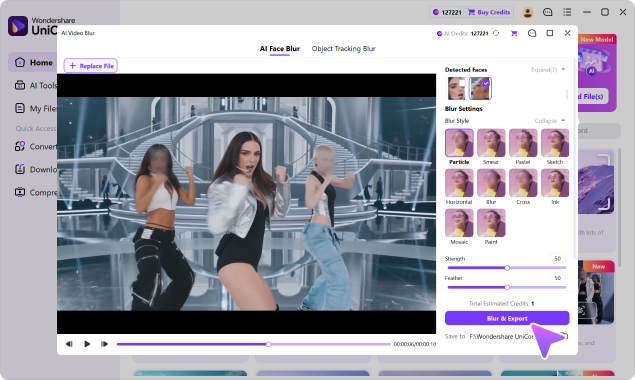
Use AI face detection or selected-object tracking for public footage, screen recordings, education, interviews, business videos, and other privacy-sensitive content.
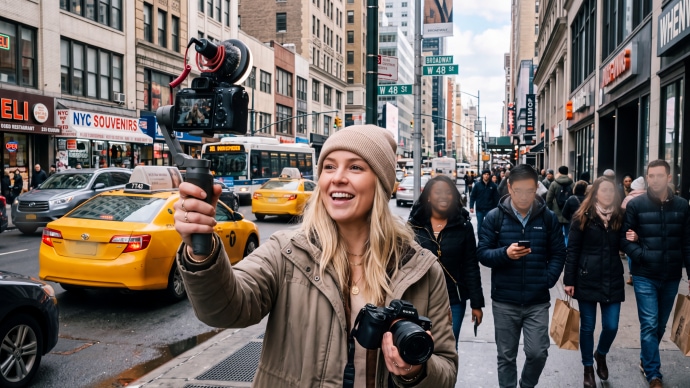
Blur bystanders, children, usernames, or license plates before publishing public-space footage to YouTube, TikTok, Instagram, or Facebook.
Compare how each workflow handles sensitive footage, AI tracking, batch processing, blur controls, and the work required to protect private information before sharing.
| Capability | UniConverter AI Video Blur | Typical Online Blur Tool | Traditional Video Editor |
|---|---|---|---|
| Process sensitive footage without browser upload | ✓ Local desktop workflow | Commonly browser/cloud based; upload behavior varies | ✓ Available in desktop editors |
| Automatic face detection | ✓ Built in | Varies by tool | Often feature or plugin dependent |
| Track moving objects automatically | ✓ AI object tracking | Available in some AI tools | Possible, often with more setup |
| Blur faces, license plates, screens & private details | ✓ Select, track & blur | Varies by tool | ✓ Possible |
| Mosaic, pixel, soft blur & sticker effects | ✓ Multiple blur styles | Often limited to selected effects | ✓ Flexible |
| Fine-tune blur strength & coverage | ✓ Strength, feather & opacity controls | Varies by tool | ✓ Usually available |
| Batch blur multiple videos | ✓ Batch workflow | Often limited by file size, count, or plan | Depends on editor and workflow |
| Continue editing after blurring | ✓ Convert, compress, trim & enhance in the same app | Usually focused on a single browser task | ✓ Editing-focused workflow |
| Setup required for quick privacy blurring | Low | Low | Medium to high |
“Typical Online Blur Tool” refers to common browser-based workflows. Upload requirements, AI tracking, file-size limits, batch processing, and privacy handling vary by provider.
AI Video Blur fits into a larger desktop post-production flow, so privacy editing does not have to become a separate upload-download task.
Work with MP4, MOV, AVI, MKV, M4V, WMV, FLV, MTS, TS, 3GP and other commonly used formats supported by the feature.
Preview the tracking result and blur coverage before export. If needed, continue converting, compressing, trimming, editing, or enhancing the processed video in UniConverter.
Quick answers about automatic face blur, moving-object tracking, license plate blur, background blur, video censorship, and batch processing.
Yes. AI Video Blur detects multiple faces in the footage. You can select specific people to blur or apply the effect to all detected faces.
Yes. After a face is selected or an object is boxed, AI tracks the target so the blur follows it through the video without frame-by-frame keyframing.
Yes. Use Object mode to draw a box around the license plate. AI then tracks that selected plate as it moves and keeps the blur aligned.
AI Video Blur automatically detects faces. For license plates and other non-face targets, select the target area first and AI tracks the selected object afterward.
Yes. Reverse the selected region to keep the subject clear and blur the surrounding background. This can hide environmental details or create stronger subject focus.
Yes. Choose mosaic, soft blur, pixel, or sticker-style effects and adjust strength, feather, and opacity depending on how strongly you want to conceal the target.
Yes. Select usernames, emails, order details, API keys, documents, dashboards, or other visible information and use object tracking to keep the selected region hidden.
Yes. Add multiple files, switch between clips to review settings, and process them as part of the same batch workflow.
No. AI Video Blur is used in the UniConverter desktop workflow on Windows and macOS, so you can process sensitive source footage without repeatedly uploading it to unfamiliar online blur sites.

Automatically detect faces, track selected moving objects, customize the blur, and preview the result before exporting with UniConverter AI Video Blur.