Blur One Face in Video
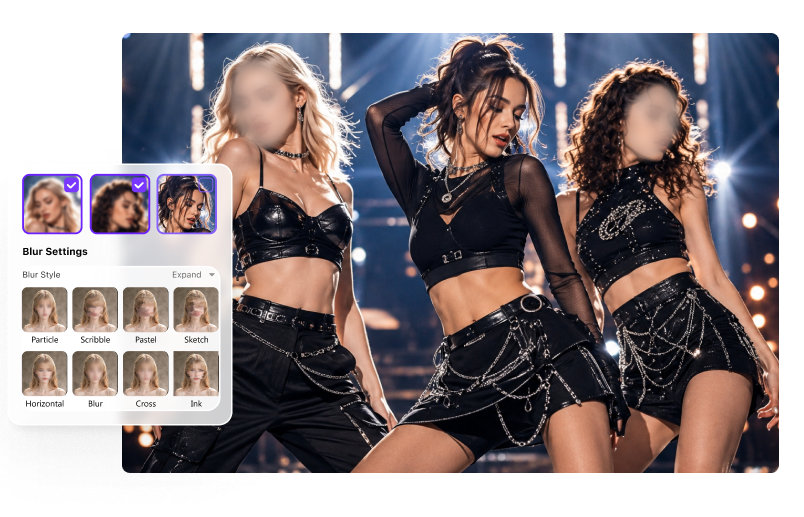
Select one detected person and keep everyone else visible—useful for an interviewee, witness, customer, or child.
Yes. An automatic face blur tool detects faces, lets you choose who to hide, and tracks those faces as they move. With UniConverter, you can blur one person, several people, or all detected faces, then preview the result before exporting—without manually placing a blur on every frame.
Use AI face detection for a single person, multiple people, crowds, and moving subjects. Choose who remains visible and how strongly each selected face is concealed.
Select one detected person and keep everyone else visible—useful for an interviewee, witness, customer, or child.

Choose several detected people when only part of a group needs to be anonymized.
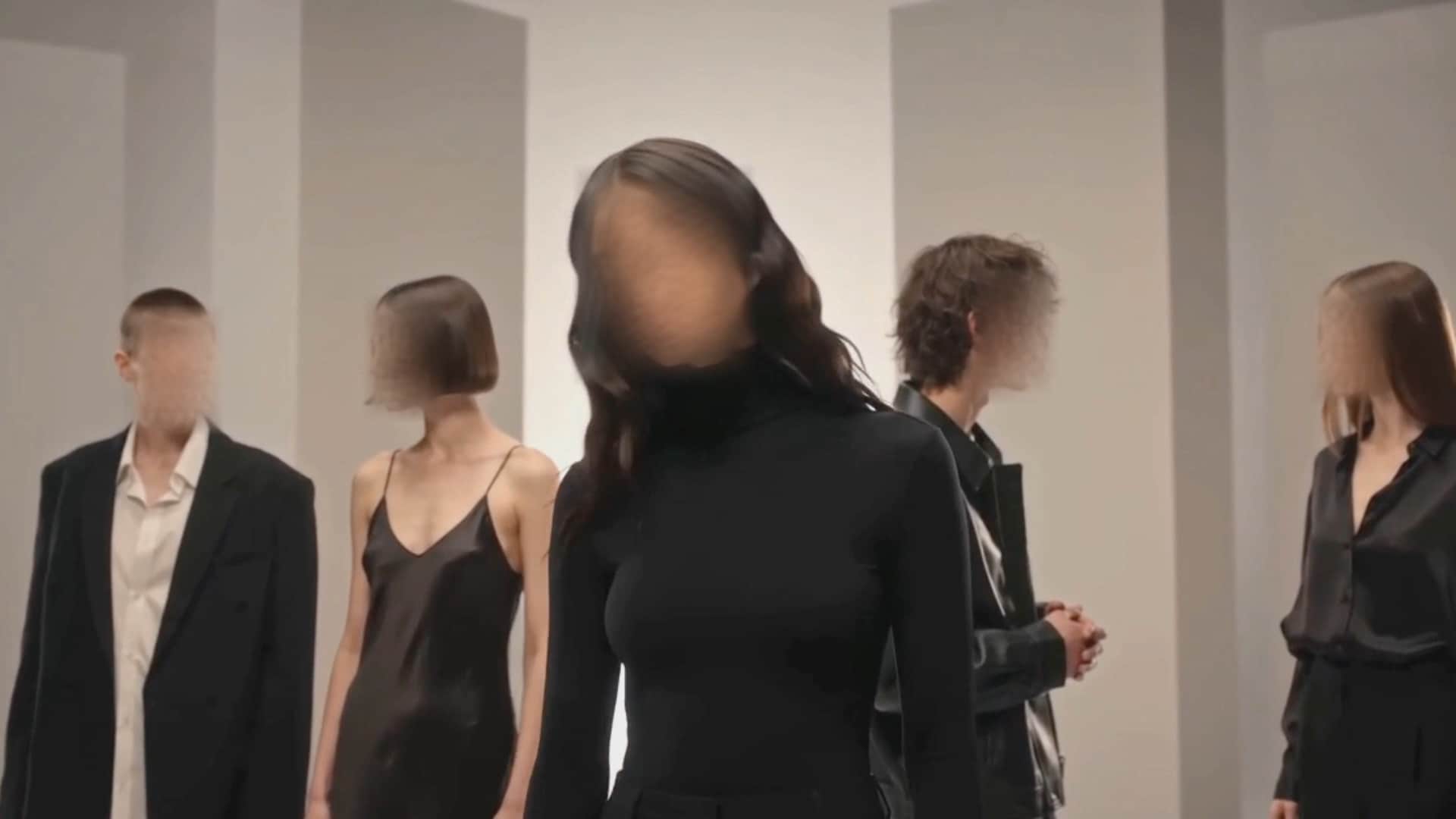
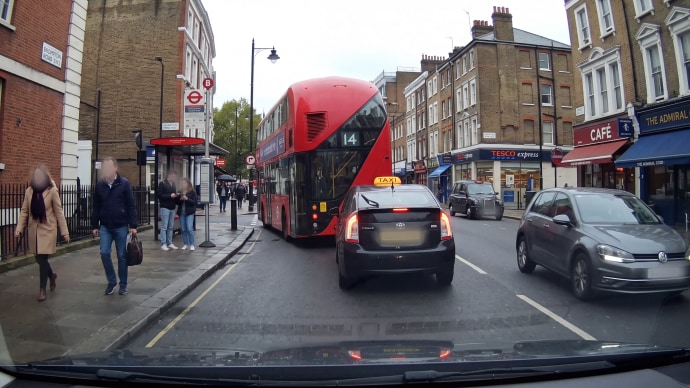
Apply face blur to everyone detected in public footage, events, classes, meetings, or surveillance clips.
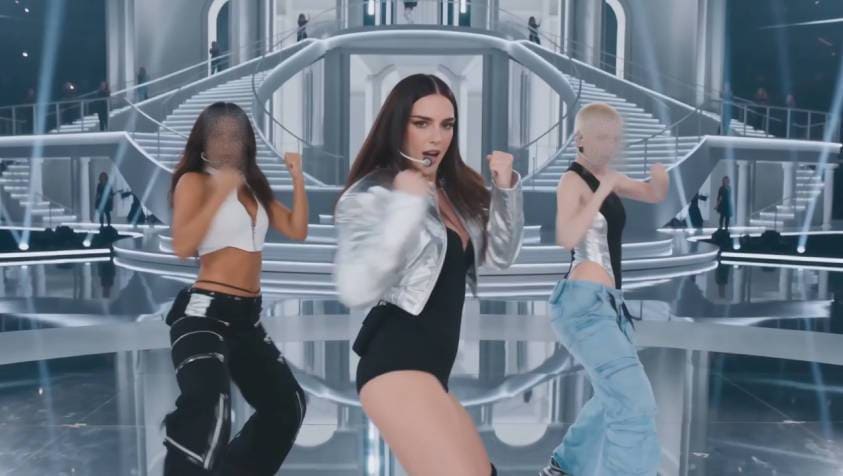
Keep the censor effect aligned when a person walks, turns, or changes position in the frame.
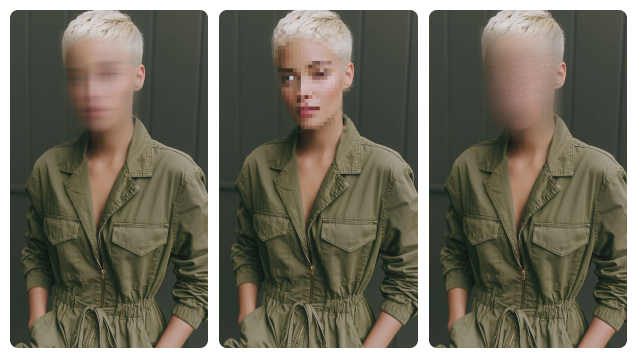
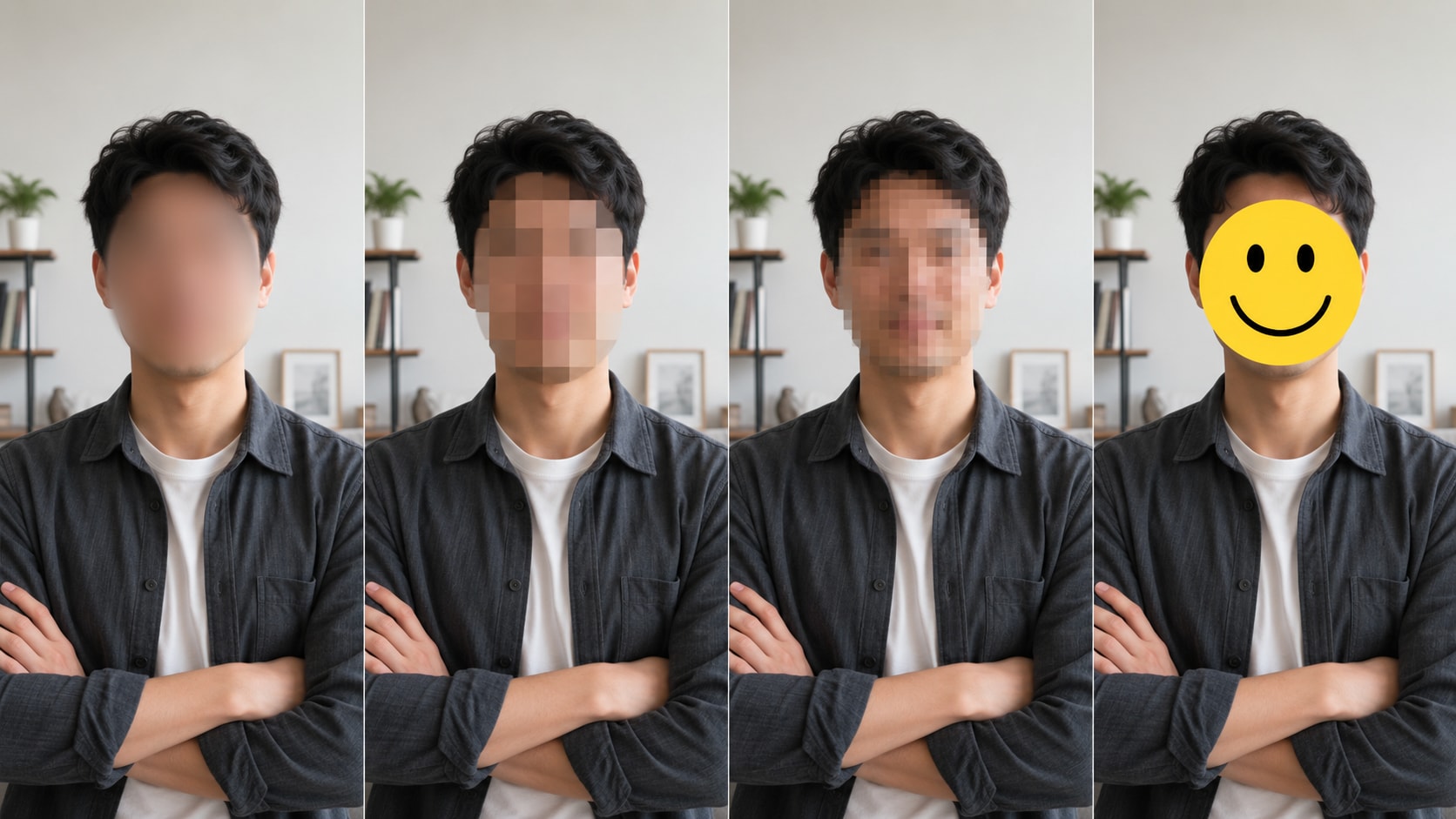
Choose a soft blur, mosaic, pixel effect, or sticker depending on the privacy level and visual style you need.
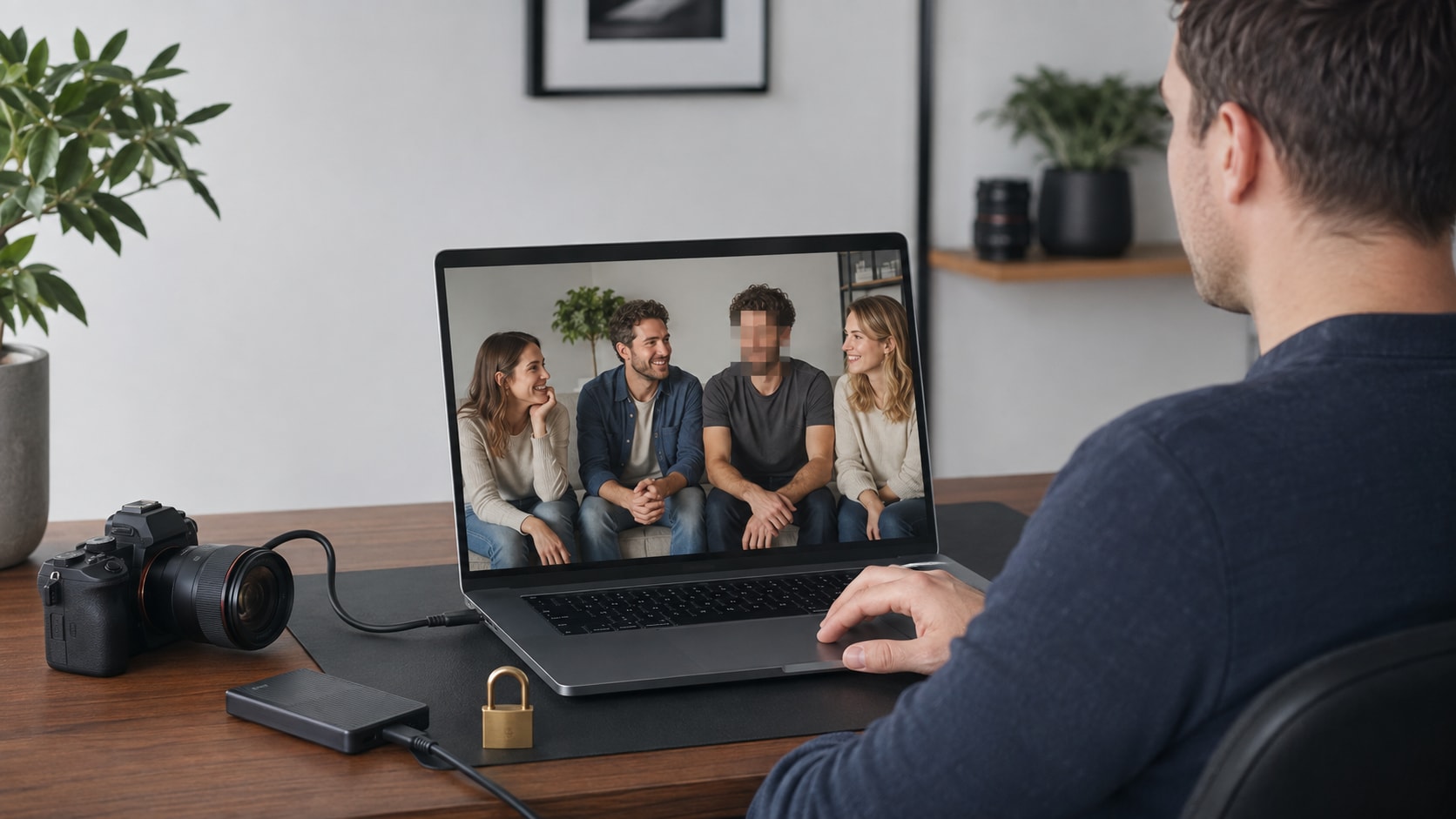
Keep unblurred source footage in a Windows or Mac desktop workflow instead of sending it to an unfamiliar online blur site.
AI handles face detection and tracking while you decide which people to hide in your video, which censor style to use, and whether the result is ready to export.
Import a video and let AI scan the footage. Detected face thumbnails make it easier to find the same person across the clip, even in scenes with several people.
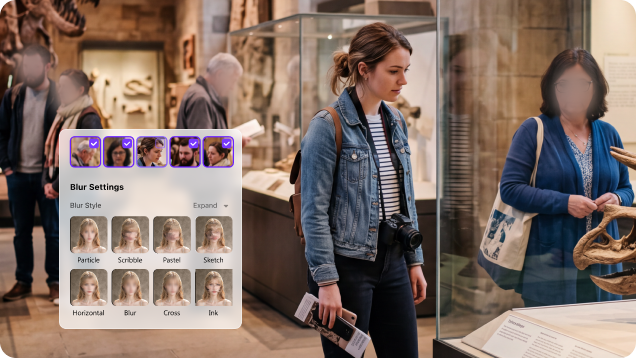
After you select a person, AI tracks the face through the clip and keeps the censor effect attached as the subject changes position. You do not need to move a mask manually on every frame.
Use soft blur for a cleaner look, mosaic or pixelation for stronger visual censorship, or a sticker for casual content. Adjust the effect instead of accepting a fixed preset. For broader privacy protection, use the Reverse option to blur background in a video while keeping the selected subject clear.
Preview the face tracking and blur coverage before export. Because AI Video Blur runs in the UniConverter desktop workflow, unblurred source clips do not need to be uploaded to an unfamiliar browser-based face blur video editor.
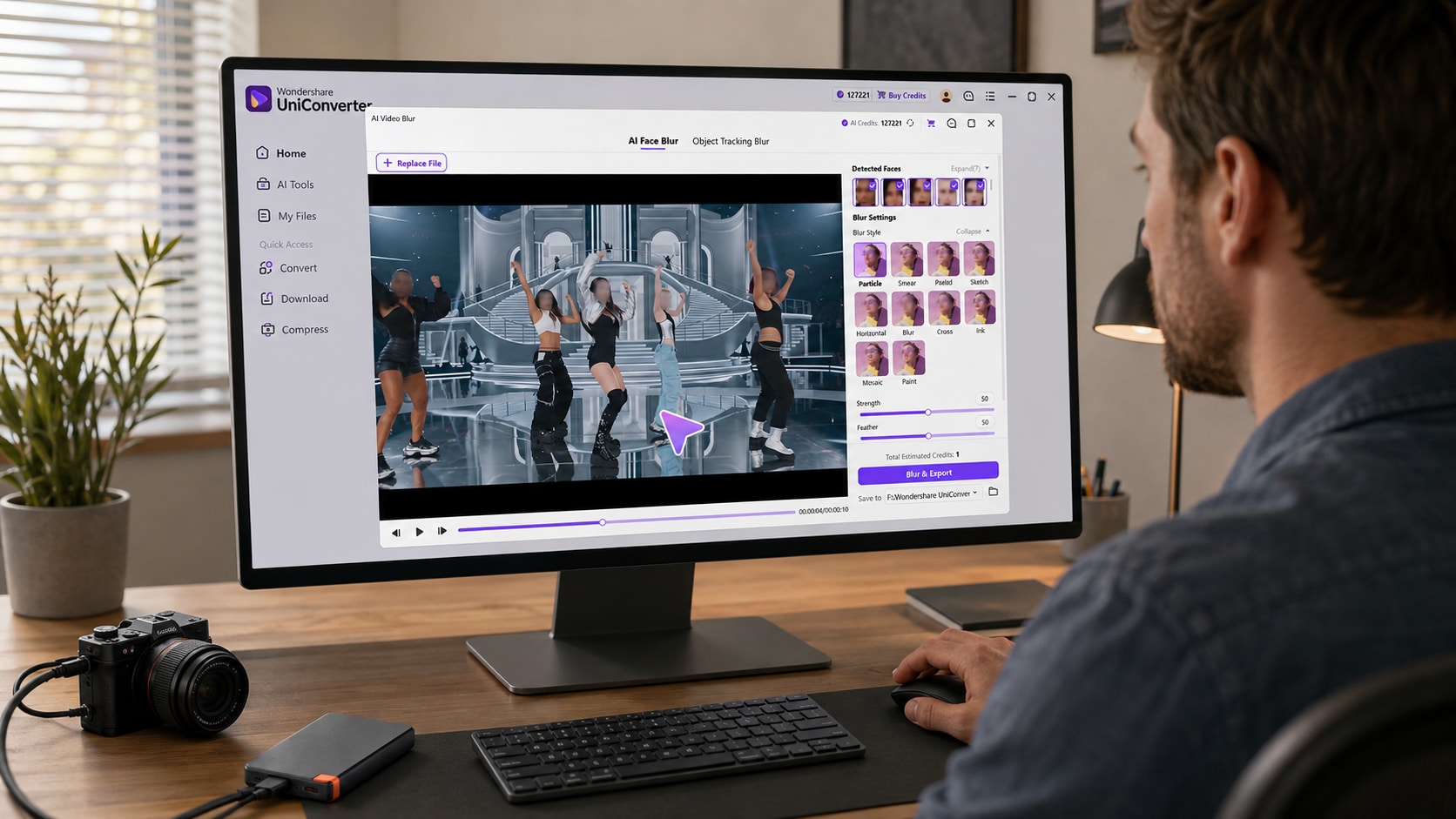
Use UniConverter as an automatic face blur editor: add the clip, select detected faces, choose the censor effect, and review the tracking before export.

Open UniConverter, choose AI Video Blur, and import the video that contains the face or faces you want to hide.

Choose Face mode, wait for AI to detect people, and select one person, several people, or all detected faces. Then choose blur, mosaic, pixel, or sticker and adjust the effect.

Play the preview and check fast movement, turns, overlaps, and scene changes. Adjust the style or coverage if needed, then choose a save location and export.
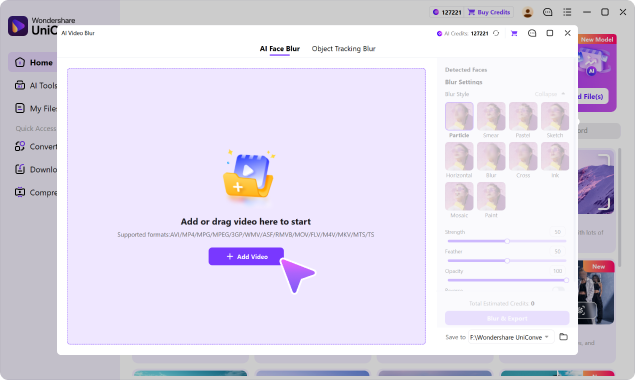
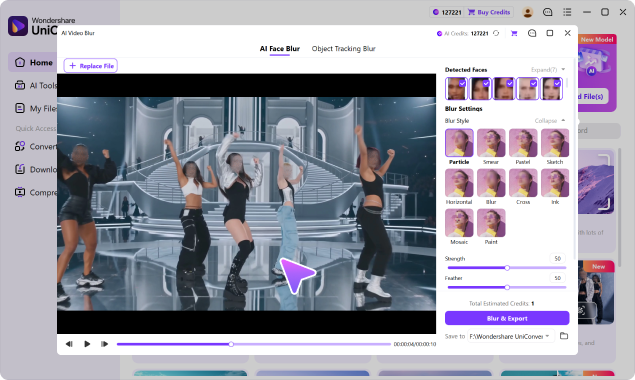
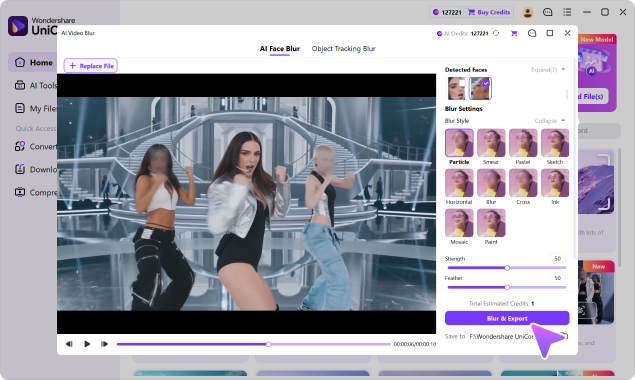
Automatically blur faces when consent, confidentiality, child safety, or public-space privacy matters.
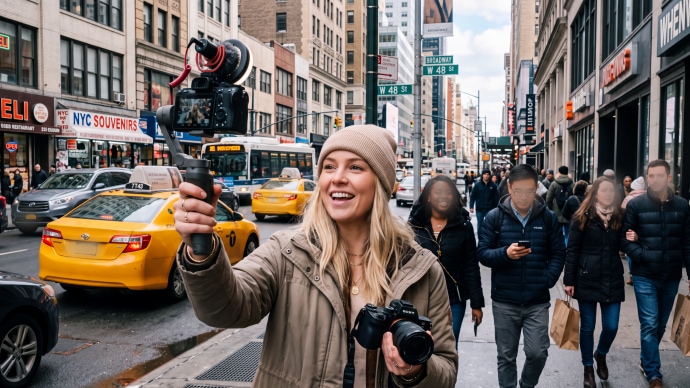
Hide bystanders and people who did not consent to appear before publishing public-space footage on YouTube, TikTok, Instagram, or Facebook.
Choose a face blur workflow based on automatic detection, moving-face tracking, privacy, control, and the amount of manual editing required.
| Capability | UniConverter AI Face Blur | Typical Online Blur Tool | Traditional Video Editor |
|---|---|---|---|
| Process sensitive footage without browser upload | ✓ Local desktop workflow | Commonly browser/cloud based; upload behavior varies | ✓ Available in desktop editors |
| Automatic face detection | ✓ Built in | Varies by tool | Often feature or plugin dependent |
| Track moving faces automatically | ✓ AI face tracking | Available in some AI tools | Possible, often with more setup |
| Blur one, multiple, or all detected faces | ✓ Select detected people | Varies by tool | ✓ Possible |
| Mosaic, pixel, soft blur & sticker effects | ✓ Multiple blur styles | Often limited to selected effects | ✓ Flexible |
| Fine-tune blur strength & coverage | ✓ Strength, feather & opacity controls | Varies by tool | ✓ Usually available |
| Batch blur multiple videos | ✓ Batch workflow | Often limited by file size, count, or plan | Depends on editor and workflow |
| Continue editing after blurring | ✓ Convert, compress, trim & enhance in the same app | Usually focused on a single browser task | ✓ Editing-focused workflow |
| Setup required for quick privacy blurring | Low | Low | Medium to high |
“Typical Online Blur Tool” refers to common browser-based workflows. Upload requirements, automatic detection, tracking, file limits, export restrictions, and privacy handling vary by provider.
Automatic face blurring saves time, but a final review still matters when the goal is anonymity.
Make the effect large and strong enough to conceal eyes, facial contours, and other recognizable details—not just the center of the face.
Inspect turns, fast movement, camera shake, overlaps, exits, and re-entry. These are the moments most likely to expose part of a face.
A face blur does not hide voices, names, badges, license plates, addresses, or background clues. Use Object mode when other details could reveal identity.
Import common video formats, anonymize faces with UniConverter AI Video Blur, review the result, and continue the rest of your post-production work without moving the project between separate tools.
Work with MP4, MOV, AVI, MKV, M4V, WMV, FLV, MTS, TS, 3GP and other commonly used formats supported by the feature.
Preview the tracking result and blur coverage before export. If needed, continue converting, compressing, trimming, editing, or enhancing the processed video in UniConverter.
Direct answers about automatic face detection, moving-face tracking, multiple people, censor effects, local processing, free use, and final privacy checks.
Open UniConverter AI Video Blur, import the clip, choose Face mode, and let AI detect the people in the video. Select the face or faces you want to hide, choose blur, mosaic, pixel, or sticker, preview the tracking, and export.
Yes. UniConverter automatically detects faces and tracks the selected people through the clip. You do not need to place and move a blur manually on every frame.
Yes. After detection, choose several people individually or select all detected faces. This is useful for crowds, classes, events, workplace footage, and public-space videos.
Yes. AI face tracking keeps the effect aligned as the selected person changes position. Preview turns, overlaps, fast motion, and scene re-entry before export because these are the most challenging moments for any tracker.
Select the detected face, choose mosaic or pixel instead of soft blur, and adjust strength, feather, and opacity. Use a stronger effect when identity protection matters more than a subtle visual result.
UniConverter is free to download and try. AI processing may use credits or be subject to the limits shown in the application, so review the displayed credit estimate before processing or exporting a full video.
A basic mask can work when a face never moves. Automatic face blur is more useful when people walk, turn, leave the frame, appear in groups, or need to be found across a longer clip.
No. AI Video Blur runs in the UniConverter desktop workflow on Windows and macOS, so you can work with sensitive source footage without uploading the unblurred original to an unfamiliar online face blur service.
Not always. A person may still be identifiable from their voice, name, clothing, badge, vehicle, location, or background details. Review the entire video and use Object mode to hide other identifying information when needed.
AI Video Blur supports common formats including MP4, MOV, AVI, MKV, M4V, WMV, FLV, MTS, TS, and 3GP.

Automatically detect and track selected faces, choose the right censor effect, and preview the full result before exporting with UniConverter AI Video Blur.