Keep Attention on the Subject
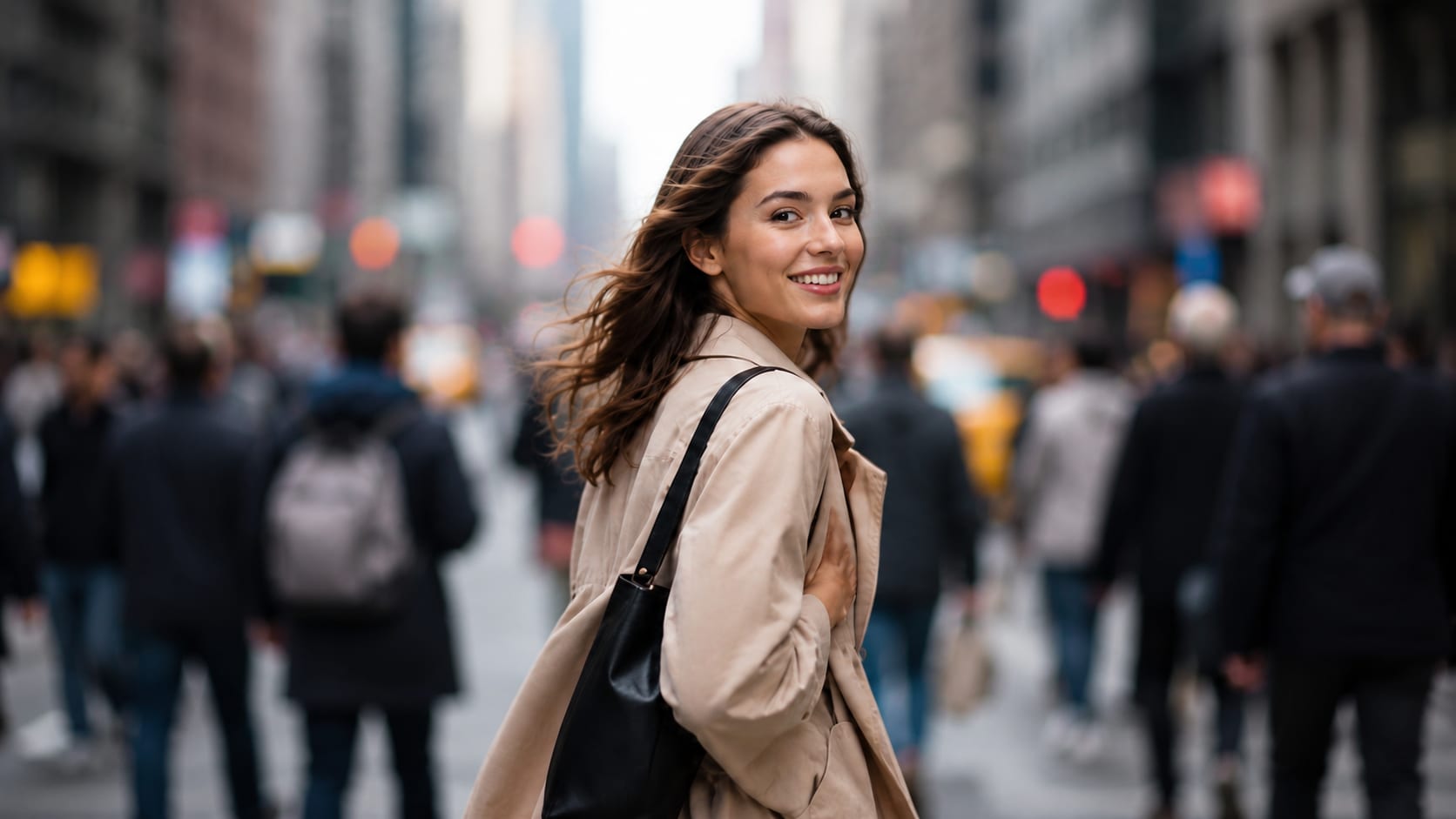
Soften busy rooms, streets, crowds, and visual clutter so the viewer's attention stays on the person, product, or object that matters.
With AI Video Blur, UniConverter uses AI tracking to keep a selected subject clear while the surrounding area stays blurred, giving you a faster alternative to manually adjusting a mask throughout the timeline.
Select the person, product, pet, vehicle, or other subject you want viewers to see clearly. Turn on Reverse to invert the blur area, so the selected subject stays visible while the rest of the frame is softened.
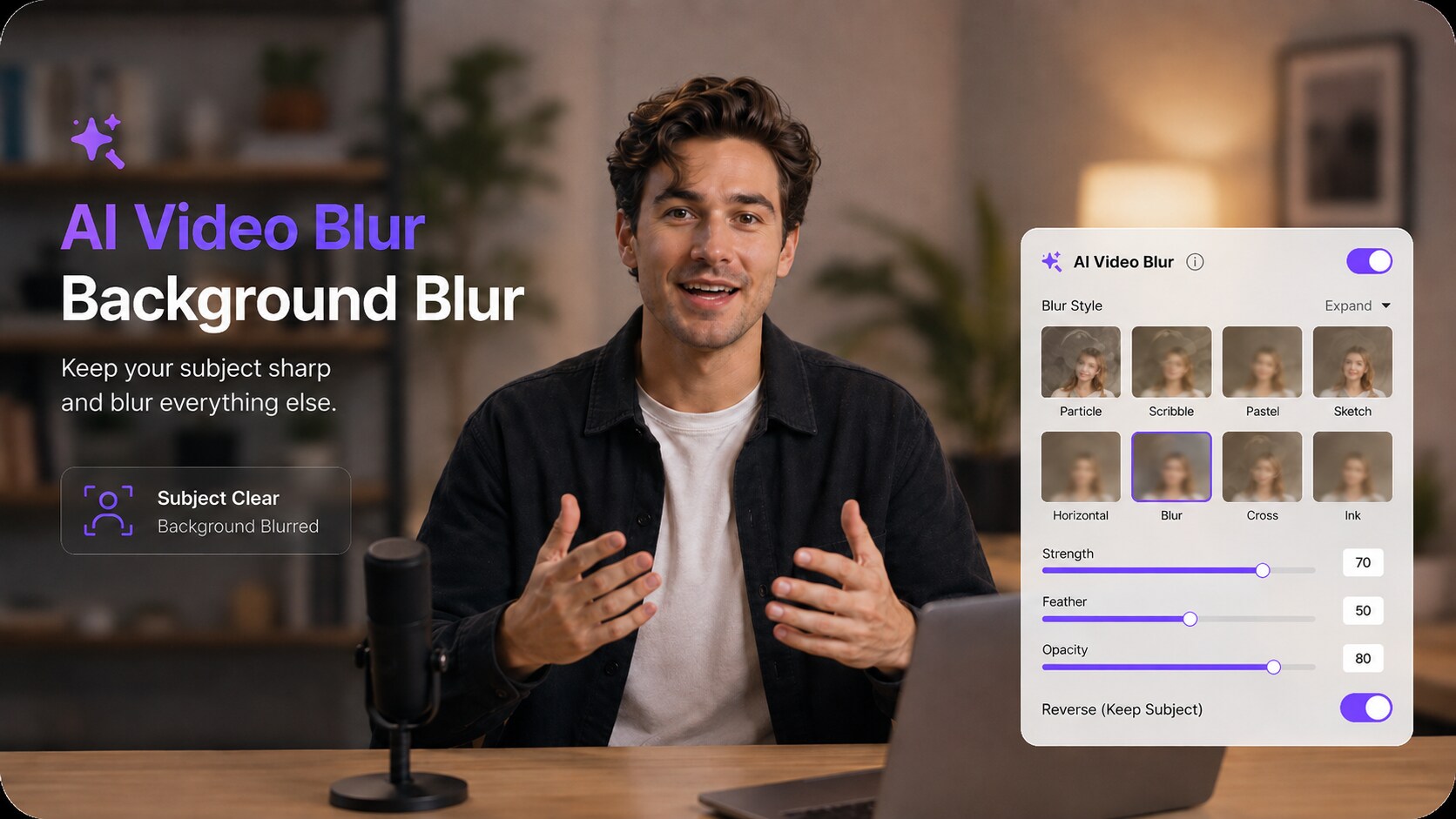
When the selected subject moves, AI tracks that target through the footage. The blur remains outside the tracked selection, reducing the need to reposition a mask or create keyframes frame by frame.
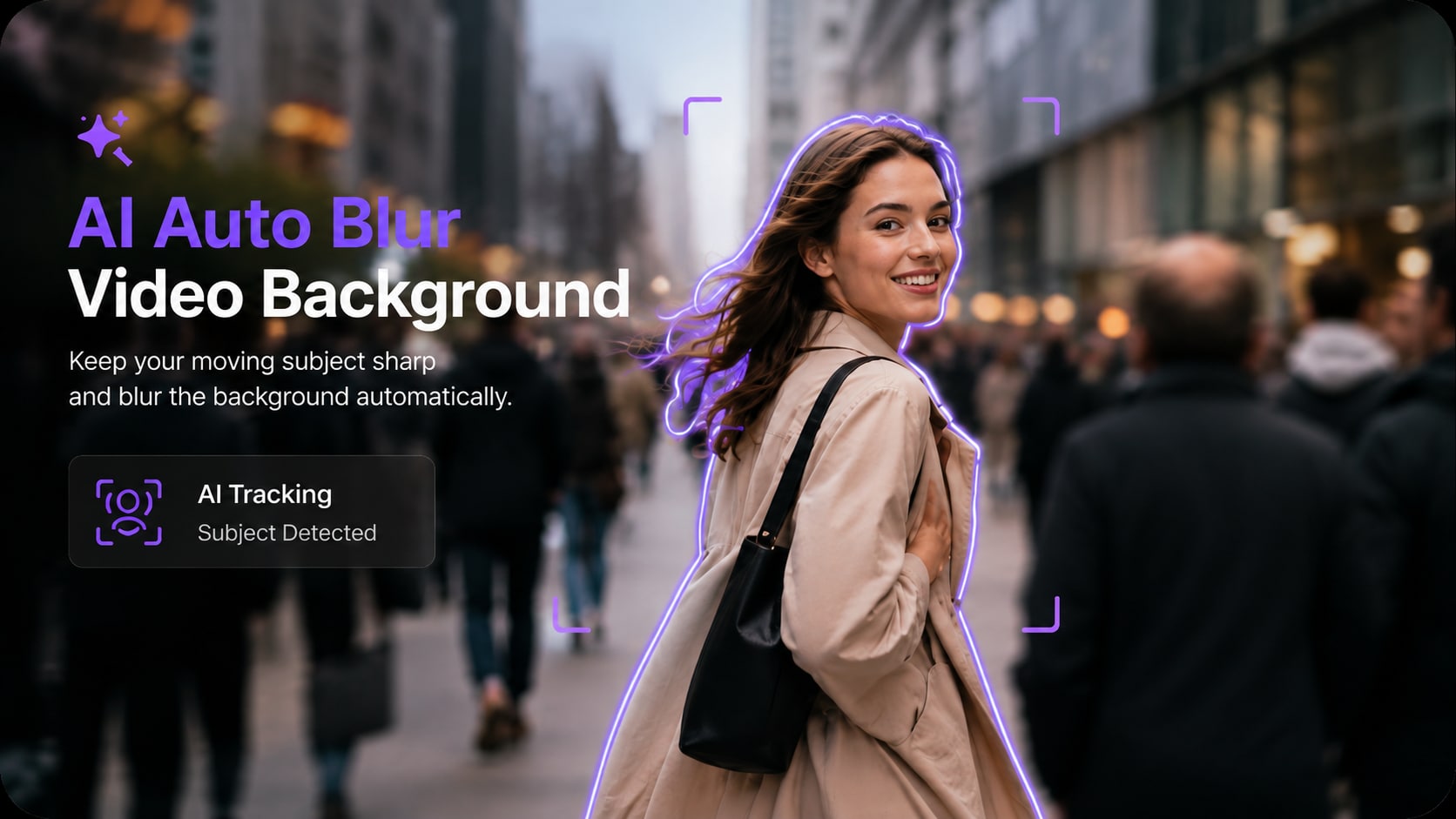
Background blur is not one fixed effect. Fine-tune the result to create a light soft-focus look, stronger privacy masking, or a more obvious stylized separation between subject and surroundings.
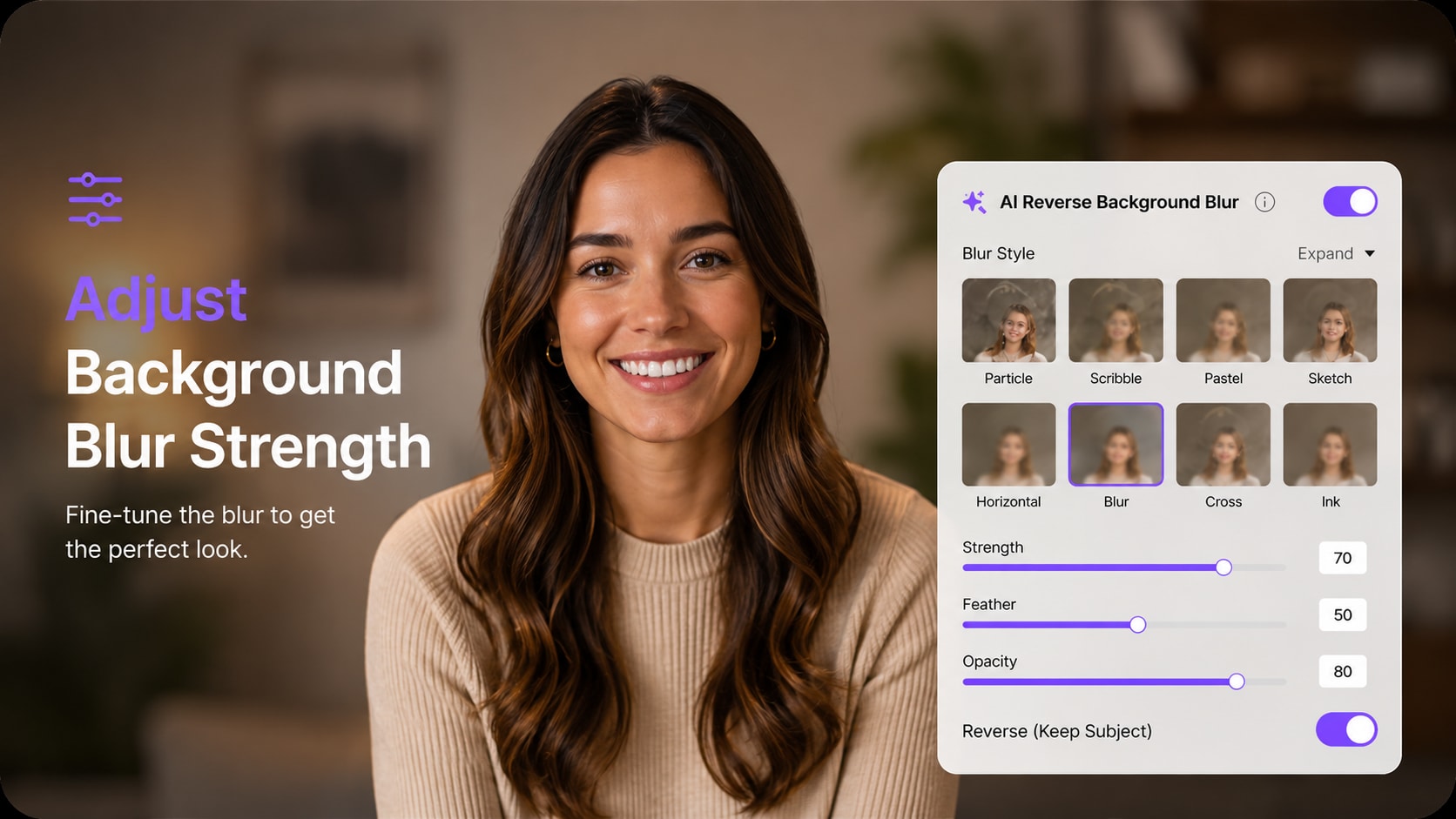
For recordings that reveal a home, office, customer environment, classroom, whiteboard, or other sensitive location details, UniConverter lets you work from its Windows or Mac desktop workflow instead of repeatedly uploading the unblurred source file to unfamiliar online blur websites.
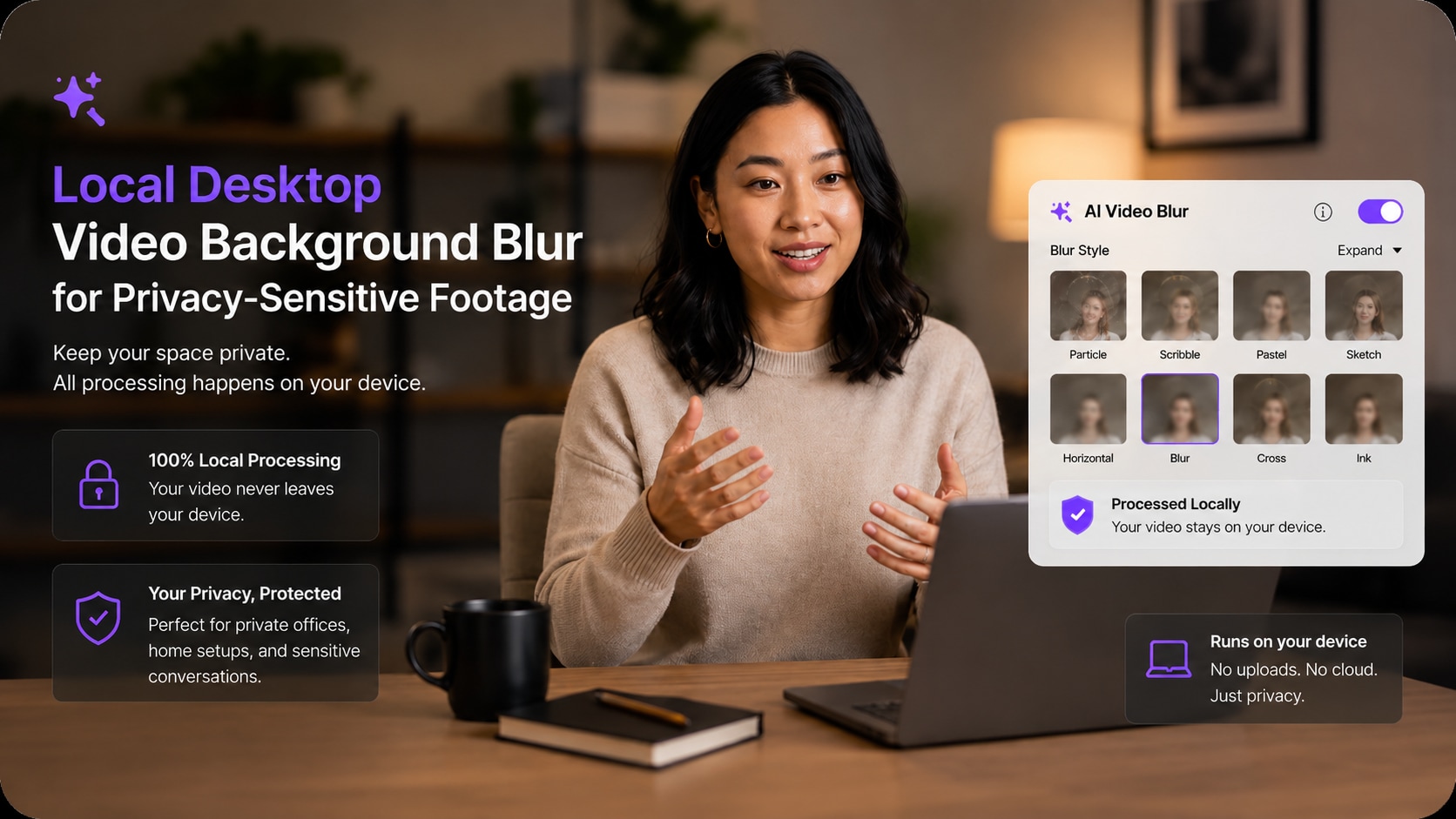
A blurred video background can reduce distractions, hide private surroundings, and create a cleaner depth-of-field look in footage you have already recorded.
Soften busy rooms, streets, crowds, and visual clutter so the viewer's attention stays on the person, product, or object that matters.

Blur addresses, family photos, whiteboards, screens, other people, or recognizable location details visible behind your subject.

Add a softer portrait-style background to interviews, tutorials, presentations, sales videos, and creator content shot outside a studio.
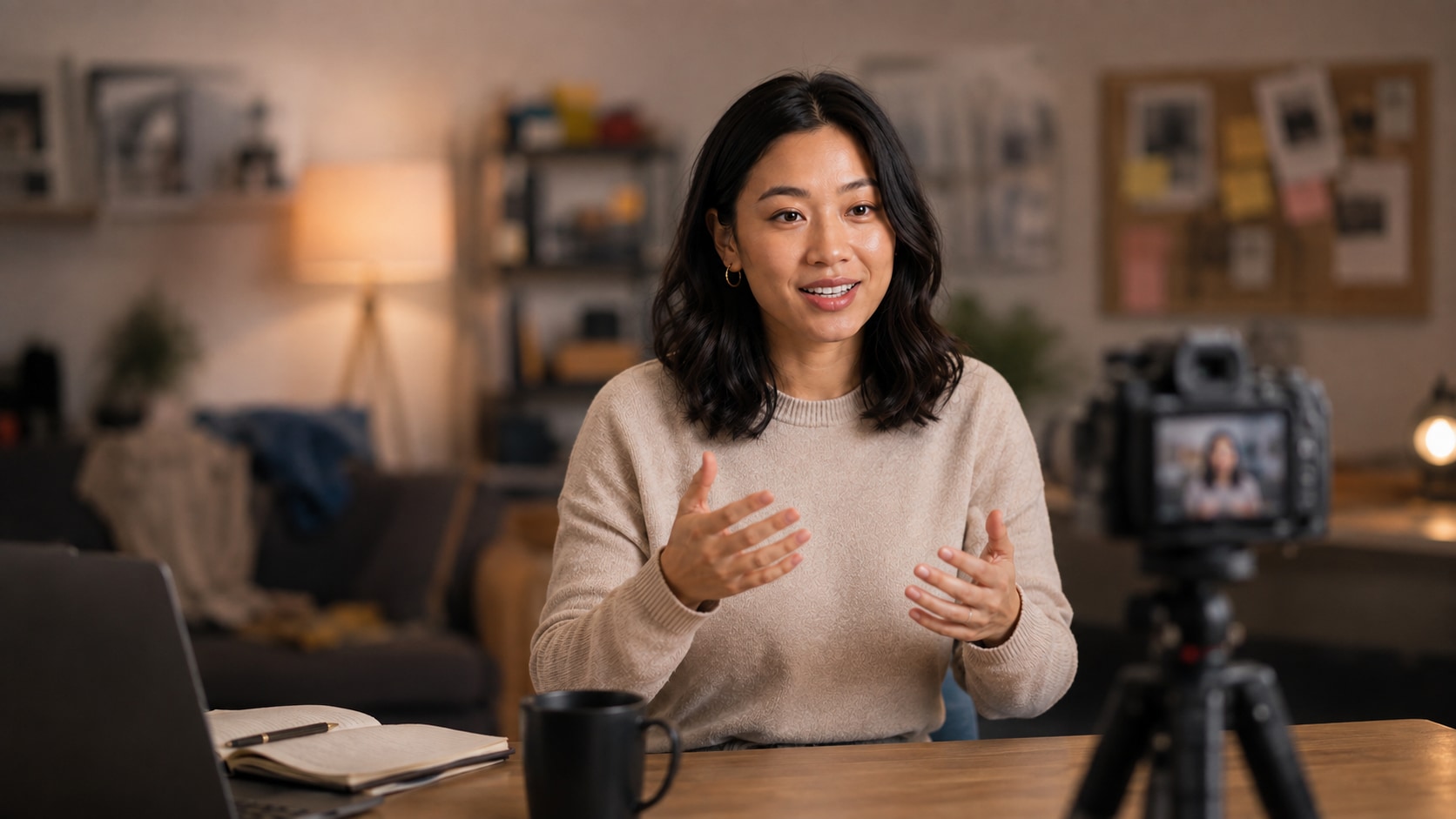
If the background is distracting or too revealing, add background blur in post-production instead of setting up and recording the scene again.
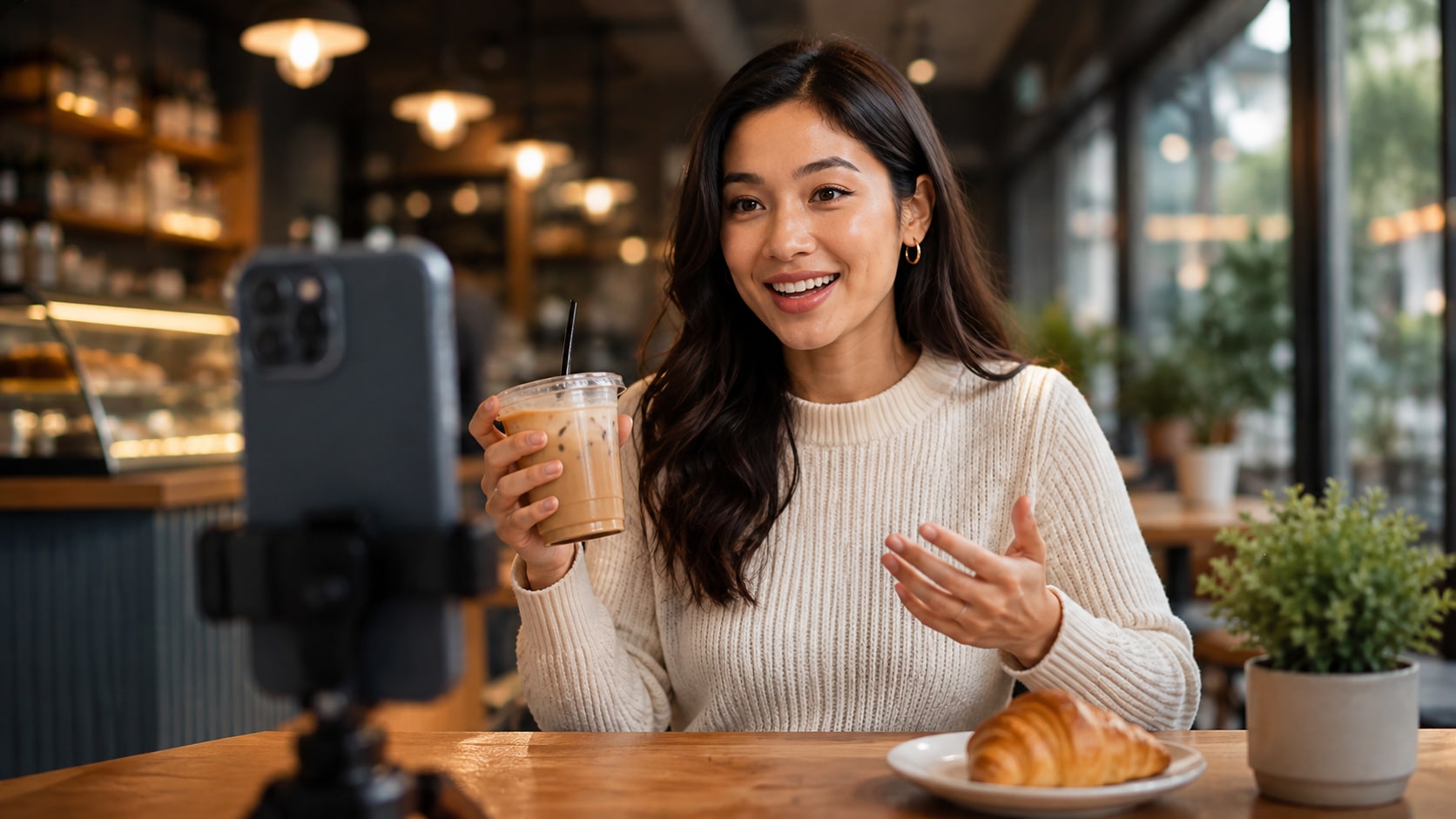
Use background blur for YouTube, TikTok, Instagram Reels, Shorts, product clips, and creator videos where a cleaner frame helps the subject read faster.

After you blur the background, continue converting, compressing, trimming, enhancing, or exporting the video inside UniConverter.
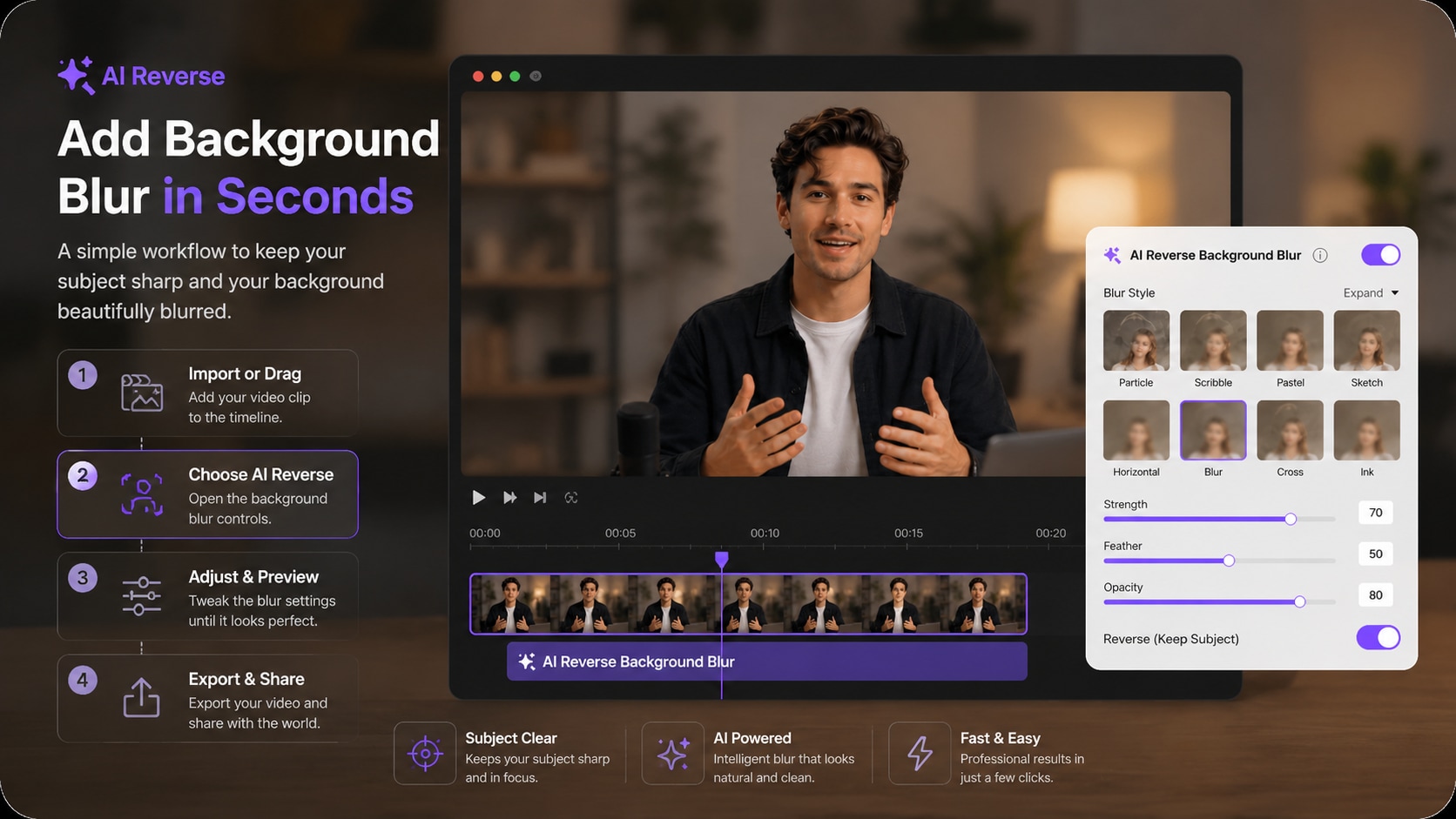
Use AI Video Blur to select the subject you want to keep clear, reverse the selected area, adjust the background blur, and preview the result before export.

Open AI Video Blur in UniConverter and import the recorded clip whose background you want to soften or hide.

Choose a detected face or draw a box around the person or object you want to keep clear. Enable Reverse so the area outside the selection becomes the blurred video background.

Set the blur style, strength, feather, and opacity. Preview the tracking and edge coverage, then export when the subject stays clear and the background looks right.
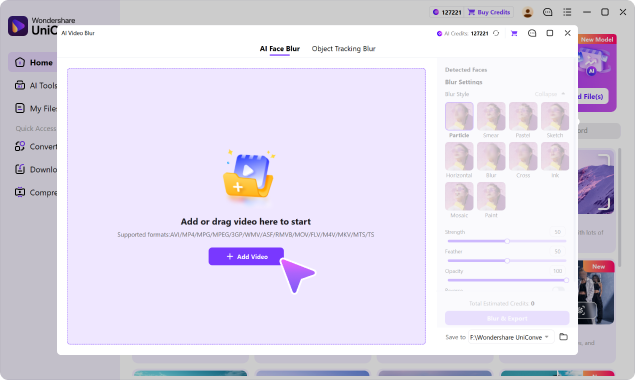
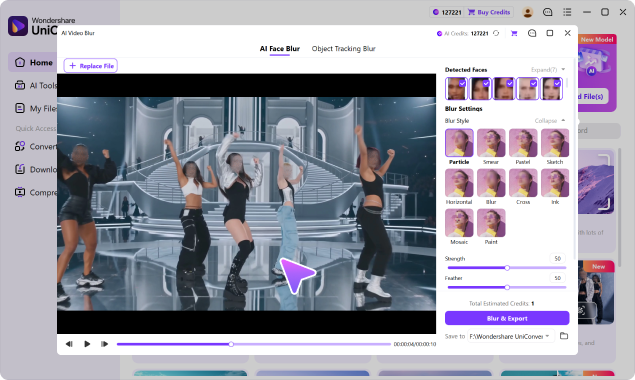
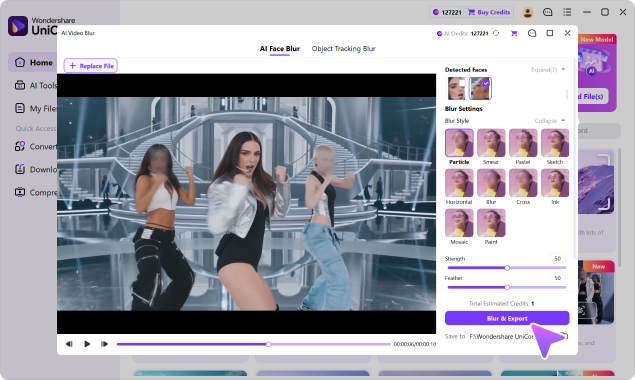
These effects solve different editing problems. Choose background blur when you want to preserve the original scene while making the area behind your subject less distracting or less identifiable.
Best for: talking heads, interviews, tutorials, social videos, and privacy-sensitive rooms. The subject remains clear while the surrounding scene is softened.
Best for: censorship and anonymization. Blur the whole frame or a specific face, license plate, screen, username, document, or other detail.
Best for: replacing the scene entirely. Removal separates the subject from the original background instead of keeping that background visible with a blur effect.
Background blur works both as a visual treatment and as a privacy layer for recorded content made at home, at work, in public, or on the move.
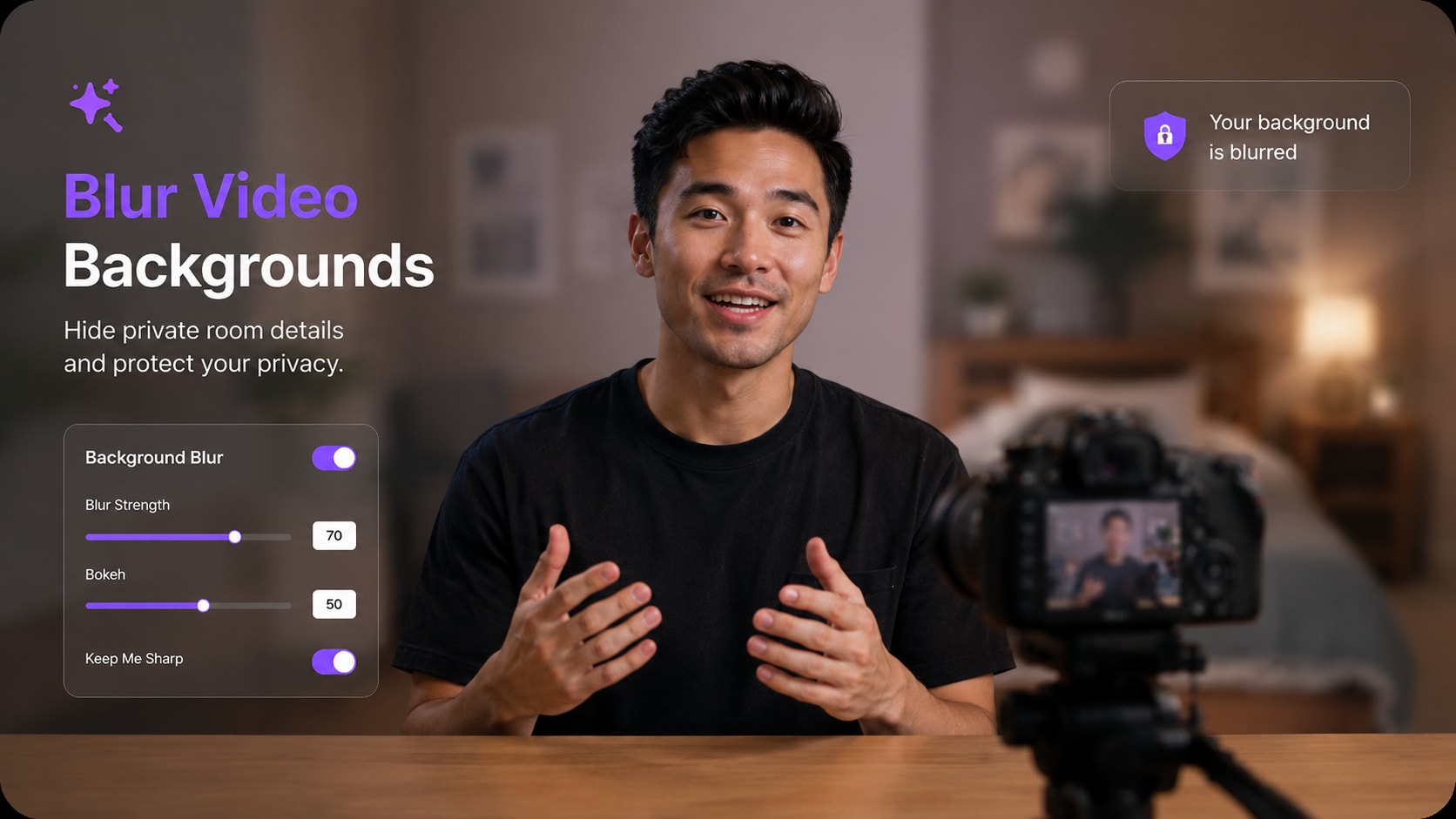
Keep the speaker clear while softening a room, office, street, or event background that competes for attention.
For users searching for a background blur video editor, the main differences are how the subject is isolated, whether movement requires manual work, where the source video is processed, and what editing can continue after the blur.
| Capability | UniConverter AI Video Blur | Typical Online Background Blur Tool | Traditional Video Editor |
|---|---|---|---|
| Blur the area around a selected subject | ✓ Reverse blur workflow | Available in many AI tools | ✓ Usually possible with masks/layers |
| Follow a moving selected subject | ✓ AI object tracking | Varies by tool | Possible, setup varies by editor |
| Automatic face detection | ✓ Built in for faces | Common in some AI tools | Feature or plugin dependent |
| No green-screen recording required | ✓ Works with existing footage | Common for AI tools | Possible with masking/segmentation tools |
| Adjust blur strength and edge softness | ✓ Strength, feather & opacity | Varies by tool | ✓ Usually flexible |
| Process sensitive source footage without browser upload | ✓ Desktop workflow | Depends on provider and processing method | ✓ Desktop editors can process locally |
| Continue converting, compressing, trimming or enhancing | ✓ Same UniConverter app | Often focused on browser editing tasks | ✓ Editing-focused workflow |
| Manual keyframing needed for the tracked subject | Not for AI-tracked selections | Depends on tool | May be needed depending on tracking features |
“Typical Online Background Blur Tool” describes common browser-based workflows. Upload behavior, AI segmentation, file limits, privacy handling, and export options vary by provider.
UniConverter's background blur workflow is part of the broader AI Video Blur tool, so you can protect a scene or improve visual focus without sending the clip through a separate one-purpose editor.
Use common formats supported by AI Video Blur, including MP4, MOV, AVI, MKV, M4V, WMV, FLV, MTS, TS, and 3GP.
Import the source, choose the subject, apply Reverse background blur, preview the tracking, then continue with other UniConverter tools before final export if needed.
Answers to common questions about how to blur a video background, AI tracking, green screens, privacy, blur controls, and free access.
Open the clip in UniConverter AI Video Blur, select the person or object you want to keep clear, enable Reverse to blur the surrounding area, adjust the blur settings, preview the result, and export.
UniConverter uses AI to detect faces and to track a subject you select. For background blur, select the face or object you want to keep clear, then use Reverse so the area around that tracked subject is blurred.
No. The AI Video Blur workflow works with existing footage. You select the subject to keep clear and reverse the blur area, so you do not need to have filmed the video in front of a green screen.
Yes. After you select a face or another subject, AI tracking follows the selected target as it moves. With Reverse enabled, the surrounding background remains blurred around that tracked selection.
Yes. You can adjust blur strength, feather, and opacity, and choose among supported blur styles to make the background lightly softened or more strongly concealed.
It can help obscure background details such as whiteboards, screens, family photos, room layouts, addresses, or other visual information. Preview the result carefully before sharing if the footage contains sensitive content.
No. Background blur keeps the selected subject clear while softening the surrounding area. Full-video blur affects the entire frame, while targeted blur hides only a selected face, object, or detail.
No. Background blur keeps the original scene visible but softened. Background removal separates the subject from the scene so the original background can be removed or replaced.
UniConverter offers a free download and trial workflow. AI processing, credits, export limits, or other restrictions can depend on the current version and plan, so check the in-app options before processing longer or repeated videos.
No. AI Video Blur is available in UniConverter's Windows and macOS desktop workflow, so you can work with sensitive source footage without repeatedly uploading the unblurred file to unfamiliar browser-based blur sites.

Select the subject, reverse the blur area, let AI tracking follow the movement, and fine-tune the background before exporting with UniConverter.