
Download Videos
from Supported Links
Copy a video link, save a local file, and get it ready to watch or use in your next project. UniConverter brings supported URL downloads and local media processing into one desktop workflow.
Installed desktop software. Download availability and options depend on the source and current product support.
A Link Is the Starting Point. A Usable File Is the Goal.
Start with the right URL
Use an individual video page or a compatible media link. A profile, search result or collection address may represent a different task.
Keep downloads organized
Work through eligible links in the desktop app and keep the saved files in a folder you can find again.
Prepare your local copy
Once saved, decide whether you need the original download, another format, an audio copy or a smaller delivery file.
How to Download a Video from a Link
Have the full video URL ready. The screenshots illustrate the Windows application; the Mac Downloader guide covers the corresponding Mac controls.
Copy the video link
Open the individual video you are allowed to save and copy its complete address or share link. Confirm that you have the intended clip, rather than a creator profile or a search results page.
When the source offers a suitable download, use that direct option first. Link processing depends on the source, so a playable web page alone is not proof that a downloader supports it.
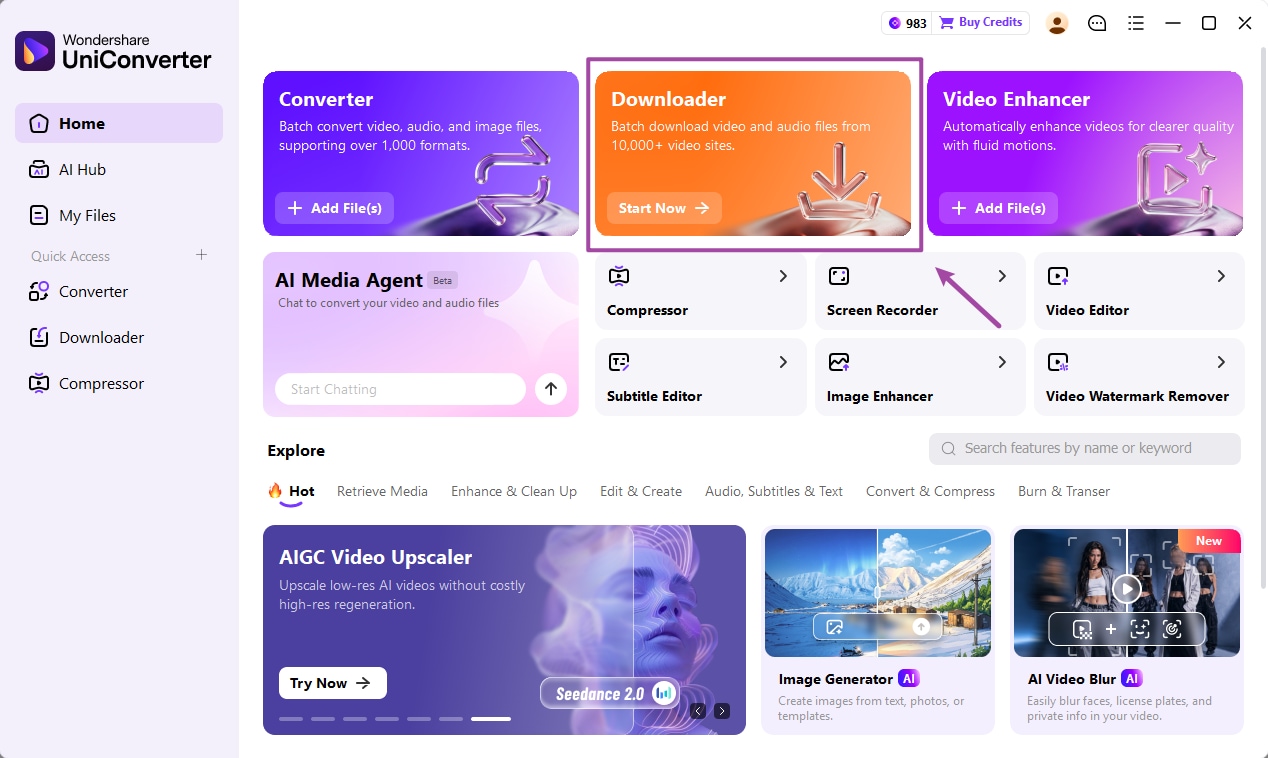
Open Downloader and paste
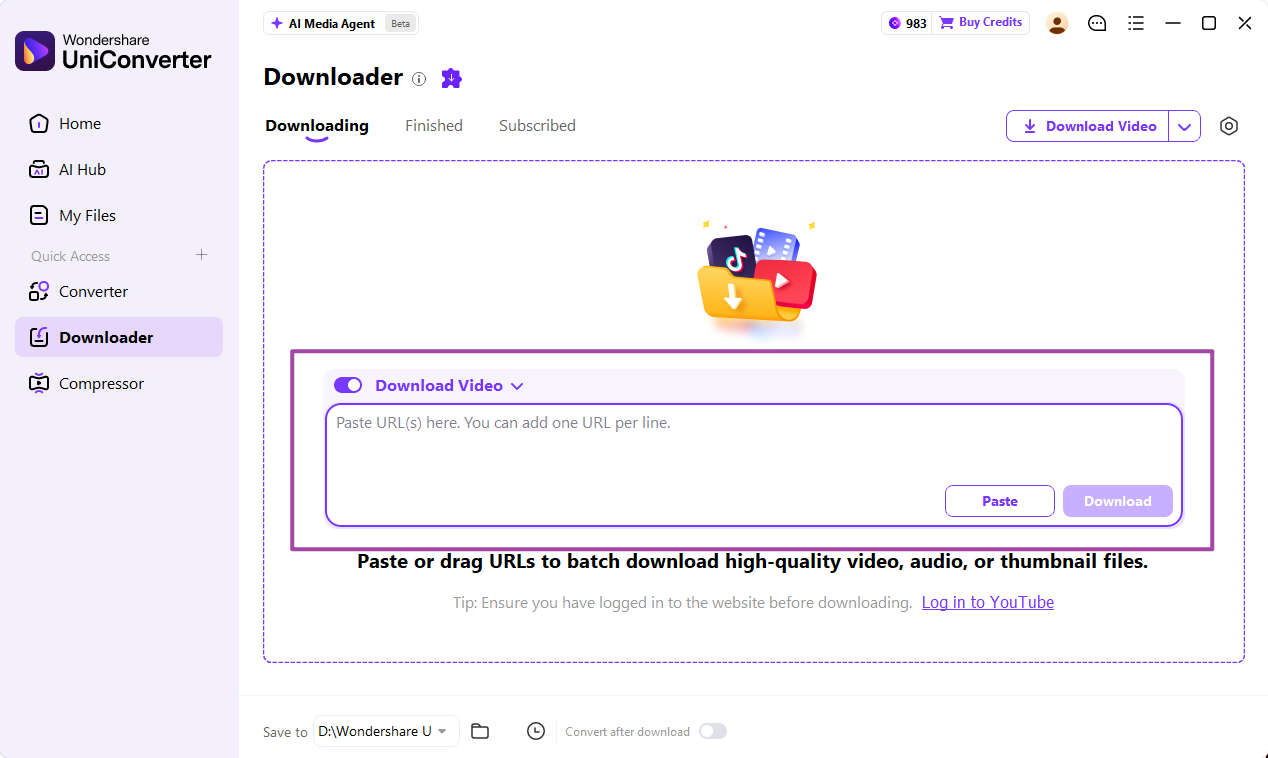
Launch UniConverter and choose Downloader. Paste the URL into its input field and keep the video download option selected. Set the destination using Save to.
Start and monitor the task
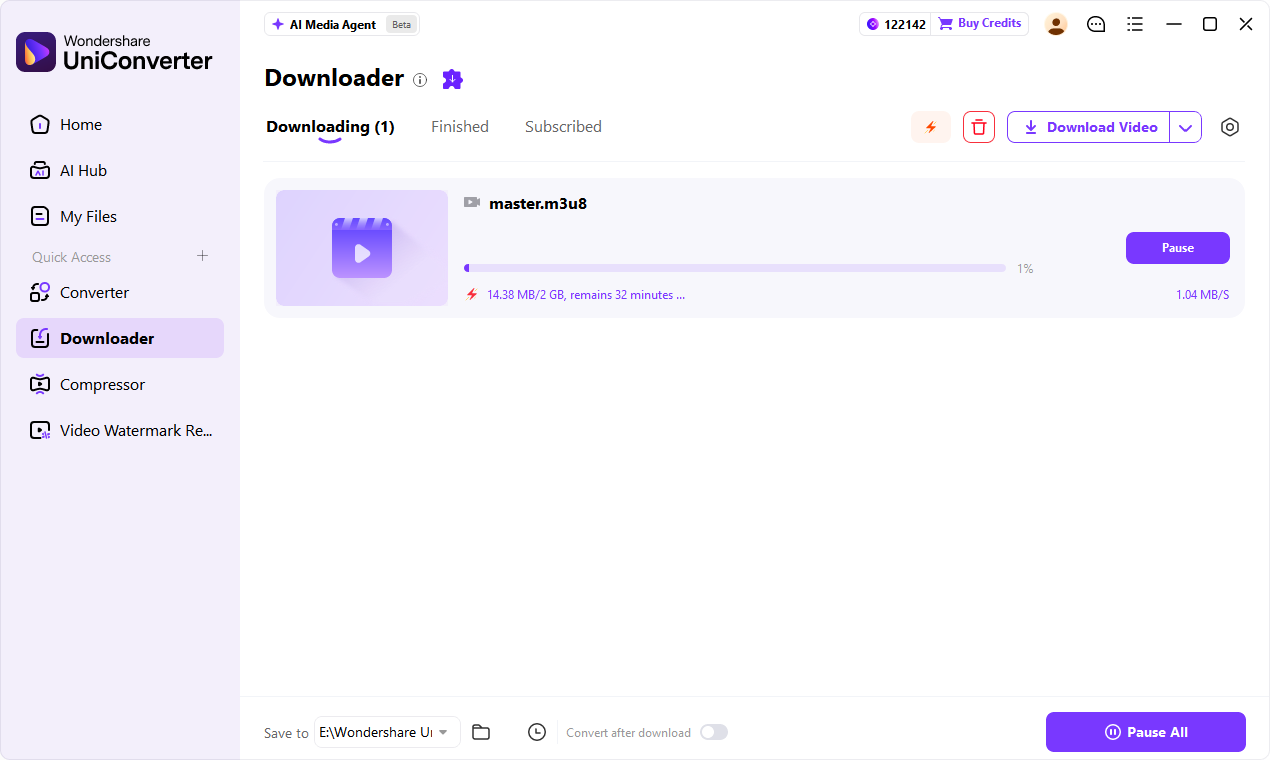
Click Download, then follow its progress in Downloading. If interrupted, check the task state before submitting the same link again.
Find and check your video
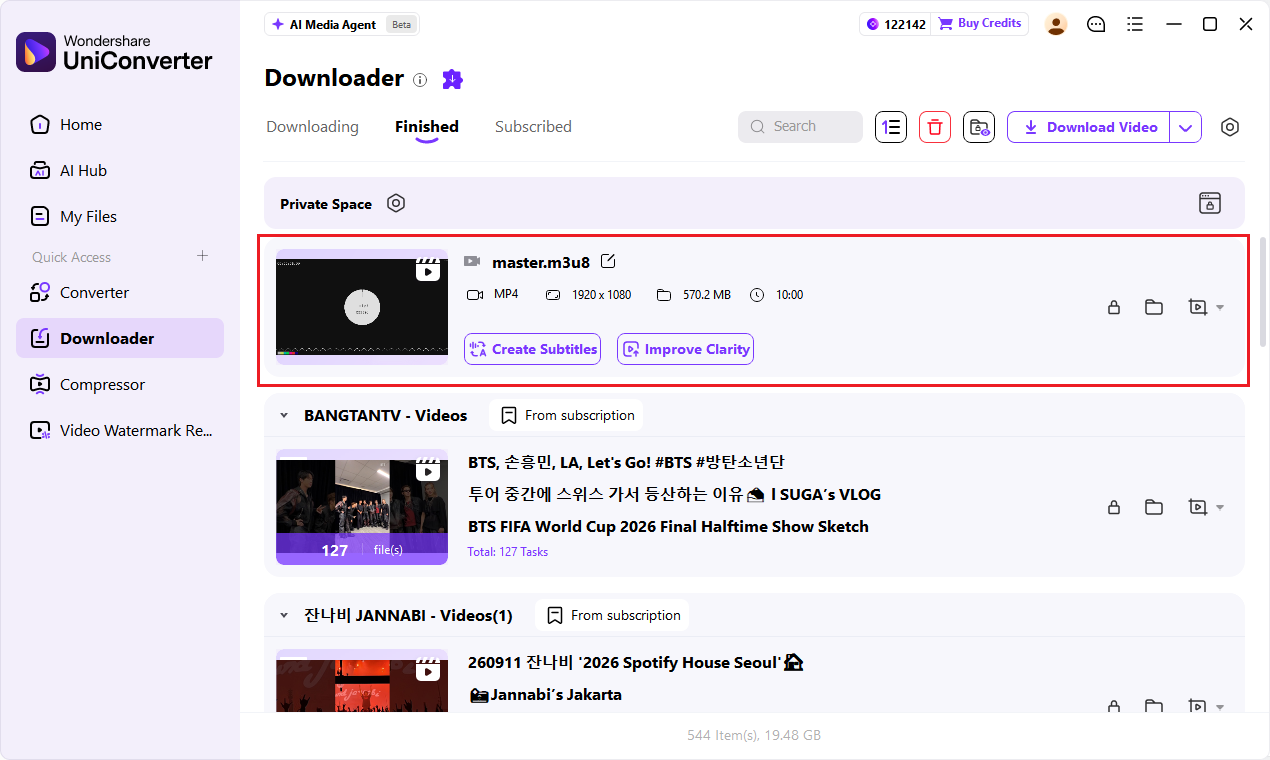
Open Finished and locate the saved file. Play it before sharing. Confirm the expected clip, sound, duration and image quality.
For the full interface walkthrough, see the official Windows Downloader guide.
Installed desktop software. Download availability and options depend on the source and current product support.
Download by Platform: Explore the Guides
Different websites use different link types and saving options. These articles explain platform-specific methods and considerations. They are reading paths, not a promise that every post, story, stream or link works in UniConverter.
TikTok
Explore video-link and bulk-saving workflows. Check the source video and applicable download conditions.
Read the guide →Understand post, Reel and Story link differences before choosing a saving method.
Read the guide →Vimeo
Compare saving methods and check the video owner’s available download options.
Read the guide →Review methods for saving Reddit clips and checking whether the result includes sound.
Read the guide →Compare desktop and other saving approaches, with attention to the original video’s availability.
Read the guide →Find platform-specific video-link instructions and method comparisons.
Read the guide →Dailymotion
Review available approaches and check compatibility with the particular video.
Read the guide →Discord
Distinguish a downloadable attachment from an external video shared inside a message.
Read the guide →M3U8 / HLS
Understand playlist links, segments and available audio before saving a compatible stream.
Read the guide →Several Links? Keep the Task Manageable.
For supported batch downloads, enter one URL per line. Up to 10 tasks can run simultaneously; the number of simultaneous tasks is different from the number of links entered.
A list of individual video links is not the same as one playlist URL. Review each task, remove accidental duplicates and check failed links separately instead of assuming the entire queue has identical support.
The TikTok bulk download article is a platform-specific starting point when that is your source.
Before starting a queue
- One complete individual URL per line.
- A destination folder with enough free space.
- Permission to save every clip.
- A final check for each output, including sound.
Need MP4, Audio or a Smaller File?
Download availability and local conversion are separate stages. Choose an available download first, then use a supported local processing task when the saved file needs to change.
| Your next task | Practical next step | Check the result |
|---|---|---|
| Play the video on another device | Use Converter to choose a supported MP4 output if needed. | Confirm that the target device can play the video and audio. |
| Keep an audio copy | Select available source audio, or extract audio from an authorized local video using a supported format. | Listen to the file; renaming an extension does not convert it. |
| Send a smaller copy | Use the compression workflow after downloading. | Inspect actual size, sound and readability before sending. |
If you prefer an integrated workflow, check the available Convert after download controls in the desktop application. A later conversion cannot add a missing source audio track or recover detail that was never present.
Why Won’t This Video Link Download?
Start with the input and task state. A failed link is not always a network problem, and a completed download still needs a playback check.
| What you see | What to check | Useful next action |
|---|---|---|
| Link is not recognized | Wrong page type, incomplete address or unsupported source. | Copy the full individual video URL and check its platform guide. |
| Video is no longer available | The original was removed or the link expired. | Return to the original source. Stop if saving is unavailable or restricted. |
| Task pauses or stops | Connection, local storage and displayed task status. | Check the error, update the app if needed and retry an eligible task once. |
| Video has no sound | Whether the original contains sound and which output was saved. | Check the source and available options; changing the extension cannot create audio. |
| Downloaded quality looks lower | Source quality, selected output and any later conversion. | Inspect the original and local file. Do not mistake an upscale for native source detail. |
Before you finish
- Open the saved file, not just its thumbnail.
- Check the beginning, middle and ending for complete playback.
- Listen for the expected soundtrack and sync.
- Keep the original download before creating edited or compressed copies.
FAQs About Downloading Video from a Link
How do I download a video from a link?
Use the source website’s download option when it is available. Otherwise, for a supported video you are allowed to save, copy its individual page URL and use a compatible downloader. In UniConverter, the link is processed in the installed desktop application.
Is this an online video downloader?
No. This page introduces UniConverter Desktop for Windows and Mac. Download and install the software to process supported video links. There is no online URL download form on this page.
Can I download a video from any website link?
No downloader supports every page or link type. A video page, profile, collection, temporary media URL and streaming playlist are different inputs. Support can also change. Check the relevant platform guide and the result returned for your link.
Can I save a video from a URL as MP4?
Use the available download result first. If you need MP4 and the downloaded file is compatible, convert the local video using Converter. Changing a filename extension does not convert its container or codec.
Can I download audio from a video link?
Available audio can be selected for supported sources. If the source does not provide the required audio option, you can extract audio from an authorized local video in Converter using an available output format. Audio availability depends on the source.
Can I download several video links at once?
For supported batch tasks, enter one eligible URL per line. Up to 10 download tasks can run simultaneously; this does not mean that every entered link will succeed or that one URL represents an entire playlist. Check each completed result.
Why does my video link fail to download?
The URL may be incomplete, expired or unsupported, or the video may no longer be accessible. Confirm the original page and use the complete individual video link. Do not try to bypass sign-in requirements, disabled downloads, regional restrictions or DRM.
Can I download HD video from a link?
Only if the accessible source and current download options provide the required quality. Saving or converting a file does not recreate missing source detail. Inspect the downloaded video’s resolution, motion and sound before using it.
Can I use this on Android or iPhone?
UniConverter Downloader on this page is a Windows and Mac desktop workflow. For a phone-only task, use the original platform’s available save or export options. You can transfer an authorized desktop download to your phone afterward.
Is link downloading free?
The installer is available through the download buttons. Downloading the installer does not mean every feature or task is unlimited or free. Check the current trial and plan conditions in the application or on the official purchase page before relying on a particular allowance.
Take Your Supported Video Links to Desktop
Save the file, check the result, then convert or compress it when your next task calls for it.
Installed desktop software. Download availability and options depend on the source and current product support.
