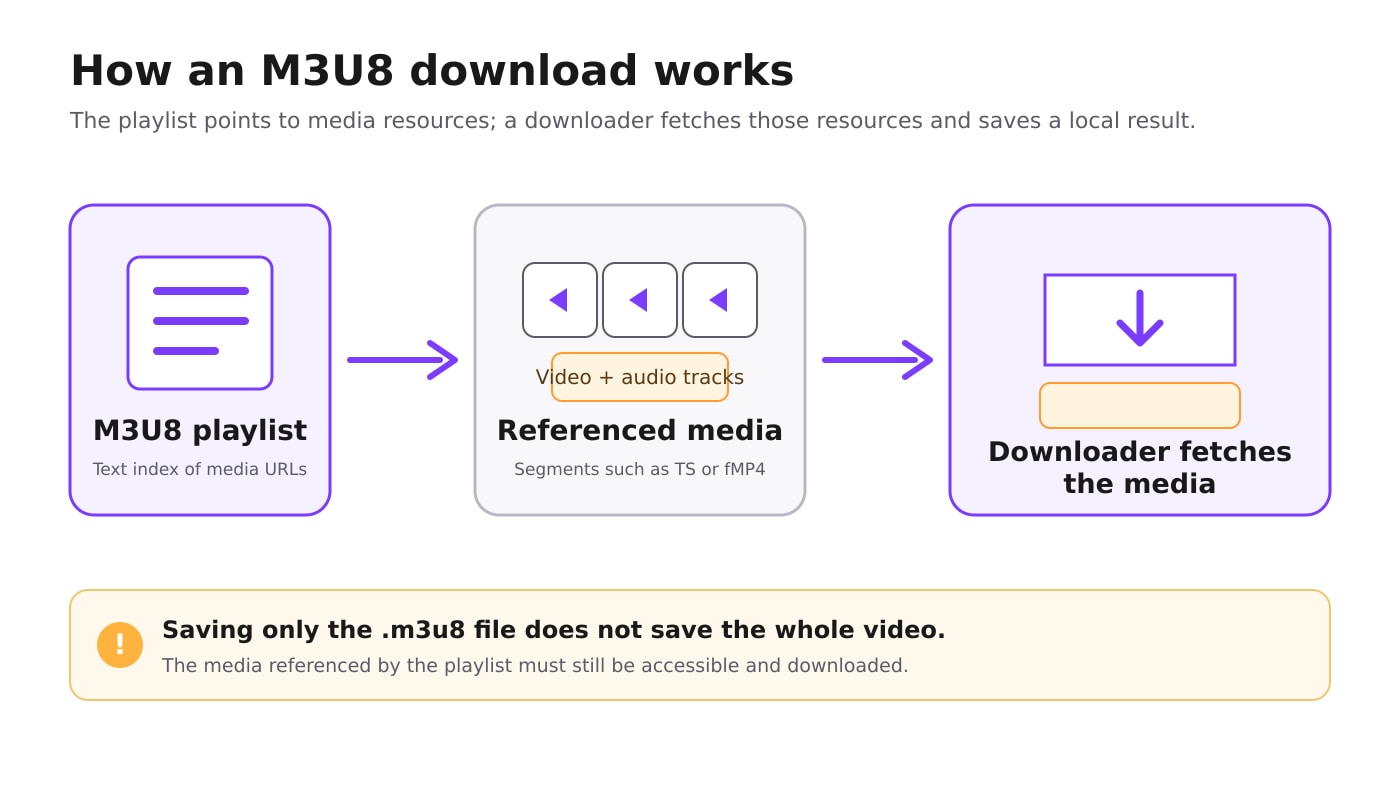
An M3U8 file is part of HTTP Live Streaming (HLS). Instead of acting as one complete video file, the playlist lists media resources that a player requests in sequence. A successful M3U8 downloader therefore has to do more than save the playlist: it must read the playlist, retrieve the available media, and write a usable local result.
This guide assumes you already have a public M3U8 URL, a URL for content you own, or one you are authorized to save. It does not cover bypassing access controls, restricted sessions, geographic or age gates, disabled downloads, or DRM.
In this article
- Part 1. What an M3U8 Download Actually Saves
- Part 2. Choose an M3U8 Download Method
- Part 3. Download M3U8 with UniConverter
- Part 4. Download with a Browser Extension
- Part 5. Use FFmpeg for an Accessible HLS Stream
- Part 5. Find and Check the Downloaded File
- Part 6. Fix Common M3U8 Download Problems
- FAQs about M3U8 Downloads
Part 1. What an M3U8 Download Actually Saves
HLS delivers media as a sequence of resources referenced by an M3U8 playlist. Those resources may be transport-stream segments or fragmented MP4 media, and audio can also be supplied as a separate rendition. This is why a playlist that opens correctly can still produce an incomplete or silent download if some referenced resources cannot be reached.
| Stream type | What the playlist does | What it means for downloading |
| Video on demand (VOD) | Represents a finished presentation and normally ends with an end marker. | A downloader can retrieve the available presentation from beginning to end when all referenced media remains accessible. |
| Event stream | Grows while the event is running and retains earlier entries. | The downloadable range can expand until the event ends. |
| Live sliding-window stream | Adds new media while older entries may be removed. | Starting late can mean earlier content is no longer listed or retrievable. |

Part 2. Choose an M3U8 Download Method
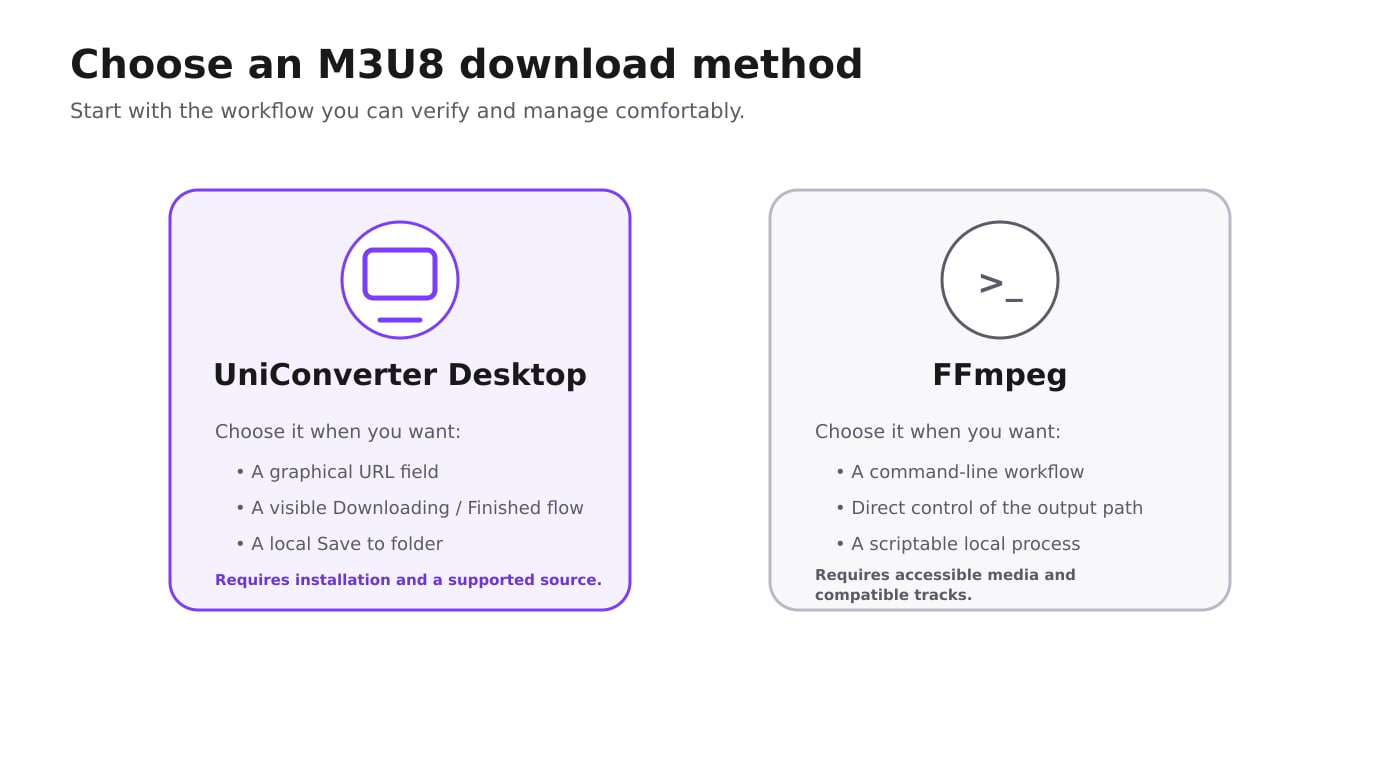
You do not need a long list of similar tools. For an authorized HLS download, choose between a desktop app, a browser extension, and a command-line tool based on where the source is accessible and how you prefer to manage the finished file.
| Method | Good fit when | Main limitation |
| Wondershare UniConverter Desktop | You want a graphical M3U8 video downloader, a visible download queue, a chosen local save folder, and completed-file management in one app. | It must be installed, and a source still has to be supported and accessible. |
| Browser extensions (HLS Downloader / FetchV) | You prefer working in Chrome or another supported browser and want the extension to detect an accessible HLS stream from a page. | You must install the extension; downloads depend on stream support and browser access, and long captures may require keeping the browser active. |
| FFmpeg | You are comfortable with Terminal or Command Prompt and already have an accessible M3U8 URL. | It is command-line based; stream/container compatibility and source availability still determine whether a copy succeeds. |
An extension can be convenient for a short stream already playing in the browser. It does not eliminate access restrictions; browser security rules, incompatible HLS packaging, or unavailable segments can still stop a download.
Part 3. How to Download M3U8 with Wondershare UniConverter
UniConverter is the primary method here because its current desktop Downloader provides the URL field, download queue, Save to location, and Finished file management needed for the complete task. It is desktop software, so install and open the application before you begin.
Download supported M3U8 streams with a desktop workflow
Step 1. Open Downloader in UniConverter.
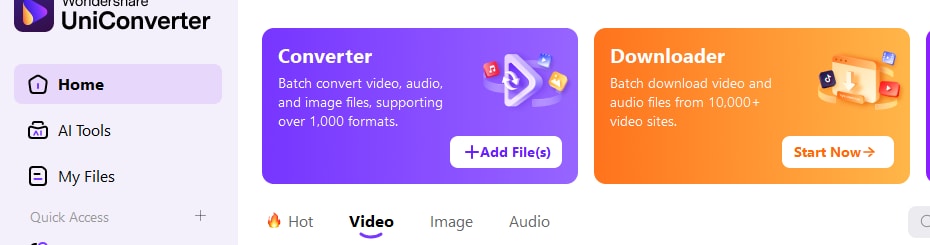
Launch UniConverter. From the Home screen, open Downloader using the Downloader card or the Downloader entry in the left navigation.
Step 2. Paste the authorized M3U8 URL.
In Downloader, paste the M3U8 URL into the URL field and keep Video selected for a video download. UniConverter analyzes the URL before it can start the task; the choices available after analysis depend on what the source exposes. Before starting, use Save to to choose the local folder where you want the result stored.

Step 3. Start the download and locate the result.
Click Download after the URL has been accepted. An active job appears under Downloading. When it completes, switch to Finished. Use the completed item's folder control to find its local location rather than guessing where the file was saved.
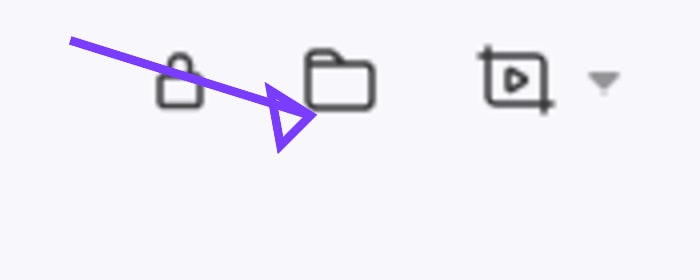
Check the result before you leave the task. Confirm that the local file opens, the duration looks reasonable, the beginning and ending are present, and audio plays where the source is expected to contain audio. For a live capture, compare the saved duration with the period you actually recorded rather than with the full lifetime of the broadcast.
Part 4. Download M3U8 with a Browser Extension
If a stream you are authorized to save plays in your browser, an HLS extension may be an easier option for a quick download. You install the extension in your browser rather than installing a separate desktop application. Two examples with documented HLS support are HLS Downloader and FetchV.
- HLS Downloader: Its Chrome Web Store listing describes HLS playlist and segment downloading. Check the extension's current listing for supported browser behavior and available options.
- FetchV: Its Chrome Web Store listing describes HLS/M3U8 support, combining accessible fragments into an MP4 file, and live-stream capture. Its publisher also states that encrypted video and some nonstandard players are unsupported.
How to try an extension: Install it from the official extension store, open a page containing media you are allowed to download, play the stream if needed for detection, then use the extension's displayed download action for a supported HLS item. When the transfer finishes, find the saved file in your browser's download list or the folder configured in your browser. Exact controls differ between extensions.
When to choose another method: If an extension does not detect the stream or the browser cannot fetch its segments, it may be better to use a supported URL in a desktop downloader or FFmpeg. None of these methods bypasses DRM or inaccessible media. A long browser-based capture may require keeping the browser and extension active.
Part 5. Download an Accessible HLS Stream with FFmpeg
FFmpeg is a free, open-source command-line tool that can read HLS input. It is useful when you already have an accessible M3U8 URL and are comfortable working in Terminal or Command Prompt. Install FFmpeg from the official FFmpeg download page before using the command below.
ffmpeg -i "https://example.com/path/stream.m3u8" -c copy "output.mp4"This asks FFmpeg to open the HLS playlist and copy compatible input streams into the output without re-encoding them. It is not a guarantee that every M3U8 URL will work: the playlist, media segments, and any separate audio rendition still have to be accessible, and the streams must be compatible with the chosen output container.
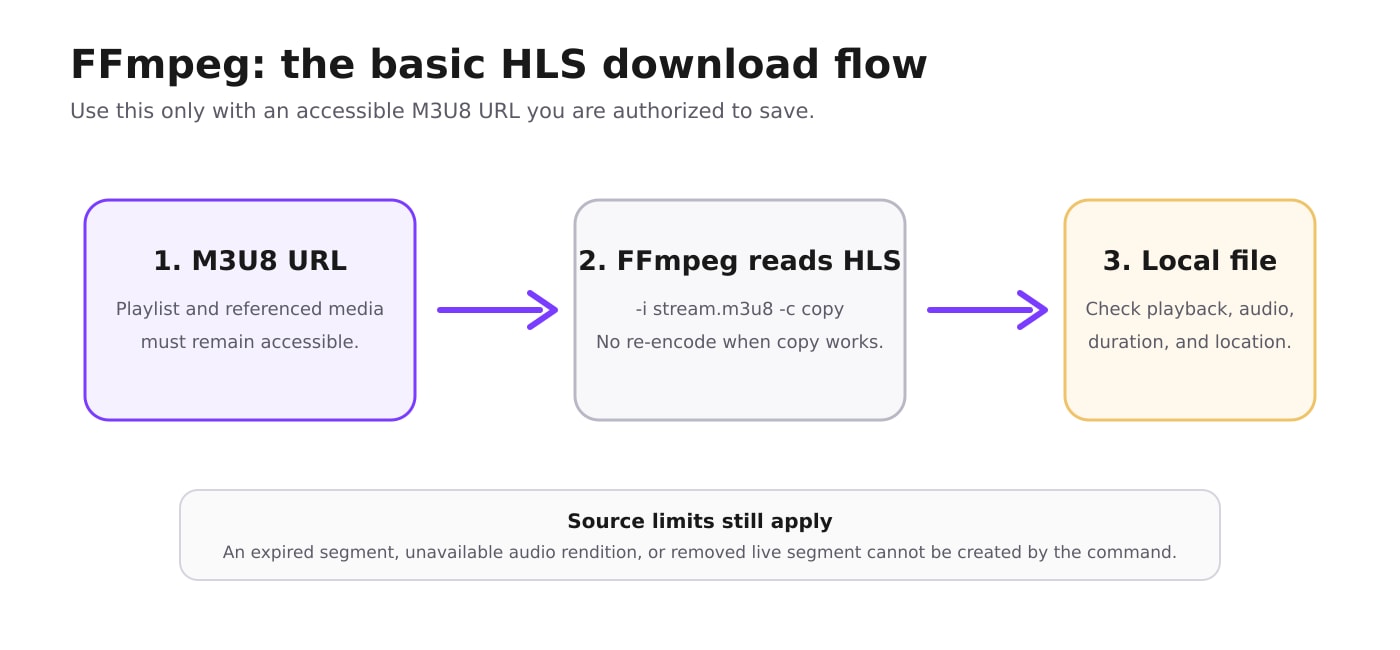
For a finished VOD playlist, FFmpeg can process the listed presentation until the end when all referenced media remains accessible. For a live playlist, the process can continue as new segments appear until you stop it or the source ends. Some streams offer a rewind/DVR window or a later archived replay, but a sliding-window downloader cannot assume older media remains accessible.
Part 6. Where to Find and How to Check the Downloaded File
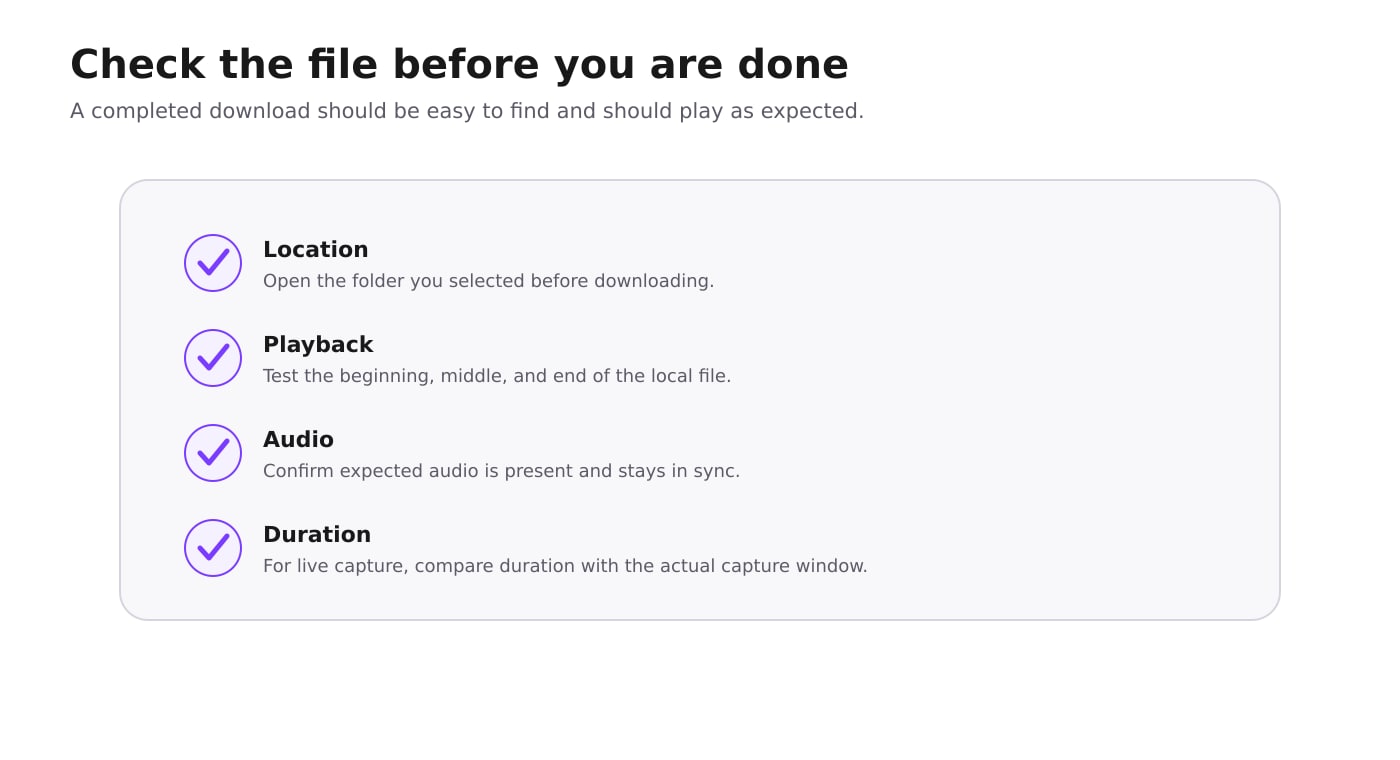
Finishing the transfer is only half of the job. Use the save location you chose and verify the file before deleting source notes or closing a live capture.
- With UniConverter: check the Finished tab and use the folder control for the completed item. The Save to setting determines the local destination.
- With FFmpeg: the output path is the last argument in the command. If you provide only a filename such as
output.mp4, check the command line's current working directory. - Playback check: open the local file and sample the beginning, middle, and end. Confirm that seeking works and that expected audio is present.
- Live check: compare the file duration with when the capture actually started and stopped. Do not assume a live playlist includes the program from its original start.
Part 7. Why M3U8 Downloads Fail and What to Check
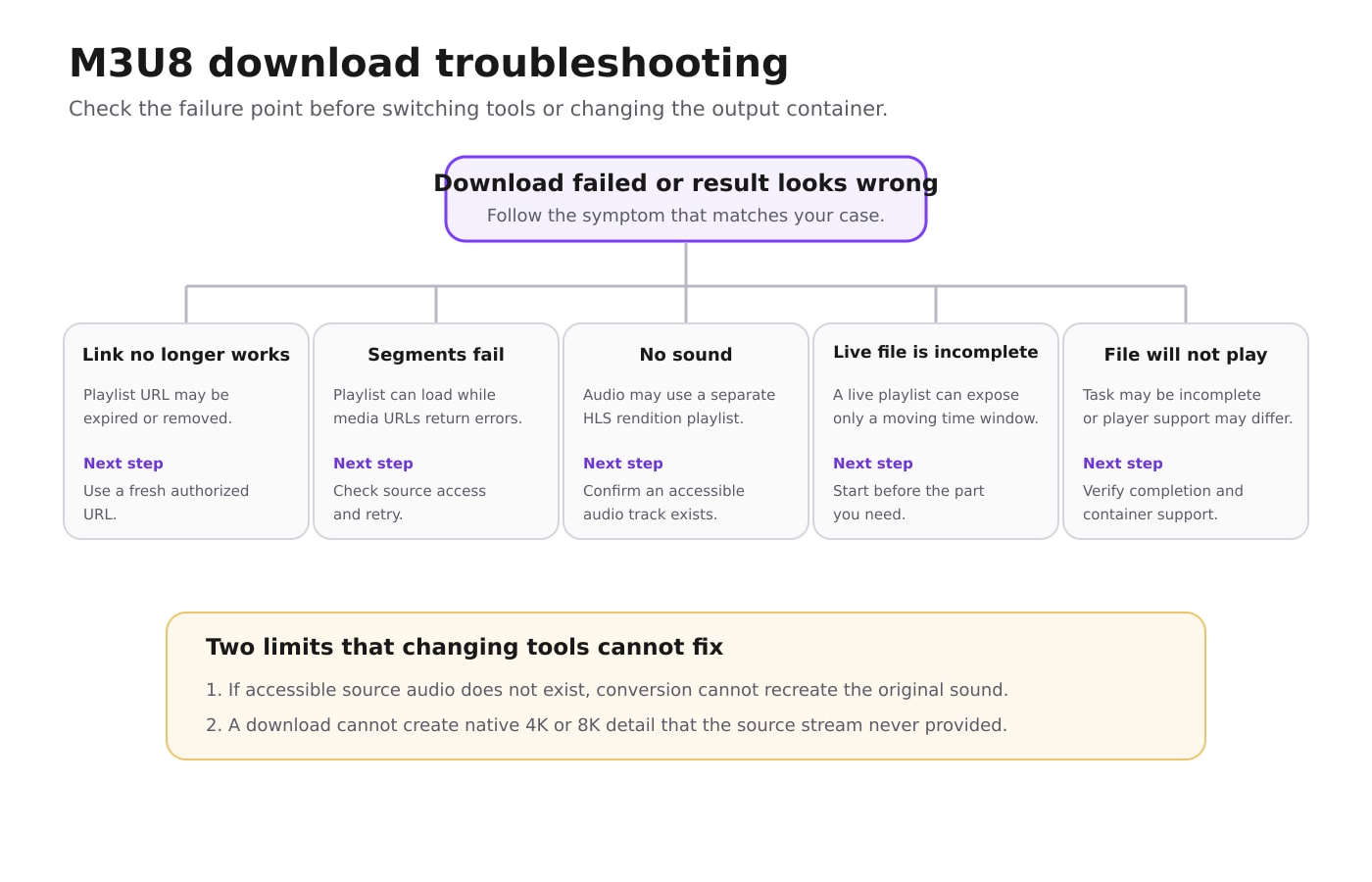
| Problem | Likely reason | What to do |
| The M3U8 link no longer opens | The URL may have expired, moved, or been removed. | Return to the authorized source and obtain a current public or permitted URL. Do not try to bypass access controls. |
| The playlist opens, but download fails | One or more referenced segments may return an error or may no longer be available. | Confirm the media resources are still accessible. Retry while the source is available; changing the output format will not fix missing segments. |
| The download stops partway through | The connection was interrupted or the live/source playlist changed during the task. | Retry the authorized source. In UniConverter, use the current download queue controls when a resumable task is available. |
| The video has no sound | HLS can put audio in a separate rendition playlist, and that audio may not have been included or accessible. | Confirm that the source exposes an audio rendition. If no usable audio was captured, later conversion cannot restore the original soundtrack. |
| A live download starts too late | The live playlist may be a sliding window that has already removed older segment references. | Check whether the source offers an official rewind/DVR window or archived replay; otherwise capture only the available period. |
| The file exists but will not play correctly | The task may be incomplete, or the saved tracks/container may not be supported by the player. | First verify that the download completed and the file size is plausible. Then try a compatible player or, for a complete local file you own, remux the container if necessary. |
If your goal is specifically to change an M3U8 source into MP4 rather than to complete an HLS download workflow, use the separate M3U8 to MP4 guide. Keeping conversion separate prevents this page from turning a download problem into a format-conversion problem.
Conclusion
The key to an M3U8 download is understanding that the playlist is only the map. For a supported, authorized URL, UniConverter gives you a desktop workflow with a URL field, download queue, chosen save location, and Finished-file management. A browser extension is another option when the stream is accessible in a supported browser. FFmpeg is a practical command-line alternative when you already have an accessible HLS URL. In either case, verify the local file after downloading and troubleshoot the source playlist, segments, audio rendition, and live-window behavior before assuming a different container will solve the problem.