


Creating amazing content on Instagram is rewarding, but that persistent watermark can be a problem when you want to repurpose your hard work. Whether you're a creator aiming for a clean look on TikTok or YouTube Shorts, or just want to save a personal memory without the branding, removing the Instagram watermark is a common challenge.
This guide explores the top 5 methods to remove the Instagram watermark from your video, from professional desktop software to the best free online tools. We'll help you find the perfect IG watermark remover for your needs, balancing quality, speed, and cost.
Table of Contents
Part 1. Why remove the Instagram watermark from your video?

This guide is intended for creators who want to manage their own content. With that disclaimer, here are the legitimate reasons you might need an Instagram watermark remover:
- Cross-Platform Sharing: You created a fantastic Reel on Instagram and want to share it on TikTok, YouTube Shorts, or Twitter without the Instagram logo and username. A clean video looks more professional and native to each platform.
- Rebranding Content: Creators and businesses often want to add their own logo or branding instead of the Instagram watermark when posting to their website or other social channels.
- Aesthetic and Professionalism: A watermark-free video provides a cleaner, more polished look, especially for compilations, portfolios, or edited video projects.
- Saving Memories: Sometimes you just want to save a video you posted—a personal milestone or a family moment—without the platform's branding cluttering it.
⚠️ Important Legal Notice Regarding Instagram Watermarks
Removing the Instagram watermark (the Instagram logo and username from Reels/Stories) may violate:
- Instagram's Terms of Use: Instagram's policies explicitly prohibit the alteration or removal of their intellectual property, including watermarks. Doing so can result in content removal, account restrictions, or a permanent ban.
- Copyright Law: The watermark is a key identifier of the source of the content. Removing it may constitute copyright infringement if you do not own the original content or have explicit permission from the copyright holder (the original creator).
You are solely responsible for ensuring you have the necessary rights to use and modify the content. By proceeding, you acknowledge and accept all potential risks, including legal action from Instagram or the original creator.
Quick Guide: Best Instagram Watermark Removal Method by Need
Part 2. Method 1: Use a Dedicated Watermark Remover Software
For the highest quality and most reliable results, dedicated desktop software is the clear winner. These tools are part of larger video suites, offering powerful AI features that go far beyond simple blurring. Our top recommendation in this category is Wondershare UniConverter.
How it Works:
UniConverter isn't just a converter; it's an all-in-one video toolbox. It includes a specific "Watermark Remover" tool that uses AI to analyze the pixels behind the watermark and intelligently reconstruct the video. This avoids the blurry smudges left by older tools and results in a remarkably clean video.
Step-by-Step Guide:
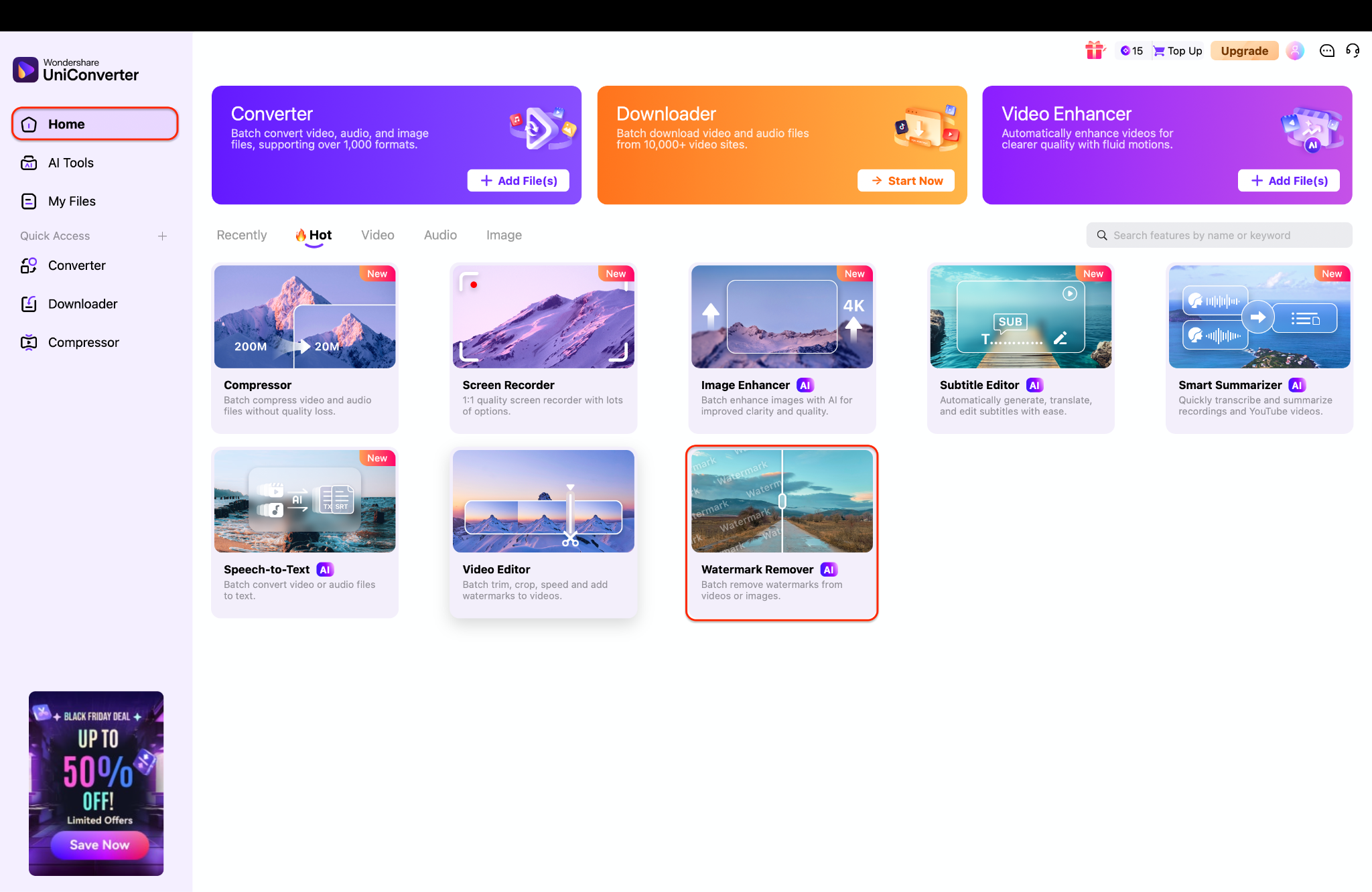
Step 1: Go to the Watermark Remover
Get Wondershare UniConverter for your Mac or Windows PC. Launch the UniConverter. From the main Home dashboard, access the Watermark Remover.
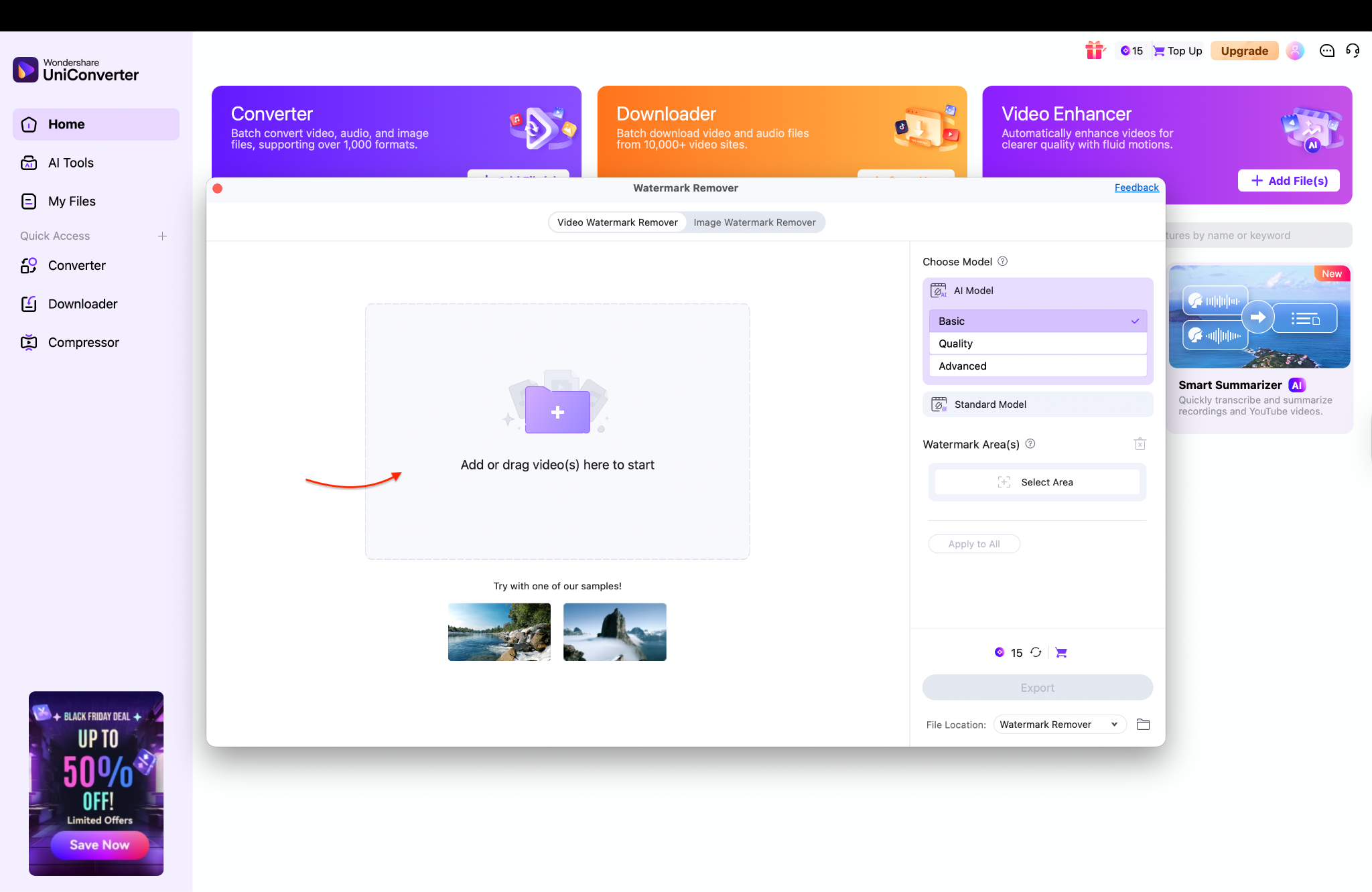
Step 2: Import your video and mark the watermark
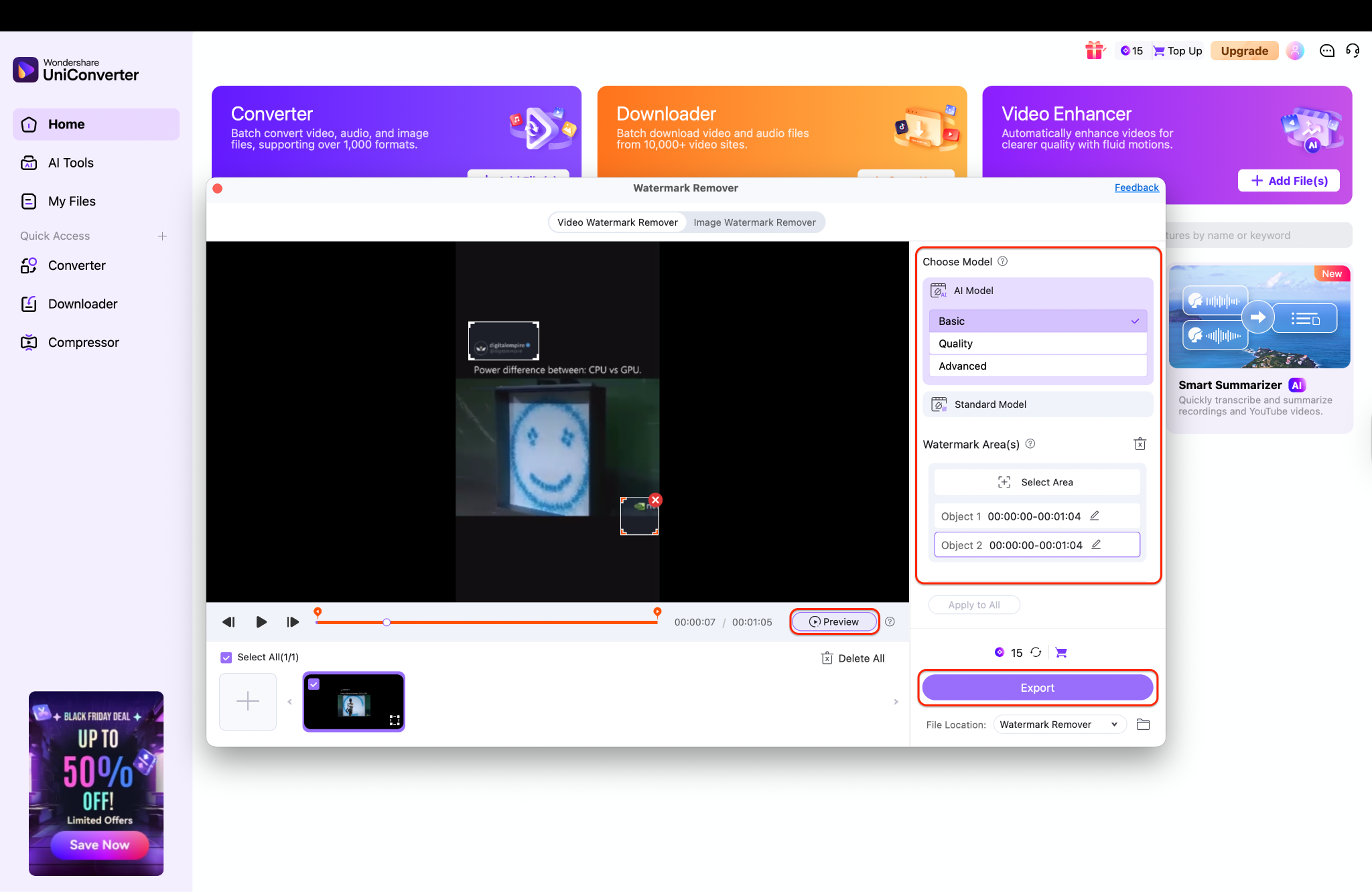
Step 3: Select Area, Preview and Save
Select the model (AI Model → Basic/Quality/Advanced) from the right panel, then click the Preview button to let the tool process the selected area and display the cleaned result. Review the preview timeline to confirm that the watermark is removed across all frames, and adjust the selection or model if you notice any artifacts. When you're happy, click Export, pick the file location, and save the cleaned video.
Pros & Cons

Easy to Use Instagram Watermark Remover
Part 3. Method 2: The Easiest & Free Way - Screen Recording
If you're looking for a free method to remove Instagram watermark free method that doesn't rely on downloading third-party apps, screen recording is an excellent and safe alternative. You can use your computer's built-in recorder (like QuickTime on Mac or Xbox Game Bar on Windows), but a dedicated tool gives you more control.
Once again, Wondershare UniConverter shines here, as it includes a high-quality, full-featured screen recorder.
How it Works:
Instead of downloading the video file (which is how the watermark gets added), you simply play the video on your screen and record that portion of your screen. This captures the video in its original, pre-download state.
Step-by-Step Guide (Using UniConverter):
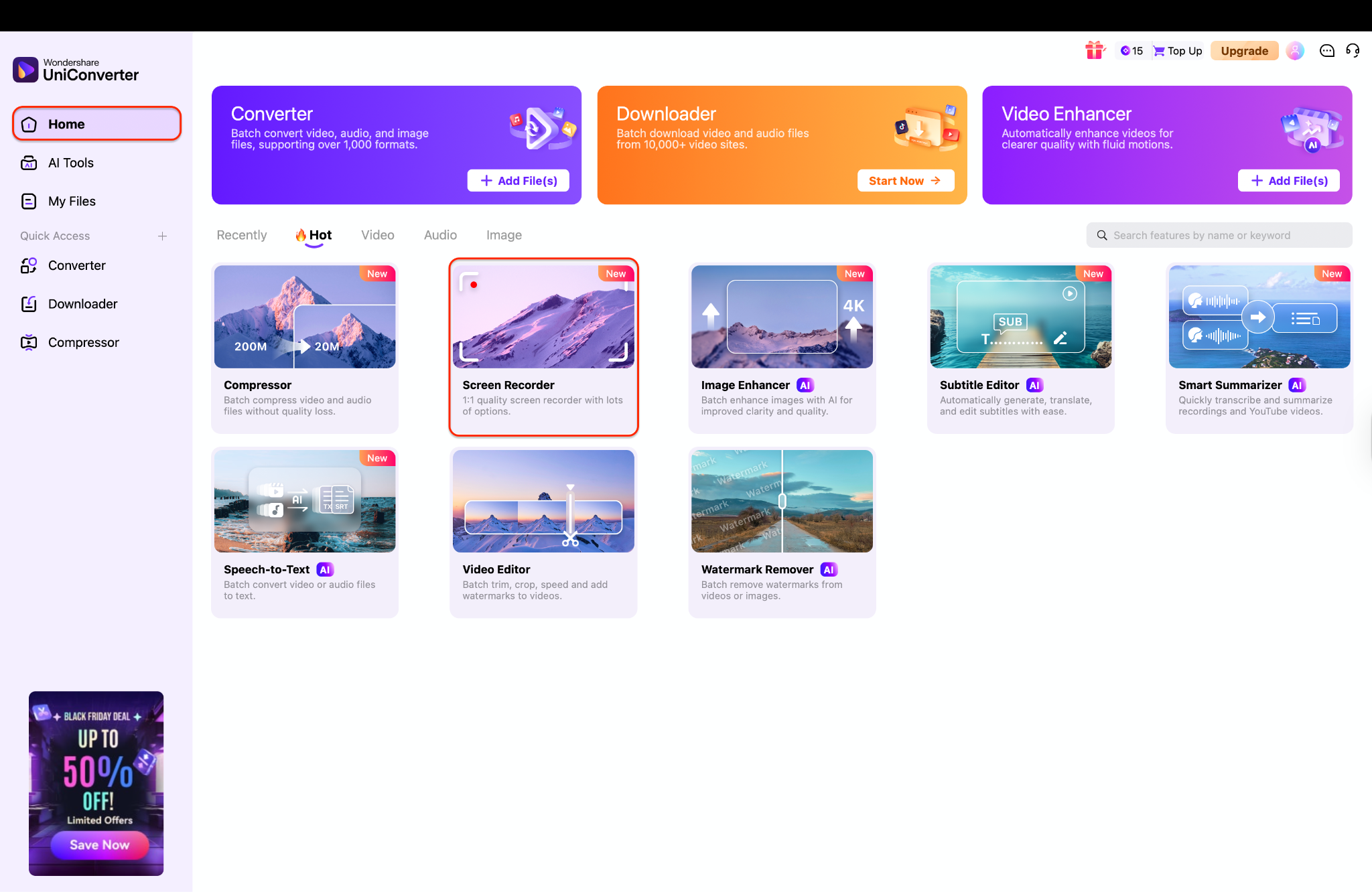
Step 1: Open Screen Recorder and select Recording Area
Launch UniConverter, from the "Home" page, and select "Screen Recorder". ``Open your Instagram video in your web browser. In the Screen Recorder controls, choose "Custom" and drag the recording frame to fit only the video portion of the Reel, excluding the Instagram UI, logo, and username.
Step 2: Record, Stop, and Access Watermark Remover
Press the "REC" button, quickly switch to your browser, and play the Instagram video from the beginning. Once the video finishes, stop the recording using the floating widget or a hotkey (like Cmd+F6 on Mac). The recording will automatically save to your computer, allowing you to download your video.
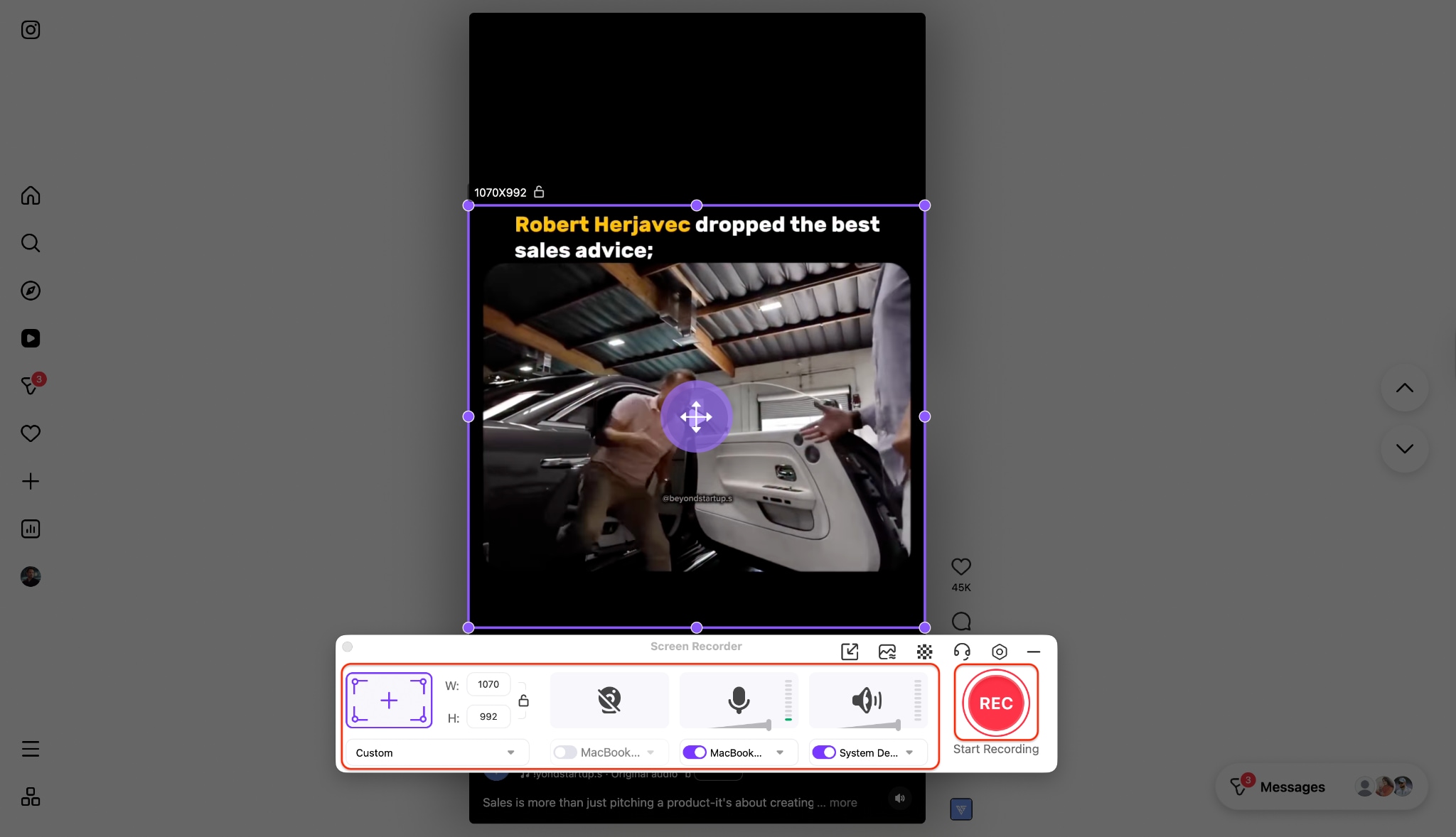
Note: Ensure "System Audio" is enabled so it captures the video's sound, but disable your "Microphone" so it doesn't record room noise.
Step 3: Open UniConverter to start removing the watermark
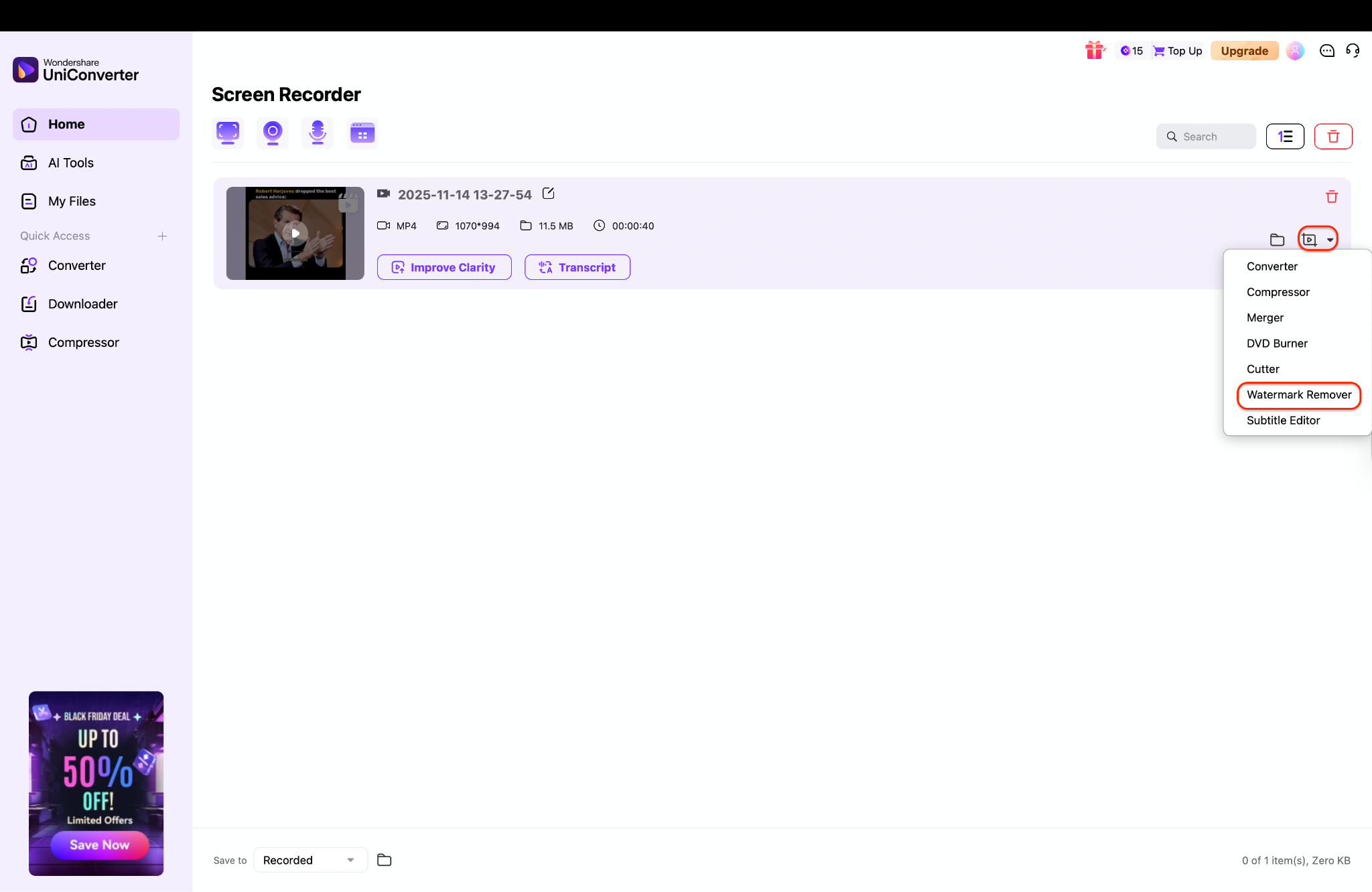
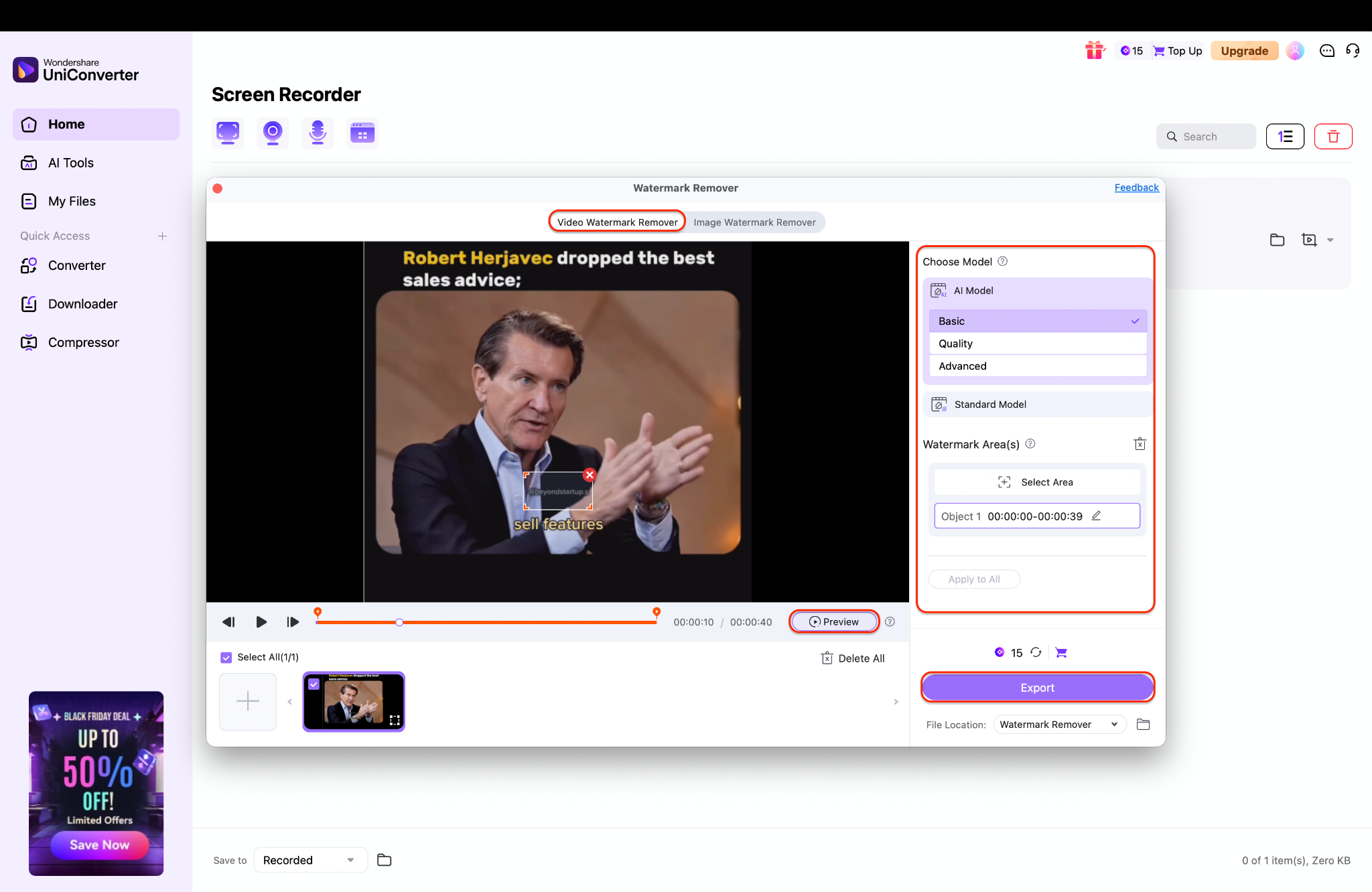
Step 4: Select the Watermark Area, Preview, and Export
Now, select the model and choose one or more watermark areas you want to remove from your IG reel. Then, after selecting the area, click Preview to verify whether the watermark part has been removed. Once you are happy with the result, click on Export and successfully export your recorded IG reel without a watermark.
Pros & Cons
Part 4. Method 3: Use a Dedicated Watermark Remover App (For Mobile)
Mobile watermark remover apps provide a quick, on-the-go solution for removing watermarks from your Instagram Reels, eliminating the need for a desktop or browser. These apps use AI-powered texture rebuilding to erase usernames, logos, or text overlays directly from your phone. It's a smooth option for creators who prefer editing, downloading, and posting everything right from their device.
How it works
Vmake uses AI to detect the texture around the watermark and then blends the selected area seamlessly with the background. You import your Reel link or video file, highlight the watermark, and let the tool process the frame. The final video is saved back to your gallery, ready for posting without any visible marks.
Step-by-step guide (Using Vmake Watermark Remover for iOS & Android)
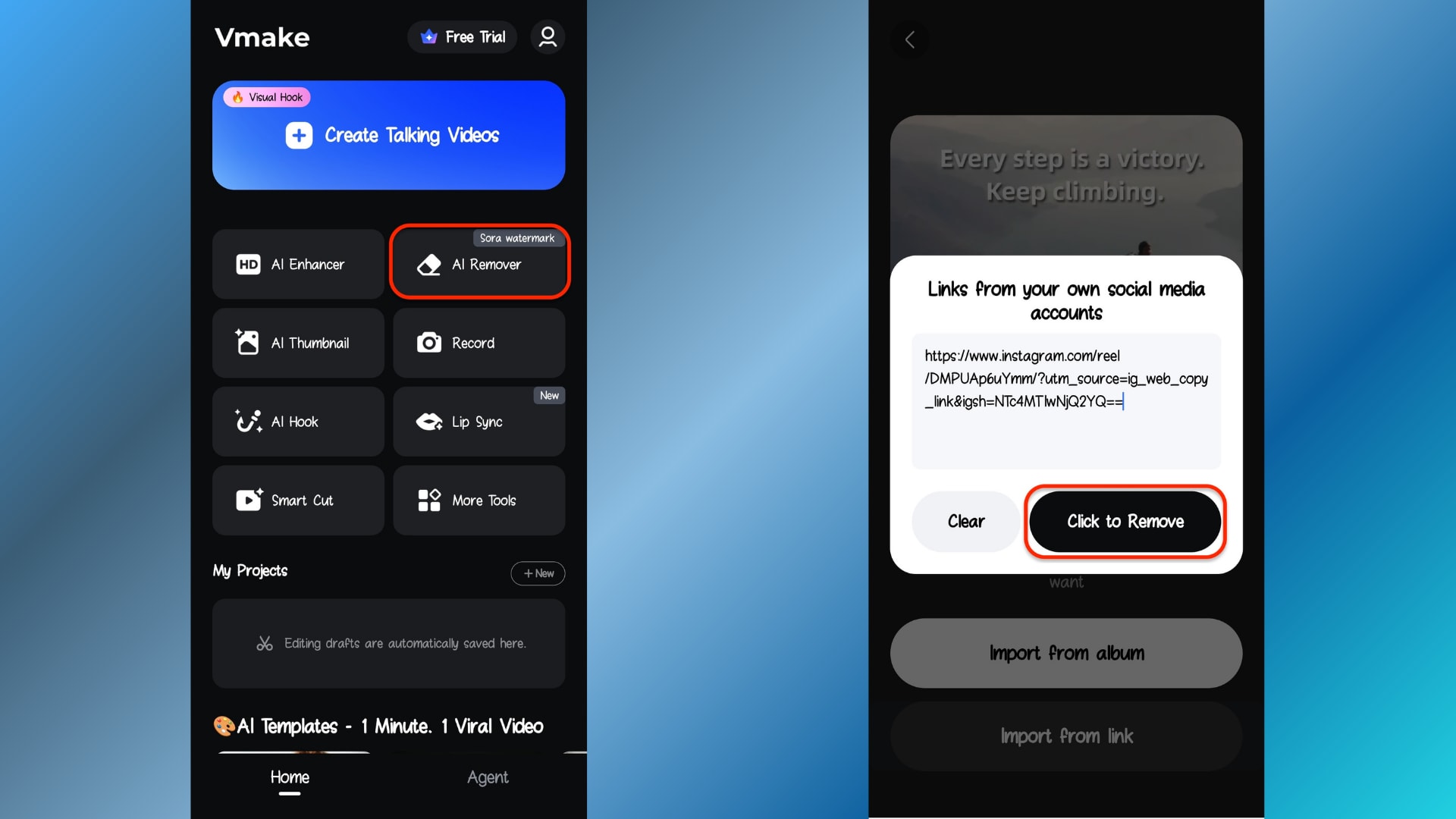
Step 1: Install Vmake and import your Reel link
Download the Vmake Watermark Remover app from the App Store or Google Play and allow it to access your media files. Once you're inside, tap the AI Remover option on the home screen. You can either paste your Instagram Reel link or import a downloaded file directly from your gallery.
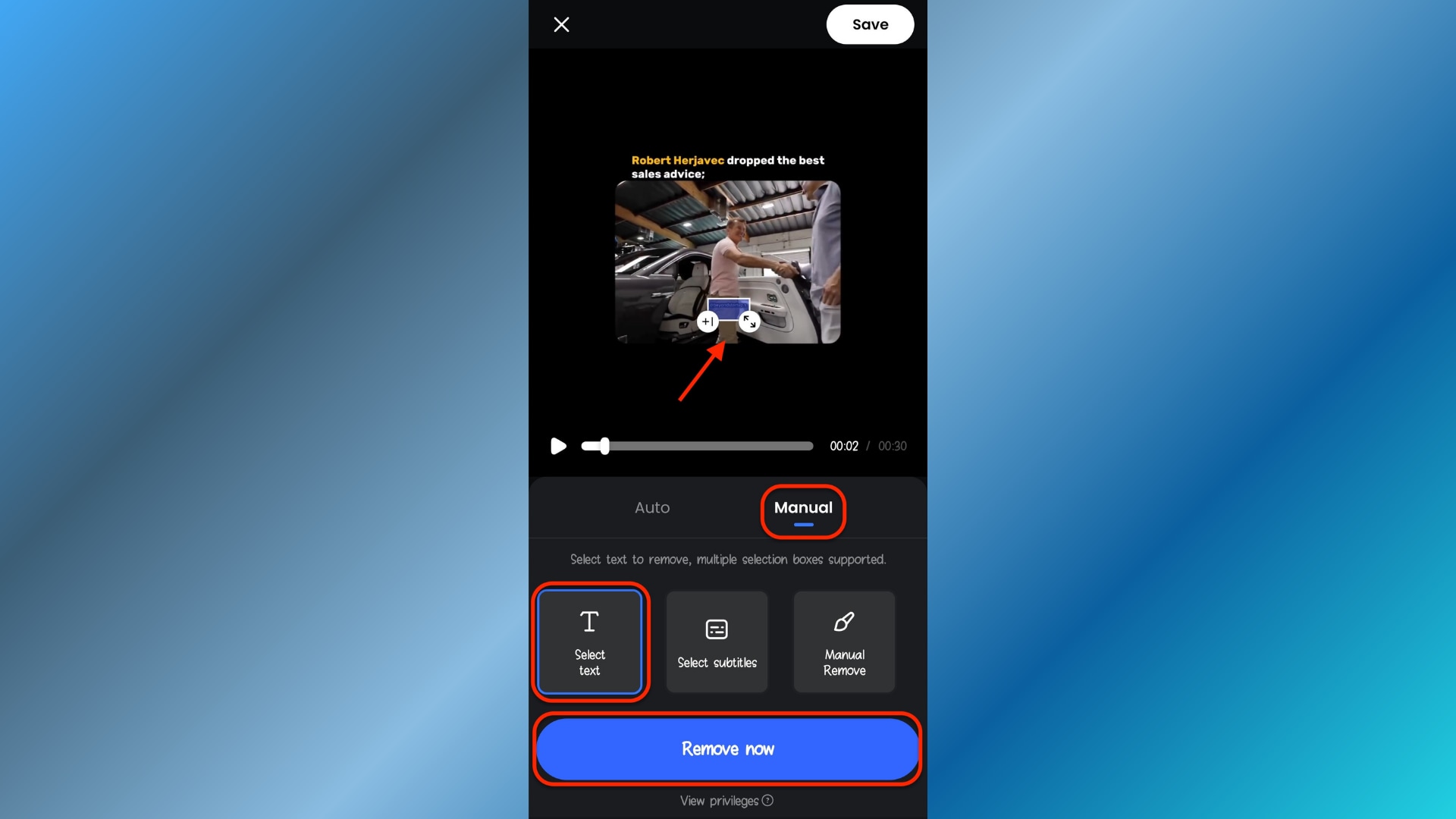
Step 2: Use the manual brush to mark the watermark area
Switch to Manual mode at the bottom of the screen, then tap Select text to highlight the Instagram username or watermark. Drag and resize the selection box until it perfectly covers the marked area, using the on-screen handles for finer control. Once your selection looks accurate, tap Remove now to let Vmake process and clean the frame.
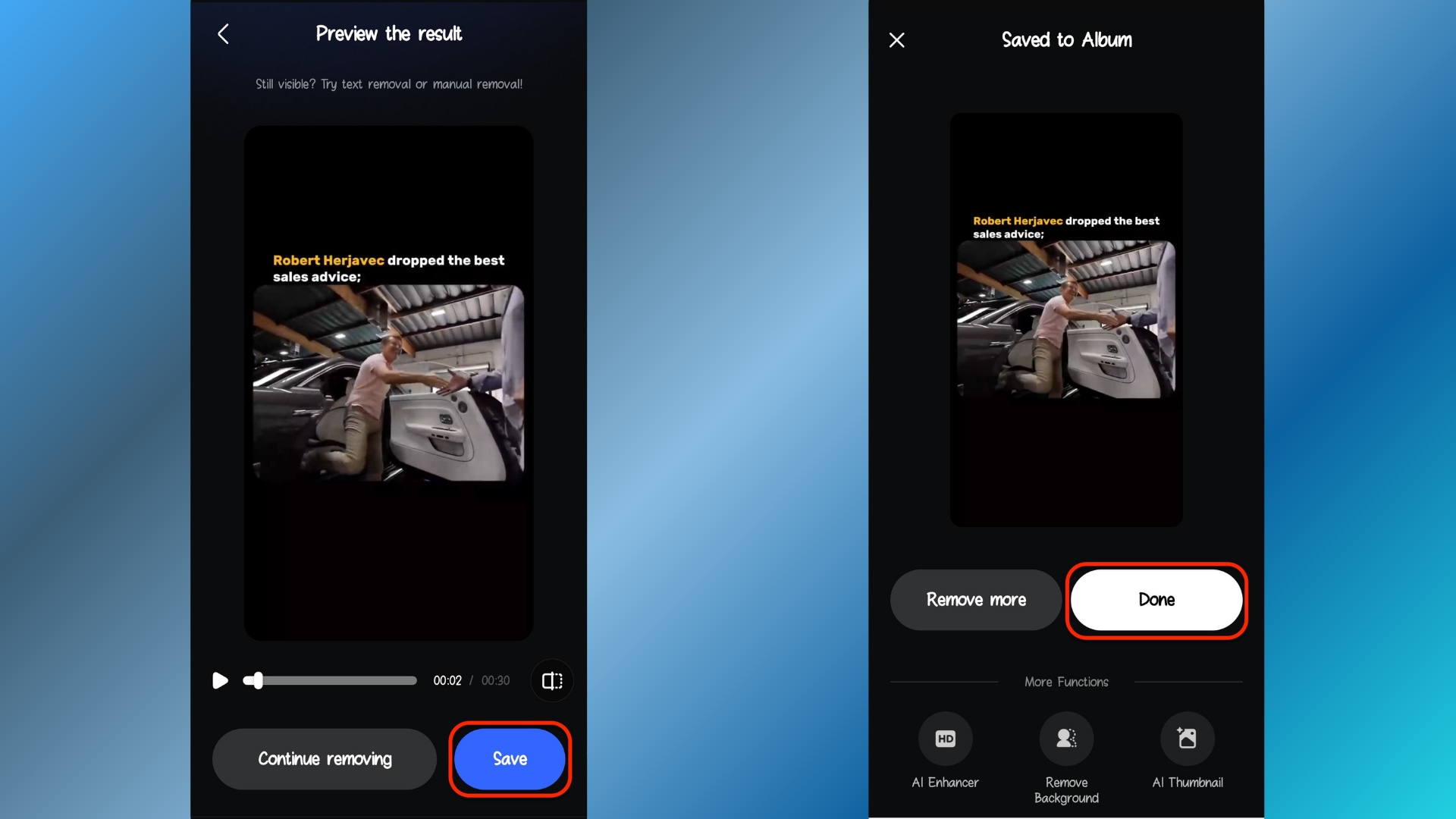
Step 3: Preview and save your clean video
After Vmake finishes processing, you'll see a preview screen where you can scrub through the video to confirm the watermark has been removed cleanly. If everything looks good, tap the Save button at the bottom to export the cleaned video. Once saved, you'll land on the final screen—tap Done to finish, and your watermark-free Reel will be stored in your phone's album.
Pros & cons
Easy to Use Instagram Watermark Remover
Part 5. Method 4: Online AI Image Editing Tools (Quick & Easy)
Online AI photo editors have become a lifesaver for creators who need to clean up watermarked Reel covers or still frames without downloading heavy software. These browser-based tools use smart pixel reconstruction to seamlessly erase usernames, logos, or text overlays in just a few clicks.
Below is a simple walkthrough using UniConverter Online Watermark Remover, one of the most approachable tools for quick clean-ups.
How it works
These editors scan the pixels surrounding your watermark and rebuild the affected area with natural-looking detail. You upload your frame, mark the watermark, and let the AI handle the reconstruction.
Step-by-step guide (Using UniConverter Online Watermark Remover)
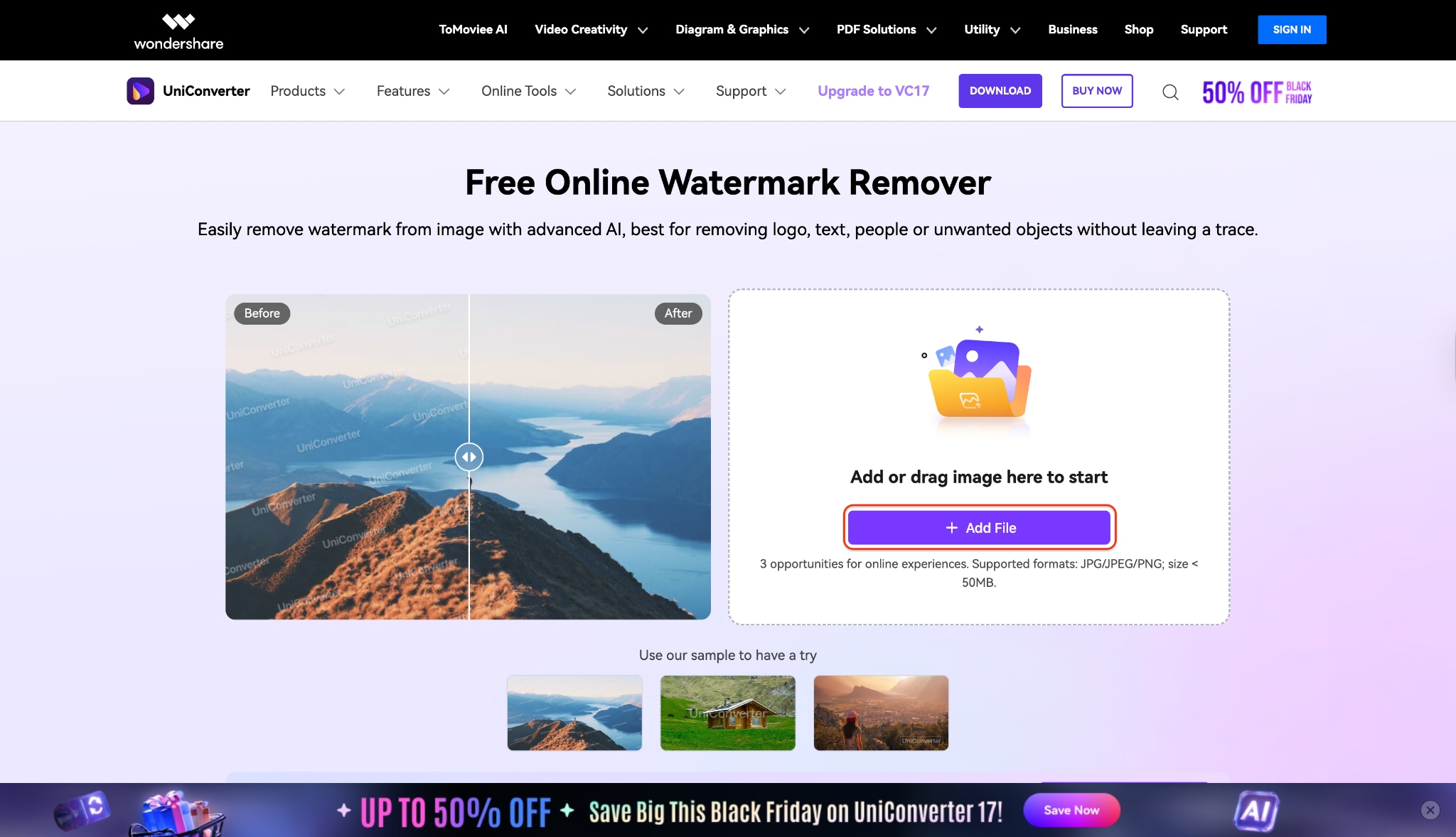
Step 1: Upload your Reel frame or thumbnail
Open UniConverter's online watermark remover in your browser and hit the + Add file button. Choose your screenshot or extracted Reel frame. Try to upload a high-quality image so the AI has enough data to rebuild the background cleanly. Once it loads, you'll see the preview window on your screen.
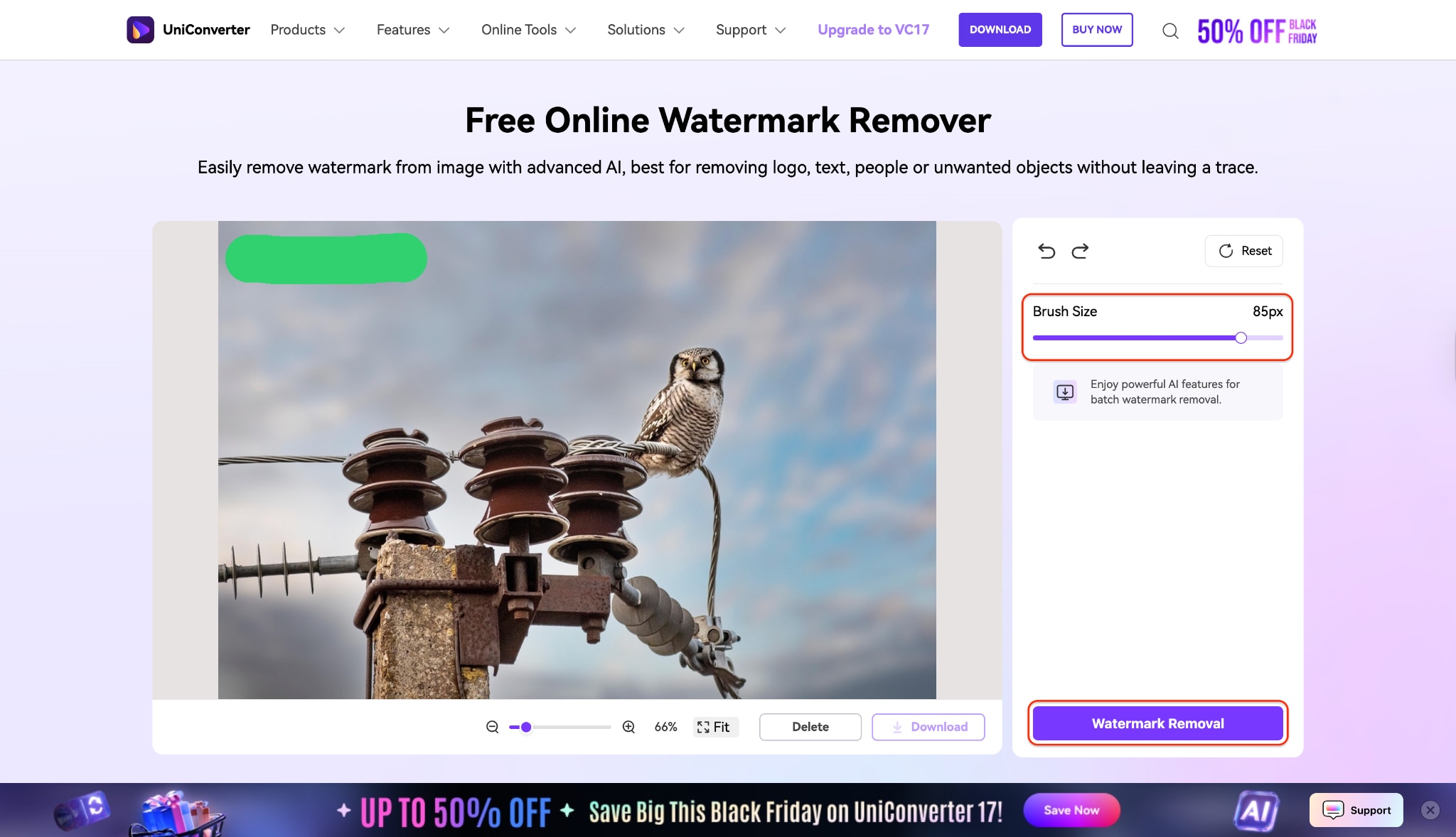
Step 2: Highlight and remove the watermark
Set your Brush Size and paint directly over the username or watermark. Make sure the full mark is covered, then click Watermark Removal. The tool will analyze the surrounding pixels and automatically fill the brushed area. If any tiny artifacts remain, lightly brush those spots again for a smoother result.
Step 3: Preview, refine, and download
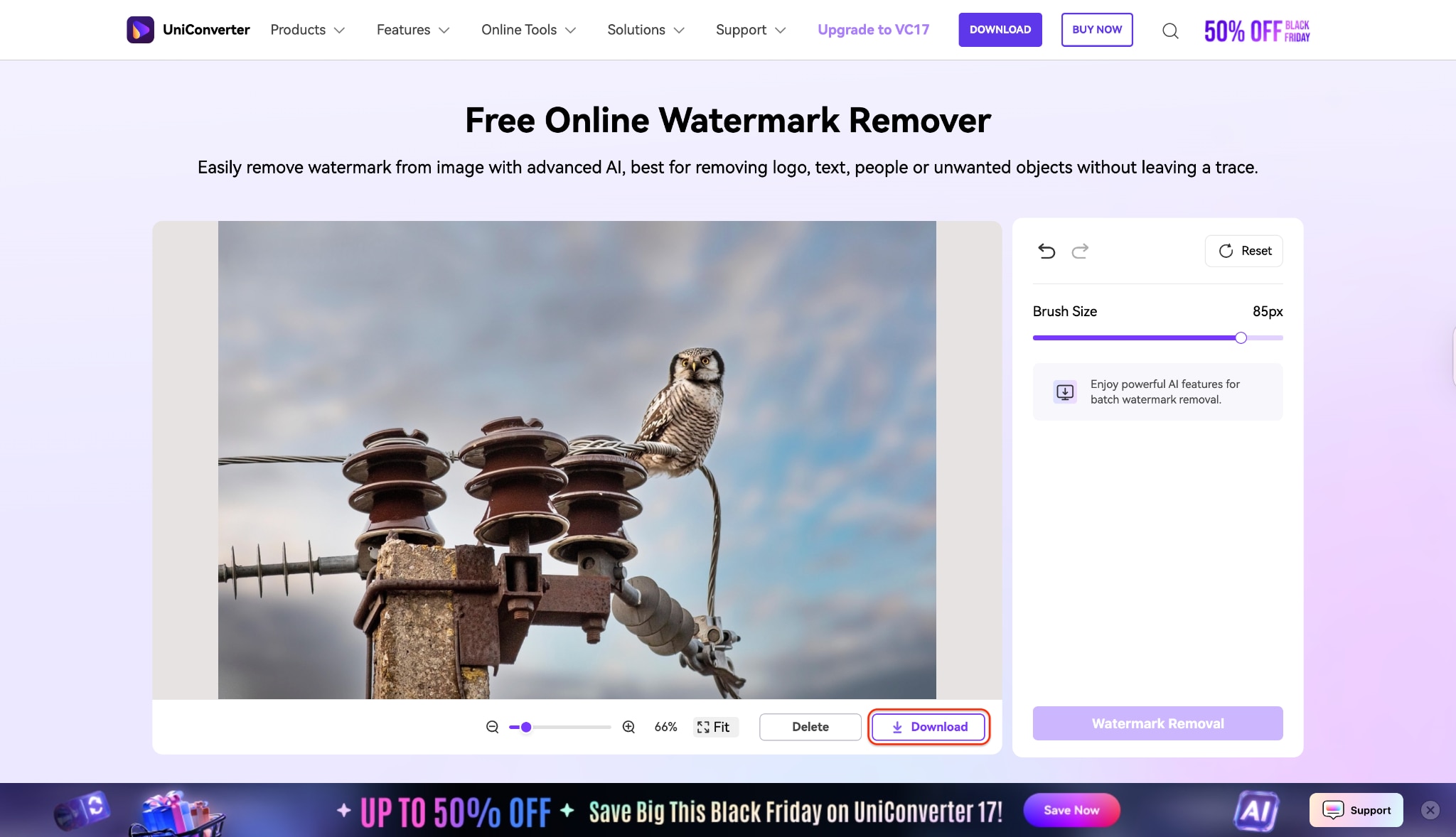
Pros & cons
How We Tested Instagram Watermark Removal Methods
For this guide, we reviewed Instagram watermark removal methods based on cleanup quality, natural-looking results, ease of use, output retention, and overall practicality for creators handling their own content.
This section helps readers understand why we prioritize clean results, safer workflows, and practical reuse value before they review the methods below.
Conclusion: The Best Method for Clean, Professional Video
Removing the Instagram watermark doesn't have to be a struggle—especially when you're working with your own content. Whether you prefer a mobile Instagram watermark remover, an online ig watermark remover, or a quick workaround to remove Instagram watermark free, the right tool depends on your workflow.
But if you want the cleanest results, full control, and reliable Instagram watermark removal, Wondershare UniConverter stands out. It helps you remove Instagram watermark from videos, export without loss, and skip unreliable apps.
Ready to streamline your process? Try UniConverter today and take the hassle out of every watermark remover Instagram task.
FAQs About Removing Instagram Watermarks
-
1. Is it legal to remove an Instagram watermark?
It is legal only if you are removing the watermark from a video you created and own the rights to. Removing a watermark from someone else's content is a violation of copyright law and Instagram's Terms of Service. -
2. What is the best free Instagram watermark remover?
The best and safest free method is UniConverter's Screen Recorder (Method 2). It doesn't rely on third-party tools to process your file and results in a perfect, watermark-free copy. Many online tools also offer free tiers, but often with file size or quality limitations. -
3. Can I remove the Instagram watermark without it becoming blurry?
Yes. Avoid "blur" tools. Use a modern AI watermark remover like the one in Wondershare UniConverter (Method 1), which is effective on Mac and Windows, or a mobile app like Vmake AI Remover (Method 3), which is efficient on iOS and Android. These tools use AI to reconstruct the background instead of just blurring the logo. -
4. How do I remove the Instagram watermark from a video on my iPhone?
You can use a dedicated mobile app from the App Store (Method 3). Download an app like "Vmaker" import your downloaded reel or reel link, select the watermark, and let the app process it. Alternatively, you can also go for iOS's built-in Screen Recorder. -
5. Does Instagram know if you remove a watermark?
No. Once you download your video and edit it on your own device or a third-party website, Instagram has no way of knowing you have altered the file. The edited file is completely separate from the one on their platform.

