


Ever struggled with the Sora watermark interfering with your perfectly edited videos or images? Many creators find it frustrating when their hard work looks incomplete or unprofessional because of persistent watermarks. Watermarks can distract viewers and reduce the overall quality of your content, making it harder to share or monetize. Finding the right Sora Watermark Remover method to remove them safely can feel overwhelming, given the mix of free, paid, and technical solutions available.
This guide is here to help, offering step-by-step solutions to remove the Sora watermark safely and effectively. From official methods using Sora Pro to AI-powered removers, online tools, mobile apps, and even manual editing techniques, we cover all the options so you can reclaim your content and make it truly share-ready. By the end, you’ll know exactly which method fits your workflow and legal comfort, ensuring a smooth, watermark-free experience.

In this article
- Is It Legal to Remove Sora Watermark?
- Method 1 - The Official Way: Sora Pro & API
- Method 2 - AI-Powered Sora Watermark Remover (Safe& Easy)
- Method 3 - Online Sora Watermark Remover
- Method 4 - Mobile Sora Watermark Remover
- Method 5 - Third-party platforms with Sora API
- Method 6 - Manual Editing to Remove Sora Watermark
- Conclusion
- FAQs
Part 1: Is It Legal to Remove Sora Watermark?
Removing the Sora watermark for personal or internal use is generally considered low-risk. However, removing it for commercial purposes or redistribution is likely a violation of OpenAI’s Terms of Service and could have legal or contractual consequences.
According to OpenAI’s Terms of Service, users are not permitted to modify or remove watermarks from outputs in ways that could misrepresent the content or its origin, especially when used commercially. While internal, non-commercial edits are usually tolerated, any public or monetized use should be approached with caution.
The debate around C2PA (Content Authenticity Initiative) and content provenance adds another layer of complexity, as these standards aim to ensure the authenticity and traceability of AI-generated content. Removing watermarks can undermine provenance tracking, which is a growing concern in digital content ethics and copyright discussions.
Disclaimer: Removing the watermark for commercial purposes may violate OpenAI's Terms of Service. Users are responsible for understanding and complying with the rules. Please use this information for legal and authorized purposes only, ensuring all activities adhere to OpenAI's Terms of Service.


Stable Watermark Remover With High Success Rate
Part 2: Method 1 - The Official Way: Sora Pro & API
For anyone frustrated by watermarked videos, Sora Pro Pricing Plan is the safest and most reliable solution. Unlike unofficial workarounds or third-party tools, this official version lets you create Sora videos without visible watermarks—and it’s fully compliant with OpenAI’s terms. That means you can make content confidently and legally, whether for personal projects or commercial use.
But Sora Pro isn’t just about removing watermarks. You also get higher-resolution videos, longer video durations, and priority access during busy times, so you spend less time waiting and more time creating. Because these benefits are part of the official licensing, you’re protected under the provider’s rules, instead of relying on uncertain hacks or temporary fixes.
For creators who value efficiency, professionalism, and peace of mind, Sora Pro makes it easy to produce clean, high-quality videos without the usual hassles.
Current Speculation of Sora Watermark (as of Nov 2025)
Although some forum users report that via the Sora 2 API they no longer observed visible watermarks in certain outputs, OpenAI’s official documentation emphasizes that many consumer-tier outputs include visible watermarks and embedded metadata. Until there’s an official announcement, this remains just speculation—not a guarantee. For anyone who wants a reliable way to get cleaner videos, using a Sora Watermark Remover tool or method can help—while staying within legal and technical limits.
Sora API for Developers
For developers who need programmatic access, the Sora API offers endpoints for video generation, including text-to-video and image-to-video, through the developer platform. Some reports suggest that in certain API configurations, watermarks may be absent, which hints that the API tier could support cleaner outputs for licensed or commercial use.
Therefore, the legal way to produce watermark-free Sora videos is if you access the API under a commercial/API plan and the agreement explicitly states “no watermark.”
Premium Plan from Buying Page for Non-technical Users
For non-technical users seeking a simple and official solution to remove the Sora watermark, the Premium Plan offers a straightforward path. By subscribing through the official buying page, creators can generate higher-resolution, professional-quality videos without visible watermarks, all while staying fully compliant with licensing rules. This plan eliminates the need for technical workarounds or API integrations, provides faster processing during peak times, and ensures your videos are ready for personal or commercial use with minimal hassle and maximum confidence.
Bottom line:If you want a clean Sora‑generated video legally and without visible watermark, the only fully safe bet is to use the official Pro/API tier that explicitly includes watermark removal in the licensing. Any other method involves risk.
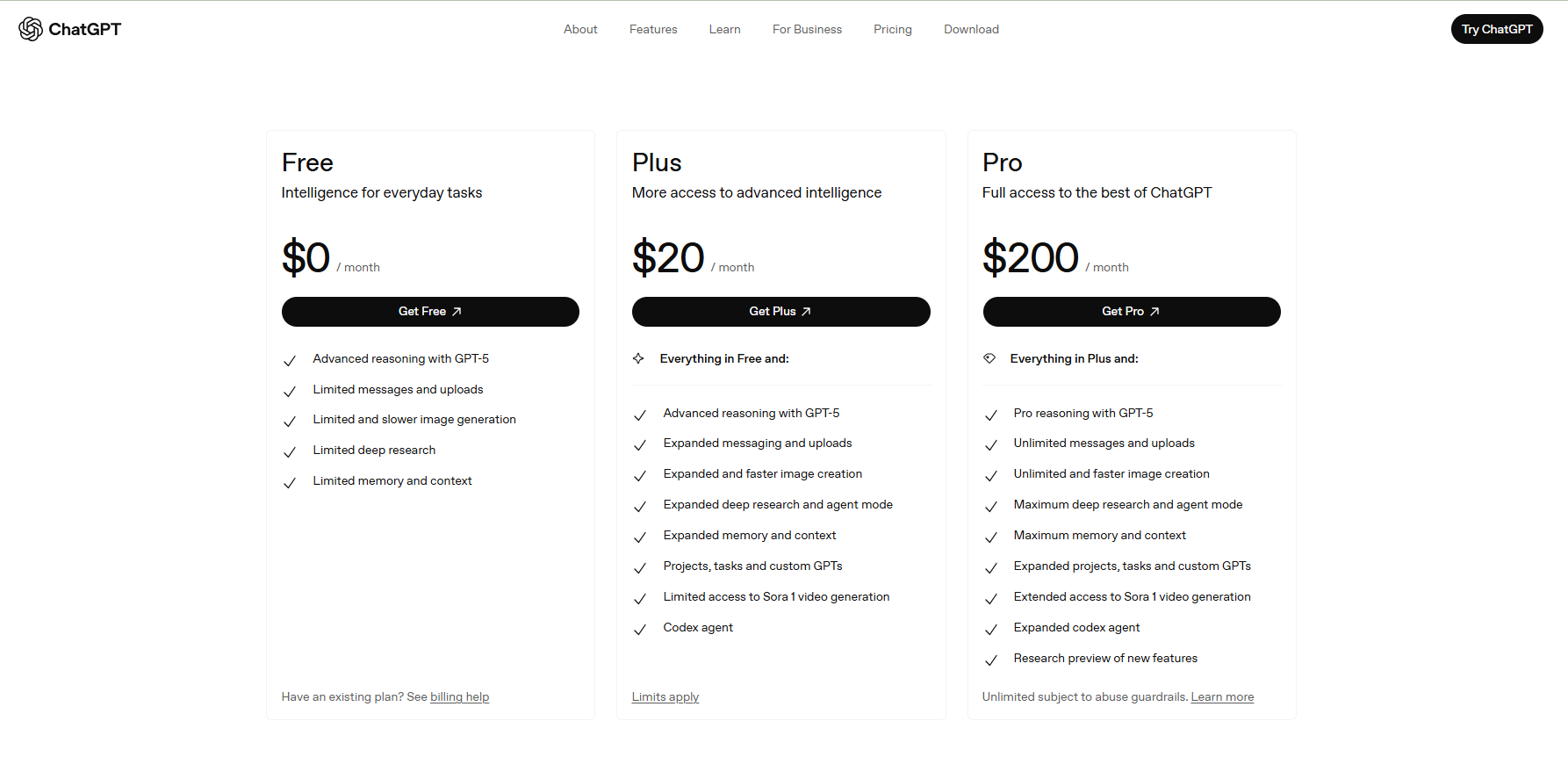
| Plan | Monthly Cost | Sora Access | Watermark Status | Video Limit |
|---|---|---|---|---|
| ChatGPT Free | $0 | No access | With watermark | 0 videos |
| ChatGPT Plus | $20 | Limited | No watermark | 50 videos/month |
| ChatGPT Pro | $200 | Unlimited | No watermark | Unlimited 20-sec |
Part 3: Method 2 - AI-Powered Sora Watermark Remover (Safe& Easy)
If you’re looking for a straightforward tool to remove unwanted watermarks from videos and images, Wondershare UniConverter offers a powerful AI‑powered “Watermark Remover” module. This tool uses an AI algorithm to automatically detect and remove logos, text, objects, or timestamps from your media while aiming to maintain quality and clarity. It’s especially handy if you have your own footage that you want cleaned up for personal or internal use. While it doesn’t magically turn a watermarked commercial video into fully licensed content, it does make editing easier and more efficient. The software also supports batch processing, allowing you to handle multiple files at once, saving time and effort. In addition, it includes built-in video enhancement tools like upscaling, noise reduction, and color correction, which help restore visual quality after watermark removal.
Disclaimer: Before you proceed, be aware that removing a watermark may still carry legal risks depending on how you use the output. Always check licensing, usage rights, and whether the content is yours or you’ve obtained permission.
Feature List of UniConverter
- Automatically detect and remove logos, text overlays, date stamps, and objects from videos and images.
- Supports multiple video and image formats for flexibility.
- Allows batch processing to remove watermarks from multiple files at once.
- Provides video editing tools such as trim, merge, subtitles, speed adjustment, and format conversion.
- Enhances video and image quality with AI upscaling, noise removal, and color correction.
- Can remove unwanted objects or people from the frame for a cleaner result.
Pros:
- Easy to use — no advanced skills needed.
- Broad format and batch support increase workflow speed.
- AI algorithm aims to preserve quality rather than just blurring the watermark.
- Combines watermark removal with editing/enhancement tools in one suite.
- Suitable for personal and internal video cleanup prior to further processing.
- Cost-effective compared to hiring editors or manually cleaning every frame.
Cons:
- Does not guarantee legal clearance for commercial use.
- Results may vary depending on watermark complexity or movement
Sora Watermark Remover Without Blurring
How to remove watermark using Uniconverter:
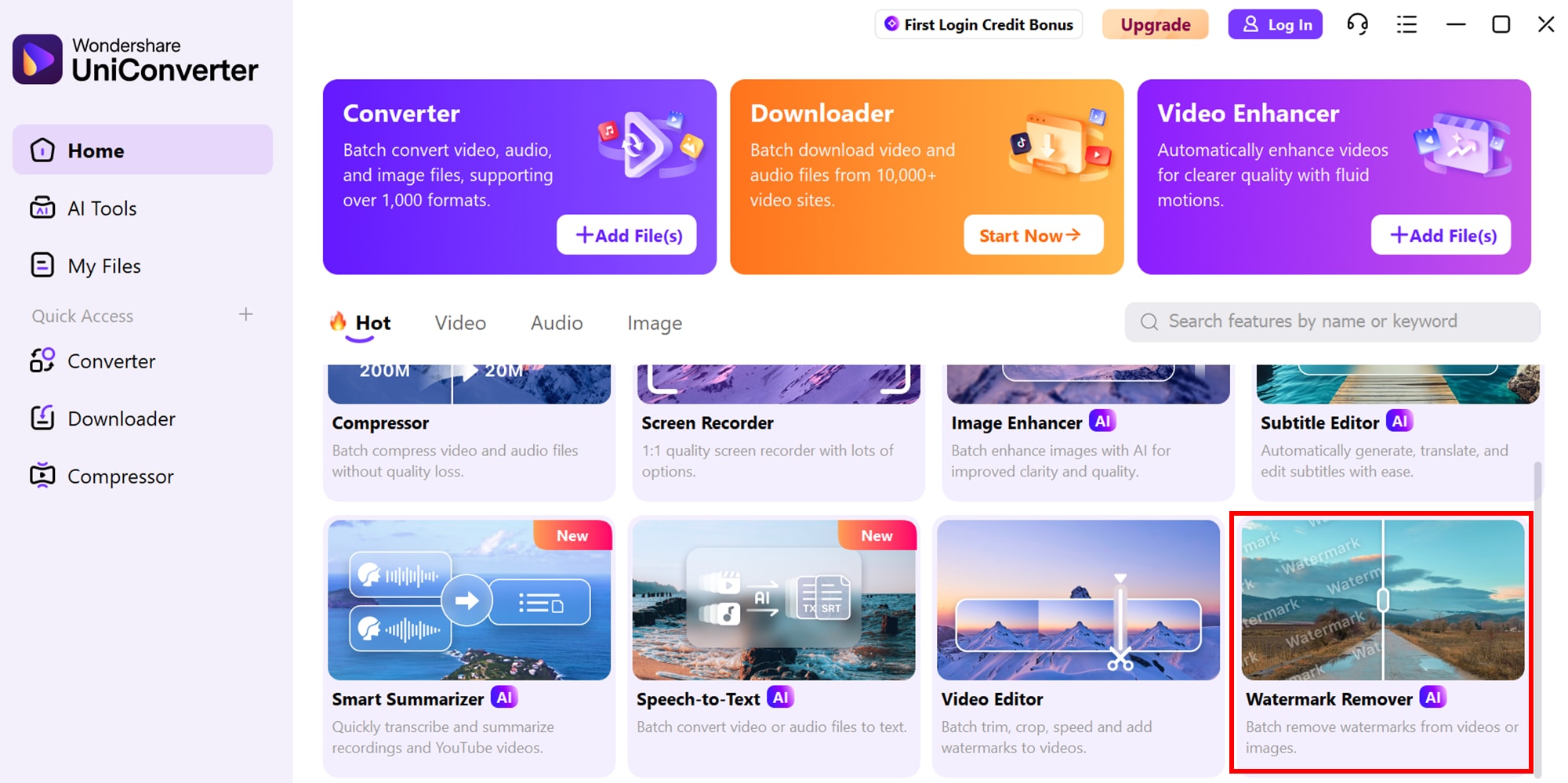
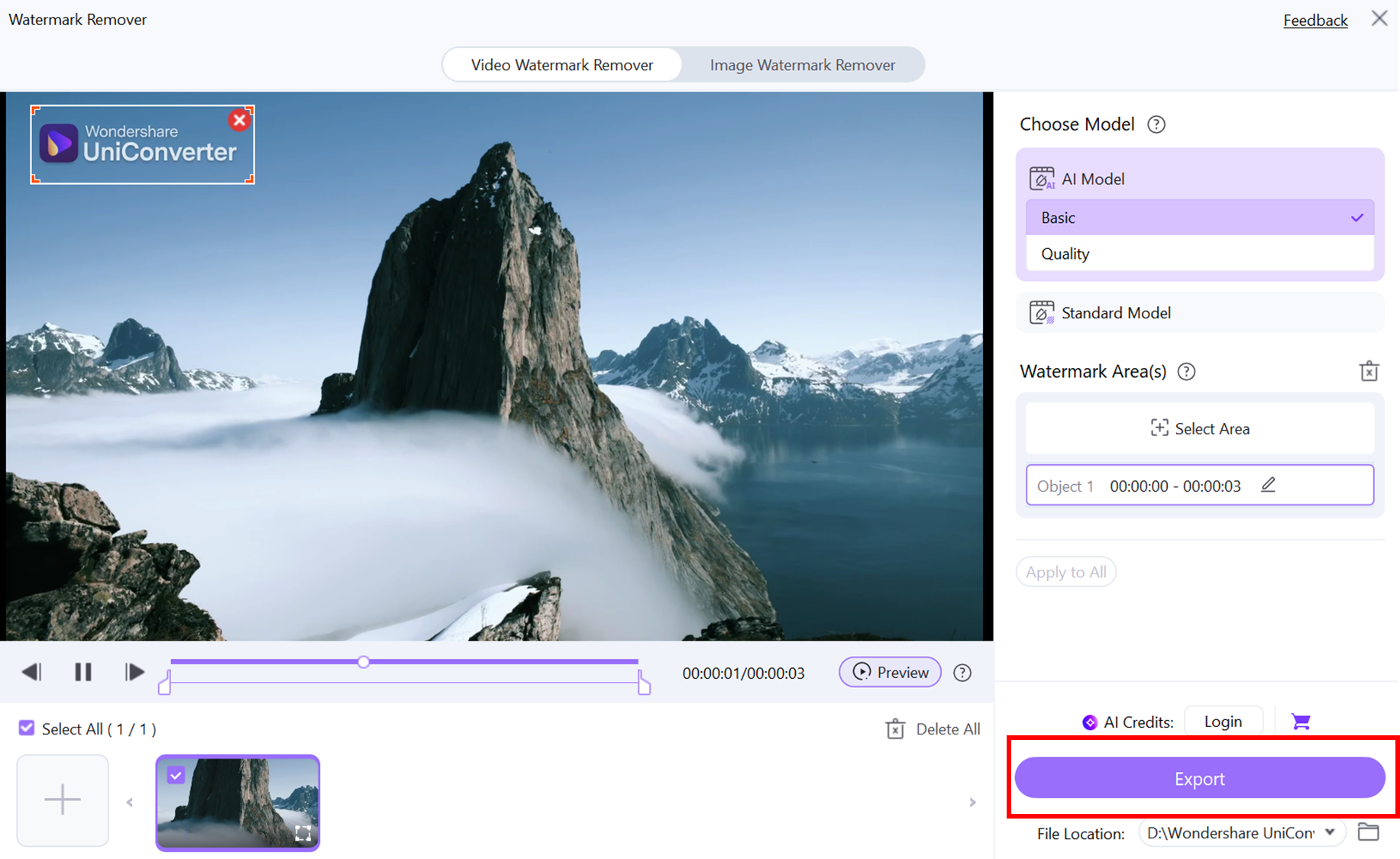
Step 1: Select AI Watermark Remover
Install Wondershare Uniconverter, open it and choose the AI Watermark Remover tool. On the product homepage, click the option to upload your videos or images for watermark removal. This ensures you’re using the correct AI module optimized for clean and accurate watermark detection.
Step 2: Upload Files and Mark Watermarks
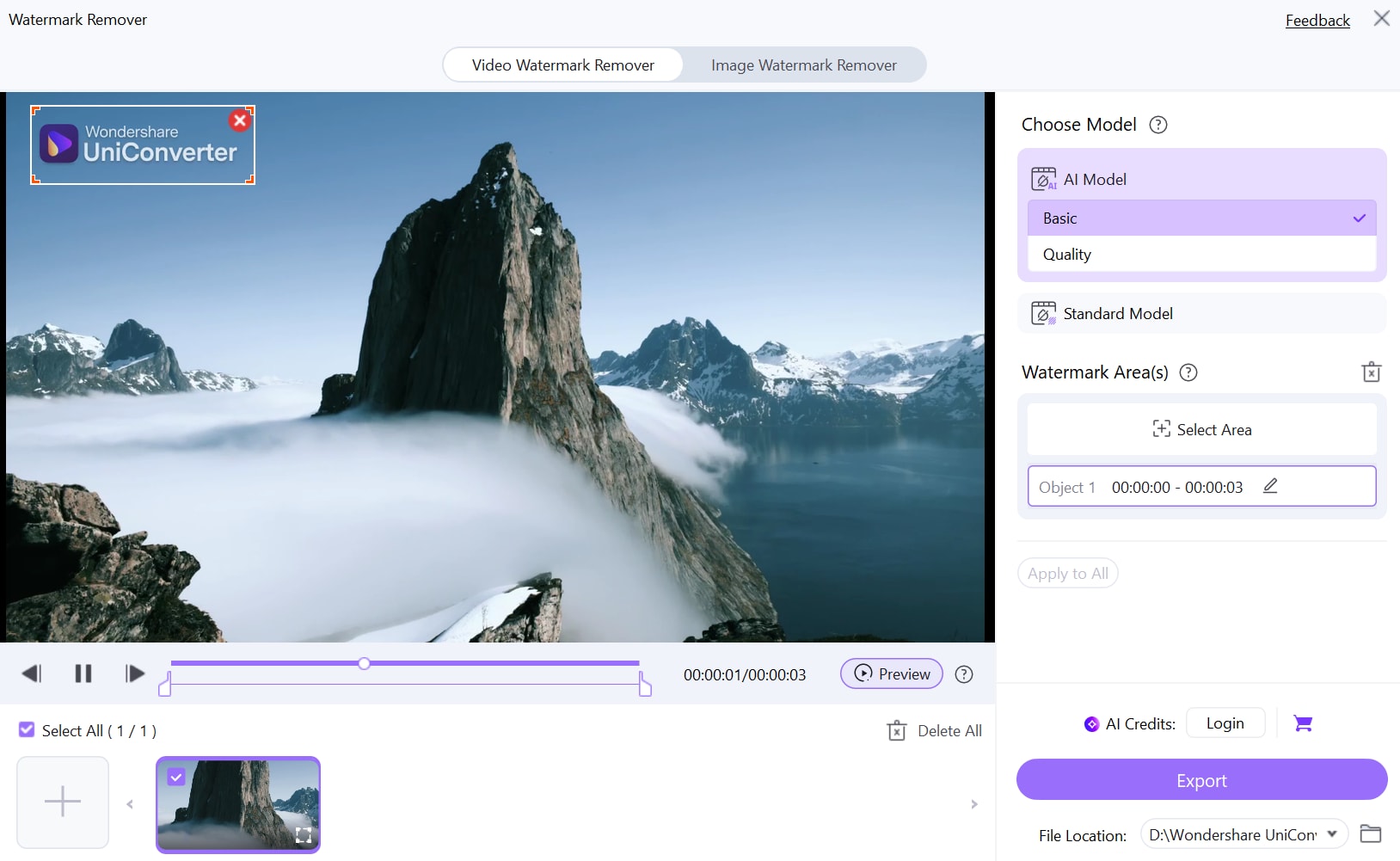
Upload your video or image, then select the watermark area. Customize the selection area to target the watermark. For images, you can also use the Erase Brush to remove logos, text, or other unwanted elements precisely. Take your time to accurately select the watermark area to prevent accidental removal of other important parts of your media.
Step 3: Preview and Export
Check the preview to ensure the watermark has been removed cleanly. Once satisfied, click Export to save your final video or image, now free of watermarks. You can also adjust export settings like resolution or format to match your intended use before finalizing the file.
Part 4: Method 3 - Online Sora Watermark Remover
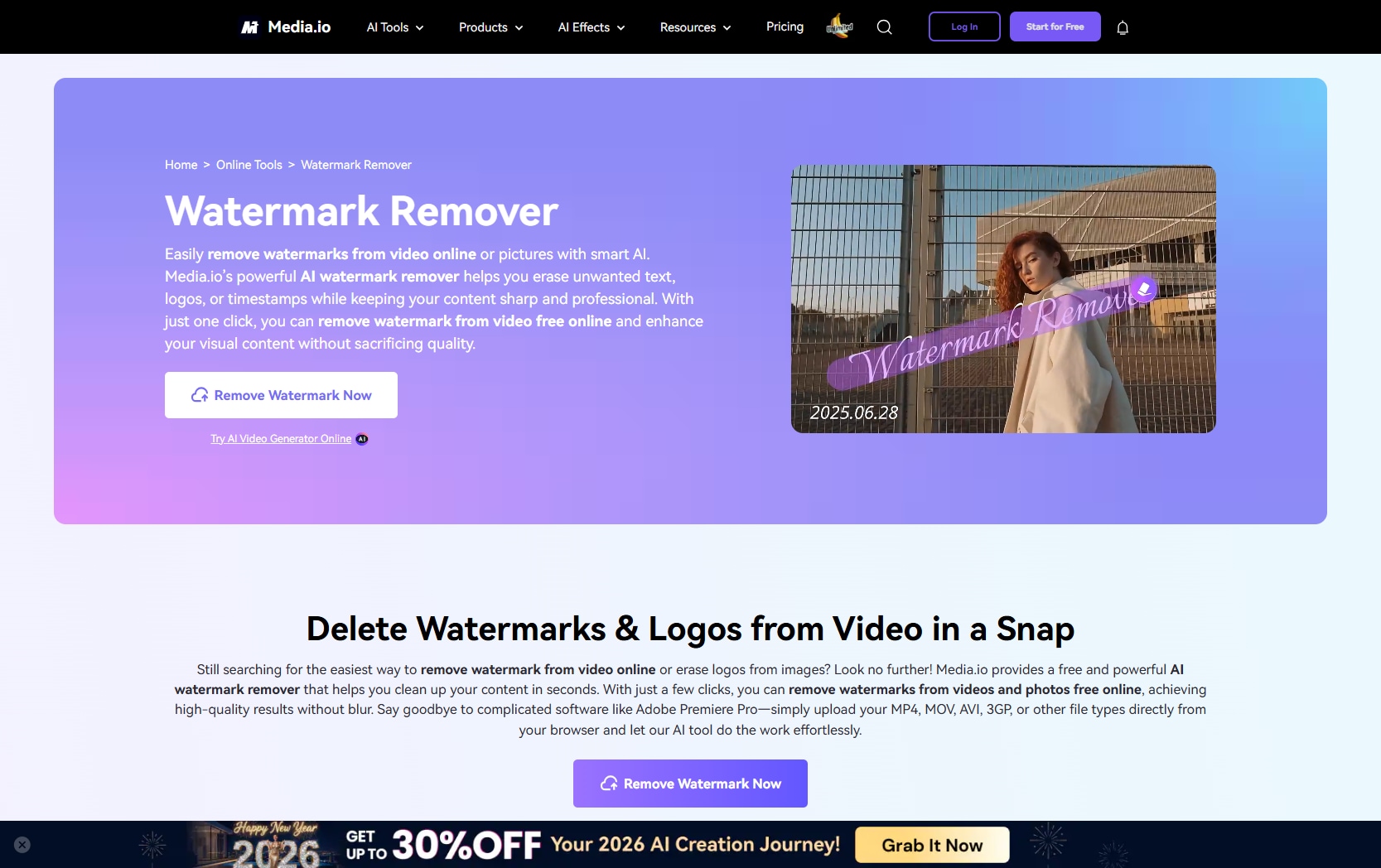
If you want a fast, browser‑based way to remove watermarks from videos without installing any software, Media.io can be your top choice as an online free sora watermark remover. It works across operating systems (Windows, Mac, Linux) and supports popular formats like MP4, MOV, AVI and more. The AI‑powered tool detects logos, text or timestamps and removes them while aiming to preserve video quality. While it’s convenient and efficient, you must still check that you have the rights to edit and reuse the video before using it commercially. The online free sora watermrk remover is user-friendly, allowing even beginners to remove watermarks with minimal effort. It also processes videos quickly, making it ideal for short deadlines or multiple files. Additionally, the web-based nature means you can access it from anywhere without worrying about system compatibility.
Simple Steps Guide to remove watermark using Media.io:
Step 1: Upload Your Video
Visit the Media.io Watermark Remover page and upload your video by dragging it in or clicking “Upload.” The tool supports popular formats like MP4, MOV, and AVI. A preview will appear so you can confirm you’ve selected the correct file.
Step 2: Select the Watermark Area
Use the brush or selection tool to highlight the watermark, logo, or text you want to remove. Adjust the selection for precise coverage and minimal impact on surrounding areas. Then click “Remove” to let the AI process your video.
Step 3: Download the Clean Video
Preview the processed video to ensure the watermark is completely removed and the quality is preserved. If satisfied, click “Download” to save the edited file to your device. The video is now ready for personal or internal use, while adhering to copyright rules.
Part 5: Method 4 - Mobile Sora Watermark Remover
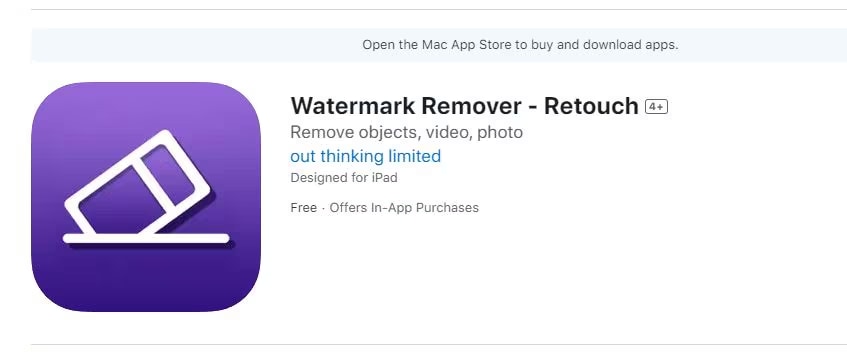
If you often edit videos on your phone and need a fast way to remove sora watermark free, the mobile app Watermark Remover ‑ Retouch is a good option . It supports both videos and images, lets you mark unwanted logos, text or stamps, and erases them with just a few taps. The interface is designed for mobile creators who want to tidy up footage on the go—whether it’s something you filmed yourself or a clip you’re preparing for sharing. It offers simple selections, one‑tap removal, and saving/export options to get your cleaned media ready quickly. While convenient for personal edits, ensure you’ve got the rights to use or modify the content. The app also allows quick previewing of edits so you can make adjustments before finalizing. Additionally, it keeps the original quality intact, minimizing any loss of resolution during the watermark removal process.
Step by step guide to use Watermark Remover ‑ Retouch:
Step 1: Download and Open the App
Download Watermark Remover – Retouch from your device’s App Store or Google Play Store. Once installed, open the app to access the main interface. The clean, user-friendly layout makes it easy for beginners to navigate and start editing immediately.
Step 2: Upload Your Video or Image
Tap the option to select a video or image from your device’s gallery. Make sure you choose the file that contains the watermark or logo you want to remove. The app supports a variety of formats, so most personal or downloaded clips will work.
Step 3: Select and Remove the Watermark
Use the selection tool or erase brush to highlight the watermark area precisely. You can adjust the selection size for logos, text, or stamps to ensure only unwanted elements are removed. Once marked, tap Remove to let the AI process the video or image.
Step 4: Preview and Save
Check the processed file in the preview window to ensure the watermark is fully removed and the media quality remains intact. If satisfied, tap Save or Export to store the edited file back on your device. You can now share, upload, or use your clean video or image as needed.
Part 6: Method 5 - Third-party platforms with Sora API
Some third-party platforms, such as CometAPI, integrate the Sora 2 API to offer watermark-free video generation. These platforms allow developers and creators to access Sora’s AI video capabilities without dealing directly with the Sora interface. By connecting via API, you can automate video generation, customize parameters, and receive outputs that do not include the standard Sora watermark. This method is particularly useful for developers, agencies, or businesses that need large-scale, clean video content for internal projects, apps, or client work. While convenient, ensure you comply with licensing and API usage terms, as misuse could lead to service restrictions or violations. Using platforms like CometAPI provides a legal and efficient route to generate high-quality videos while maintaining workflow automation.

Step 1: Sign Up and Access the Platform
Create an account on the third-party platform i.e. CometAPI that supports Sora 2 API integration. Once logged in, navigate to the API or video generation section. Make sure your account has the necessary permissions or subscription plan for watermark-free output.
Step 2: Connect to Sora 2 API
Obtain your API key from the platform and link it to your account or application. This step allows the platform to communicate with Sora 2 for video generation. Ensure your API settings are configured for watermark-free output if available.
Step 3: Generate Your Video
Input your desired video parameters, such as prompts, resolution, and duration, and submit the request through the platform’s interface. The Sora 2 API will process the request and generate a video without the standard watermark. Monitor the progress and make adjustments if needed for quality or content.
Step 4: Preview and Export
Once the video is ready, preview it to ensure the watermark is removed and the content meets your requirements. Export the video in your preferred format and resolution for personal, internal, or client use while adhering to the API and licensing terms.
Part 7: Method 6 - Manual Editing to Remove Sora Watermark
Manual editing is a traditional but effective way to remove watermarks from videos or images, especially when automated tools may not produce perfect results. This method involves using professional editing software like Adobe Premiere, After Effects, Photoshop, or DaVinci Resolve to selectively hide or remove unwanted elements. Common techniques include cropping, applying blur or overlay masks, using the clone stamp tool, and employing content-aware inpainting to reconstruct the background.
Techniques Explained:
- Cropping: Remove the portion of the frame containing the watermark; quick but may cut out important content.
- Blur/Overlay Masking: Apply a blur or cover overlay on the watermark area to make it less noticeable.
- Clone Stamp Tool: Copy pixels from nearby areas and replace the watermark region for a seamless look.
- Content-Aware Inpainting: Use AI-assisted inpainting (available in Photoshop or After Effects plugins) to fill the watermark area with contextually accurate content.
While manual editing gives you precise control, it is time-consuming and may require advanced skills to maintain quality, especially for moving watermarks in videos. Always ensure you have the rights to modify and use the content before proceeding.
Designed to Handle Complex Videos
Conclusion
Removing watermarks from videos can be approached in several ways, from official methods and AI-powered tools to manual editing. Each method has its own advantages, whether it’s speed, precision, or legal safety. For fast, effective, and user-friendly results, tools like Wondershare UniConverter provide an all-in-one solution, offering AI-powered watermark removal, batch processing, and additional video enhancement features.
If you’re wondering how to remove Sora watermark, choosing the right method based on your needs—personal projects, internal use, or creative experimentation—can help maintain video quality while streamlining your workflow. Remember to always respect copyright and usage rights to stay compliant while editing.
FAQs
-
1. Is it legal to remove the Sora watermark?
Legal use depends on your purpose and local copyright rules; removal tools provide technical capability but users should respect Sora’s terms and only use cleaned videos ethically. -
2. What formats do Sora watermark removal tools support?
Many support standard video formats like MP4; some AI tools can also process images or output PNG, WEBP, or original formats. -
3. Can I remove Sora watermarks using just a link?
Multiple tools allow you to paste your Sora share link instead of uploading files, which saves time and bandwidth; file uploads are also supported for full control. -
4. Does Sora Pro offer watermark-free exports?
Sora Pro sometimes allows direct download without watermarks, but if not, third-party tools are used by many users. -
5. Does watermark removal affect video quality?
Most reputable tools use advanced AI to reconstruct the section beneath the watermark, producing seamless results with minimal impact on quality; 4K and longer videos may need extra processing.

