


If you have landed here with an M3U8 link that refuses to play, you are not alone. These links are not regular video files but streaming playlists, which is why your device cannot open them directly. To watch the video offline or store it safely, you need to download M3U8 to MP4. This format plays smoothly on any phone, laptop, or media player without depending on internet speed. In this guide, you will learn how to identify the actual playlist link, extract it correctly, and convert it into MP4 using various tools.
Quick Picks: Which M3U8 to MP4 Method Should You Use?
Here's a comprehensive table showing all conversion methods mentioned in this article, with details on installation requirements, online/offline capabilities, batch support, DRM handling, output quality, speed, and success rates to help you choose the right tool for your specific needs.
| Methods | Install required | Offline/Online | Batch support | Handles live stream | Output quality | Speed | Success rate | Best for |
| Wondershare UniConverter | Yes | Offline | Yes | Yes | Very high | Fast | High | Beginners who want a simple UI |
| VLC | Yes | Online / Off | No | Yes, but slow | Good | Slow | Medium | Free desktop users |
| FFmpeg | Yes | Online / Off | Yes | Yes | Very high | Fast | High | Power users |
| AnyConv | No | Online | No | Only short streams | Medium | Medium | Medium | One-time quick jobs |
| Video Converter: M3U8 to MP4 | Yes | Online | Limited | Short streams only | Medium | Medium | Medium | Mobile users |

M3U8 to MP4 Converter
In this article
- Part 1: What Is an M3U8 File and Why Convert to MP4?
- Part 2: How to Find the .m3u8 Link in Your Browser (DevTools)?
- Method 1: Use Desktop M3U8 to MP4 Converter (Merge TS, Batch, Fast & High Quality)
- Method 2: Download M3U8 to MP4 with VLC (Free)
- Method 3: Convert M3U8 Format to MP4 with FFmpeg
- Method 4: Use a M3U8 to MP4 Converter Online- AnyConv
- Method 5: Android Solutions: Video Converter: M3U8 to MP4
- Part 8: Quality, Speed & File Size: What to Expect
- Part 9: Legal & Ethical Use of M3U8 to MP4 Tools
- Part 10: Troubleshooting M3U8 to MP4 Issues (Real-World Fixes)
- FAQ about M3U8 to MP4 Conversion
Part 1: What Is an M3U8 File and Why Convert to MP4?
An M3U8 file is a simple UTF-8 playlist that doesn't store any actual video content; instead, it points to multiple web addresses where small video segments are hosted on a server, and your video player reads that list to stream each segment in order. These playlists are widely used in online video delivery and HLS (HTTP Live Streaming) systems because they make streaming smoother, especially on slow or unstable networks.
In an HLS setup, the full video is split into many short .ts files, and the M3U8 file serves as a roadmap that tells the player where each segment is located so it can stitch them together during playback. When you convert an M3U8 playlist to MP4, the converter downloads all the individual clips and merges them into a single continuous video file, giving you a clean, standard MP4 instead of dozens of scattered segments.
M3U8 vs MP4 (playlist vs container explained)
An M3U8 file is a text playlist that tells a player where each short media clip is stored, while an MP4 is the container that holds the actual video and audio.
Here is a quick view to make the M3U8 to MP4 format idea clear:
| Feature | M3U8 | MP4 |
| File type | Text playlist | Video file |
| What it holds | Links to stream parts | Full video and audio |
| Can it play offline? | No | Yes |
| Good for | Streaming | Watching, editing, sharing |
| Notes | UTF-8 text that lists .ts parts | Full container with one file |
Common Scenarios Where You Need M3U8 to MP4
As M3U8 is a text-based playlist, it needs an internet connection and the original server each time you press the play button. This is why you should replace M3U8 with MP4 for a trouble-free video experience.
The following are the most frequent instances in which MP4 is the more favorable option:
- Offline watching: You may want to save a live talk, a sports match, or an online lesson to watch later when you're flying or in a place with weak network coverage. If the website only provides an M3U8 playlist, you can't just copy the link and play it offline. When you convert M3U8 to MP4, you get a normal video file that opens instantly and doesn't require any internet connection.
- Device compatibility: Many smart TVs, older phones, and media boxes cannot play M3U8 playlists because they expect MP4 files. Converting the M3U8 link into MP4 ensures the video works across more devices and apps without needing extra players, add-ons, or technical workarounds.
- Editing and repurposing: Most editing tools do not support M3U8 or HLS streams since they rely on local media files. Once you convert the playlist into MP4, you can trim clips, add subtitles, overlay graphics, or combine it with other footage without running into format limitations.
- Sharing and backup: An M3U8 playlist link may become invalid if the server changes its address or access is no longer available. On the other hand, MP4 files can be transferred through cloud drive, USB, and chat without any difficulty. M3U8 to MP4 is one of the steps to ensure a recording is safe.
- LMS uploads and work platforms: LMS systems, course dashboards, and company tools accept MP4 uploads but will not accept .m3u8. To add that content to a class, a training set, or an internal library, you first use M3U8 to MP4 and then upload the result.
Part 2: How to Find the .m3u8 Link in Your Browser (DevTools)?
Before any M3U8 to MP4 method can work, you often need the actual .m3u8 link. Sites hide it behind players, scripts, and buttons, but modern browsers let you see the network traffic and copy the link. You only need the Network tab in DevTools.
Here is how to convert M3U8 to MP4 starting from your browser:
Step 1: Go to the site that has the live stream or video. Press play and let the video run for a few seconds. Keep the tab open. Do not pause it yet.
Step 2: Press F12 on your keyboard, or press Ctrl + Shift + I (Cmd + Option + I on Mac). A new DevTools panel opens on the side or bottom of the window.
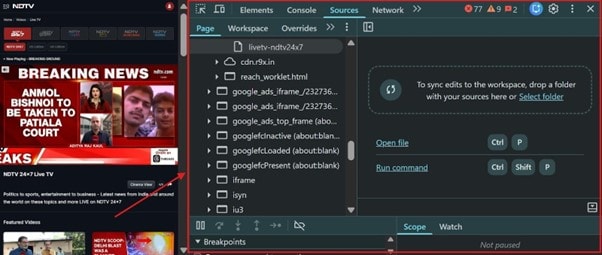
Step 3: Click the "Network" tab at the top of DevTools. Then reload the page to see the new requests.
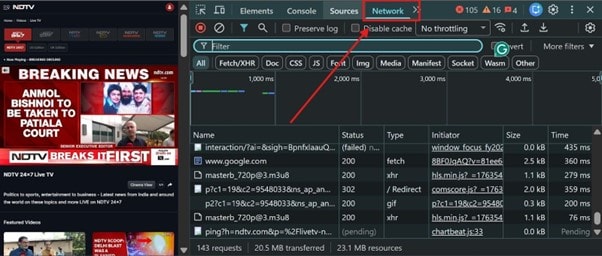
Step 4: Find the small "Filter" box near the top of the Network panel, type "M3U8." This hides most other files and shows only items that match "M3U8."
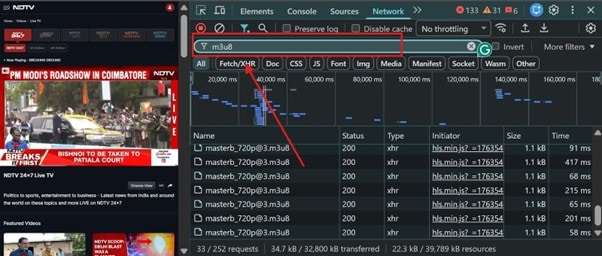
Step 5: Refresh the page and start the video. Watch the Network tab. When the player begins loading the stream, you should see one or more files in .m3u8.
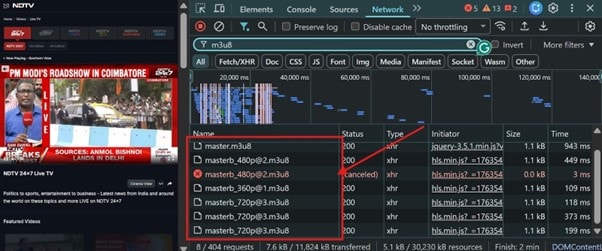
Step 6: Right-click the .m3u8 entry. Choose "Copy" and then "Copy URL." Now you have the link to use in the M3U8 to MP4 tools.
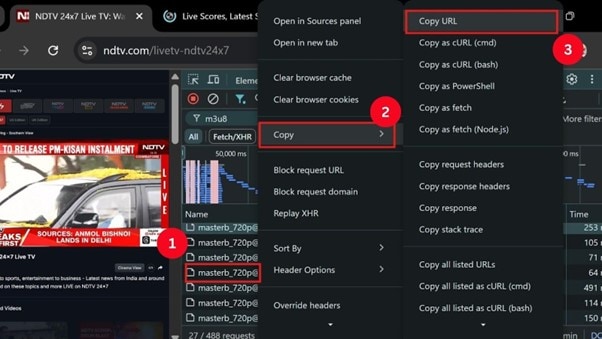
After getting the M3U8 link, you can download the video using the Wondershare UniConverter tool. It offers more control over editing features and offers high-quality output.
Method 1: Use Desktop M3U8 to MP4 Converter- Wondershare UniConverter (Merge TS, Batch, GPU)
UniConverter supports both .m3u8 playlists and raw .ts files. So if a site gives you a full HLS folder instead of a clean link, you can still build a single MP4. It has a clear screen and supports GPU acceleration on many systems, which helps when you re-encode long videos. UniConverter offers various features, such as trimming, cropping, adding subtitles, and more, so you do not need a second app just to clean up your final MP4.
Note: As M3U8 is not a file itself but a link, you need to use Wondershare UniConverter's Download feature. You do not need to convert it to MP4 separately when downloading. Choose the MP4 format, and you will get the file in MP4.
(Disclaimer: Our tool is intended for personal use only. Users are solely responsible for using this tool to save videos or audios, including compliance with platform's terms of service and copyright laws and regulations. We are not liable for any consequences resulting from users' violation of any laws or infringement of others' rights.)
M3U8 to MP4 Converter
How to use the M3U8 to MP4 Converter to Legally Convert Files with Privacy
Here is the step-by-step guide to convert M3U8 to MP4 with Wondershare UniConverter:
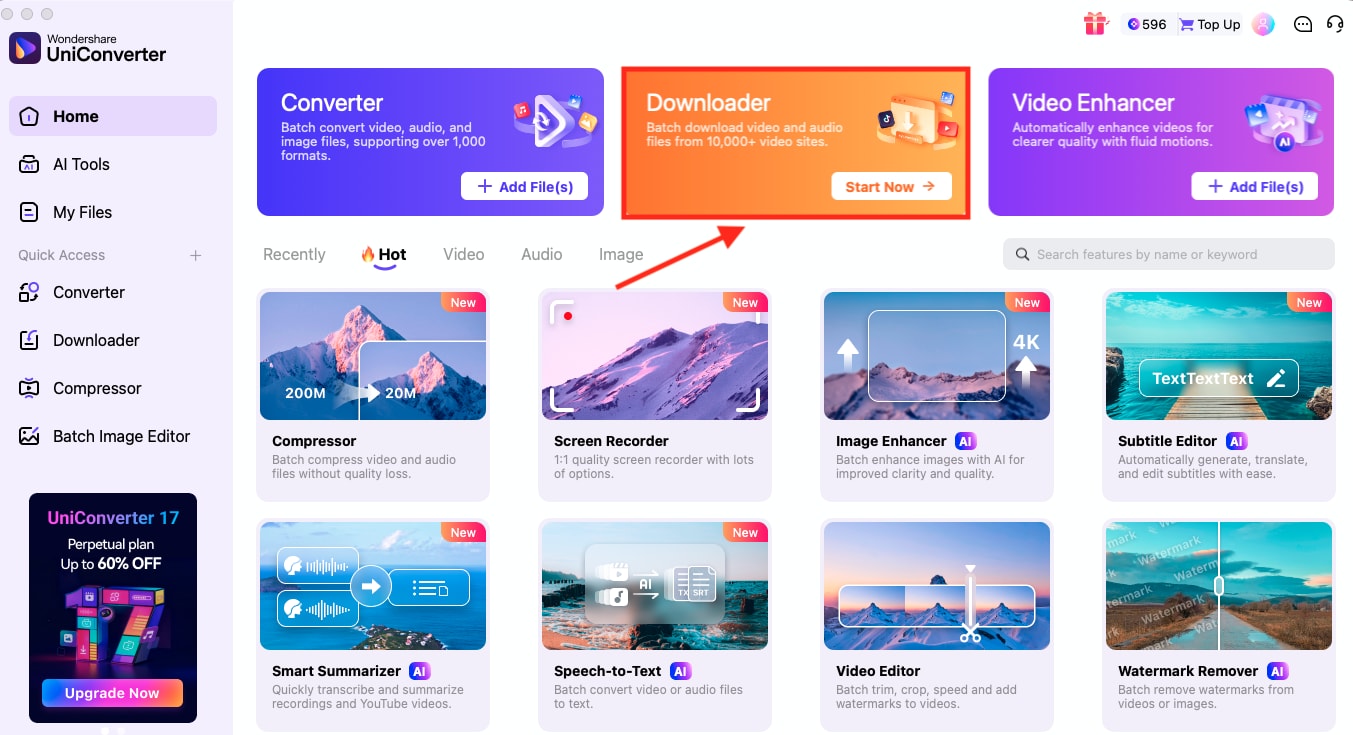
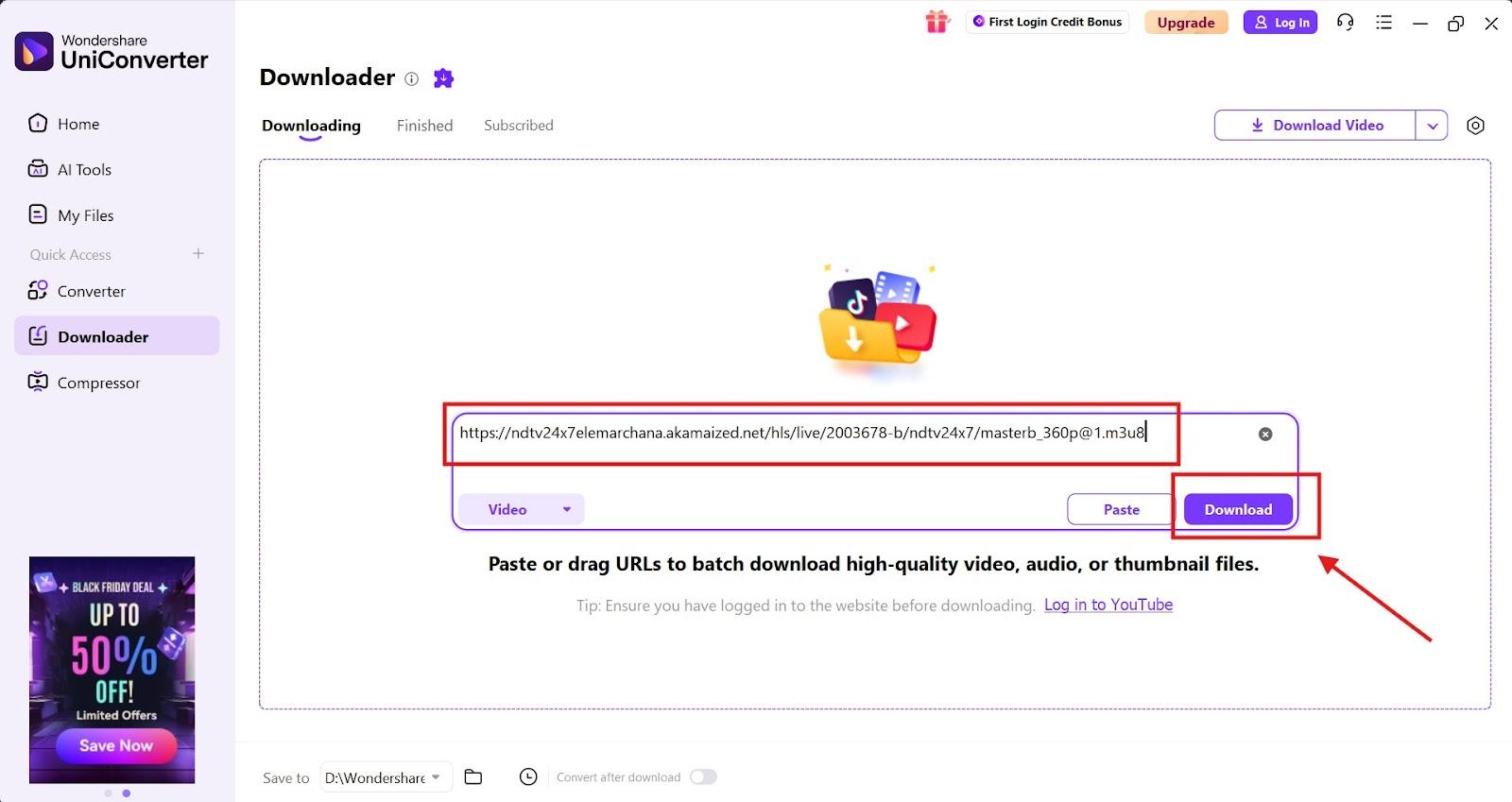
Step 1: On the homepage, click on the "Downloader." Paste the M3U8 link into the box, and UniConverter will analyze the stream.
Step 4: Choose MP4 as the output format and click "Download."
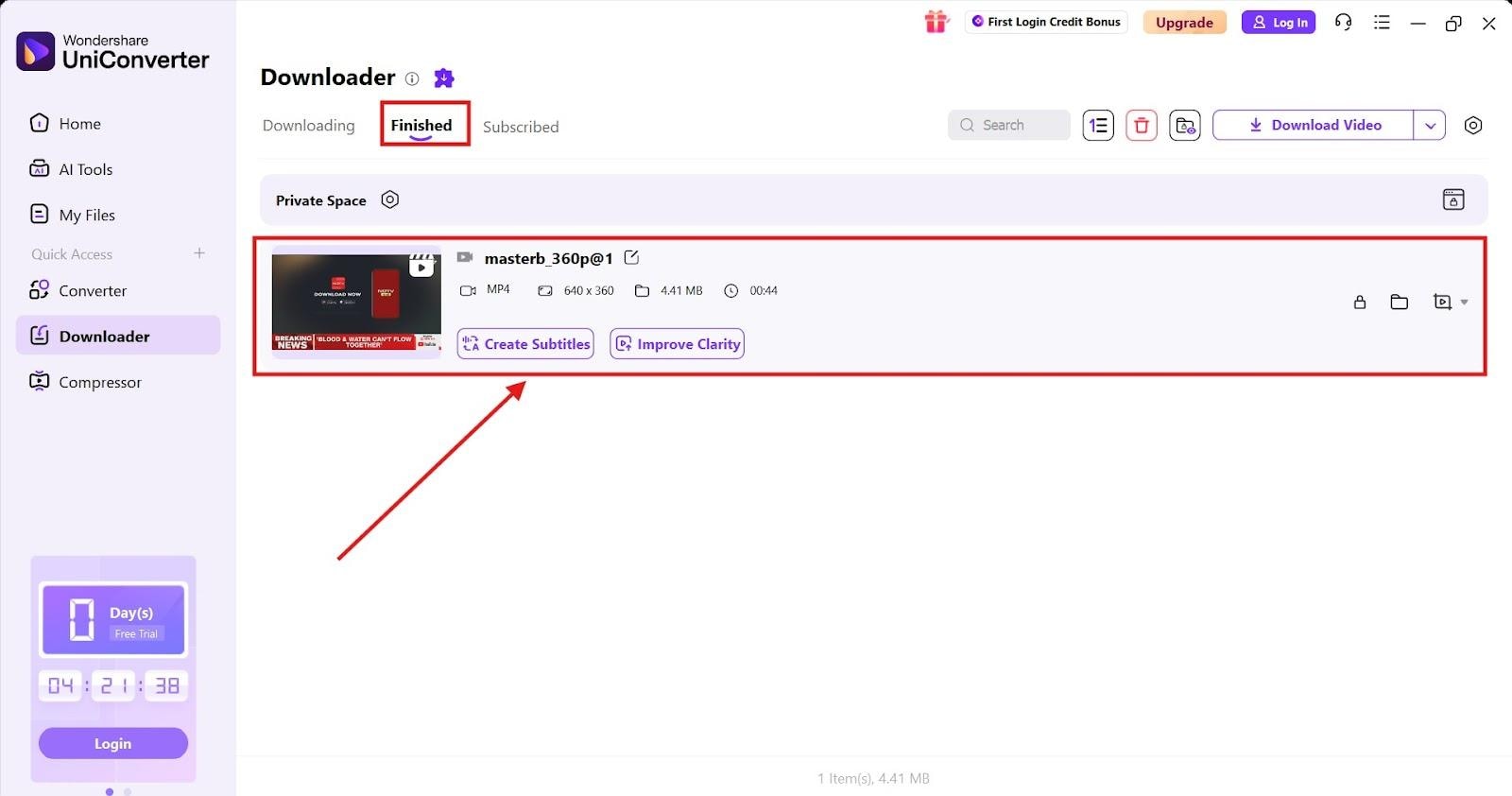
Step 5: You can find the downloaded video in MP4 format in the "Finished" tab. Now you have an offline MP4 video to edit or view right away.

Desktop Converters vs VLC vs FFmpeg
Here is a simple view to help you decide when a desktop M3U8 converter like UniConverter is worth it, and when VLC or FFmpeg may be enough.
| Aspect | VLC Player | FFmpeg | Desktop Converter (UniConverter-style) |
| Interface | Basic player, hidden convert menu | Command line only | Full GUI with buttons and panels |
| Speed | Real-time in many cases | Very fast when using -c copy | Fast, often with GPU help |
| Batch support | Very poor | Great with scripts | Built-in batch list |
| Control | Limited options | Very fine control over every stream | Has presets, basic to advanced settings |
| Learning curve | Easy for simple tasks | Steep at first | Moderate, more guided |
| Cost | Free | Free | Often paid after a trial |
Method 2: Download M3U8 to MP4 with VLC (Free)
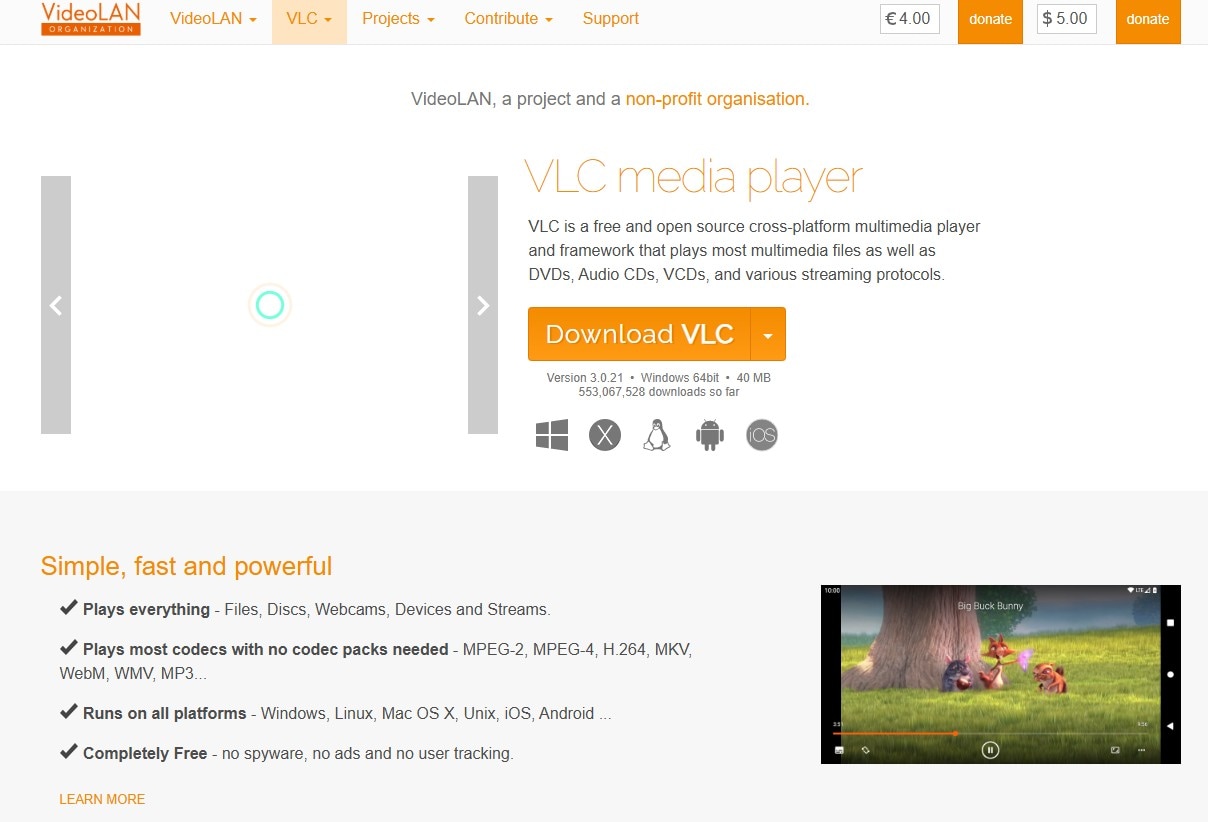
VLC is a free, trusted media player for Windows, macOS, and Linux, and it can also handle M3U8 to MP4 conversion without extra software. You can load a local playlist or paste a copied browser link, making it an easy way to download M3U8 to MP4 safely. Many users prefer VLC because it avoids unknown online converters and keeps everything on your device. Still, it isn't perfect as some streams can fail, and long conversions can take more time than expected.
How to Convert M3U8 to MP4 Using VLC
By following this simple step-by-step guide, you can easily get VLC M3U8 to MP4 conversion:
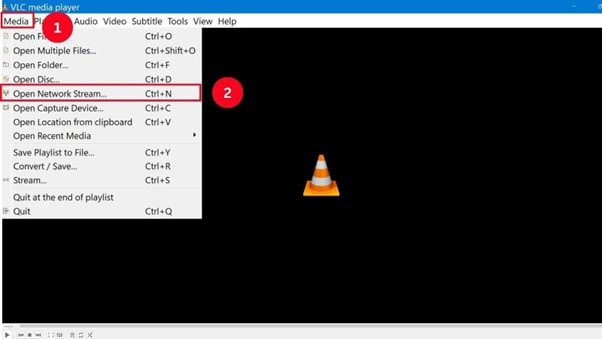
Step 1: Install and open VLC on your desktop, then in the top-left menu, click "Media" and then "Open Network Stream." A new window opens.
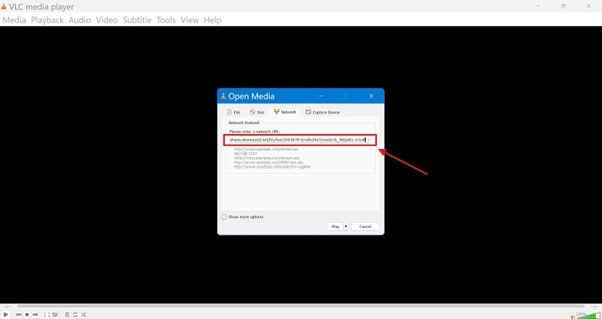
Step 2: Paste your .m3u8 link into the box. This can be a link you got from DevTools or a link you copied from a site where the video plays.
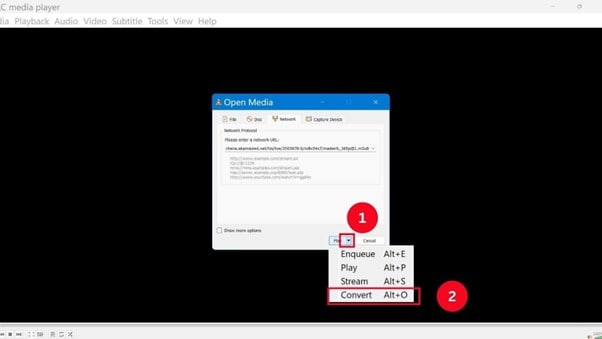
Step 3: At the bottom of the window, click on the dropdown icon next to "Play," and choose the "Convert" option.
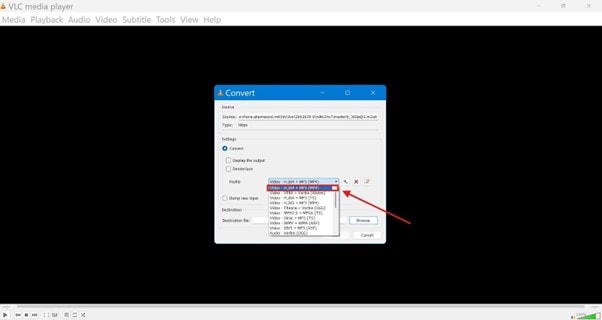
Step 4: A new window will open, and in the Profile box, pick an MP4 profile, usually "Video – H.264 + MP3 (MP4)." This tells VLC to output an MP4 after it fetches the playlist.
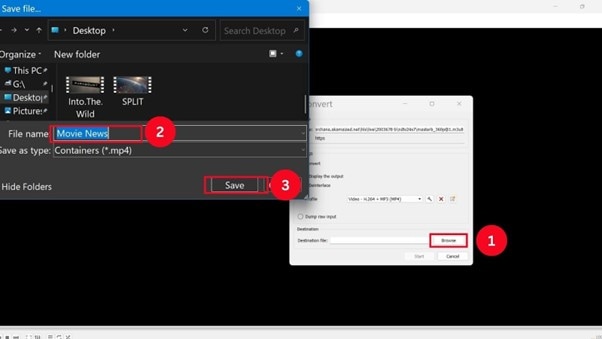
Step 5: Click "Browse," select a folder where you want to save the MP4, and type a file name that ends in .mp4.
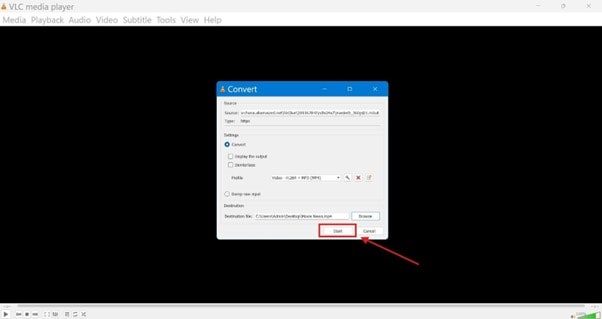
Step 6: Click on the "Start" button, and VLC now downloads the segments and turns them from M3U8 to MP4.
VLC Limitations & Common Errors
VLC is free and convenient to use, though it falls short in a few areas when converting from M3U8 to MP4. The following are the most prevalent problems that you can encounter during VLC M3U8 to MP4 conversion:
- Slow or real-time saving: VLC tends to save the stream as fast as it is being played; thus, long videos cannot be saved fast. If you want quicker results, a faster tool makes a big difference.
- No batch support: VLC supports only one file at a time, so repeating the same steps for multiple links can get tiring. For larger sets, a converter with batch mode is much easier to use.
- The video plays, but the audio is missing: This can happen when some audio chunks fail to load or when the stream uses a tricky audio format. Trying again or using FFmpeg with an audio fix usually helps.
- Audio and video don't match: If segments load late or drop, your final MP4 may look out of sync. A stable network or a more reliable merging tool reduces this problem.
- Protected streams fail: If the stream uses DRM or strict tokens, VLC won't save it as an MP4. These streams cannot be converted, and trying to bypass protection violates site rules.
When VLC fails, a desktop tool like UniConverter can be easier to use because it handles large M3U8 to MP4 conversions better.
M3U8 to MP4 Converter
Method 3: Convert M3U8 Format to MP4 with FFmpeg
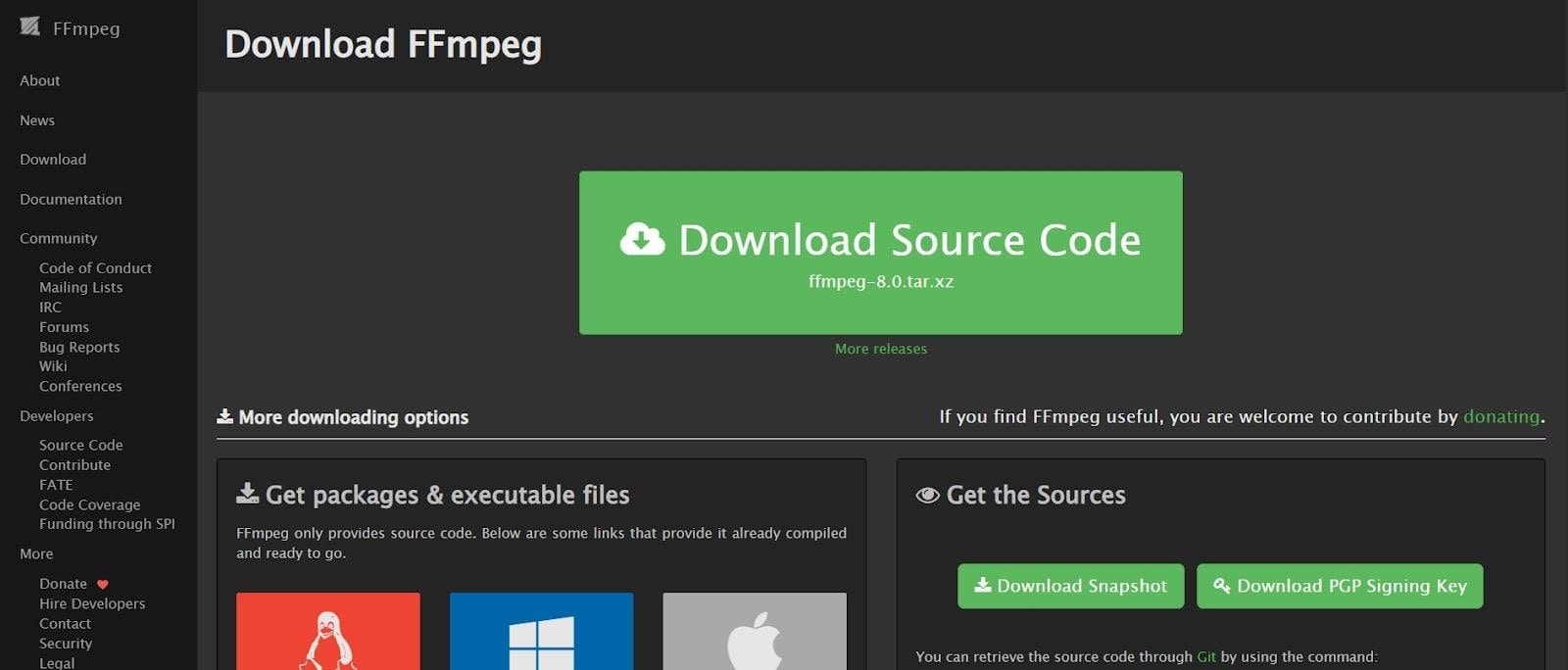
If you need an M3U8 to MP4 conversion process where you have complete control over how it transforms, then FFmpeg is the ideal choice for the task, since it reads each TS packet from the source and reassembles it with virtually no loss.
Compared to other M3U8 to MP4 converters that either omit failed clips or crash on missing segments, FFmpeg checks every request, legitimizes attempts again in the case of a failed segment, and reconstructs the final MP4 as similar to the source as possible. This level of control is why it is used by editors, streamers, and technical users for long playlists and work projects.
FFmpeg can, however, seem daunting initially since it runs in a command window. However, after learning a couple of commands, you will understand why people have confidence in FFmpeg M3U8 to MP4 to work with files, lengthy streams, and huge playlists.
How to Use FFmpeg to Convert M3U8 to MP4
Here is how to convert an encrypted M3U8 to an MP4 legally using FFmpeg:
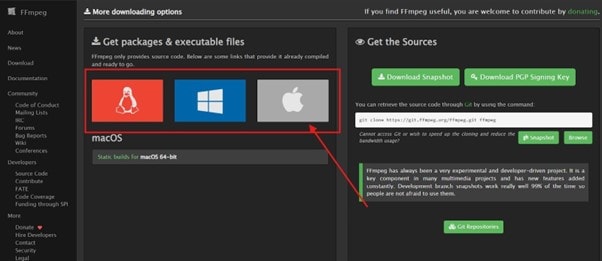
Step 1: Open your browser and go to the official FFmpeg site to download the correct build for your system (Windows, macOS, or Linux). On Windows, you usually get a zip file. On Mac and Linux, you can use a package manager or a prebuilt binary.
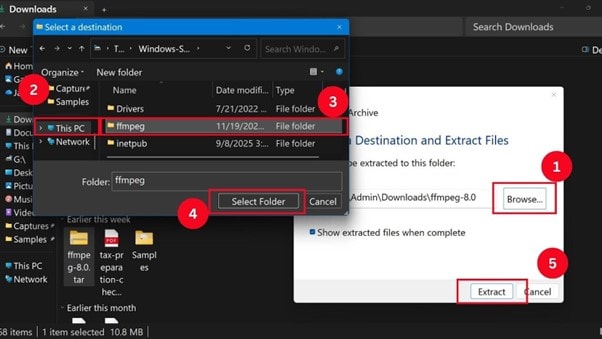
Step 2: Open your downloaded ZIP file, right-click it, and choose "Extract All." When it asks "Select a destination," click Browse, then choose the folder you created named "ffmpeg."
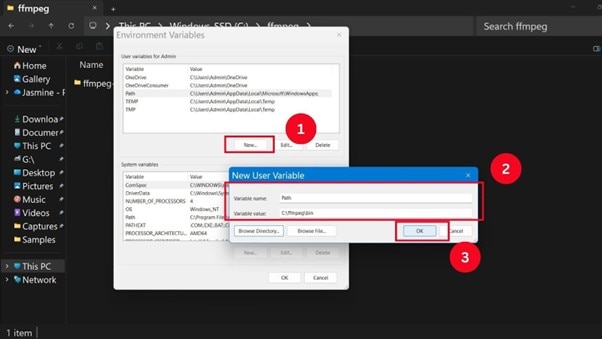
Step 3: In the Windows search bar, type "Environment Variables." A screen pops up; click New to edit the "Path" variable in your user section.
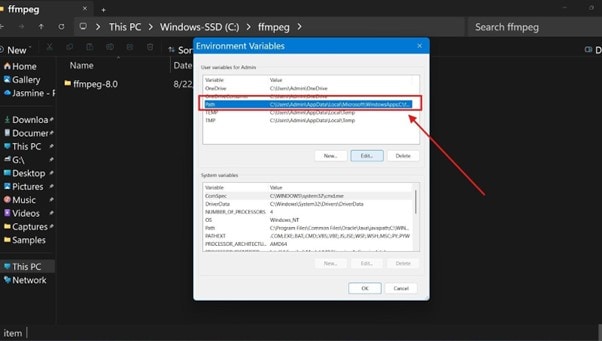
Step 4: Add the bin folder path, for example, "C:\ffmpeg\bin." Click "OK" to save and close all dialog boxes.
Step 5: FFmpeg needs the .m3u8 source. This can be a full web link or a local M3U8 file.
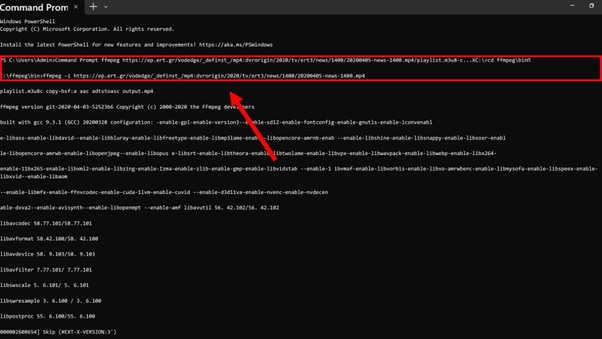
ffmpeg -i "URL_or_file.m3u8" -c copy -bsf:a aac_adtstoasc "output.mp4"
Step 6: Replace "URL_or_file.m3u8" with your real link or file path and replace "output.mp4" with the name and path you want for the result.
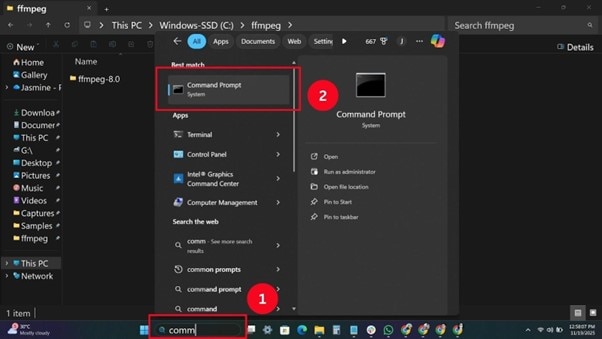
Step 7: Search for "Command Prompt" in Windows' search box and open it. Paste the command line into it, then press Enter.
Step 8: Once you run the command, FFmpeg will print progress lines in the console. You will see time stamps moving forward. When it reaches the end, FFmpeg prints "muxing overhead" and returns to a new prompt.
Step 10: Go to the folder where you saved "output.mp4" and open it in a player like VLC. Play a few spots near the start, middle, and end. Make sure video and audio are both there and stay in sync.
If the file plays fine, your first M3U8 file to MP4 conversion with FFmpeg is done.
If You’re Dealing with Encryption, Keys, and Errors
Some M3U8 files won’t convert easily because many HLS streams use AES-128 encryption. In these cases, the playlist usually includes a key URL that unlocks each .ts segment. If the key is accessible, FFmpeg can fetch it and decrypt everything on the fly.
But streams protected by DRM systems like Widevine or FairPlay cannot be converted with FFmpeg, because these technologies block copying at the source. Converting DRM-locked streams may violate laws or platform policies, so only download content you’re legally allowed to save.
Batch Download and Resume Tips
FFmpeg is the most reliable option for long or repeated conversions. It reads every segment accurately, retries missing packets, and handles unstable playlists better than basic converters.
You can automate multiple jobs with batch lists or wrapper tools, making FFmpeg ideal for editors, streamers, and users handling large recordings. Even though it runs in a command window, a few simple commands make it dependable for lengthy or complex M3U8 to MP4 tasks.
Method 4: Use a M3U8 to MP4 Converter Online- AnyConv
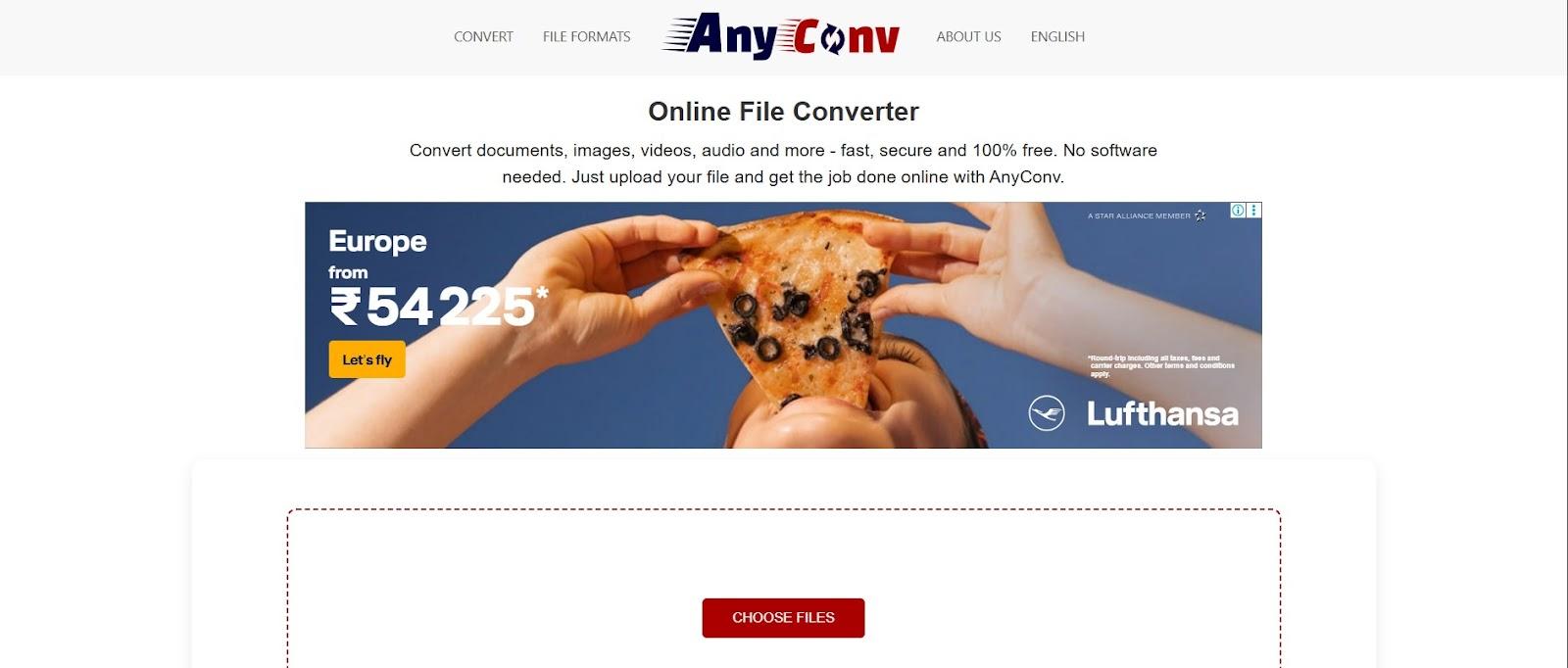
Sometimes you only need a single quick file and don't want to download software or set up anything complicated. In those moments, an M3U8 to MP4 online converter can be the fastest solution.
AnyConv.com is one of the simpler options because it runs directly in your browser and provides a straightforward way to convert public M3U8 links to MP4 files. You can even preview the stream first to check its quality before saving it. It works well with standard HLS playlists and smaller IPTV links, and it avoids the pop-ups or risky ads found on many free sites. Since it cannot open encrypted or restricted streams, it's best suited for public, non-protected M3U8 links.
How to Conevrt M3U8 Format to MP4 Converter Online
Here is how you can get M3U to MP4 conversion online
Step 1: On the homepage, click the "From URL" tab and paste the M3U8 link.
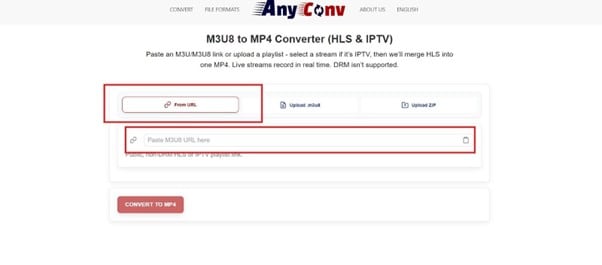
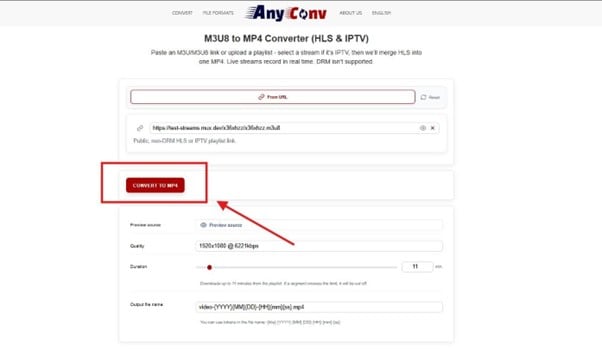
Step 2: Paste your M3U8 link into the box. Make sure you use a public, non-protected link because the tool cannot open encrypted playlists. The tool will load the playlist, check the stream, and show a short preview. Click the button that says "Convert to MP4."
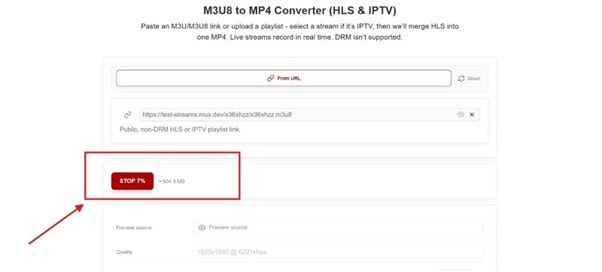
Step 3: When the tool begins working, you will see a progress bar appear, such as "7%." This shows the tool is recording and merging the HLS segments. Do not close the page until it reaches 100%.
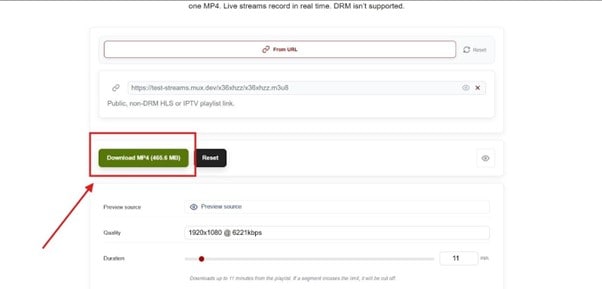
Step 4: When the file is ready, a download button appears. Click it to save your MP4 file to your device.
Method 5: Android Solutions: Video Converter: M3U8 to MP4
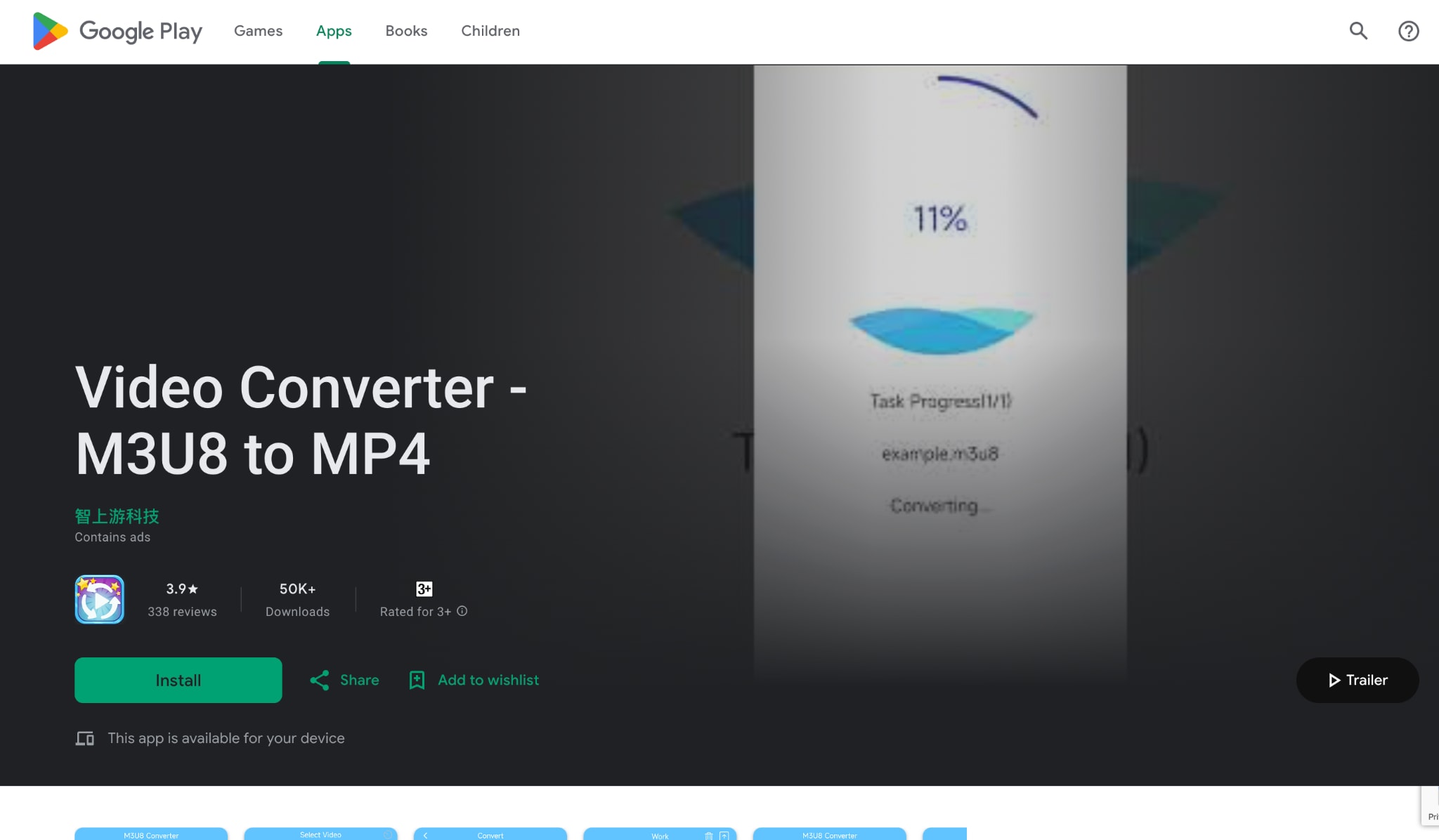
If you want to convert an M3U8 file to an MP4 on your Android phone, an Android app like M3U8 Converter can help you do so without a computer. It reads your local folders and scans for stored M3U8 files, so you can convert them to MP4 with a simple process.
How to Convert M3U8 File to MP4 on Android:
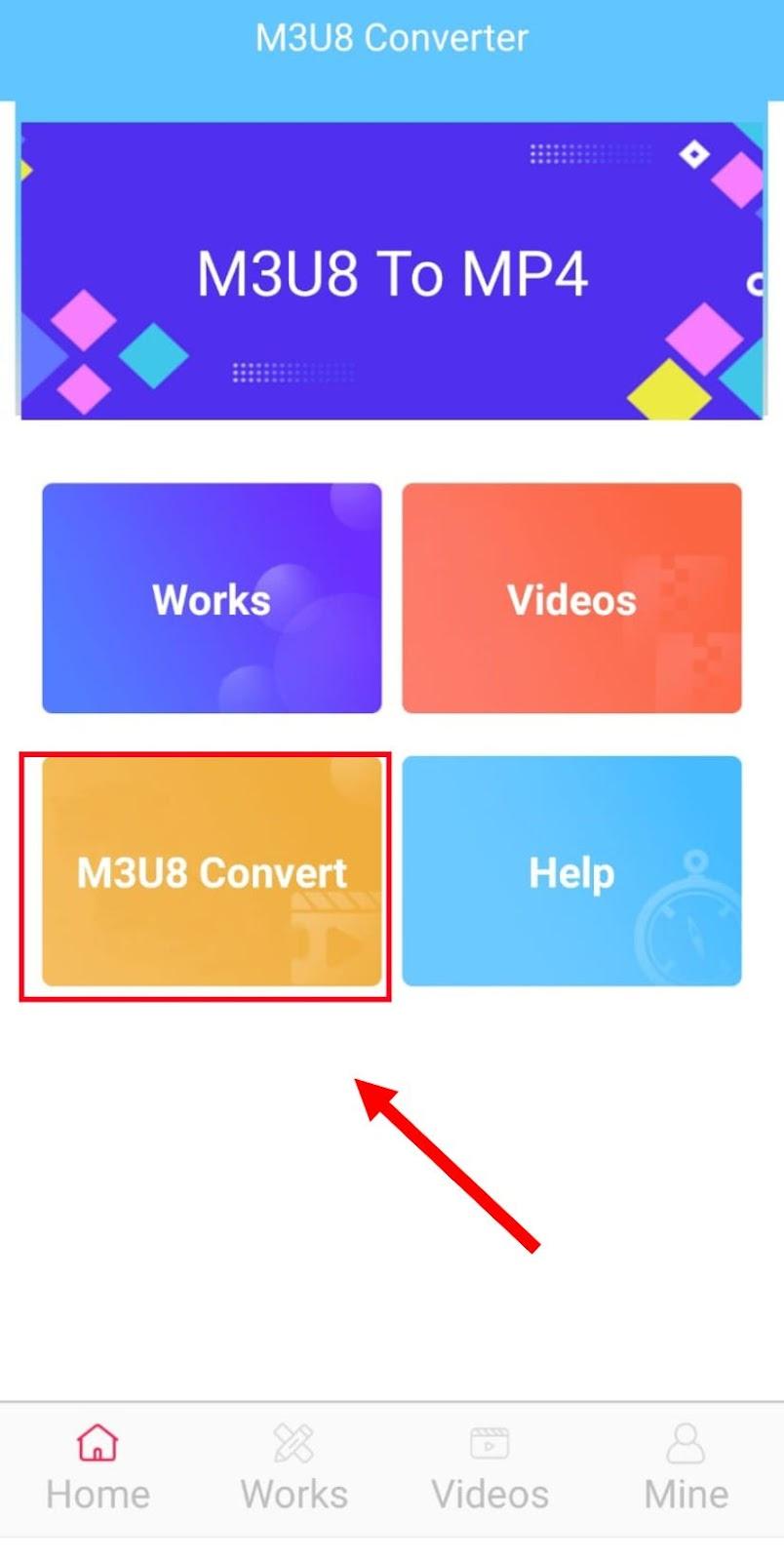
Step 1: On the home screen, tap the "M3U8 Convert" button. This opens the main conversion window.
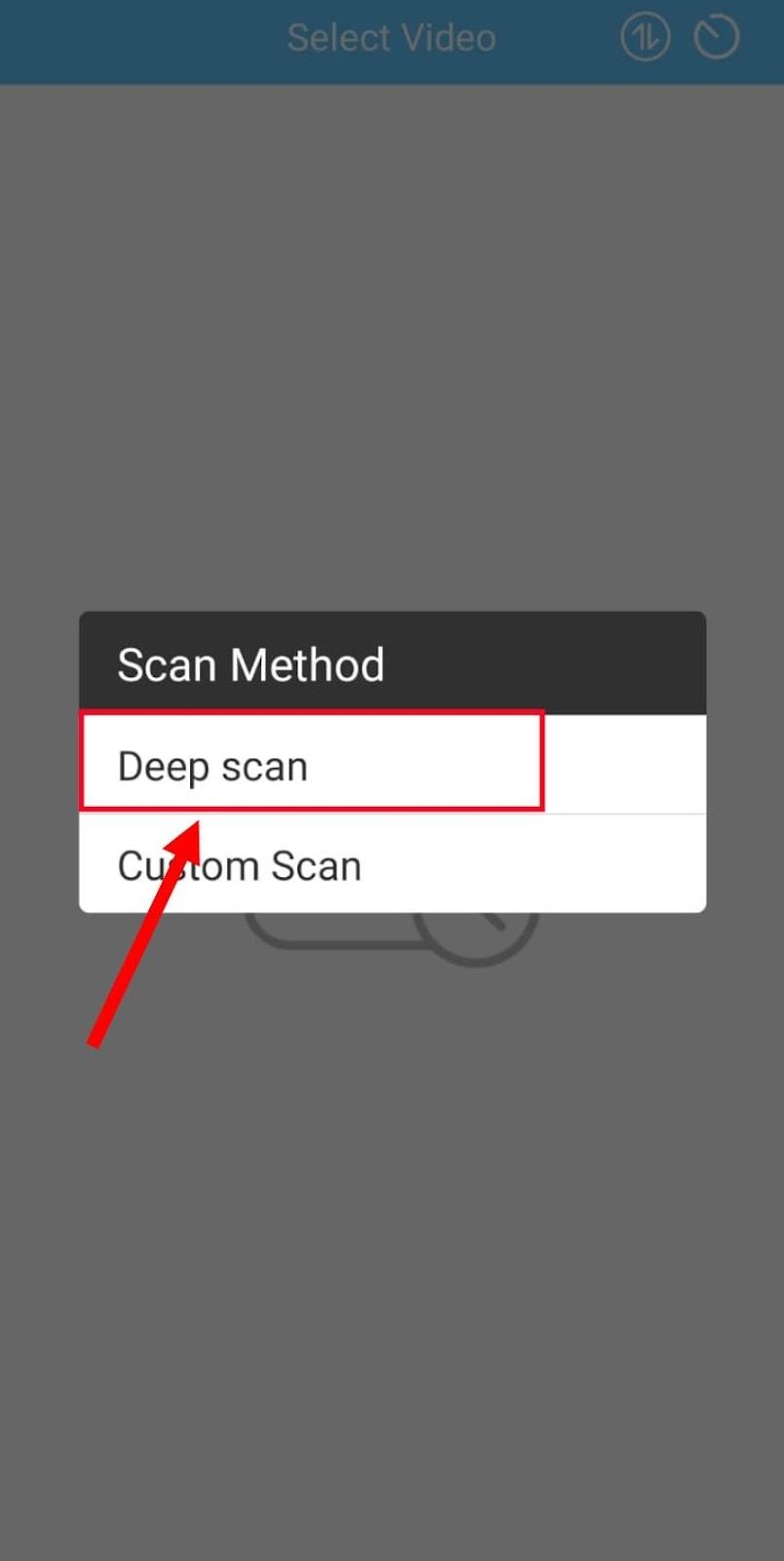
Step 2: You will see a power icon in the top-right corner. Tap the power icon and choose your scan method. Once you tap the icon, the app gives you two choices. Select "Deep Scan."
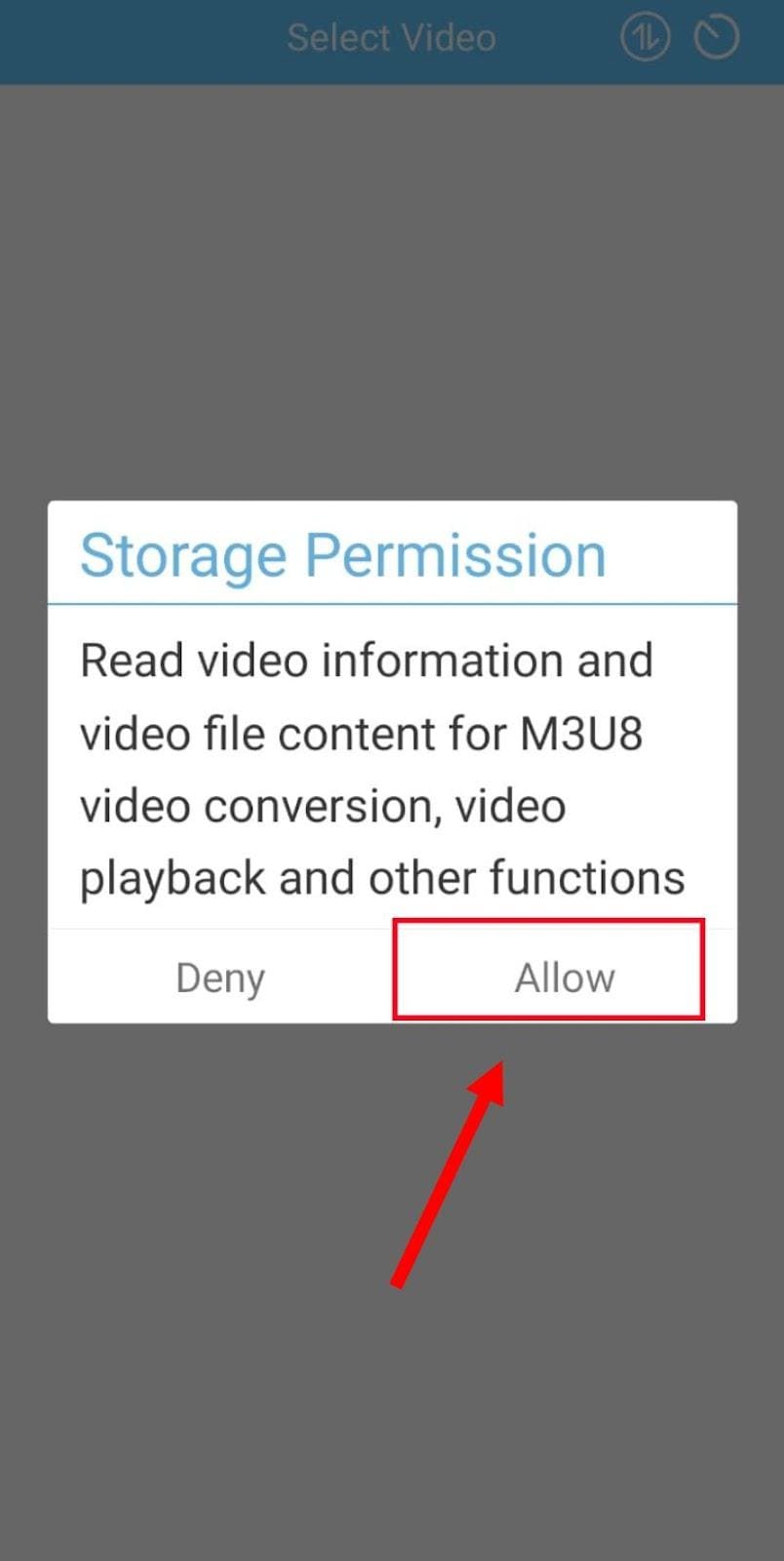
Step 3: When you scan it for the first time, the app asks for permission to access your media. Tap "Allow" to allow it to read your folders. If you skip this, the converter cannot find your M3U8 files.
Step 4: Wait while the app scans your phone. The scanning process checks your Download folder and other storage areas. If your M3U8 file is stored inside the Download folder, it appears faster. You will see a list of files once the scan finishes.
Step 5: Tap the M3U8 file you want to convert. When you select a file, it gets highlighted. If you have multiple M3U8 files in the same folder, you can select multiple files. Click the "Next" button in the bottom-right corner. Once you tap Next, the app begins collecting the TS segments. If the files are complete, the converter starts processing.
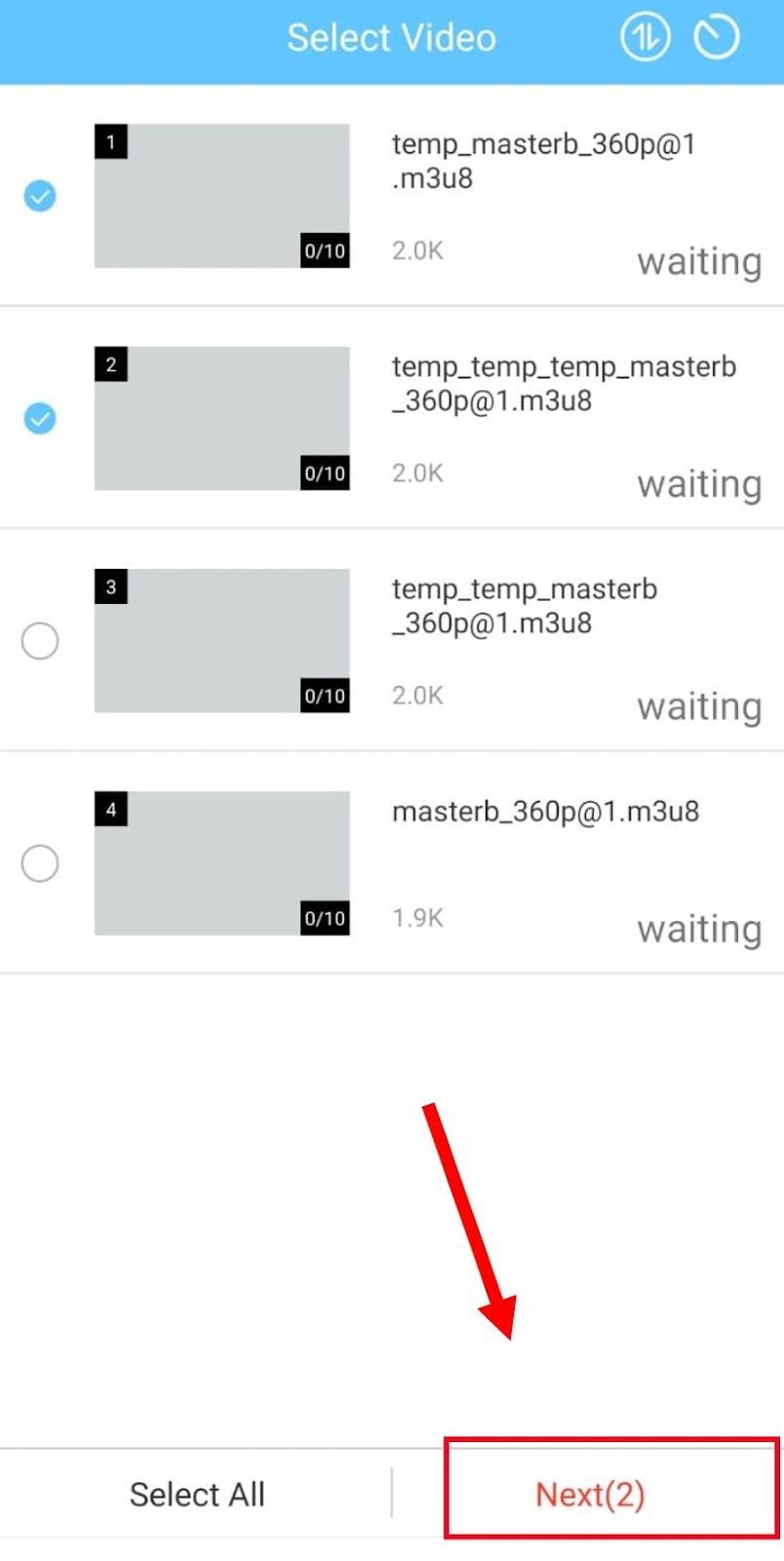
Step 6: Wait for the MP4 output to be created. You will see a progress status. When the conversion reaches 100%, the MP4 file is saved to your phone.
If you want a local copy, use a playback app to open the M3U8 file, then record the screen. This is your last resort because the quality depends on your screen brightness, device settings, and the steadiness of the recording. If you try this, stick to trusted apps and always check requested permissions.
Part 8: Quality, Speed & File Size: What to Expect
When you convert M3U8 to MP4, the final result depends almost entirely on the quality of the original stream. An M3U8 playlist links to small .ts segments that already contain compressed video and audio, so your output can only be as good as what the server provides. Understanding the basics of remuxing, re-encoding, and bitrate ladders helps you predict quality before you begin.
Remux vs. Transcode (Copy vs. Re-encode)
- If the M3U8 stream uses common formats like H.264 video and AAC audio, you can remux these .ts clips into MP4 without changing the actual content. Remuxing only swaps the container, so quality stays identical and the process finishes very fast.
- You need to re-encode only when the formats inside the M3U8 stream aren’t supported by MP4, or when you want a smaller file. Transcoding takes longer and may reduce quality, so use it only when required.
Bitrate & Resolution Limits in HLS
- HLS streams come with a “bitrate ladder,” which includes multiple quality levels.
- If you pick a low-bitrate or low-resolution variant, the MP4 will look the same; MP4 cannot magically upgrade the quality.
- For the best M3U8 MP4 quality, always choose the highest-quality variant inside the playlist before converting.
Part 9: Legal & Ethical Use of M3U8 to MP4 Tools
Working with M3U8 playlists comes with clear legal responsibilities. Many video platforms protect their streams with tokens, AES-128 encryption, or full DRM systems, and these protections determine what you can and cannot convert. To stay safe, it's important to understand how these rules apply before turning an M3U8 file into an MP4.
Key points to keep in mind:
- When DRM is active, standard tools cannot process the file, and attempting to bypass protection violates copyright policies.
- DRM keys usually depend on your login or hardware, so converters fail by design when trying to copy restricted content.
- Saving a video for personal viewing is different from distributing it, reposting it, or storing it outside the platform's allowed methods.
- Some services allow in-app viewing but forbid external file storage, even if the stream isn't encrypted.
- Stick to your own recordings or files for which the owner has given explicit permission. This avoids account issues and ensures your M3U8 work remains fully legal.
Part 10: Troubleshooting M3U8 to MP4 Issues (Real-World Fixes)
Even with the right tools, converting M3U8 files can run into issues like audio glitches, slow conversions, or blocked segments. Most problems come from how HLS streams are structured, so a few targeted fixes can save you a lot of time. Here are the most common M3U8 to MP4 error situations and how to solve them.
"No audio" or audio that is out of sync
Many M3U8 streams store audio in a format that needs correction before merging.
If you're using FFmpeg, apply the ffmpeg aac_adtstoasc bitstream filter:
"bsf: a aac_adtstoasc"
This often fixes missing or desynced audio instantly. If you're seeing no audio in VLC with an M3U8 playlist, the playlist may be missing TS segments. Try downloading it again or switch to a desktop converter like UniConverter, which handles bad segments more reliably.
Conversion is stuck or extremely slow
This usually happens when someone tries to convert a live stream. Live M3U8 files load in real time, so the converter keeps waiting forever. For faster results, always use a direct M3U8 URL pointing to a completed list of TS files. A dedicated desktop tool also merges segments faster than browser-based converters.
Encrypted errors or 403 messages
A 403 message or an "encrypted" error means the content is protected. The TS clips cannot be opened. This is not something you can fix because the server blocks the request. The safe choice is to stop here and respect the service rules.
Conclusion
You can now download M3U8 to MP4, so you are no longer limited to broken playlists or missing segments. You know what influences quality, slows you down, and how to solve your frequent problems.
To have these wins every time, UniConverter is the tool that can help you reach your goal. It joins segments cleanly, fixes audio problems, and handles long playlists without freezing. It gives you stable results even when other tools fail. When you're ready to make this process faster and smoother, UniConverter is the next smart step.

