


Ever found yourself staring at an embedded video—lecture, demo, reel, or promo—desperate to save it, but then you discover there’s no download button in sight? Frustrating, right? Embedded videos live in plain sight, but getting them onto your device isn’t always obvious. Some are easy to save with a few clicks; others are tucked inside layered code, loaded dynamically, or intentionally blocked from download.
This guide outlines seven of the most accessible strategies, organized by device and difficulty level. Whether you’re new to this or looking for a smarter shortcut, you’ll find a solution here that works. No guesswork—just actionable results.
In this article
Part 1: How to Manually Free Download Embedded Videos with DevTool
DevTools, the native inspection utility found in browsers like Chrome and Firefox, gives you full visibility into every request and element on a webpage. With a bit of practice, you can use it to intercept and extract embedded video URLs in full resolution. It's fast, doesn’t cost a thing, and requires no installation—just some basic familiarity with network filtering.
While this method excels with standard embeds—like HTML5 videos, Streamable, and direct MP4 links—it falls short when dealing with DRM-encrypted or dynamically loaded streams.
Step-by-step guide to download embedded videos with Dev Tool:
Step 1: Go to the video page
Head to the webpage containing the embedded video. Hold off on pressing play.
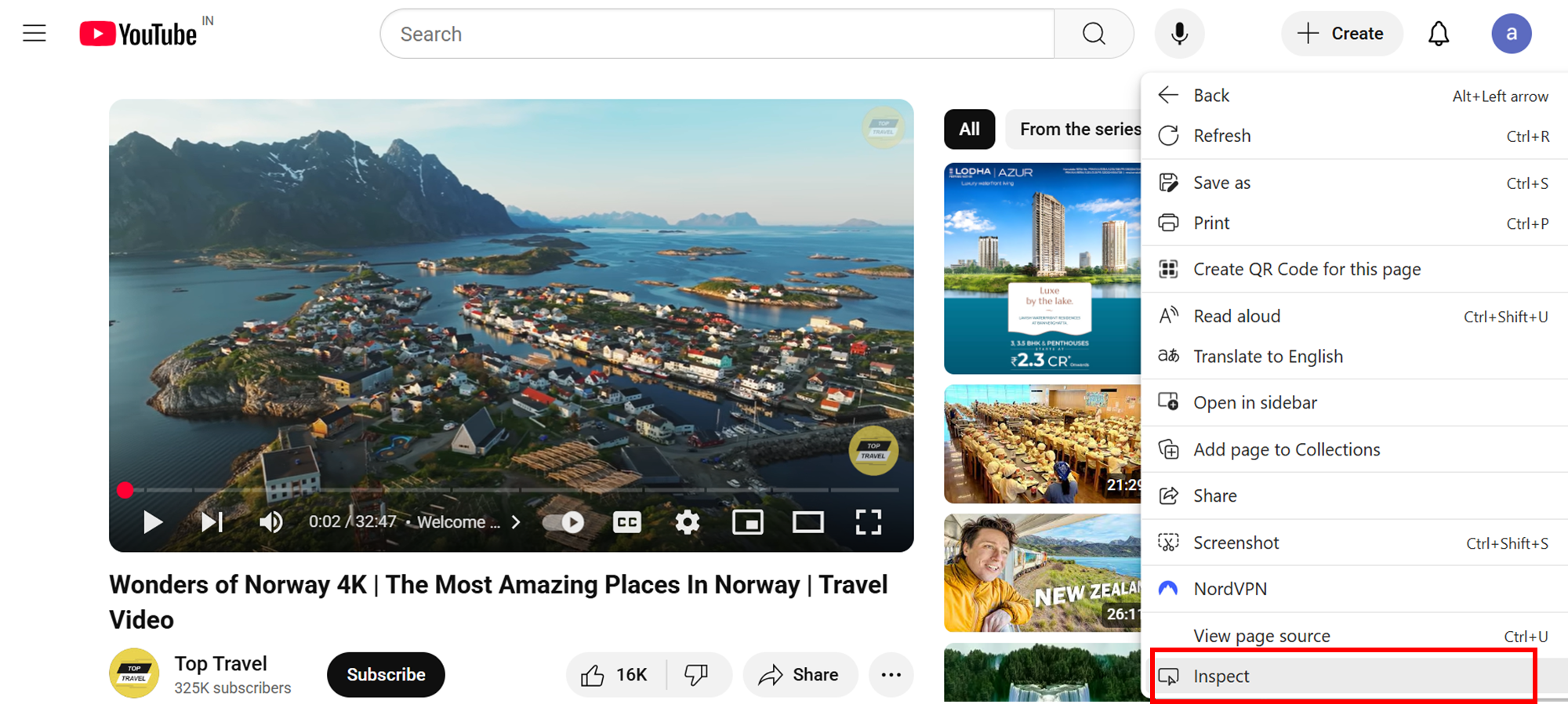
Step 2: Open Developer Tools
Right-click anywhere and choose Inspect, or press Ctrl + Shift + I (Windows) / Cmd + Option + I (Mac). Click the Network tab.
Step 3: Refresh the page
Hit the browser’s refresh button or press F5. The Network panel will fill with all web requests.

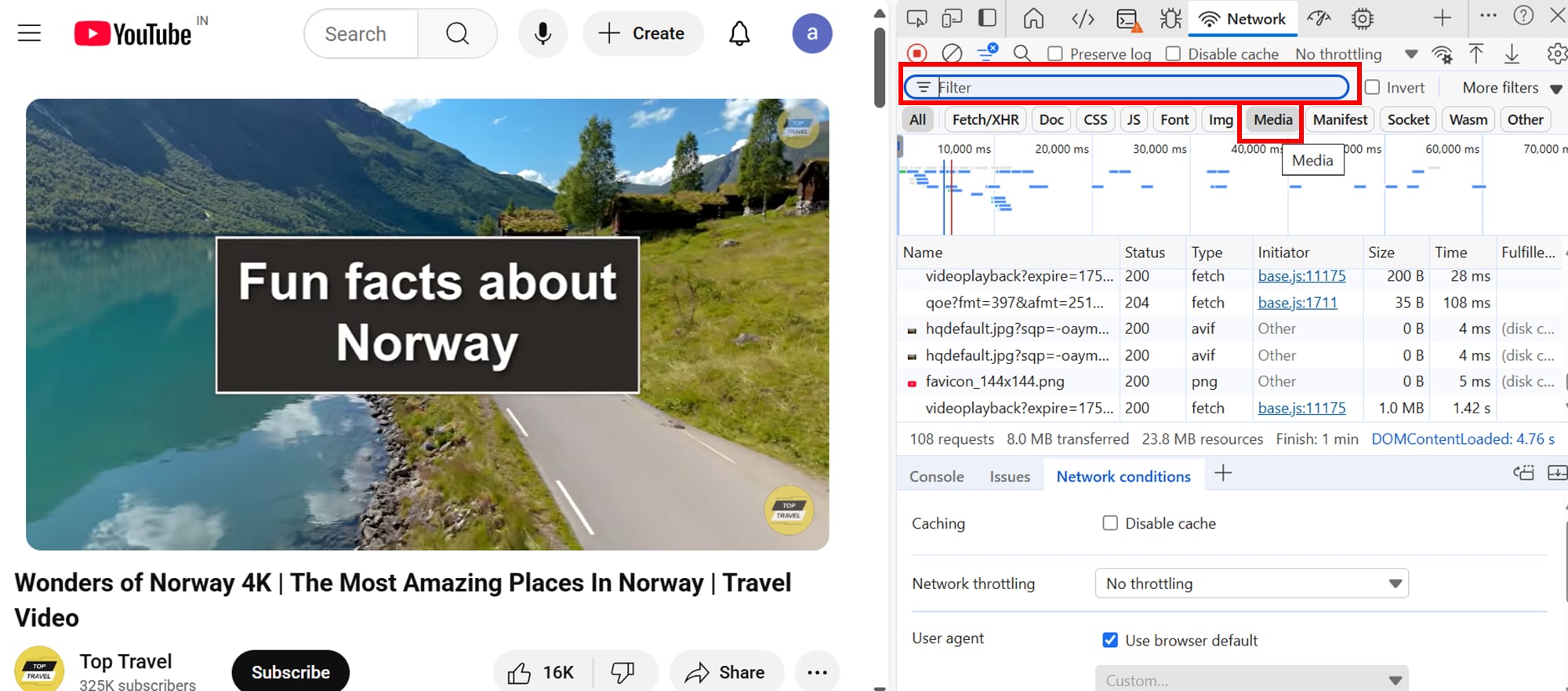
Step 4: Filter for video content
Click the filter icon (funnel shape) under the Network tab. Select Media. Can’t find it? Click >> to reveal hidden filter options.
Step 5: Play the video
Now hit Play on the embedded video. Watch for a file—often ending in .mp4, .webm, or .m3u8—to appear.
Step 6: Grab the file link
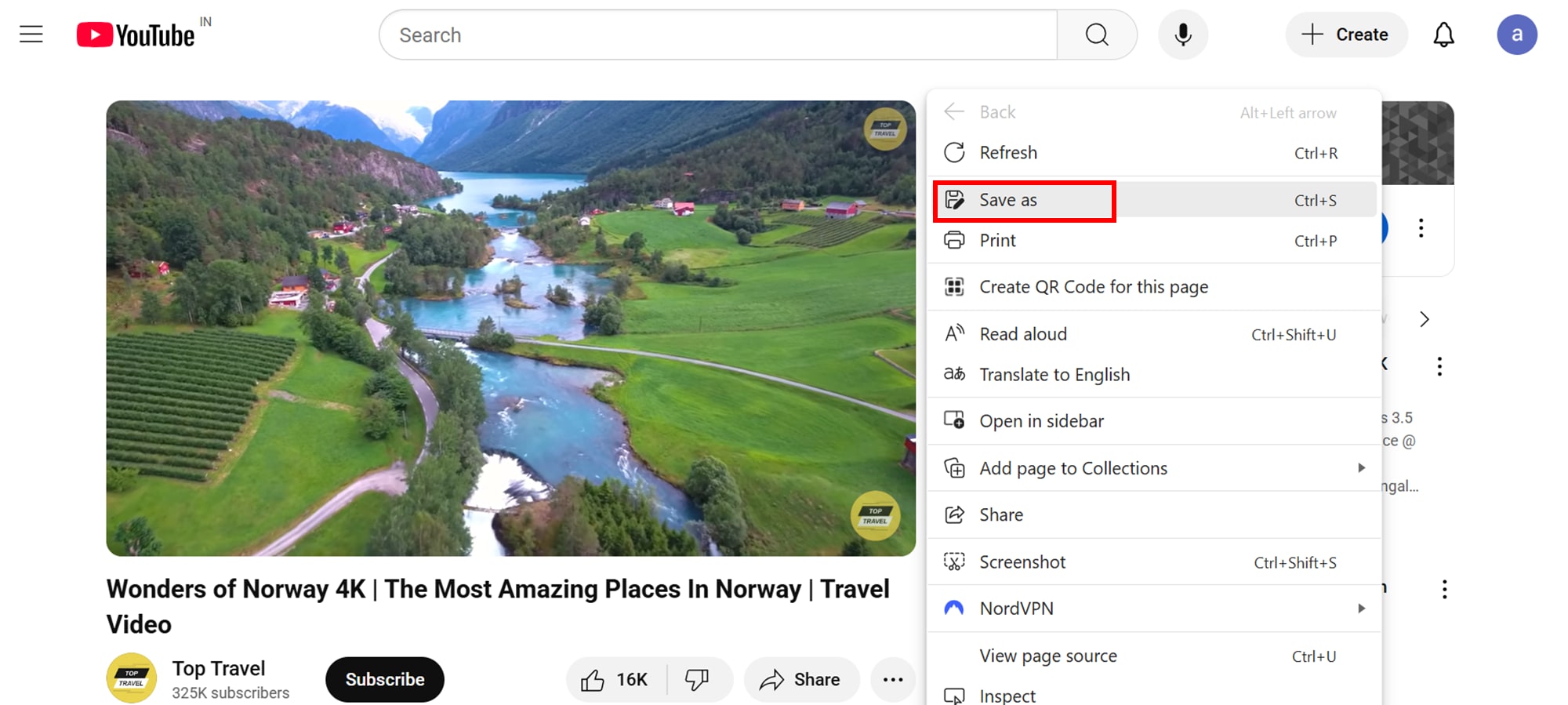
Right-click the file entry > choose Open in the new tab, or Copy link address to save it later.
Step 7: Download and save
In the new tab, right-click the video and hit “Save video as…”—you’re done!
Advanced tip: If no obvious media file shows up, look under the “XHR” tab or search for .m3u8 URLs—these are playlist-based streams that may require tools like UniConverter to download fully.

Easy to Use Batch Embedded Video Downloader
Part 2: 3 Best Easy Ways to Download Embedded Videos on PC
Trying to download an embedded video without jumping through hoops? Scroll down for a beginner-friendly walkthrough on how to save any video quickly in 2025:
Quick Guide: Best Embedded Video Download Method by Scenario
1. How to batch download embedded videos on PC
Wondershare UniConverter brings together multiple video utilities in one streamlined platform—conversion, downloading, editing, screen capture, and compression. Its batch downloader is particularly handy, letting users grab videos from embedded players such as Streamable without jumping between tools.
What sets it apart is the ability to export directly to device-specific formats, saving time and guesswork. Even if you're new to video editing, the simple interface and guided workflows make complex actions feel straightforward. Although it doesn’t support DRM-locked content like Netflix or encrypted YouTube embeds, it’s more than capable for everyday downloads.
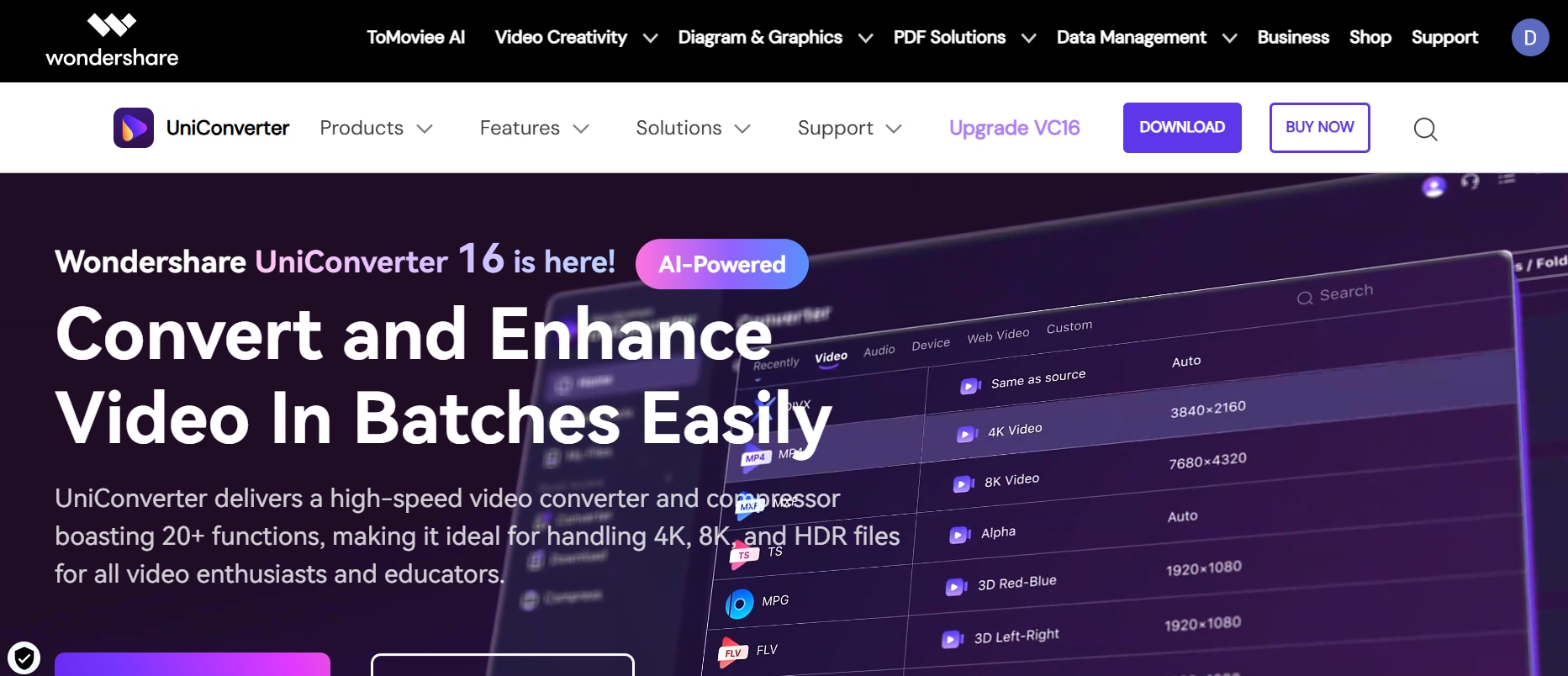
Step by step guide to download embedded videos with Wondershare Uniconverter:
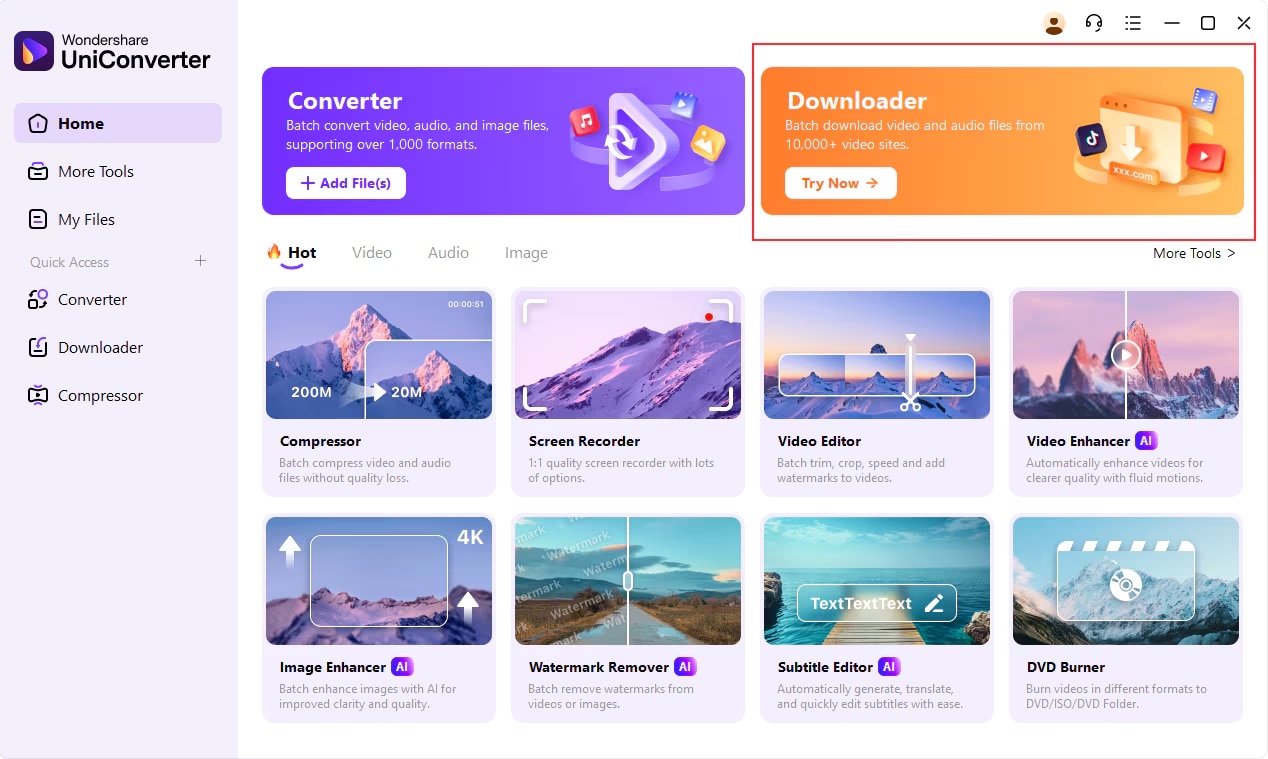
Step 1: Open UniConverter and go to the Downloader section
After installing Wondershare UniConverter, launch the program on your desktop. Once the interface loads, you'll see a set of powerful tools—click on the Downloader tab to access the video downloading feature.
Step 2: Copy the video URL from your browser
Head over to your browser and open the streaming video you want to download—this could be from platforms like Streamable, Vimeo, or others. Copy the full URL from the address bar.
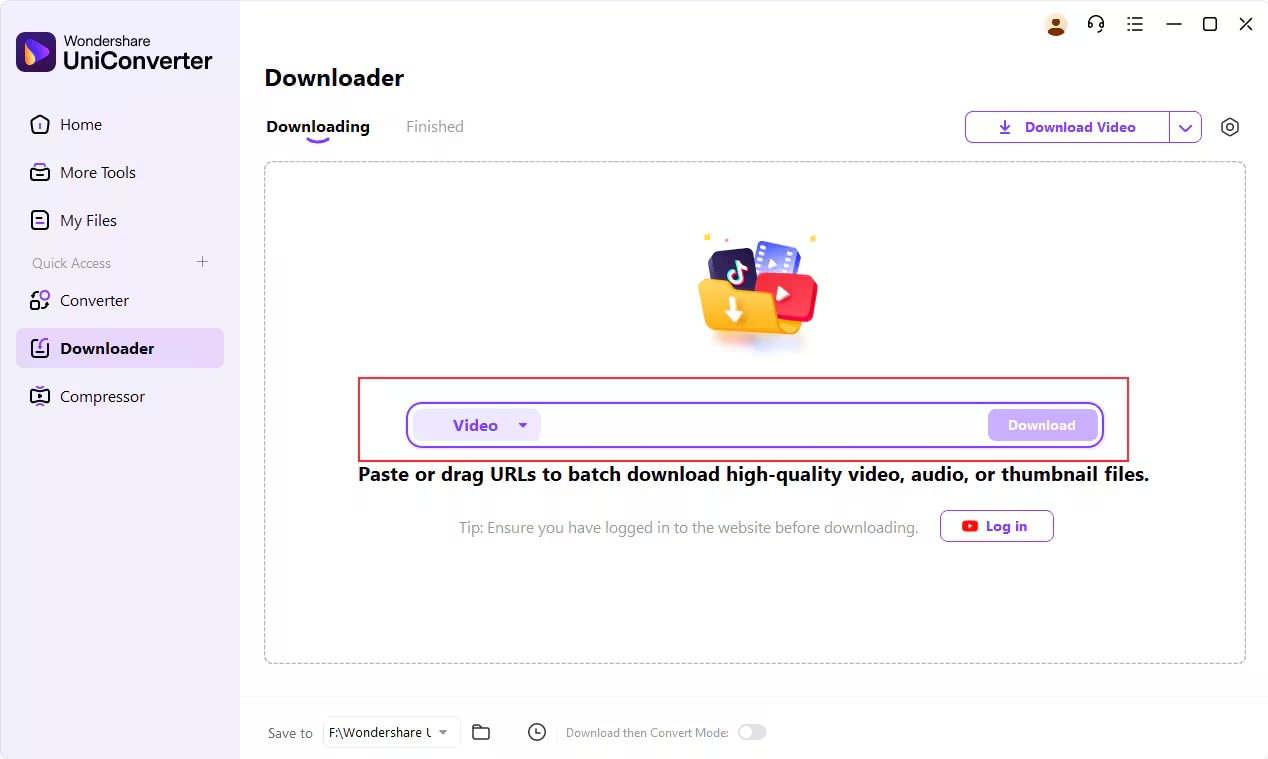
Step 3: Paste the link and set your download format
Go back to UniConverter. In the Downloader interface, click the Paste URL button. The software will automatically fetch the video link and prepare it for download. If you want to predefine the format—say, MP4, MOV, or even audio like MP3—click on Download then Convert Mode and select your desired output before initiating the download.
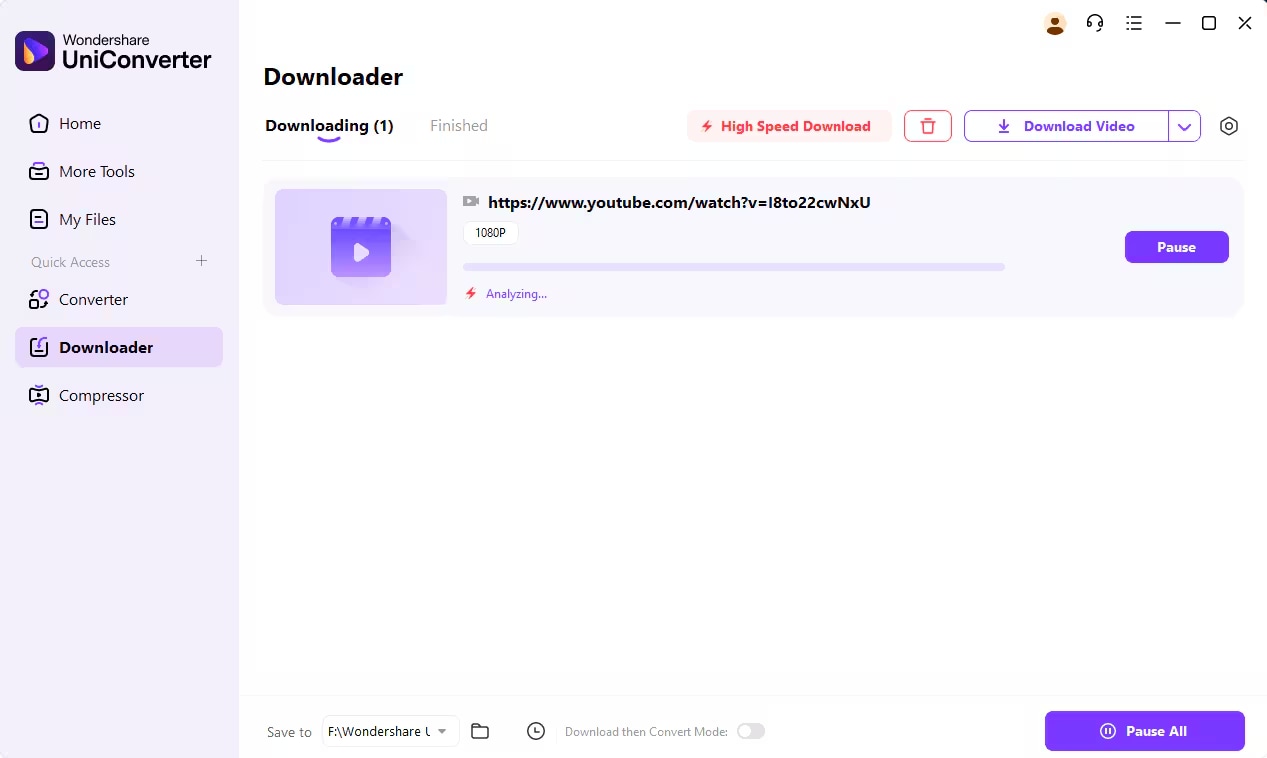
Step 4: Start downloading and monitor progress
Once you hit download, UniConverter will begin processing the video. You’ll see a progress bar showing the download status and estimated time left. You can pause, resume, or manage multiple downloads at once using the Pause All or Resume All buttons.
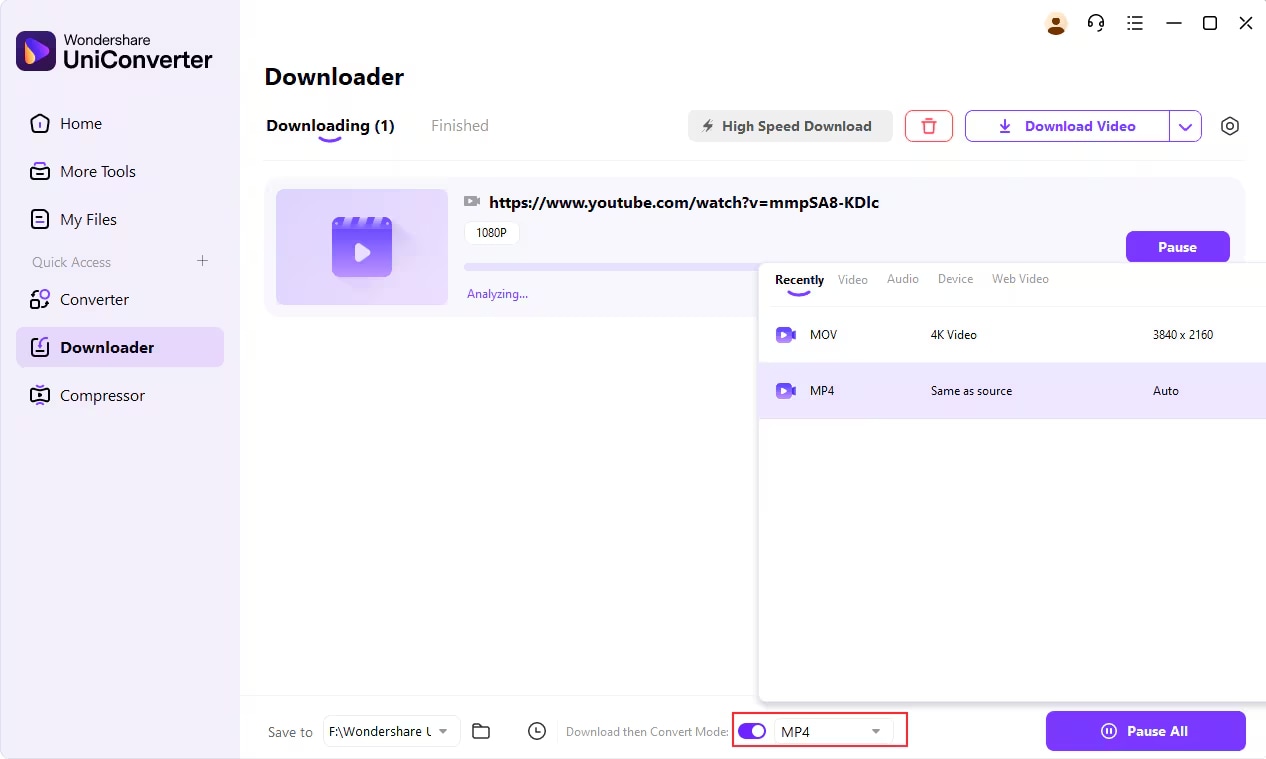
Step 5: Find your saved video
After the video has been downloaded, head over to the Finished tab within the software. You can view, open, or manage the file directly. To locate the file on your system, click File Location and it’ll take you right to where it’s stored.
Pros & Cons
Note: If UniConverter fails to detect your embedded video, try using the in-app screen recorder or contact Wondershare Support for help with unsupported platforms.
2. How to download embedded videos with VLC
Most people use VLC Media Player for watching content, but few realize it can also download embedded videos using just a direct URL. It’s open-source, completely free, and compatible with all major operating systems including Windows, macOS, and Linux. For those wanting a no-frills approach, VLC provides a clean, resource-light solution with solid results. It works best for raw video which are sources from different sites that use simple embeds or HTML5 video elements, especially where encryption is not present. However, it does not support downloading multiple videos at once, nor does it handle DRM-protected content. Still, for straightforward cases, VLC gets the job done without extra tools.

Step-by-step guide to download embedded videos using VLC:
Step 1: Launch VLC Media Player
Open VLC on your computer. If you don’t have it, download the latest version from the official site:Step 2: Copy the embedded video’s URL
Go to the webpage where the video is embedded (e.g., a blog, Streamable, or HTML5 video). Right-click and copy the video’s page URL or direct video link.
Step 3: Open Network Stream in VLC
In VLC, click on the Media menu > choose Open Network Stream (or press Ctrl + N).
Step 4: Paste the video URL
Paste the copied link into the URL field, then click Play. VLC will attempt to play the embedded stream directly from the source.
Step 5: Save the video file
While the video is playing, go to Tools > Codec Information. At the bottom, you’ll see a Location field—copy that link. Open a browser, paste the link, and the video will load. Right-click > Save “video as” to download it to your device.
Pros & Cons
Easy to Use Batch Embedded Video Downloader
3. How to Easily Download Embedded Videos with 4kDownload
4K Video Downloader does exactly what it promises by simply helping you download high quality videos fastest then ever, without any clutter. Its standout features include smart link detection, resolutions support for up to 8K, and a clean interface that doesn’t overwhelm. Compatible with Windows, macOS, and Ubuntu, it’s a practical choice for anyone who wants embedded video access with minimal setup.
It works well with most public embedded content—like YouTube playlists, Vimeo players, and even videos embedded in blogs or social feeds. While DRM-protected and paywalled content is off-limits, for everything else, it gets the job done with zero frustration.
Step-by-step guide to download embedded videos using 4K Video Downloader:
Step 1: Launch 4K Video Downloader
Download and open 4K Video Downloader from the official site:
Step 2: Copy the video’s URL
Visit the site containing the embedded video—this could be a blog or platform like Vimeo. Right-click on the video or the share button and copy the video’s page URL.
Step 3: Paste the link in 4KDownloader
Open 4K Video Downloader and click on the “Paste Link” button at the top. The tool will automatically analyze the link and pull available resolutions.
Step 4: Select format and quality
Choose from available formats (MP4, MKV, etc.) and resolutions (HD, 4K, 8K if supported). You can also choose to download subtitles or extract audio if needed.
Step 5: Download and locate the video
Click Download to begin. Once finished, click Show in Folder to find the video on your system and begin viewing offline.
Pros & Cons
Part 3: Top 3 Embedded Videos Downloaders Available on Web or Mobile
Not every user wants to install software just to save a video. That’s where online and mobile-friendly downloaders shine. They are lightweight, fast, and ideal for quick saves on the go. These tools let you download embedded videos directly from your browser or smartphone, often with just a link.
In this section, we’ll look at SaveFrom.net, Snaptube, and Y2Mate, three reliable tools that are beginner-friendly and work well across many embedded platforms.
1. SaveFrom.net.im (Web-based)
SaveFrom is a long-standing favorite among users who want to download embedded videos without the hassle of installing extra tools. Operating entirely in the browser, it supports a wide range of platforms—YouTube, Vimeo, Facebook, and Dailymotion among them. Using it is simple: paste the video link, select your format, and start downloading.
It is particularly useful on restricted systems where you cannot install software or add extensions. This platform doesn’t work with encrypted or subscription-based content and lacks batch download capabilities, but, it excels for quick one-time downloads. Although the site may occasionally display pop-ups, it continues to be one of the fastest online download solutions available.
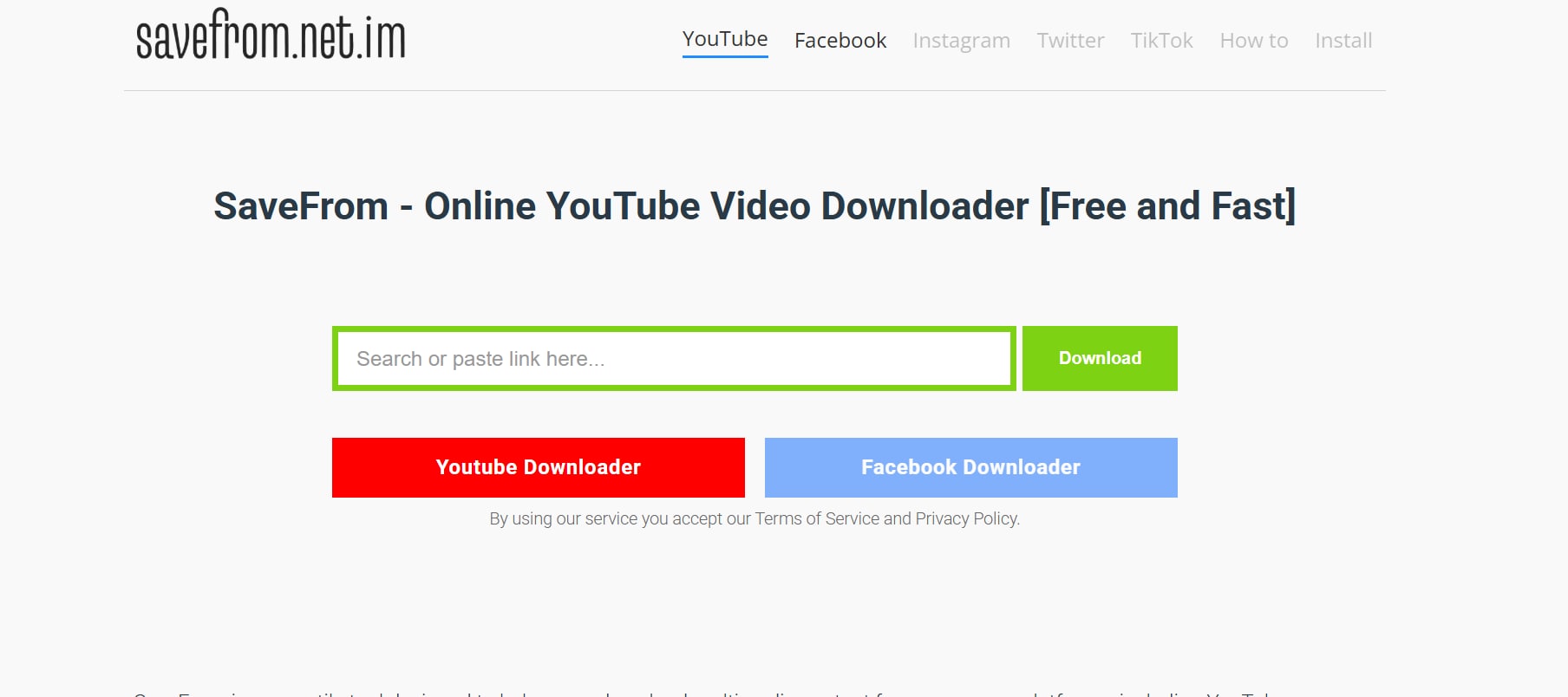
Steps to use SaveFrom.net.im:
Open the page with the embedded video.
Copy the video URL from the browser.
Go to https://en.savefrom.net.im
Paste the link into the search bar.
Choose the desired resolution and click Download.
Pros & Cons
Easy to Use Batch Embedded Video Downloader
2. Snaptube (Android App)
Snaptube is a dedicated Android video downloader built for users who want to save embedded videos from social media and video platforms. It works with major services like Instagram, Facebook, Twitter, and YouTube, offering smooth downloads through a user-friendly mobile interface. You can either search within the app or paste video URLs, and Snaptube will detect and prepare the file for download. It also supports audio-only downloads—perfect for users who want to save songs or spoken content. While it’s not listed on the Play Store, the APK is safely available through the official website. Once set up, Snaptube turns your Android phone into a reliable video and audio downloader.
Steps to use Snaptube:
Download Snaptube from its official website: https://www.snaptubeapp.com
Open the app and browse or paste the embedded video link.
Tap the Download button shown below the video.
Select your preferred quality and format.
Your video will be saved in your phone’s Downloads folder.
Pros & Cons
3. Y2Mate (Web-based)
Y2Mate is a go-to online downloader focused on grabbing YouTube videos, even if they’re embedded deep inside web pages like blogs, course platforms, or online media sites. There's no app to install, and it functions just as well on your phone as it does on a desktop browser. Resolutions up to 1080p are supported, with multiple formats available. Its greatest appeal lies in its simplicity—paste the link, make your format selection, and the file is yours in seconds. For users who only care about YouTube and need something quick and browser-friendly, it’s a perfect match. The one drawback? It’s strictly limited to YouTube embeds.
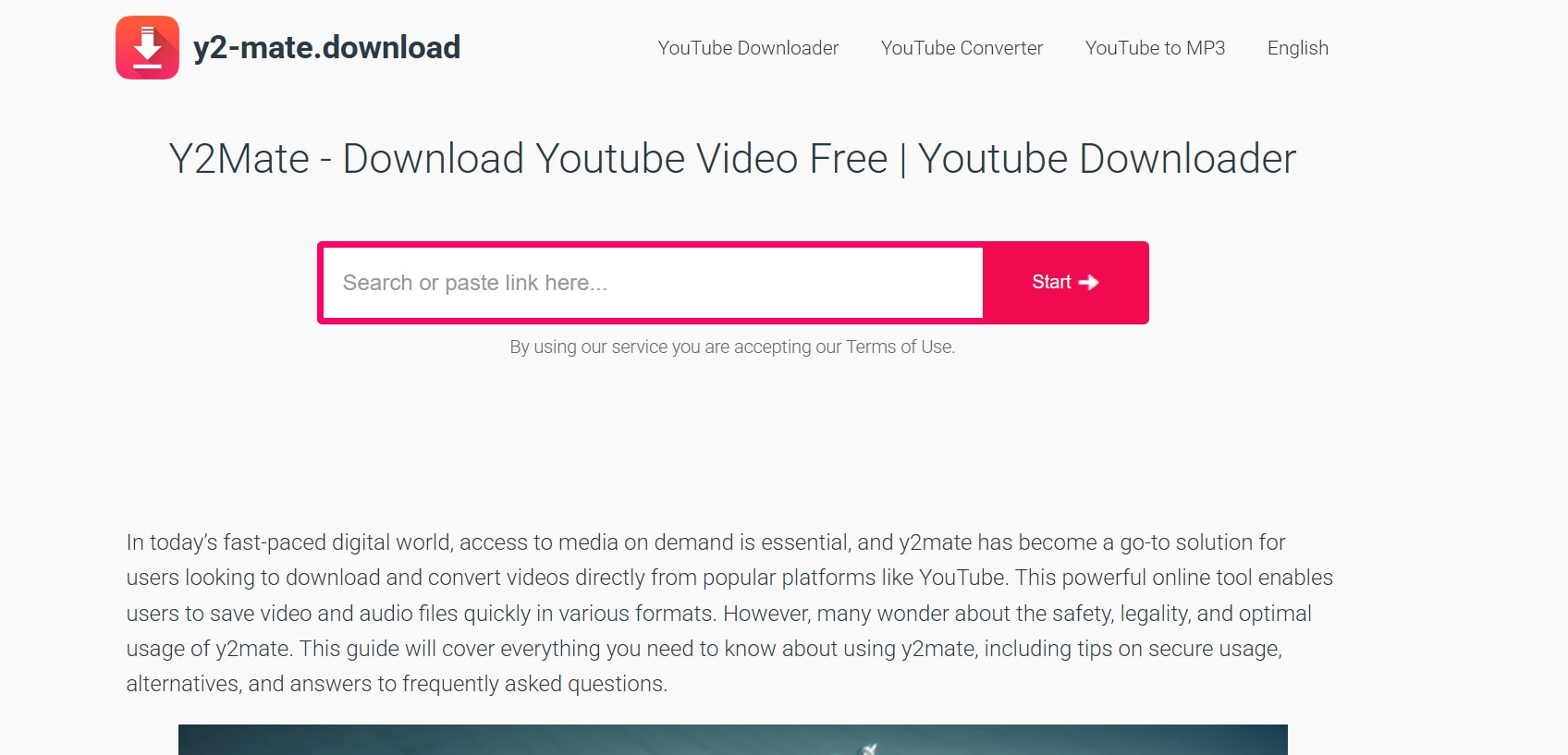
Steps to use Y2Mate:
Go to the webpage containing the embedded YouTube video.
Copy the video’s full URL.
Visit https://www.y2mate.is
Paste the URL into the input box and hit Start.
Choose your format (MP4, MP3) and click Download.
Pros & Cons
How We Tested Embedded Video Download Methods
For this guide, we reviewed embedded video download methods based on success rate, ease of use, stream support, save quality, and whether each option works well across real embedded video scenarios.
This section helps readers understand why we prioritize real-world success, easier workflows, and better support for different embedded video types before reviewing the tools below.
Conclusion
Gone are the days when grabbing an embedded video felt like decoding encrypted files. In 2025, you can use everything from browser inspect tools to full-fledged platforms like 4KDownload, or even breezy online options like SaveFrom. Each offers a distinct edge—some excel at speed, others at customization. Add in batch downloading, format shifting, or screen recording, and you’ve got a mini editing suite right on your desktop or phone.
Easy to Use Batch Embedded Video Downloader
FAQs
-
1. Can I legally download embedded videos from websites?
Yes—but with caution. Downloading publicly accessible videos for personal, offline viewing is typically fine. The line gets blurry, however, when it involves copyrighted material or platforms with strict usage policies. Always review the site's terms of service first, and steer clear of redistribution or commercial reuse unless you have explicit rights. -
2. Why is DevTools not showing any media under the Network tab?
If nothing shows up, the video may be playing hard to get. Some content loads only after hitting play, while others are dynamically inserted using JavaScript. Try reloading the page, pressing play, then navigating to the "Media" or "XHR" tabs. Often, that’s when the real action starts showing. -
3. Which embedded videos can’t be downloaded with regular tools?
Not all streams are equal. Content protected by DRM, encrypted video players, or adaptive streaming formats like HLS/DASH often resist basic methods. Platforms like Netflix, Hulu, and Prime use heavy encryption—making standard tools like VLC, SaveFrom, or browser downloads completely ineffective. -
4. Can online downloaders like SaveFrom.net or Y2Mate work on mobile?
They can—and they usually do. Most modern mobile browsers support these sites just fine. Use the full desktop version of the video link, and avoid sketchy clones filled with ads or redirects. If you run into hiccups, switching to desktop mode on your phone browser often does the trick. -
5. What’s the advantage of using a tool like Wondershare UniConverter over free online options?
While online tools are great for quick downloads, Wondershare UniConverter offers additional capabilities like batch downloads, format conversion, editing, and screen recording—ideal for users who need more control and versatility.

