



As ultra-high-definition monitors and smart TVs become standard in 2026, streaming massive media files without buffering remains a significant challenge for average broadband connections. Executing a reliable 8k video download is the most effective way to guarantee a stutter-free, high-fidelity visual experience offline. This guide outlines four distinct extraction methods covering desktop software, browser extensions, mobile applications, and online tools. Establishing realistic expectations regarding file sizes, hardware decoding limits, and safe internet practices prevents playback failure. Successfully capturing an authentic 8k HD file ultimately depends on understanding local processing capabilities versus remote server limitations.
Table of Contents
Part 1. Method 1: Use a Dedicated Desktop Software (Recommended for 8K HD)
Handling massive resolutions locally requires a robust engine that avoids crashing under extreme data pressure. For a reliable, stutter-free 8k video download, you need software that leverages your computer's full hardware capabilities.
Tool: Wondershare UniConverter

All-in-One Multimedia Processing Tool

How it Works:
Desktop applications harness a computer's native GPU acceleration to process massive AV1 or HEVC files locally. This localized processing ensures absolute stability and prevents the timeouts that browsers frequently experience when handling an authentic 8k HD file. Wondershare UniConverter stands out as an efficient choice for offline media management. The software provides 130x faster hardware acceleration, seamless batch convert capabilities, and a completely secure, ad-free environment.
Step-by-Step Guide:
Step 1: Copy Your Video URL
Navigate to your desired 8K content in your web browser and ensure the player is set to the highest available quality. Click the "Share" button beneath the video player to access the platform's standard sharing options. Select the "Copy" function to save the unique URL directly to your system clipboard for processing.

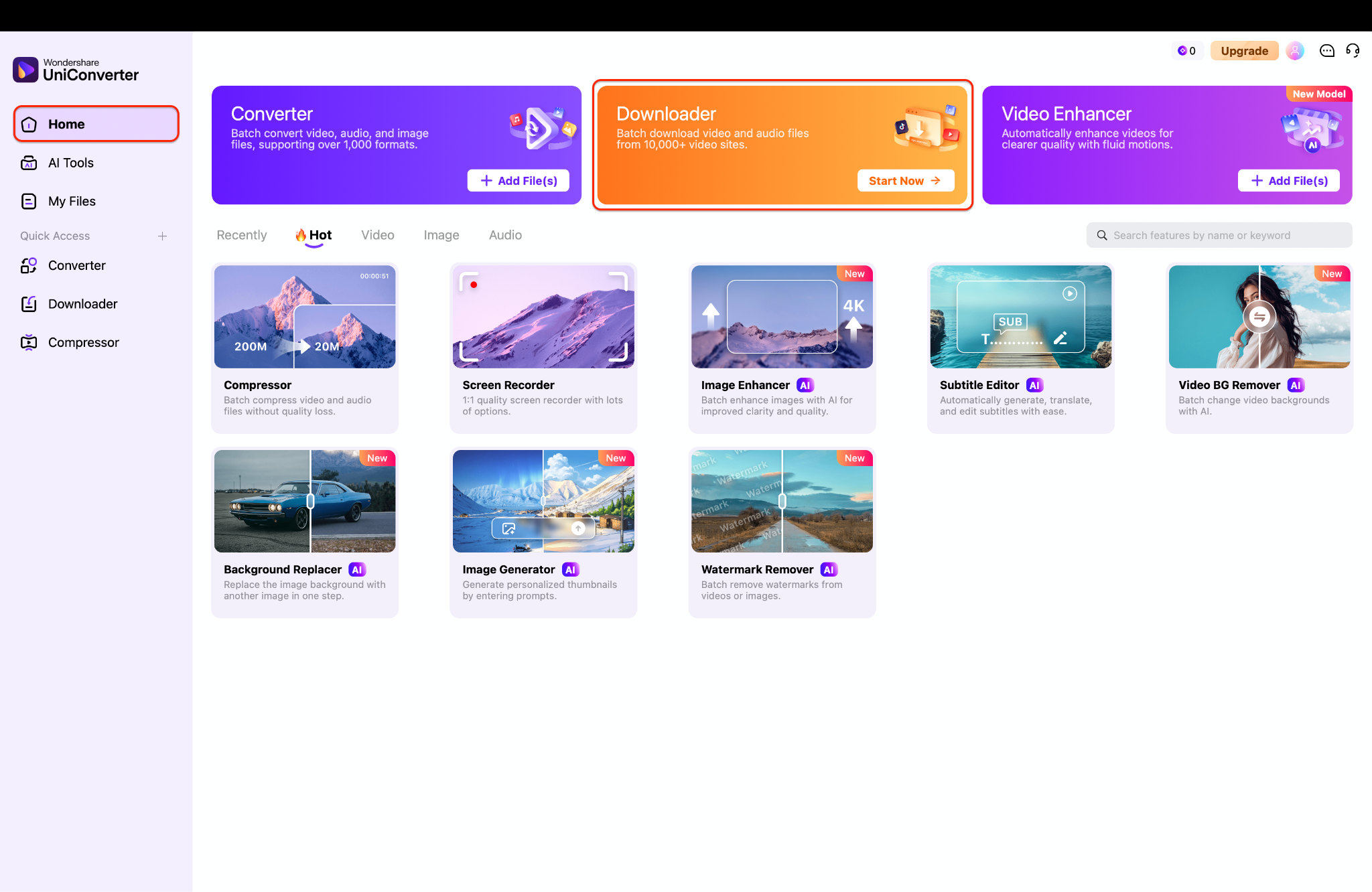
Step 2: Open the Processing Module
Launch Wondershare UniConverter on your desktop to view the main multimedia dashboard. Locate and click the prominent "Downloader" module situated at the center of the home screen. This transitions you into the dedicated workspace built for processing online media links securely.
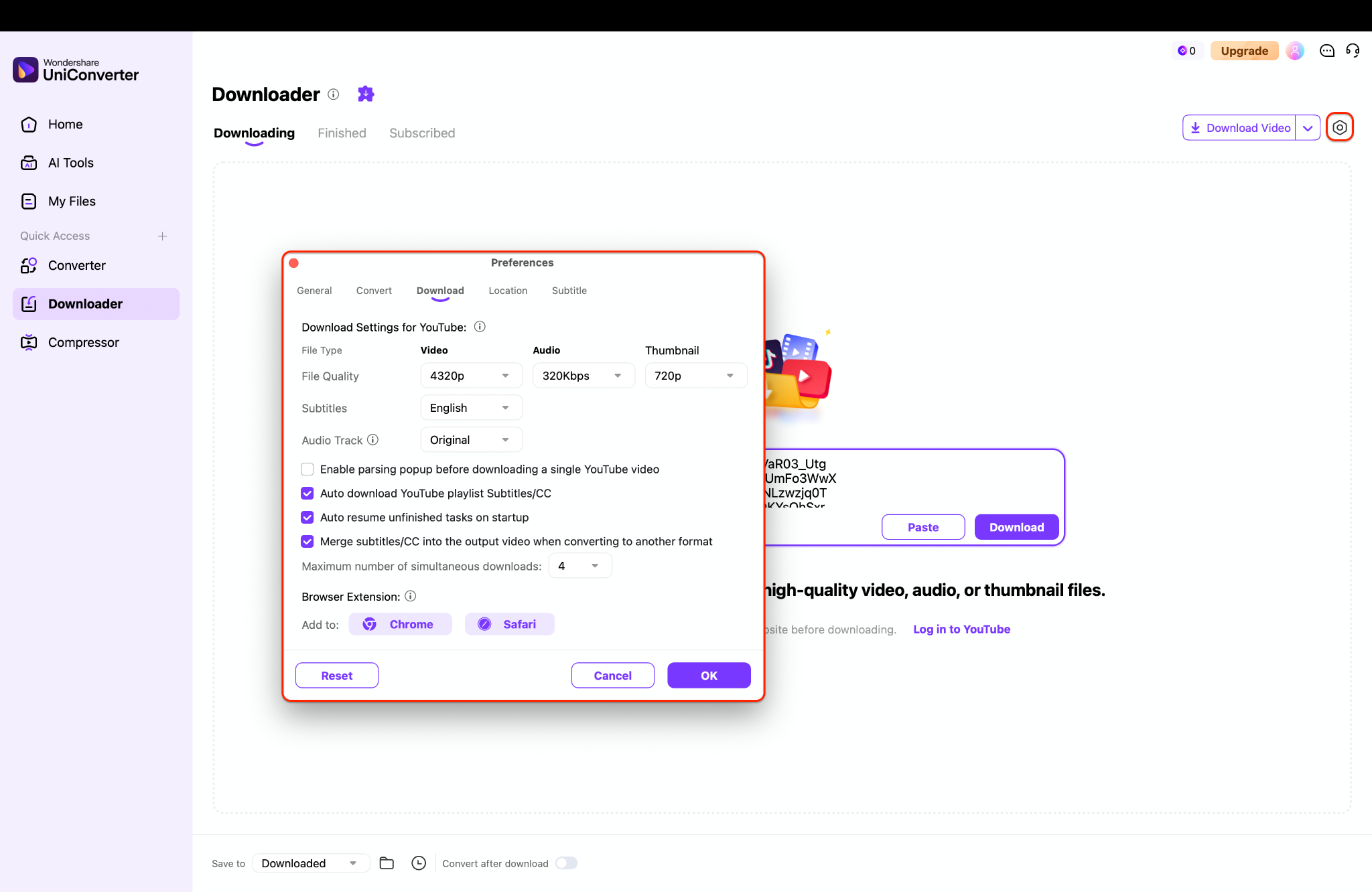
Step 3: Configure Your Preferences
Click the "Settings" icon in the top-right corner of the Downloader window to access your format configurations. In the "Download" tab, explicitly select "4320p" from the File Quality dropdown menu to choose 8k resolution for your output. Confirm your preferred subtitle and audio tracks here before closing the dialog window to save these settings.
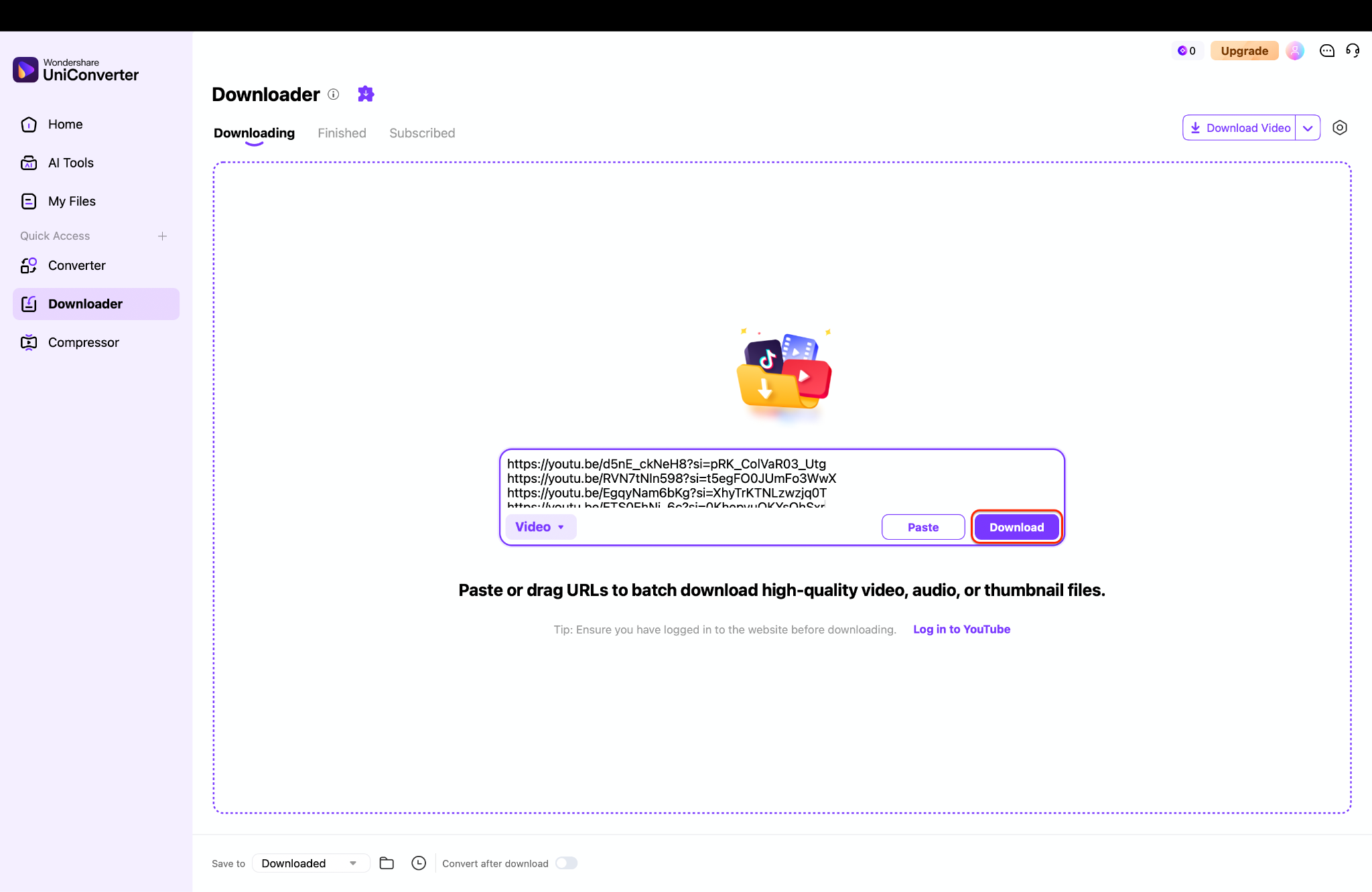
Step 4: Execute and Manage Your Files
Paste your URL into the interface and click the "Download" button to commence the high-resolution data extraction process. Monitor the real-time progress bar until the task reaches 100% completion. Once finished, navigate to the "Finished" tab to rename, preview, or locate your new 8K files on your local drive.
Pro Tip: Within the Preferences window, check the box for "Auto download YouTube playlist Subtitles/CC" to ensure that any available high-quality subtitle tracks are automatically merged with your 8K video file during the initial download.
Part 2. Method 2: Use a Dedicated Browser Extension
If you prefer to capture media directly from your active webpage without installing separate programs, a lightweight browser add-on works best. This approach lets you grab a file straight from your toolbar with minimal disruption to your daily browsing.
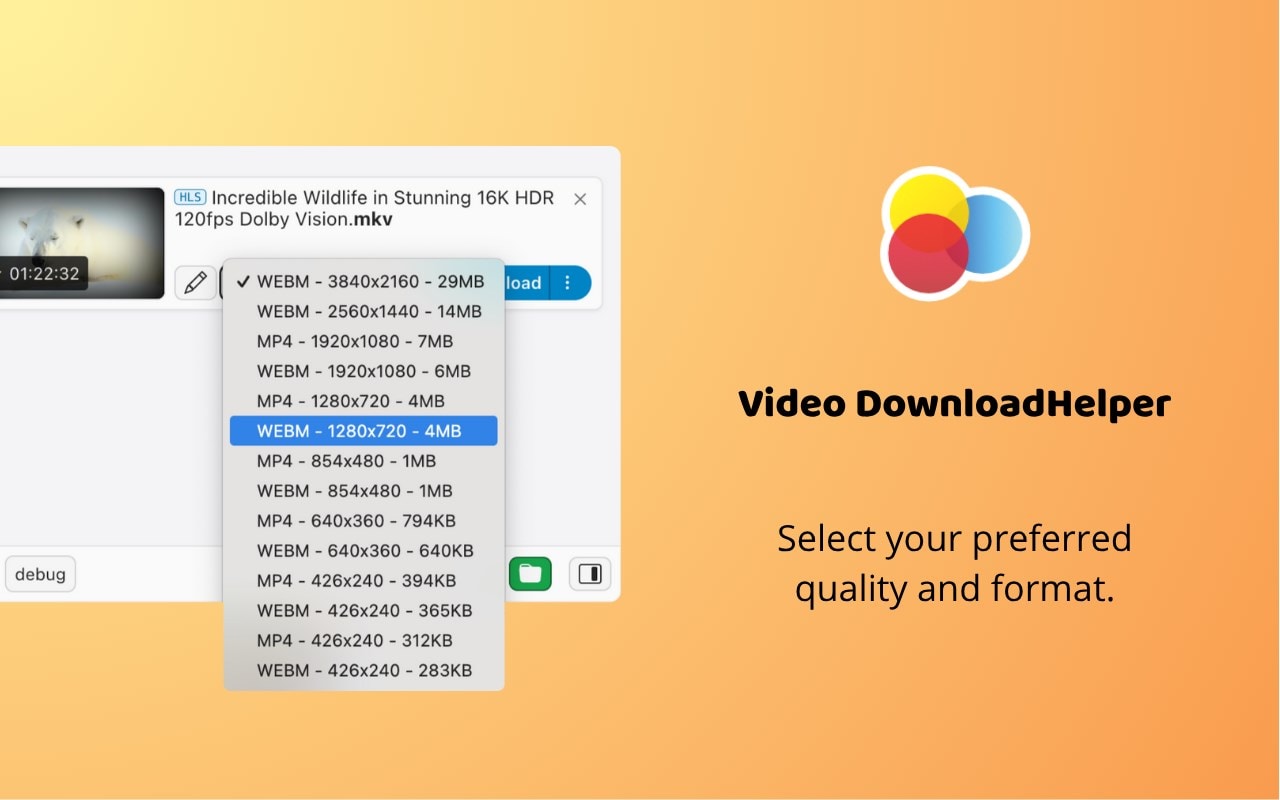
Tool: Video DownloadHelper (Available on Edge, Firefox and Chrome)
How it Works:
Browser extensions sit quietly in the browser toolbar and automatically detect media streams embedded in an active webpage. Once a stream is detected, the extension parses the available resolutions hidden in the page's code. It then generates a direct extraction link without requiring any navigation away from the current tab. This method works well for users who prefer keeping their workflow entirely within their web browser.
Step-by-Step Guide:
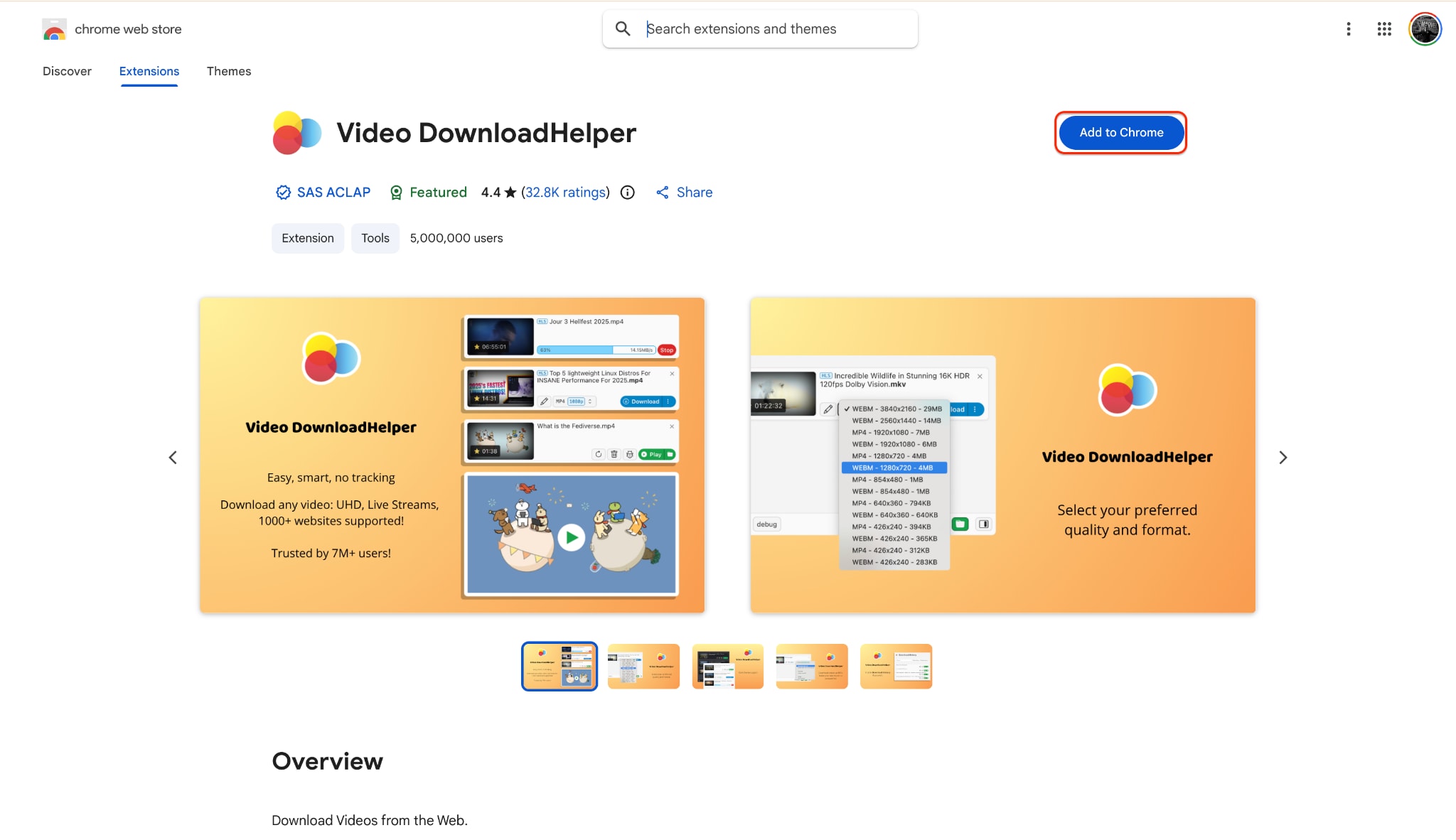
Step 1: Add the Extension to Chrome
Open the Chrome Web Store and search for the Video DownloadHelper extension. Click the blue "Add to Chrome" button to install the tool, which then enables you to access media detection directly from your browser toolbar.
Step 2: Access the Extension
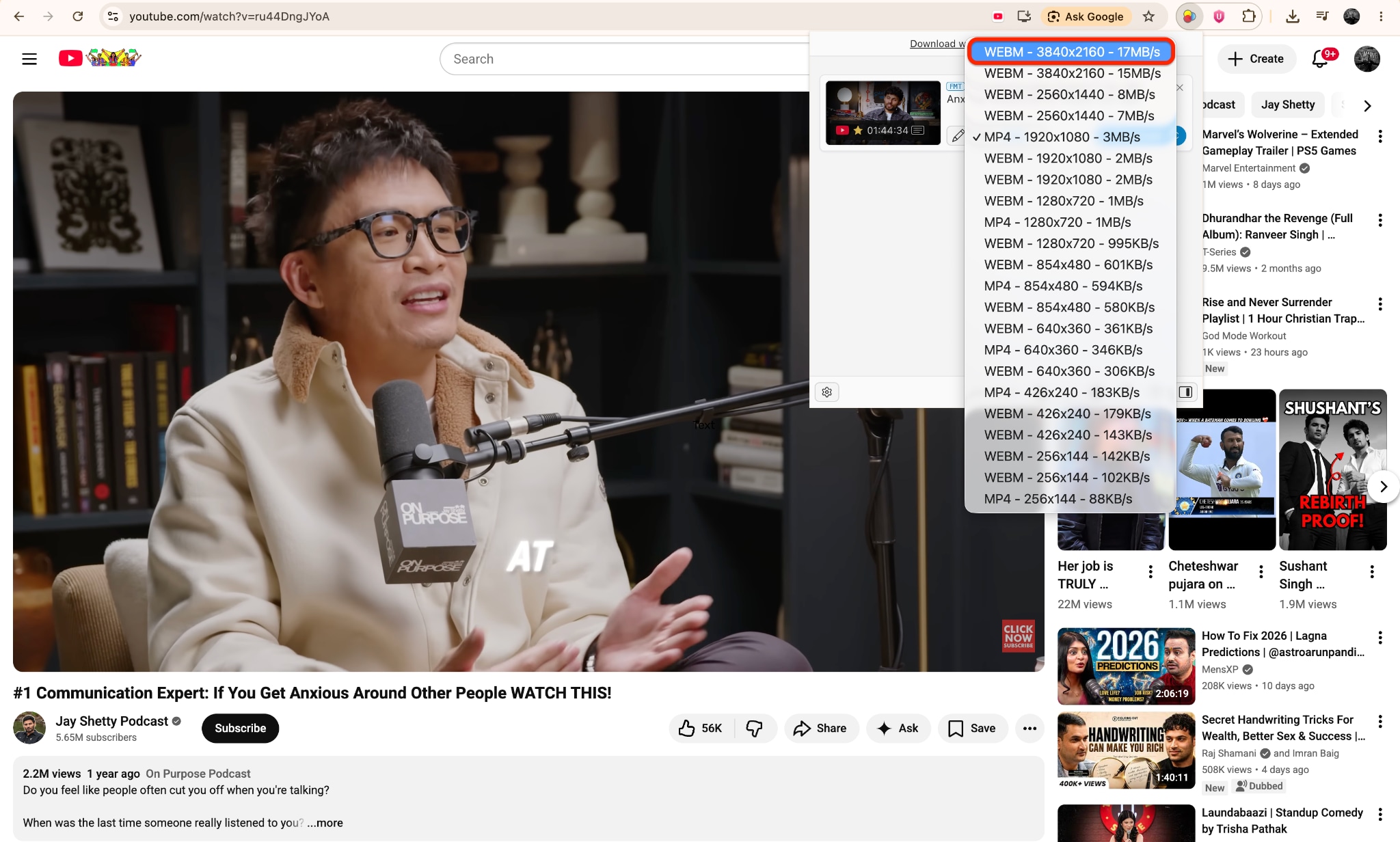
Navigate to the YouTube video you wish to save and ensure it is playing in your browser. Click the colorful Video DownloadHelper icon located in the top-right corner of your browser toolbar to initiate the media scanning process.

Step 3: Choose Your Resolution
Once the extension detects the active video stream, click the icon again to reveal a list of all available resolutions and formats. Select the top entry in the list, which typically corresponds to the highest resolution (such as 4K or 8K) and the most efficient file format.
Step 4: Execute the Download
After selecting your desired quality, the extension will open a confirmation window. Click the "Download" button within this panel to start the data extraction process and save the high-resolution file to your local computer.

Pro Tip: If you frequently capture high-definition content, right-click the Video DownloadHelper icon and select "Options" to configure a default download folder, which streamlines your workflow by skipping the "Save As" prompt for every file.
Part 3. Method 3: Use a Dedicated Mobile App
Mobile operating systems actively restrict standalone media grabbers, making direct high-resolution saves frustrating on smartphones. You can easily bypass these limits by utilizing a privacy-focused mobile browser equipped with a native extraction feature.
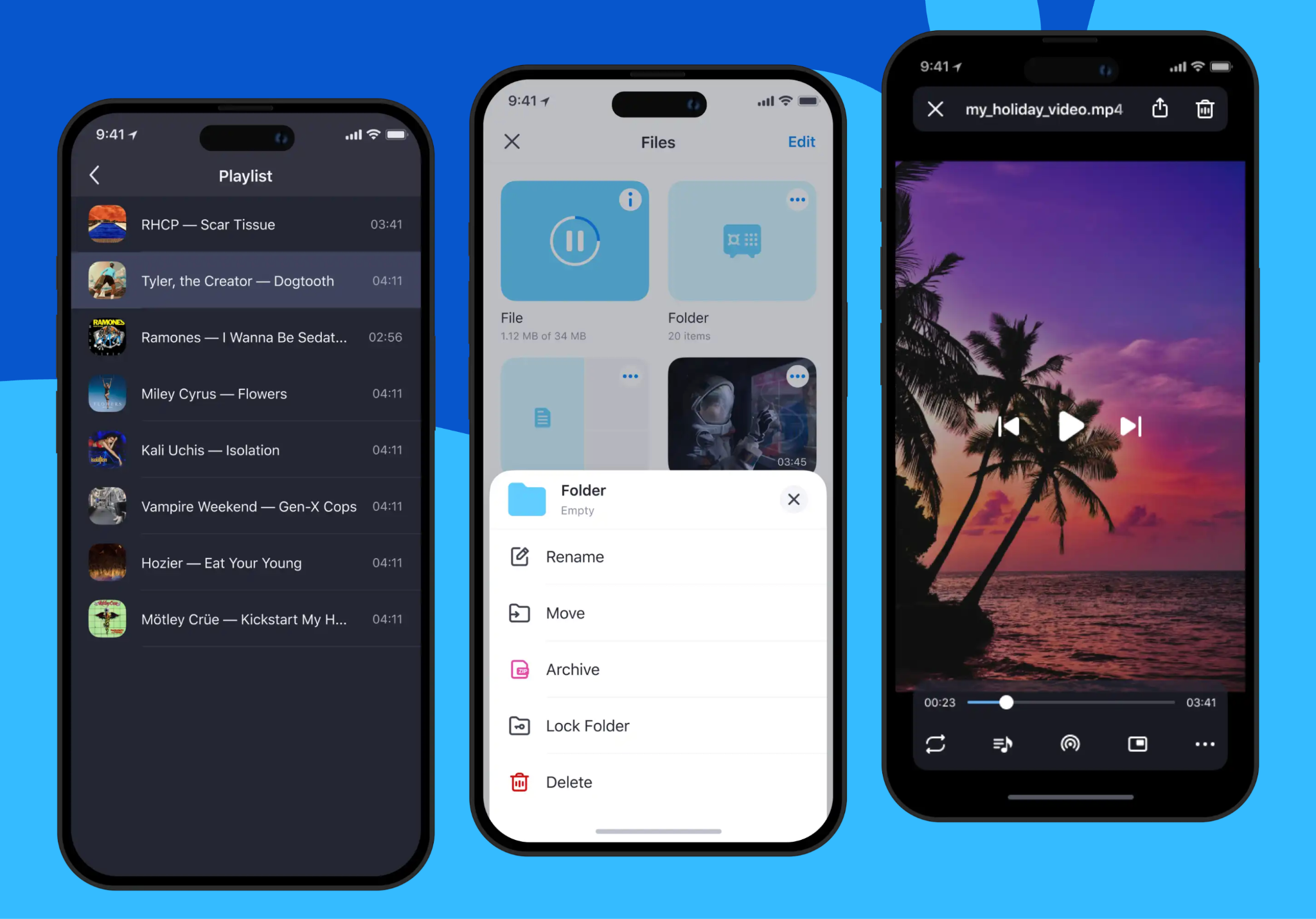
Tool: Aloha Browser (Available on Apple App Store & Google Play Store)
How it Works:
Apple and Google place strict restrictions on standalone downloading applications within their official stores. Because of this, using a secure mobile browser with a built-in media grabber remains the most reliable mobile method. Aloha Browser intercepts streaming files across both iOS and Android ecosystems. This allows mobile users to bypass strict store restrictions and save massive media files directly into a secure, encrypted local vault on their smartphone or tablet.
Step-by-Step Guide:
Step 1: Navigate to the Video
Open the Aloha Browser and visit the webpage containing the video you wish to save. Once the page loads, tap the play button so the browser's media detection system can identify the active stream.
Step 2: Trigger the Download
While the video is playing, look for the download icon—typically located in the media player toolbar, the browser's main toolbar, or the bottom menu. Alternatively, perform a long tap (tap and hold) directly on the video player element and select "Download Video" from the pop-up menu.
Step 3: Confirm and Save
After triggering the download, select your desired folder location on your device to save the file. The browser will begin fetching the video in the background, and you can monitor the progress through the "Downloads" manager in the bottom menu.
Pro Tip: If you do not see a download icon on a specific page, try tapping the full-screen button within the video player; this often forces the Aloha media player to register the stream correctly, making the download button appear in the bottom corner of your screen.
Part 4. Method 4: Online Tool for Quick Grabs
Sometimes you simply need to save a quick clip on a public device without dealing with software installations. Web-based platforms process the media data remotely, offering a fast extraction solution right from a standard browser tab.
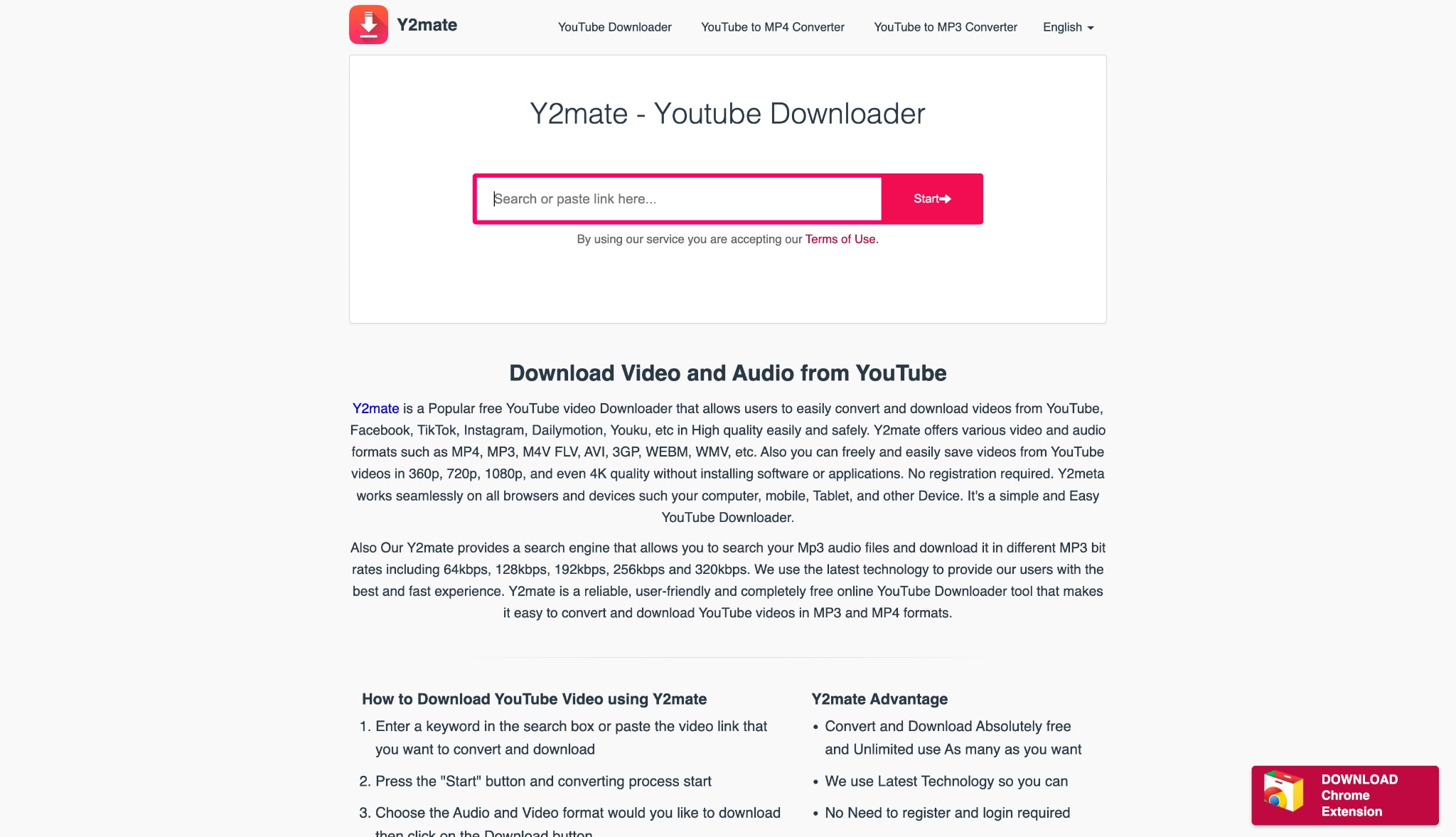
Tool: Y2Mate
How it Works:
Web-based platforms process media extraction entirely on remote servers rather than relying on local hardware. Users simply paste a specific URL into the website interface. The remote servers then fetch the media, compress the data, and provide a direct link to the finalized file. This requires zero software installation, making it a highly accessible choice for public computers or quick, one-off tasks.
Step-by-Step Guide:
Step 1: Copy the Video URL
Navigate to the YouTube video you wish to download and click the "Share" button located beneath the video player. A dialog box will appear; click the "Copy" button to save the video link directly to your system clipboard.

Step 2: Paste the Link into Y2Mate
Open the Y2Mate website in your browser and locate the search bar labeled "Search or paste link here...". Click inside this field, paste the copied YouTube URL, and click the "Start" button to initiate the link analysis.
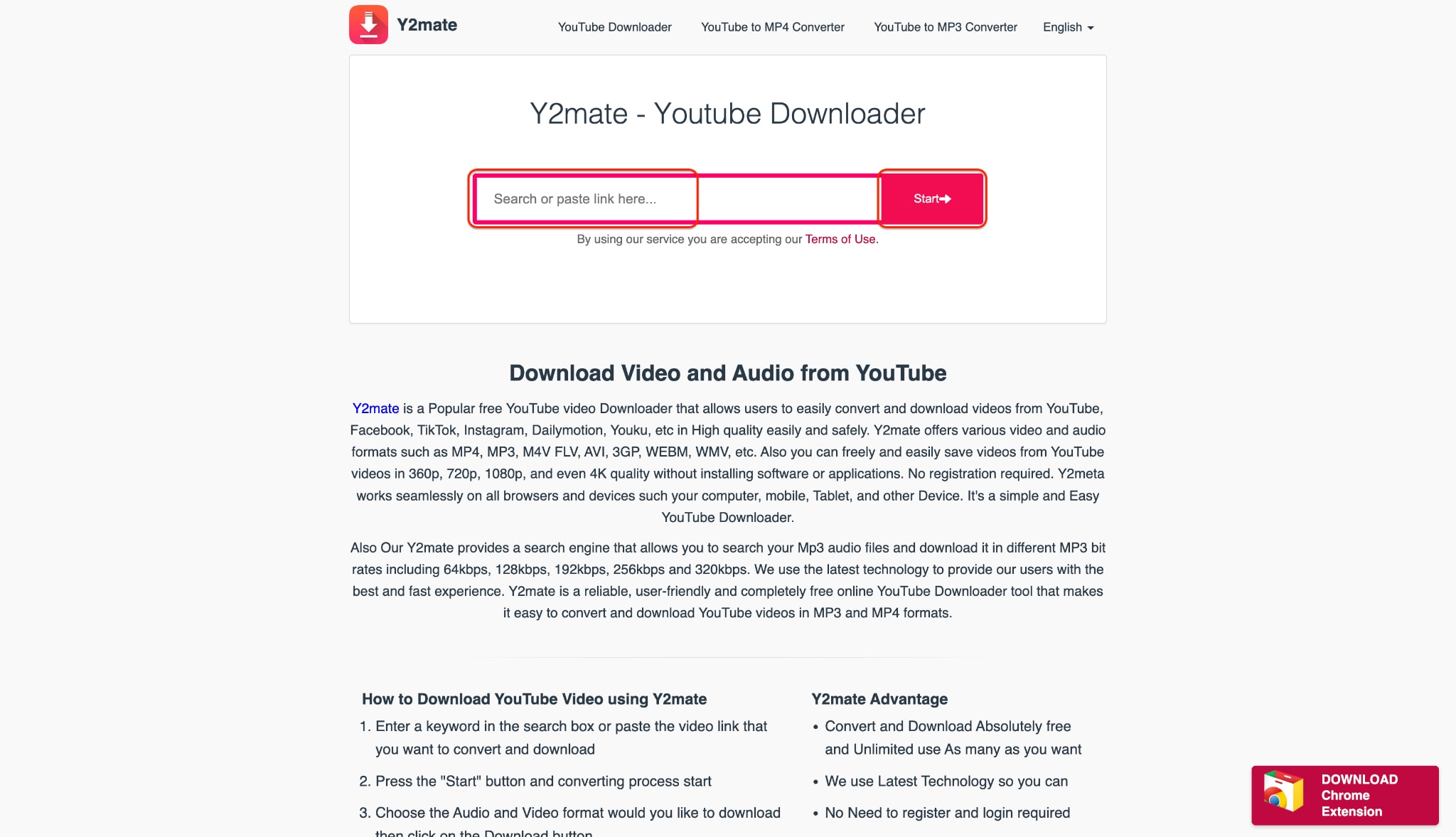
Step 3: Select Your Desired Format
Once the analysis completes, Y2Mate will display a list of available video and audio qualities. Locate the desired resolution in the "Video" tab and click the corresponding green "Download" button to proceed.
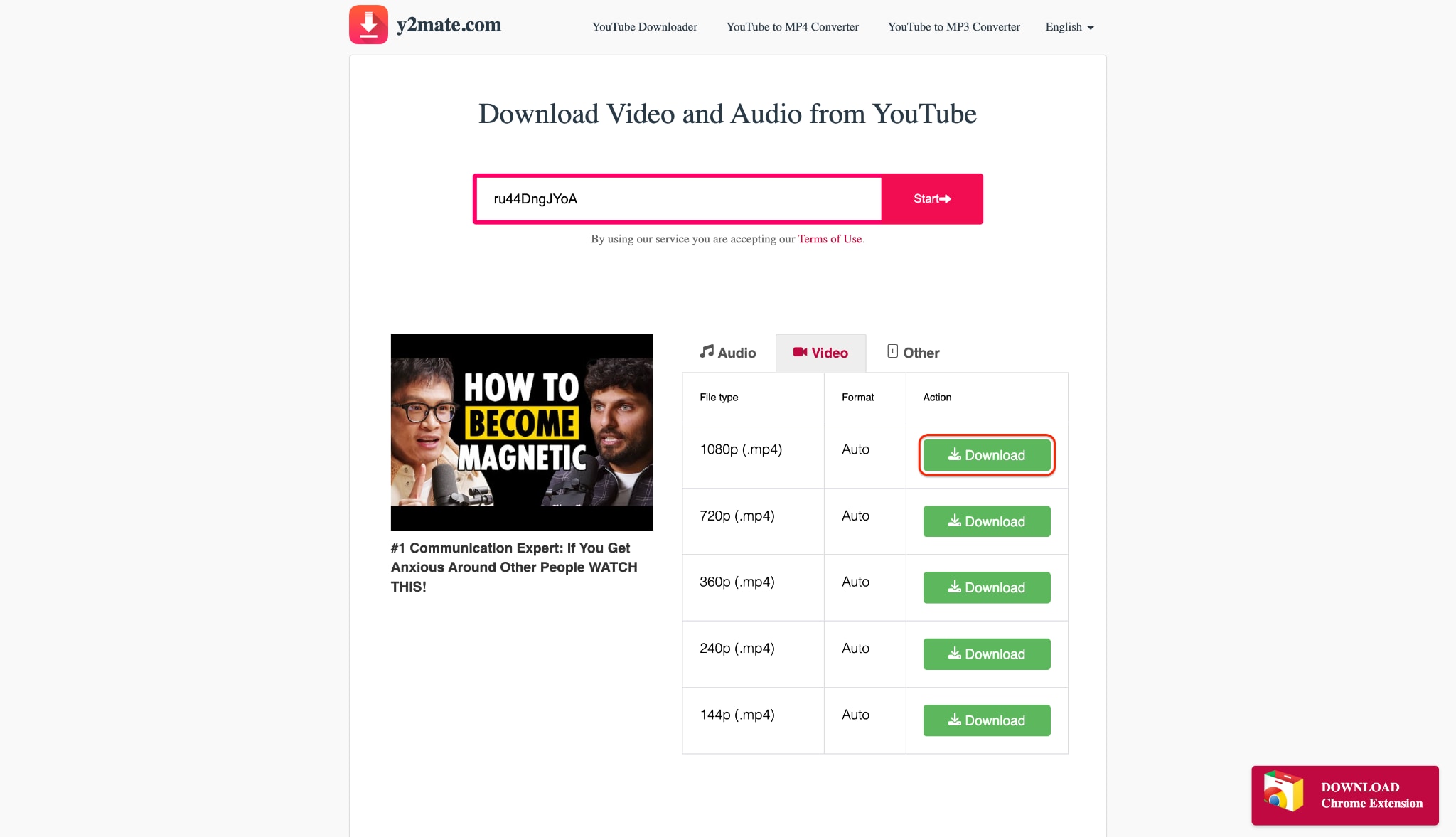
Step 4: Confirm and Finalize Download
A pop-up window will appear asking you to confirm your selection; click the green "Download" button displayed there. Please note that you may need to wait 10–15 seconds for the conversion process to complete before the file download begins automatically.
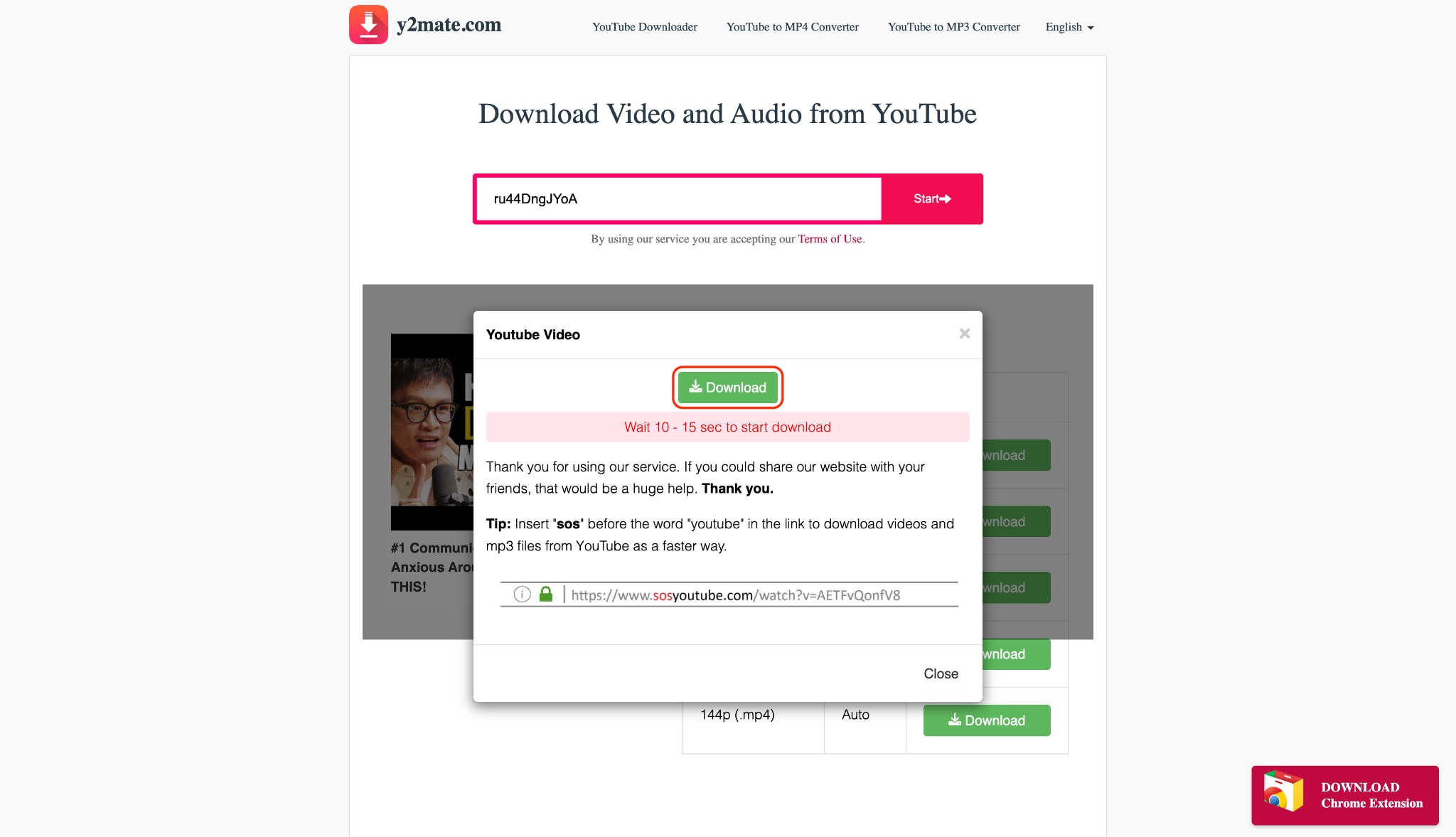
Pro Tip: Y2Mate often limits quality to 1080p, but you can bypass this; download the best available source and use the video upscaler to intelligently enhance your footage to professional 8K resolution.
Part 5. The Technical Reality of 8K Processing in 2026
Securing a true high-resolution file is fundamentally different from saving a standard clip. The immense volume of data required to render 7680 × 4320 pixels places extreme strain on both bandwidth and hardware. Here are the five critical factors that dictate why choosing a dedicated, professional method matters:

Codec Compatibility (HEVC vs. AV1)
High-resolution media relies on advanced codecs like HEVC or AV1 to play properly. Professional desktop tools extract the exact format your hardware supports instead of generic defaults. This customization prevents playback errors like black screens or desynchronized audio tracks.
Avoiding the Upscaled 1080p Illusion
Basic web tools often fake an 8k Ultra HD video by stretching a standard 1080p stream. They use this trick to save remote server bandwidth at the expense of quality. Dedicated software links directly to the source file to pull the native resolution without pixel stretching.
GPU Hardware Acceleration
Processing an 8k ultra file requires offloading heavy data tasks to your graphics card (GPU). Standard browsers rely entirely on the central processor, which often causes system crashes during large downloads. Hardware acceleration guarantees a stable transfer without freezing your operating system.
Bitrates and Storage Realities
True high-fidelity footage demands massive data streams, often exceeding a gigabyte per minute. Basic web browsers frequently drop connections during these long, intensive transfers. Dedicated desktop utilities manage these large files efficiently to prevent network timeouts and data corruption.
Frame Rate Preservation
Basic online tools often throttle high-frame-rate content down to 30fps to minimize their own server loads. Premium extraction methods natively retain the original 60fps or 120fps metadata instead. This technical preservation ensures your action footage remains perfectly smooth during local playback.
Part 6. Conclusion
While browser extensions and web tools offer convenience for small clips, they structurally fail when handling true high-resolution extraction. Securing an authentic 8k Ultra HD video requires immense processing power and stable bandwidth. Relying on remote servers frequently results in upscaled, compressed, or corrupted files. Dedicated desktop software remains the undisputed necessity for preserving genuine 8k ultra resolutions and high frame rates. For a stable, uncompressed viewing experience, exploring Wondershare UniConverter offers the most reliable solution. Try its robust hardware acceleration today to manage your massive media files with complete confidence and precision.

