


Need a reliable way to download Rumble videos for offline viewing, editing, or audio listening? This guide compares practical Rumble video downloader methods for saving Rumble videos as MP4, converting Rumble to MP3, using online downloaders, downloading on desktop, and recording videos when direct download links do not work.
For most users, the best method depends on the task: use an online Rumble video downloader for a quick free save, desktop software for batch Rumble to MP4 workflows, UniConverter for video conversion and Rumble to MP3 audio extraction, or screen recording as a fallback when a video cannot be parsed by normal download tools.
Best Rumble Video Downloader
In this article
- Quick Answer: Best Way to Download Rumble Videos in 2026
- Which Rumble Video Downloader Method Should You Use?
- Can You Download Rumble Videos Officially?
- Why Would You Download Rumble Videos as MP4 or MP3?
- Batch Download Rumble Videos to MP4 on Desktop
- How to Convert Rumble to MP3 Audio
- Use an Online Rumble Video Downloader Free
- How to Download Rumble Videos on Android or iPhone
- Use Inspect Tool or Browser Extension
- Record a Rumble Video When Download Tools Do Not Work
- Rumble Video Downloader Not Working? Fixes
- Rumble Video Downloader Comparison Table
- Is It Legal to Download Rumble Videos?
- FAQs About Downloading Rumble Videos
Which Rumble Video Downloader Method Should You Use?
Choose the method based on your goal: quick Rumble video download online, Rumble to MP4 conversion, Rumble to MP3 audio extraction, batch downloading, mobile saving, or fallback recording when download tools fail.
| User Need | Best Method | Why It Fits |
| Download one Rumble video quickly | Online Rumble video downloader | No installation; best for a single public video link. See Steptodown or Savethevideo.net. |
| Batch download Rumble videos to MP4 | Desktop software such as UniConverter | Better for repeated downloads, format conversion, and local file control. See UniConverter, 4K Video Downloader, or Cisdem Video Converter. |
| Convert Rumble to MP3 | Download the video first, then extract MP3 with UniConverter | Useful for interviews, podcasts, music, speeches, and long-form listening. |
| Download Rumble videos on Android or iPhone | Mobile browser online downloader | Works without desktop software, but file saving may depend on the browser and iOS/Android file system. |
| Downloader cannot parse the video | Inspect tool, browser extension, or screen recorder | Good fallback options when direct MP4 links or online downloaders do not work. See Inspect Tool, Video DownloadHelper, or screen recording. |
Can You Download Rumble Videos Officially?
In some cases, the safest way to download a Rumble video is to use an official download option, especially when the video is your own uploaded content or when the creator has clearly provided permission. If a video does not show an official download option, avoid assuming that it is free to reuse or redistribute.
| Scenario | Recommended Action | Why |
| You uploaded the Rumble video yourself | Check your Rumble account or creator dashboard for file/download options first. | This is usually safer than using a third-party downloader. |
| The creator provides a download link or license | Use the creator-approved download option and follow the stated license. | Permission reduces copyright and reuse risk. |
| You only want offline personal viewing | Use a downloader cautiously and keep the file for private use only. | Third-party downloading may still conflict with platform terms. |
| You want to repost, edit, or monetize the video | Get explicit permission from the rights owner before downloading or reusing it. | Public or commercial reuse creates higher copyright risk. |
Why Would You Download Rumble Videos as MP4 or MP3?
Knowing why a downloader is needed can help you pick the best solution.
- Offline access for travel, limited data, or saving favorite content
- Converting for personal use: MP4 for editing/viewing; MP3 for podcast-style listening
- Content repurposing for creators or educators
- Backup storage for important videos that might be removed
- Creating personal video libraries for reference or study
- Converting long-form content to audio for commuting or exercise
Legal note: Only download Rumble videos you own, have permission to save, or can access through an official download option. Avoid reposting, selling, or commercially reusing downloaded videos without clear rights.
Batch Download Rumble Videos to MP4 on Desktop
If you need to download Rumble videos to MP4 in batches, desktop software is more suitable than browser-only tools. It gives you better control over output format, quality, download location, and repeat-use workflows, especially when you need to save multiple videos or convert files after downloading.
Below are practical desktop Rumble video downloader tools for saving Rumble videos as MP4 on Windows or Mac.
Tool 1 UniConverter
UniConverter is a powerful all-in-one video tool. It can download Rumble videos and convert them to any format, as well as other 1000+ sites like Newgrounds download, Wistia download, and more. The software supports over 1000+ video and audio formats. UniConverter offers fast download speeds and batch processing. It includes video editing features, screen recording tools, and multiple AI features for effortless multimedia processing needs.
(Disclaimer: Our tool is intended for personal use only. Users are solely responsible for using this tool to download videos, including compliance with platform's terms of service and copyright laws and regulations. We are not liable for any consequences resulting from users' violation of any laws or infringement of others' rights.)
Best Rumble Video Downloader
How to download Rumble videos to MP4:
Step 1. Install UniConverter on your computer. Launch the application. Go to the "Downloader" section. Copy and paste the Rumble video URL.
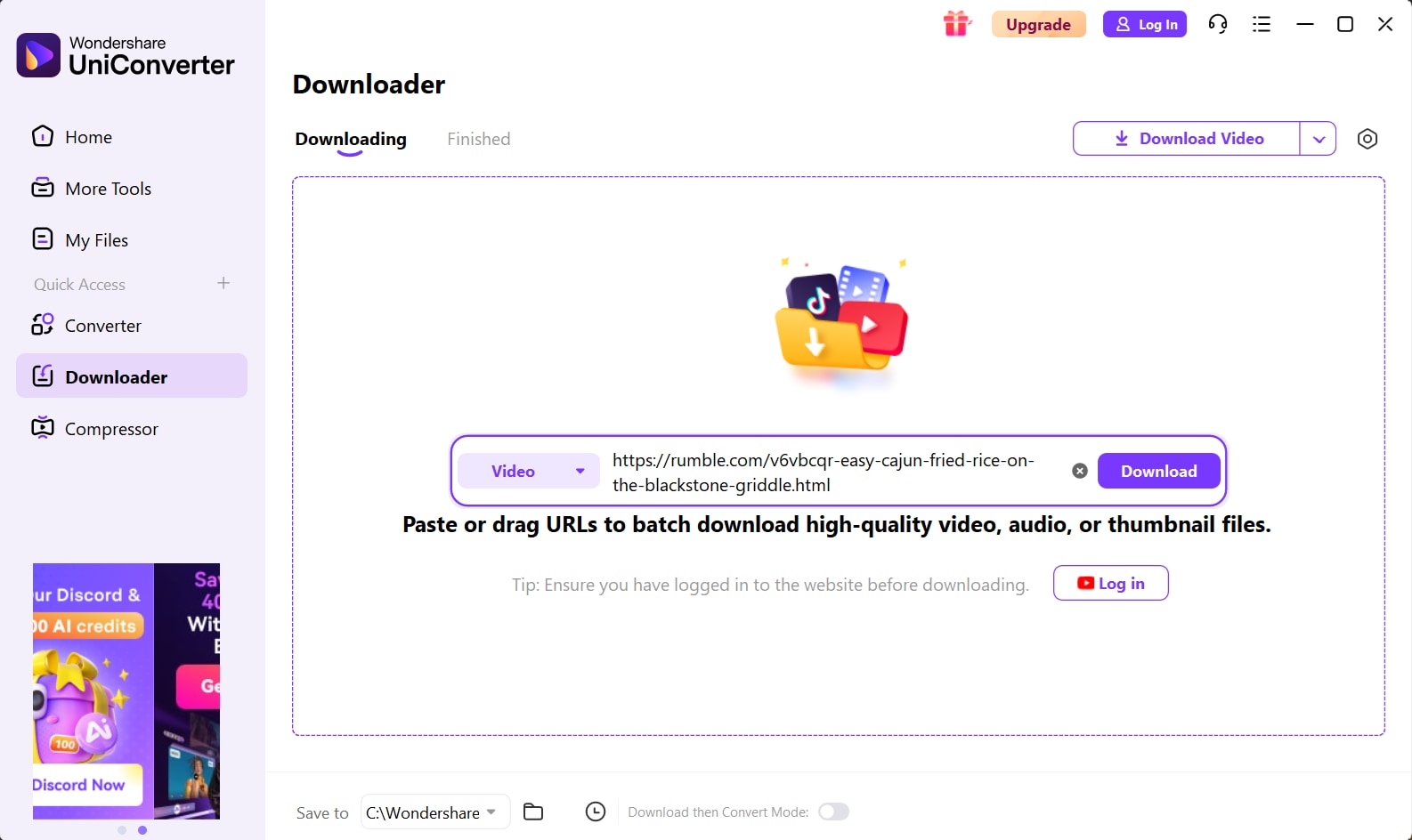
Step 2. Select output format (MP4 recommended). Choose video quality and resolution. Set the download folder location. Click "Download Video" to begin processing. Monitor progress in the download queue.
Tool 2 4K Video Downloader
This is a popular desktop Rumble video downloader. It supports batch downloads from multiple platforms, including Rumble. The software offers high-quality video downloads up to 8K resolution. You can download entire playlists with one click. It works on Windows, Mac, and Linux systems.
Steps to use desktop software for Rumble video download:
Step 1. Download and install 4K Video Downloader. Open the program on your computer. Copy the Rumble video URL. Click "Paste Link" in the software.
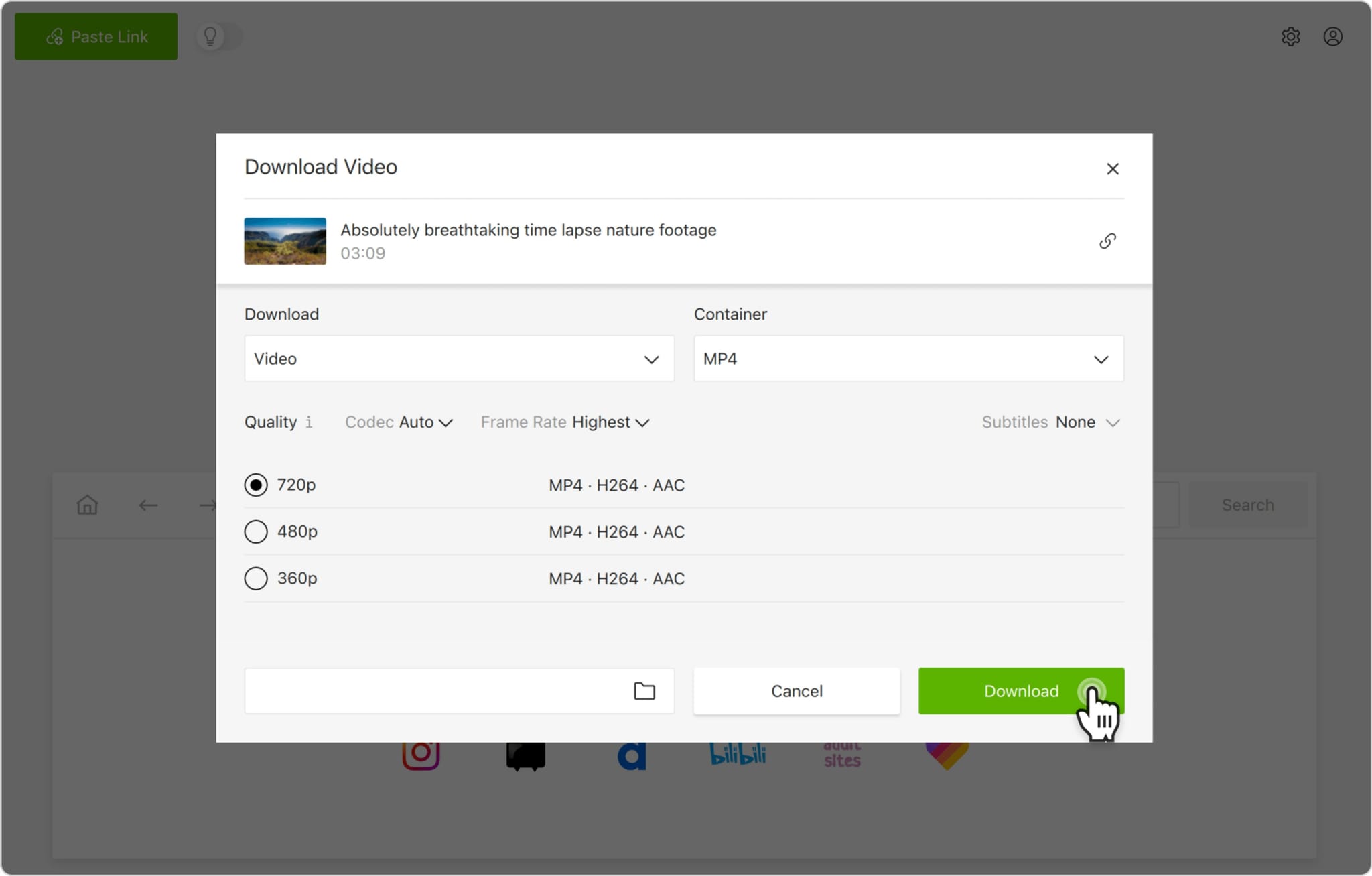
Step 2. Choose MP4 format and quality. Select download location. Click "Download" to start. Wait for the download to complete.
Tool 3 Cisdem Video Converter
It specializes in video downloading and conversion. It can download video from Rumble in various qualities. The software supports multiple video sites beyond Rumble. Cisdem offers a simple interface for easy use. It includes basic video editing and conversion features.
Steps to use Cisdem Video Converter:
Step 1. Download and install Cisdem Video Converter. Open the software interface. Click the "Add from URL" option. Paste the Rumble video link.
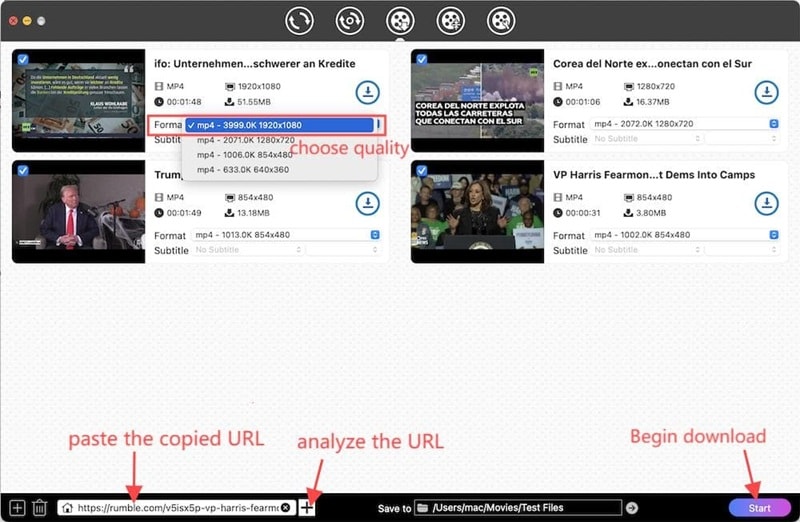
Step 2. Select MP4 as the output format. Choose your preferred quality setting. Pick a destination folder for downloads. Click "Start" to start downloading. Check the output folder when complete
How to Convert Rumble to MP3 Audio
If you only need the audio from a Rumble video, a Rumble to MP3 converter workflow is more convenient than saving the full video file. This is useful for interviews, speeches, podcasts, commentary, music clips, lectures, and long-form videos you want to listen to offline.
The safest workflow is to download a Rumble video you own or have permission to save, then use UniConverter to extract the audio as MP3. This gives you more control over the output format and lets you keep a smaller audio file for mobile listening, transcription, or personal reference.
Best Rumble Downloader
Key features of UniConverter:
- High-quality audio extraction
- Multiple format support
- Batch processing capabilities
- Fast conversion speeds
- User-friendly interface
- Cross-platform compatibility
Steps to Convert a Rumble Video to MP3 with UniConverter
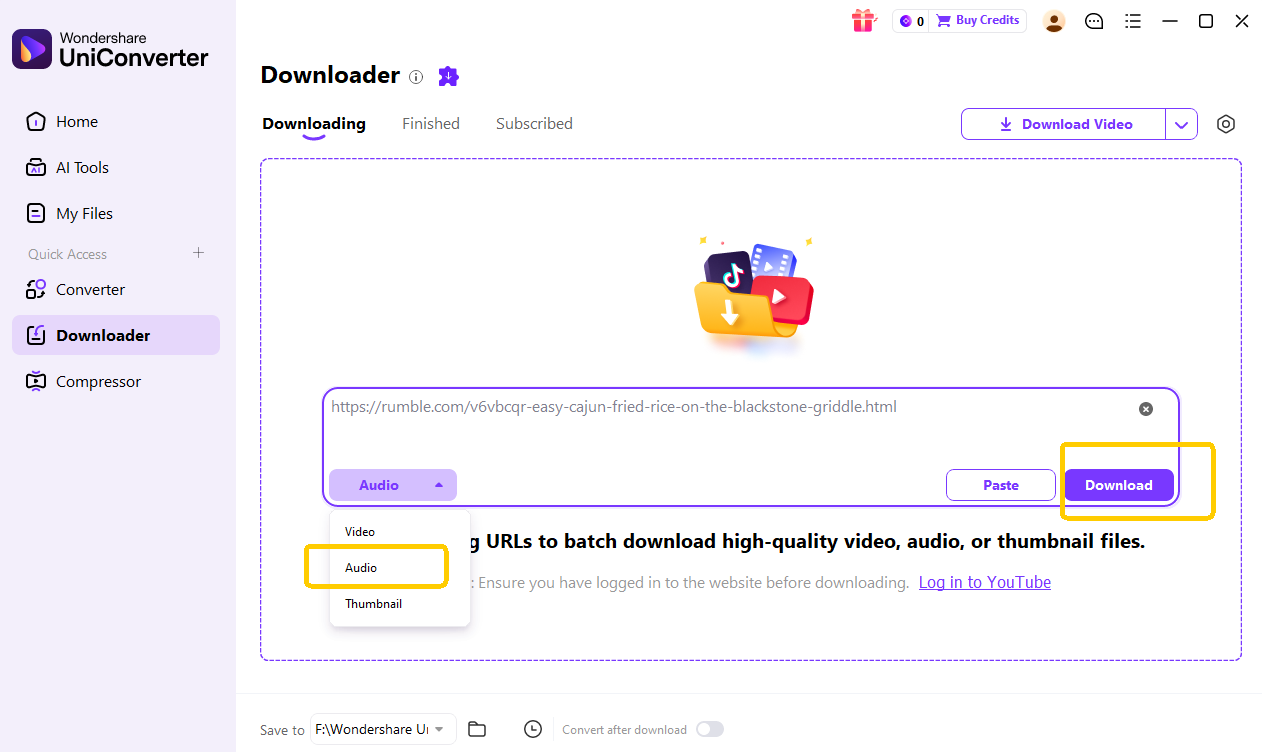
Step 1. Download and install UniConverter. Open UniConverter on your PC, click Downloader.
Step 2. Import the Rumble video links. Choose the output as Audio format, and click on "Download" to start Rumble to MP3 conversion.
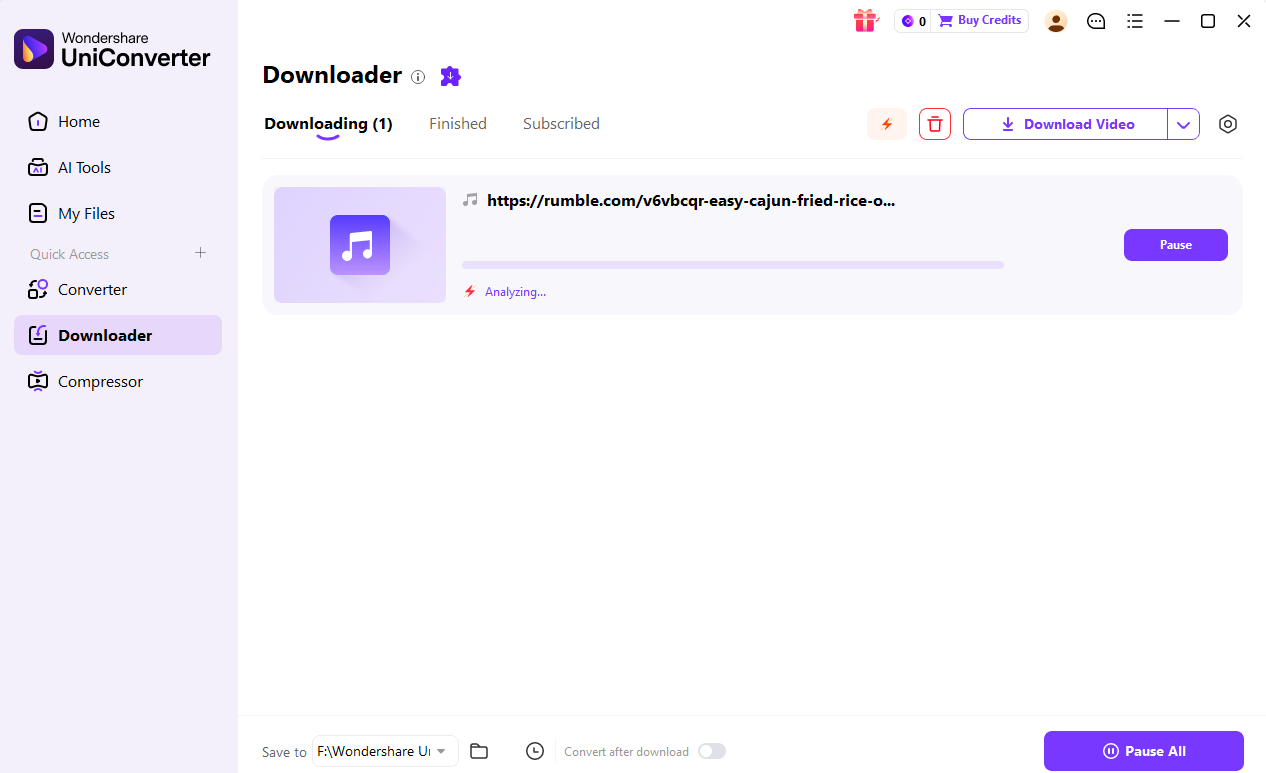
Step 3. The downloader will start analyzing the link and extract audio from it.
Use an Online Rumble Video Downloader Free
The easiest way to save Rumble videos is by using online downloader tools. These web-based solutions run right in your browser and don’t require any software installation on your device.
There are two well-known online tools that make it easy to download videos from Rumble.
Steptodown and Savethevideo.net both support Rumble downloads. These tools let you convert videos into MP4 or MP3 formats with ease.
Let’s discuss each of these tools, one by one.
Tool 4 Steptodown
Steptodown is a popular free online tool. It supports multiple video formats, including MP4 and MP3. The site has a clean interface with no confusing ads. You can download Rumble videos quickly without registration. It works on all devices with internet access.
Steps to use Steptodown to download Rumble videos:
Step 1. Copy the Rumble video link, then paste it on Steptodown.com to download. Paste the URL in the main download box.
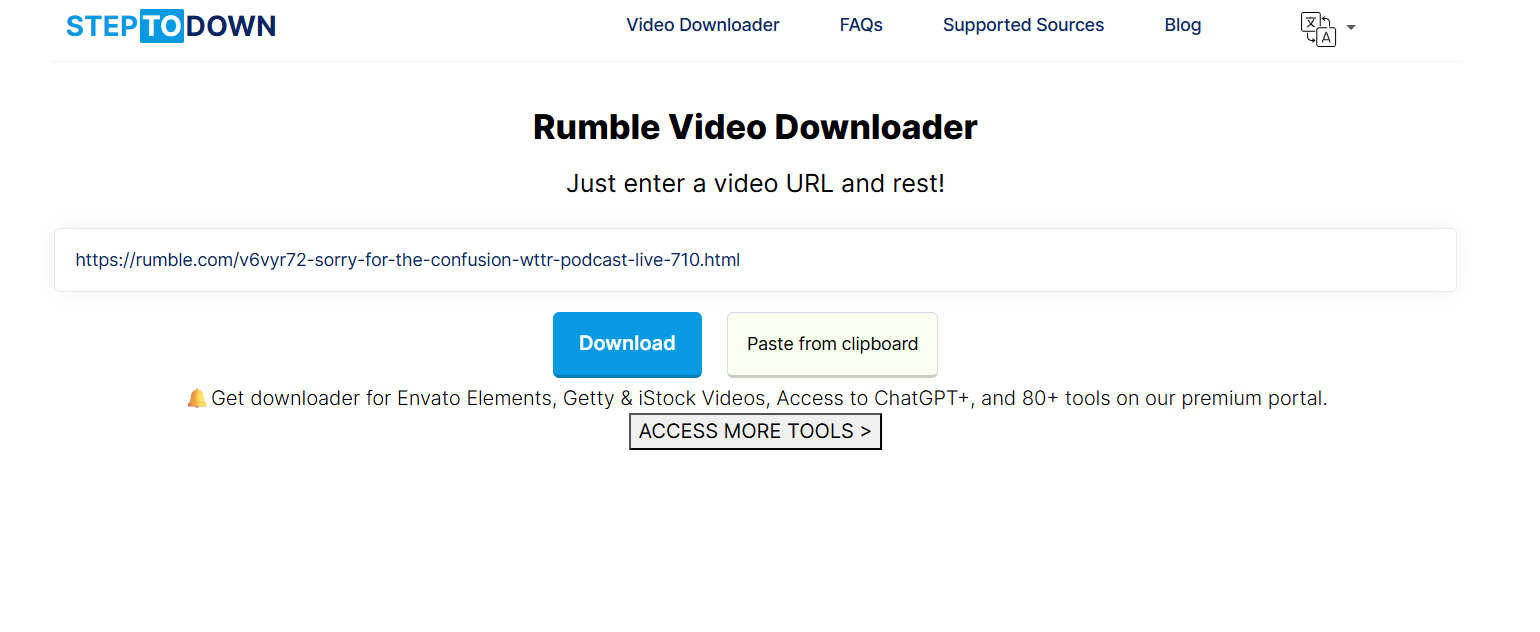
Step 2. Click "Download" to analyze the video. Wait for processing and save the file.
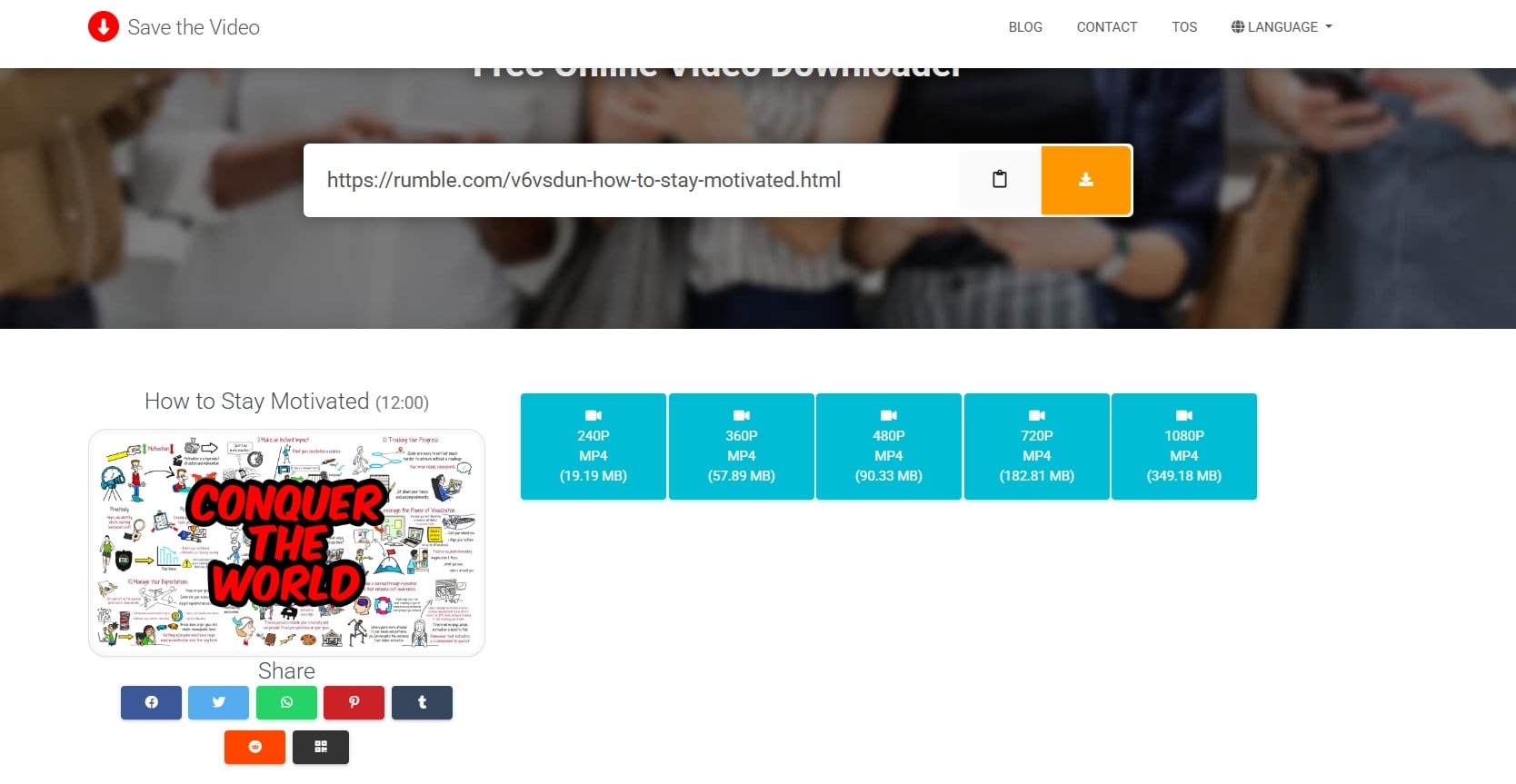
Tool 5 Savethevideo.net
This is another reliable Rumble downloader option. This tool offers fast processing speeds for video downloads. It supports various quality options from 360p to 4K. The website provides both MP4 video and MP3 audio extraction. Users can download video from Rumble without creating accounts.
Steps to download video from Rumble:
Step 1. Open the Rumble video you wish to save. Copy its URL. Visit Savethevideo.net. Paste the URL on the website.
Step 2. Click the download button. Wait for processing to complete. Download the file to your device.
How to Download Rumble Videos on Android or iPhone
Mobile users often want to download Rumble videos without installing desktop software. The most practical option is to use a browser-based Rumble video downloader on Safari, Chrome, or another mobile browser. However, file saving behavior may vary depending on iOS, Android, browser settings, and the downloader you use.
Download Rumble Videos on Android
On Android, copy the Rumble video link, open a trusted online Rumble downloader in Chrome, paste the link, and choose MP4 or MP3 if available. After the file is generated, save it to your Downloads folder and open it with your video player or file manager.
Download Rumble Videos on iPhone
On iPhone, use Safari or another browser to paste the Rumble link into an online downloader. If the file opens in a new tab, use the Share or Save to Files option when available. For longer videos or repeated downloads, downloading on desktop first and then transferring the file to iPhone may be more reliable.
Tip: Avoid mobile download pages with excessive pop-ups, forced app installs, or misleading buttons. For private or important files, desktop software gives you better file control.
Use Inspect Tool or Browser Extension to Download Rumble Videos
If online downloaders and desktop tools cannot parse a Rumble video, browser-based fallback methods such as the Inspect tool or a video downloader extension may help. These methods are better for technical users and should be used only for videos you have permission to save.
Download Rumble Videos with Inspect Tool
Tool 6 Inspect Tool
The Inspect tool method relies on your browser’s developer tools and comes in handy when other Rumble download options don't work. It's a more advanced approach that needs some technical know-how.
This method allows you to find the direct video file links—usually in MP4 format—that Rumble delivers to your browser. It’s compatible with Chrome, Firefox, and other popular browsers.
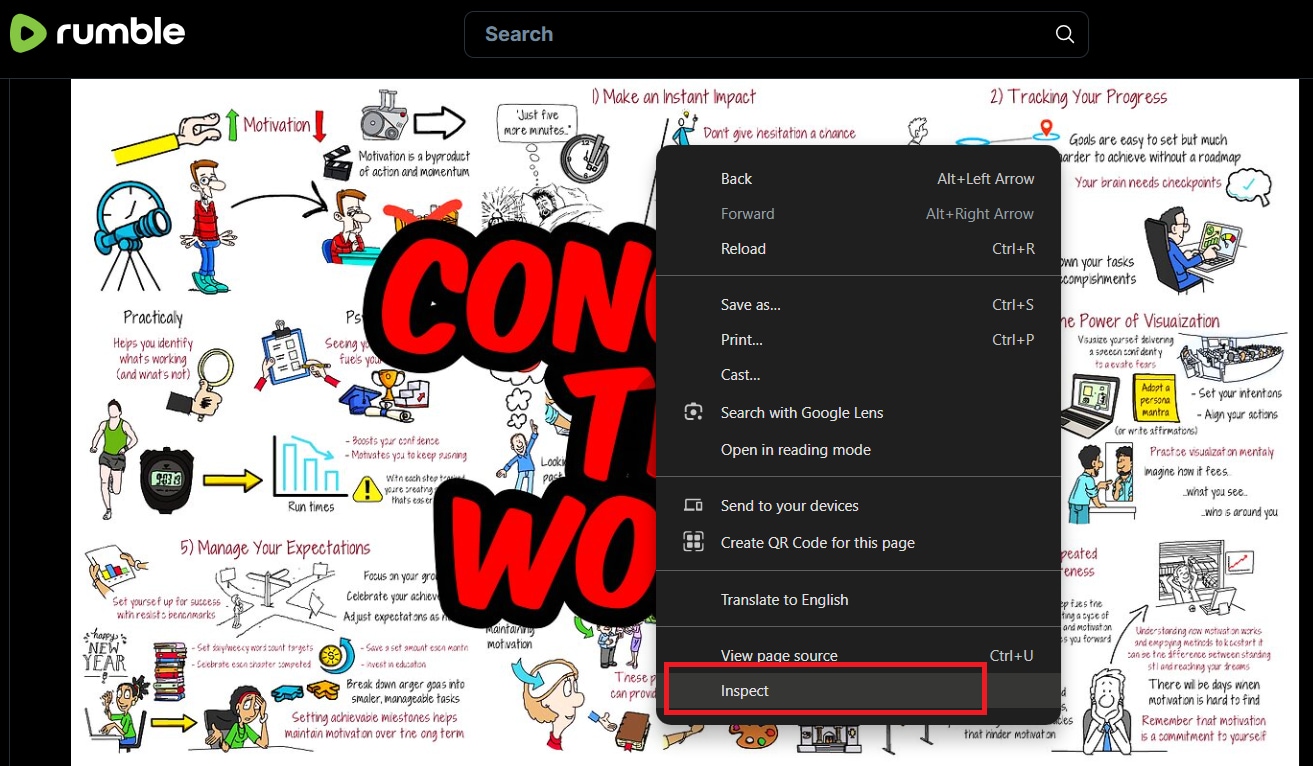
Steps to use the inspect tool to download Rumble videos:
Step 1. Open the Rumble video in your browser. Right-click and select "Inspect" or press F12.
Step 2. Go to the "Network" tab. Select Media.
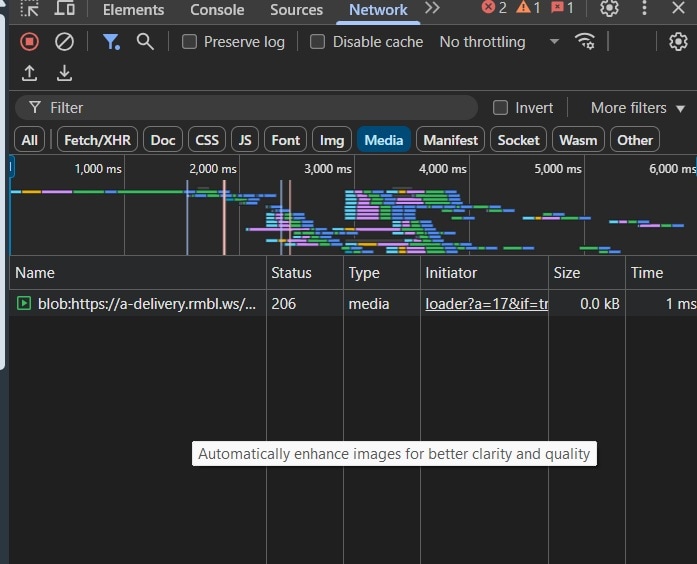
Step 3. Refresh the page to load the video. Look for MP4 files in the network requests. Right-click the MP4 file and click Download to save it. Choose your download location.
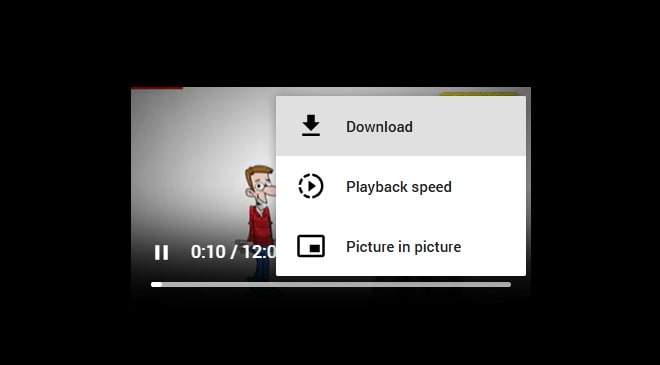
Download Video from Rumble with Browser Extensions
Using browser extensions is a fast and hassle-free method for saving Rumble videos. These lightweight tools install right into your browser and can automatically spot downloadable content when you're watching a Rumble video.
Tool 7 Video DownloadHelper
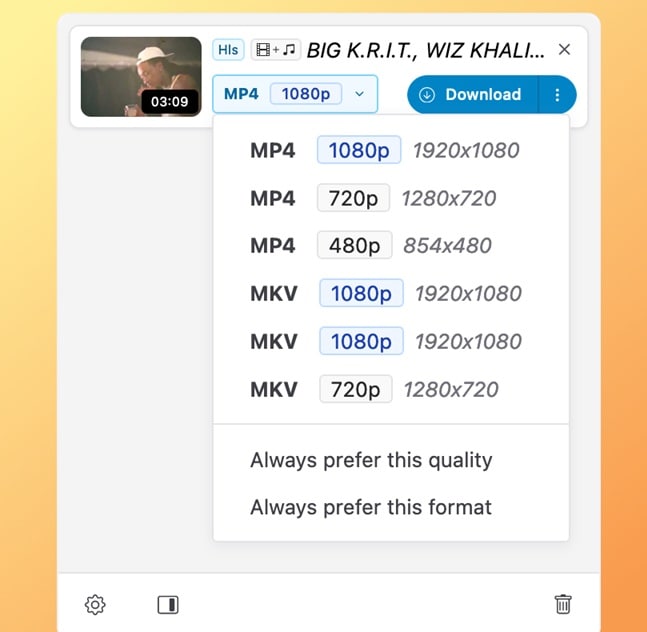
One popular option, Video DownloadHelper, supports Rumble and allows one-click downloads in commonly used formats like MP4.
Steps to use browser extensions to save Rumble videos:
Step 1. Install Video DownloadHelper from your browser store. Hit Add to Chrome.
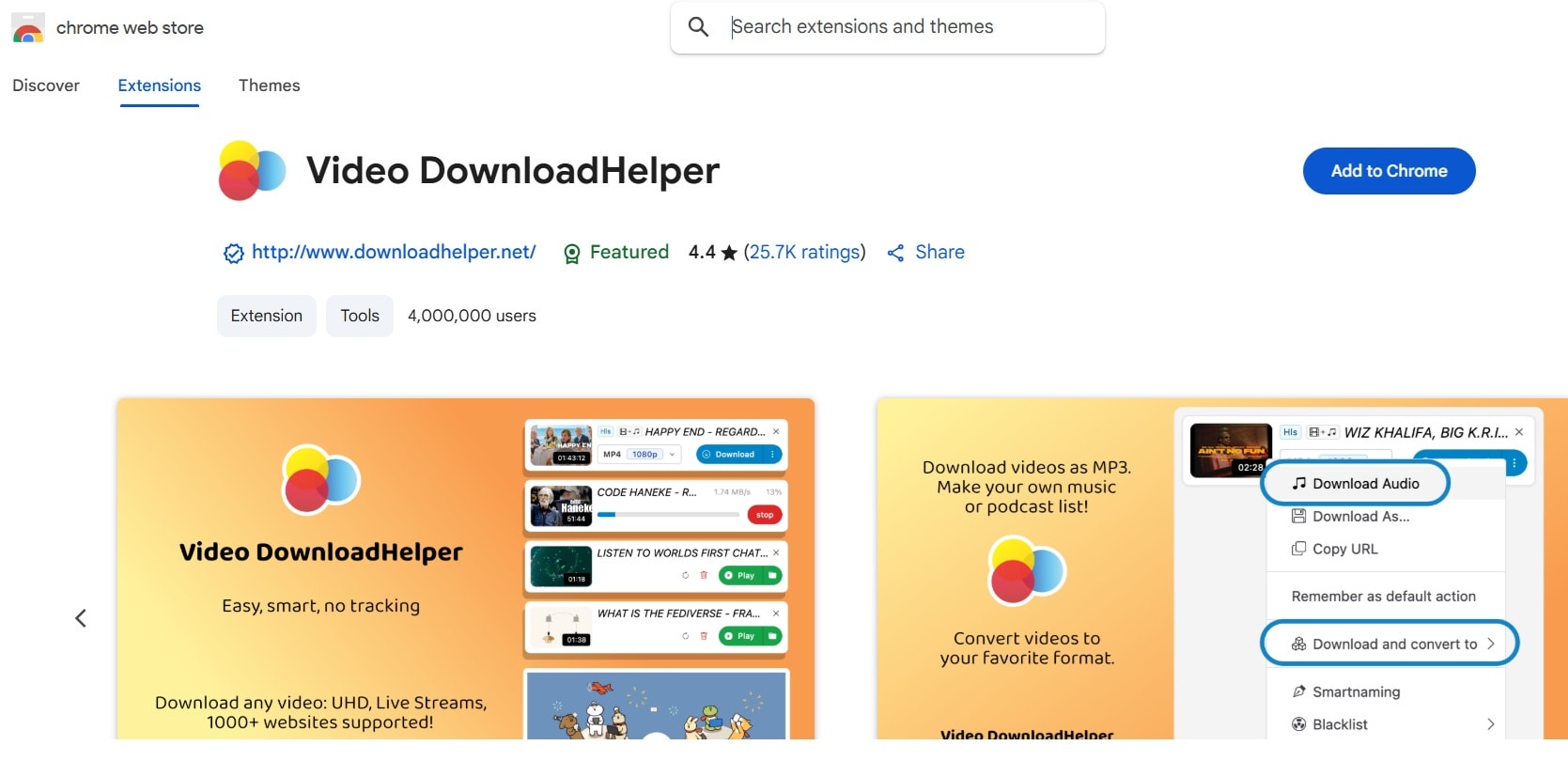
Step 2. Open the Rumble video you'd like to save. Then, click the extension icon located in your browser's toolbar. Choose your preferred video quality and format, hit the download button, and wait for the process to finish.
Record a Rumble Video When Download Tools Do Not Work
Screen recording is the last resort for protected content. Some Rumble videos can't be downloaded directly. Screen recording captures everything on your screen, including video and audio.
UniConverter offers screen recording features. This method works for any video that plays on your screen. It's useful when other Rumble downloader methods fail.
Steps for screen recording Rumble videos:
Step 1. Download Download and open UniConverter screen recorder.
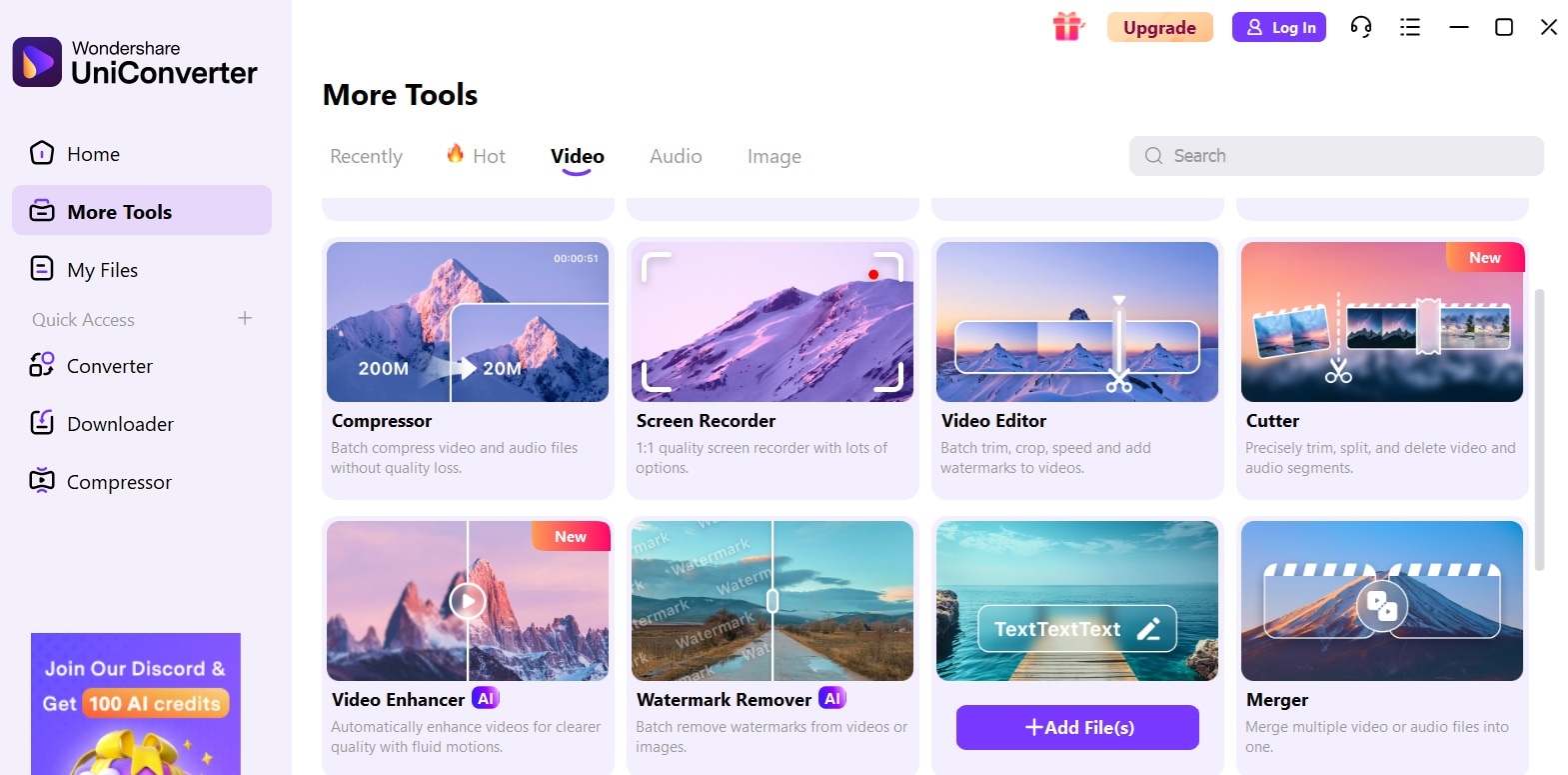
Step 2. Select Screen Recorder.
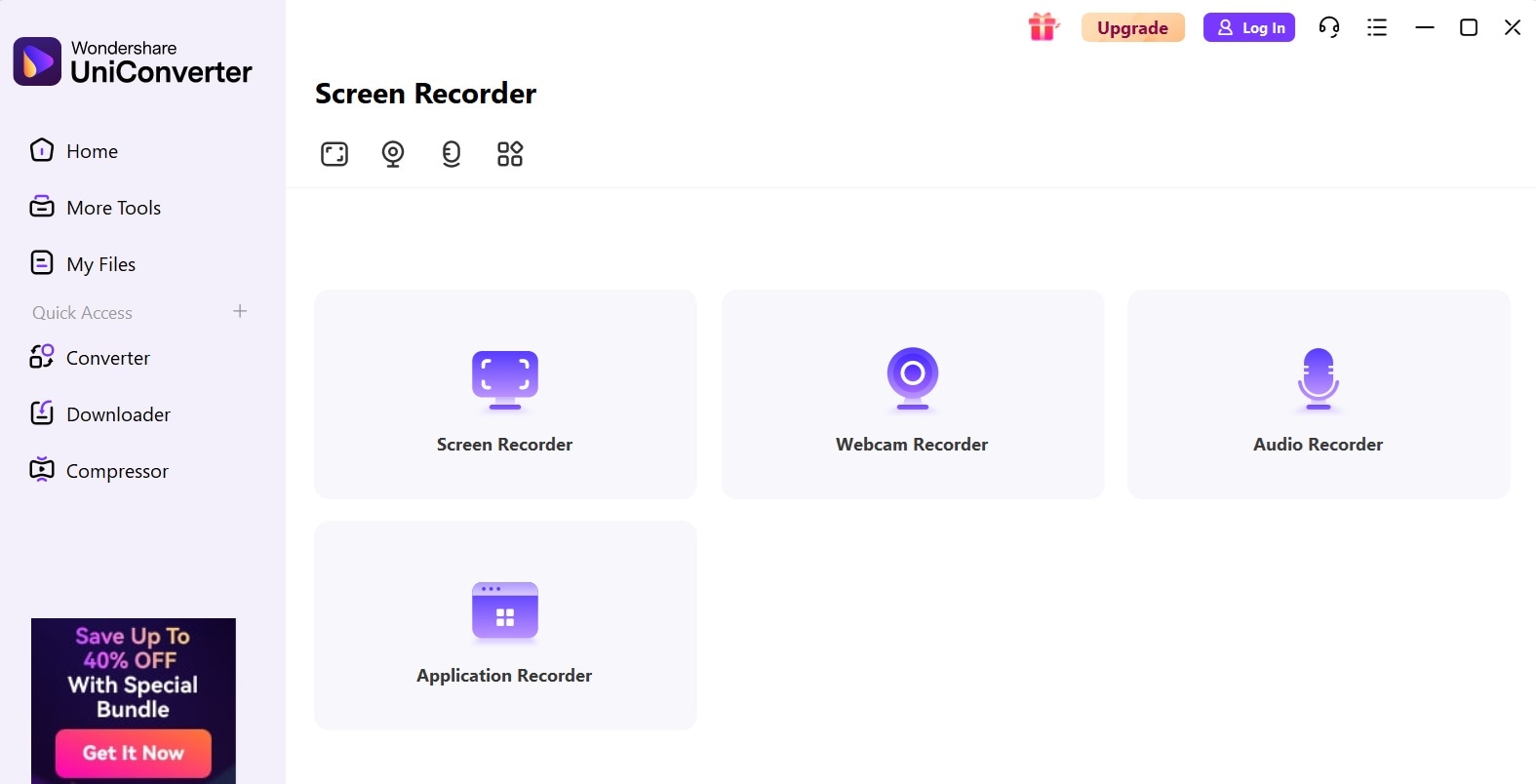
Step 3. Set the recording area to the video player. Start playing the Rumble video. Click REC to begin capture. Stop recording when the video ends. Save the recorded file.
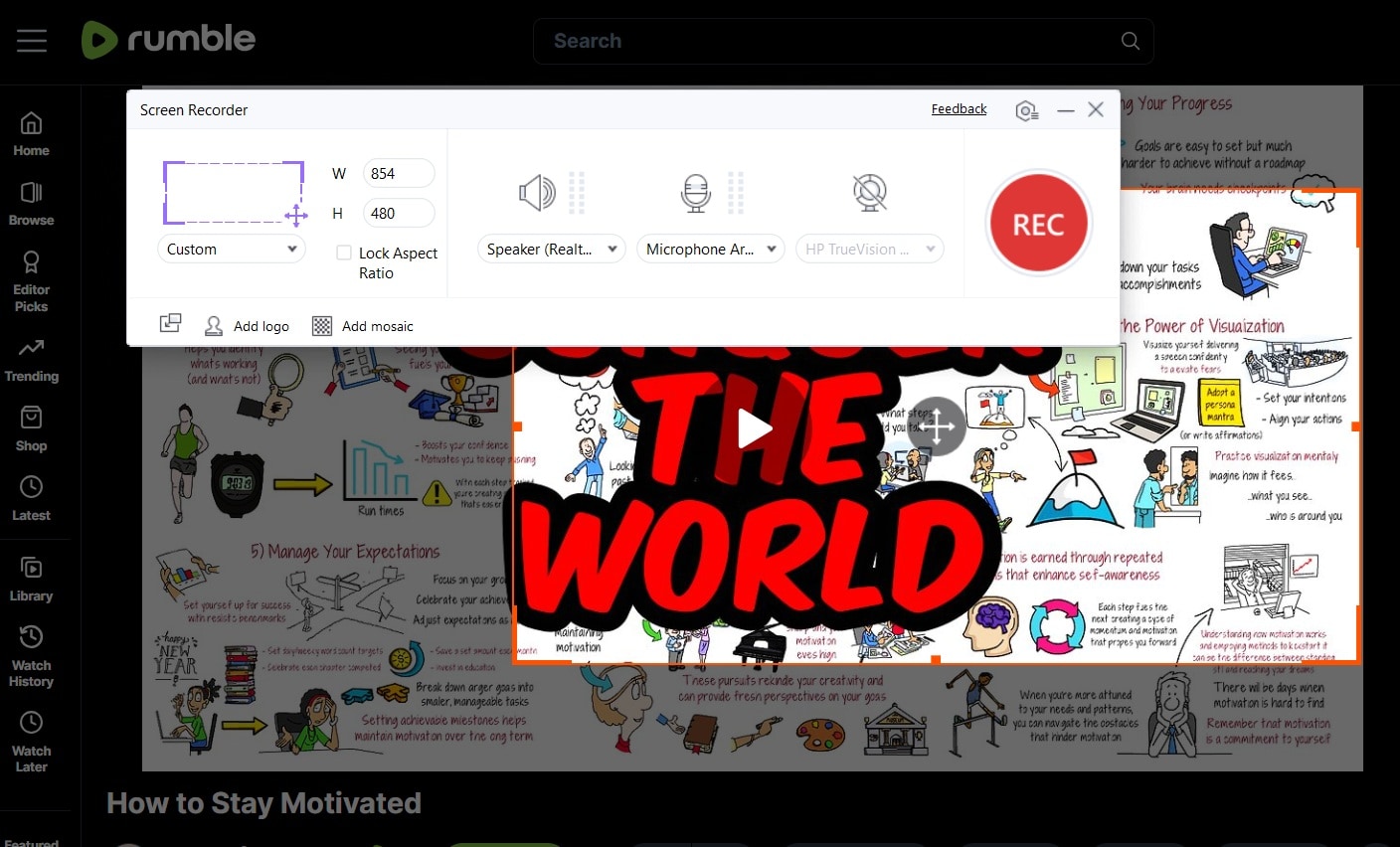
Legal reminder: Use screen recording for personal use only. Respect content creators' rights and follow fair use guidelines.
Rumble Video Downloader Not Working? Common Fixes
If a Rumble video downloader cannot detect the video, fails to generate an MP4 file, or downloads a lower-quality file than expected, the issue may come from the video source, the downloader server, the browser, or the available stream quality.
| Problem | Possible Reason | What to Try |
| Rumble link cannot be parsed | The downloader may not support that video page, embed link, or temporary stream. | Try a desktop downloader, browser Inspect tool, or screen recording as a fallback. |
| Only low-quality video is available | The original video may not have been uploaded in higher resolution, or the online tool may limit quality. | Choose the highest available quality manually, or use desktop software for more control. |
| MP3 download fails | The online tool may fail during audio extraction. | Download the video first, then extract MP3 with UniConverter. |
| Download button opens a new page | Some online tools generate direct file links instead of automatic downloads. | Right-click the file link and choose Save As, or use your browser download menu. |
| Extension stops detecting videos | Browser updates or site changes may break extension detection. | Update the extension, try another browser, or use a desktop method. |
How to Keep Better Quality When Saving Rumble Videos
Rumble video quality depends on the original upload and the available stream. To keep better quality, choose MP4 when available, select the highest listed resolution manually, avoid unnecessary recompression, and verify the saved file’s resolution and file size after download.
Comparison Table of Rumble Video Download Methods
Choosing the right Rumble video downloader depends on your needs. Different methods work better for different situations. Some are easier to use while others offer more features.
This comparison table helps you pick the best method. It shows which Rumble downloader tools work on your device. You can compare formats, ease of use, and best use cases.
| Method | Format Support | Device Type | Ease of Use | Best For |
| Online Downloaders | MP4, MP3 | Any (browser) | ★★★★★ | Quick downloads without install. See Steptodown and Savethevideo.net. |
| Desktop Software | MP4, MP3, more | PC/Mac | ★★★★☆ | High-quality, bulk downloads. See UniConverter, 4K Video Downloader, and Cisdem Video Converter. |
| Inspect Tool | MP4 | Any (browser) | ★★☆☆☆ | Technical users, backup method |
| Browser Extensions | MP4 | Chrome/FF | ★★★☆☆ | Frequent use on desktop |
| Screen Recording | Any (video/audio) | Any | ★★☆☆☆ | Protected or hard-to-grab videos |
How We Tested Rumble Video Downloaders
For this guide, we evaluated Rumble video downloaders based on download reliability, format flexibility, speed, and how practical each method is for offline access, audio extraction, and repeat-use workflows.
Download reliability
We checked whether each tool consistently recognizes Rumble links and completes video downloads without frequent failure.
Format flexibility
We reviewed support for MP4, MP3, and other common output types to see whether users have enough control over final files.
Speed & efficiency
We compared processing speed, batch convenience, and whether the workflow remains efficient for longer or multiple downloads.
Practical workflow fit
We also considered tool simplicity, fallback methods, and whether the downloader is realistic for everyday offline saving.
This page gives extra weight to reliability and format flexibility, since users downloading from Rumble usually want a dependable way to save videos or extract audio without repeated trial and error.
Is It Legal to Download Rumble Videos?
Downloading Rumble videos is not always legal, and the legality depends on several important factors. Rumble, like most online video platforms, protects creators through copyright laws and platform-specific policies. While the platform allows streaming for personal use, it does not universally grant users the right to download or redistribute videos without explicit permission.
1. Check copyright ownership before downloading
Most videos on Rumble are protected by copyright. This means:
-
You cannot download, reuse, or distribute a video unless you own the rights or have explicit permission from the owner.
-
Even publicly available videos remain the intellectual property of their creators.
2. Review Rumble’s Terms of Service before using third-party tools
Rumble’s Terms of Service generally prohibit:
-
Downloading videos through unauthorized third-party tools
-
Re-uploading or republishing videos without permission
-
Removing or altering any copyright or attribution information
Violating these terms can result in:
-
Account suspension
-
Removal of access to services
-
Potential legal action from copyright holders
3. Keep downloaded Rumble videos for personal use only
-
Personal use (e.g., offline viewing for yourself) may be tolerated in some cases, but still violates Rumble’s ToS if you use unofficial tools.
-
Commercial or public use of downloaded videos without permission is strictly prohibited and poses clear copyright risk.
4. Safer ways to download or reuse Rumble videos
To stay compliant:
-
Use videos that are labeled royalty-free or licensed for reuse
-
Obtain direct permission from the video owner
-
Use Rumble’s official tools or download options if provided
The safest path is always to confirm the licensing terms before downloading or using any Rumble content.
Conclusion
The best way to download Rumble videos depends on your needs. Online Rumble video downloader tools offer the easiest solution for most users. Desktop software provides more features for power users who need to download Rumble videos regularly.
Always download Rumble videos responsibly and respect content creators' rights. Use downloaded content for personal viewing only. Remember that all video downloads should always follow legal guidelines and fair use principles.

