


Many people find useful videos on LinkedIn, but cannot save them easily. They want to watch later, learn calmly, or gather ideas without the internet. Additionally, career tips and lessons may vanish when posts change or accounts close. This causes worry for students, workers, and teams who depend on examples.
A safe way to download LinkedIn video files helps keep learning smooth. Therefore, people also fear bad sites, broken links, low quality, or confusing steps. Different phones and computers make the process feel harder than expected today. Hence, this guide explains clear options for computers and phones using easy language.

Best Linkedin Video Downloader
In this article
- Part 1. Can You Download LinkedIn Videos Directly?
- Part 2. Before You Start: Get the Correct LinkedIn Video URL
- Part 3. Download LinkedIn Videos Using Desktop Software
- Part 4. Download LinkedIn Video Online (No Installation Required)
- Part 5: Use a LinkedIn Video Downloader Chrome Extension
- Part 6. How to Download a LinkedIn Video on iPhone and Android
- Part 7. Top Linkedin Video Downloaders Comparison
- Part 8. Troubleshooting (Fixes for the Most Common Problems)
- FAQs about Linkedin Downloader
Part 1. Can You Download LinkedIn Videos Directly?
You cannot download LinkedIn videos directly using the app itself. LinkedIn does not include a direct download option for videos shared in posts. You can watch videos online, but there is no one-click save feature. The “Save” option only bookmarks the post so you can find it later. It does not store the video file on your phone or computer.
Therefore, many users use tools to download videos from LinkedIn posts safely. These methods help download video from LinkedIn using copied post links easily. After pasting the link, the video can be saved as a file. Quality and access depend on whether the post is public or restricted. Before using such tools, remember the rights rules and respect the original creator.
When LinkedIn lets you download (and when it doesn’t)
Many users feel confused about how to download video from LinkedIn and when the platform allows it. Below is a table that clearly shows allowed and not allowed download situations:
| Situation | Download Allowed | Notes |
| LinkedIn Learning mobile app | Yes | App only offline |
| LinkedIn Learning desktop | No | Mobile-only feature |
| Regular feed videos | No | Watch only online |
| Company page posts | No | No download option |
| Personal feed posts | No | Save option only |
| Offline Learning videos | Limited | Requires login checks |
| Enterprise data exports | Yes | Contract-based access |
| Redistributing Learning Videos | No | Terms strictly forbid |
| Your own uploaded videos | Limited | Backup sometimes possible |
| Third-party tools use | Technically yes | Policy and copyright risk |
Is It Legal and Okay to Download LinkedIn Videos?
Downloading videos from LinkedIn can be risky if you share them without permission. You can download LinkedIn video online for personal offline viewing, especially your own uploads. However, using third-party tools may violate their terms. Therefore, LinkedIn Learning videos cannot be shared or reused outside the official app. Always ask for permission or use embedding features for other people’s videos to avoid legal or policy issues.
Part 2. Before You Start: Get the Correct LinkedIn Video URL
You need the exact video URL before you can save from LinkedIn. This part explains how you can copy the correct LinkedIn video URL on mobile or desktop:
How to Copy the Link to a LinkedIn Post (Desktop + Mobile)
To download any LinkedIn video, you first need to copy the post link correctly on desktop or mobile. LinkedIn provides sharing options on both desktop and mobile that generate a direct post URL. If the link is incomplete, the process may fail. A proper link is essential to save LinkedIn video without errors or quality issues. Hence, go through the given guide to copy the link to a LinkedIn post:
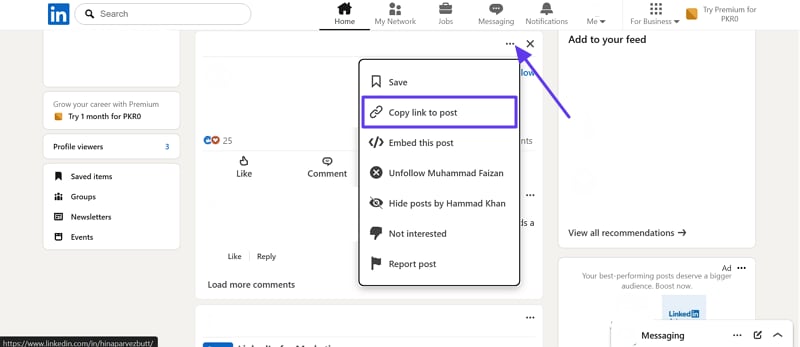
For Desktop
Instructions: Open LinkedIn and scroll to the post you want, and click the “Three‑dots” icon. After that, hit the “Copy link to post” option to copy the link.
For Mobile
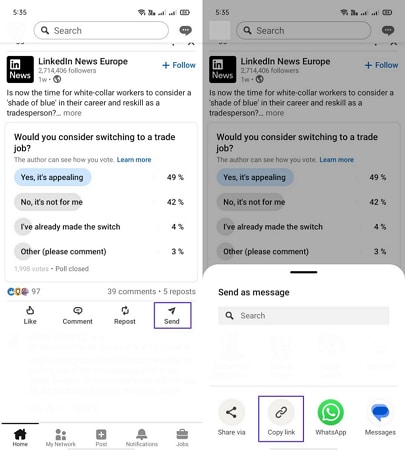
Instruction. To initiate, head to the LinkedIn post and click the “Send” button. Next, a new interface will appear from the bottom; just press the “Copy Link” option.
Common URL Mistakes That Cause “Invalid Link”
- Feed URL: Copying the feed link instead of the post link prevents tools from finding videos.
- Wrong Page: Using profile or company page links causes results when a post link is required.
- Short Links: Shortened or redirected links sometimes lead away from original posts and fail checks.
- Private Content: Links from private posts or company pages appear invalid for users without access.
- Reposts Deleted: Copying repost URLs or deleted posts often results in unavailable pages for downloaders.
Part 3. Download LinkedIn Videos Using Desktop Software
A free LinkedIn video downloader becomes useful when online tools fail or offer limited control options. Below are reliable desktop tools suitable for frequent LinkedIn video download tasks:
1. UniConverter
UniConverter is the best LinkedIn post downloader that allows you to drag or paste video URLs directly to start downloads. You can convert multiple video URLs together, saving time during large download tasks. This advanced tool offers scheduled downloads to start automatically at a chosen time. UniConverter even lets you convert downloaded videos into various formats, like MP4 and MKV, based on your needs.
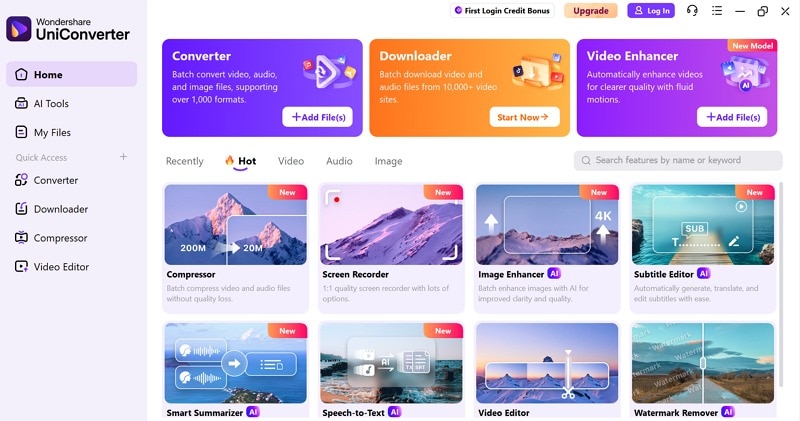
Moreover, users can preview their chosen LinkedIn video’s original resolution and timestamp inside the tool. Apart from downloading videos, it also lets you create subtitles for your downloaded video in multiple languages. This dedicated tool also enables users to choose their preferred output location for saving this LinkedIn video. In addition, you can even protect your downloaded videos in a separate space with a lock.
Best Linkedin Video Downloader
2. Snap Downloader
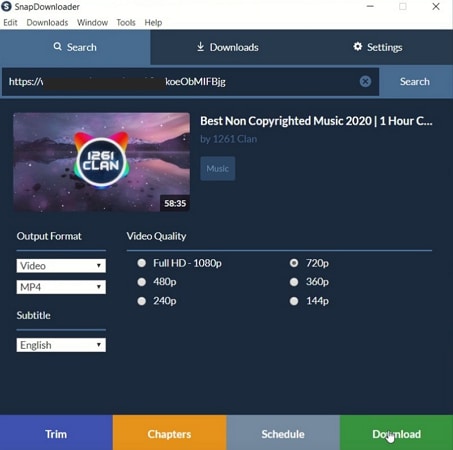
This is another LinkedIn video downloader that allows you to download videos from 900+ platforms, including LinkedIn. It supports video downloads up to full 8K resolution for premium viewing quality. You can also download multiple videos at the same time from different websites. The tool automatically embeds metadata into downloaded video and audio files. Moreover, Snap Downloader handles very large video files without slowing down system performance.
Step-by-Step: Download Video from LinkedIn on PC or Mac
Let’s explore the steps below to download LinkedIn videos with ease using UniConverter:
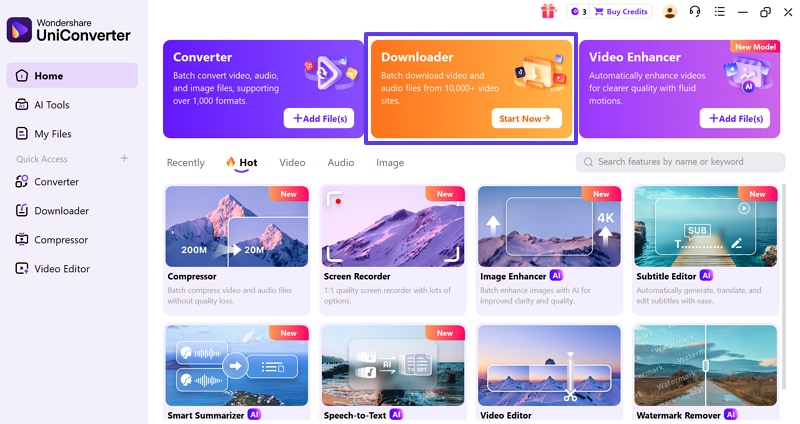
Step 1. Access the Tool and Select Downloader Mode
Go to the “Home” tab of the program to choose the “Downloader” tool and press the “Start Now” button.
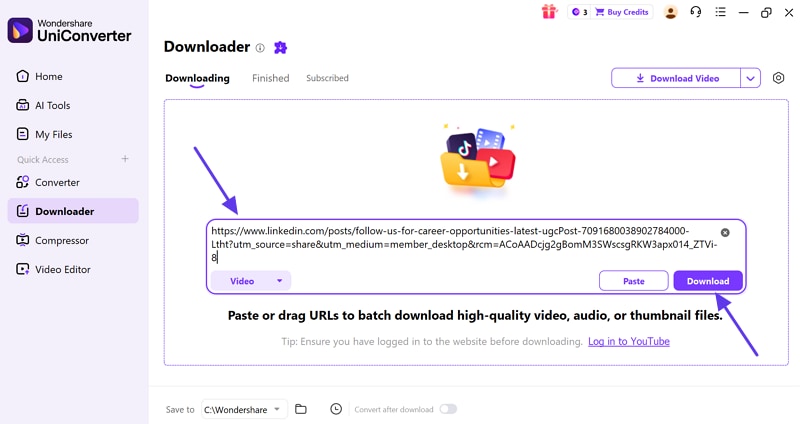
Step 2. Enter URL and Download
Now, enter or paste the URL in the given “Text Box” and hit the “Download” button.
Step 3. Preview Your Downloaded Video
Once the video is downloaded, you can preview your video to verify the result.
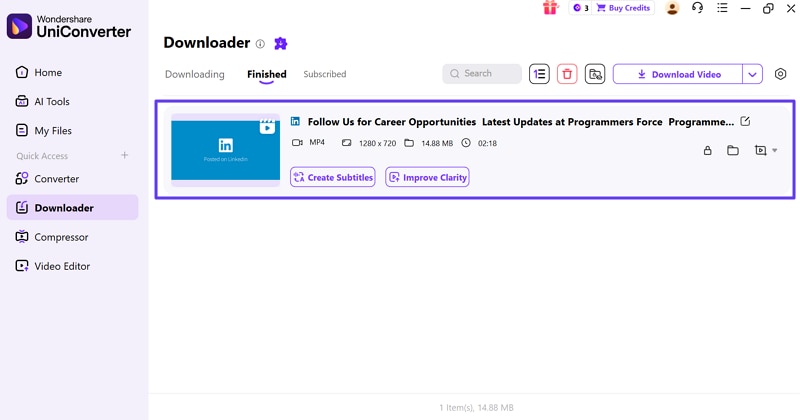
Desktop tools are more reliable than web-based sites for saving LinkedIn videos. They handle large files and multiple downloads without crashing or slowing down systems. Many times, it allows downloads to continue even if the internet is slow for a while.
Best Use Cases for Desktop Linkedin Downloaders
- Content Creators: Content creators build offline libraries by downloading many reference videos quickly for editing projects. This helps them organize clips, ensuring easy access for creative workflows and reuse.
- Sales Teams: Sales teams save product demos, webinars, and training videos for offline client preparation. This helps them review pitches anytime without relying on internet access.
- Training & HR Teams: HR and training teams download onboarding and skill videos for internal learning libraries. This ensures consistent training materials remain available even after posts are removed.
- Marketing Teams: Marketing teams collect webinars and social clips into one shared library. They can repurpose content for campaigns, reports, or social media strategy effectively.
- Regular Users: People downloading many LinkedIn videos often benefit from queue resume support. It simplifies managing multiple videos while preventing lost progress during long download sessions.
Part 4. Download LinkedIn Video Online (No Installation Required)
Many users need a reliable LinkedIn video downloader to save videos online. Below are 2 popular video downloaders that work on all devices without installation:
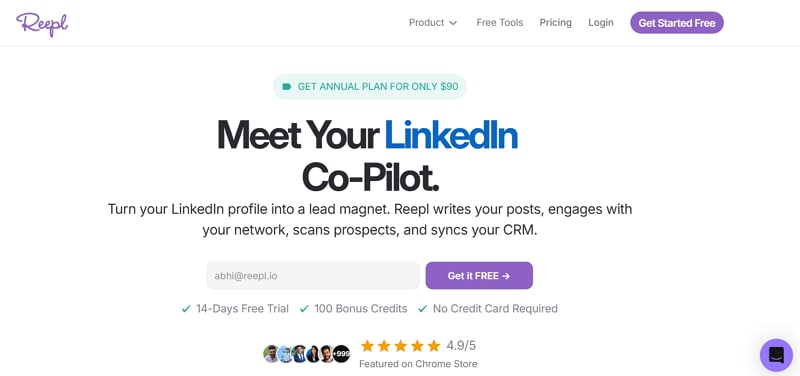
1. Reepl
Reepl is a simple, web-based tool for downloading public LinkedIn videos. It works directly in your browser, requiring no installation or account for basic use. As a LinkedIn video downloader online, it supports posting videos and short clips. The platform takes around 10-15 seconds for your video to download. Reepl will be safely auto-downloaded to your device once the fetching process completes.
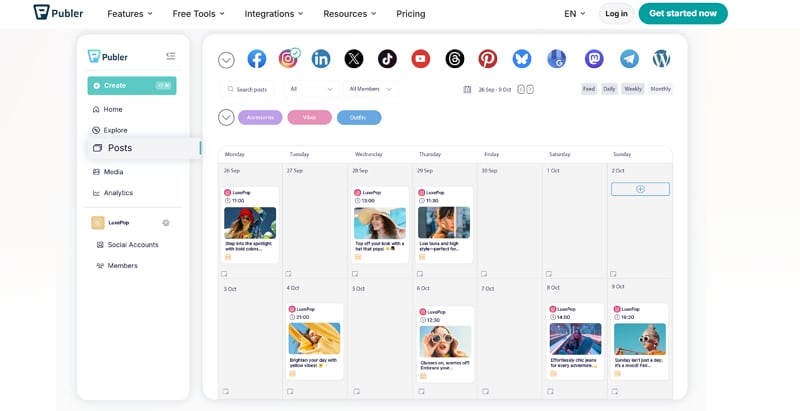
2. Publer
You can also use Publer for a LinkedIn video downloader and a social media platform. The platform helps you manage social media posts and store downloaded media in one place. It allows users to paste public post links to download LinkedIn videos in HD without signing up. All of your data remains safe to prevent it from unknown access. Beyond downloads, Publer also offers scheduling, analytics, and multi-network support.
How to Download a LinkedIn Video Using an Online Tool
Let’s explore the steps below to download LinkedIn Video by using Reepl:
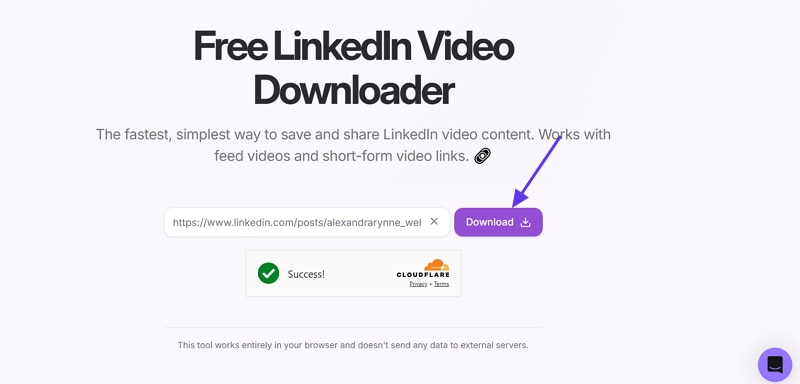
Step1. Go to the official website of “Reepl” and enter the URL in the “Text Box,” then fill in the “reCAPTCHA.”
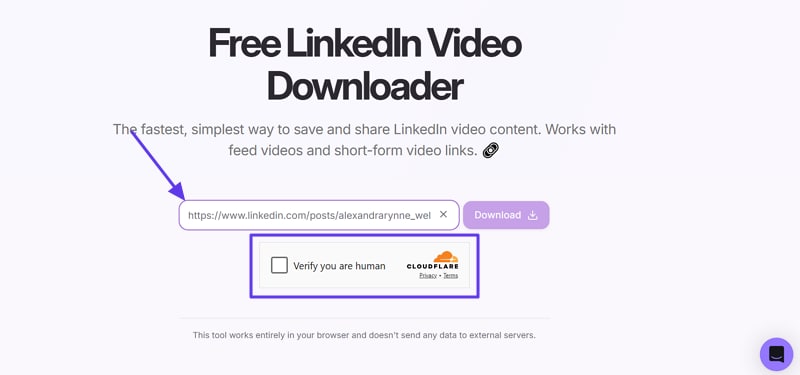
Step 2. When all the things are done, press the “Download” button to download LinkedIn video.
When Online Downloaders Are the Best Choice
- Quick Access: You can grab LinkedIn videos instantly without waiting for app installations.
- Any Device: Works on laptops, PCs, iPhones, and Android devices without extra apps.
- No Installation: Online platforms work even on school, office, or restricted computers safely.
- Minimal Distractions: Most online downloaders provide a clean interface with very few interruptions.
- Occasional Use: Perfect for users who rarely need to download LinkedIn videos efficiently.
Most online tools only allow downloading one LinkedIn video at a time reliably. Advanced format options like MP4 variations or audio-only downloads are often unavailable. Some downloaders limit resolution, making HD or 1080p video quality inconsistent frequently.
Part 5: Use a LinkedIn Video Downloader Chrome Extension
Some people want a faster way to save LinkedIn videos using a LinkedIn video downloader Chrome extension. This section explains multiple Chrome extensions helps you download LinkedIn videos:
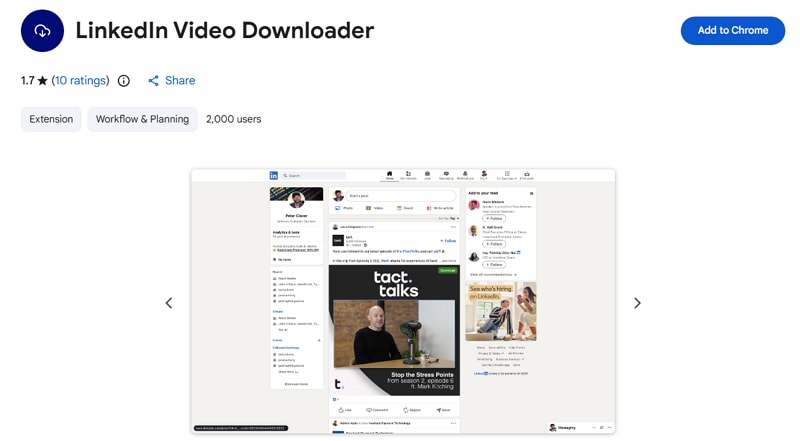
1. LinkedIn Video Downloader
It is a browser extension that lets users download LinkedIn videos while browsing. By integrating into browsers, it allows users to download LinkedIn post directly from their feed. The tool is simple and has no advanced features like batch downloads or video quality selection. However, it is best for casual users who want to save videos quickly.
2. Reepl AI
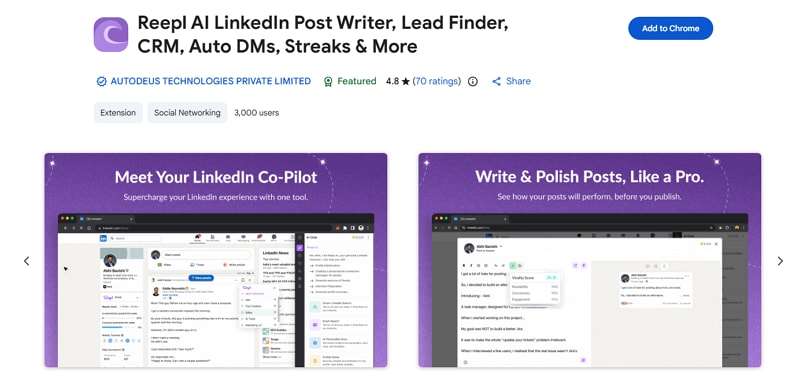
Reepl AI is also available as a Chrome extension that acts as an intelligent LinkedIn co‑pilot. It helps users save LinkedIn videos from posts for offline viewing and storage. The extension provides a simple interface to download LinkedIn post videos quickly. Moreover, this extension supports 8 various languages for broad compatibility. Users can download multiple videos in HD quality without additional software or apps.
Note: Some extensions may not properly work with private posts and company page videos due to restrictions.
How to Download LinkedIn Videos with a Chrome Extension
You need to go through the given guide to download the LinkedIn video via the Chrome extension:
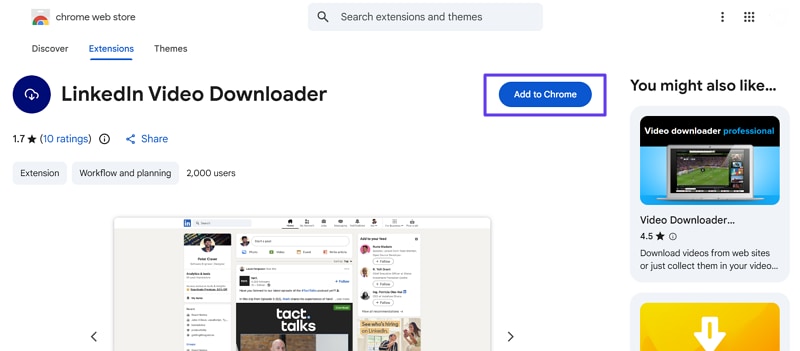
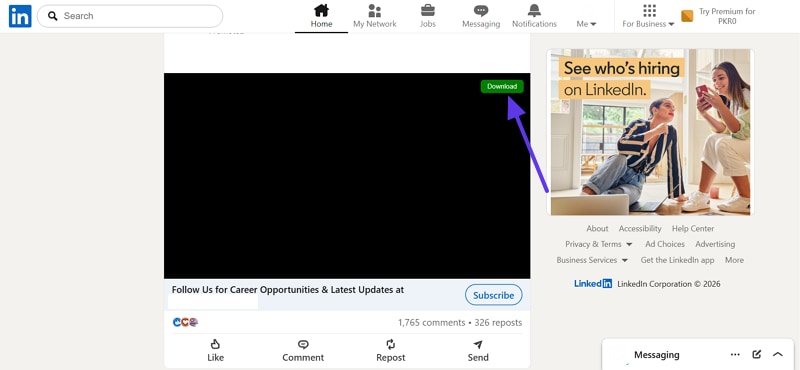
Step 1. Go to the “Web Store” and access the “LinkedIn Video Downloader” extension. After accessing it, click the “Add to Chrome” button to download the extension.
Step 2. At last, go to the LinkedIn post and hit the “Download” button to download the video.
Part 6. How to Download a LinkedIn Video on iPhone and Android
Many users need a LinkedIn video download free option while using their phones daily. This part explains simple ways to save LinkedIn videos on mobile phones safely:
iPhone: Save LinkedIn Video to Camera Roll (What Usually Works)
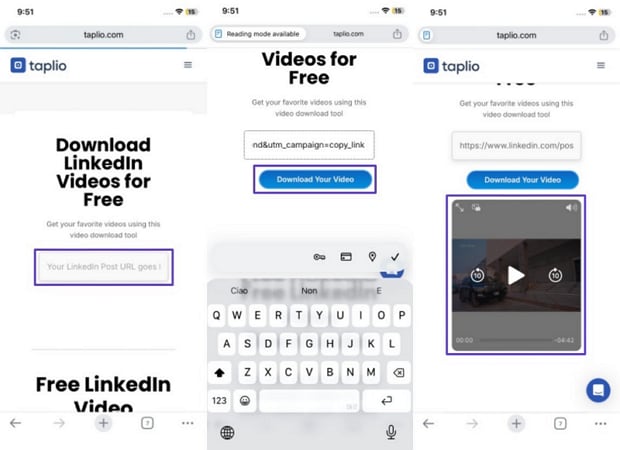
Saving LinkedIn videos on an iPhone usually works through screen recording or Safari downloaders. Screen recording captures playback directly, making it reliable even for restricted videos. Safari downloaders can download LinkedIn videos as original files for public posts. However, these files save to the Files app and move easily to Camera Roll. Therefore, screen recordings include interface elements and larger sizes. So, take the guidance below to download the LinkedIn post on iPhone:
Instruction. Upon copying the link, head to the online downloader website like “Taplio” and enter the URL in the “Text Box.” After entering the URL, tap the “Download Your Video” button. Download the video, and it will automatically save to your Photos app.
Android: Download and Find the File (Downloads folder, Files app)
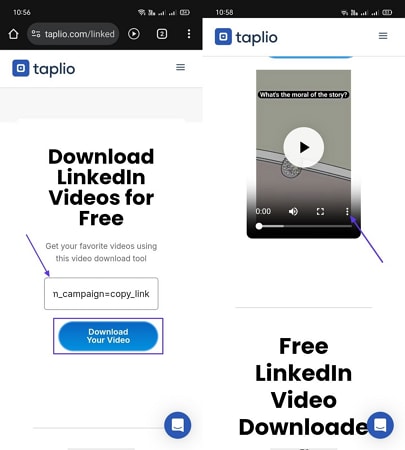
On Android, you can download LinkedIn videos using a browser or a downloader app. Downloaded files usually save automatically in the Downloads folder or Files app. The Files app helps locate, organize, and manage videos on your device. Videos can be renamed, moved, or shared for personal offline viewing. You can play the downloaded video directly without needing extra software. Hence, go through the given steps to download the LinkedIn video:
Step 1. Go to the official website of any LinkedIn video downloader, like “Taplio.” Next, paste the copied “URL” in the given “Text Box” and hit the “Download Your Video” button. When the video is done, click the “Three Dots” icon and choose the “Download” option.
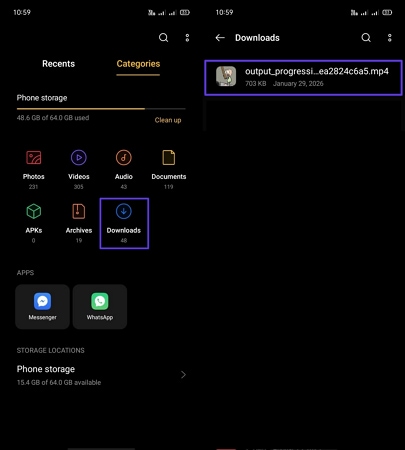
Step 2. Open the “File Manager” on your Android phone and go to the “Download” section. At last, you can see your downloaded video appear first.
Part 7. Top Linkedin Video Downloaders Comparison
| Tool | Works on | Installation | Public posts | Private / restricted | Quality control | Batch / queue | Extra features | Privacy / policy risk |
| UniConverter | Windows / Mac | Yes (desktop app) | Yes | Depends on access / source | High (HD/4K if source allows) | Yes (multiple URLs + scheduled) | Convert formats (MP4/MKV), extract audio (MP3), subtitles, save location, lock space | Lower than extensions; still must respect copyright/terms |
| Snap Downloader | Windows / Mac | Yes (desktop app) | Yes | Yes (built-in browser login feature) | Very high (up to 8K if source allows) | Yes (multi-download) | Audio extraction, metadata embed, handles large files | Medium (private login + bulk misuse risk) |
| Reepl | Any device (browser) | No | Yes (public only) | No | Limited (depends on tool/source) | No (typically single at a time) | Fast for occasional use; low-end device friendly | Medium (third-party availability/policy changes) |
| Publer | Any device (browser) | No | Yes (public only) | No | Good (HD if available) | Not stated | Preview, no ads/pop-ups; also scheduling/analytics for social | Medium (downloading others’ content may violate rules) |
| LinkedIn Video Downloader (Extension) | Chrome | Yes (extension) | Yes (when detected) | Often limited | Limited (no advanced quality selection) | No | Auto-detect videos while browsing | Higher (broad permissions + reliability concerns) |
| Reepl AI (Extension) | Chrome | Yes (extension) | Yes | Not clearly stated | Good (HD claimed) | Yes (multiple videos claimed) | Multi-language support; templates/streak tracking | Higher (deep LinkedIn access; compliance concerns if automation is excessive) |
| Taplio (mobile online downloader) | iPhone / Android (browser) | No | Yes (public posts) | No | Limited (depends on tool/source) | No (typically single at a time) | Quick phone saving without extra app | Medium (third-party site + policy changes) |
Best Linkedin Video Downloader
Part 8. Troubleshooting (Fixes for the Most Common Problems)
People also face errors when trying to download LinkedIn video due to restrictions. Below are the most common problems users encounter and the practical fixes that usually work:
The Downloader Can’t Detect the Video
- Wrong URL: Copied feed or search page links do not point to the actual video post. This causes the downloader to fail because it cannot locate the correct video source.
- Tracking Tags: Extra tracking codes in long links confuse tools and stop proper video recognition. These parameters prevent the downloader from reading the video URL, causing detection errors.
- Login Limits: Some videos require logged-in access, blocking detection for external tools. Without a proper login, the downloader cannot reach or play the video, so it fails.
- Region Blocks: Location limits or VPN usage can stop tools from accessing the video source. Downloaders fail when geographic restrictions prevent the video from being loaded or played.
- Cache Issues: Old cached pages sometimes prevent tools from detecting updated video content. An outdated cache hides the actual video element, stopping the downloader from recognizing it.
Video Downloads, but Quality is Low (not HD/1080p)
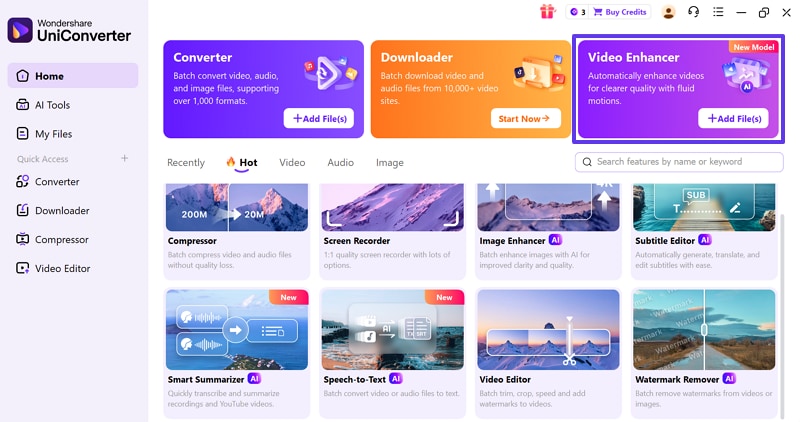
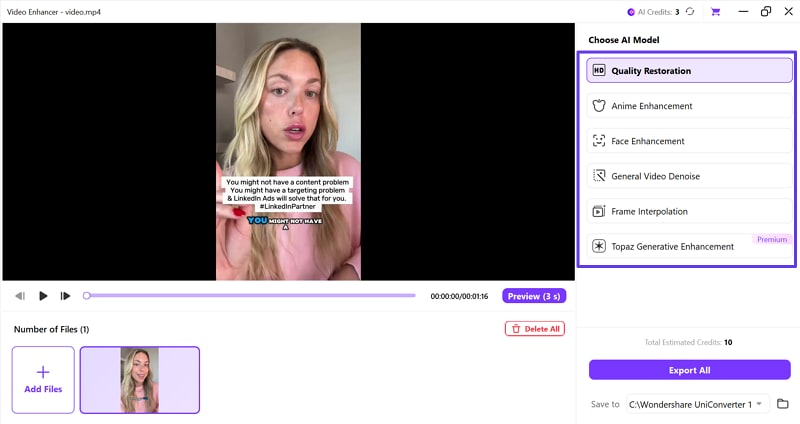
Low-quality video downloads happen when the original upload isn’t HD or compressed. Sometimes platforms only expose lower-resolution streams, limiting what you can save from LinkedIn. Many times, downloaders may auto-select a resolution like 360p, reducing playback clarity on larger screens. Still, advanced desktop tools like UniConverter Video Enhancer can help access higher resolutions when available. You can review the given guide to enhance your video quality:
Step 1. Get the tool and opt for the “Video Enhancer” option, then click the “+Add Files” button.
Step 2. On the next screen, edit or enhance your video using the available options.
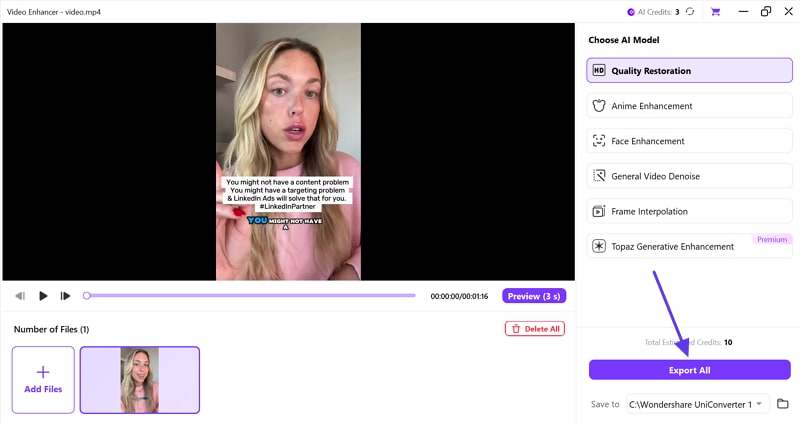
Step 3. When your video is enhanced, hit the “Export All” button to download it on the system.
Private Posts, Company Pages, or Restricted Content
Sometimes it feels confusing when certain LinkedIn videos refuse to open or download properly. Private posts limit visibility, allowing only selected audiences like connections or group members. Company pages are usually public, but deleted posts or restrictions can break shared links. Restricted content often requires a login, so tools cannot access videos without proper permissions. When visibility changes later, trying to save LinkedIn video from old links usually fails.
Conclusion
In conclusion, downloading LinkedIn videos helps learners save valuable content for offline viewing. Each way has benefits depending on device, frequency, and quality needs. Online tools suit quick access, while extensions add convenience. However, frequent users often need better stability, quality control, and advanced options. Therefore, when you regularly download LinkedIn video files or manage large videos, UniConverter offers stronger control, higher quality, and reliable desktop performance.

