UniConverter
UniConverter Online Free
Converter video, audio & image free
Free Try
Batch Download Multiple Videos from Supported Sites

Batch Video Downloader for Multiple URLs

Use Wondershare UniConverter as a desktop batch video downloader for Windows and Mac. Add multiple supported video URLs, choose available video or audio settings, select quality and subtitle options, and manage up to 10 simultaneous download tasks from one queue.

  • Multiple supported video URLs in one batch workflow
  • Up to 10 simultaneous download tasks
  • Quality, subtitles, priority, pause, and resume controls
Available on:

For Windows 11/10/8/7

For macOS 10.13 or later, including macOS 26 Tahoe

4.7Rated on Trustpilot
UniConverter Batch Video Downloader for multiple URLs
120+Countries
7M+Satisfied Users
1.4M+Subscribers
21M+Downloads

Desktop Batch Video Downloader vs. Online Tools

Online tools and browser extensions can be convenient for an occasional link. A desktop batch video downloader is better suited to repeated multi-URL jobs that need download preferences, queue controls, and follow-up conversion or editing.

Compare the workflow
Recommended for larger jobsUniConverter Desktop
Convenient browser accessOnline Video Downloaders
Multiple URLs
✓Add multiple supported video URLs and manage the downloads from one desktop workspace.
Handle a small one-off link when a simple browser workflow is enough.
Download Preferences
✓Choose available video or audio settings, quality, subtitles, and download preferences before or during the job.
Paste a link and use the output options provided by the current online service.
Queue Management
✓Pause, resume, prioritize, and manage multiple download tasks from the Downloading and Finished tabs.
Repeat the browser flow when the service does not preserve a longer download workflow.
Better Choice
✓Choose Desktop for multiple URLs, repeated download jobs, and workflows that continue into conversion or editing.
Choose Online for a small one-off link when advanced queue management is unnecessary.
Simple decision:
Use Online for a quick one-off link. Use UniConverter Desktop when you need to download multiple videos, control preferences, manage a queue, or continue working with the files afterward.
Download UniConverter for Desktop

Download Multiple Videos at Once with One Batch Video Downloader

Wondershare UniConverter Video Downloader supports a multi-URL workflow for supported websites. Add multiple links, set download preferences, manage active tasks, and move completed files into conversion, compression, or editing when the next step requires it.

Only download content you own, have permission to use, or are otherwise authorized to save. Website support and available download options can change over time.

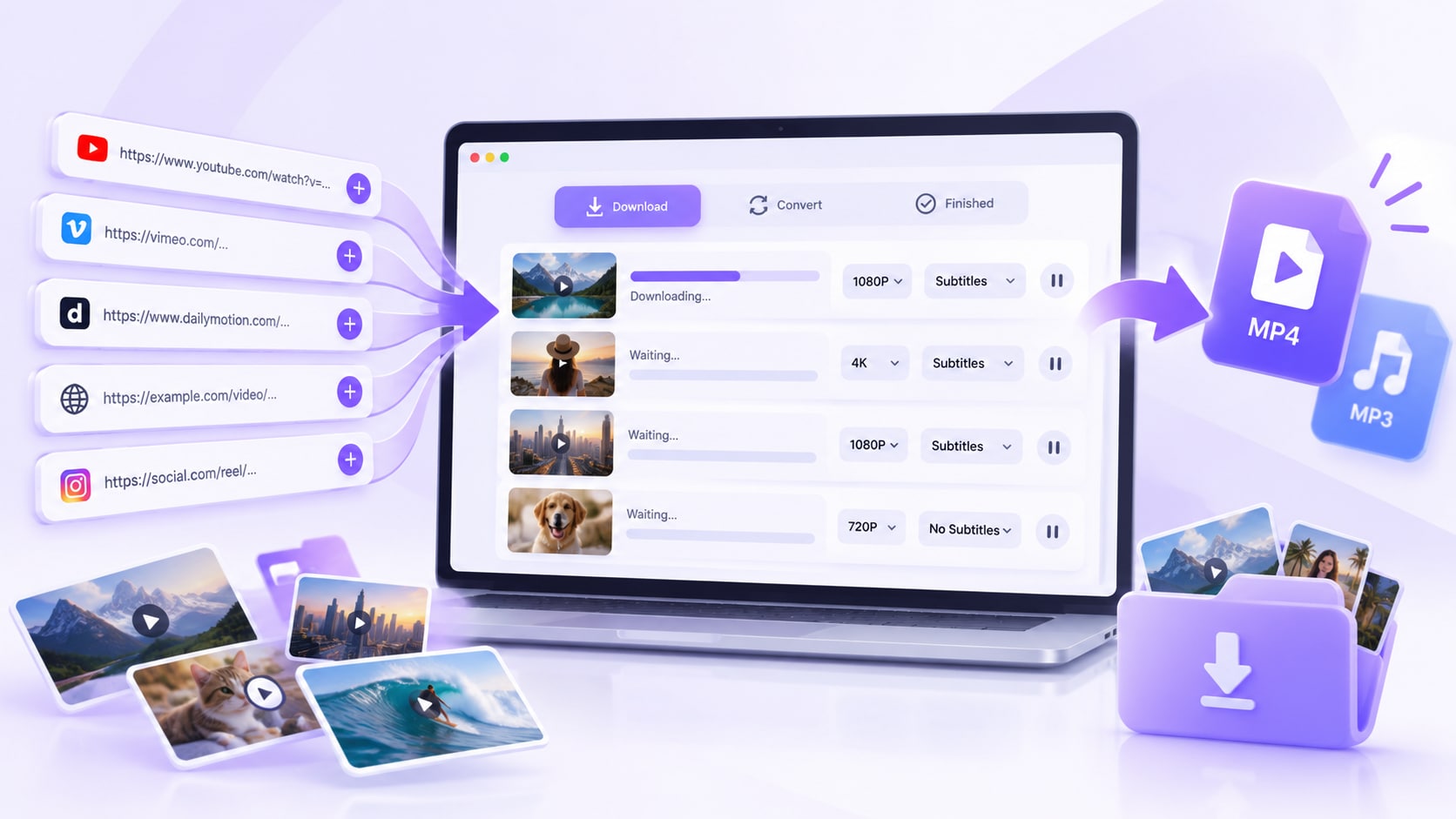
Paste Multiple Video URLs

Add multiple supported video links to the Downloader instead of repeating the paste-and-download process for every file.

  • Add multiple supported video URLs
  • Keep active tasks together in the Downloading tab
  • Start the batch when the URLs are ready
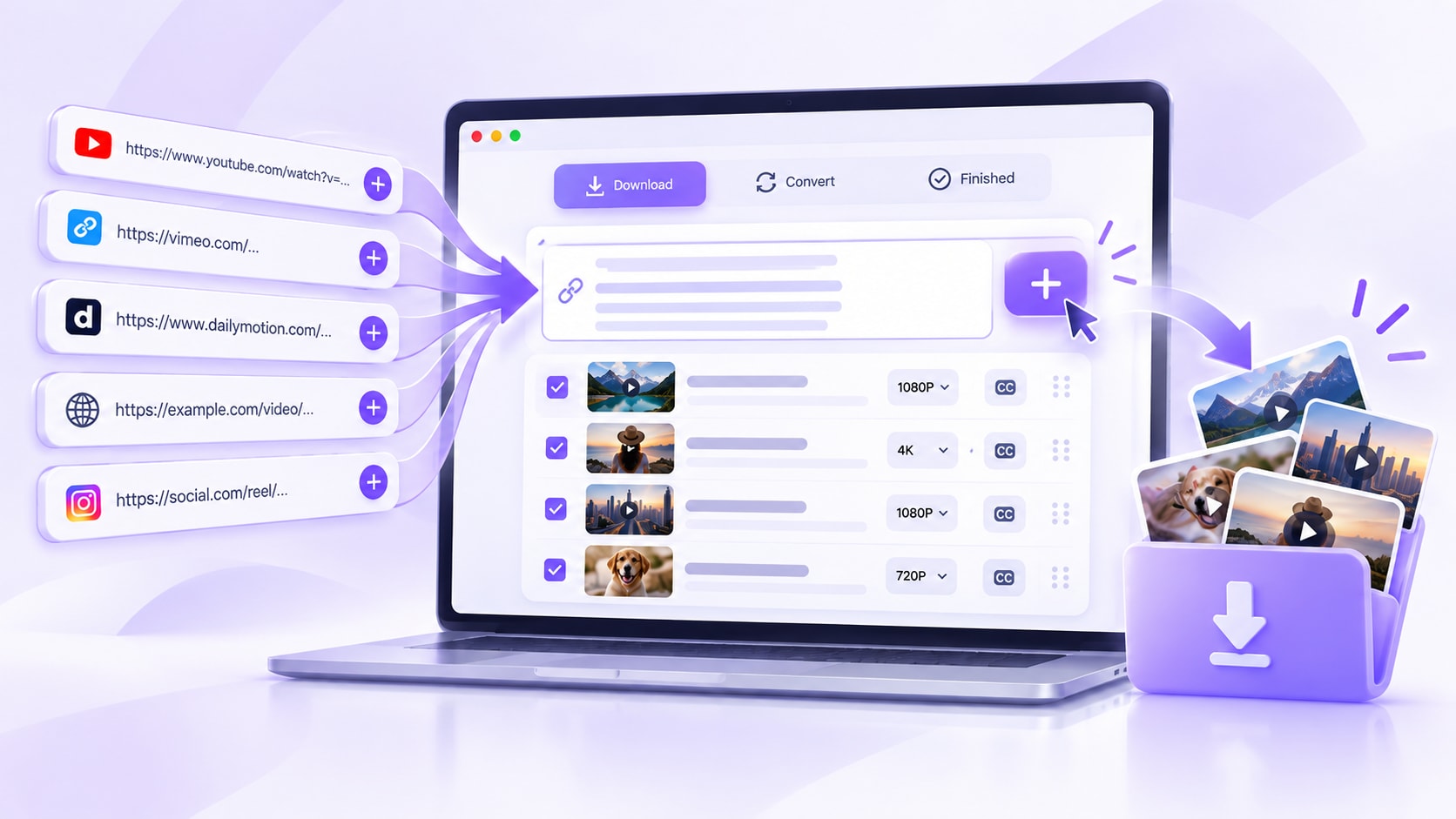
Paste Multiple Video URLs

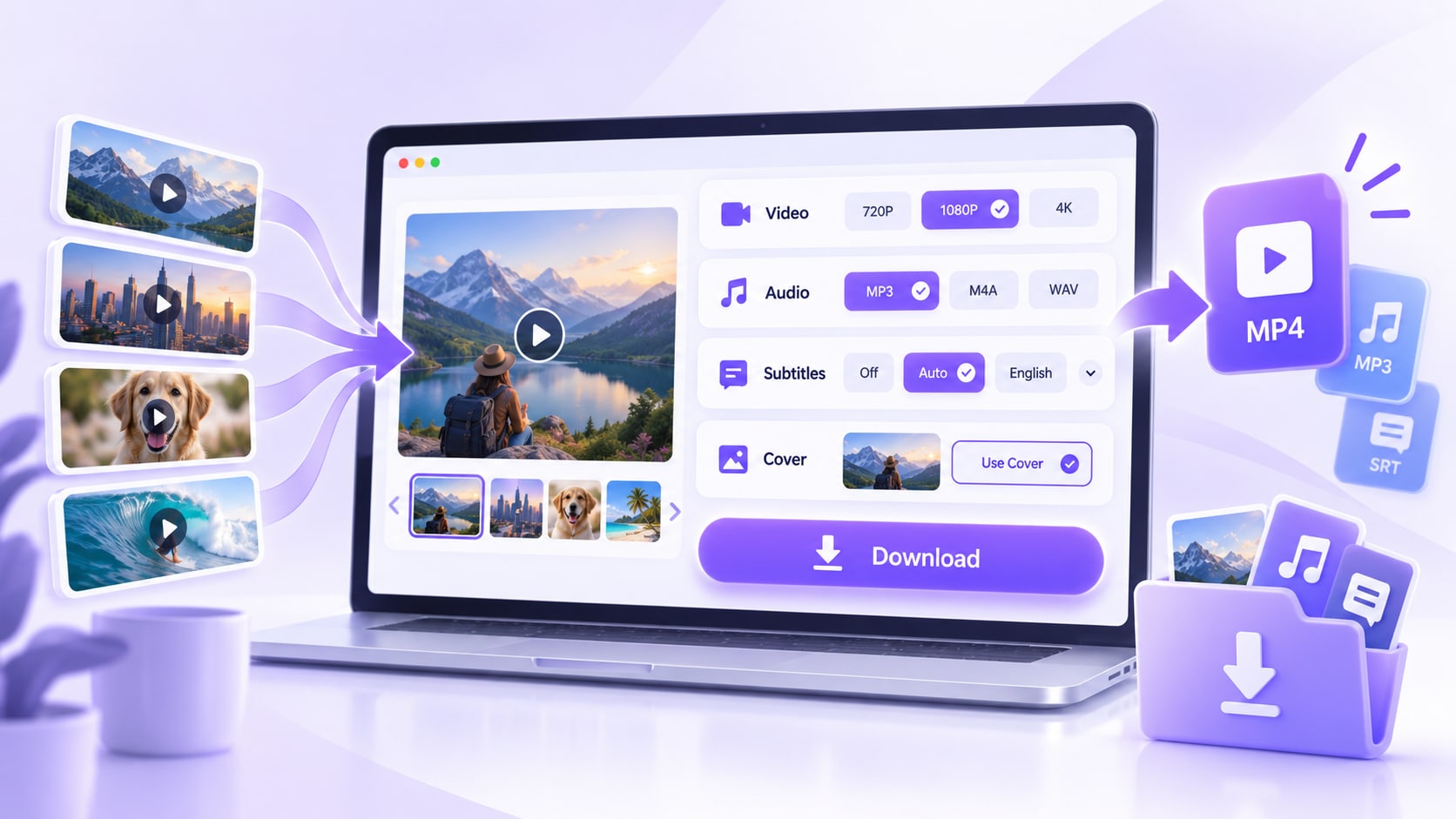
Choose Video, Audio, Quality, and Subtitles

Set the download type and available quality before the batch runs. For supported sources, UniConverter can also handle audio, subtitles, and cover images.

  • Choose video or audio when available
  • Select the available quality for the source
  • Keep subtitles or CC when supported
Choose Video, Audio, Quality, and Subtitles

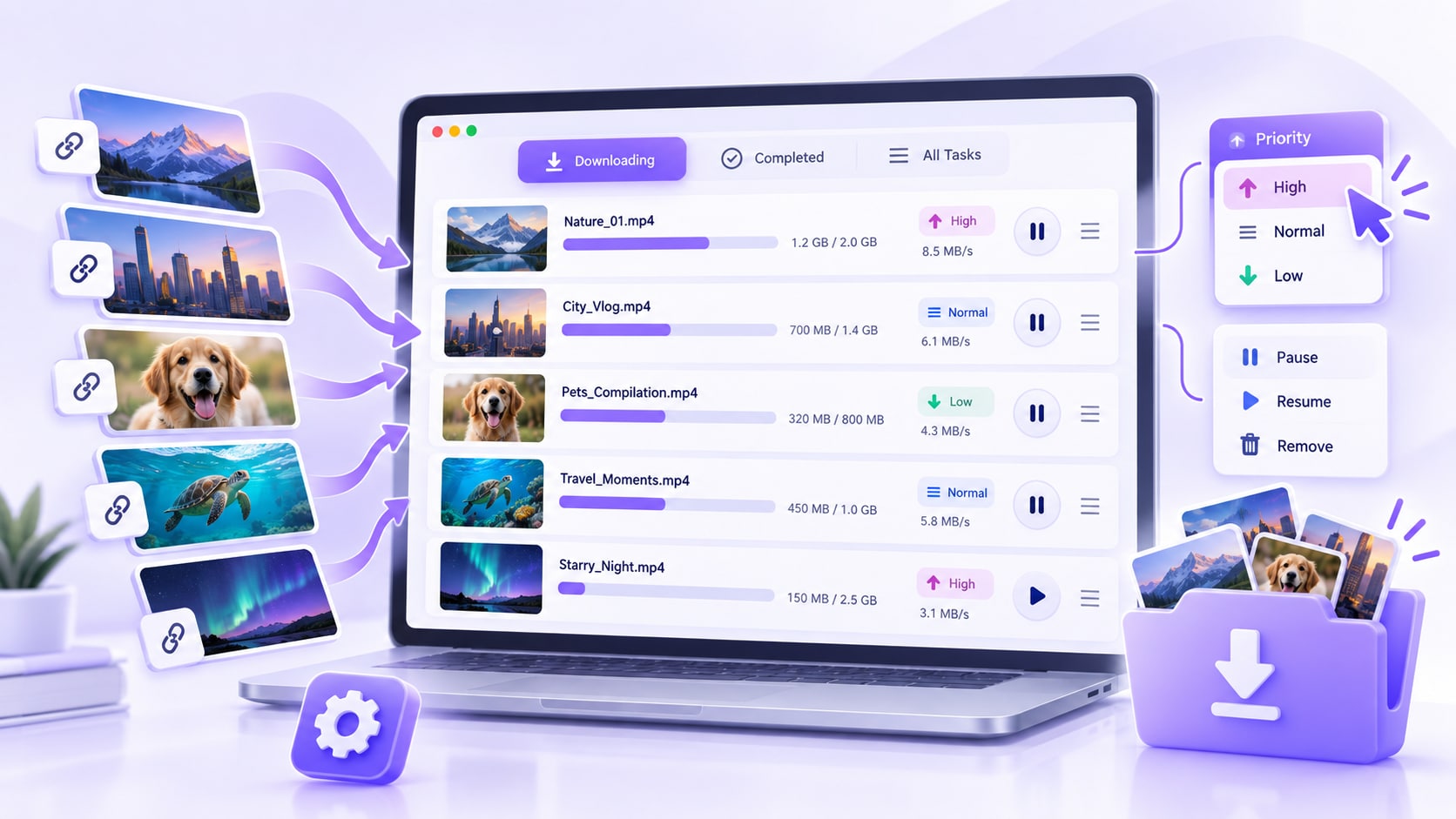
Manage Multiple Downloads in One Queue

Keep multiple tasks visible while they run, change priority when needed, and use pause or resume controls instead of restarting the entire batch.

  • Pause or resume individual downloads
  • Use Pause All or Resume All for the queue
  • Prioritize an important download when needed

Supported websites, available qualities, subtitle options, and download behavior can vary by source, operating system, and UniConverter version.

Manage Multiple Downloads in One Queue

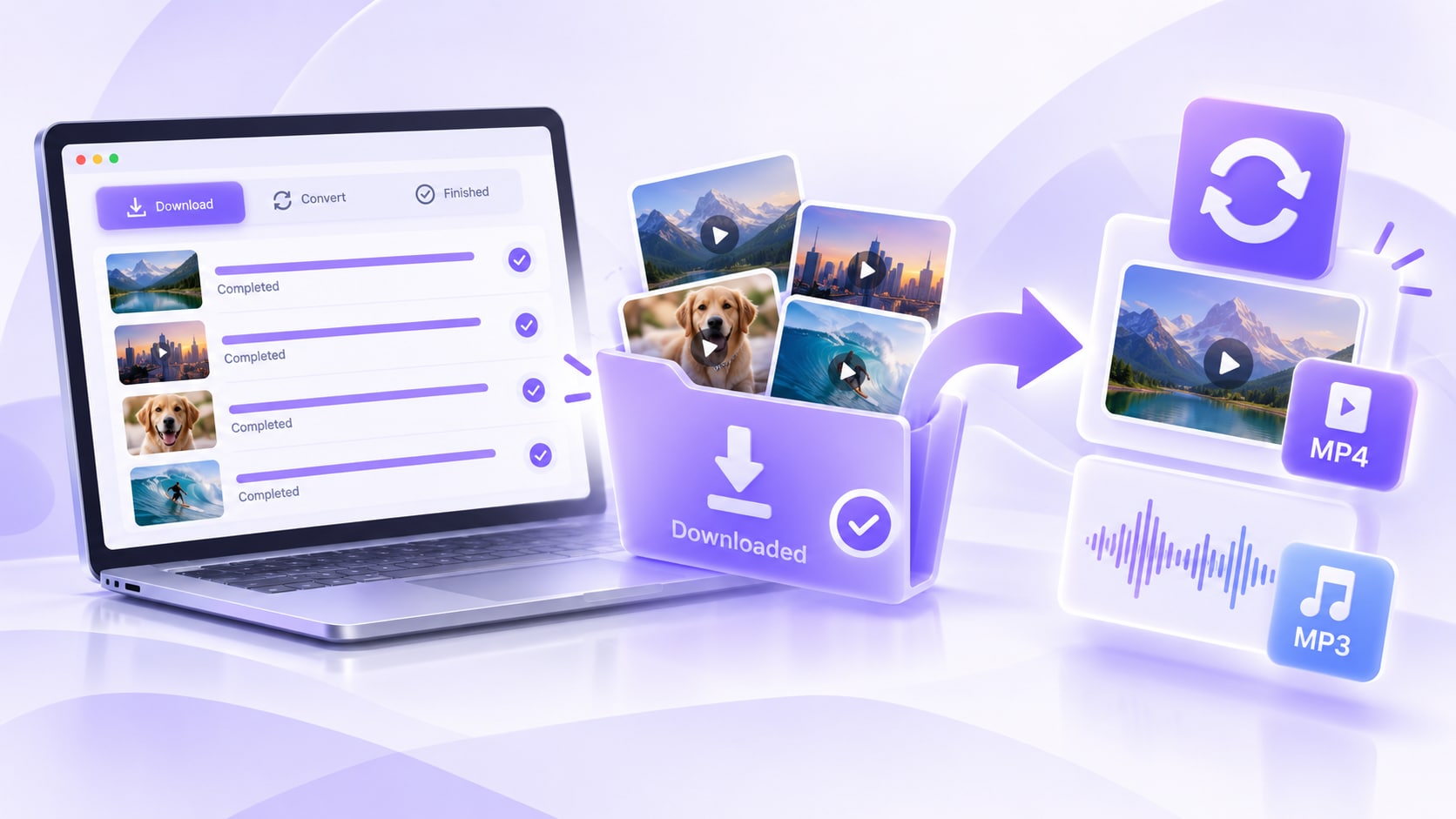
Download First, Then Convert When Needed

Use Download then Convert Mode when you already know the required output, or finish the download first and continue with UniConverter's conversion, compression, or editing tools afterward.

  • Use Download then Convert Mode for a planned output
  • Open completed files from the Finished tab
  • Continue into conversion, compression, or editing
  • Keep the workflow in one desktop application

Downloaded files can continue into UniConverter's Converter, Compressor, or Editor when further processing is needed.

Download First, Then Convert When Needed

What You Can Control in a Batch Video Download

UniConverter lets you add multiple supported URLs, choose available video or audio options, control quality and subtitles, and manage up to 10 simultaneous download tasks from one desktop queue.

Multi-URL inputAdd Multiple Supported Links

Paste multiple supported video URLs into Downloader so the links can be handled in one managed batch instead of restarting the workflow for every item.

1–10 at a timeSet Simultaneous Download Tasks

Download Preferences lets you choose the maximum number of downloading tasks at a time, from 1 to 10.

Priority controlMove an Important Task Up

Use Download in Priority when one active item should move to the top of the queue before the remaining tasks.

Supported websites, quality choices, subtitles, and download behavior can vary by source, operating system, and UniConverter version. Only download content you own, have permission to use, or are otherwise authorized to save. Product workflow reference: UniConverter Download Video Tips.

When a Desktop Batch
Video Downloader Makes More Sense

Use a desktop batch video downloader when you have more than a single one-off link and need repeatable controls for multiple URLs, quality, subtitles, queue management, or follow-up media work.

Authorized Research and Reference Sets

Save public-domain, licensed, or otherwise permitted videos that you need to review repeatedly for research or reference.

Training and Team Media Libraries

Keep authorized tutorials, training clips, and internal reference videos available for teams that work with the same materials repeatedly.

Creator-Owned Video Archives

Batch download your own uploads or other content you are authorized to save, then keep the files ready for backup, review, or repurposing.

Download, Convert, Compress, or Edit

Keep the completed files inside the UniConverter workflow when you need to convert formats, reduce file size, or edit the media next.

What UniConverter Users Are Saying

These reviews describe users' experience with Wondershare UniConverter as a broader media conversion and editing product, rather than feedback limited to the Batch Video Downloader.

★★★★★

“Very configurable for the exact result you need.”

Its flexible conversion controls make it easier to prepare files for different output and delivery requirements.
JohnsonJohnson
★★★★★

“The files can be used across IT platforms so easily!”

This kind of compatibility is useful when converted media needs to move between common systems and delivery workflows.
WilliamsWilliams
★★★★★

“Wondershare UniConverter is incredibly versatile.”

The broader conversion and editing toolkit supports users who need to complete more than one isolated media task.
OliviaOlivia

Explore UniConverter reviews and independent coverage across trusted software platforms.

Batch Video Downloader FAQs

01

How can I download multiple videos at once?

Open Wondershare UniConverter and choose Downloader. Add multiple supported video URLs, set the available download preferences, and start the batch. Active tasks appear in Downloading and completed files appear in Finished.
Yes. UniConverter supports adding multiple video URLs for batch downloading. Exact source support and available output options can vary by website and product version.
UniConverter provides one URL-based desktop workflow for multiple supported websites. It should not be described as supporting every website, because source compatibility and available output options can change.
Choose from the qualities available for the source. HD or 4K may be available when the source and current UniConverter version support it, so the available resolution can differ from one video or website to another.
Yes. UniConverter provides pause and resume controls for individual downloads and for the active queue, and it can automatically resume unfinished tasks on startup when that preference is enabled.
Yes. Use Download then Convert Mode when you want a specific output during the download workflow, or open completed files in UniConverter for conversion, compression, or editing afterward.
UniConverter Download Preferences lets you set the maximum number of simultaneous download tasks from 1 to 10. Additional URLs can remain in the managed queue while active tasks are downloading.
Wondershare UniConverter

Turn Multiple Video Links into One Managed Batch

Add multiple supported video URLs, choose the download settings you need, and manage the batch from one desktop workflow.

Turn Multiple Video Links into One Managed Batch