If you want to download Discord videos, first identify what Discord is showing: a video uploaded directly as an attachment, a link preview from another website, or only a message link. That distinction determines whether you should use Discord's built-in save control, a URL-based desktop downloader, or the original website's authorized save method.
Choose a Discord Video Download Method
For repeat URL-based jobs on a computer, start with UniConverter Downloader; for one directly uploaded attachment, Discord's own Download control is often enough. The table below keeps the download method matched to the input you actually have.
| Method | Best for | Input | Installation | Saved result | Main condition |
|---|---|---|---|---|---|
| Wondershare UniConverter Downloader | Desktop URL downloading, multiple tasks, progress and completed-file management | Supported media URL | Yes, desktop app | Local video file managed through Downloading and Finished | The submitted media URL must be supported and currently accessible to you |
| Discord Desktop / Web | Saving one video uploaded directly to a message | Direct attachment in a message you can view | Desktop app or browser | Local file in the folder chosen by the app or browser | The attachment and Download control must still be available |
| Discord on Android | Saving a direct video attachment to the phone | Direct attachment | Discord app | Device storage, commonly visible through Files/Downloads or the system media library | Storage/media permission and the current app UI |
| Discord on iPhone | Saving a direct video attachment to the phone | Direct attachment | Discord app | Photos or Files, depending on the save route shown | Photos/Files permission and the current app UI |
| Browser-based URL downloader | Occasional URL-based saving without installing a desktop app | Current media/attachment URL | No | Browser download | Never provide a Discord password, login code, token, cookies, or session credentials |
Know Which Discord Video Link You Have
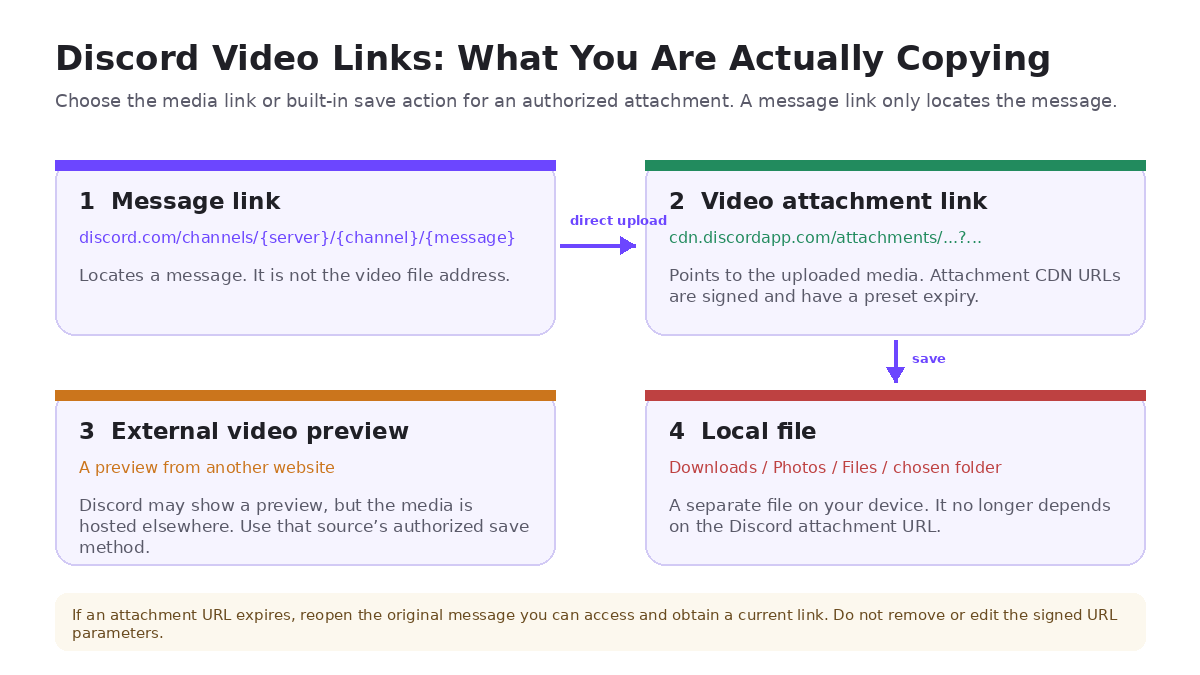
A message link and a video attachment link are not interchangeable. A message link locates a message inside Discord. A direct attachment link points to the uploaded media resource, while an external preview may only be an embed for media hosted somewhere else.
| What you have | What it means | What to do |
|---|---|---|
| Message link | Usually contains discord.com/channels/... and identifies a message, not the video file itself. |
Open the message you can access and use the attachment's built-in Download control or obtain the current media link. |
| Video attachment link | Points to media stored on Discord's attachment CDN. Attachment URLs are signed and expire at a preset time. | Use it while it is current. If it expires, return to the accessible original message to obtain a fresh link. |
| External video preview | Discord is displaying a preview for media hosted by another service. | Use that source's authorized save/export method; do not treat the preview as a Discord-hosted attachment. |
| Local file | A separate file already saved to your computer or phone. | Play it locally, or use Converter/Compressor if compatibility or file size is the next problem. |
Discord's developer documentation says attachment CDN URLs include an expiration timestamp and a signature. That is why a previously copied attachment URL can stop working later. Do not strip the URL parameters or try to reconstruct an expired link; get a current link from the original message you are still allowed to view.
Download Videos with Wondershare UniConverter Downloader
Wondershare UniConverter Downloader is a desktop URL-based media downloader and manager for supported media URLs. It is useful when you want one place to paste links, create multiple download tasks, monitor progress, choose a local save folder, and review completed files. This is a desktop workflow, so install UniConverter before using Downloader.
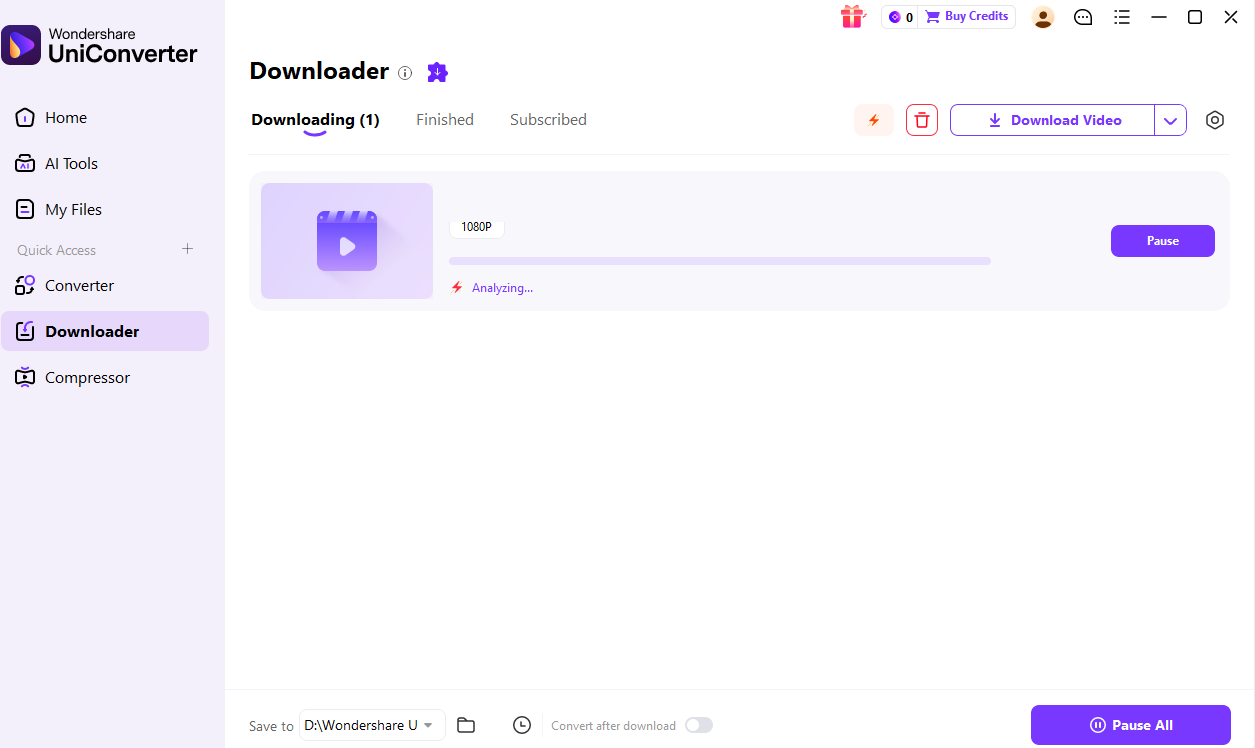
In the current Windows V17 workflow, the sequence is Paste URL -> choose Video -> Analyze -> Download -> Finished -> optional post-processing. The available media quality, audio, subtitles, and other source-specific options depend on what the submitted URL exposes.
Step 1. Open Downloader and prepare the media URL
- Install and launch Wondershare UniConverter for Windows, then select Downloader from the left navigation.
- For a video uploaded directly to Discord, open the message you are authorized to access. If you need the attachment URL for a URL-based downloader, right-click the media attachment on desktop and choose Copy Media Link. Discord also documents Copy Media Link after a long-press on a media attachment in its mobile app. For a one-off local save, use the attachment's built-in Download control instead.
- Check the copied address. A
discord.com/channels/...message URL is a message locator, not the actual media address.
Step 2. Paste the URL, choose Video, and start the task
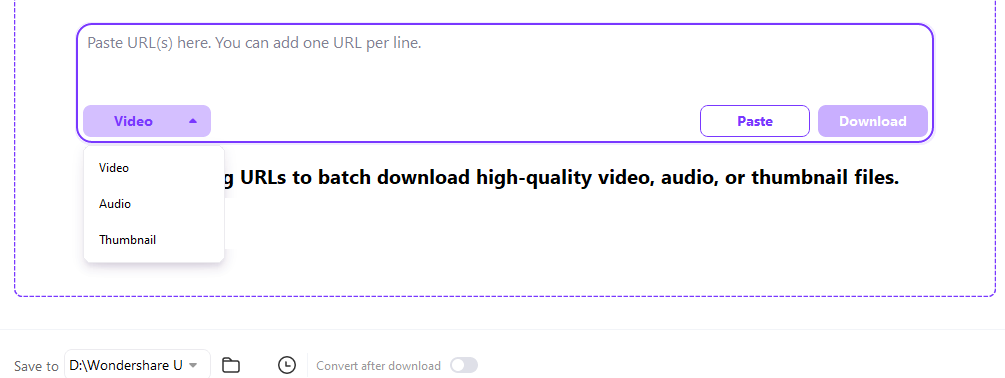
- Paste the supported media URL into the box labeled Paste URL(s) here. You can add one URL per line.
- Select Video. For this guide, keep the task focused on video; do not assume every source also offers separate audio, thumbnails, subtitles, or multiple resolutions.
- Use Save to to choose the local destination. If needed, review Download Preferences before starting.
- Click Download. UniConverter analyzes the URL first, then moves the task through the Downloading workspace.
Batch tasks: you can add multiple supported media URLs, one per line. Current Windows V17 allows up to 10 simultaneous download tasks. That is the number that can run at once, not a total limit of 10 URLs in the task queue.
Step 3. Check Finished and locate the local file
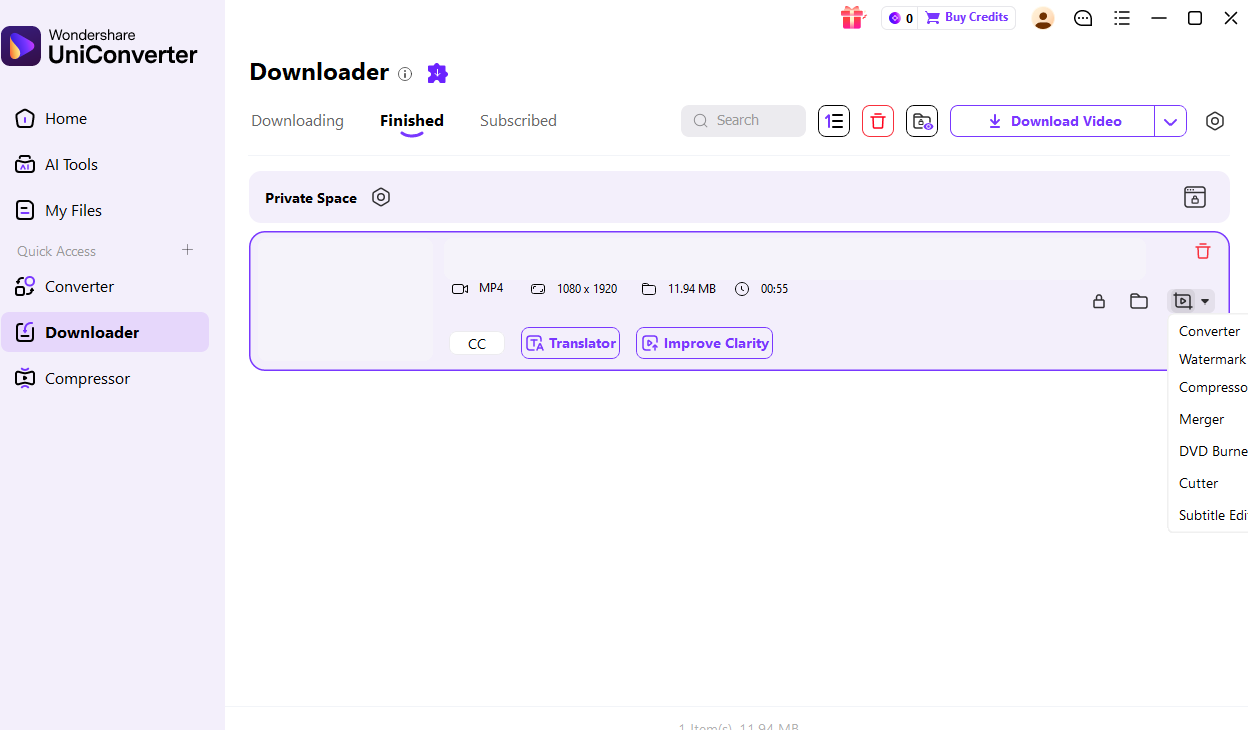
- When the transfer completes, open Finished.
- Review the completed file information and use the folder control to open its local location.
- Play the file locally to confirm that the download is complete before converting, compressing, moving, or sharing it.
Try UniConverter Downloader to download and manage videos from supported media URLs.
How to Download Discord Videos on Desktop or Web
For a video uploaded directly to Discord, use its Download control. Current desktop/web interfaces expose a download icon for direct video attachments; an external website preview may not have the same Discord download control.
- Open Discord Desktop or Discord Web and go to the message containing the direct video attachment you are allowed to save.
- Hover over or open the video. Choose the Download icon/control shown with the attachment.
- If your browser asks for a location, choose the folder. Otherwise, the file goes to the browser's configured download destination.
- Open the saved file from the download list or local folder and confirm it plays normally.
If the message contains an embedded preview from another website rather than a Discord-uploaded file, use the original site's authorized saving/export option instead. A message link by itself does not turn an external preview into a downloadable Discord attachment.
How to Save Discord Videos on Android and iPhone
On mobile, open the direct video attachment first and use the download/save control shown by the current Discord app. The final location differs by operating system and by whether the app saves to the media library or hands the file to the system Files/download flow.
Download Discord Videos on Android
- Open the message containing the direct video attachment and open the video.
- Tap the visible Download or save control in the current app interface.
- Allow the required storage/media permission if Android requests it.
- Check the system Files app, Downloads, or your media library for the saved copy, depending on the route shown on your device.
Being able to play a video in Discord does not by itself prove that an independent file has been saved to device storage. App cache and an explicitly saved local file are different things.
Download Discord Videos on iPhone
- Open the direct video attachment in Discord.
- Use the current download/share action. If Save Video is offered, select it to save the media to Photos; if the flow hands the file to the iOS file picker, choose a location in Files.
- Grant Photos permission if requested.
- Confirm the saved copy in Photos or Files. If the download was completed through a browser, also check the browser's configured Downloads location in Files.
Discord also has a mobile Save to Device setting for media you send yourself, but that setting is not a replacement for explicitly saving a received attachment.
Can You Use an Online Discord Video Downloader?
Yes, a browser-based downloader can be useful when it accepts the current media/attachment URL you are authorized to save, but it is not required for ordinary Discord attachments that already have a Download control. Current third-party services exist for Discord-related URLs, but their privacy, access, and compatibility claims are not Discord guarantees.
If you choose an online Discord video downloader, use a current media URL rather than assuming a message link is the file. For a Discord-hosted attachment, Discord documents Copy Media Link from the attachment context menu on desktop and mobile. Never give a third-party downloader your Discord password, login code, account token, cookies, or session credentials. Do not use a third-party service to access messages, channels, or files you cannot normally view.
For repeated URL jobs on a PC, UniConverter Downloader provides a desktop alternative with multiple URL tasks, active-task controls, a chosen Save to location, and completed-file management in Finished.
Why Is My Discord Video Download Not Working?
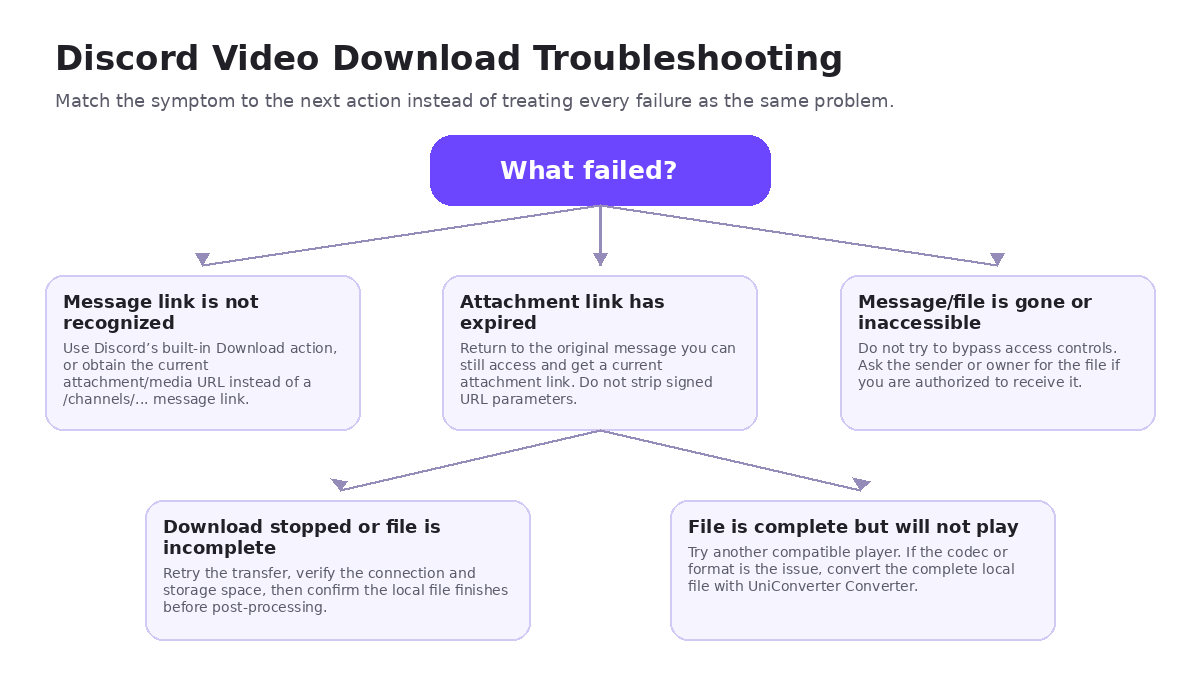
Start with the symptom instead of treating every failure as a downloader problem. Link type, attachment expiry, access, an interrupted transfer, browser/mobile permissions, and local playback compatibility all require different fixes.
| Symptom | Likely cause | What to do |
|---|---|---|
| A URL tool does not recognize the link | You copied a Discord message link instead of the media attachment URL | Return to the accessible message and use the built-in Download action or obtain the current attachment/media URL. |
| A previously working attachment URL now fails | The signed attachment URL expired | Reopen the original message you can still access and obtain a current link. Do not edit, remove, or forge the signed parameters. |
| The attachment or original message is gone | The sender deleted it, the message changed, or the resource is no longer available | If you are authorized to receive the file, ask the sender or owner for a new copy. A downloader cannot restore a deleted source. |
| You cannot open the message/channel | Your account does not have access | Use the platform's normal access process or ask the owner/admin. Do not attempt to bypass access controls. |
| The download stopped or the file is unusually small/incomplete | Network interruption, storage problem, or transfer failure | Check the connection and free space, retry the authorized transfer, and verify the local file finishes before post-processing it. |
| The browser does not save the file | Download permission, browser setting, extension conflict, or blocked destination | Check the browser's download permission and destination, then retry the direct attachment download. |
| Android or iPhone shows the video but you cannot find a saved copy | The video is playing from the app/cache or the app lacks storage/Photos permission | Use the explicit save/download action, grant the needed permission, and then check Files/Downloads or Photos. |
| UniConverter stays at Analyze or cannot create the task | The submitted URL is stale, is a message locator, is inaccessible, or does not expose a supported media resource | Confirm you have the current media URL, reopen the authorized source if needed, and retry from Downloader. |
| The file downloaded completely but will not play on the target device | The container/codec is incompatible with that player, or the player has a rendering issue | Try another compatible player first. If the complete local file needs a different format or codec, convert it with UniConverter Converter. |
One extra playback check is worthwhile: Discord has documented cases where very small-dimension videos can fail to play inside the desktop app even though the file itself is valid. If a fully downloaded file plays in another local player, the problem may be playback rather than the download.
Convert or Compress a Downloaded Discord Video
Only post-process a video after you have a complete local file. Conversion or compression cannot repair an expired attachment URL, restore a deleted source, or recreate missing data from an incomplete transfer.
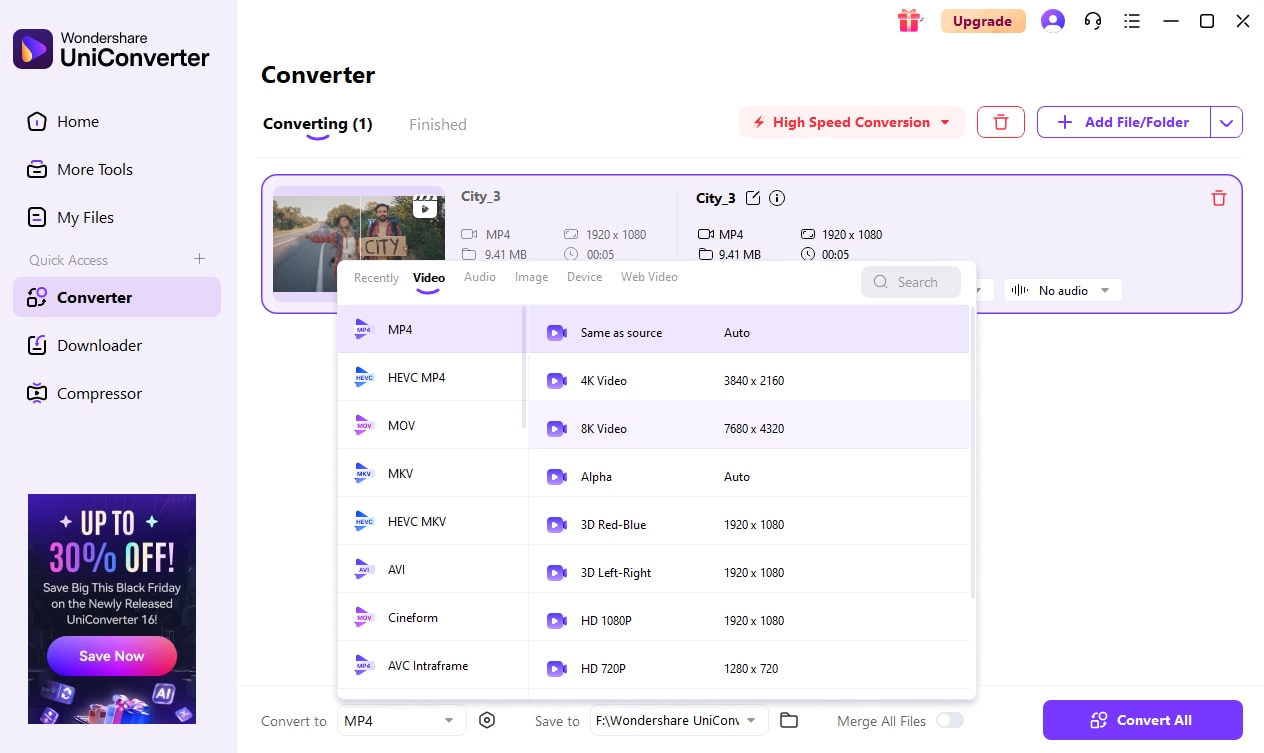
Convert a complete local video for compatibility
- Open UniConverter Converter and add the downloaded local video.
- Choose an output format/profile that your target device or player supports.
- Convert the file, then check the completed result in Finished.
Do not simply rename the file extension and call it a conversion. Changing the extension does not change the underlying container or codec. Conversion also cannot recreate an audio track that was not present in the saved source.
Compress a complete local video when file size is the problem
- Open UniConverter Compressor and add the downloaded video.
- Choose the compression settings appropriate for your target file size and playback needs.
- Compress and review the output before sharing or archiving it.
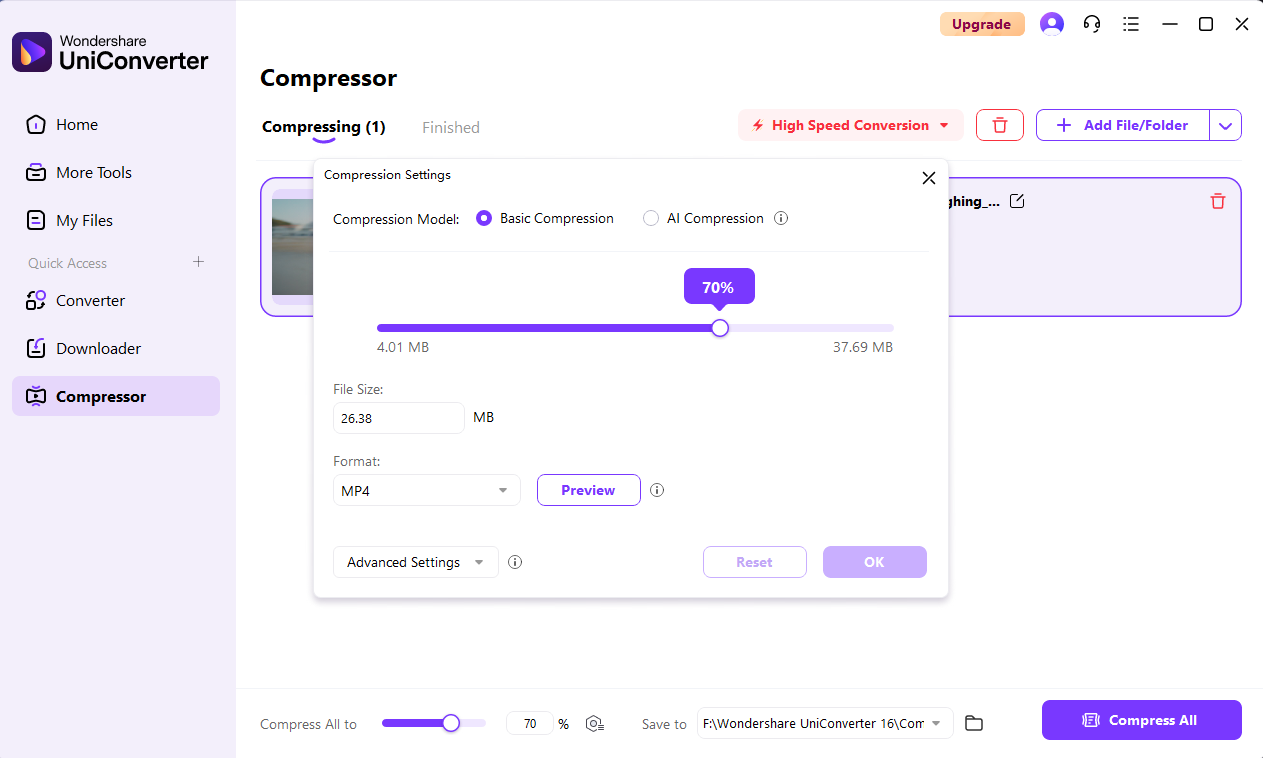
More aggressive compression can trade visual quality for a smaller file. It is a file-size workflow, not a fix for an expired link or unfinished download.