Video page URL
Use the individual Rumble video page URL. This is the best starting point for a Rumble video downloader because it identifies one item rather than a collection.
Best starting pointSave eligible Rumble videos with Wondershare UniConverter for Windows and Mac. Paste an individual public video-page URL in Downloader, review the formats and quality options the source makes available, and manage the saved file on your computer.
Desktop software. Rumble URL compatibility, available formats, and resolution depend on the source and current product support. Only save videos you own or are authorized to download.
Not every Rumble URL points to a downloadable video file. Start with the page that represents one specific video, then check whether the source is public and available.
Use the individual Rumble video page URL. This is the best starting point for a Rumble video downloader because it identifies one item rather than a collection.
Best starting pointAn embed link is designed to place a player on another page. Some tools may not recognize it as a video-page URL. Open the original Rumble page and copy its address instead.
May not be acceptedA channel page or search-results page contains multiple items, not one specific video. Open the video you have permission to save and use its individual page URL.
Choose an individual videoUse these steps for a supported, publicly accessible Rumble video that you have permission to save. The options shown in Downloader depend on the source.
Open the individual video on Rumble. Copy the address from your browser or use the page's share option to get its video-page link. Avoid channel, search, and unrelated embed URLs.
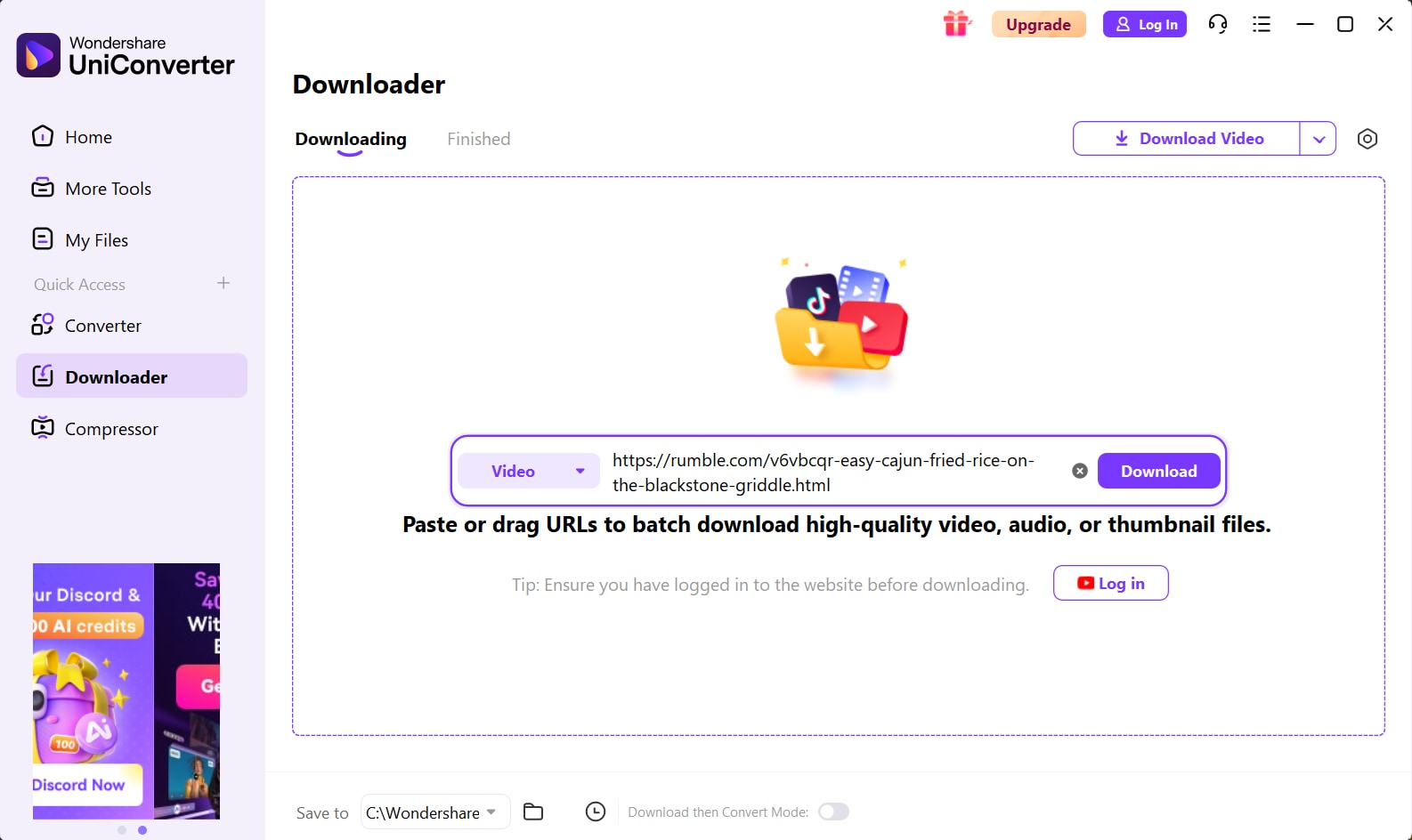
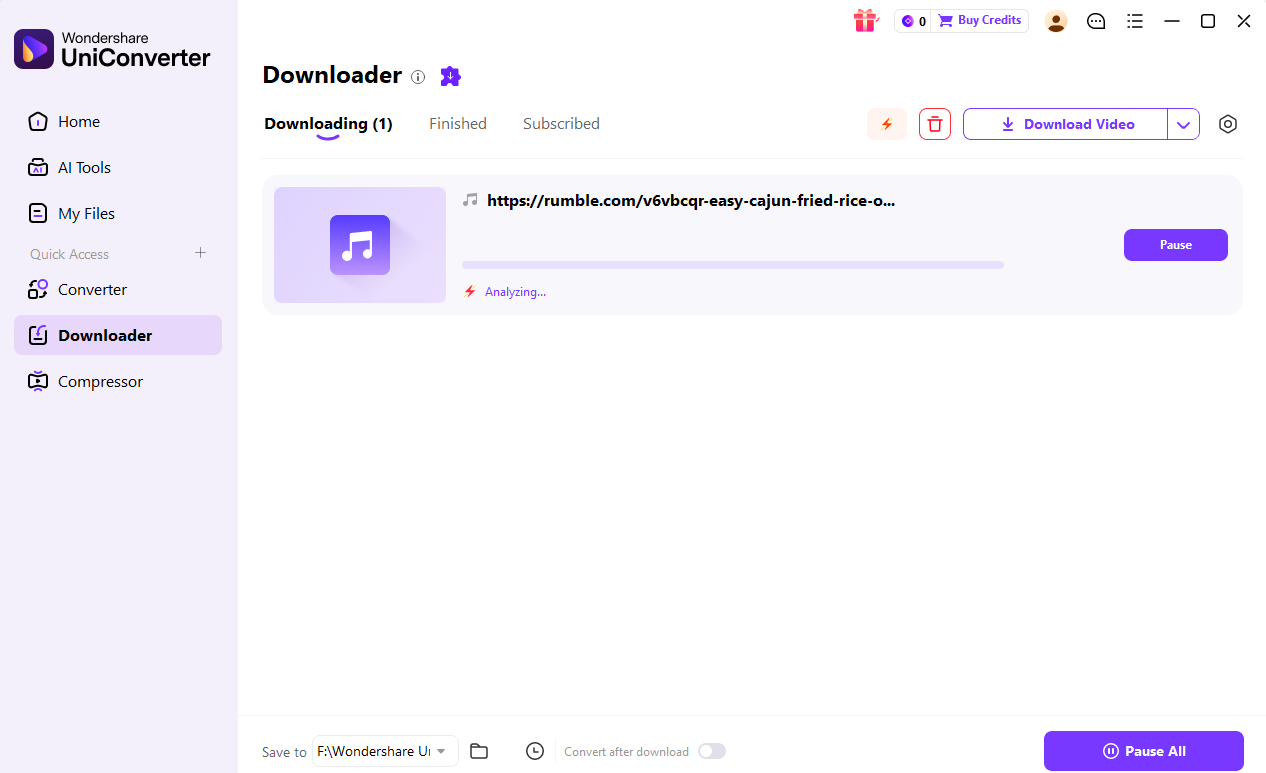
Launch UniConverter on your Windows PC or Mac and select Downloader. Paste the copied Rumble video-page URL into the link field.
Let the app analyze the link. If it is supported, review the formats and resolutions actually offered. Do not assume that every Rumble video has 1080p, 4K, MP3, or AAC available.

Choose an available option and start the task. When it finishes, open the Finished list and use the file-location control to find the saved video on your computer.

First confirm that the individual video page still opens in your browser and that you have permission to save it. If it plays in Rumble but cannot be analyzed, the source may use a delivery method or access condition that the current Downloader does not support.
Searches for rumble video download HD, MP4, and 4K often assume that every video offers the same choices. In practice, download options depend on the source rendition and what the downloader can identify.
| Option | What it means | What to check |
|---|---|---|
| MP4 | A common video container for playback and editing. | Confirm the completed file contains both picture and sound and plays in your target app. |
| HD / 720p / 1080p | Resolution choices may appear when the source provides those renditions. | Select from the options actually detected; a higher number cannot restore detail absent from the original. |
| 4K | Available only when a 4K rendition exists and the current workflow can retrieve it. | If 4K is not listed, do not assume that converting a lower-resolution file to 4K creates original 4K detail. |
| MP3 / AAC / M4A | Audio formats may be available in some tools or through a separate local conversion step. | Check whether audio-only download is actually offered. Otherwise, convert a saved local file using a supported audio workflow. |
A player can scale a lower-resolution source to fit its display. A downloader can only offer renditions it can access from the source; it cannot recover detail that was never encoded in a higher-resolution file.
A Rumble downloader online may be convenient for one short clip, while desktop and command-line tools serve different workflows. Choose based on the task, not just the number of buttons on a page.
| Route | Best suited to | Trade-offs to consider |
|---|---|---|
| Desktop downloader | Repeated tasks, local file management, and supported longer videos. | Requires installation; compatibility still depends on the source and product support. |
| Online downloader | A quick attempt to save one public video without installing software. | May have processing limits, ads, redirects, or fewer format choices. Review the site before submitting a link. |
| Browser extension | People who prefer controls inside the browser. | Check publisher, update history, and permissions. Broad access to browsing data may be unnecessary for a single-purpose tool. |
| Command-line extractor | Technical users who need explicit format selection and scripting. | Requires terminal setup and dependencies; users must understand the tool and respect platform access rules. |
This is a workflow comparison, not a claim that UniConverter has been independently benchmarked against every online service or extension.
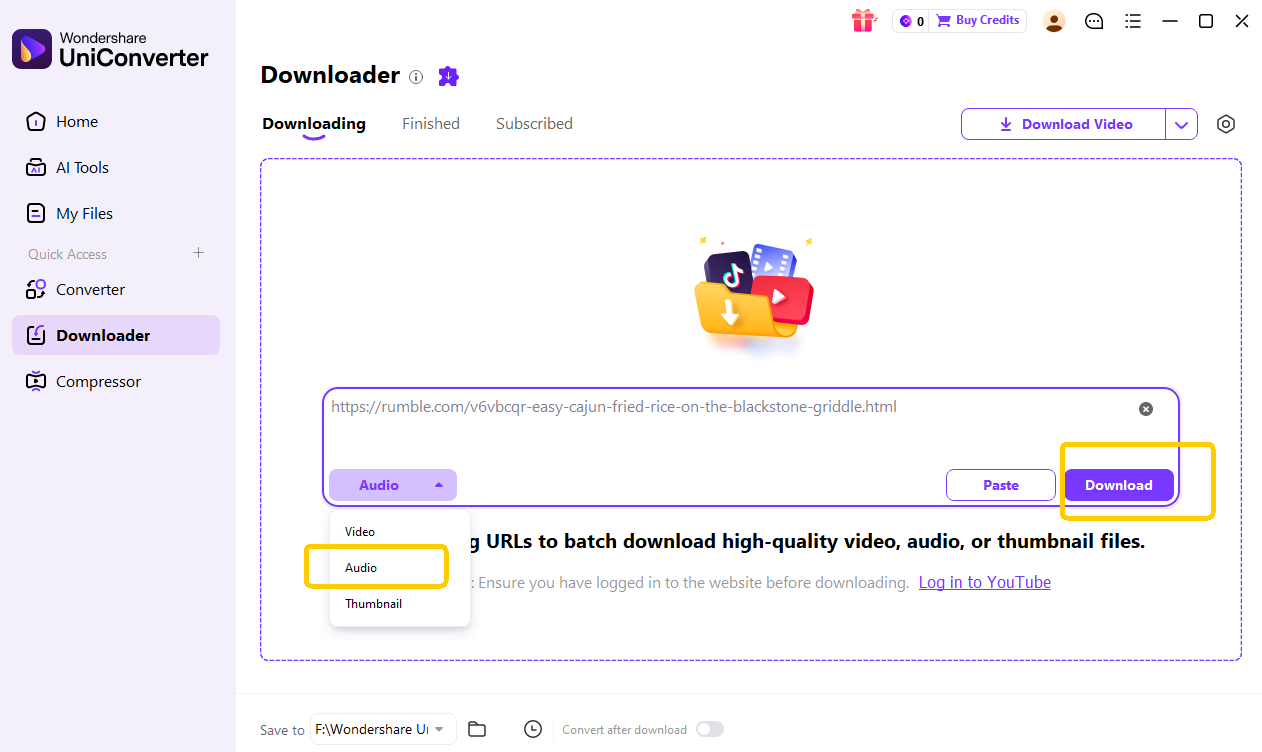
If your goal is audio rather than video, first check whether UniConverter Downloader shows an Audio option for the supported Rumble link. If it does, choose an available audio format there. If you already have a video file saved locally, use the Converter workflow to extract or convert its audio instead.
Add the saved, authorized video file to the local Converter workflow, choose an available audio output format, and export. MP3 and other output options depend on the current version and input file.
If you already have an authorized Rumble video saved locally, add it to Converter, choose an available audio format, and export. Check the output file before using or sharing it.
Converting a file does not grant rights to redistribute or reuse its content. Only process media you own or are authorized to use.
Match the symptom to the likely cause before trying another tool. A video that plays in the browser is not necessarily available to every downloader.
Possible cause: You pasted a channel, search, or embed URL instead of an individual video page, or the source is not supported.
Try: Open the specific video page, copy its address, and retry only if the video is publicly accessible and you have permission to save it.
Possible cause: The page player and a third-party downloader do not necessarily use the same supported retrieval path. Temporary delivery errors or compatibility changes can also affect results.
Try: Refresh the original page, copy its current URL, update the software, and check again. If access is restricted, use the platform's permitted options.
Possible cause: The source may not provide a higher-resolution rendition, or the current tool may not detect one.
Try: Check another authorized video to distinguish a source-specific limit from a general compatibility issue. Upscaling does not recreate original detail.
Possible cause: The output may be missing an audio stream, or the selected container/player may not handle the audio codec.
Try: Play the file in another player and inspect its audio track with a media information tool. If the local file contains no audio stream, converting it cannot restore missing sound.
Possible cause: Network interruption, source availability, file size, or a processing limit.
Try: Confirm the original video is still available, check your connection and available disk space, then retry a supported link. Avoid repeatedly submitting restricted URLs.
Possible cause: The link may be temporary, expired, copied from a transient media request, or tied to an access condition.
Try: Return to the original video page and use its current share/page URL. Do not attempt to bypass Premium, private, or other access restrictions.
Live broadcasts and completed replays are different cases. A live stream is still being delivered; a replay may need processing before a stable video page and downloadable options are available.
Do not assume a standard Rumble video downloader can capture a broadcast while it is in progress. Live capture is a different workflow from downloading a completed video, and it may not be supported by the product.
Once the creator's replay is available as an individual video page, check whether the page is public and whether the current Downloader supports its URL. Creators should also check Rumble Studio's own tools for their uploads and clips.
Separate technical access from permission to save or reuse a video. A tool accepting a URL does not mean the content is licensed for redistribution.
These answers cover issues that a basic copy-and-paste tutorial does not resolve.
Download availability can depend on the creator's settings, the type of content, and Rumble's current product experience. A public playback page does not automatically mean the creator has enabled a download option. If it is your own upload, check the creator-side tools in Rumble Studio; for someone else's video, follow the creator's permissions and platform terms.
Browser playback and third-party URL analysis are different processes. A downloader may not support the page's current delivery method, may not recognize the URL type, or may encounter a temporary source error. Start with the individual video-page URL, confirm that the page is still publicly accessible, and check the downloader's current compatibility. Do not try to bypass access restrictions.
The player may scale the available video to fit the screen, while the downloader can only offer source renditions it can detect and retrieve. Check the actual resolution of the saved file rather than judging by the player window. If the source only provides 480p, selecting a higher output resolution in a converter will upscale the image rather than restore missing detail.
A live broadcast is not the same as a completed replay. A regular page-based downloader may only work after the stream has ended and a replay is available as an individual video page. For your own broadcast, check Rumble Studio's current live and replay tools. Do not assume that a standard Downloader feature records an active stream.
A channel URL and an individual video URL represent different things. The workflow described here starts with one video page. Do not assume channel or playlist URLs are supported for batch processing unless the current UniConverter version explicitly accepts them. If you manage multiple videos you own or are authorized to save, test the individual links first and confirm the app's current queue behavior.
First determine whether the Rumble item provides an audio-only option in the downloader you are using. If you have already saved an authorized video file, you can use a compatible local media converter to extract or convert its audio when supported. MP3 availability depends on the input file and the output options in the current version; converting does not grant reuse rights.
The saved file may not contain an audio stream, or its audio codec may not be supported by the player. Test the file in another media player and inspect its streams. If no audio track was saved, a format conversion cannot recreate the missing audio; download again only through a supported and permitted workflow.
There is no universal answer for every country, video, and use. Platform terms, copyright law, creator permissions, and the purpose of the copy all matter. Personal offline viewing, archiving your own upload, and re-uploading someone else's content are not the same activity. Review the applicable terms and obtain permission where required.
Use Downloader for supported video-page links, then work with saved media in the local conversion tools available in your version.
Only download content you own or have permission to save. Compatibility and available options depend on source availability and current product support.