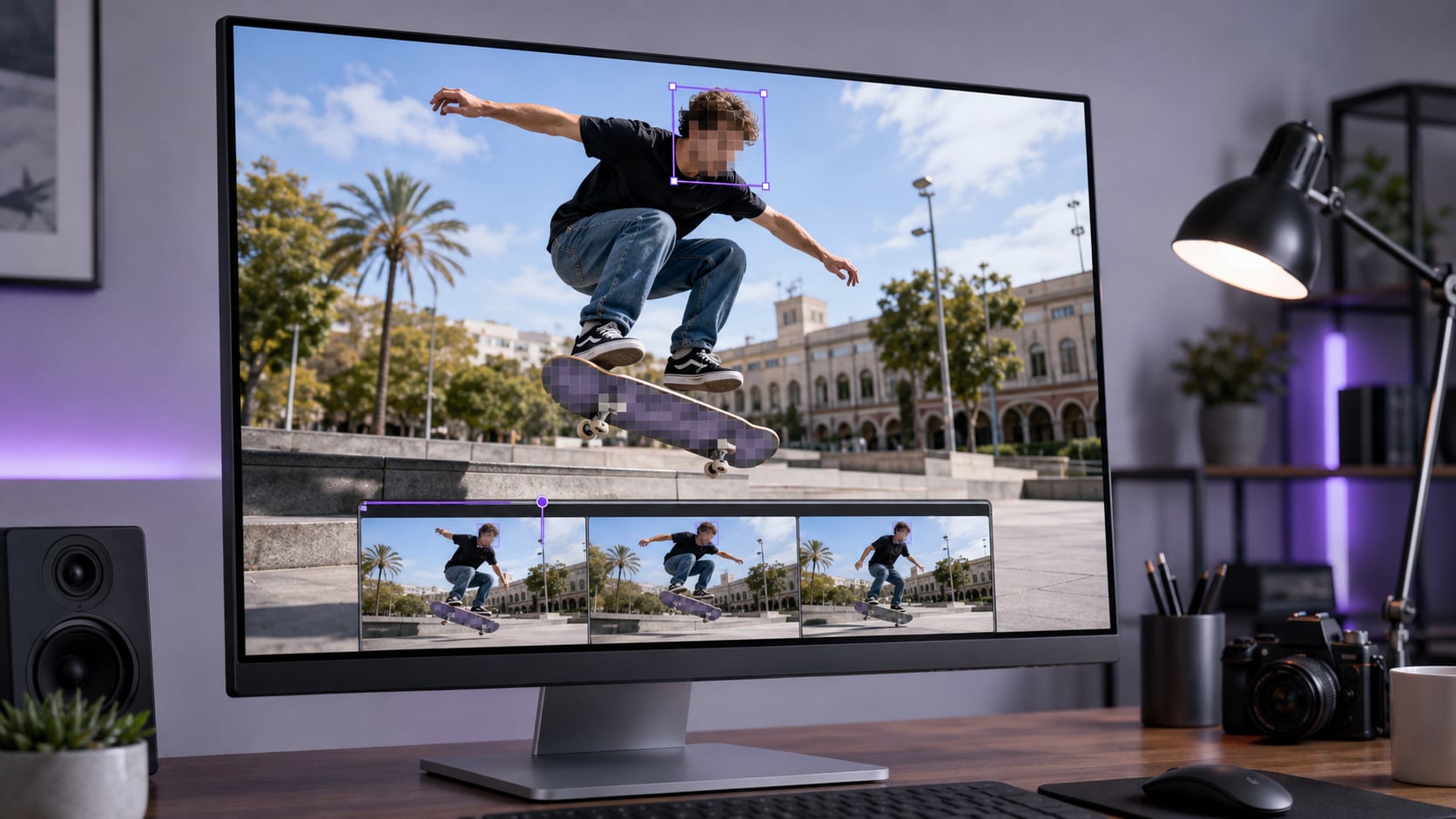
Selected Area
Pixelate part of video while leaving surrounding faces, objects, and context readable.
A video becomes pixelated when visible image detail is grouped into larger square blocks. To create the effect intentionally, select the whole frame or only the area you want to conceal, apply a pixel-style effect, adjust its strength and coverage, preview the result, and export.
In UniConverter, detected faces can be selected directly. For a license plate, screen, document, logo, or other object, draw a box around the target and let AI follow its movement. Reverse the selection when you want the subject to remain clear and the surrounding background to become pixelated.
Pixelation is not the same as lowering export resolution. A pixelated video effect deliberately changes the appearance of the selected region. The finished video can still be exported at a high resolution, including 4K.
Use the video pixelator differently depending on whether you need a privacy mask, a moving censor, a hidden background, or an obvious full-frame visual effect.
Pixelate part of video while leaving surrounding faces, objects, and context readable.
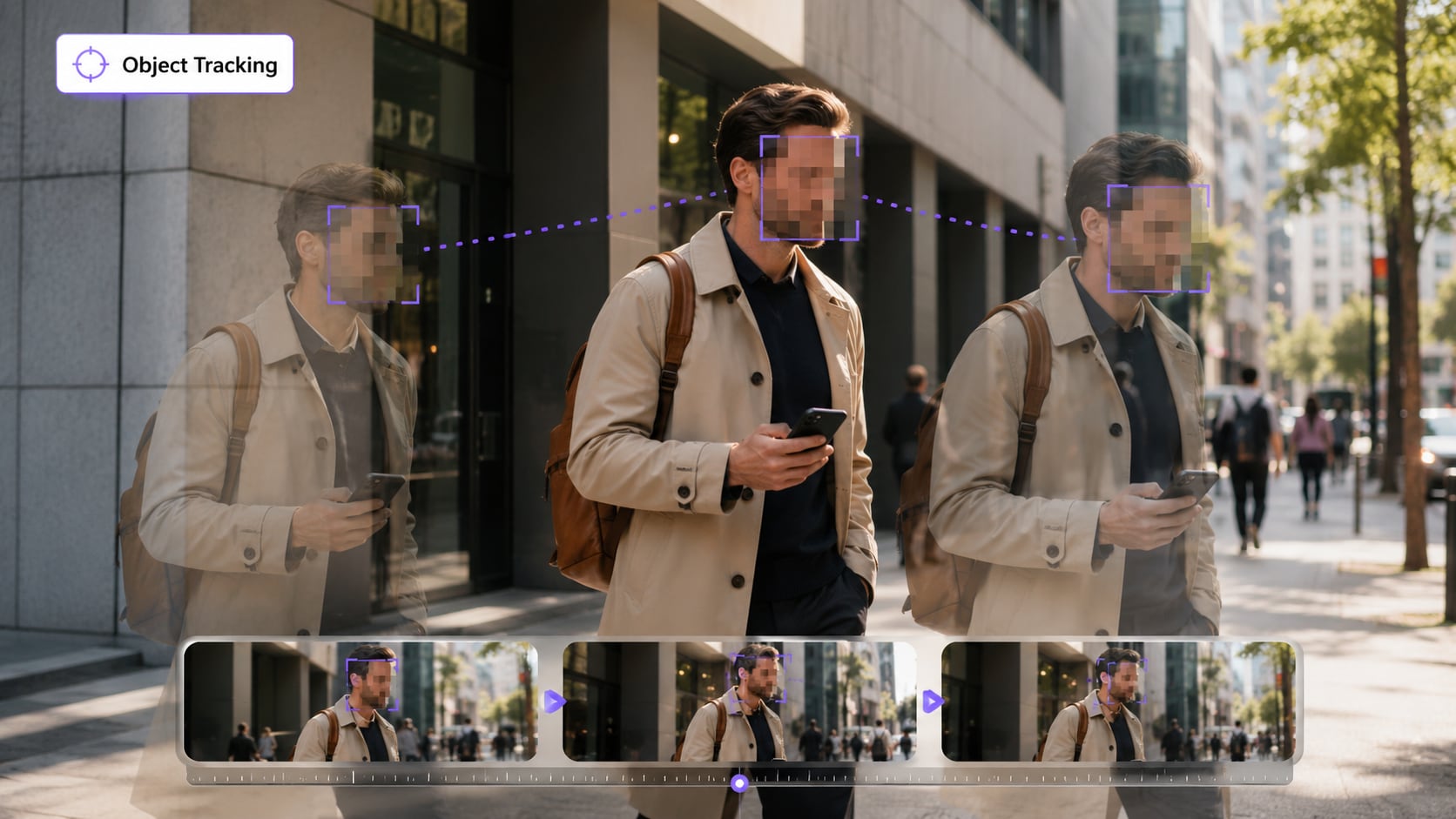
Track a person, plate, phone, badge, logo, or other selected object as it changes position.
Keep the speaker or product clear while applying the pixel effect to private surroundings.
Cover the visible frame for a censor, low-resolution look, teaser, spoiler, or retro-style edit.
The same block-based effect can make identifying details unreadable, clearly signal censorship, or give footage a deliberately digital and low-resolution appearance.
Detect people and apply a recognizable pixel censor to one, several, or all faces.
Track license plates, badges, house numbers, labels, and other identifying details.
Hide emails, usernames, order information, API keys, dashboards, or document fields.
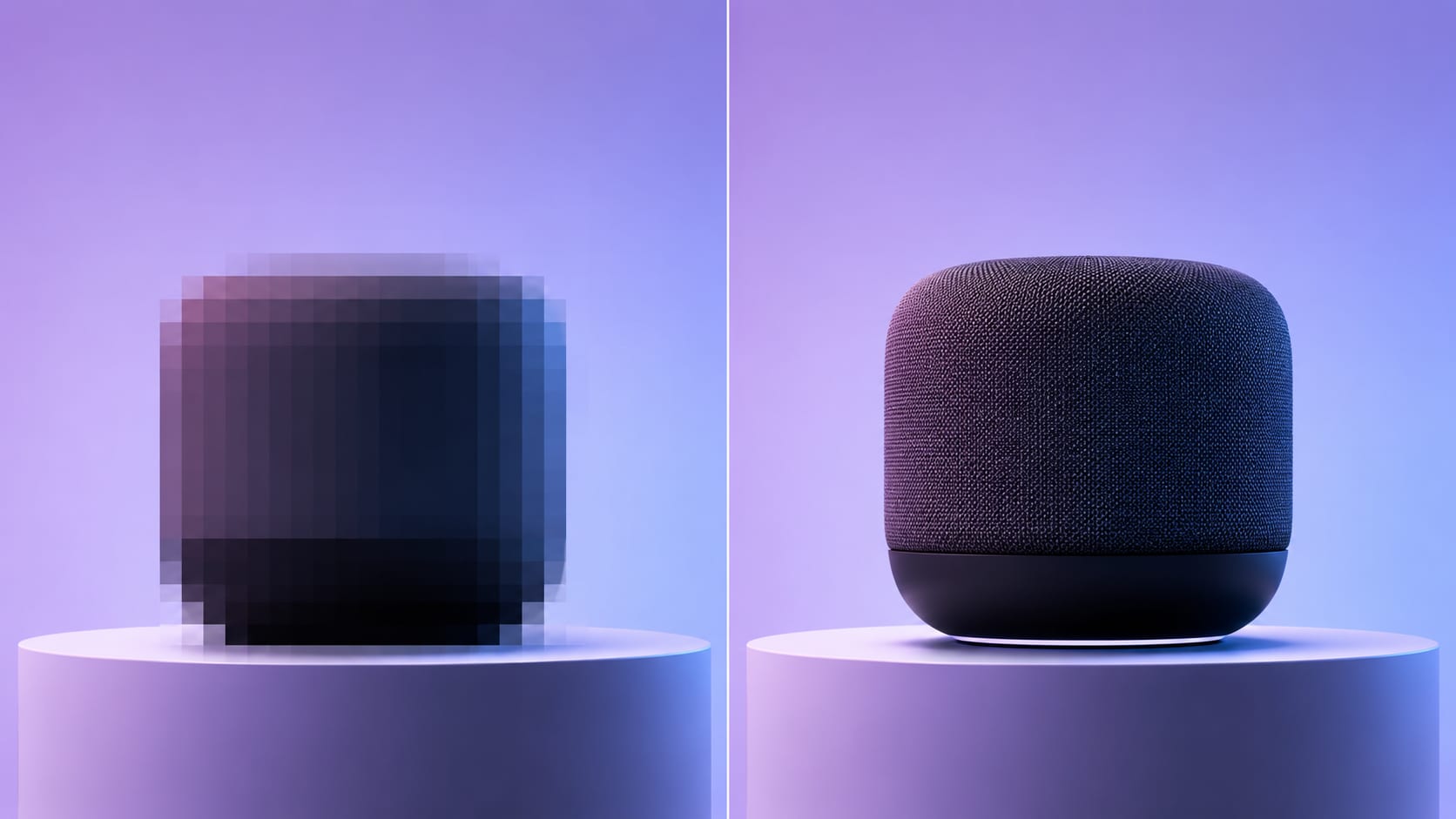
Make a product or redesign unreadable at first, then reveal the original footage later.
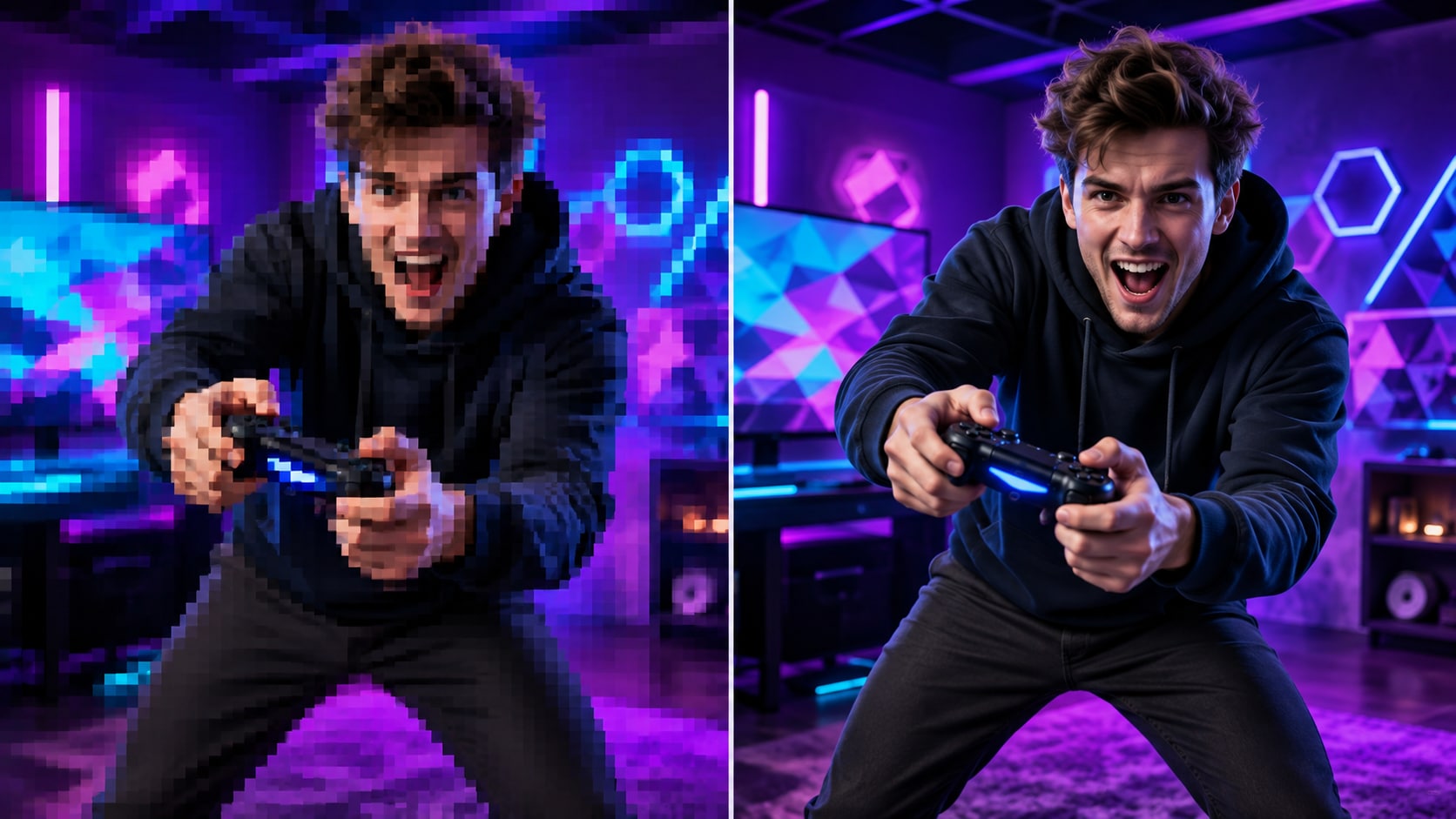
Give clips an intentionally blocky digital look for gaming, music, social, or comedy edits.
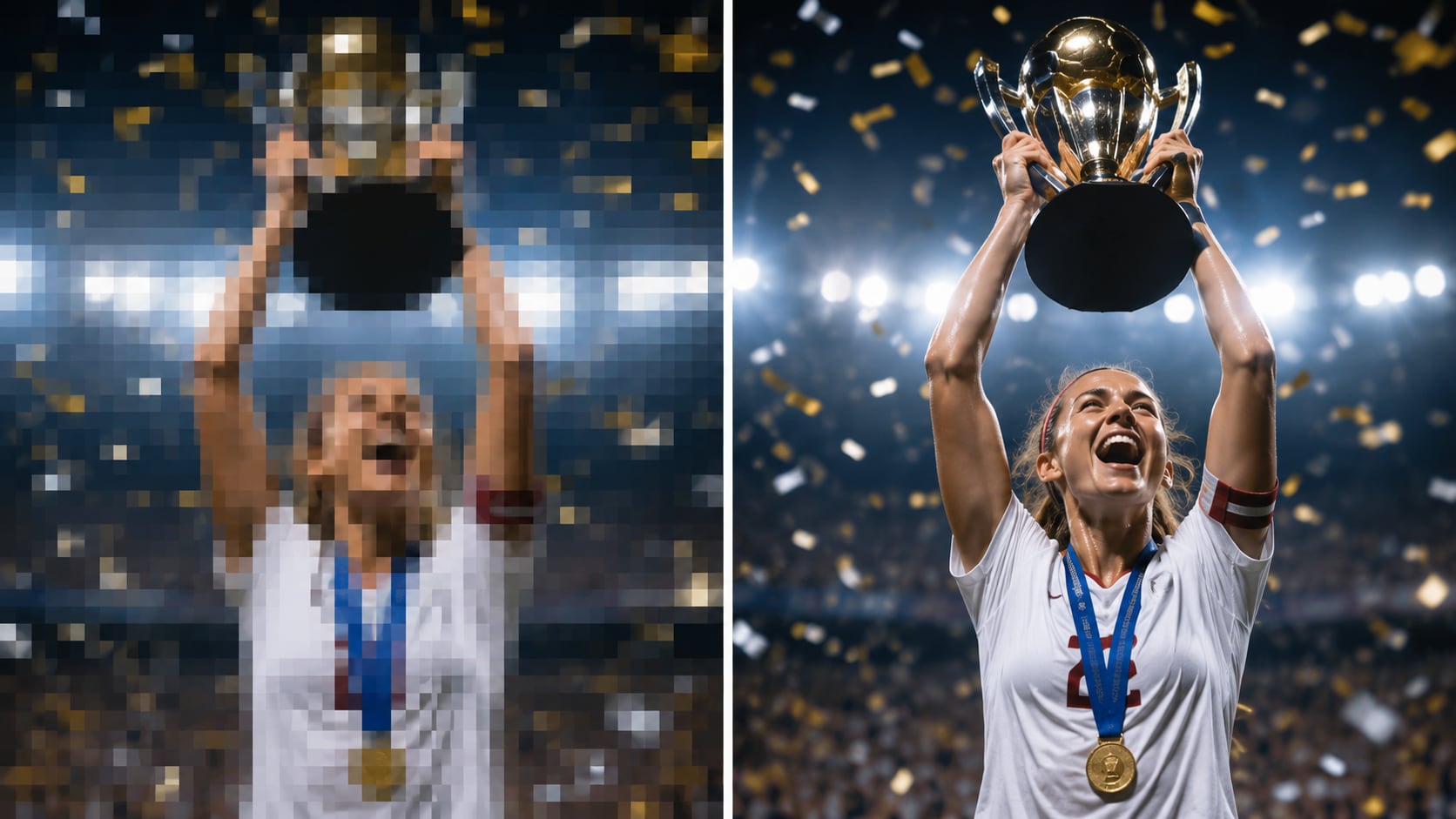
Obscure the key moment while preserving enough shape and motion to build curiosity.
A convincing pixelated video needs more than a fixed rectangle. The coverage must stay on the intended target, remain strong enough, and be reviewed before the file is shared.
Select a detected face or mark another target once. AI analyzes its motion and keeps the pixel effect aligned as the target moves across the frame.
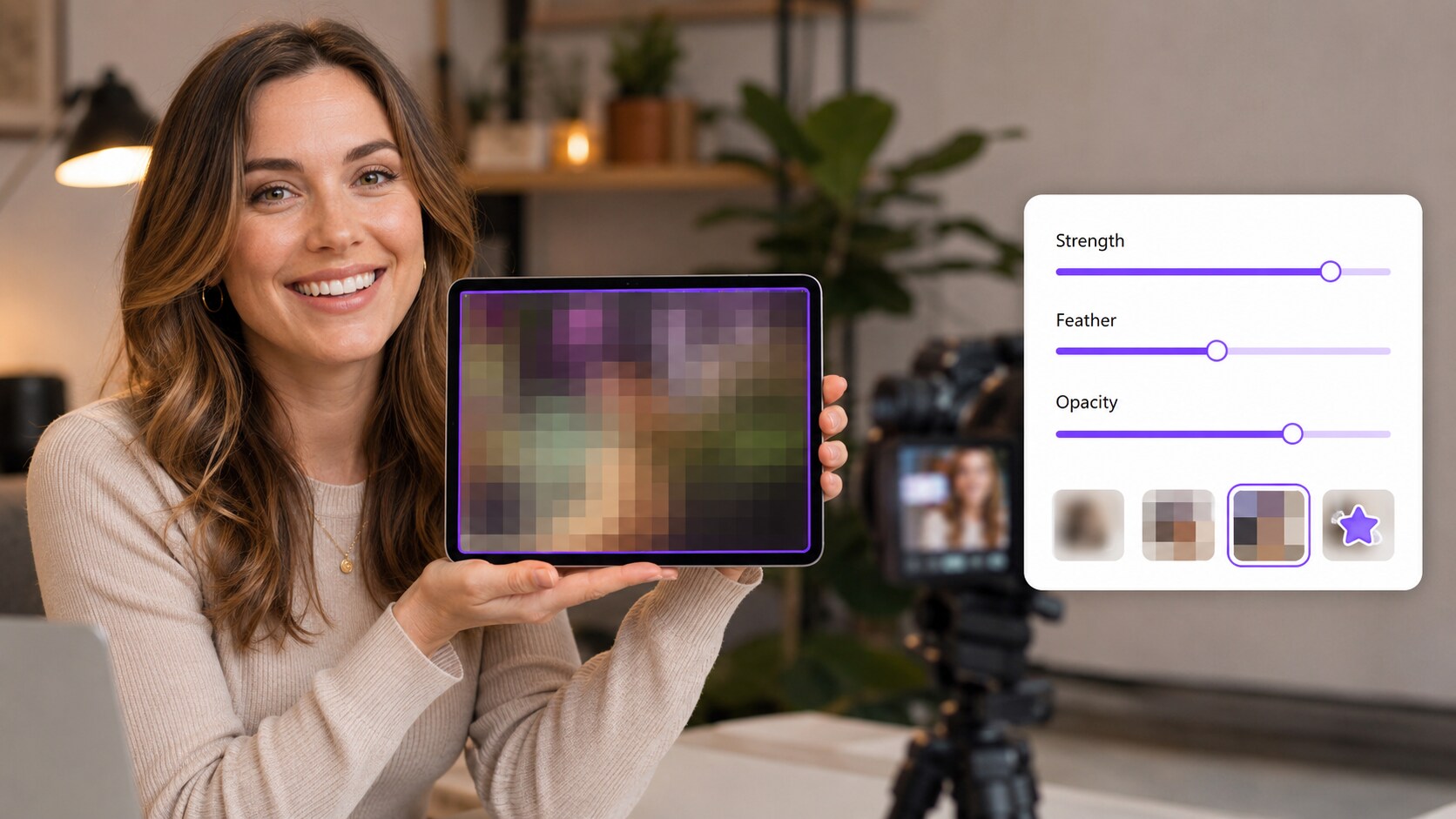
Pixelation is one of the available censor styles, alongside mosaic, softer blur treatments, and stickers. Adjust the coverage instead of accepting a fixed preset.
Check approximately five seconds of the processed result before export. This helps confirm that the target remains covered and that the effect is strong enough to hide the intended detail.
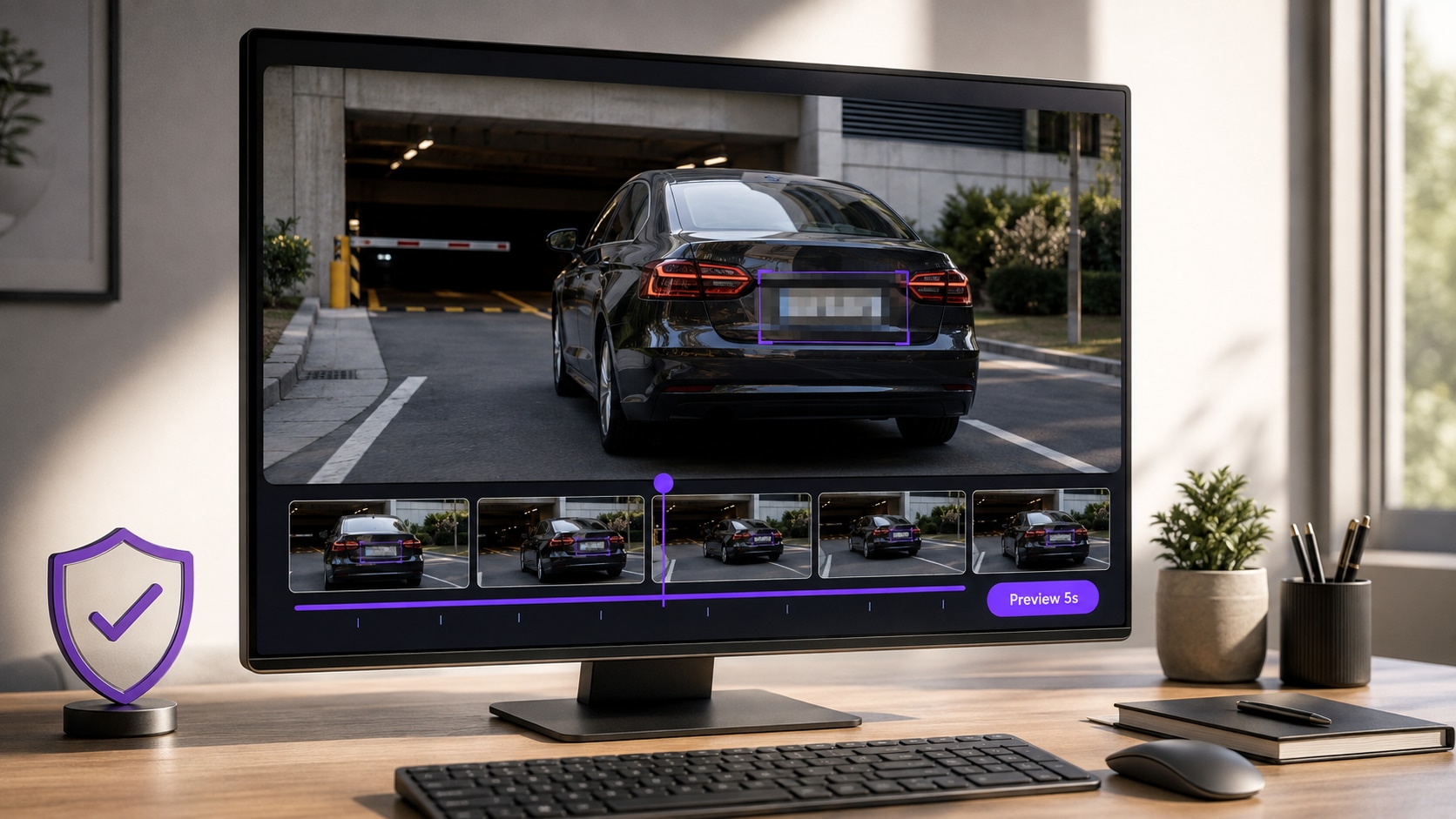
Select the person or object, choose a pixel-style effect, and verify that the censor remains aligned before exporting.

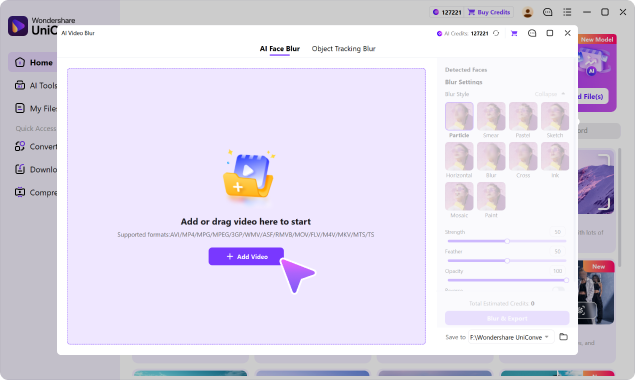
Open AI Video Blur and import your video. Choose the file you want to pixelate.

Choose a detected face or draw a box around a plate, screen, logo, text, product, or another target. Use Reverse for the surrounding background.

Select the pixel-style effect, adjust Strength, Feather, and Opacity, preview the tracking, then export the finished video.
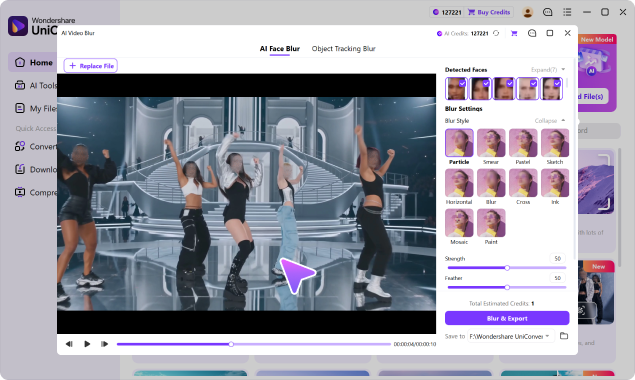
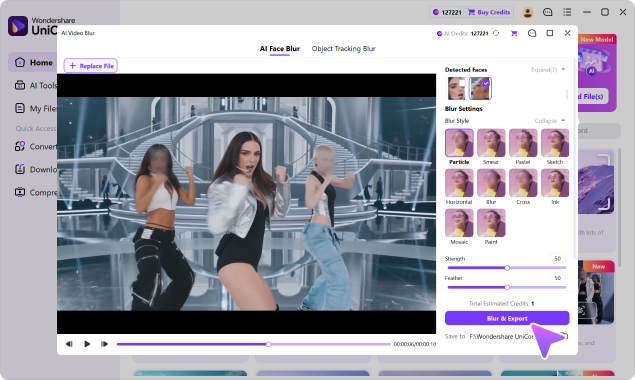
Use pixelation when viewers should clearly understand that something has been hidden—or when the blocky treatment is part of the creative idea.
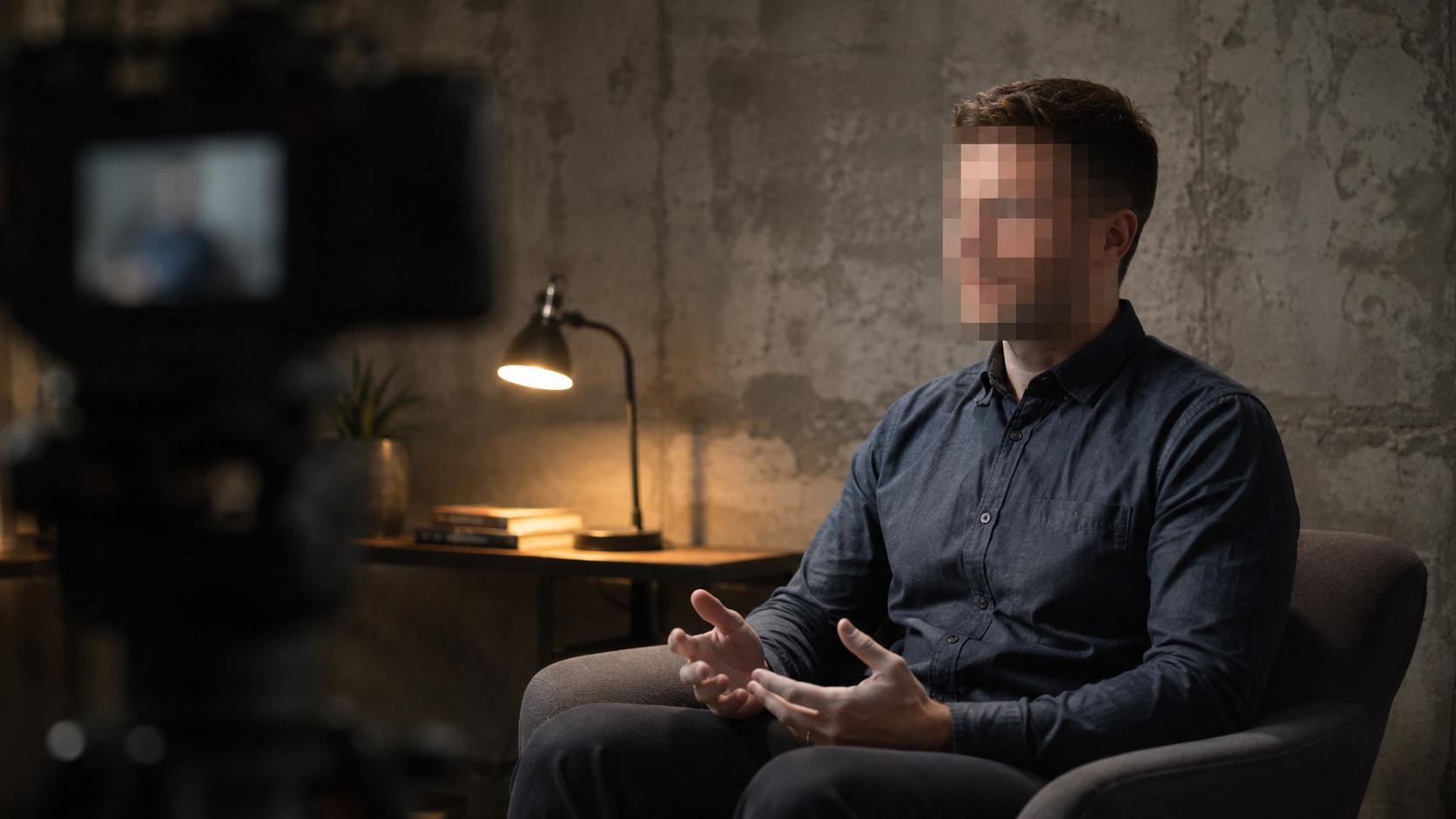
Keep a source, witness, customer, or research participant unrecognizable while preserving the setting and spoken content.
Both reduce visible detail, but they communicate differently. Choose based on how obvious the censorship should look and how the edited area should fit the scene.
| Consideration | Pixelated Video Effect | Soft Blur Effect | Mosaic / Other Censor Styles |
|---|---|---|---|
| Visual appearance | Distinct square digital blocks | Smoothly softened detail | Pattern depends on selected style |
| Best for | Obvious censorship, retro edits, spoilers, teasers | Natural-looking privacy treatment and background cleanup | Stronger or more decorative coverage |
| Viewer interpretation | Clearly signals that content was intentionally hidden | Can blend more quietly into the footage | Ranges from formal censorship to casual stickers |
| Moving target support in UniConverter | ✓ Face detection and selected-object tracking | ✓ Uses the same tracking workflow | ✓ Style can be changed after target selection |
| Adjustment controls | Strength, Feather, Opacity | Strength, Feather, Opacity | Controls vary by chosen Blur Style |
| Best final check | Confirm text and identity are no longer recognizable | Confirm softened detail cannot still be read | Confirm full target coverage throughout motion |
A basic filter can make the whole frame blocky. UniConverter is designed for more selective work where the pixelated area must follow a person or object and sensitive originals should stay local.
| Capability | UniConverter AI Video Blur | Basic Full-Frame Pixel Filter | Traditional Video Editor |
|---|---|---|---|
| Pixelate the whole visible frame | ✓ Select full-frame coverage | ✓ Typical use | ✓ Effect dependent |
| Pixelate one specific part | ✓ Select face or object area | Often limited | ✓ Mask required |
| Automatically follow movement | ✓ AI face and object tracking | Usually no | Tracking or keyframes required |
| Process unredacted footage locally | ✓ Desktop workflow | Depends on provider | ✓ In desktop editors |
| Large and 4K source videos | ✓ 4K, no file-size limit | Browser limits may apply | Depends on editor and hardware |
| Batch import | ✓ Up to 20 videos | Often one file at a time | Workflow dependent |
| Continue post-production | ✓ Convert, trim, compress, edit, enhance | Usually task focused | ✓ Full editing workflow |
| Setup for a tracked censor | Low | Low only for full frame | Medium to high |
Use the pixel effect inside a broader desktop media workflow rather than moving sensitive footage between separate upload, download, and editing tools.
Work with MP4, MOV, AVI, MKV, M4V, WMV, FLV, MTS, TS, 3GP, and other commonly used formats supported by the feature.
Select the relevant file, choose the area and pixel style, preview the result, then continue with the other video tasks needed for publishing or delivery.
Direct answers about full-frame effects, local pixelation, moving targets, privacy strength, export resolution, and the difference between pixelation and blur.
Import the footage into UniConverter AI Video Blur, select a face or draw a box around another target, choose a pixel-style effect, adjust Strength, Feather, and Opacity, preview the coverage, and export.
Select only the region you want hidden instead of covering the whole frame. Use face detection for people or draw an object box around a plate, screen, text, logo, document, or other specific area.
Yes. UniConverter automatically detects faces and tracks user-selected objects, keeping the pixelated area aligned as the target changes position.
Yes. Set the selection to cover the visible frame when you want a full-screen pixelated video effect for censorship, a retro look, spoilers, or a product reveal.
Not necessarily. Pixelation is an intentional visual effect applied to the selected area. UniConverter can still export the finished video at high resolution, including 4K.
Pixelation turns detail into visible square blocks and makes censorship obvious. Soft blur smooths detail and usually blends more naturally into the scene. Both must be strong enough to make sensitive information unreadable.
Yes. Select the subject and use Reverse to keep that subject clear while applying the chosen effect to the surrounding background.
UniConverter supports importing up to 20 videos into the batch workflow. Review the target and effect for each clip before processing the queue.
Only if the effect fully removes recognizable or readable detail. Preview faces, text, plates, and screen information carefully and increase the Strength when any identifying information remains visible.
No. UniConverter works on Windows and macOS, so unpixelated source footage can remain in a local desktop workflow instead of being uploaded to an unfamiliar online tool.

Track faces and objects, create a clear pixelated effect, preview the coverage, and finish your video in one local desktop workflow.