A Fixed Area
Select a static screen corner, document field, sign, address, or label and cover only that region.
To blur a part of a video, select the region you want to hide, choose a blur style, and keep the selection aligned if the target moves. UniConverter AI Video Blur handles that movement with two options: AI Face Blur mode detects faces and lets you choose one, several, or all detected faces, while Object Tracking Blur mode lets you draw a tracking area around a license plate, logo, screen, document, product, or another non-face target. The selected face or object stays covered as it moves, while the rest of the frame remains clear.
This method keeps the rest of the picture clear and works for faces, license plates, usernames, documents, signs, screens, logos, labels, and other specific details.
“Part of a video” can mean two things: a region inside the frame or a short section on the timeline. AI Video Blur handles the selected visual region. If the blur should appear only during one passage, isolate that passage with UniConverter’s trimming or editing workflow and apply the blur to the relevant clip.
The right method depends on whether the detail stays still, moves across the screen, appears more than once, or sits outside the subject you want to keep clear.
Select a static screen corner, document field, sign, address, or label and cover only that region.
Box a license plate, badge, phone, logo, or another target and let AI keep the blur aligned.
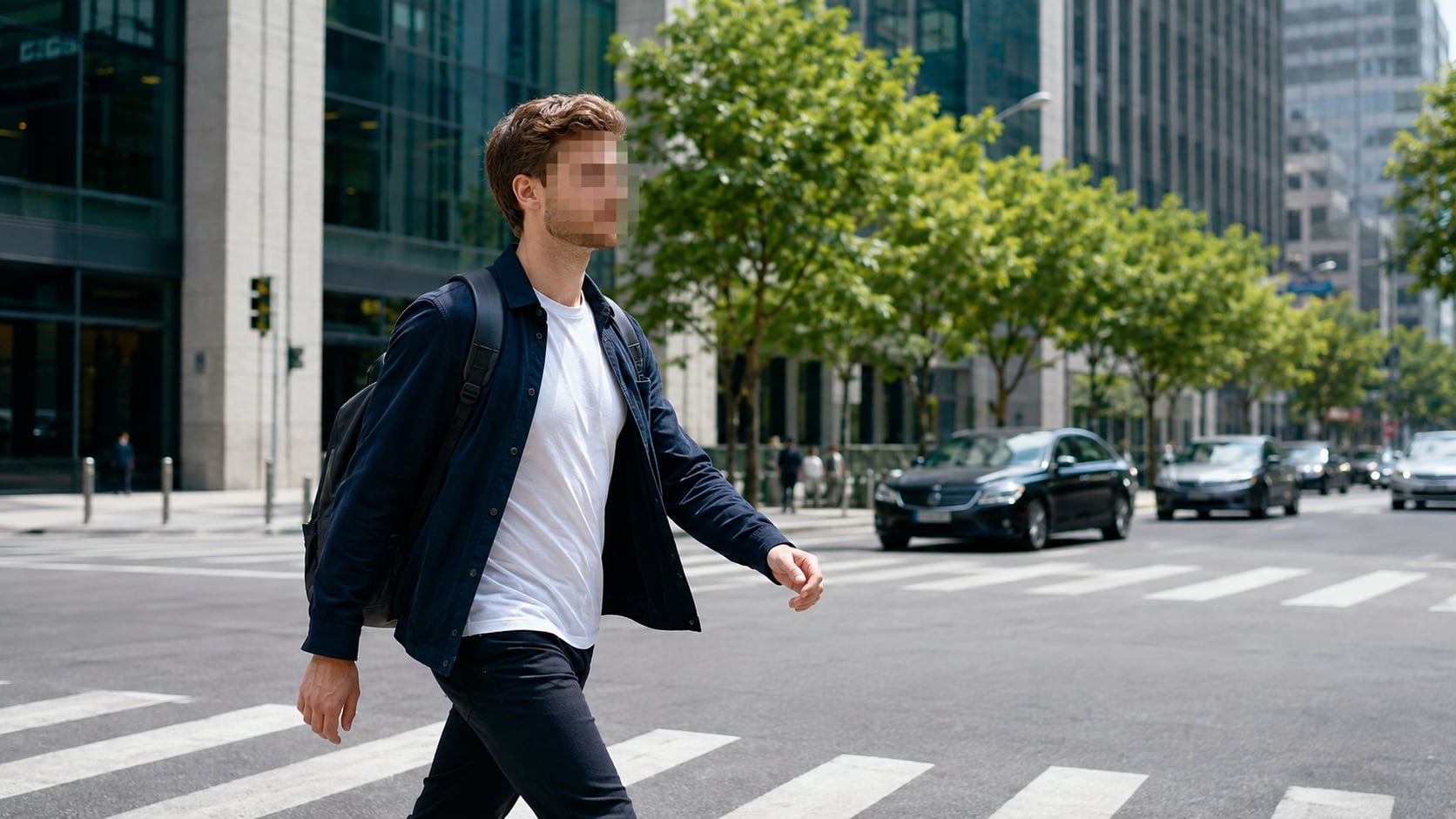
Let AI detect people, then choose a specific person, several people, or every detected face.
Reverse the selection to preserve the subject and blur a video background.
Choose the detail that creates a privacy, compliance, or presentation problem, then apply the right tracking and blur settings without hiding the useful parts of the shot.
Detect people automatically and blur faces in video selectively or all at once.
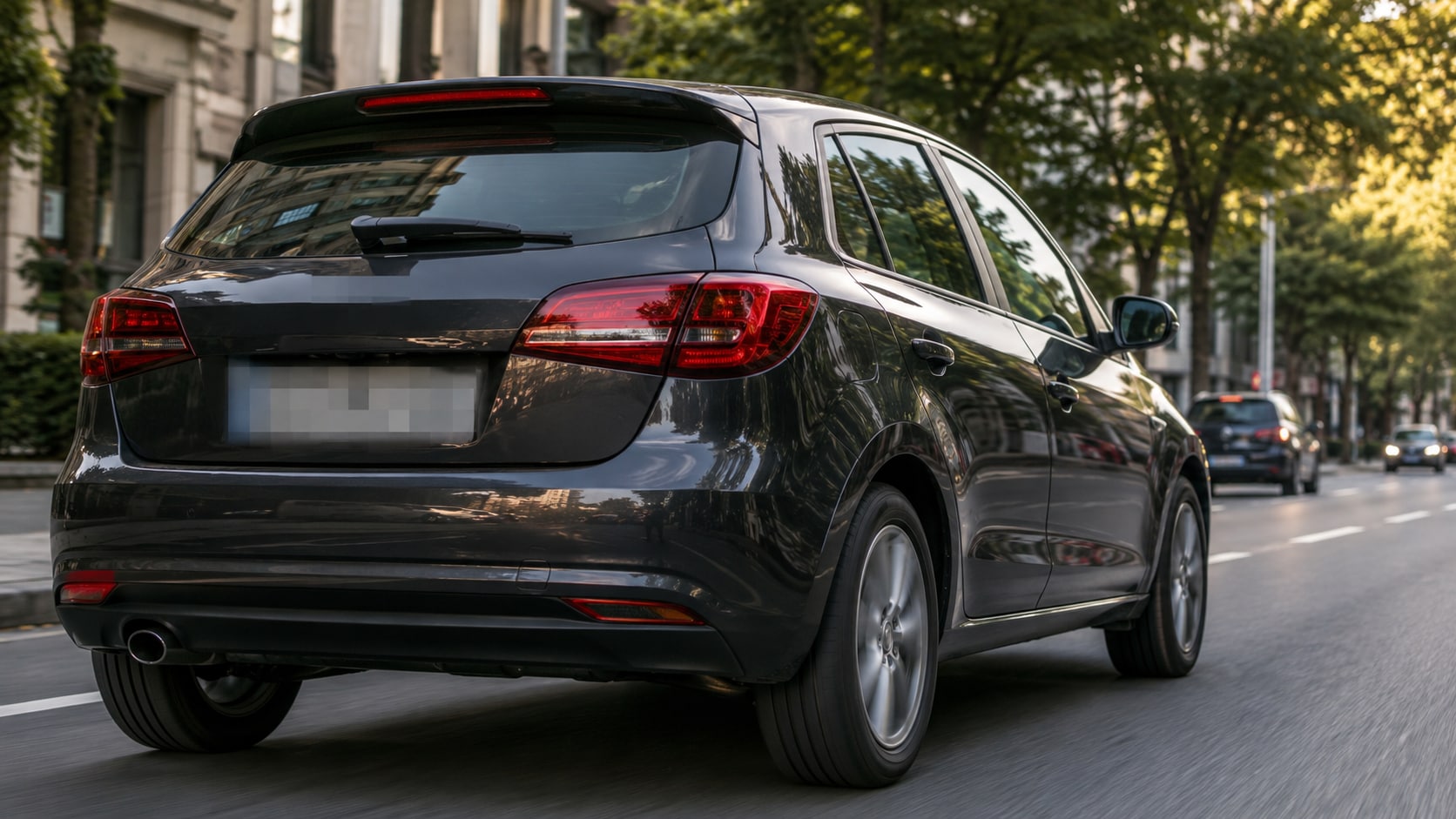
Draw a tracking area around a plate and keep the blur aligned with the moving vehicle.
Hide emails, usernames, dashboards, order data, API keys, and internal product details.
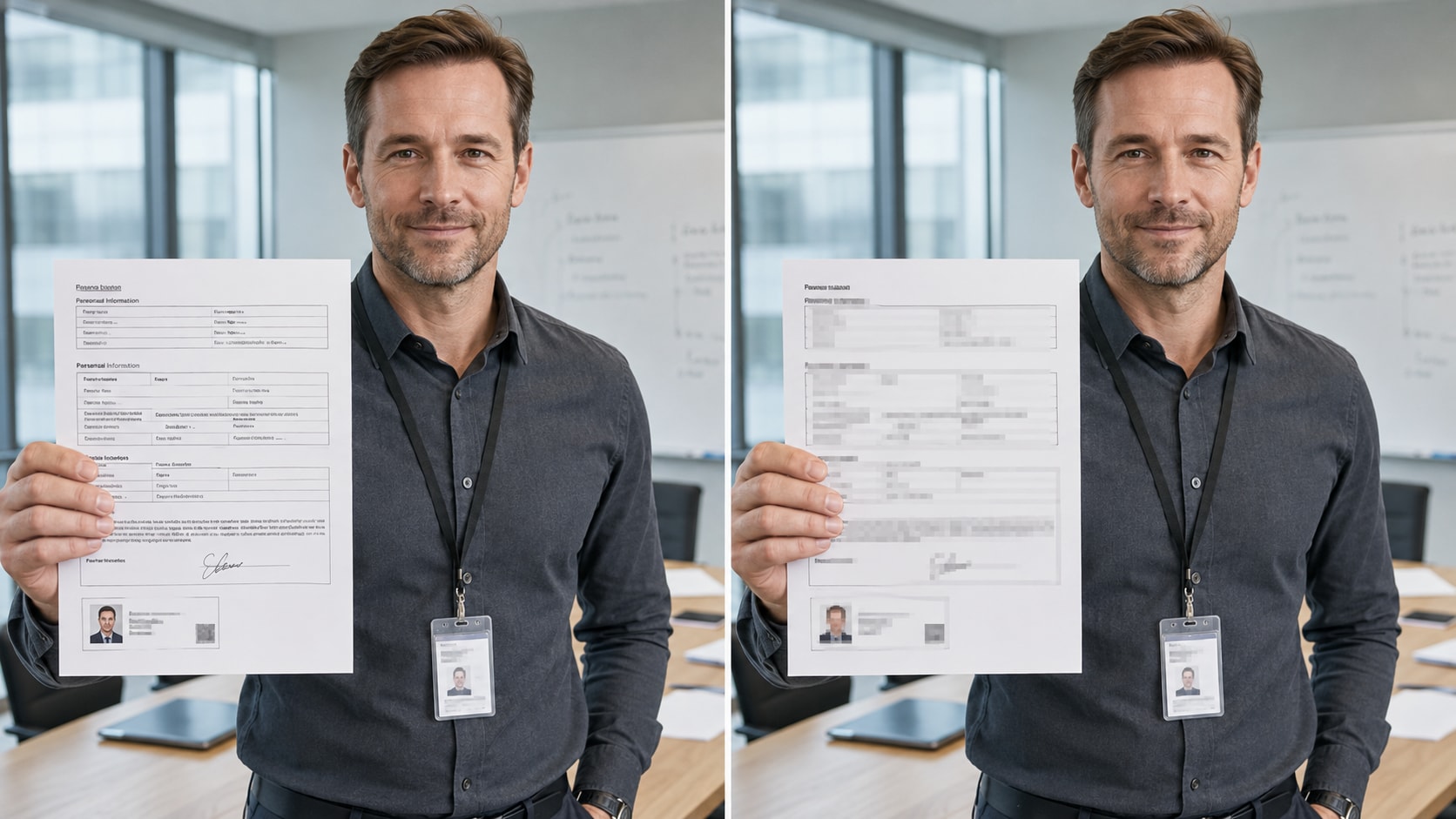
Blur names, addresses, forms, whiteboards, contracts, shipping labels, or ID badges.
Conceal an outdated brand mark, product label, platform graphic, or other unwanted detail.
Reverse the selected area to hide surroundings while preserving the main person or product.
A fixed blur works only when the target stays still. UniConverter’s blur video editor follows the selected face or object when its size, angle, or position changes across the clip.
Let AI detect faces automatically, or draw one tracking area around another target. UniConverter analyzes the selected face or object and updates the blur position through the footage.
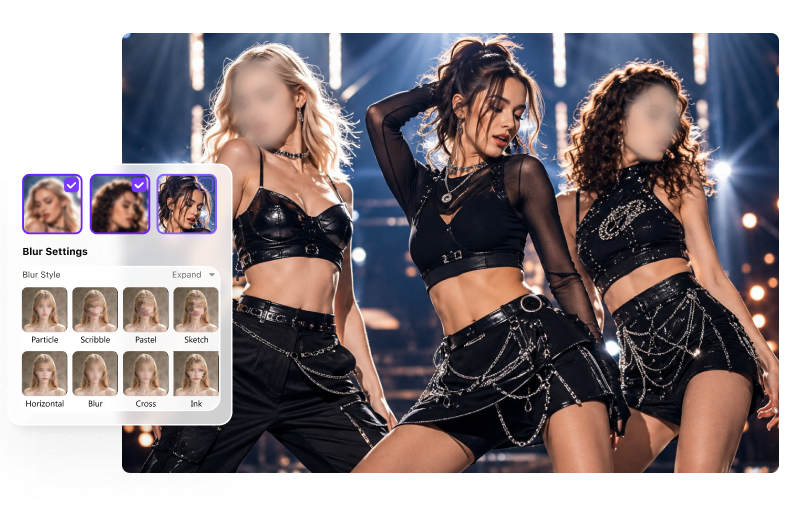
Choose Particle, Smear, Pastel, Sketch, Horizontal, Blur, Cross, Ink, Mosaic, or Paint in Blur Settings. Then refine how the selected effect covers and blends around the target.
Unblurred footage can contain faces, addresses, screens, customer data, or confidential documents. UniConverter processes the source video in its desktop workflow and lets you preview the tracking and coverage before export.
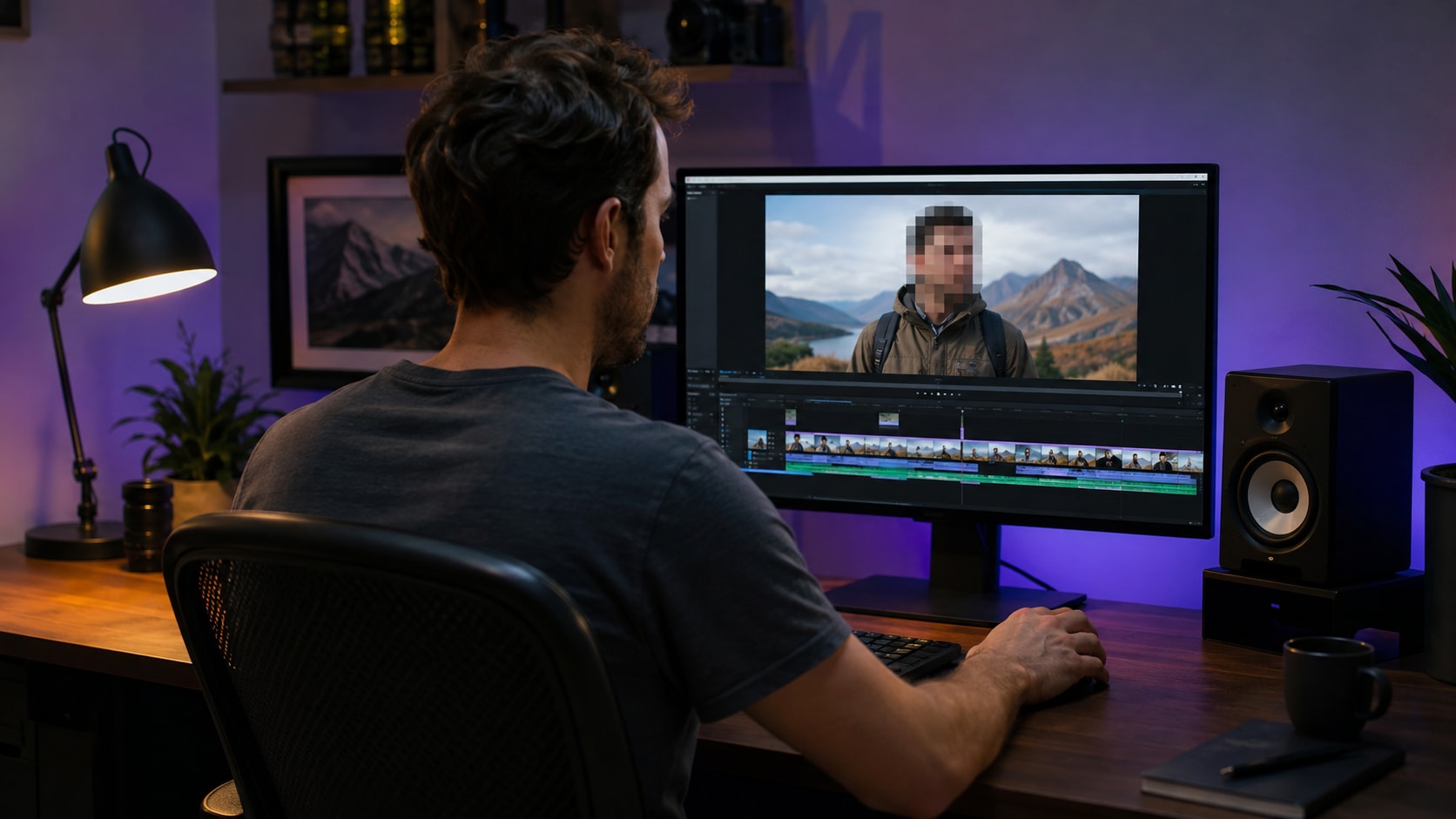
Import the clip, select the face or object that needs hiding, customize the effect, and confirm that the blur stays aligned before export.

Open AI Video Blur and import the footage containing the area, person, or object you need to hide.

Choose AI Face Blur and select one, multiple, or all detected faces. For a plate, screen, text, logo, label, or another object, choose Object Tracking Blur, click Add Tracking Area, and draw around the target.

Choose a Blur Style, adjust Strength, Feather, and Opacity, use Reverse when needed, and preview the tracking before export.
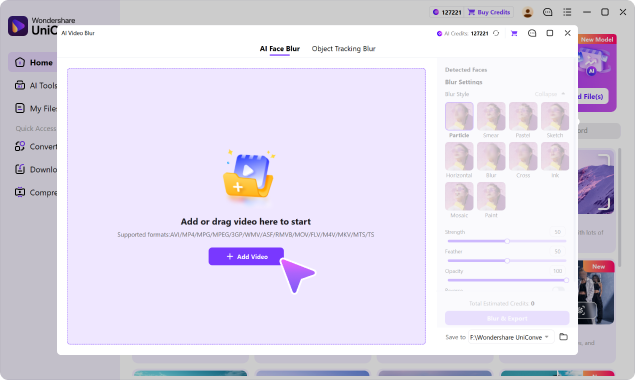
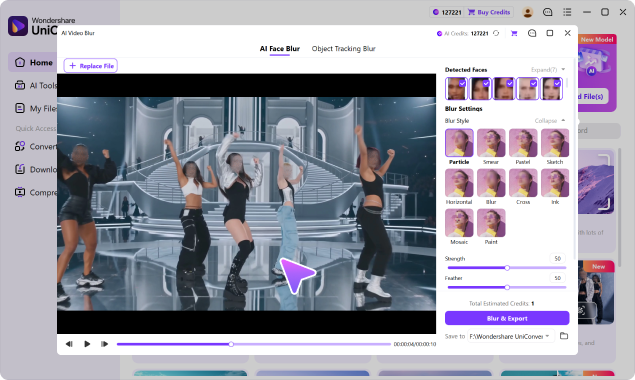
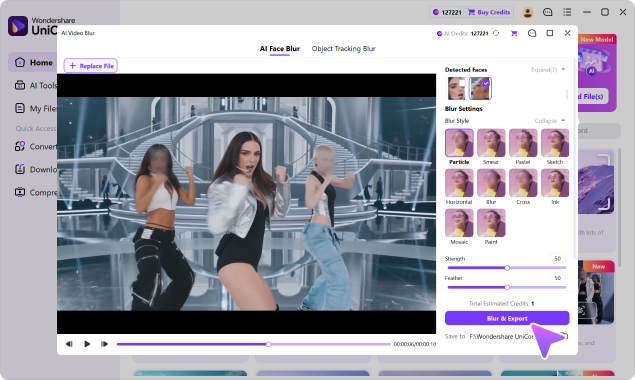
Blur out a part of video when one recognizable detail prevents otherwise useful footage from being published, shared, taught, reviewed, or reused.
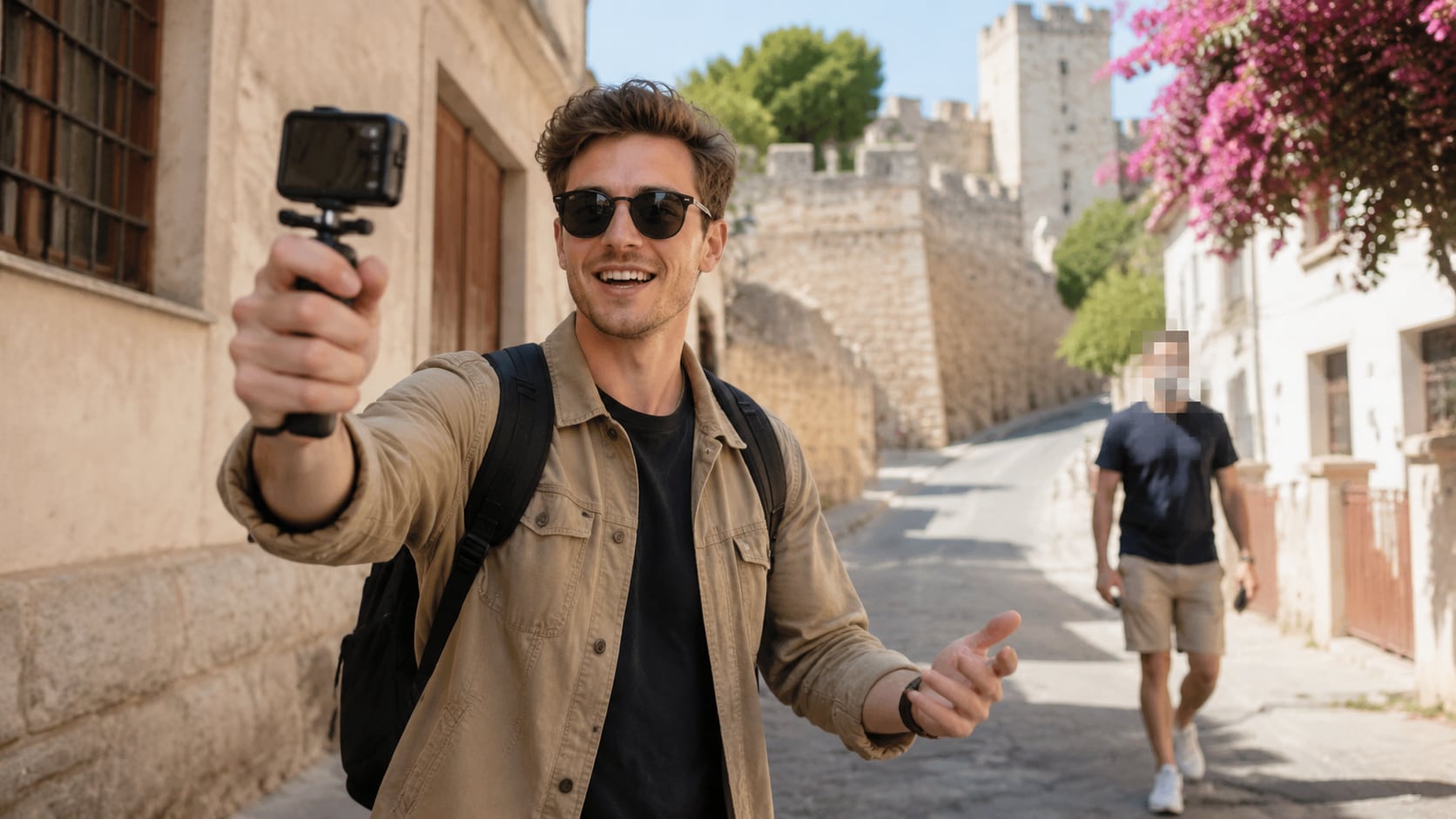
Blur a bystander, child, username, address, or passing plate without softening the creator or the rest of the scene.
All three methods can conceal a video part, but they differ once the target moves, the footage is sensitive, or the blur needs visual refinement.
| Capability | UniConverter AI Video Blur | Fixed Blur Layer / Crop | Traditional Mask & Keyframes |
|---|---|---|---|
| Select only one part of the frame | ✓ Detected face or custom tracking area | ✓ Static area | ✓ Custom mask |
| Follow a moving face | ✓ Automatic detection and tracking | Manual repositioning required | Tracking or keyframe setup required |
| Follow a selected non-face object | ✓ User-defined tracking area | Manual repositioning required | Tracking or keyframe setup required |
| Blur several detected faces | ✓ Select specific or all faces | Separate layers or masks | Separate masks and tracking work |
| Blur Style choices | 10 styles, including Blur, Mosaic, Smear, and Paint | Depends on editor | Flexible but setup varies |
| Fine-tune the edge and coverage | Strength, feather, opacity | Basic controls vary | Detailed manual controls |
| Handle unblurred sensitive source footage | Local desktop workflow | Depends on the tool | Local in desktop editors |
| Skill and setup required | Low | Low for a static region | Medium to high |
Fixed-layer and traditional-editor capabilities vary by product. The comparison describes common workflows rather than every available editor.
Import a common video file, blur the specific region that needs protection, review the coverage, and continue with the rest of the post-production process.
AI Video Blur supports MP4, MOV, AVI, MKV, M4V, WMV, FLV, MTS, TS, 3GP, and other commonly used formats supported by UniConverter.
Keep the blur task inside a broader desktop workflow. Trim or edit the relevant clip, select the private area, preview tracking, then convert, compress, enhance, or export as needed.
Direct answers about selected areas, moving targets, multiple faces, timeline sections, local processing, and blur controls.
Open AI Video Blur and import the clip. Select a detected face, or add a tracking area around another target. Choose the blur style, preview the movement and coverage, and export. Only the selected part is blurred while the rest of the frame remains clear.
Yes. Select the moving face or draw a tracking area around another target. AI keeps the blur aligned as the selected face or object changes position, without frame-by-frame keyframing.
You can blur faces, license plates, screens, usernames, emails, addresses, documents, signs, logos, labels, ID badges, whiteboards, and other visible details. Non-face targets must be selected before AI tracks them.
UniConverter can detect multiple faces so you can choose one, several, or all of them. For non-face details, add the required tracking areas and preview every blurred region before export.
If the sensitive detail appears only during one passage, isolate that interval with UniConverter’s trimming or editing workflow, apply AI Video Blur to the relevant clip, and then continue the edit. This separates a time-based section from a visual area inside the frame.
Faces are detected automatically. A non-face object is not chosen automatically: click Add Tracking Area and draw around a license plate, screen, logo, document, or another target, then AI follows that selected object through the footage.
Yes. Choose Mosaic for pixelated coverage, or select Particle, Smear, Pastel, Sketch, Horizontal, Blur, Cross, Ink, or Paint. Adjust Strength, Feather, and Opacity to control how strongly the selected portion is concealed.
Yes. Use Reverse to invert the selected area. The chosen subject stays clear while the surrounding background is blurred.
No. UniConverter AI Video Blur works in the Windows and macOS desktop application, so the source footage can be processed locally instead of being repeatedly uploaded to an unfamiliar online blur site.
Yes. Preview the result to check the selected region, motion tracking, edge coverage, and blur strength. Adjust the target or effect settings before exporting the final video.

Hide the exact face, object, or private detail that should not be shared, keep the blur aligned through movement, and preview the coverage before export.