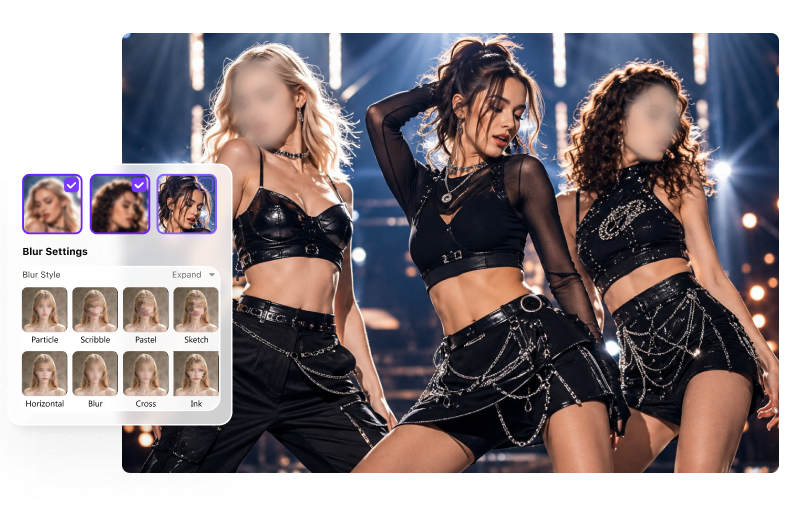
Faces, license plates, logos, usernames, screens, documents, addresses, and other private details.
Quick Answer
What Does a Blur Video Editor Do?
A blur video editor hides or softens selected visual information in a video. A capable AI video blurring software can identify faces, follow a moving target, blur the background, and keep the effect aligned over time—without asking the editor to reposition a mask on every frame.
Face detection finds people automatically, while object tracking follows a target selected by the user.
To protect privacy, censor sensitive content, reduce distractions, or create a softer background behind a subject.
Choose Your Blur Task
One Video Blur Tool for Faces, Objects, Backgrounds and More
Use the same blur video maker for privacy editing and creative focus. Select a task below, then let AI handle the repetitive tracking work.
Blur Faces Automatically
Scan the clip, review detected faces, and choose one person, several people, or every detected face.
Blur a Moving Object
Box a plate, logo, label, badge, screen, or other target once. AI tracks the selected object and keeps the blur attached as it moves.
Blur the Video Background
Reverse the selected area to preserve a clear subject and soften private or distracting surroundings.
Hide Sensitive Information
Cover emails, API keys, order data, addresses, documents, whiteboards, and other information before sharing a recording.
Pixelate or Censor Video
Switch between mosaic, pixel, soft blur, and sticker effects, then adjust strength, feather, and opacity for the right coverage.
Blur Multiple Videos in a Batch
Add several clips, review the target and effect for each file, and run one multi-video processing and export workflow.
Less Manual Work, More Control
A Video Editor for Blurring Without a Complex Timeline
UniConverter combines AI-assisted selection with practical blur controls, so you can finish a privacy edit without learning a professional compositing workflow.
Let AI Detect Faces and Follow Motion
Traditional blur editing often depends on masks and manually adjusted keyframes. UniConverter detects faces automatically and tracks a user-selected object, reducing the need to reposition the blur as the subject moves.
- Select individual faces or blur all detected faces.
- Track plates, logos, screens, labels, and other moving details.
- Preview the result to check that coverage stays continuous.
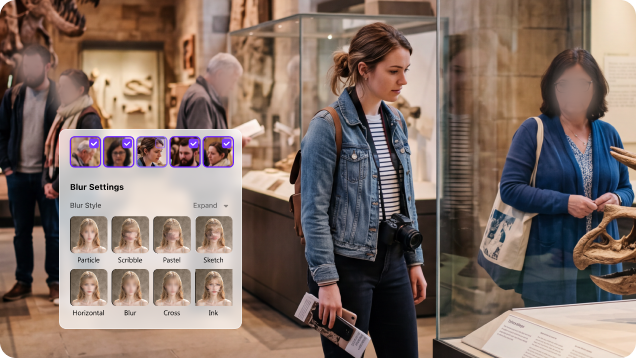
Keep Sensitive Source Videos in a Desktop Workflow
UniConverter is video blurring software for Windows and Mac. Raw footage can be processed locally instead of being uploaded to an unfamiliar browser-based editor—useful for dashcam clips, school videos, internal recordings, customer demonstrations, or interviews.
- Better suited to footage containing children, customers, employees, or confidential information.
- No repeated upload-download cycle between separate online tools.
- Review the unblurred source and final coverage on your own computer.
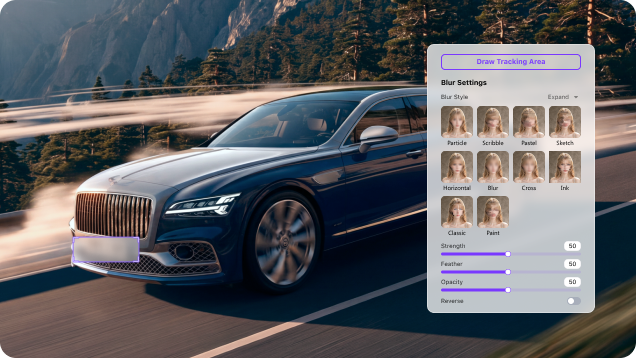
Control How Strongly the Target Is Hidden
A useful blur video tool should do more than place a fixed filter. Choose an effect that fits the footage, then refine the concealment before export.
- Strength controls the amount of blur or mosaic.
- Feather softens hard edges around the selected area.
- Opacity changes how visible the original detail remains.
- Reverse keeps the subject clear and blurs its surroundings.
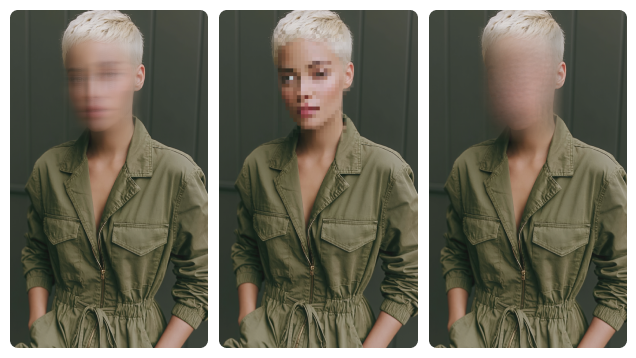
Continue Editing After You Apply the Blur
The video blur maker sits inside UniConverter's broader desktop workflow. After privacy editing, continue trimming, converting, compressing, enhancing, or preparing the video for delivery without moving the file through a series of single-purpose websites.
- Work with common formats including MP4, MOV, AVI, MKV, M4V, and WMV.
- Keep privacy editing and everyday media processing in one application.
- Export a share-ready copy after the blur coverage is confirmed.
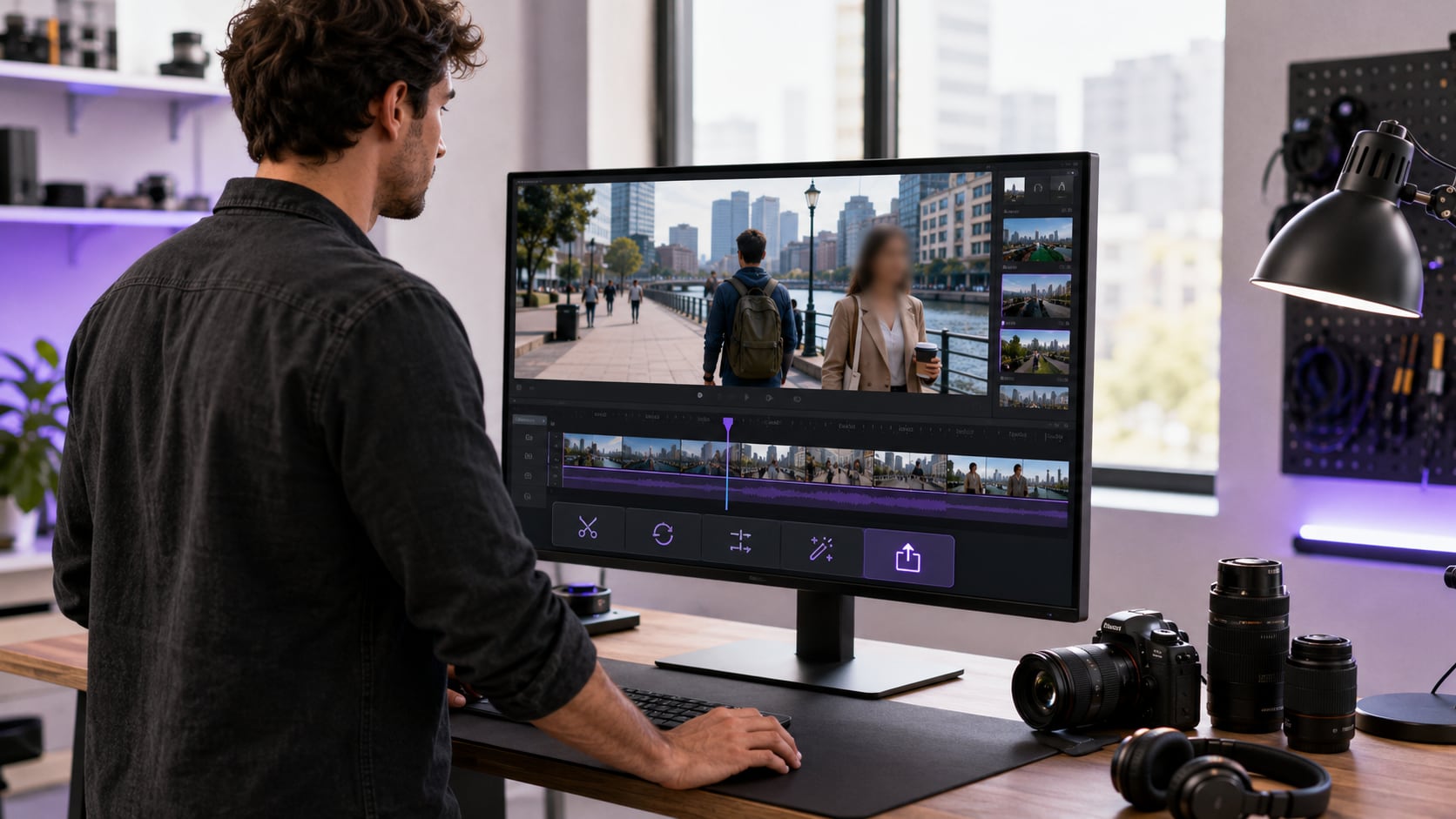
How to Use the AI Blur Video Editor
Import the footage, select what you want to hide, and review the tracked blur before exporting.

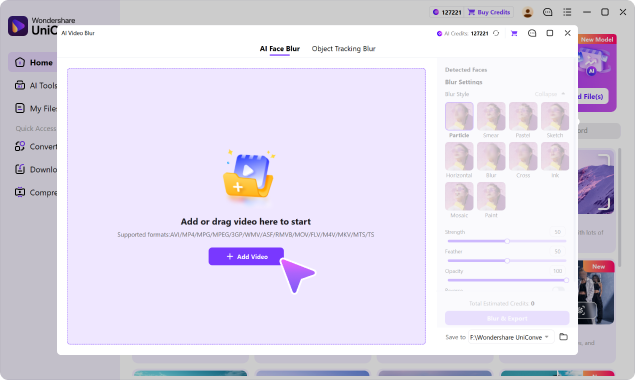
Step 1. Import one or more videos
Open AI Video Blur and add your files. Select the clip you want to configure from the file list.

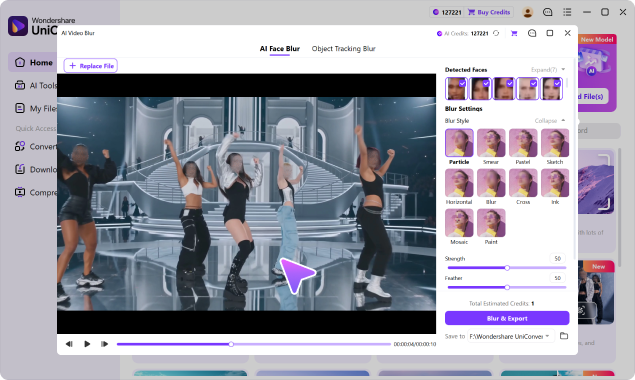
Step 2. Select the target and effect
Choose detected faces in Face mode, or draw a box around another target in Object mode. Pick soft blur, mosaic, pixel, or a sticker and adjust the coverage.

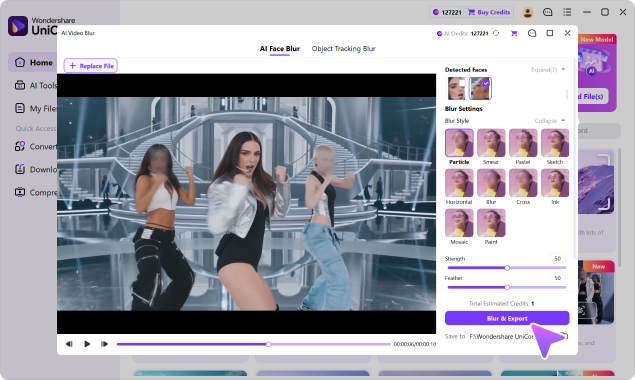
Step 3. Preview, check, and export
Play the preview to confirm the blur follows the target and hides enough detail. Adjust if needed, choose the save location, and export.
Effect Guide
Which Video Blur Effect Should You Use?
The best effect depends on whether you want a natural look, strong censorship, or a playful cover. This guide gives each option a clear job.
Soft Blur
Best for: backgrounds, subtle privacy edits, and visual focus.
Result: smooth concealment that blends into the frame.
Mosaic
Best for: faces, plates, screens, and obvious redaction.
Result: block-based coverage that signals intentional censorship.
Pixel
Best for: identity protection and hard-to-read private details.
Result: visible pixelation with adjustable strength.
Sticker
Best for: casual social clips, children, and playful content.
Result: a graphic cover that follows the selected target.
Not sure which one to choose? Start with soft blur for a natural look or mosaic for stronger privacy. UniConverter supports all four options, so you can preview the result and switch styles before export.
Choose the Right Workflow
Desktop Video Blurring Software vs. Online Tools vs. Pro Editors
The right choice depends on the sensitivity of the footage, the amount of tracking required, the number of files, and how much manual editing you want to do.
| What matters | UniConverter Blur Video Editor | Typical Online Video Blur Tool | Traditional Pro Video Editor |
|---|---|---|---|
| Best suited to | Fast privacy edits, moving targets, and repeat workflows | Quick, lightweight edits from a browser | Advanced compositing and detailed creative control |
| Raw video handling | Local desktop workflow | Usually requires browser or cloud upload | Local desktop workflow |
| Automatic face detection | Built in | Available in some tools | Varies by editor, effect, or plugin |
| Moving-object tracking | Select a target and let AI track it | May require manual layers or keyframes | Available, but setup can be more complex |
| Manual keyframing | Not required for AI-tracked targets | Sometimes required for partial or moving blur | Common in mask-based workflows |
| Multiple blur styles | Soft blur, mosaic, pixel, and sticker | Often blur and pixelate; varies by tool | Wide range of effects |
| Effect controls | Strength, feather, opacity, and reverse | Often basic intensity or mask controls | Detailed masks, keyframes, and effect parameters |
| Batch video workflow | Designed for multiple-file processing | Frequently limited by file count, size, or plan | Depends on project and export setup |
| Continue editing | Convert, compress, trim, edit, and enhance | Varies; many tools focus on one task | Full post-production workflow |
| Learning curve | Low | Low | Medium to high |
Online services differ in upload policies, AI tracking, limits, and pricing. Check the provider's current terms before uploading sensitive footage.
Bottom line: Choose an online tool for a quick, non-sensitive one-off edit; choose a traditional editor for complex compositing; choose UniConverter when you want AI tracking, local handling, batch processing, and everyday video tools in one desktop video blurring app.
Real-World Uses
When a Blur Video Maker Saves a Re-Edit or Re-Shoot
Hide information that should not be public while preserving the useful parts of the original footage.
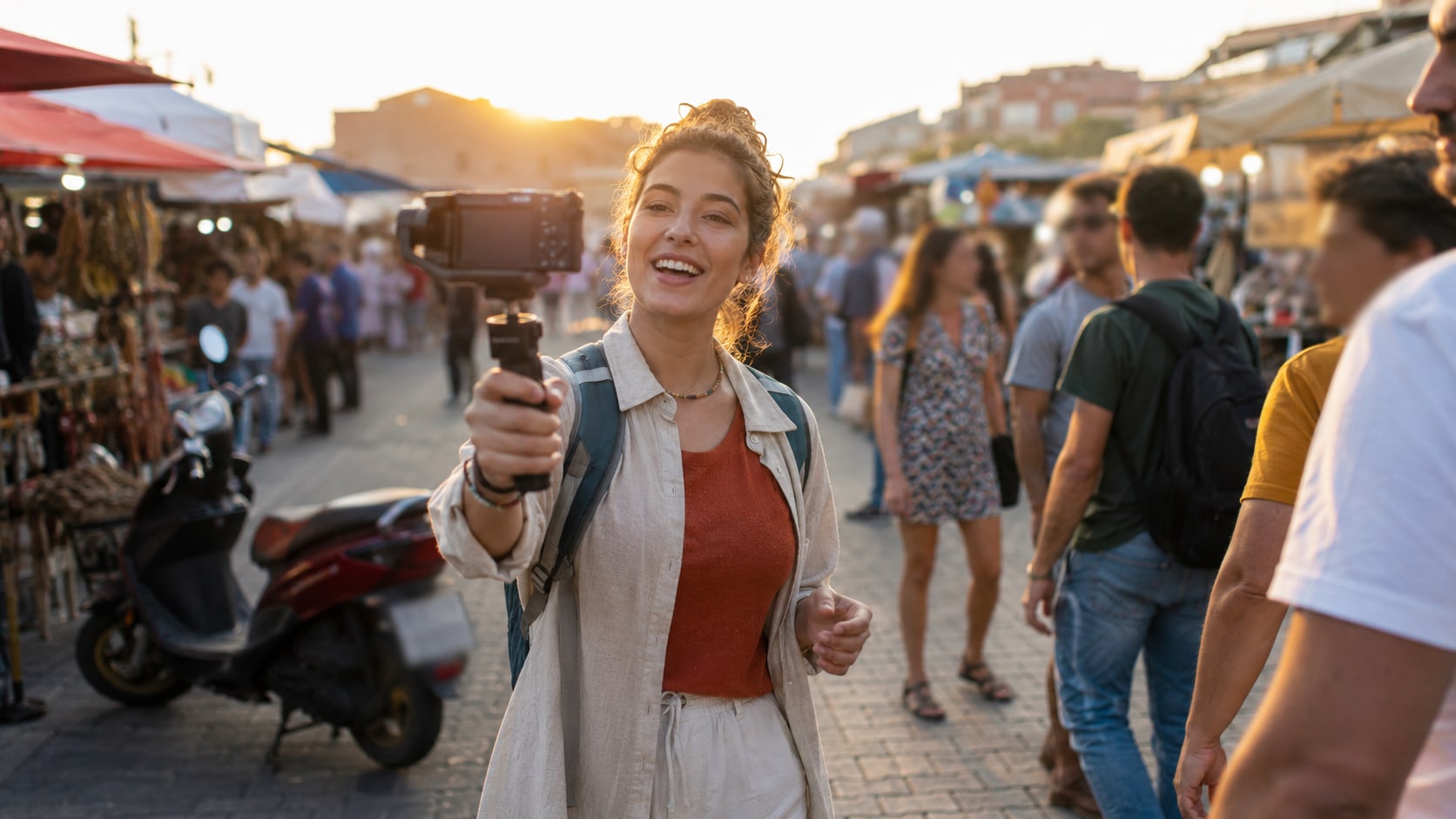
Social Videos & Vlogs
Blur bystanders, children, usernames, vehicle plates, or recognizable surroundings before posting.
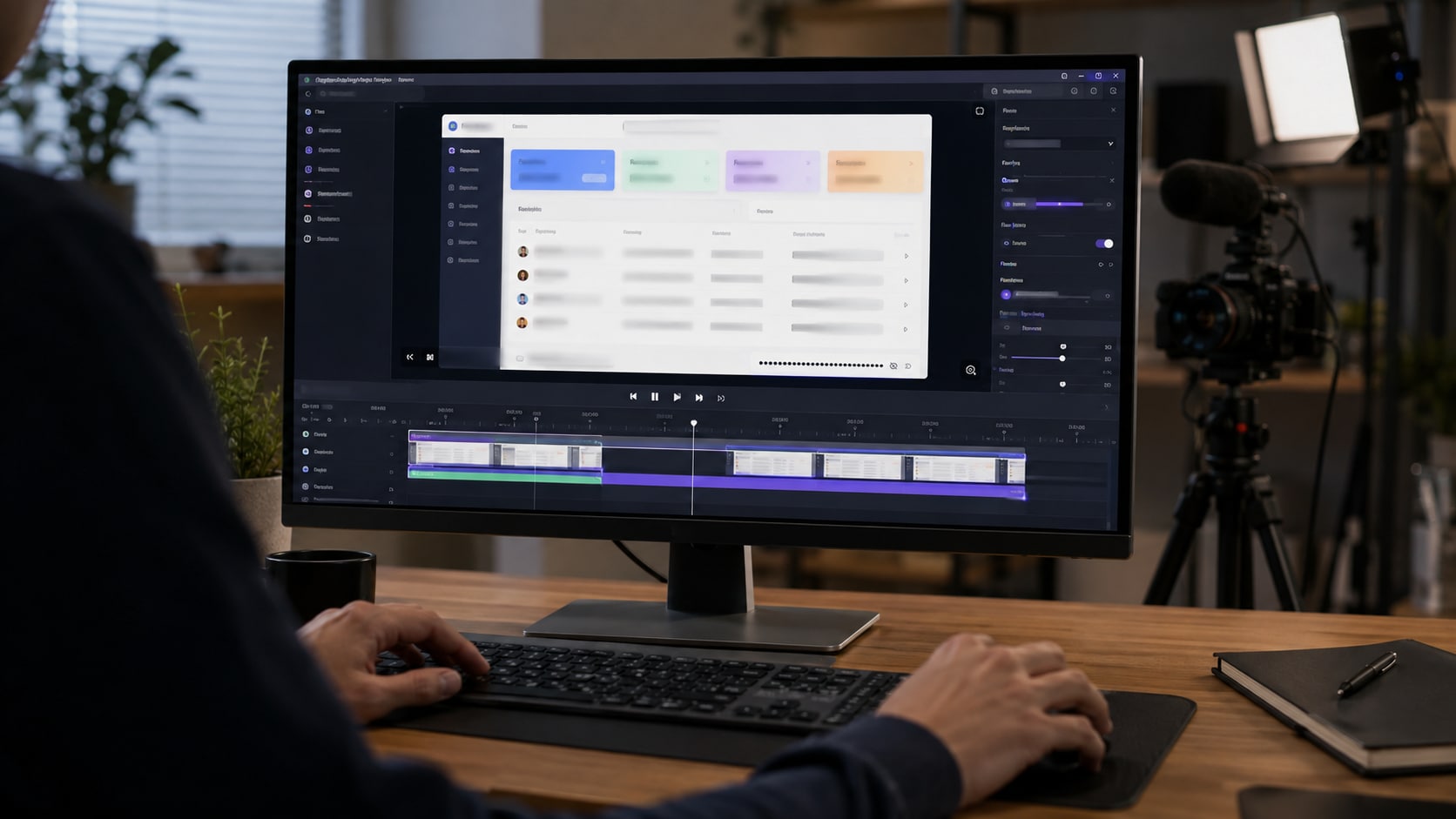
Screen Recordings
Hide customer names, emails, orders, dashboards, API keys, or internal product details without recording again.
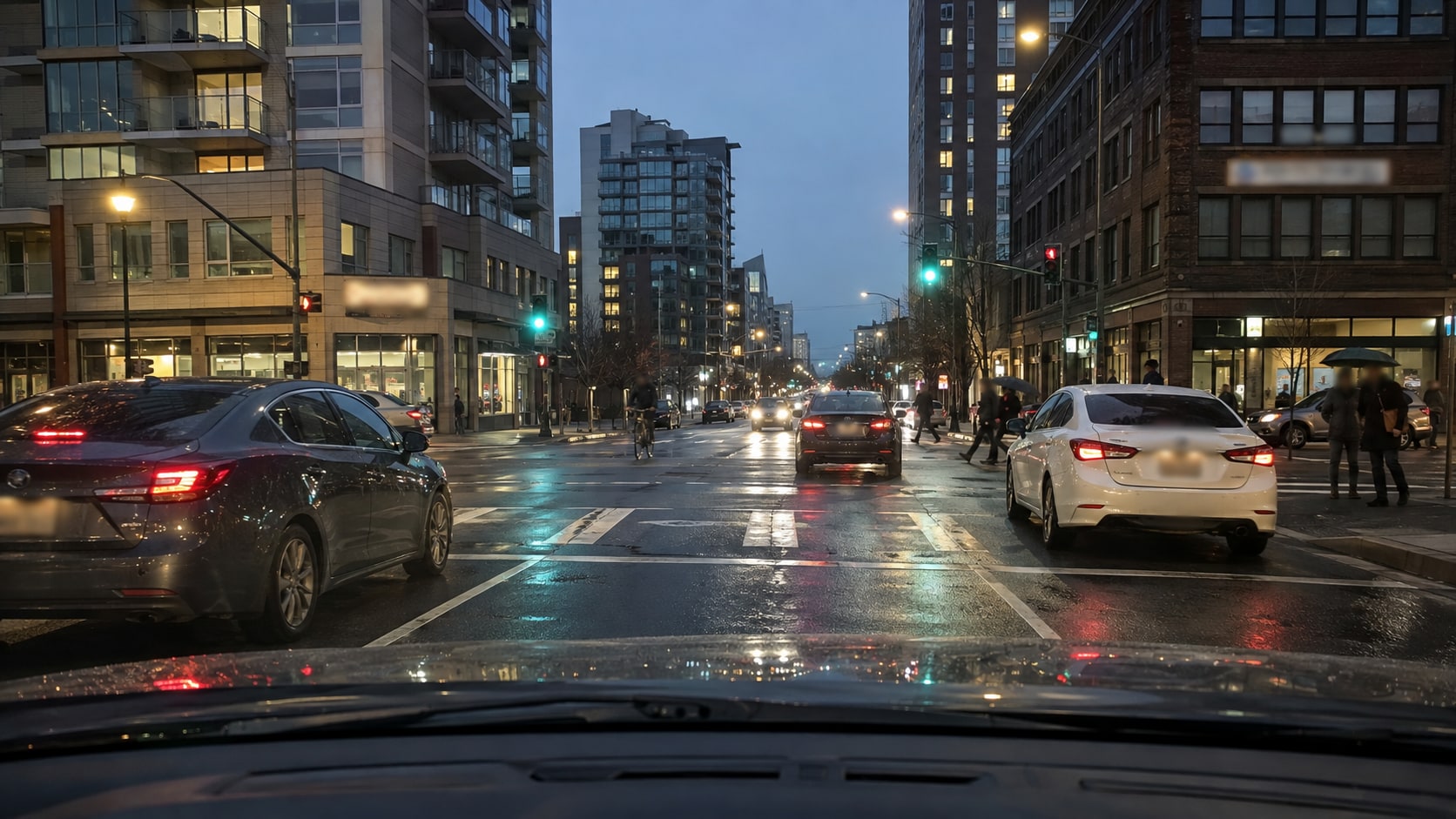
Dashcam & Surveillance Footage
Prepare a shareable copy while concealing faces, plates, addresses, and other identifying details.

Schools & Family Events
Protect children, names, grades, or other personal information before distributing a recording.
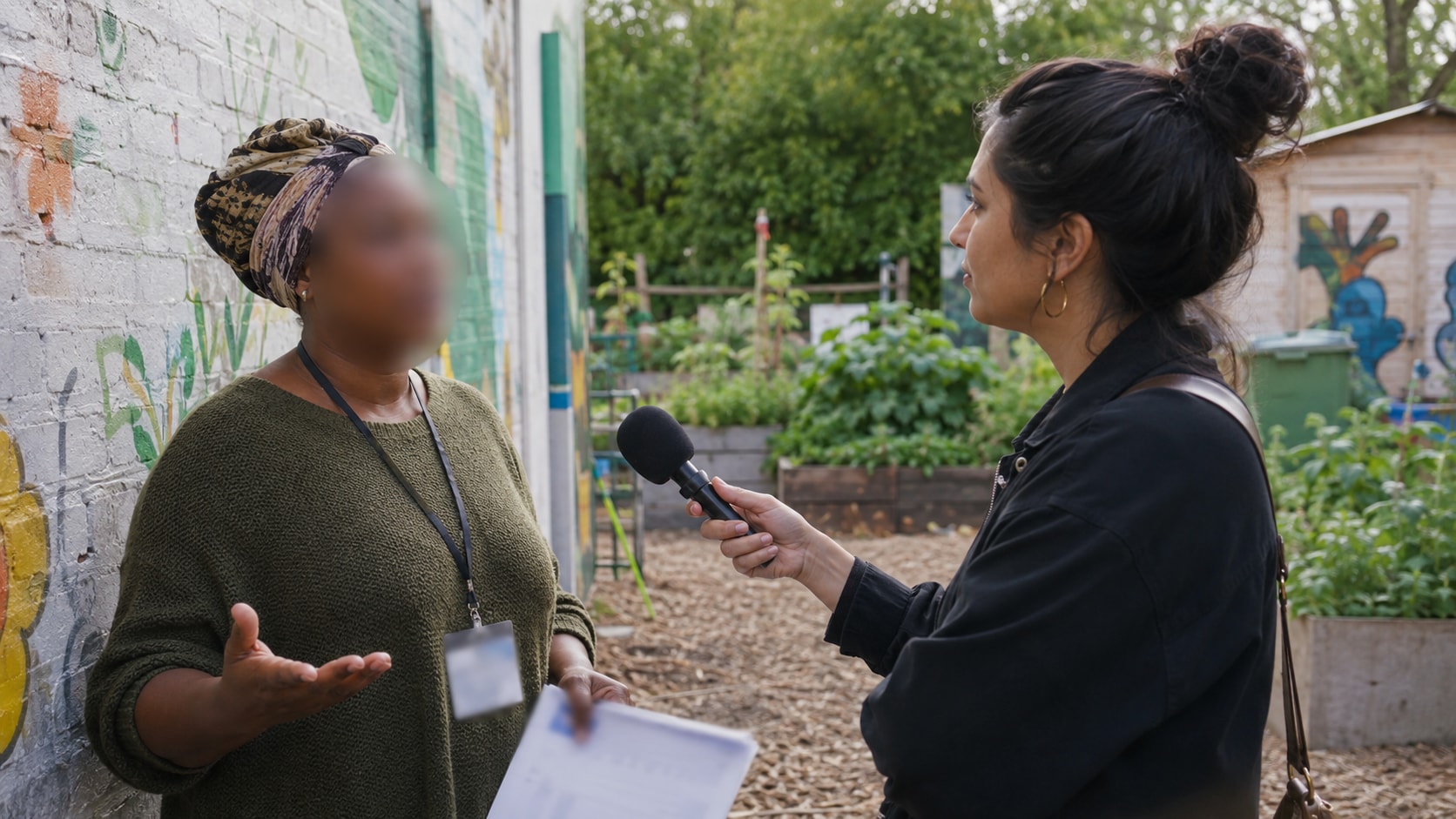
Interviews & Research
Anonymize participants, witnesses, sources, badges, documents, or background clues while preserving the interview.

Business & Training
Remove employee, customer, whiteboard, screen, contract, or facility details before external sharing.
Supported Workflow
From Source Video to Share-Ready Export
Use AI Video Blur as one step in a broader desktop video workflow rather than a separate upload-and-download task.
Common Video Formats
Work with MP4, MOV, AVI, MKV, M4V, WMV, FLV, MTS, TS, 3GP, and other commonly used formats supported by UniConverter.
MP4MOVAVIMKVM4VWMVFLVMTSTS3GP
Complete Desktop Workflow
Trim or convert the source, apply and review the blur, then compress or enhance the finished copy before delivery.
Import→Trim / Convert→Blur→Preview→Compress / Enhance→Export
Blur Video Editor FAQ
Frequently Asked Questions
Answers about free access, automatic tracking, local processing, supported targets, background blur, formats, and batch video blurring.
Choose a tool that combines automatic face detection, moving-object tracking, adjustable effects, and a preview step. UniConverter is designed for this workflow: it detects faces, tracks a user-selected target, and applies soft blur, mosaic, pixel, or sticker effects without frame-by-frame keyframing.
Users looking for a free video blur tool can download and try UniConverter on Windows or Mac. Access to AI processing or export may depend on the product version and plan, so it should be described as a free download rather than an unlimited free online blur tool.
Yes. AI detects faces automatically and keeps the selected face blur aligned as the person moves through the clip. For a non-face target, draw a box around the object and let AI track the selected area.
Yes. Use Object mode to select a plate, logo, screen, username, document, address, or another area. The rest of the frame stays clear while the chosen target is blurred or pixelated.
Yes. Select the subject and reverse the blur area. UniConverter keeps the chosen subject clear while blurring the surrounding background, which can hide private room details or reduce distractions.
No manual keyframes are required for AI-detected faces or targets tracked with Object mode. You still review the preview before export to confirm continuous coverage.
Yes. UniConverter runs as desktop software on Windows and macOS, so the source footage can stay in a local workflow rather than being uploaded to a browser-based blur site.
Yes. Add multiple files, switch between clips to review their targets and settings, and process them as part of one multi-video workflow.
Choose soft blur, mosaic, pixel, or sticker effects. You can also adjust strength, feather, and opacity to control how naturally or completely the selected detail is concealed.
UniConverter supports commonly used formats including MP4, MOV, AVI, MKV, M4V, WMV, FLV, MTS, TS, and 3GP, along with other formats supported by the application.

Blur What Matters. Keep Sensitive Footage Private.
Download the AI blur video editor to detect faces, track moving targets, batch-process files, and review every blur before export.