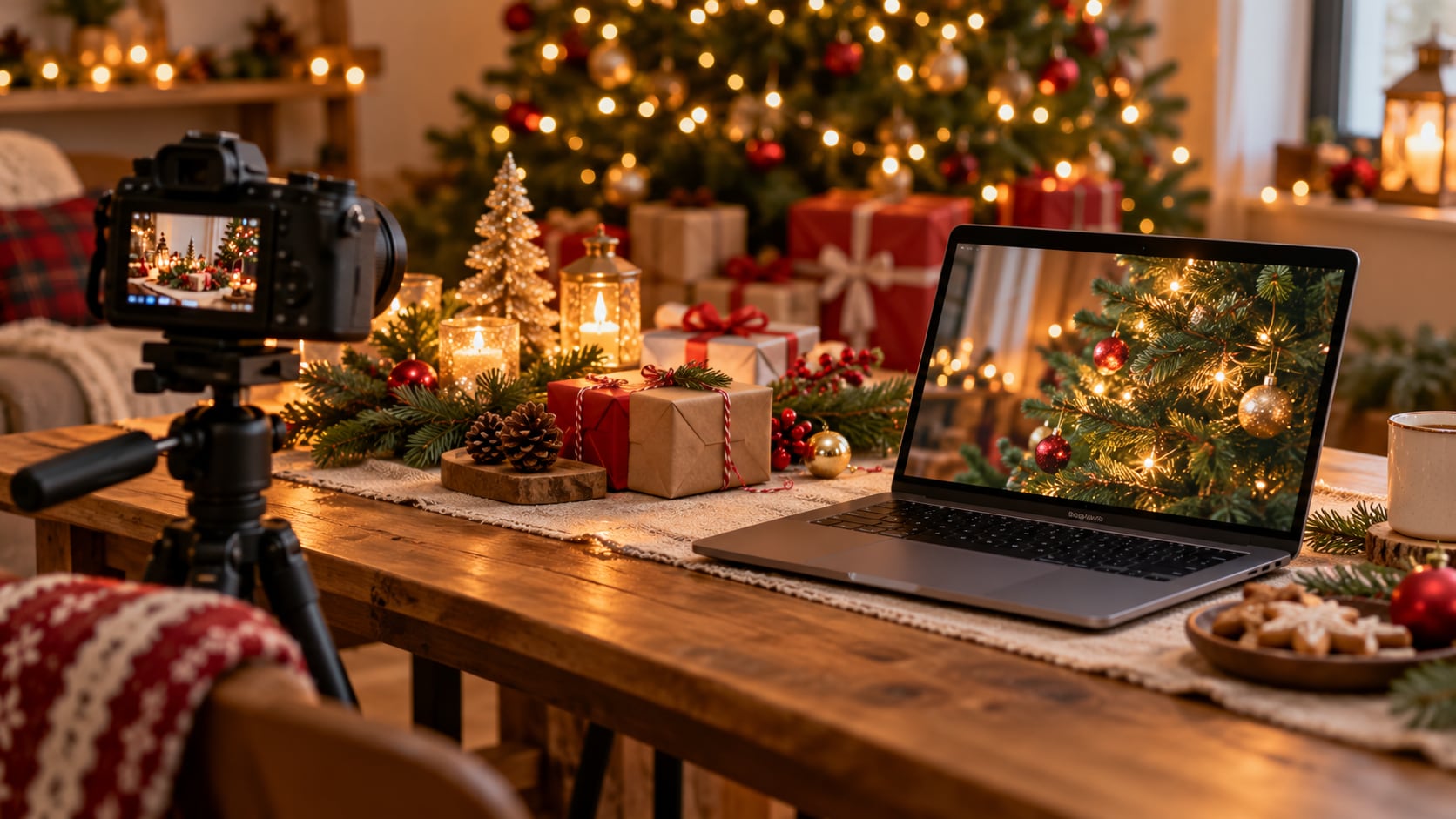
For a Christmas video download, start with Pexels or Pixabay for footage, Vecteezy for festive backgrounds, and Canva for personalized greetings. The useful choice depends on what you need: a quiet tree shot for an intro, an animated message to send, or a background that repeats during a party. This guide covers finding the clip, saving it, and preparing the file for its destination.
In this article
- Where to Download Free Christmas Videos
- Best Types of Christmas Videos to Download
- Free Christmas Video Clips for Different Projects
- How to Download Christmas Videos
- How to Download Merry Christmas Greeting Videos
- Convert and Compress Downloaded Christmas Videos with UniConverter
- Free Christmas Video Download vs. Christmas Stock Footage
- FAQs About Christmas Video Download
- Get Your Christmas Video Ready to Share
Where to Download Free Christmas Videos
Choose a footage library for reusable scenes and a template editor for a finished greeting. A search page can mix free and paid options, so inspect the individual item before downloading.
| Source | Useful starting point | How to get a file | Check before using |
|---|---|---|---|
| Pexels Christmas videos | Filmed decorations, gifts, trees, and winter scenes | Open a clip, preview it, and use its download option | Available dimensions and Pexels License restrictions |
| Pixabay Christmas videos | Holiday scenes, backgrounds, and animated options | Open the asset and inspect its download choices | Content License, source details, and actual audio |
| Vecteezy Christmas videos | Festive backgrounds and motion graphics | Filter for the appropriate license, then open a result | Free versus Pro, attribution, and permitted project scope |
| Canva Christmas templates | A greeting with editable text and scenes | Customize the design and export the finished video | Included Free or Pro content and music terms |
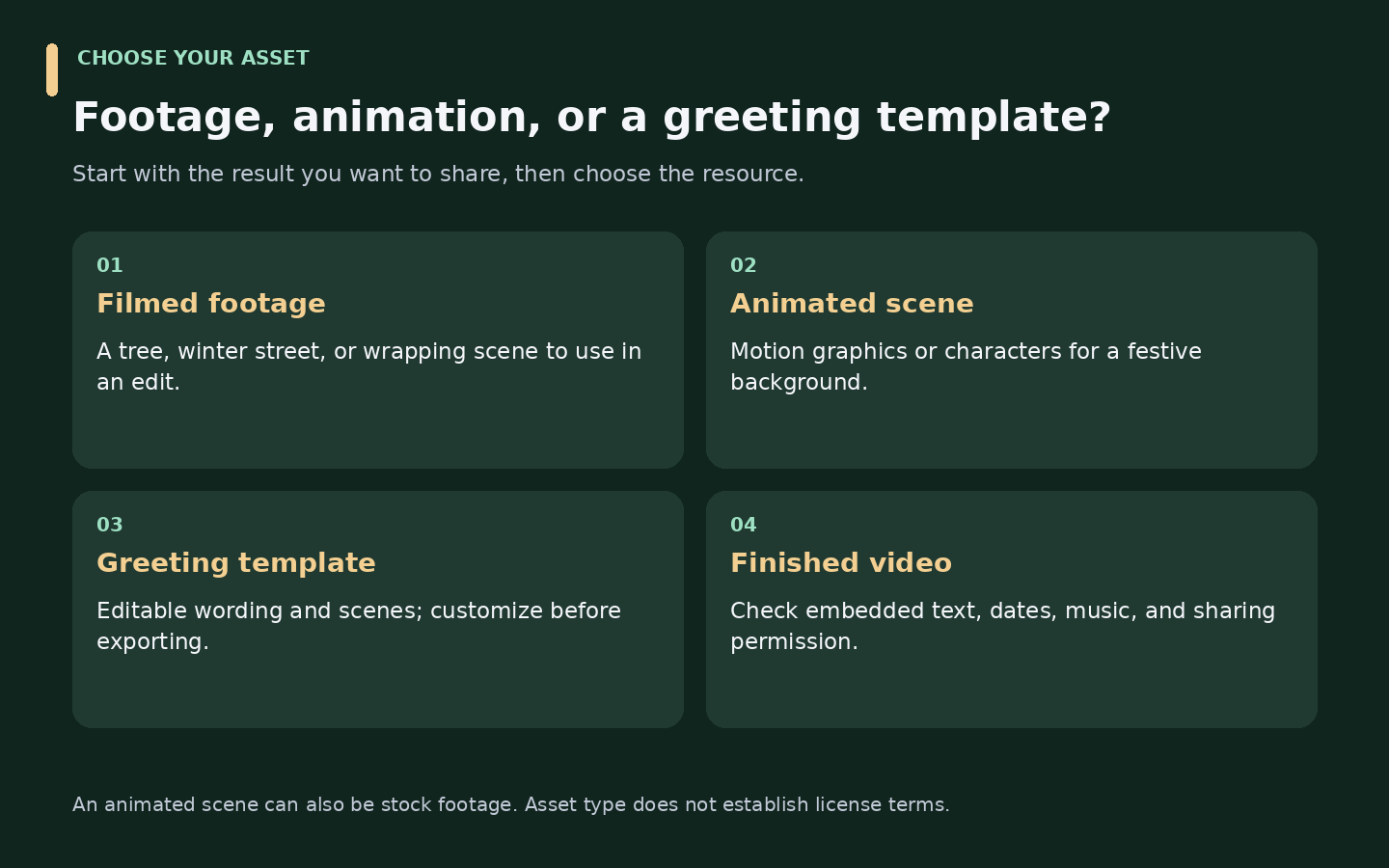
Pexels: Start with Filmed Holiday Scenes
Search for a specific subject, such as Christmas lights or gift wrapping. Open the video, watch the whole scene, and inspect the available download size. Leave space around a tree or ornament if you plan to add a title later.
The Pexels License allows free use and modification without required attribution, subject to restrictions. Do not imply endorsement by people or brands shown, or redistribute footage through another stock platform. Inspect recognizable people, logos, and the context of your project.
Pixabay: Search for Backgrounds and Animated Clips
Search within Videos for a scene or style rather than only “Christmas.” Try “Christmas background,” “snow,” or “Christmas animation.” Preview the ending as well as the opening if you need a repeating scene. Download an option that suits your display or editing project.
The Pixabay license summary permits free use and adaptation without required attribution, subject to its restrictions. Standalone redistribution is prohibited, and additional rights may apply. Avoid treating “free” or “royalty-free” as unlimited permission.
Vecteezy: Check the License Beside the Clip
The Christmas collection includes background, animation, tree, snow, and greeting-related categories. Use the available license filters, open the selected item, preview it, and follow its download process. Confirm what the item provides rather than assuming every search result is free.
Vecteezy’s Free License requires attribution and has project restrictions. Pro and Editorial permissions differ. Check the applicable license for a business promotion, particularly if you cannot display a credit.
Canva: Personalize a Greeting Before Exporting
Canva’s Christmas video templates let you change messages and design elements before downloading a finished video. This suits a family greeting or customer thank-you better than a stock scene with no text.
Check whether your chosen design includes paid assets before exporting. Canva’s Content License Agreement distinguishes content categories; Popular Music has separate terms. A free template does not establish that every replacement image, song, or element is free for your intended use.
For more year-round sources, compare these stock footage websites.
Best Types of Christmas Videos to Download
Choose the scene around the message. A gentle background gives a greeting room to breathe; a busy animation can make small text harder to read.
| Video type | Useful for | What to preview |
|---|---|---|
| Christmas lights and decorations | An opening scene or festive transition | Exposure changes and room for a title |
| Snowfall and cozy winter scenes | Presentations and event backgrounds | Motion, contrast, and the repeat boundary |
| Trees, ornaments, and wrapping | Family montages or product sequences | Framing and visible branding |
| Santa and animated characters | Playful greetings and school projects | Tone, visual consistency, and usage rights |
| Merry Christmas greetings | A message to send or personalize | Exact wording, language, and music |
| Short Christmas video clips | Social posts and brief intros | Orientation, subject position, and duration |
| Christmas videos with music | A finished greeting or event sequence | Whether the track is included and licensed |
Footage and music are separate decisions. A silent clip is not defective, and a recognizable carol recording is not automatically cleared because the underlying song is old. Check the recording you actually plan to use.
Free Christmas Video Clips for Different Projects
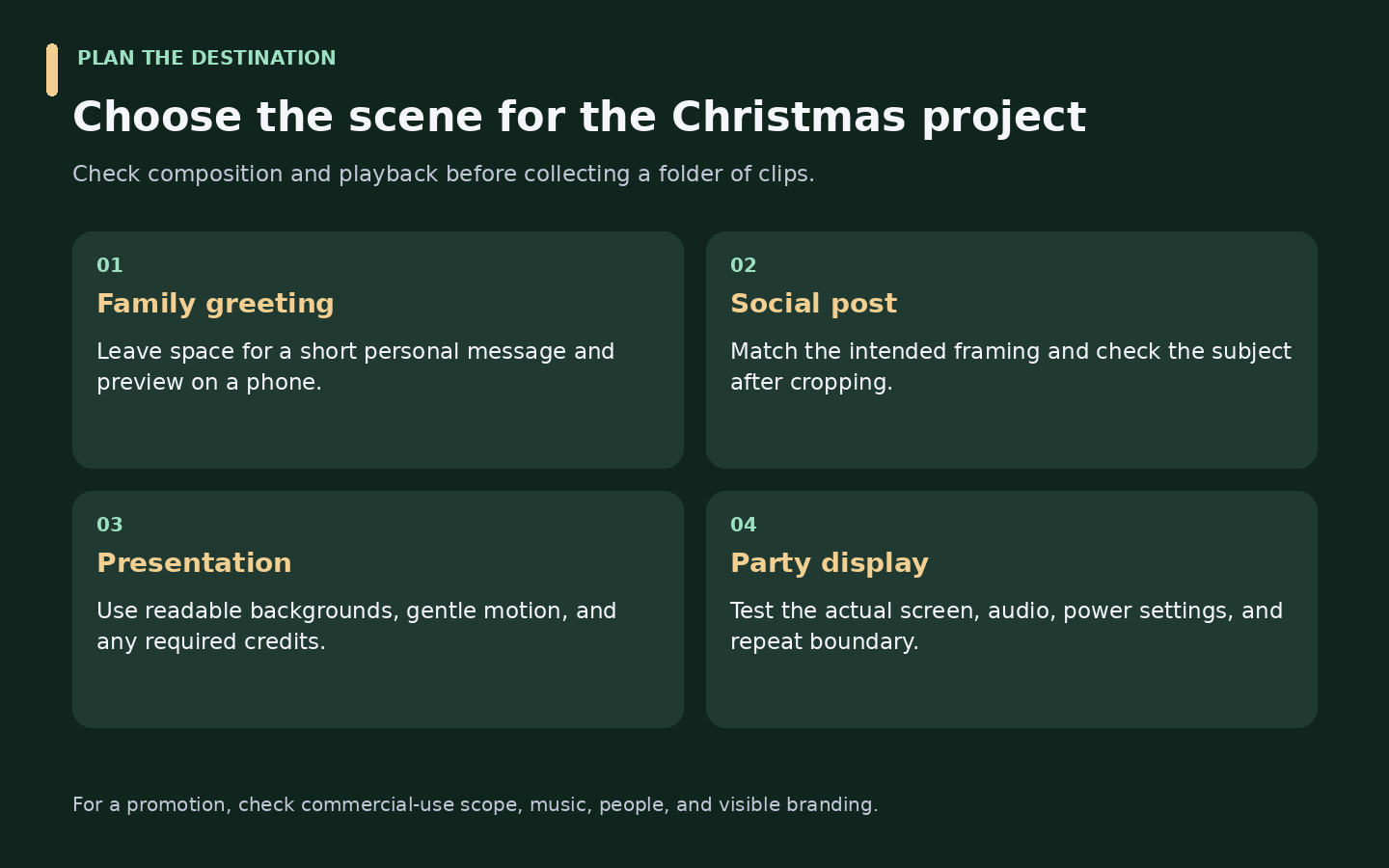
Family greetings: Choose a calm scene, add a brief personal message, and play the exported file on a phone before sending it. If you need to download a Merry Christmas video with editable wording, start with a template rather than a finished greeting.
Social posts and YouTube intros: Check the intended framing before downloading. A horizontal tree shot may lose its subject in a vertical crop. Keep a clean source copy and check text placement in the destination app.
Marketing videos: Choose footage whose license covers the campaign. Look closely at people, branded packaging, and music. Finding free Christmas videos to download is only the first step; the planned use determines whether the asset fits.
School projects and presentations: Favor readable backgrounds and gentle motion. Keep any required credits with your slides, and check whether the project will stay in class or be published online.
Party displays: Test the actual television, projector, or playback computer. Listen for abrupt audio changes and watch where a loop restarts. A beautiful Christmas video can become distracting if it flashes or repeats a conspicuous action.
How to Download Christmas Videos
Use the official download or export route whenever it meets your needs:
- Choose a source. Open a library or a creator’s authorized download page.
- Search for the scene. Combine a subject with a style, such as “Christmas tree close-up” or “animated holiday background.”
- Preview the full clip. Check framing, duration, built-in wording, and audio.
- Review the file and license. Confirm available dimensions, format, cost, attribution, and intended use.
- Download or export. Save stock footage with the source’s download control; finish editing a template before exporting it.
- Test the local file. Open it in your player or editor and keep the source URL and license information with the project.
Saving your own uploaded video, downloading licensed stock footage, and saving another creator’s platform video are different workflows. An official export handles the first; a stock library download handles the second. For the third, use a permitted download method and check source support.
Download a Supported Christmas Video Link with UniConverter
For an authorized video on a supported source, UniConverter provides a desktop link-download workflow. It can also accept multiple URLs, which is useful when gathering several permitted holiday clips. Support depends on the source and version; the library recommendations above are not a verified list of sites supported by Downloader.
The official Downloader guide documents these Windows steps:
- Open Downloader and copy the individual video URL from your permitted source.
- Paste it into the input field. For multiple clips, add one URL per line, keep Download Video selected, and click Download.
- Follow the task in Downloading, then open Finished and locate the saved file. Use Save to to choose the destination.
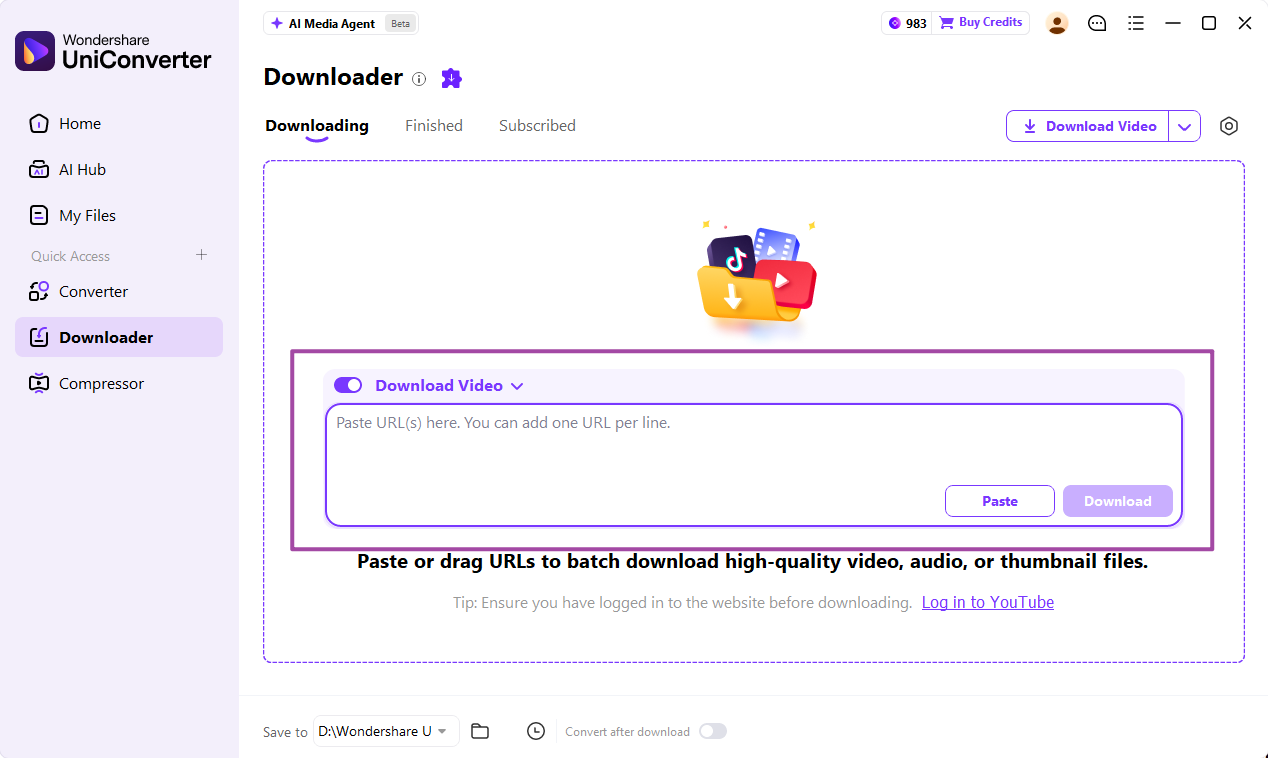
Official Windows guide illustration; availability can vary by source and installed version.
If the link is unsupported, return to the source’s own download or export route. Converting a file cannot fix an unsupported URL. See the download video from a link workflow for the supported desktop approach.
Save Supported Clips. Prepare Your Christmas Video.
Use Downloader for supported video links, then convert an incompatible local file or compress a large holiday export when needed.
How to Download Merry Christmas Greeting Videos
For a personal message, choose a customizable greeting and export your finished version. For an existing greeting, use a source that explicitly offers a downloadable file and permits your planned sharing.
Start with Canva’s Christmas templates for editable wording, or search the linked libraries for a suitable animated scene. Preview spelling, embedded dates, language, and music before saving it. A greeting containing last year’s date is less reusable than a scene you can caption yourself.
For Christmas videos with music, listen through the ending. Check music permissions separately, especially for a customer message or promotion. A muted stock clip plus a separately licensed track may suit a project better than a finished greeting with uncertain audio rights.
An AI Christmas video download follows the same practical checks: confirm the generator’s export options and terms, then inspect text, hands, objects, and motion before sharing. The word “AI” does not establish that the result is free or licensed for every use.
Convert and Compress Downloaded Christmas Videos with UniConverter
Keep a file as supplied if it already works. UniConverter is useful when a supported local clip needs another playback format or an exported greeting is too large to share.
Convert an Incompatible Clip to MP4
The Windows conversion guide shows this workflow:
- Open Converter and use Add Files or Add Folder to import supported local videos.
- Open Convert to and choose an appropriate MP4 profile. Keep dimensions suited to your destination; increasing resolution does not recreate missing detail.
- Select Convert All, then open Finished and use the folder control to locate the result.
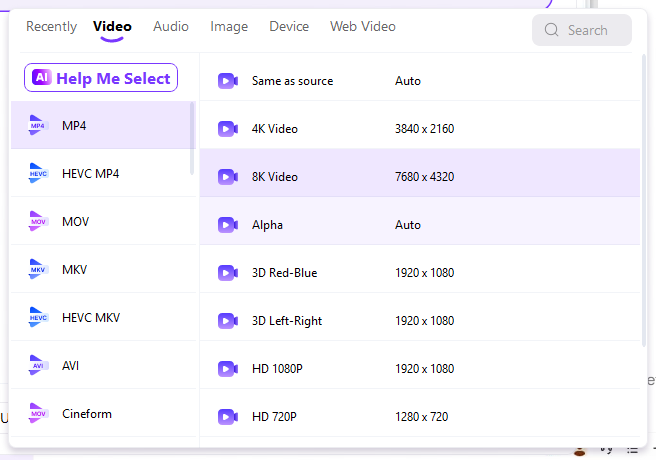
Check the actual player, including sound and framing. An MP4 extension alone does not guarantee compatibility with every codec or device. For other options, see this video-to-MP4 conversion guide.
Compress a Large Greeting or Holiday Video
The current Windows compression guide documents Size Ratio, Max. File Size, and Quality Level goals:
- Open Compressor, add the local video, and open Compression Settings.
- Choose a goal that fits the task. Use Max. File Size for a known upload cap, or Quality Level when visual detail is the priority.
- Click Preview and inspect fine details. Select Apply, choose Save to, and click Compress All.
- Open Finished and verify the output size and playback.
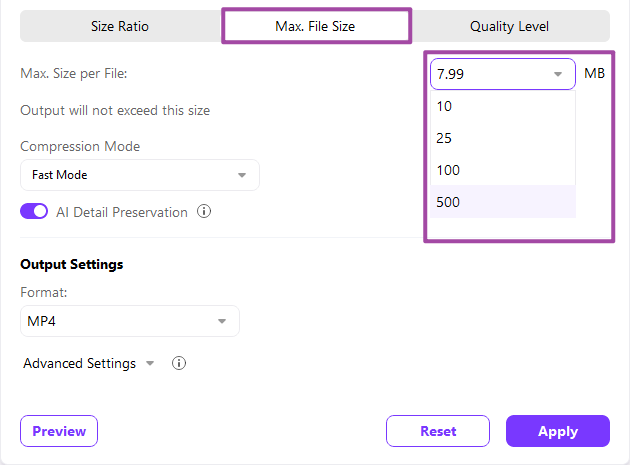
Snow, tinsel, fairy lights, and small greeting text can reveal compression artifacts. If they look smeared, ease the compression and compare again. Avoid repeated encoding of the compressed copy; return to your original. See these video compression options for alternative workflows.
UniConverter prepares media files; it does not grant reuse rights or supply the Christmas libraries listed here.
Free Christmas Video Download vs. Christmas Stock Footage
“Free download” describes how you obtain a file. “Stock footage” describes material intended for reuse under a license. Choose by the asset’s role rather than its search label.
| Content type | Best use | What to check |
|---|---|---|
| Free Christmas stock footage | Editing and background scenes | License, available dimensions, and framing |
| Animated Christmas clips | Greetings and social content | Format, duration, style, and rights |
| Merry Christmas greeting videos | Sending a finished message | Sharing permission, embedded wording, and music |
| Christmas video templates | Personalized holiday messages | Export options and included asset licenses |
| Professional paid stock footage | A production with specific visual requirements | Price, license scope, and required permissions |
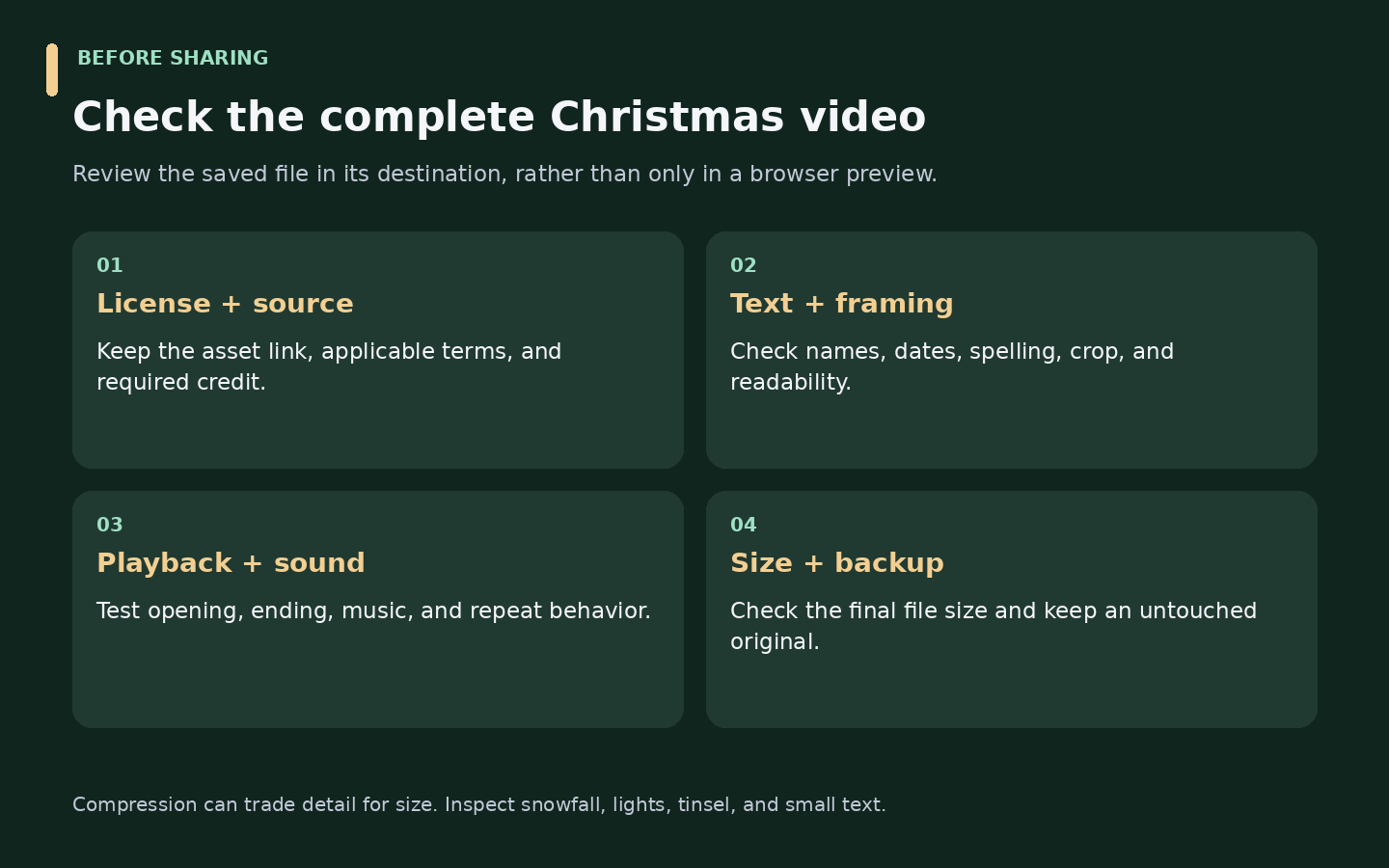
Before sending a greeting or leaving an event display running, test the complete local file. Confirm the opening, ending, text, sound, and repeat behavior.
FAQs About Christmas Video Download
-
Where can I download Christmas videos for free?
Start with the Christmas collections on Pexels and Pixabay. Vecteezy also lists free and paid festive clips, while Canva provides customizable greeting templates. Preview your selected item and check its download or export options. Confirm the license for your project rather than assuming every result has the same terms.
-
How do I download free Christmas video clips?
Open the clip on its original library page, preview the complete scene, and review the offered download size and license. Use that page’s download control, save the file, and test it in your editor or player. Keep the asset URL and any required credit with your project records.
-
Where can I find Merry Christmas videos to download?
Look for greeting-oriented clips in the linked libraries or customize a Canva Christmas video template. Check whether you are downloading a finished message or an editable design that needs exporting. Review embedded dates, wording, language, and music before sending the result, particularly for business greetings or public posts.
-
Can I download Christmas stock footage for commercial use?
Yes, when the asset’s license covers the specific commercial use. Pexels permits personal and commercial use under its license, subject to restrictions. Other sources can require attribution or apply different conditions to free, paid, or editorial assets. Check music and recognizable people or brands as well as the video license.
-
What is the difference between Christmas stock footage and animated Christmas videos?
Stock footage is licensed material for reuse and may include filmed or animated scenes. Animation describes how a video was created, not its licensing status. A filmed tree shot and an animated snowfall background can both be stock assets. Choose by style, composition, and permitted use rather than treating these as exclusive categories.
-
How can I download Christmas videos for YouTube?
If you mean footage for a YouTube project, use a library download whose license covers the intended publication and music. If you mean saving a video already on YouTube, use an official download or export route where available and permitted. A public viewing link alone does not establish permission to save or republish it.
-
How can I convert a downloaded Christmas video to MP4?
For a supported local file, open UniConverter’s Converter, import the video, and choose an MP4 output profile from Convert to. Run the conversion and inspect the result in the destination player. Keep the original file, and check codec compatibility if the converted MP4 still does not play on your device.
-
How do I compress a Christmas video without unnecessarily reducing its quality?
Work from the original and compress only enough to meet the destination’s requirements. Preview snow, lights, fine decorations, and small text before applying the settings. Compare the output at its intended display size. If detail deteriorates, use a less aggressive setting or share the larger original through a suitable file-transfer method.
Get Your Christmas Video Ready to Share
A useful Christmas video download starts with the right scene and a clear license. Save the file from its source, add a personal message when needed, and test it where it will play. If a supported link needs saving, or a local clip needs conversion or compression, UniConverter can handle that next step.
Get your holiday clips ready for playback and sharing.
Download UniConverter for Windows Download UniConverter for Mac