


The iPhone 17 video recording capabilities are shaping up to be a monumental leap forward, promising to put Hollywood-grade filmmaking tools directly into our pockets. With features like 8K video support for Pro models, high-bitrate iPhone 17 ProRes recording, and a powerful 48 MP telephoto for video, the potential for breathtaking content is undeniable. This new level of iPhone 17 video clarity will allow creators to capture details previously unimaginable on a smartphone.
However, with great power comes great complexity. These advanced formats are data-intensive and built on modern codecs that, while efficient, can clash with the realities of our existing tech ecosystems. This guide will walk you through the top 10 predicted challenges you might face with your new device and provide clear, actionable solutions to ensure your masterpiece videos don't end up stuck on your phone, unplayable, or clogging up your cloud storage.
Table of Contents:
Part 1. What to Expect in iPhone 17 Video Recording
Buckle up, because the iPhone 17 video recording system is not just an incremental update - it's a generational shift. Apple is pushing the boundaries of mobile videography, focusing on professional-grade features that promise unparalleled fidelity and creative control. Let's break down what these buzzwords actually mean for you.
First and foremost, the headline feature is 8K video support, expected to be exclusive to the Pro models. This isn't just about more pixels; it's about an immense canvas for reframing, cropping, and stabilizing in post-production without compromising final output quality. Imagine shooting a wide landscape and then zooming in seamlessly on a distant subject, all while maintaining a crisp 4K resolution in your final edit. Furthermore, the enhanced iPhone 17 ProRes recording capability will allow videographers to capture a much higher bitrate, preserving incredible detail and color information for serious editing work. This is the format of choice for color grading and complex visual effects.
Perhaps one of the most creatively exciting features is the potential for dual-lens simultaneous recording. This could allow you to capture a wide-angle and a telephoto view at the same time, giving you two perfect angles of the exact moment - incredible for documenting live events or capturing spontaneous action. Speaking of action, Improved stabilization (Action Mode) is set to get even better, making shaky handheld footage look like it was shot on a gimbal. Finally, the rumored upgrade to a 48 MP telephoto for long-range video is a game-changer. This sensor will use pixel binning to capture incredibly detailed 4K or even 8K video from afar, making it the ultimate tool for capturing wildlife, sports events, or discreet street photography without sacrificing an ounce of quality.
Part 2. Simple Comparison of iPhone 16 vs iPhone 17 Video
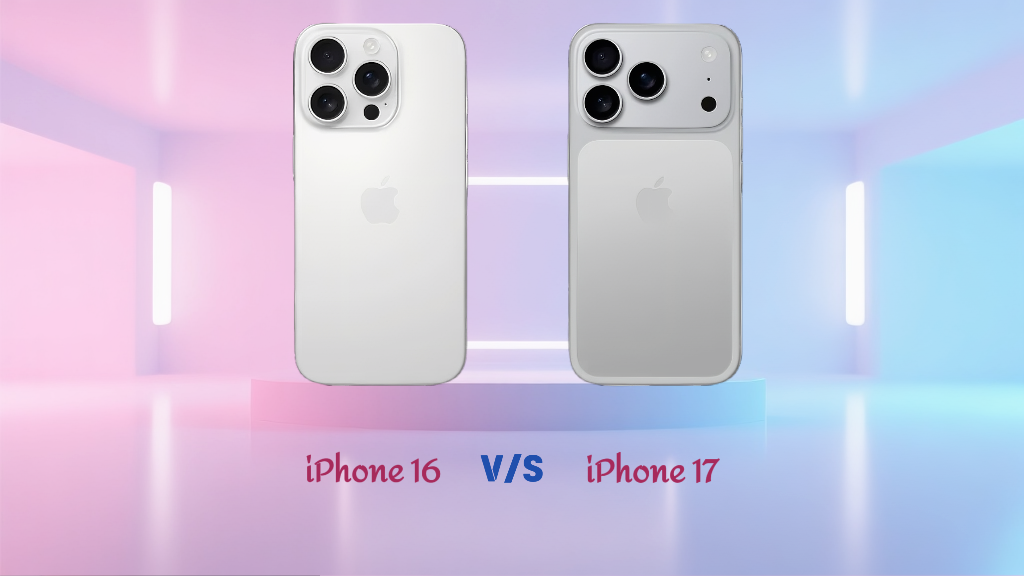
Upgrading? It's crucial to understand what you're really getting. The jump from iPhone 16 to the anticipated iPhone 17 is significant, especially for video professionals and high-end enthusiasts. Here's a straightforward comparison based on the latest rumors and industry trends.
| Metric | iPhone 16 (Current) | iPhone 17 (Expected) |
| Max Resolution & Frame Rate | 4K at 60fps (all lenses) | 8K at 30fps (Main & Telephoto), 4K 120fps |
| ProRes Capabilities | 4K ProRes up to 60fps | 8K ProRes at 30fps, higher bitrate options |
| Dual Recording Support | No (Third-party apps only) | Yes (Native, e.g., Wide + Tele simultaneously) |
| Optical Zoom for Video | 5x (Telephoto) | 5x-10x (Enhanced 48MP sensor with better cropping) |
| Storage Consumption | ~6GB/min (4K ProRes) | ~20GB/min (8K ProRes), ~3GB/min (8K HEVC) |
As the table illustrates, the iPhone 17 ProRes file size and overall data footprint will be substantially larger. This isn't a downside but a direct consequence of capturing vastly more visual information. The iPhone 17 video compression algorithms (HEVC/H.265) will be more efficient than ever, but the raw files will still be behemoths compared to previous generations. This leap in quality directly leads to the practical challenges we'll address next.
Part 3. Predicted Issues
Issue 1. Windows & PC Users: Video Codec Incompatibility
- Potential Problem:You've shot a stunning iPhone 17 8K video in the efficient HEVC (H.265) format, but when you try to play it on your Windows laptop, it's a choppy, unwatchable mess - or it won't open at all. This is a classic case of iPhone 17 HEVC video playback failure on PCs.
- Reason: Older PCs lack the dedicated hardware decoder needed to process the complex HEVC/H.265 codec smoothly. While Windows 10 and 11 can sometimes play these files, it often requires a paid codec pack from the Microsoft Store, and even then, performance on non-gaming machines can be sluggish.
- Solution: The most reliable fix is to convert your videos from the modern HEVC codec to the universally compatible MP4/H.264 format. This is where a versatile tool like UniConverter shines, making the process efficient and straightforward.
- Use Case: A student records their thesis project in 8K on their new iPhone 17 but can't present it smoothly on their university's classroom Windows laptop. An office worker can't play a product demo video during a crucial meeting because the conference room PC stutters with the HEVC file.
Steps Guide: Convert HEVC to MP4/H.264 with UniConverter
Step 1: Import Your iPhone 17 HEVC Video into UniConverter
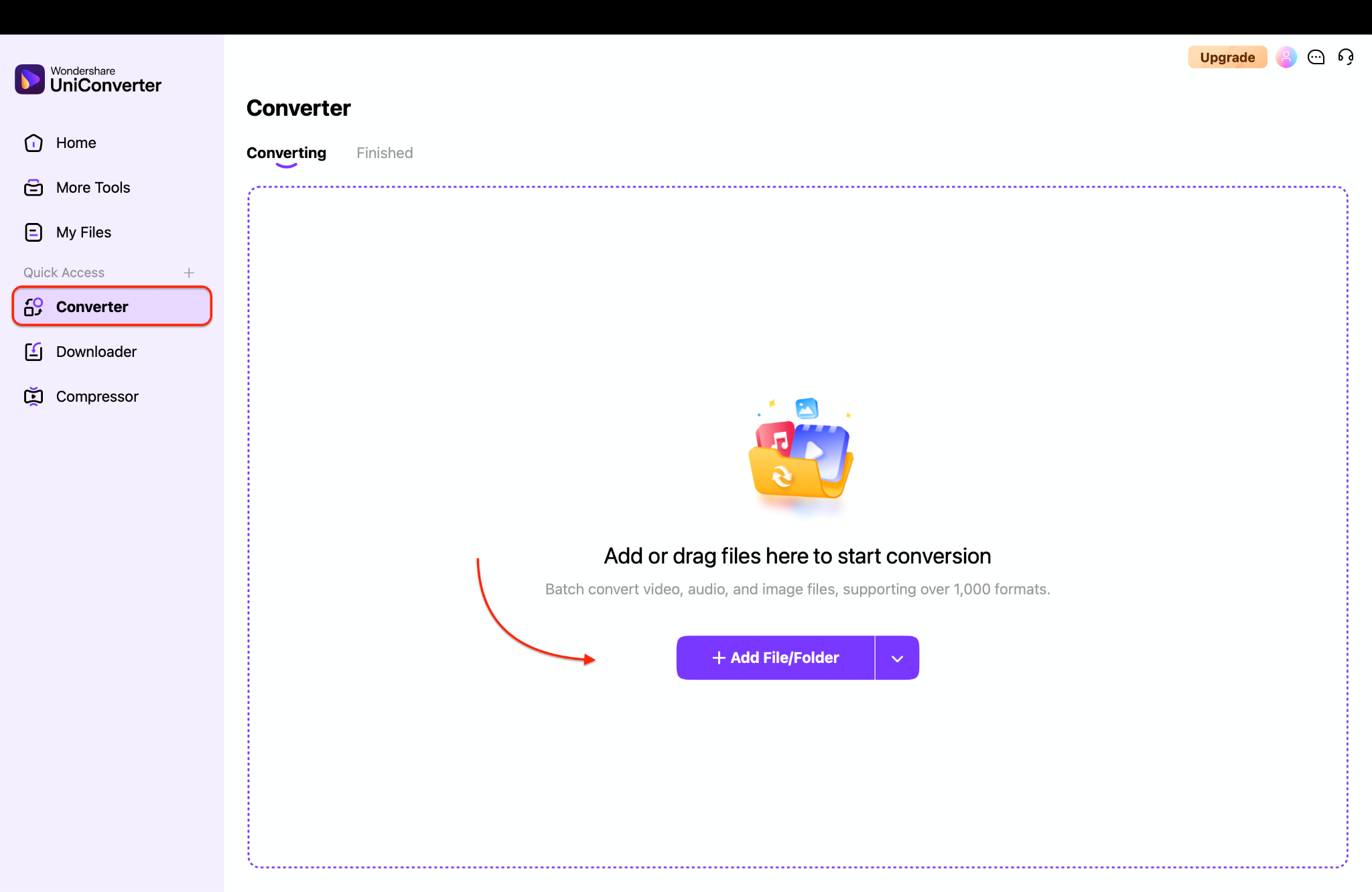
Launch Wondershare UniConverter on your computer and navigate to the Converter module. Click Add Files or drag and drop your problematic iPhone 17 HEVC video directly into the program window. The software will quickly read the file and prepare it for conversion.
Step 2: Choose MP4 (H.264) for Maximum Compatibility
Step 3: Start the Conversion and Save Your Fixed Video
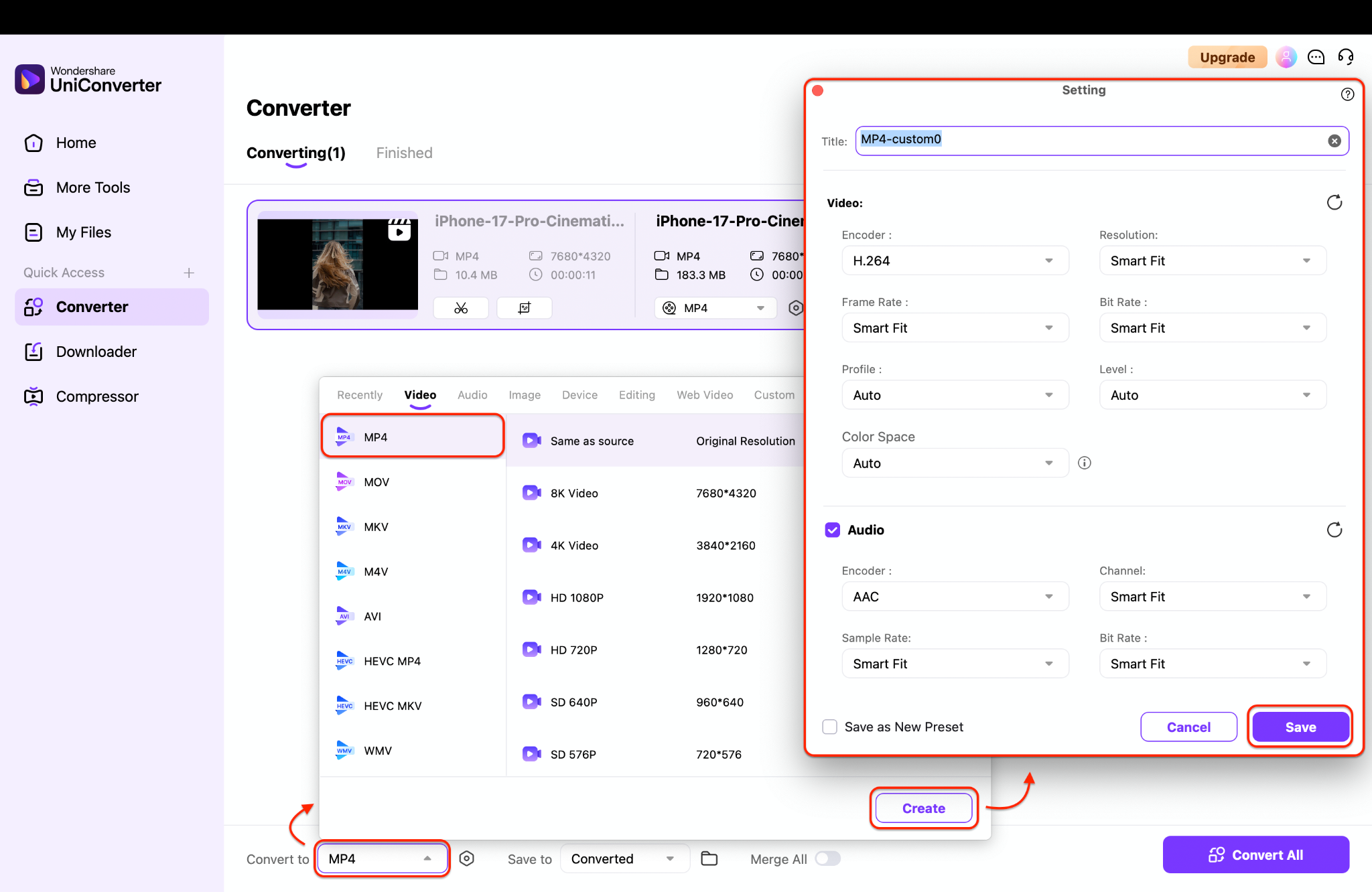
Finally, choose your desired output folder by clicking Save to dropdown and then hit the Convert All button. UniConverter will now efficiently transcode your high-efficiency video file into a widely supported MP4, solving your iPhone 17 video not playing on PC issue for good.
Issue 2. Professional Videographers: Oversized ProRes Files
- Potential Problem:The ability to record iPhone 17 ProRes is a dream for color grading and fine detail, but it turns into a storage nightmare quickly. These are minimally compressed files designed to retain maximum quality, meaning they can balloon to gigabytes per minute. A single few-minute clip can easily consume 50-100GB of space, quickly filling up hard drives and making file management a constant, expensive chore.
- Solution: For archival or client delivery where the full ProRes quality isn't required, you can compress these massive files into much smaller, high-quality MP4 or MKV formats without a visible loss in quality for most viewing purposes. This is essential for managing an iPhone 17 video storage problem.
- Use Case: A wedding filmmaker shoots hours of ceremony and reception footage in ProRes to have flexibility in post-production, but realizes they need to free up drive space for their next project. A travel documentarian running a lightweight operation finds their portable c filling up after just a few days of shooting breathtaking landscapes.
Steps Guide: Compress ProRes to a smaller MP4 with UniConverter
Step 1: Load Your iPhone 17 ProRes Videos into UniConverter
Open UniConverter and add your massive iPhone 17 ProRes recording files into the Compressor tool. You can add multiple files to batch process them, which is a huge time-saver when dealing with many large clips from a single shoot.

Step 2: Choose MP4 (H.264) for Maximum Compatibility
Step 3: Fine-Tune Compression Settings for the Right Balance
Adjust the compression settings by moving a slider or by clicking a target file size. The interface will show you an estimated output size, allowing you to find the perfect balance between manageable file size and retained visual quality for your specific needs.

Step 2: Choose MP4 (H.264) for Maximum Compatibility
Step 3: Compress and Save Without Losing Quality
Once your settings are configured, click the "Compress All" button. UniConverter will now begin processing your files using its hardware acceleration (utilizing your computer's GPU) for significantly faster speeds than software encoding alone.

Issue 3. Social Media Creators: Auto-Compression & Upload Failures
- Potential Problem:You've painstakingly shot and edited a video in stunning 8K, ready to blow up on Instagram or TikTok. You hit upload, and... the platform butchers it. The colors look washed out, the detail is gone, or the upload fails entirely.
- Reason: Most social media platforms automatically downscale all uploads to 1080p or 4K and heavily re-compress them using their algorithms. Furthermore, they often reject professional editing formats like ProRes outright because they are not designed for streaming.
- Solution: To beat the algorithm, you must give it exactly what it wants. Export your final video using platform-optimized MP4 presets before uploading. This gives you control over how the compression looks and ensures a smooth upload process.
- Use Case: An influencer experiences an iPhone 17 video upload error on Facebook when trying to share a cinematic vlog shot in 8K. A TikTok creator finds that their ultra-sharp video, which relied on the detail of the 48 MP telephoto for video, looks soft and blurry after the app's processing.
Issue 4. Families & Casual Users: Playback Compatibility Issues
- Potential Problem:You've captured a priceless memory - your child's first steps, a family birthday - in glorious 8K on your new iPhone 17. But when you try to play it on your older Smart TV, your cheap Android tablet, or your car's media system, nothing happens. The screen remains black or displays an unsupported format error. This is a widespread iPhone 17 HEVC video playback issue on non-Apple or older devices that don't support the latest video standards.
- Solution: For sharing with family and guaranteed playback on any device, converting your videos to the decades-old, universally supported MP4/H.264 format is the foolproof answer. It's the digital equivalent of a DVD - it works everywhere.
- Use Case: Parents can't play 8K birthday videos on a 5-year-old Samsung Smart TV. Grandparents can't open the video file of their grandchild sent via email on their older desktop computer.
Issue 5. Designers & Editors: Software Editing Limitations
- Potential Problem:You import your beautiful iPhone 17 ProRes recording into Adobe Premiere Pro, and your high-end computer begins to choke, dropping frames and becoming unusably slow. Or worse, you get an error message saying the file format is unsupported in simpler tools like Canva or iMovie.
- Reason: This iPhone 17 video editing compatibility issue arises because raw 8K and ProRes files are extremely demanding on a system's processor, RAM, and storage speed. Not all software, especially web-based or consumer-grade editors, can even parse these professional formats.
- Solution: For a smoother editing experience, especially on less powerful machines, you can create optimized proxy files. Alternatively, you can convert the footage to an editing-friendly intermediate codec like Apple ProRes Proxy, CineForm, or DNxHD, which are designed to be easier to play back while editing before you relink to the original high-quality files for final export.
- Use Case: A freelance video editor faces constant crashes and lag when trying to work with direct iPhone 17 8K video footage in Premiere Pro on their mid-tier laptop. A social media manager can't import a client's iPhone 17 video shot in Log profile into Canva to add simple text overlays.
Issue 6. Business Users: File Sharing Restrictions
- Potential Problem:You need to send a high-quality product video to a client or upload a training module to your company's Content Management System (CMS). However, the file is several gigabytes large because it was shot in iPhone 17 ProRes or 8K. You hit a wall: email services have strict attachment size limits (usually 25MB), and your corporate CMS might also restrict uploads to files under 500MB. This creates a significant bottleneck in the workflow.
- Solution: Before attempting to share iPhone 17 video files through these channels, you must compress them to a reasonable size or use a professional file-splitting tool to break them into smaller segments that can be reassembled later.
- Use Case: A sales team can't upload a large, detailed product demo iPhone 17 video to their company's WordPress-based CMS. A marketing manager gets a bounce-back email because the 4GB video file for a new campaign far exceeds Gmail's 25MB limit.
Issue 7. Frequent Travelers: Storage Overload
- Potential Problem:You're on the trip of a lifetime, capturing everything in mesmerizing 8K. But a notification pops up: "Storage Almost Full." You realize that just an hour of iPhone 17 video recording has consumed a massive portion of your phone's 256GB of storage and is quickly eating through your paid iCloud plan. The iPhone 17 video storage problem is real and immediate for travelers who can't easily offload files to a computer.
- Solution: To manage storage on the go, you can use apps to batch compress or downscale your videos directly on your phone (or once you're back at your laptop) from 8K to more manageable 4K or even 1080p versions for keeping as memories, saving the true 8K masters only for your very best shots.
- Use Case: A backpacker runs out of space halfway through a month-long journey because their iPhone 17 8K video clips are so large. A vacationer gets a warning that their iCloud backup has failed because their photo library, now filled with large video files, has exceeded their 2TB plan.
Issue 8. Remote Teams: Collaboration Disruptions
- Potential Problem:You quickly drag and drop an iPhone 17 HEVC video into a Slack or Microsoft Teams channel to get feedback from your team. But instead of a preview, your colleagues see a static file icon. When they download it, some users are unable to open it, and others experience choppy playback. These collaboration platforms are not designed to handle or generate previews for high-bitrate, modern codecs, causing iPhone 17 video not previewing in Slack or Teams.
- Solution: For seamless team collaboration, always convert and share videos in the universally compatible MP4/H.264 format. This ensures that everyone can play the file immediately, see a preview thumbnail, and provide fast feedback without technical hurdles.
- Use Case: A design team can't quickly preview a new app UI animation recorded on an iPhone 17 directly in their Teams chat. A remote construction manager shares a site walkthrough video in Slack, but the field crew on older Android phones can't open the file.
Issue 9. Cloud Backup Strain
- Potential Problem:You have iCloud Photos or Google Photos backup enabled. Every time you shoot a video, your phone silently starts uploading it to the cloud. With iPhone 17 8K video files, this process can take hours per video, consuming your entire internet bandwidth and making other online activities grind to a halt. Furthermore, these gigantic files will rapidly consume your free storage quotas, forcing you to pay for expensive monthly plans. This is a critical iPhone 17 8K video backup issue.
- Reason: Cloud platforms actively throttle upload speeds for huge files to manage server load. Their business model is based on providing a small amount of free storage to hook you, then charging for the substantial space needed for modern media.
- Solution: The smart workaround is to compress or downscale your iPhone 17 videos to 4K or 1080p MP4 before enabling cloud backup. You can keep the original 8K masters on a local hard drive for essential projects and only back up the smaller, more manageable versions to the cloud for easy access and viewing on all your devices.
- Use Case: A student living in shared housing with slow internet finds their bandwidth completely saturated by iCloud trying to upload a few 8K videos, making online lectures impossible to watch. A remote worker on a limited data plan goes over their cap because of automatic cloud photo backup.
Issue 10. Compatibility with Older Apple Devices
- Potential Problem:You send a stunning video to your family group chat, which includes an iPad Air 2 and an iPhone 8. They can't play it. Even within the Apple ecosystem, there's an iPhone 17 video editing compatibility and playback gap. Legacy devices lack the hardware decoders and processing power needed to play back 8K HEVC or ProRes videos smoothly, if at all.
- Reason: Hardware decoders are physical chips inside devices. An iPhone from 2016 wasn't built to handle the data throughput required for 2025's video formats. Software updates can only do so much without the proper hardware foundation.
- Solution: To ensure everyone in your family or class can watch your videos, convert them to MP4 H.264 at a resolution their devices can handle (e.g., 1080p for very old devices, 4K for slightly newer ones). This resolves the HEVC vs H.264 for iPhone 17 debate for sharing: H.264 wins on universal support.
- Use Case: A teacher distributing a recorded lesson shot on their new iPhone 17 finds that several students with older iPads cannot open the video file. A family trying to create a digital photo album on an older iMac can't import videos from the newest phone.
Conclusion
The iPhone 17 video recording capabilities are truly revolutionary, offering unprecedented video clarity and professional features like 8K video and ProRes recording. The key takeaway is that the best format for capturing quality is not always the best for consuming it. Navigating iPhone 17 video codec issues and managing the iPhone 17 ProRes file size requires a proactive workflow.
This is where a versatile tool like Wondershare UniConverter becomes indispensable. It is the crucial bridge between your iPhone 17's incredible capture power and the practical realities of everyday tech life. Ready to unleash your iPhone 17's potential without the headaches? Download Wondershare UniConverter today and ensure your stunning videos are always playable, shareable, and stunning everywhere.
FAQs
-
1. What is the best all-purpose iPhone 17 video format for editing and sharing?
For a great balance of quality and compatibility, iPhone 17 video format for editing and sharing is MP4 using the H.264 codec at 4K resolution. It offers excellent quality for most uses and is universally supported by editing software, social platforms, and devices, making it easy to share iPhone 17 videos. -
2. How can I edit iPhone 17 ProRes video without overloading my computer?
To smoothly edit iPhone 17 ProRes video, use the proxy workflow in professional editors like Final Cut Pro or Premiere Pro. This creates low-resolution copies for editing and automatically switches back to the original files for export. You can also use tools to convert iPhone 17 ProRes to MP4 for editors as a proxy file beforehand. -
3. Why won't my iPhone 17 videos play on my TV?
This is a standard iPhone 17 HEVC video playback issue. Many older Smart TVs lack the hardware needed to decode the HEVC (H.265) codec used by default. The solution is to convert iPhone 17 HEVC to MP4 (H.264), a format every modern TV supports natively. -
4. What's the easiest way to send large iPhone 17 video files?
To send large iPhone 17 video files, first compress them to a smaller size using a tool like UniConverter. Then, use a dedicated large-file transfer service like WeTransfer, Dropbox Transfer, or Google Drive, as email and most CMS platforms have stringent file size limits. -
5. How do I stop my iPhone 17 from filling my iCloud storage so quickly?
The best solution is to regularly offload your videos to a computer and compress them before enabling cloud backup, or to upgrade your iCloud storage plan significantly.

