


iPhone users often come across WebP pictures when saving pictures across a site or job. As an Apple user, it is clear that these devices don't support this type of image, making it impossible to open or share them across different apps. Therefore, the need to convert WebP to JPG iPhone can help you manage image management across Apple devices.
This article will provide a deep understanding of the properties and common usage of the WebP format and why it is not compatible with your iPhone. If you want to ensure a smooth and hassle-free user experience to view WebP on iPhone, converting it into an iOS-supported format is a must. For that, we also offer the top free online converters that offer simple iPhone-compatible conversion in short periods.
In this article
Part 1. What Is a WebP File and Why Convert It?
The WebP image format is a modern raster graphics format that functions to optimize images for online use by offering a lossless compressed image. This format helps load websites faster and enhances the overall performance of displaying the image on screen. It promises to deliver high-quality images in a smaller file size, optimizing the speed of accessing webpages.
Understanding The Common Use Cases of the WebP Format
Before we lead into further details, let us get an idea of the common use cases of viewing WebP on iPhone, making the format easier to comprehend:
E-commerce: Online stores prefer using this format as it compresses the size of their product images without affecting their quality.
Social Media and Blogs: While sharing this format is simple, it leads to quicker load times for readers and followers on social media sites, thus helping to bring more audience.
Viewing and Browser Support: The WebP format supports all the major browsers and viewing software, which makes it accessible across multiple devices.
Image Compression: Known for its lossless compression abilities, WebP enables users to save more images across a designated space than any other format.
Web Development: To improve the overall user experience across a website, designers prefer using this format for optimizing their attached images.
Why WebP is Incompatible With Apple Devices?
WebP viewer iOS is also popular among Apple users for its excellent image compression and quality benefits. This format is, however, restricted to certain versions of iOS and macOS. With the introduction of iOS 14 and macOS Big Sur in 2020, Apple devices began to support system-wide WebP; however, the support was not available in earlier versions. To get an idea of why it was not possible, look into the following reasons:
Preferences of Apple: Apple had promoted its own formats like HEIF, HEIC, JPG, and PNG for a certain period. This led to the WebP-based system facing backlash in operating across Apple devices.
Competitor Disadvantage: WebP was a format introduced by Google in 2010, giving it a licensing advantage. Apple was cautious in adopting competitive formats before iOS 14 and macOS Big Sur.
No Browser Support: This image format was totally incompatible and system-inefficient until Apple allowed its support across Safari. It made several websites shift to a JPG/PNG image structure to run on Apple devices.
Performance Concerns by Apple: Generally, Apple only adopted formats that were mature as lossless formats. Since WebP had faced concerns of slower decoding in its earlier years, Apple waited for the right time to adopt it.
This discussion leads users to answer "Why Should One Convert WebP Images on iPhone?" If you are running an older iOS version and facing trouble operating any application due to its incompatibility with WebP, look ahead in the article.
Part 2. How to Convert WebP to iPhone-Compatible Format Using Online Converters?
As we proceed to discuss the initial ways of converting WebP images, you should look into using online converters for quick operations. The following are some of the best online WebP converters that can easily turn this format into JPG, PNG, and more:
1. CloudConvert
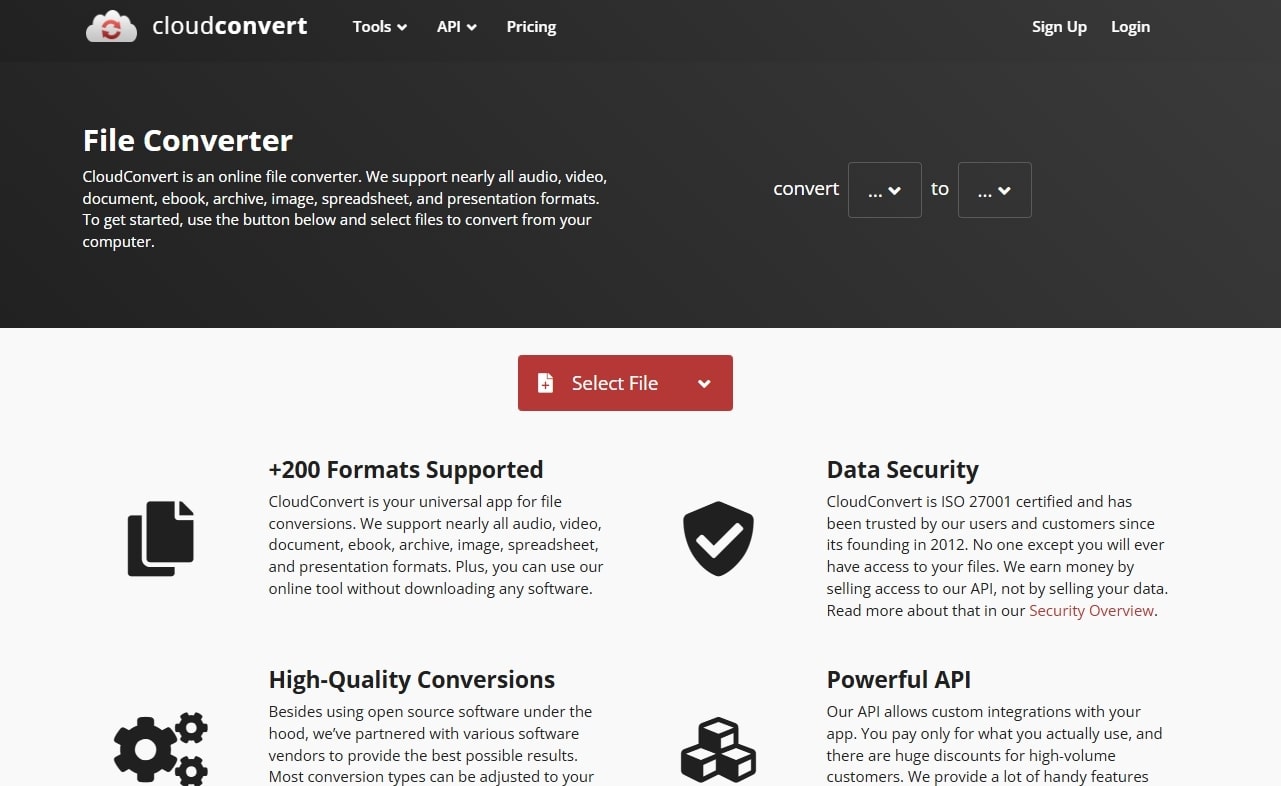
CloudConvert offers a powerful web-based tool to convert WebP images to JPG format. The online WebP converter provides high-quality conversions and offers advanced options to regulate image quality, size, and other aspects. It safely manages your documents in the cloud, and you do not have to install any software to convert files quickly and effectively.
Easy Steps on How to Turn WebP into JPG Using CloudConvert
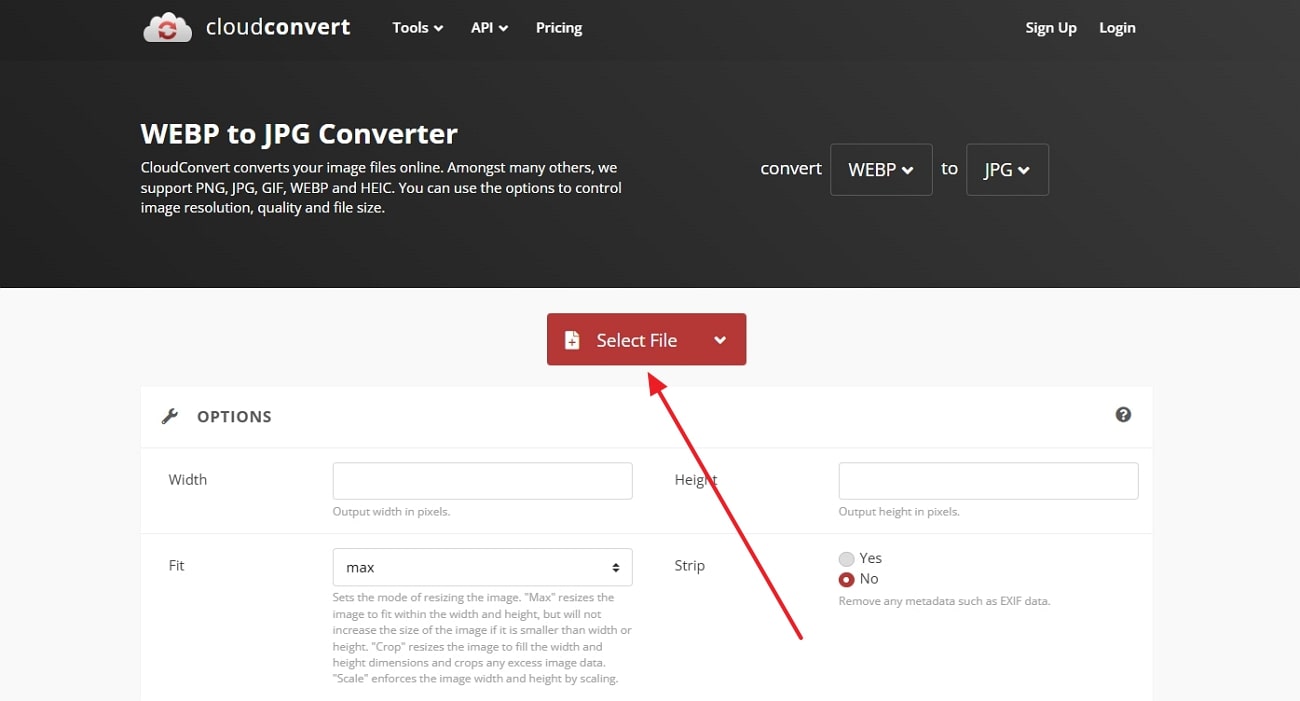
Step 1. Head to CloudConvert’s WebP to JPG webpage, press the “Select File” button, and upload the WebP image from the dialogue box.
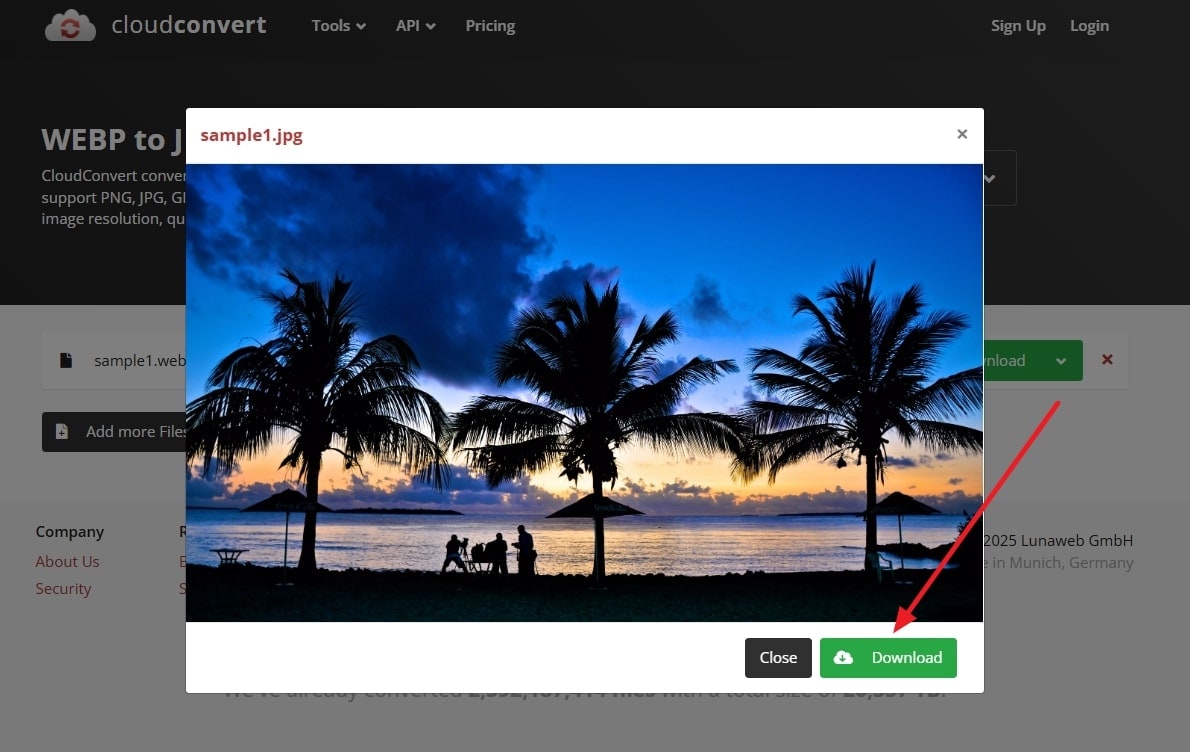
Step 2. Once the settings are changed, hit the “Convert” button, and successfully download the JPG image.
2. Convertio
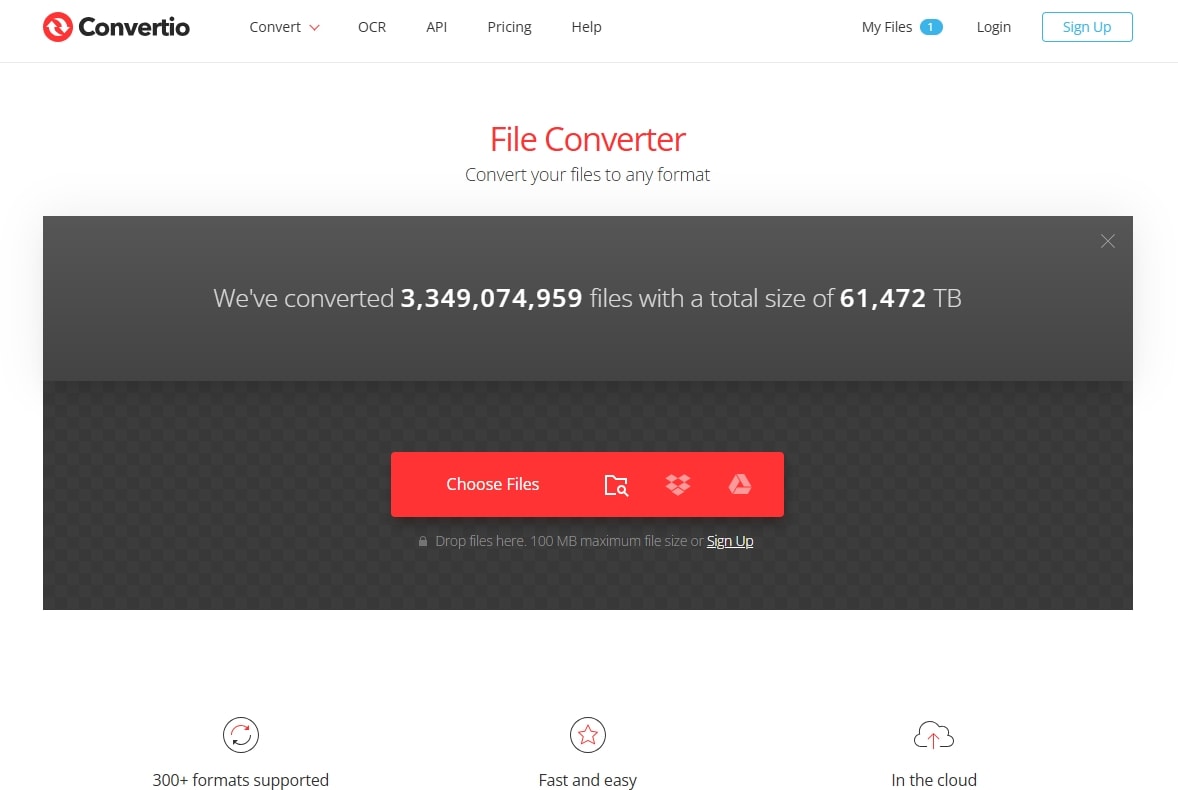
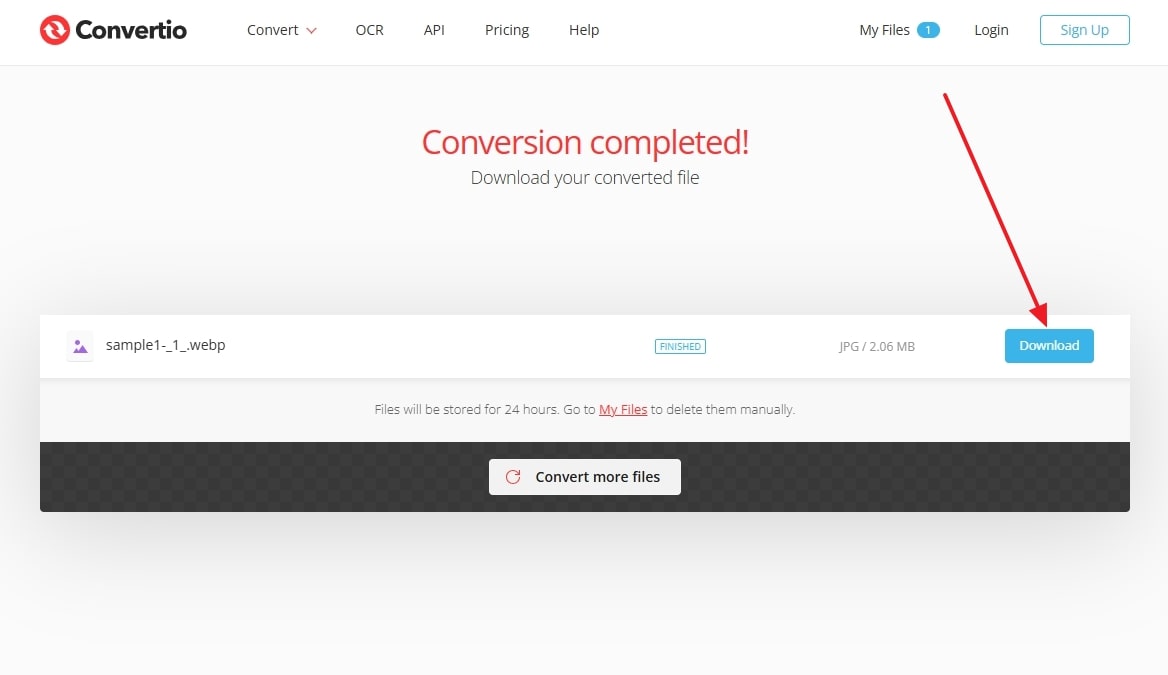
This is another feature-rich platform that helps convert WebP to JPG iPhone directly across your Apple device's browser. While supporting file uploads from a computer, Google Drive, and Dropbox, you can also consider this platform for batch conversion. Providing support for 200 different formats, your WebP images are processed securely and deleted from the platform after a few hours.
Comprehensive Steps on How to Turn WebP into JPG Using the Convertio Tool
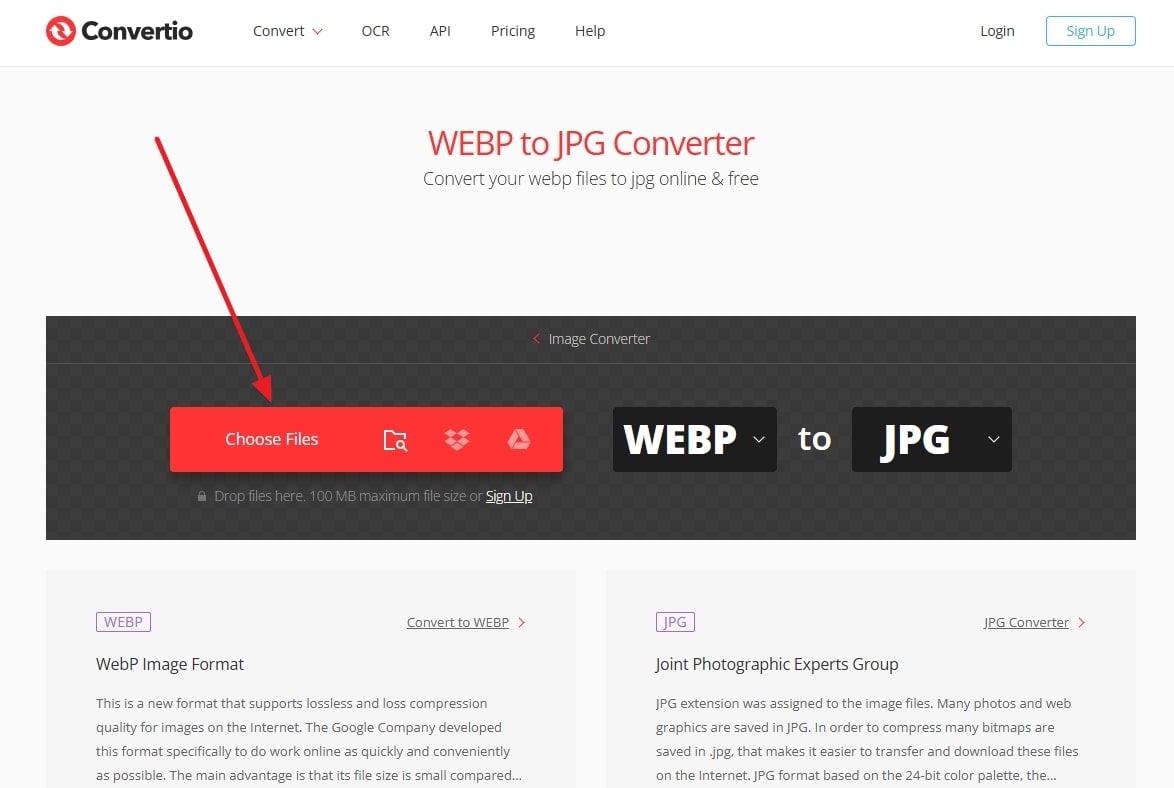
Step 1. Upon accessing Convertio, select the "Choose Files" button or any of the uploading options. With the WebP image uploaded, select "Convert" to initiate the conversion process.
Step 2. With the image converted successfully, use the "Download" button to save the JPG file to your Apple device.
3. FreeConvert
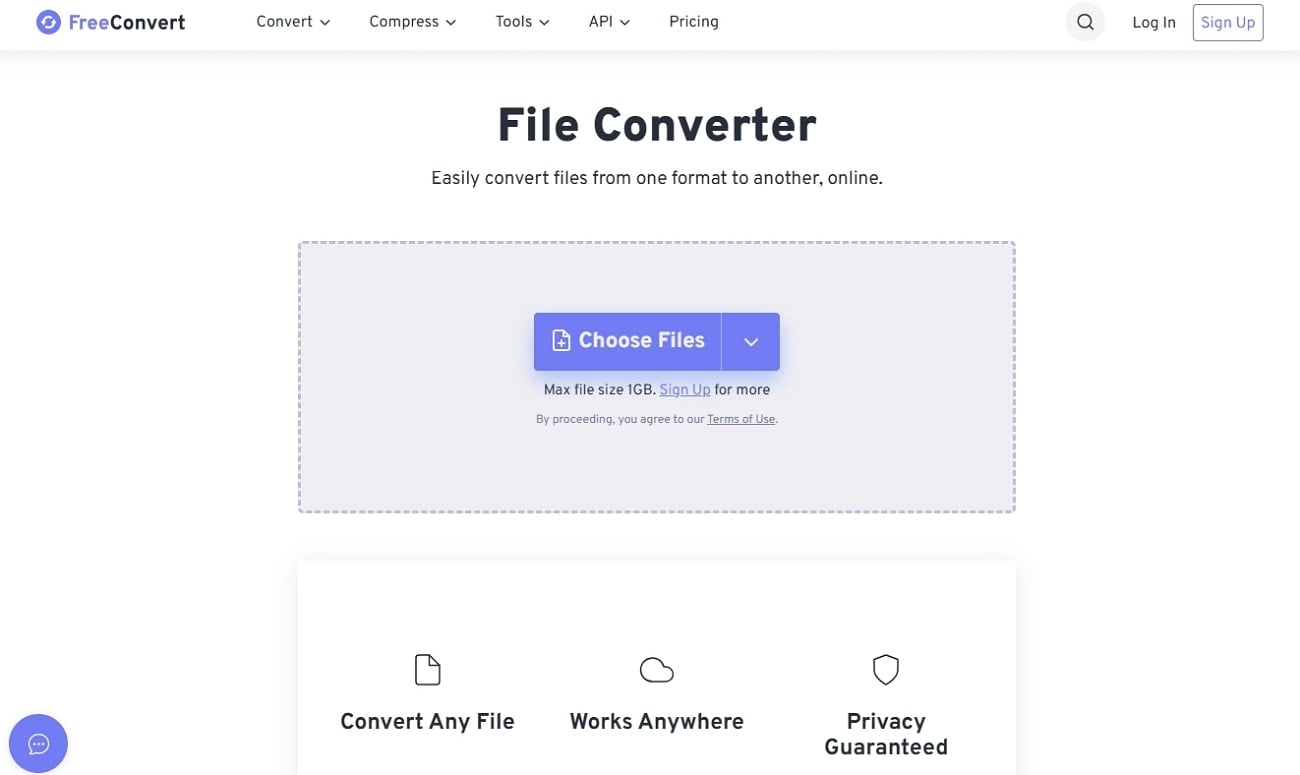
This online converter distinguishes itself as a powerful option to view WebP on iPhone by offering users a generous 1GB file limit. With advanced options like customizing compression and image dimensions, FreeConvert turns out to be a different breed. Along with all these options, it secures the data with 256-bit SSL encryption and an automatic file deletion system.
Simple Walkthrough on How to Convert WebP Images into JPG Format
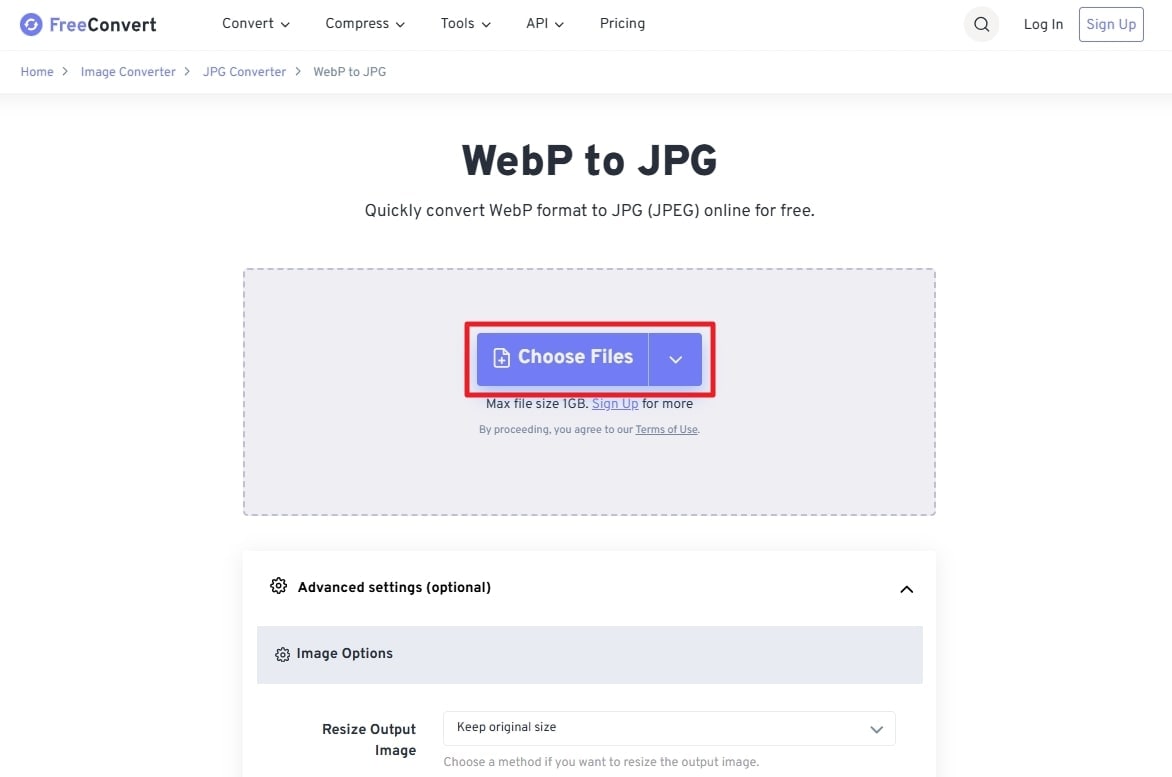
Step 1. Start the process by selecting “Choose Files” across the FreeConvert WebP to JPG webpage.
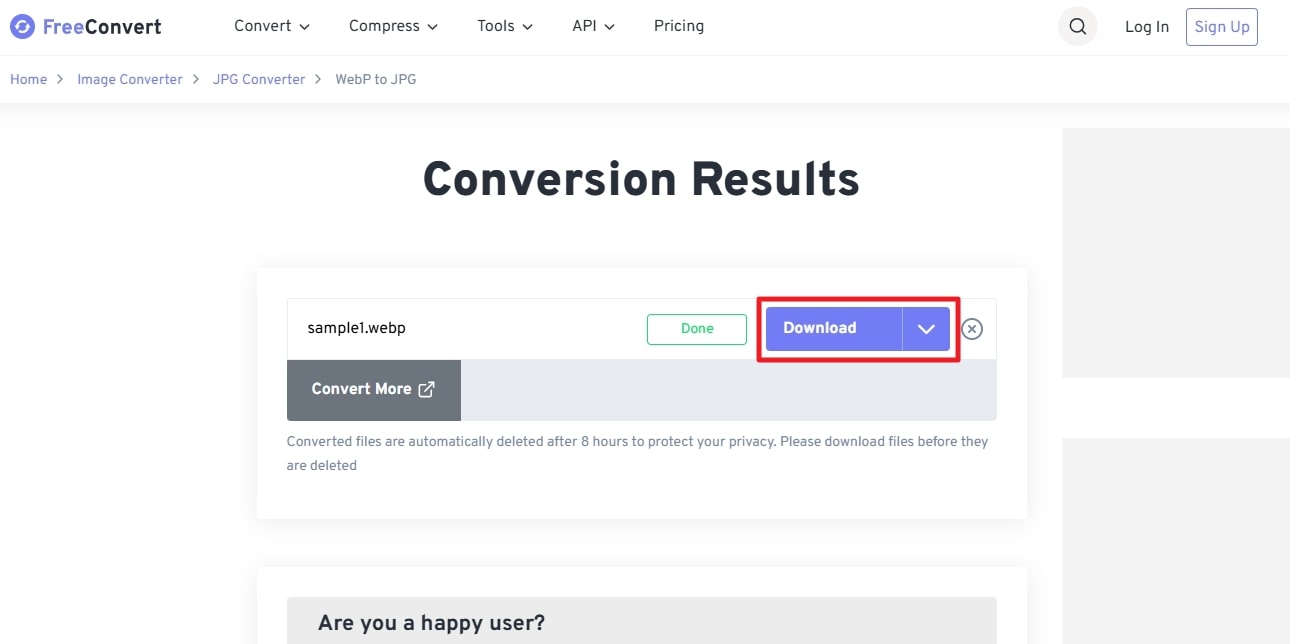
Step 2. Make changes within the properties and hit “Apply Changes” before selecting the “Convert” button. Once the process successfully concludes, use the “Download” button to save your converted images.
4. Media.io
Media.io recognizes itself as an AI-based platform with an easy-to-use WebP to JPG conversion facility. While you can convert WebP viewer iOS images to 40 other formats, Media.io holds special support for Apple-based formats. You can find several customizable settings and parameters, such as resolution, compression, and image quality, to manage across the platform.

Instructional Guide on How Media.io Converts WebP into JPG Format
Step 1. Within the "Click to Upload" area, add your WebP image and select "Convert To" from the drop-down menu. There, choose the "JPG" format or any other iOS-supported format before clicking "Convert All."
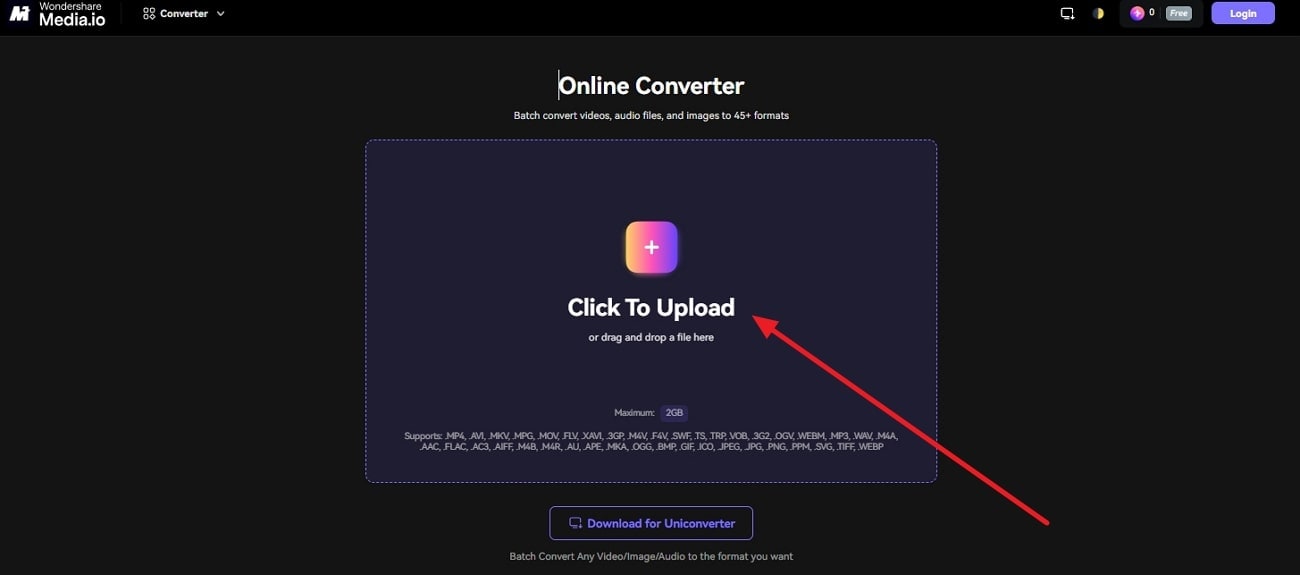
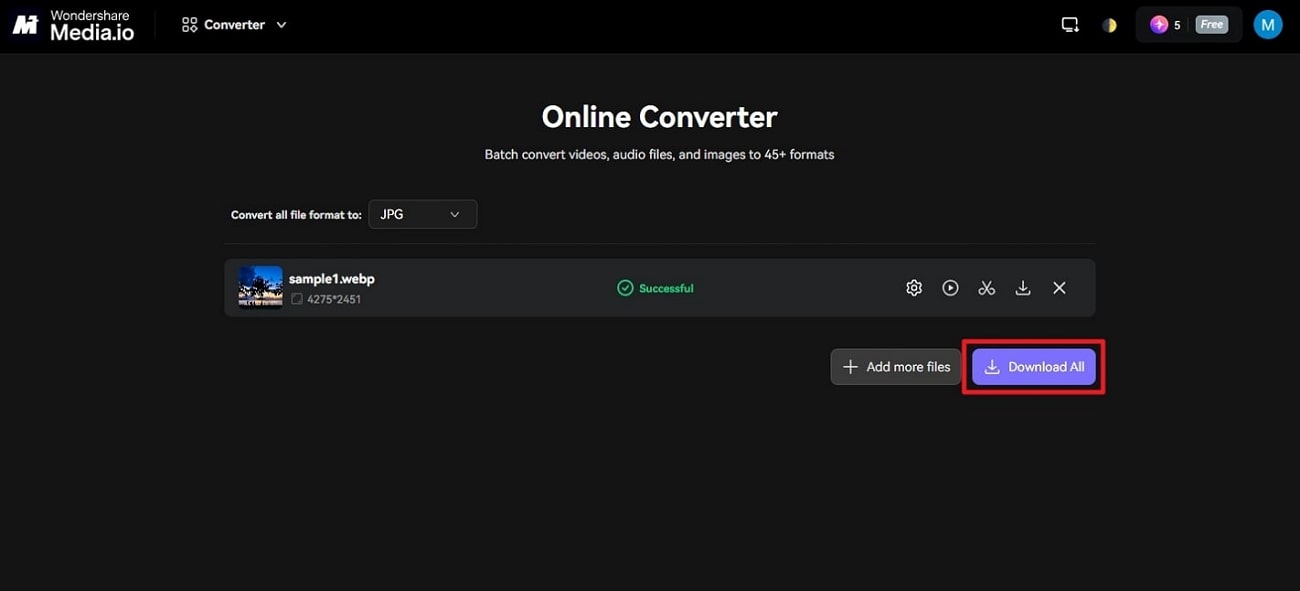
Step 2. When the image is converted to the desired prompt, “Preview” the image, edit, trim, or simply “Download All” the image.
Here is a comparison table offering other feasible solutions for you to convert WebP files for iPhone.
|
Feature |
Online Converters (e.g., CloudConvert) |
UniConverter (Desktop&Online) |
Apple Shortcuts |
|
Best For |
Quick, single-file conversions |
Batch processing, advanced editing |
Tech-savvy users, automation |
|
Cost |
Free (with limits) |
Paid (with free trial) |
Free |
|
Batch Convert |
Limited or No |
Yes |
Yes (requires setup) |
|
Privacy |
File uploaded to server |
Files stay on your computer |
Files stay on your device |

Easy to Use Batch WebP to iPhone Converter
Part 3. How to Batch Convert WebP to iPhone - One-Stop Solution
The online conversion tools have several limitations that prevent users from converting more than one WebP image into a format suitable for the iPhone. To make the batch conversion easy, utilize Wondershare UniConverter, a progressive media management tool. The software is known to handle a large variety of image formats and maintains quality even after conversion.
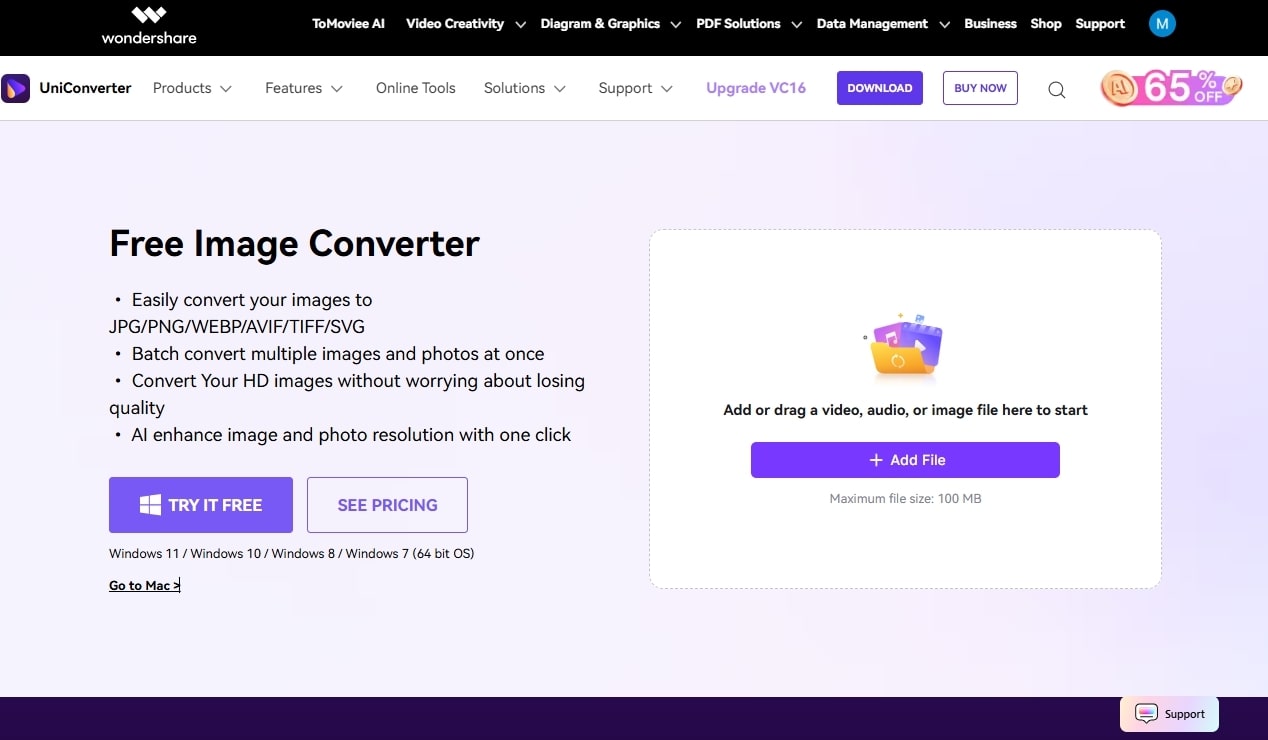
Besides conversion, UniConverter comes with potent editing tools, such as cropping, watermark removal, and resizing, enabling users to edit images prior to export. You can crop pictures in different sizes, rotations, and flips. Creators can improve the quality of the image and edit the image effects, such as its brightness, contrast, and saturation.
UniConverter Guide: How to Batch Convert WebP to iPhone-Compatible Formats
Following this, go through the steps to find out how this seamless photo conversion facility batch converts WebP to JPG iPhone:
Step 1. Access Converter Feature and Import Images
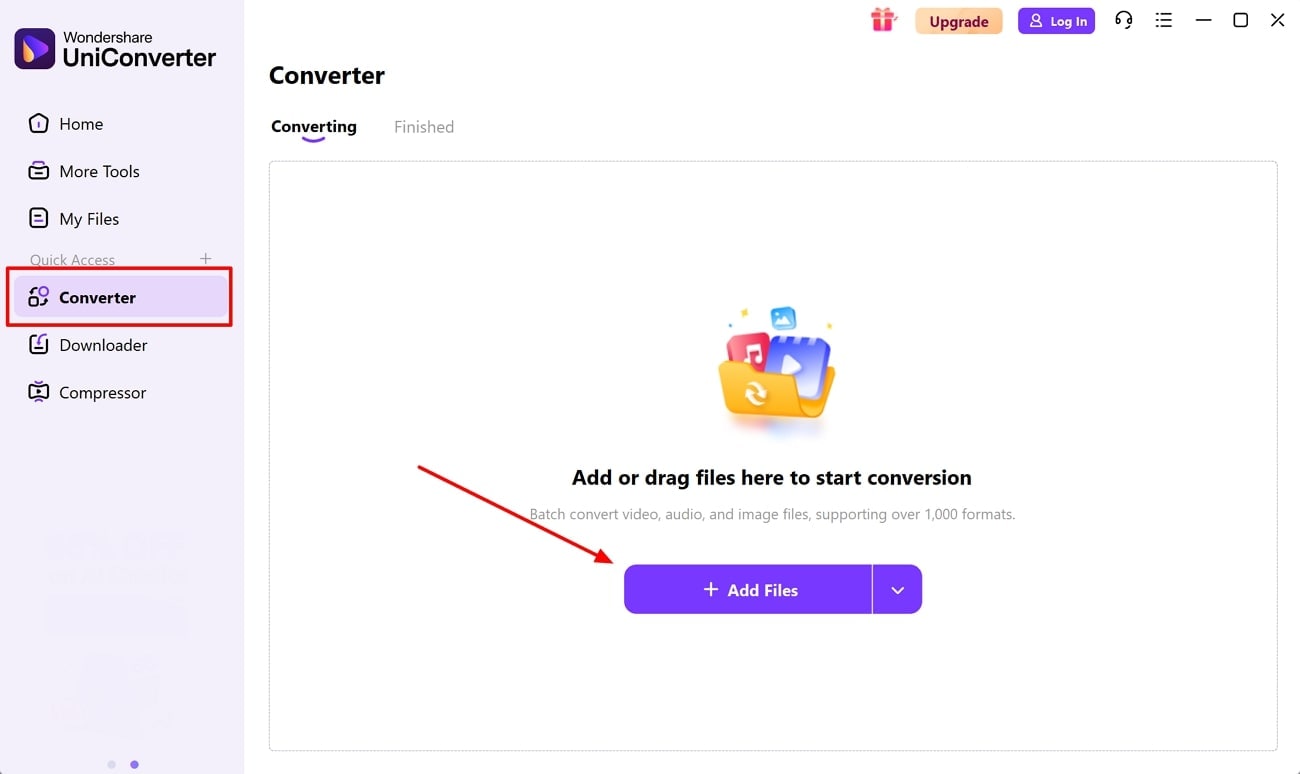
As you access UniConverter’s main interface, lead into the “Converter” tab, and choose “+ Add Files” for importing the WebP images.
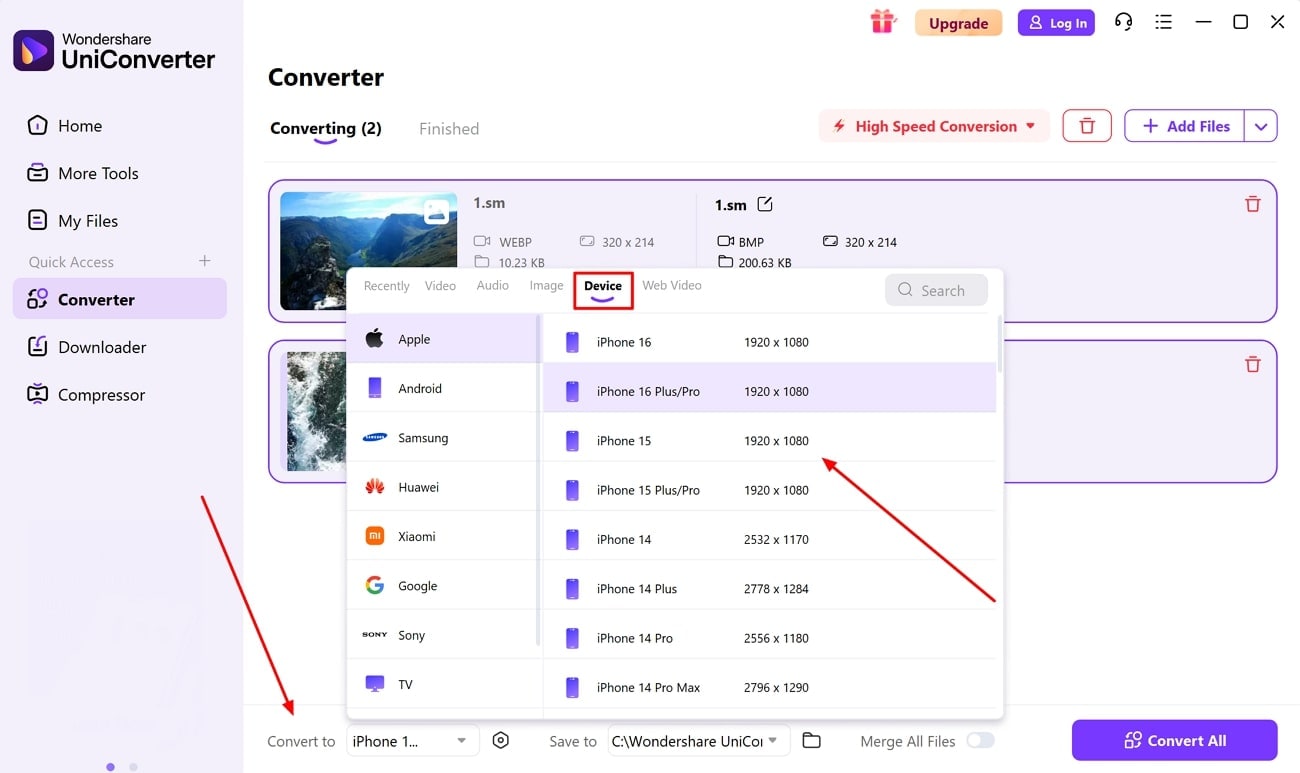
Step 2. Select Automatic Adjustment Settings for iPhone and Initiate Conversion
Following this, move towards the "Convert To" drop-down at the bottom and proceed into the "Devices" category. There, select your specific iPhone model that you own to ensure the images are converted to the respective format.
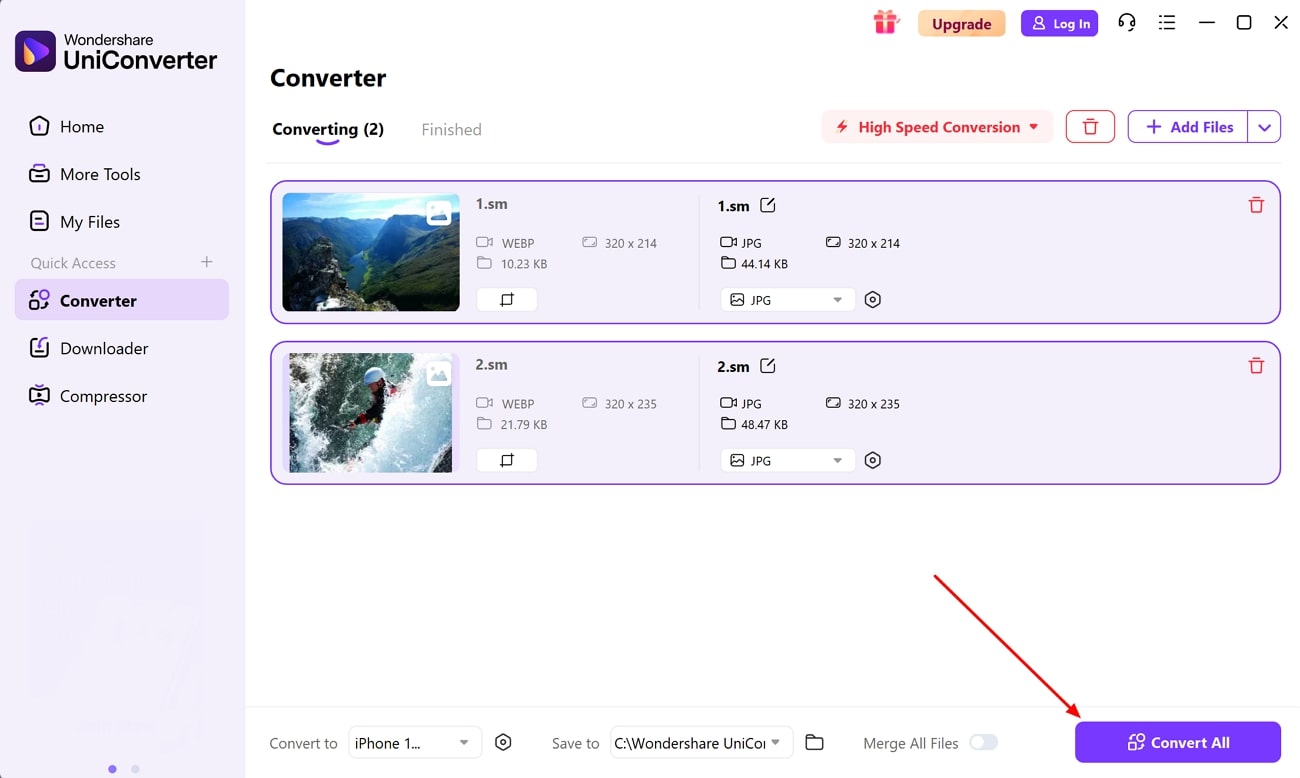
Step 3. Execute Conversion and Preview Results
As you click the "Convert All" button, the images will automatically process and get saved across the location set in the "Save To" section. You can also navigate to the "Finished" section to redirect yourself to the dedicated location.
Part 4. Best Formats to Use on iPhone Instead of WebP
As we've discussed above, WebP is not compatible across several iOS devices and apps, limiting users ability to save WebP on iPhone. Thus, if you wish to ensure complete access to a particular image, converting it into the following formats is the right direction to follow:
HEIC/HEIF
This image format offers higher compression with better image quality compared to older formats like JPEG. It is used primarily for capturing and storing high-quality photos with smaller file sizes on various Apple devices. You can find support for features like transparency, depth maps, and image sequences. Its compatibility with the iOS Photos app and iMessage, along with social media apps, makes it user-friendly.
JPG/JPEG
When viewing WebP content that is saved on your phone, the most appropriate alternative is to convert WebP to JPG on iPhone. JPG is characterized by lossy compression, which balances the quality and file size. Images in this format can be opened, saved, and edited by iPhone users on Photos, iMessage, and all social media applications.
PNG
PNG is one of the most popular lossless image formats because it can be used with both transparency and high-quality images without degradation of the image. You can always save WebP to PNG, and it will guarantee sharp detail and transparency of logos, icons, and screenshots. With its full compatibility with iOS Photos, iMessage, and social media platforms, it's a lossless and better format.
Part 5. Tips for Working with WebP Files on iPhone
You might sometimes face a WebP not opening on iPhone issue due to the iPhone's inability to support this format. To resolve this problem, follow the tips given on how to get these WebP files working again:
Batch Conversion Options
When dealing with multiple WebP files, you can employ batch conversion apps. Instead, you can always come across platforms like UniConverter, which allows you to easily process multiple images under similar settings in no time.
Cloud-Based Storage and Access
Try saving these images across cloud services like Google Drive and Dropbox. At times when WebP files are not operating across a particular iOS device, you can view WebP on iPhone using third-party viewers.
Reducing File Size While Preserving Quality
WebP images are known for their high-quality lossless compression quality. These images can be reduced further to balance their sizes across iOS devices, making their management easier.
Use Safari for Online WebP Images
Safari WebP support is available in iOS 14 and later versions, making browsing experiences smoother. To view WebP files easily on your iPhone, access the particular webpage using the Safari browser.
Conclusion
As we conclude this article, you are now aware of the basics of WebP and all the assorted details. From learning about its incompatibility to discovering how to view WebP on iPhone, the article presented everything. While finding several online tools for converting WebP images, you also went through UniConverter and its unique conversion ecosystem, making it a first-rate choice.
Easy to Use Batch WebP to iPhone Converter
Frequently Ask Questions
-
1. Are there apps available for batch conversion of WebP images on iPhone?Yes, there are several third-party apps like WebP Converter that allow you to convert WebP to JPG iPhone. These apps offer a variety of image quality settings and a high-definition image result.2. Why do WebP images sometimes not load on iPhone browsers like Safari or Chrome?This largely depends on the iOS version, as WebP is supported from iOS 14 and later versions. If you are using an older iOS version, your Safari or Chrome won't support WebP images.3. What workarounds exist for opening WebP or AVIF images blocked by Apple security settings?Some users report security settings or system updates causing apps to block WebP file access. Head into the iPhone Settings and grant security permissions to the specific service for resolving the issue.4. Can developers rely solely on WebP images for websites targeting iPhone users?While iOS 14+ supports WebP, developers should use fallback images, like JPEG and PNG, if the audience is a user of old iOS versions. This will help them avoid all accessibility issues within their related audience.

