


There are various times when content creators and influencers are unable to share WebM videos from their iPhone. Other times, iPhone also doesn’t recognize the downloaded WebM video format, which causes frustration. Therefore, the only solution is to convert WebM to MP4 on iPhone using online tools and other methods. By converting this format, you’ll be able to access, share, and edit different videos with ease.
For that purpose, this article provides you the process of using various methods of conversion, along with understanding WebM. You’ll also get to know the top user cases of converting WebM and other tips on how to manage this format.
In this article
Part 1. What is a WebM Video and Why Would You Need to Convert It?
Google has a history of creating globally popular video and image formats, and WebM is one of them. It stores compressed visual and audio data, to minimal storage space. Being a video format, it uses the VP8 or VP9 video codec, which are advanced video compression format. This royalty-free format has no licensing fee, meaning it’s easily accessible for online streaming, especially for HTML5 browsers.
Benefits of WebM Video Format
Although you can’t open WebM in iOS, the benefits of this format are worth noting for other streaming purposes, given as such:
Small File Size: The WebM’s VP9 compression requires a lower bitrate than other formats, which significantly reduce the video file size without losing quality.
Lightweight Media Format: It offers smooth animation of videos and stickers on various messaging platforms, like WhatsApp due to its lightweight format.
Royalty-Free: Unlike some video formats that require licensing fees, WebM is a royalty-free format, meaning it’s completely free to use.
Web Streaming: This format is optimized for web-based video and streaming, delivering users with high-quality content even with slow networks.
Compatible with HTML5: It is integrated with the modern HTML5 standards, which seamlessly allow smooth playback videos on Chrome, Firebox, and more.
Why You Should Convert WebM Format into iPhone Formats
There following are the specific reasons that explains why you need to convert WebM to MP4 on iPhone:
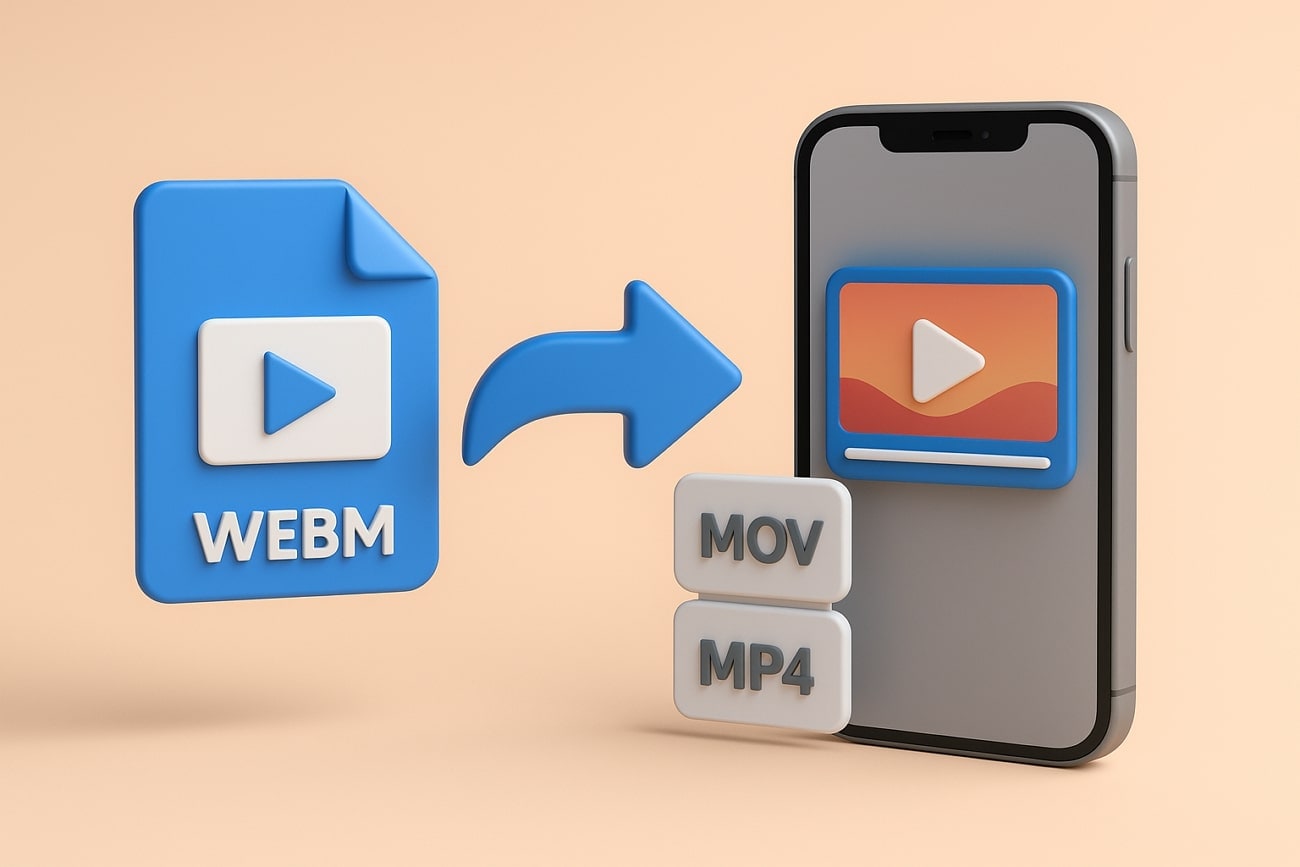
Limited iOS Support: iOS 17 offers limited native support for WebM format, where iOS versions before it did not offer any native support for WebM.
Incompatible with Apps: Apps, like Messages, Mail, and other apps still have no support for WebM playback, which rise the need for conversion.
Playback Error: This video format may cause playback errors or fail to play in some apps and browsers.
Simplify Sharing: It simplifies sharing and video embedding in emails, messages, and social platforms after conversion.
Customizable Output Settings: You can customize the output settings of WebM format, like resolution, bitrate, and more before conversion to ensure smooth playback.
Part 2. How to Play WebM Videos on iPhone Without Converting
It’s a fact that the WebM format cannot be accessed on iPhone devices due to the reasons listed above. However, you can open WebM in iOS using the following two efficient methods with step-by-step guides:
Using Safari (iOS 17+)
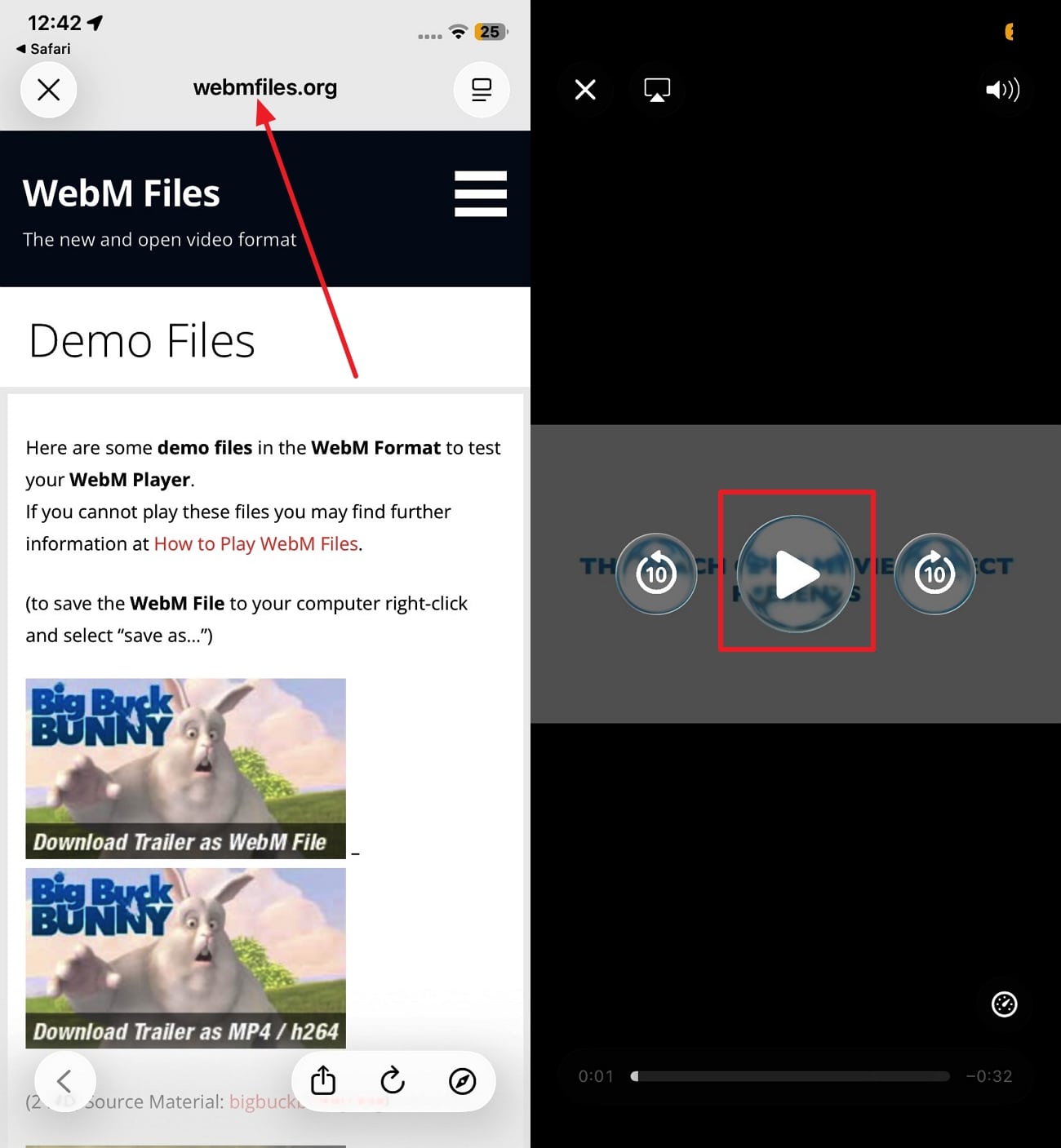
One way to play WebM videos directly is by using the Safari app on your iOS 17 and later versions. This method supports the WebM format within the browser and lets users stream and view WebM videos. Moreover, you can enjoy good video quality and smooth playback without installing or converting the format. Now, let’s go through the following instructions on how to open .webm files on iPhone:
Instructions. Go to the “Safari” app on your iPhone, copy & paste the link with the WebM videos, and press the “Enter” key. Once the page loads, tap the video and hit the “Play” button to enjoy the formatted content.
Using a Third-Party Player App (The Best Solution)
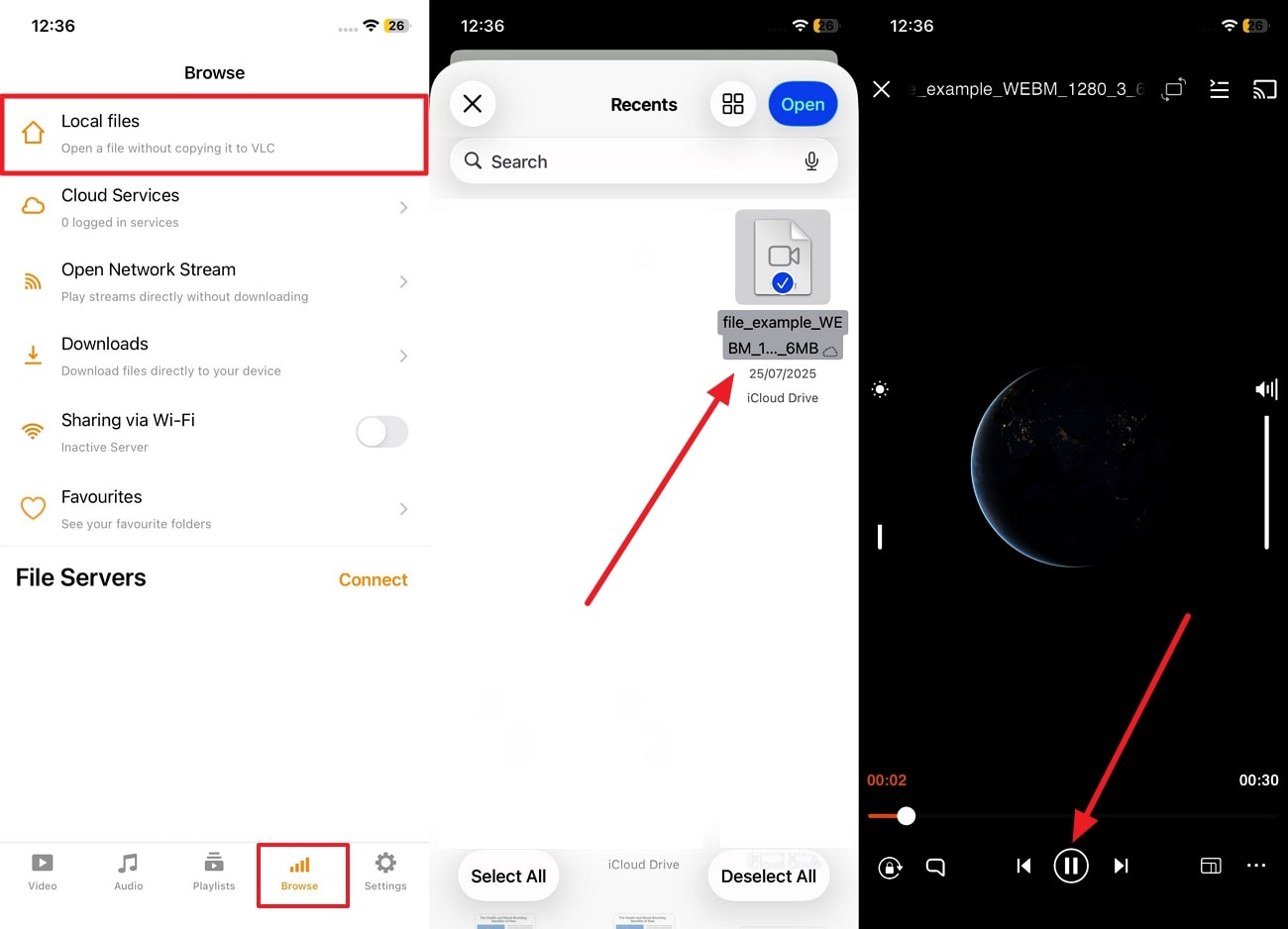
If you are looking for an even more versatile solution, then try installing the best WebM player for iPhone, which is installing the VLC app. It is specially designed to cater a wide range of video formats, like WebM in different codecs. Also, the app ensures a reliable playback regardless of the source and any video size with ease.
Instructions. When the VLC app is installed from the App Store, open its main interface and head to the “Browse” tab. From here, press “Local Files,” choose the desired WebM video, and hit the “Play” button to seamlessly view and play the video.

Easy to Use Batch WebM to iPhone Converter
Part 3. How to Batch Convert WebM Videos for iPhone Viewing
When it comes to playing WebM videos, using a third-party tool is more convenient for a versatile streaming content. For that purpose, presenting Wondershare UniConverter, which can batch convert this format into MP4, MOV, and more. It has more than 1000 formats, high-end encoders, and converts WebM into 8K videos. Its video settings enable you to alter the encoder, the frame rate, resolution, etc, as well as audio.
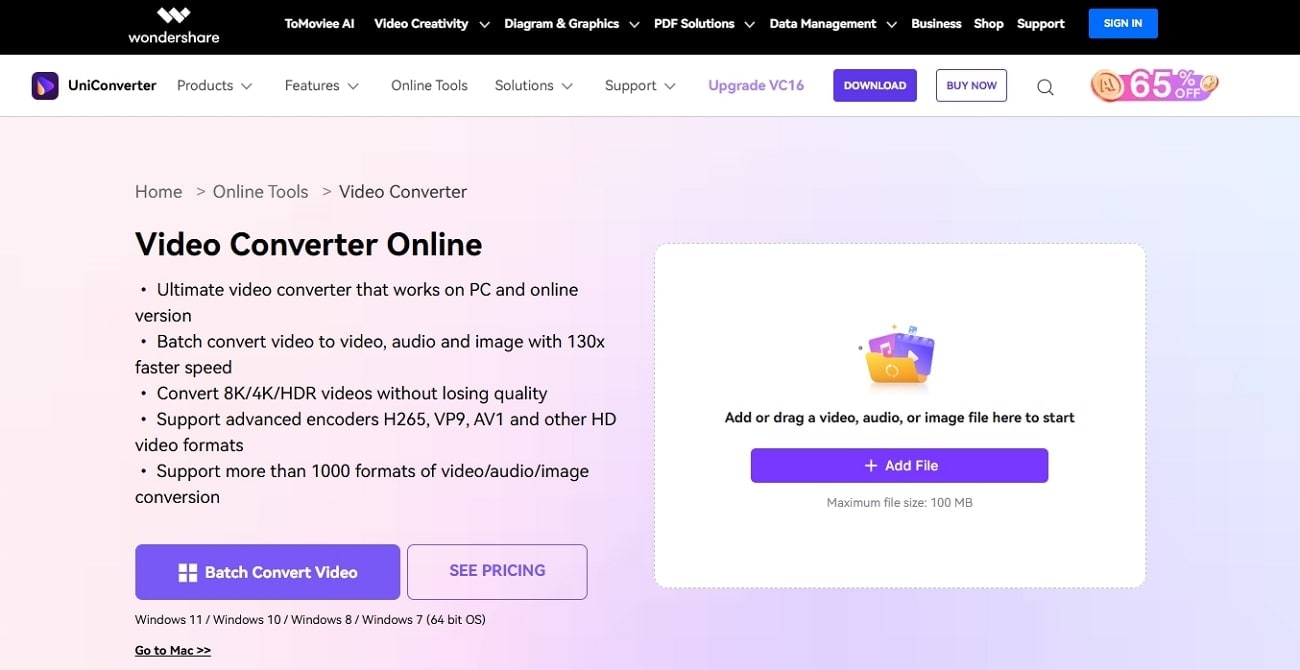
In addition, the user can access subtitles and Vorbis settings, where they can track the video audio and turn the subtitles on or off. Not only that, UniConverter offers additional editing tools, like cropping, adding filters, changing subtitle formatting, and many more. After conversion, creators can also improve the video clarity, compress the video, and remove the watermark.
Easy Step-by-Step Guide on How to Batch Convert WebM Videos
Users can follow these easy steps on how this iPhone video converter WebM turn the incompatible format in MP4 with ease:
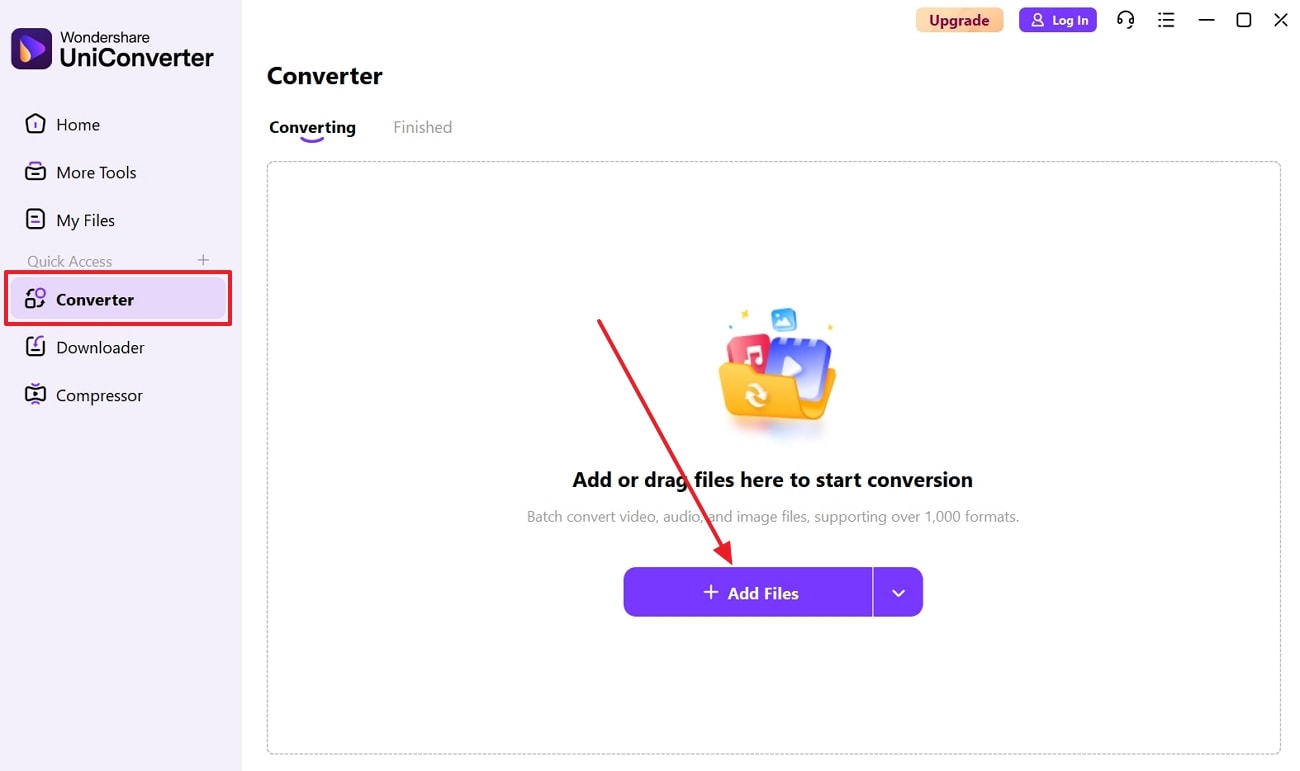
Step 1. Open Converter Feature and Import WebM Video
Open the main interface of this software, head to the “Converter” tab, and press the “+ Add Files” button to import the WebM video files.
Step 2. Choose the iPhone Compatible Format & Convert
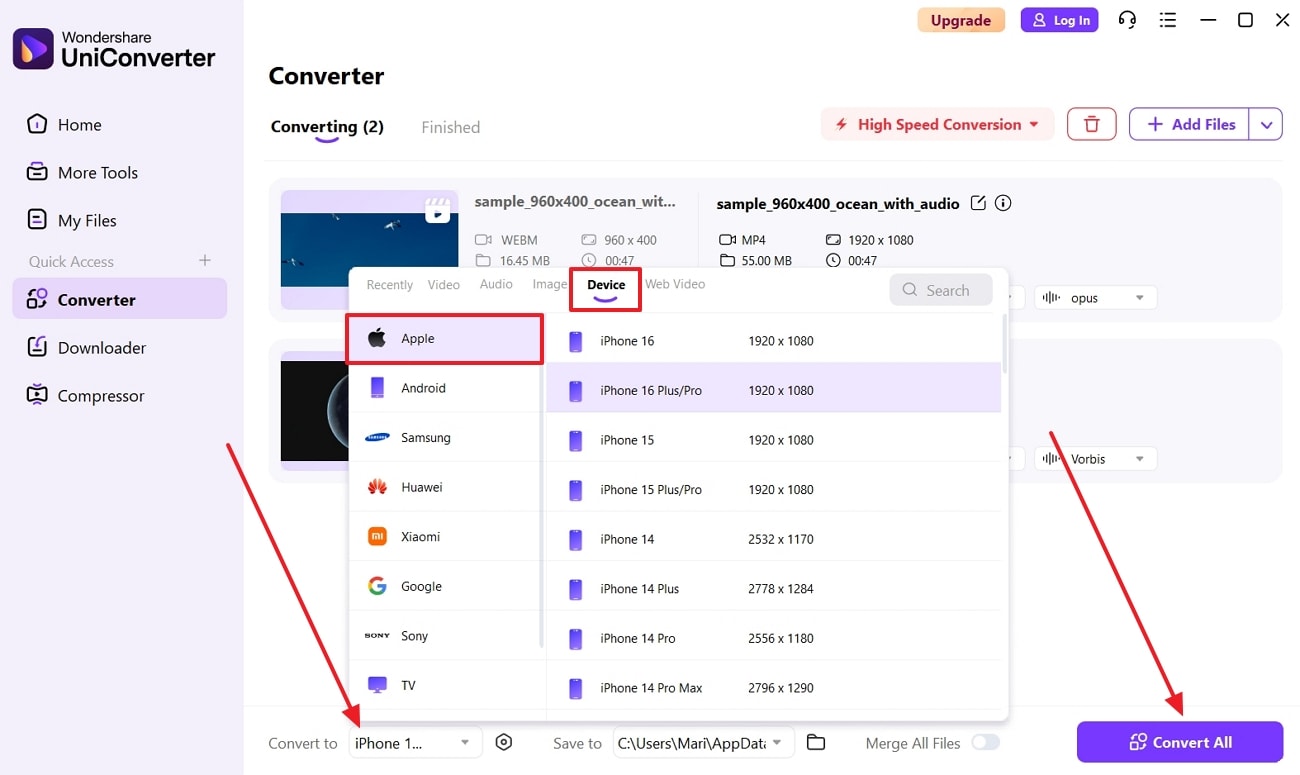
After that, click the “Convert To” option, and within the “Device” tab, choose “Apple” tab, and select any iPhone choice. When selected, hit the “Convert All” button to begin the conversion.
Step 3. Preview the Video and Access the Files
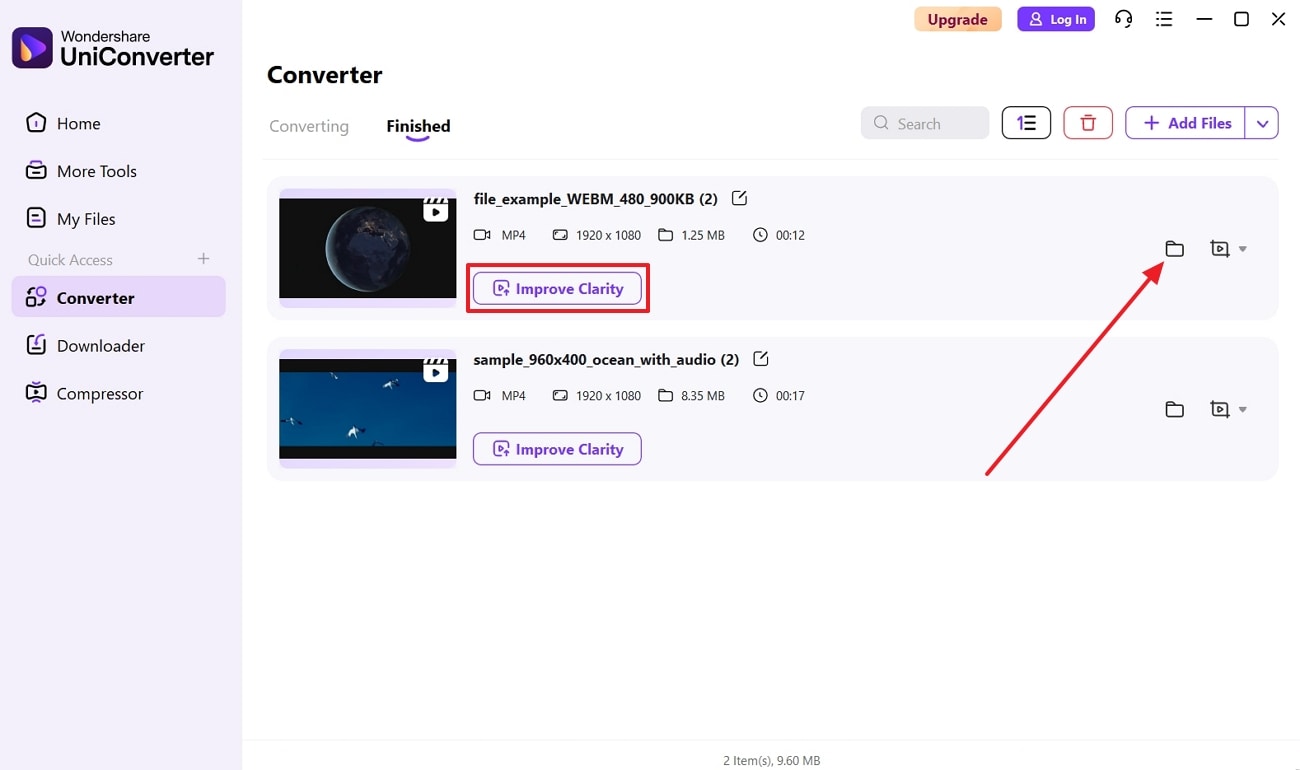
Once the conversion is completed, the software automatically downloads the converted videos. You can press the “Improve Clarity” option to enhance the video clarity, and click the “Folder” icon to access the video.
Part 4. Top Use Cases for Converting WebM on an iPhone
After learning how you can iPhone play WebM videos, let's look at the following highlighted use cases of why it's necessary to convert them into iPhone formats:
Saving Videos from Web: There are many videos online that come in WebM format, which may not always play, so converting them into formats like MP4 ensures smooth playback.
Sharing on Various Apps: Various iPhone users use various popular platforms and messaging apps, and converting WebM to a compatible format allows users to easily send and share videos.
Seamless Editing: For sharing and editing purposes, you need to convert these WebM videos into MP4 formats.
Compatibility with Older Devices: Not all friends or family members may have the latest iOS versions, so for sharing purposes, turn the WebM format into MP4.
Easy to Use Batch WebM to iPhone Converter
Part 5. Other Tips for Managing WebM Videos on iPhone
In the end, users can learn about the various useful tips that can help them open WebM in iOS using these tips and tricks:
Update Your iOS
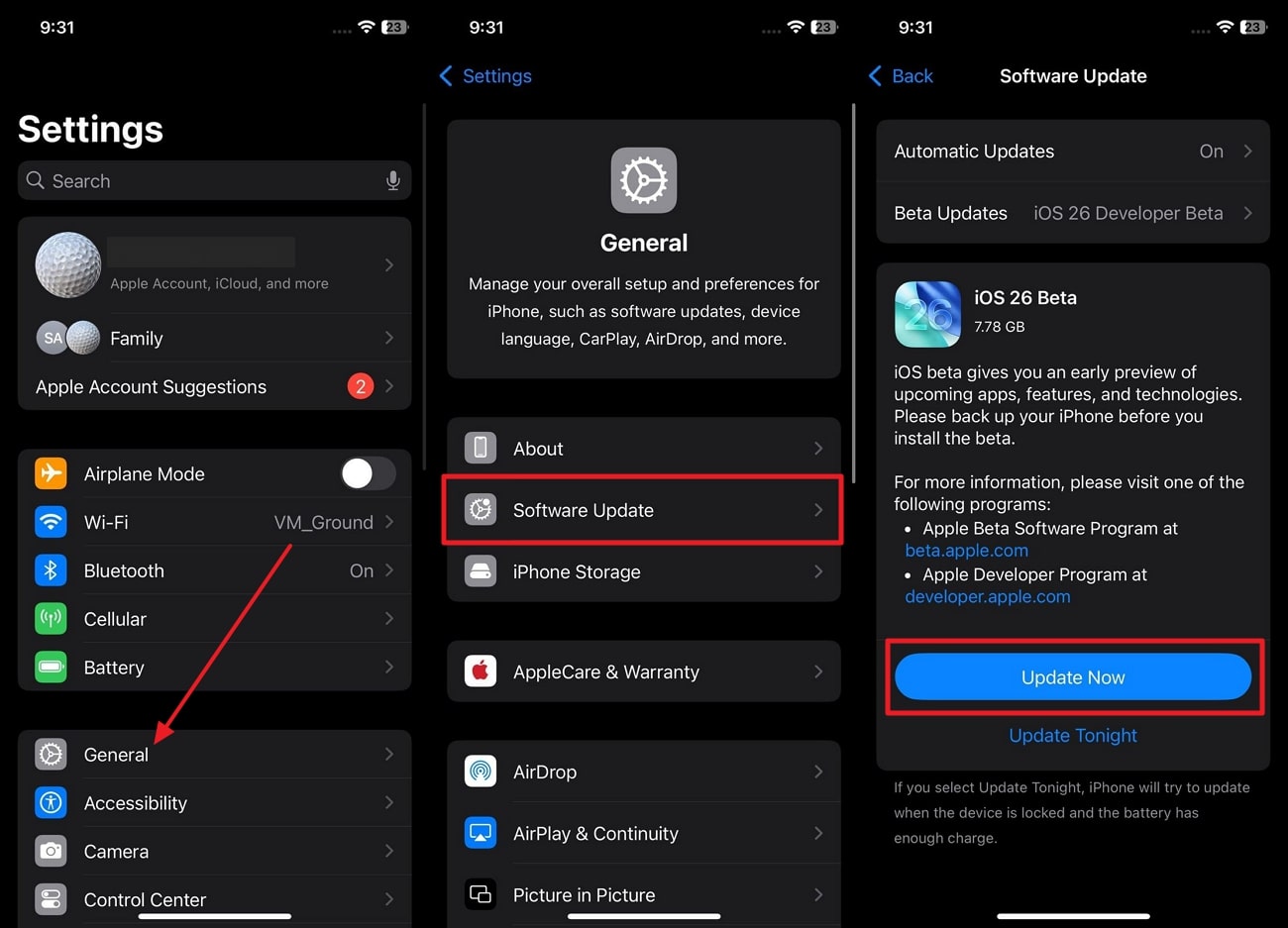
It is recommended to always check if your iOS is updated to ensure maximum compatibility with newer audio and video formats such as WebM. Besides, the latest versions of iOS, particularly iOS 17 and higher, have in-browser compatibility with WebM files. Meanwhile, the old system can hinder WebM video playback or normal operation. Therefore, use the following instructional manual and update your iOS device to its newest upgrade today:
Instructions. Head to your iPhone “Settings,” open the “General” option, and choose the “Software Update” option. If there are any updates available, press “Update Now” to keep the iOS updated.
Use Cloud Converters
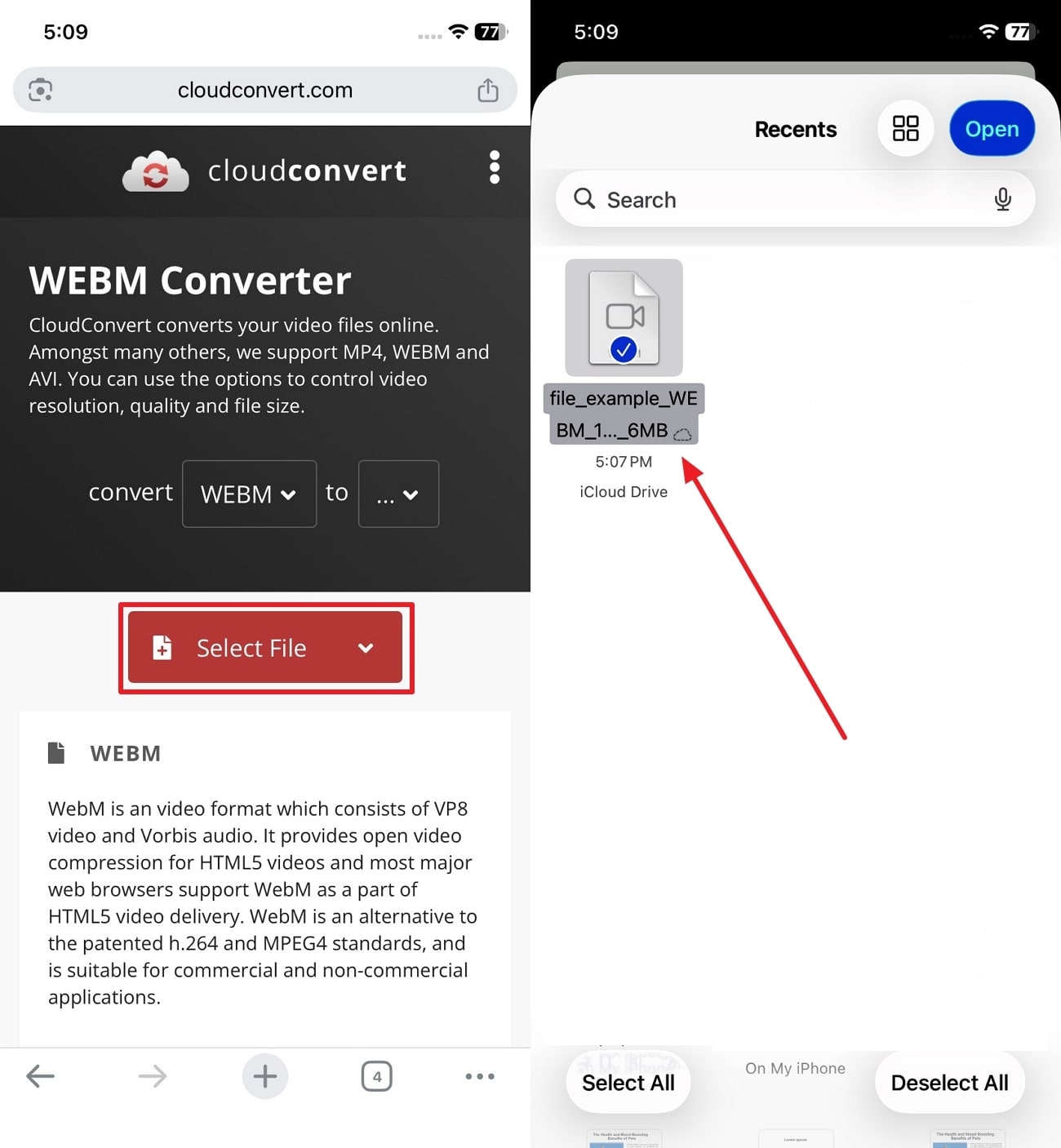
There are various cloud-based converters out there, like CloudConvert, that let you convert WebM to MP4 on iPhone. With this website, users can upload different WebM video file sizes and seamlessly convert them into formats like MP4, MOV, and more. You can even preview the file frame by frame before downloading it on your iPhone device. The following are the simple steps that can help you transform this unnecessary format into MP4:
Step 1. Visit the CloudConvert website on your iPhone, tap the “Select File” button, choose the WebM video content, and press “Open.”
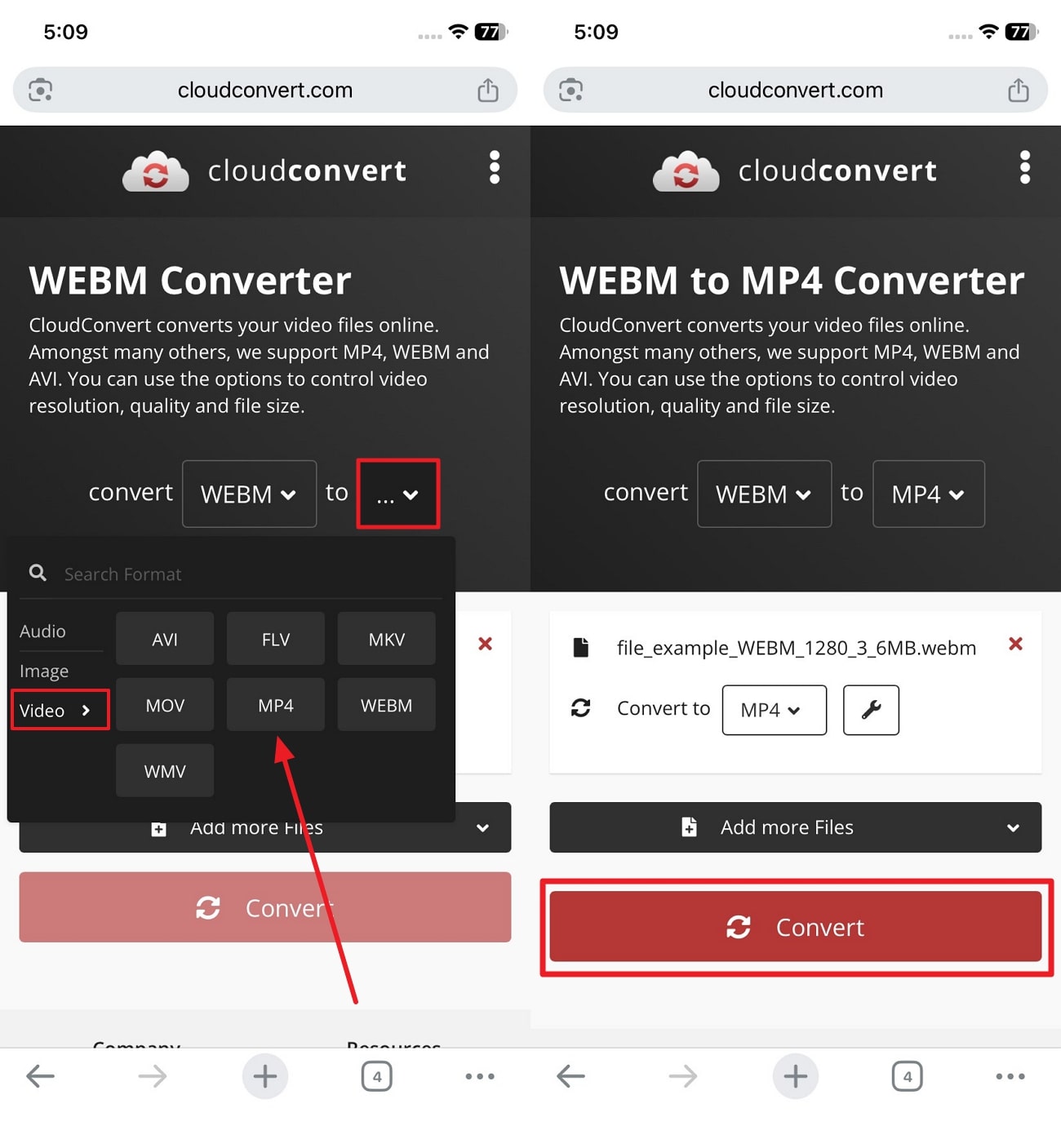
Step 2. Next, open the “To” option, access “Video,” and pick the “MP4” format. Once selected, hit the “Convert” button, and download the final result.
Save to Files, Not Photos
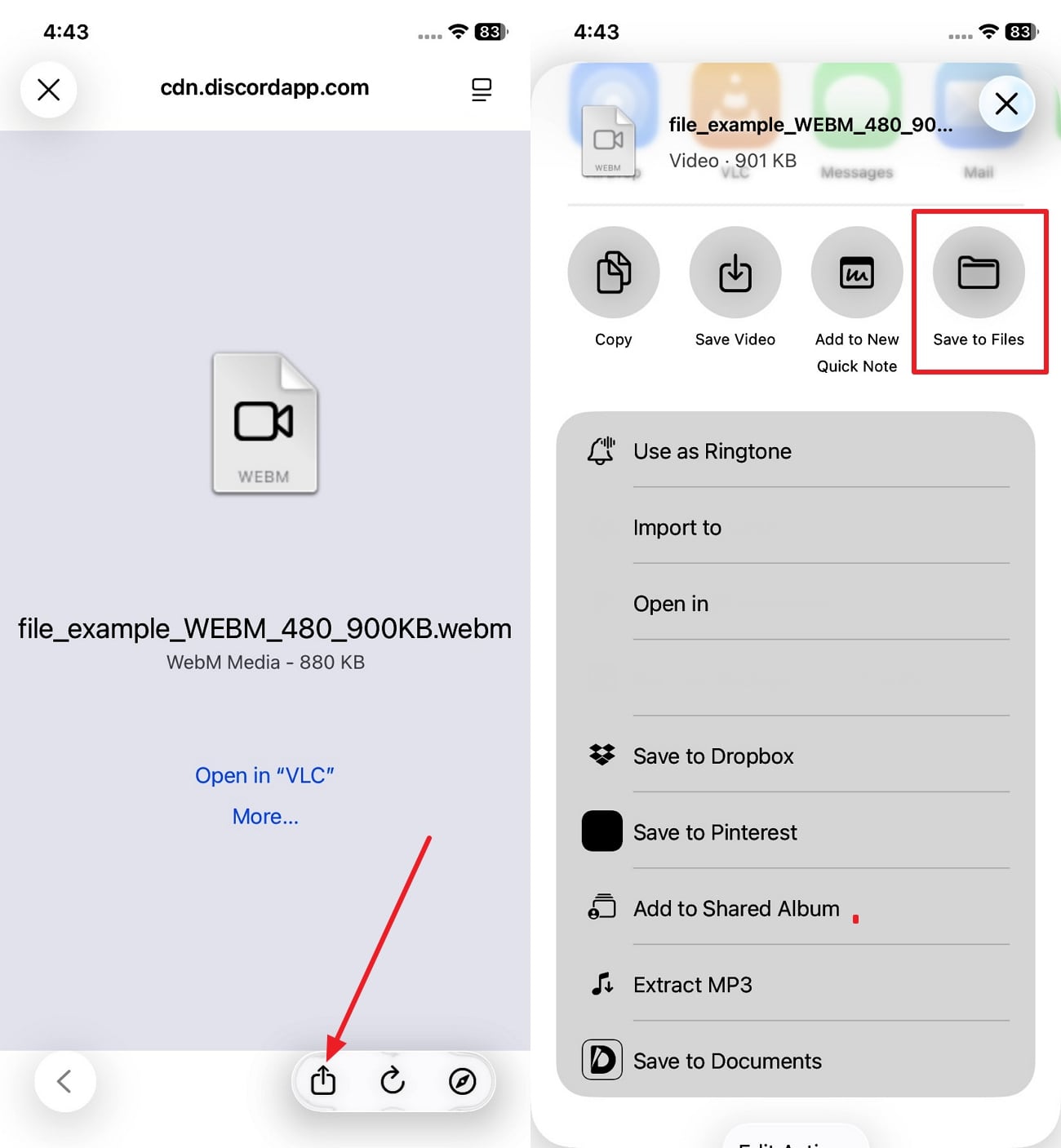
Users should save any WebM videos from different websites on their Files app to ensure easy management., The Files app does support a wider range of formats and integrates easily with third-party media players, allowing complete access to these videos. So, unlike Photos, files won’t attempt to open unsupported video types, like WebM. With the help of the following instructions, users can learn how to save the video:
Instructions. Go to the desired web browser and not your iPhone Photos. From here, open the video file, tap the “Share” button, and press the “Save to Files” option.
Use Chrome or Firefox
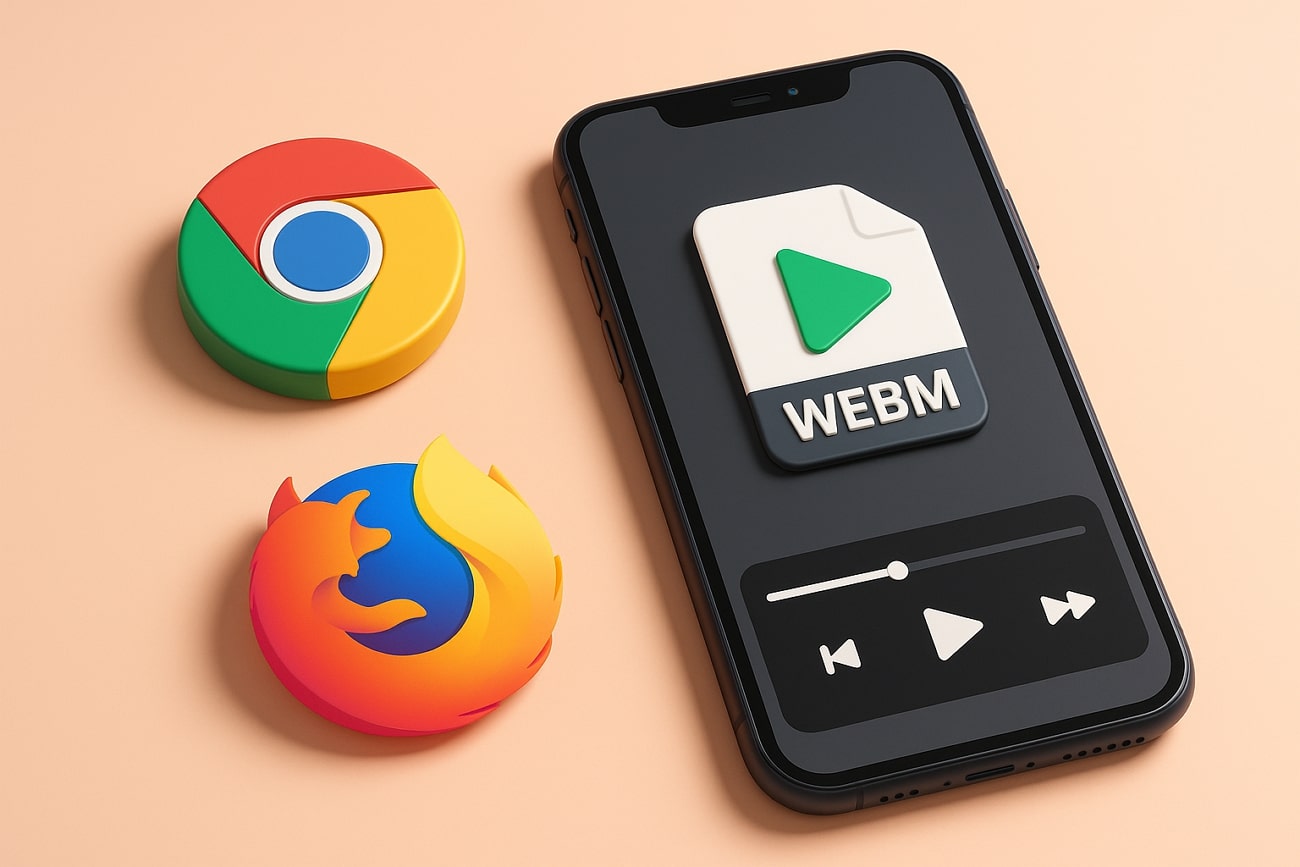
If Safari WebM compatibility fails to play a WebM video, try another browser, as it can sometimes help handle WebM differently. The two other browsers are Chrome and Firefox, which offer alternative playback engines can handle tricky WebM videos. Moreover, you can find more viewing options and help resolve the issue encountered in Safari and convert WebM into MP4.
Sync via Computer for Offline Access
One of the most reliable offline ways to access WebM videos is to transfer WebM to your computer after conversion. After converting WebM videos to an iPhone-supported format, syncing them via cable ensures you can watch them without internet access. Also, this method is perfect for those with large video libraries or limited data plans. It also provides a stable backup of your important formatted clips and movies.
Bookmark Online Converters
When you are in a hurry and want quick access to videos, but it’s in WebM format. You can try using a different iPhone video converter, WebM, to streamline future conversions without getting stuck. That’s where bookmarking the site on your home screen creates a quick shortcut, without the need to search for it. This is particularly handy for frequent video sharers or editors, making it highly accessible.
Conclusion
In the end, this article provided users with a detailed understanding of the WebM video format and its various user cases. Aside from that, you looked at multiple ways to convert WebM to MP4 on iPhone, as this format is not compatible with that format. Next, this article provided various tips to manage your videos with step-by-step guides. Finally, to batch convert video files, utilize the most efficient converter tool, Wondershare UniConverter.
Frequently Ask Questions
Easy to Use Batch WebM to iPhone Converter
-
1. Will the converted video work on all iPhone apps?
Yes, the converted videos in MP4 and MOV will be compatible with other applications and programs on the iPhone device. With the free WebM to MP4 converter for iOS, you can easily convert any WebM format into an iOS-compatible format. -
2. Can I batch convert multiple WebM files at once?
Wondershare UniConverter is the most effective software to convert a batch since it provides not only a fast and secure conversion but also editing. You can obtain a range of quality options in MP4 and MOV format, ranging from HD to 8K, and achieve the optimal results. -
3. What video formats does the converter typically output for iPhone compatibility?
Most converters provide MP4 (H.264/AAC), MOV (Apple's native format), and sometimes M4V as the main output options. Hence, it is advisable to choose MP4, which is the most universal format, that will guarantee the unproblematic playback in a majority of applications. -
4. Can I convert WebM files without an internet connection?
Naturally, you can convert videos using offline desktop software such as VLC and more on your Windows or Mac. The programs will enable you to convert files even when you have no internet connection and provide high-definition output.

