


VP8, the open-source codec once championed by Google, was a stepping stone in web video history. It made HTML5 streaming possible without Flash and fueled WebRTC video calls. However, as technology advanced, VP8’s role shrank. Editing programs, streaming platforms, and mobile devices are rarely optimized for VP8 today. This forces creators, businesses, and casual users alike to convert VP8 into formats like MP4, MOV, or HEVC for practical usage.
In this guide, we will restrospect the VP8 pros, cons and difficulties, and see how handy tools can help solve the problems. Keep on reading and find a preferable choice.
In This Article
- Part 1: What is VP8 Codec and VP8 Use Cases
- Part 2: Why Convert VP8 Files and Common Challenges
- Part 3: How to Choose the Best VP8 Converter Tool
- Part 4: Why Choose UniConverterfor VP8 Conversion (Step-by-Step Guide)
- Part 5: Pro Tips for the Best VP8 Conversion Results
- Part 6: The Future of VP8 Codec – Obsolete or Still Relevant?
- Conclusion
- FAQ
Part 1: What is VP8 Codec and VP8 Use Cases
Understanding VP8 Codec
VP8 is a video compression technology developed by On2 and made open by Google in 2010. It powers the WebM video format, often paired with Vorbis or Opus audio. Its main goal was to give the web a royalty-free alternative to H.264—helping video become a native feature of the internet.
Key Features of VP8 Codec
- Free & Royalty-Free – No licensing hurdles for developers or companies.
- Browser Integration – Plays seamlessly inside Chrome, Firefox, and other modern browsers.
- Web-First Design – Ideal for streaming and conferencing over the internet.
- Scalable Quality – Can handle anything from low-resolution calls to HD video playback.
VP8 Use Cases
- YouTube’s HTML5 Rollout: Early HTML5 YouTube players used VP8 before VP9 took over.
- Video Conferencing: VP8 is still supported by WebRTC, making it common in apps like Google Meet and Jitsi.
- Open-Source Adoption: Developers built VP8 support into browsers, media players, and open platforms to avoid licensing costs.
- Archiving & Lightweight Video: Some institutions stored web content in VP8 for small file sizes.
Part 2: Why Convert VP8 Files and Common Challenges
Why Convert VP8?
Although VP8 was crucial for the internet, its practical use has declined. Here’s why users convert VP8:
- Compatibility Issues: Most TVs, consoles, and smartphones don’t support VP8 natively.
- Editing Limitations: Programs like Final Cut Pro or older Adobe Premiere versions handle H.264 or ProRes better.
- Sharing Restrictions: TikTok, Instagram, and Zoom require MP4 (H.264 + AAC). VP8 uploads won’t work.
- File Optimization: HEVC or AV1 compresses files better than VP8 for long-term storage.
- Professional Needs: Broadcasters and agencies prefer standard formats like MOV or DNxHD.
Common Challenges & Fixes
- Player Can’t Open VP8 Files → Convert to MP4 (H.264).
- Editing Is Choppy → Convert to MOV (ProRes) for smoother timelines.
- File Size Bloats After Conversion → Use HEVC (H.265) to shrink size while keeping quality.
- Audio Missing → Always set output audio to AAC or MP3.
- Conversion Takes Too Long → Enable GPU acceleration in UniConverterto cut processing time.

Fast & Reliable VP8 Codec Converter
Part 3: How to Choose the Best VP8 Converter Tool
When choosing a VP8 converter, you should think beyond just “does it convert my file?” A good tool makes your workflow easier and ensures your video is usable on all platforms.
Key Factors to Consider
- Native VP8 Support: Ensure the tool recognizes VP8 without extra plugins.
- Batch Mode: Saves time when converting large libraries.
- GPU Acceleration: Important for 4K/8K VP8.
- Flexible Output Formats: Must support MP4, MOV, AVI, HEVC, MKV, etc.
- Ease of Use: Balance between professional features and beginner-friendly UI.
Popular VP8 Converters
- UniConverter – All-in-one, fast, supports both online & desktop workflows.
- HandBrake – Free and popular, but limited to MP4/MKV.
- CloudConvert – Online, convenient, but slower and limited without paid plan.
- FFmpeg – Most versatile, but requires technical command-line skill.
Comparison Table
|
Tool |
Platform |
VP8 Support |
Batch Convert |
GPU Acceleration |
Output Formats |
Pricing |
|
Online/Desktop |
Yes |
Yes |
Yes |
MP4, MOV, AVI, HEVC, MKV |
Freemium |
|
|
Desktop |
Limited |
Yes |
Yes |
MP4, MKV |
Free |
|
|
Online |
Yes |
Yes |
No |
MP4, MOV, AVI |
Paid |
|
|
Desktop |
Yes |
Yes |
Yes |
Nearly all formats |
Free |
Part 4: Why Choose UniConverterfor VP8 Conversion (Step-by-Step Guide)
When you need to convert VP8 files, UniConverter makes the process faster, easier, and more reliable than other tools. It works both online for quick tasks and on desktop for full professional workflows.

Why UniConverteris a Great Choice for VP8 Conversion
- Wide Codec and Container Format Support – Convert VP8 to MP4, MOV, AVI, HEVC, MKV, ProRes, CineForm, and more.
- Fast Performance – Up to 130x faster with GPU acceleration, even for 4K and 8K videos.
- Flexible Options – Adjust bitrate, resolution, and codec to match editing, sharing, or archiving needs.
- All-in-One Workflow – Convert, compress, add subtitles, and even burn to DVD in one tool.
- Free Online + Desktop Power – Use the free online version for small files, or the desktop app for bulk and advanced settings.
- Cross-Platform – Works on Windows, macOS, and syncs with the cloud for mobile access.
How to Convert VP8 with VC
Desktop Version:
Step 1: Install and Open the Software
Start by downloading UniConverter Desktop and installing it on your computer. Once the setup is complete, launch the program. Make sure your system meets the basic requirements such as Windows 7 or later, a processor above 750MHz, 256MB of RAM, and enough free space.

Step 2: Import VP8 Files
After opening the software, add your VP8 videos by clicking the Add Files button or by dragging them into the main window. You can import single clips or multiple files at once, and the program will automatically detect VP8 even if it is inside MP4, MOV, or MKV containers.

Step 3: Choose Output Format
Once your files are loaded, select the format you want to convert them to. MP4 with H.264 works best for general playback, MOV with ProRes is recommended for editing, HEVC offers smaller file sizes with high quality, and MKV is a good choice for archiving. Don’t forget to set the audio format to AAC or MP3 for smooth playback across devices.

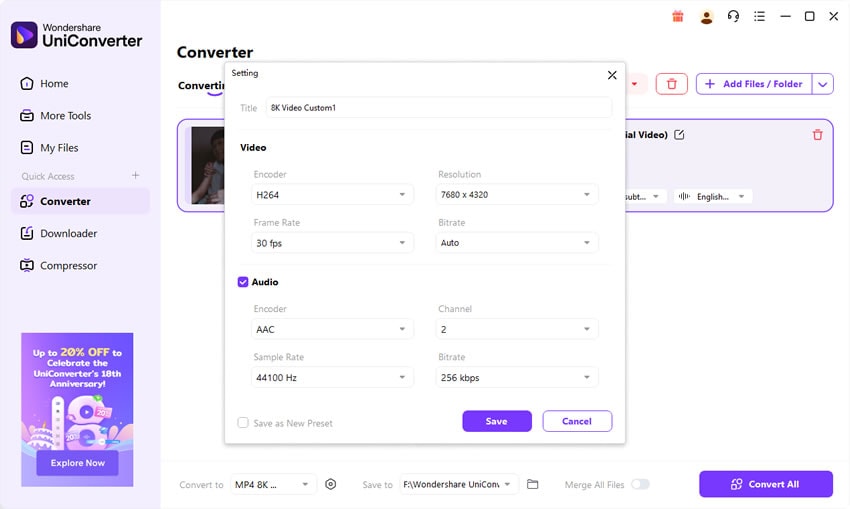
Step 4: Adjust Settings and Enable Acceleration
If needed, open the settings panel to fine-tune bitrate, resolution, and frame rate. Keeping the original resolution is usually best for maintaining quality. You can also enable GPU acceleration through Intel, NVIDIA, or AMD graphics, which makes the conversion process much faster—especially for 4K and 8K videos

Step 5: Start Conversion and Save Files
Finally, choose the folder where you want to save your converted videos, then click the Convert button. The program will process the VP8 files and save them in your chosen format. When the process is complete, open the folder to access your new MP4, MOV, HEVC, or MKV videos.

Fast & Reliable VP8 Codec Converter
Part 5: Pro Tips for the Best VP8 Conversion Results
Choose the Right Codec for the Job:
MP4 (H.264) → Best for playback across devices.
MOV (ProRes) → Editing-friendly for Final Cut or Premiere.
HEVC (H.265) → Storage-efficient for archiving.
Use Constant Quality Mode:
Instead of setting fixed bitrate, constant-quality encoding keeps video clear without bloating file size.
Mind Audio Settings:
AAC works for most devices, WAV/PCM for editing.
Batch Conversion for Workflow Efficiency:
If you’re converting an entire folder of VP8 files, use VC’s batch mode instead of one by one.
Enable GPU Acceleration:
Particularly important for high-res or long videos, cutting conversion time by up to 80%.
Keep a Master Archive:
Save one ProRes or DNxHD copy as your “master,” ensuring no future quality loss after multiple conversions.
Check Platform Requirements Before Exporting:
Example: Instagram/TikTok = MP4 (H.264), YouTube = MP4 (H.264) or VP9, Editing software = MOV (ProRes).
Part 6: The Future of VP8 Codec – Obsolete or Still Relevant?
VP8’s Role in History
Launched by Google in 2010, VP8 was a game-changer. As a royalty-free alternative to H.264, it powered HTML5 video and helped move the web away from Flash. For a time, VP8 symbolized open and accessible streaming.
Today’s Reality
- Replaced by VP9 and AV1 – Modern platforms now prefer VP9 or AV1, which deliver far better compression for HD and 4K streaming.
- Still Used in WebRTC – VP8 survives in video conferencing apps like Zoom and Google Meet, where its low latency and broad compatibility remain useful.
- Rare Beyond RTC – For streaming services, editing, or archiving, VP8 has little presence. Most workflows now depend on H.264, HEVC, or AV1.
What This Means for Users
If you have VP8 files, relying on them long term isn’t safe. Support will only shrink, and editing tools rarely optimize for VP8 anymore. The best approach is to convert VP8 to H.264 or HEVC for universal compatibility—or to AV1 if you want a free, future-proof option. Converting VP8 to MP4 is especially practical since MP4 is widely supported across devices, browsers, and platforms.
The Road Ahead
VP8 is not fully obsolete but firmly in legacy status. It will continue in WebRTC for backward compatibility but isn’t a codec for new projects. For modern video use, VP9 and AV1 are the true successors, offering efficiency, scalability, and longevity.
Conclusion
VP8 marked a turning point in the history of web video, but its time has passed. Whether you’re editing, streaming, or simply archiving, converting VP8 into MP4, MOV, or HEVC is the best way to avoid frustration. With UniConverter, you can convert VP8 quickly, preserve quality, and future-proof your videos.
FAQ
-
Q1: What’s the best format to convert VP8 for daily use?
Most users should pick MP4 (H.264 + AAC) because it plays smoothly on phones, PCs, TVs, and all social media platforms. -
Q2: Why does my VP8 video lag in editing software?
VP8 isn’t optimized for editing. Convert it to MOV (ProRes or DNxHD) for smoother timelines. -
Q3: Why is my VP8 file larger after converting?
VP8 is efficient. If you convert to H.264 at a high bitrate, the output may inflate. Use HEVC (H.265) for smaller sizes with good quality. -
Q4: Why do some VP8 conversions lose audio?
VP8/WebM files sometimes use uncommon audio codecs. Always select AAC or MP3 output to avoid silent playback. -
Q5: Is VP8 still worth using today?
Not really. VP9 and AV1 are its successors. For long-term use, it’s best to convert VP8 to H.264, HEVC, or AV1.

