

VP9 is a modern, open-source video codec developed by Google, designed to deliver high-quality video at lower bitrates compared to older codecs like H.264. It’s widely used on platforms like YouTube for streaming in HD and 4K while saving bandwidth. However, despite its efficiency, VP9 isn’t universally supported. Many editing programs, devices, or older media players can’t decode VP9 smoothly.
With the right tool, you’ll keep the quality you love while making your videos ready for any device or platform. This guide offers detailed tools and pro tips for you to easily process your VP9 conversion. Keep on reading.
- [Codec Advantage] VP9 delivers high-quality video at lower bitrates, making it ideal for streaming and 4K content.
- [Compatibility Issue] Many devices, players, and editing tools do not fully support VP9, causing playback and workflow problems.
- [Conversion Need] Converting VP9 to formats like MP4 or MOV ensures better compatibility and smoother editing.
- [Efficient Solution] Wondershare UniConverter enables fast batch conversion with GPU acceleration and high-quality output.
In This Article
- Part 1: What is VP9 and Why Convert VP9 Files
- Part 2: Common Challenges in VP9 Conversion and How to Fix Them
- Part 3: How to Choose the Best VP9 Converter Tool (With Comparison Table)
- Part 4: Why Choose UniConverter for VP9 Conversion (Step-by-Step Guide)
- Part 5: Pro Tips for the Best VP9 Conversion Results
- Conclusion
- FAQs
Part 1: What is VP9 and Why Convert VP9 Files
Understanding VP9
VP9 is an open-source, royalty-free video codec developed by Google as the successor to VP8. It was officially introduced in 2013 and quickly became the default codec for YouTube HD and UHD streaming. One of VP9’s key selling points is its ability to deliver high-quality video at a significantly lower bitrate compared to H.264 (AVC) and sometimes even H.265 (HEVC). This means you can get the same visual quality while consuming less bandwidth, which is critical for online video streaming, mobile viewing, and large-scale content distribution.
VP9 supports:
- Resolutions up to 8K – making it future-proof for ultra-high-definition content.
- Wide Color Gamut & HDR – offering richer colors and better contrast.
- WebM Container – VP9 is most often stored in .webm files, paired with Opus or Vorbis audio.
The codec is supported by modern browsers like Chrome, Firefox, and Edge, as well as platforms such as YouTube, Vimeo, and Google Drive previews.
Advantages of VP9:
- Better Compression Efficiency – VP9 can reduce file size by 30–50% compared to H.264 without noticeable quality loss.
- Royalty-Free – Unlike HEVC, there are no licensing fees, making it attractive for developers and platforms.
- Streaming Optimized – Faster adaptive bitrate streaming for online platforms.
- Supports Modern Features – HDR, 10-bit color, and higher frame rates.
Why You Might Need to Convert VP9
While VP9 is technically advanced, not all hardware and software ecosystems have embraced it equally. Here are the main reasons users convert VP9 to other formats like MP4 (H.264), MOV, or AVI:
- Playback Compatibility Issues
Older smartphones, media players, and smart TVs may not support VP9 decoding. Certain browsers on older OS versions can’t stream VP9 video smoothly. - Editing Workflow Limitations
Many professional editing suites (like older versions of Adobe Premiere Pro or Final Cut Pro) cannot edit VP9 directly without transcoding it first to a format like ProRes or H.264. Even when supported, VP9 can be resource-heavy, leading to choppy previews and slow rendering. - Hardware Acceleration Gaps
H.264 and H.265 have broader GPU support for decoding/encoding, which speeds up editing and playback. VP9 decoding often falls back to CPU processing on unsupported devices, which can be slow. - Sharing & Distribution Requirements
Some platforms automatically re-encode VP9 uploads to other formats, potentially degrading quality. By converting beforehand, you control the compression parameters. Corporate or client delivery specifications may require MP4 or MOV instead of WebM/VP9. - Archival & Long-Term Storage
While VP9 is efficient, archival best practices sometimes favor widely adopted, standardized formats to ensure future compatibility.
Best Conversion Targets for VP9
- MP4 (H.264) – Maximum compatibility with almost every device and platform.
- MOV – Preferred for professional editing workflows.
- AVI – For legacy systems and some industrial applications.
- HEVC (H.265) – Comparable efficiency with better hardware acceleration support.
- MKV (H.264/H.265) – Good for high-quality archives with multiple audio tracks or subtitles.
Part 2: Common Challenges in VP9 Conversion and How to Fix Them
While VP9 delivers excellent compression and quality, converting it to other formats isn’t always straightforward. Users often run into performance, compatibility, and quality issues. Understanding these challenges — and knowing how to address them — helps ensure smooth, reliable results.
- Compatibility Gaps
The Issue: Not all devices or media players can handle VP9 smoothly. Older hardware and certain operating systems may struggle to decode it or not recognize it at all.
The Fix: Converting VP9 to a more widely supported format like MP4 (H.264) ensures it plays on virtually any device, from phones to TVs. - Slow Conversion Speeds
The Issue: VP9 decoding can be resource-intensive, especially for high-resolution files. This may lead to long conversion times on older or less powerful systems.
The Fix: Use a converter that supports hardware acceleration so the GPU can help process the video, significantly speeding things up. - Quality Loss
The Issue: Converting from one compressed format to another can lead to visible degradation if settings are not optimized.
The Fix: Choose quality-focused settings — such as constant quality modes or higher bitrates — and avoid unnecessary resolution changes to keep the image sharp. - Audio Format Mismatches
The Issue: VP9 files often pair with audio codecs like Opus, which some players and devices don’t support. After conversion, users may find the video plays but has no sound.
The Fix: When converting, select an audio format with broad compatibility, such as AAC or MP3. - Single-File Conversion Limits
The Issue: Many basic converters only process one file at a time, which is inefficient for those with multiple VP9 videos.
The Fix: Look for tools that offer batch conversion so you can handle several files in one go. - Larger File Sizes After Conversion
The Issue: Even though VP9 is efficient, converting to an older codec can sometimes increase file size if compression isn’t handled properly.
The Fix: Adjust bitrate settings or choose a more efficient target codec, such as HEVC, to keep sizes manageable without sacrificing quality.

Easy to Use Batch VP9 Codec Converter
Part 3: How to Choose the Best VP9 Converter Tool (With Comparison Table)
When looking for the best VP9 converter, it’s important to choose a tool that not only supports VP9 but also delivers high speed, stable performance, and top-notch output quality. A well-chosen converter will save time, reduce file size without losing quality, and ensure your videos work on any device.
Key Factors When Choosing a VP9 Converter
- Supports VP9 Files – Make sure it can open and convert VP9 inside formats like WebM or MKV.
- Fast Speed – Look for GPU acceleration or multi-core CPU support for quicker processing.
- Keeps Quality – Choose a converter with adjustable bitrate, resolution, and
- Multiple Formats – The tool should export to MP4, MOV, AVI, HEVC, and more.
- Easy to Use – A simple interface saves time, even for beginners.
Popular VP9 Converters Compared
| Tool | Platform | VP9 Support | Batch Convert | GPU Acceleration | Output Formats | Pricing |
|---|---|---|---|---|---|---|
| UniConverter | Online/Desktop | Yes | Yes | Yes | MP4, MOV, AVI, MKV, HEVC, more | Freemium |
| HandBrake | Desktop | Yes | Yes | Yes | MP4, MKV | Free |
| CloudConvert | Online | Yes | Yes | No | MP4, MOV, AVI, WebM | Paid |
| FFmpeg | Desktop | Yes | Yes | Yes | Almost any | Free |
Easy to Use Batch VP9 Codec Converter
Part 4: Why Choose UniConverter for VP9 Conversion (Step-by-Step Guide)
It’s perfect for anyone who wants to convert VP9 videos quickly without complex settings. With just a few clicks, UniConverter Media Converter changes VP9 files into popular formats like MP4, MOV, AVI, and HEVC—ideal for YouTube downloads, streaming archives, or personal recordings.
Unlike basic online VP9 converters that can be slow or fail with large files, UniConverter works fast and keeps quality high, even for 4K or 8K videos. It also offers adjustable settings for bitrate, resolution, and codec so you can control the output.
Available for both online use and desktop download, UniConverter works on Windows and Mac, producing files that play smoothly on iPhone, Android, Smart TVs, and more. Whether you need one video or a full batch converted, UniConverter makes the process quick and reliable.

Key Features:
- Supports VP9 in WebM and MKV.
- Converts to MP4, MOV, AVI, HEVC, and more.
- Handles up to 8K resolution with HDR.
- Batch conversion for multiple files.
- GPU acceleration for faster speed.
Step-by-Step Guide: How to Convert VP9 with VC
Step-by-Step Guide
Step 1. Open UniConverter – Launch either the online VP9 converter in your browser or the desktop version on Windows or macOS.

Step 2. Add Your File – Drag and drop your VP9/WebM video into the program, or click “Add Files” to browse your computer.

Step 3. Choose an Output Format – Select MP4 (H.264/H.265) for universal compatibility, MOV for editing workflows, or AVI for specific playback needs.

Step 4. Fine-Tune Settings – Adjust resolution, bitrate, frame rate, and codec if you want more control over quality and file size.

Step 5. Customize Other Settings – Configure advanced video and audio parameters such as format, resolution, frame rate, and audio channels.
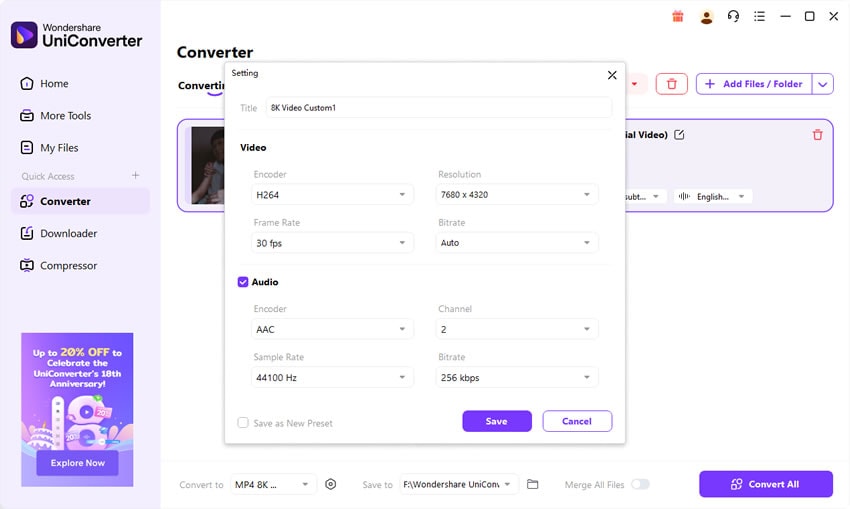
Step 6. Start the Conversion – Click “Convert” and let UniConverter process your VP9/WebM file. Once done, preview the output to ensure everything looks sharp and plays smoothly.

Pro Tip: If you have multiple VP9/WebM files, use the desktop version’s batch conversion mode to process them all at once with identical settings — a huge time-saver for large projects.
Part 5: Pro Tips for the Best VP9 Conversion Results
Getting the most out of your VP9 conversion means balancing quality, file size, and playback compatibility. Here are practical tips to help you achieve the best results.
- Match the output to your device – Select a resolution and format that your device supports. MP4 (H.264) works on almost everything, while HEVC (H.265) is better for smaller files with high quality on modern hardware.
- Use the right bitrate – Avoid setting the bitrate too low, which can cause pixelation, or too high, which wastes space. For example, 4–8 Mbps is good for 1080p VP9 videos, and 15–35 Mbps works well for 4K content.
- Enable GPU acceleration – If your VP9 converter supports NVIDIA, AMD, or Intel GPU acceleration, turn it on to speed up conversion and handle 4K/8K videos more smoothly.
- Keep the original frame rate – Changing the FPS can introduce motion stutter. Stick to the same frame rate as your VP9 source unless a specific project requires otherwise.
- Convert audio for compatibility – Many VP9 files use Opus audio, which isn’t supported everywhere. Switching to AAC or MP3 ensures the audio plays correctly on all devices.
- Use batch conversion for large projects – If you’re processing multiple VP9 files, batch conversion saves time and keeps settings consistent across all videos.
- Test a short clip first – Before committing to a full-length VP9 conversion, try a short sample to check output quality, file size, and device compatibility.
Conclusion
VP9 is a powerful, efficient video codec that delivers excellent quality at smaller file sizes, but it’s not always the most compatible option. Converting VP9 to widely supported formats like MP4, MOV, or HEVC ensures smooth playback, easier editing, and hassle-free sharing across all devices and platforms.
With UniConverter Media Converter, you can handle VP9 files in any container, convert them quickly with GPU acceleration, and keep the quality you need—whether you’re working with short clips, 4K YouTube downloads, or an entire video library. Its combination of speed, flexibility, and ease of use makes it one of the best VP9 conversion solutions available today.
FAQ – VP9 Conversion
-
Q1: Can I play VP9 videos without converting them?
Yes. Modern browsers like Chrome, Firefox, and Edge can play VP9 directly, and media players like VLC also support it. However, some devices and apps may still require conversion to MP4 or another format. -
Q2: What’s the best format to convert VP9 to?
MP4 (H.264) is the most compatible choice, working on almost all devices. HEVC (H.265) is ideal if you want smaller file sizes while keeping high quality. -
Q3: Does converting VP9 reduce quality?
There may be a slight quality drop during conversion, but using the right bitrate, keeping the original resolution, and selecting a high-quality codec will minimize loss. -
Q4: Why is my VP9 conversion taking so long?
VP9 decoding can be CPU-intensive. Using a converter with GPU acceleration—like UniConverter Media Converter—can speed up the process significantly, especially for 4K or 8K files. -
Q5: Can I convert VP9 videos on mobile?
Yes. UniConverter offers an online converter that works in mobile browsers for small and medium files. For large files or batch conversions, it’s better to use the desktop version. -
Q6: Is VP9 better than H.265 (HEVC)?
VP9 offers similar compression efficiency and is royalty-free, making it cost-effective. H.265 often benefits from wider hardware acceleration support, which can mean faster performance on compatible devices.

