
4X Movie Converter Online
How to convert 4X Movie to MP4, AVI, or MOV
- Drag and drop your 4X Movie file.
- Select your preferred output format.
- Click "Convert" and download your video instantly.

All Topic
- AI Tools Tips
-
- AI Photo Enhancer Tips
- Voice Changer Tips
- AI Thumbnail Maker Tips
- AI Script Generator Tips
- Smart Summarizer
- AI Subtitle Generator Tips
- Watermark Remover
- Vocal Remover Tips
- Speech to Text Tips
- AI Video Tips
- AI Image Tips
- AI Subtitle Translator Tips
- Video Extractor Tips
- Text to Speech Tips
- AI Video Enhancer Tips
- DVD Users
- Social Media Users
- Camera Users
- Photography
- Creative Design
- Movie Users
- Travelling Fans
- Educational Users
- More Solutions
- Holidays and Commemoration
- Game Lovers
- Other Tips
How to Convert 4X Movie Files to MP4, AVI, MOV & More
by Lukas Schneider • 2026-10-10 07:32:45 • Proven solutions
The 4X Movie format is a niche, legacy video container that occasionally appears in older multimedia projects, software bundles, or game assets. Because it may rely on outdated codecs and proprietary wrapping, modern systems often fail to parse it correctly. That is why creators encounter missing audio, black frames, or total playback failure when using mainstream players or browsers.
Converting 4X Movie into a widely supported container such as MP4 (H.264/H.265) or MOV restores compatibility for editing, reviewing, and sharing across devices. Standardizing on modern formats reduces file size with efficient compression, unlocks hardware acceleration, and ensures your content can be archived, repurposed, and published without friction in long-term workflows.
In this article
- What 4X Movie Is and Why Converting 4X Movies
- Common Problems and Fix for Converting 4X Movies
- Pros, Cons, and Considerations tp Convert 4X Movies
- Quick Comparison: Tools for Converting 4X Movie
- Easiest Solution: Convert 4X Movies with UniConverter
- Easily Batch Convert 4X Movies Step-by-Step(with Tips)
- Conclusion
- FAQs
Part 1. What 4X Movie Is and Why Converting 4X Movies
The 4X Movie format comes from an era when developers often packed video into files with unusual headers and older, sometimes proprietary, codecs. In its original setup, this worked just fine — whether inside a game engine, a training disc, or a custom software package. The trouble is, today’s media players are tuned for universal formats like MP4 or MKV, not these older containers. Without the right metadata or codec support, a 4X Movie file can leave modern tools puzzled, resulting in playback errors or a flat-out refusal to open.
If you’ve been around computers for a while, you’ve probably seen your share of “mystery” file types from years gone by. 4X Movie is one of those survivors from the late ’90s and early 2000s, showing up in PC games, company training videos, and interactive presentations.
At the time, the choice made sense. These files were designed to run on their own custom players, with video compression methods that were state-of-the-art back then. But times change. Modern devices are built with newer standards in mind, and when you drop a 4X Movie file into a current media player, you’re more likely to see an error message, silent playback, or just a blank screen.
That’s where conversion comes in. When you convert 4X Movie to MP4 or MOV, you:
- Get full compatibility — your video works on Windows, macOS, Android, iOS, and smart TVs.
- Avoid editing headaches — programs like Adobe Premiere or DaVinci Resolve can handle it without freezing.
- Save storage space — newer codecs can make the file up to 90% smaller without noticeably hurting quality.
- Secure it for the future — MP4 and MOV aren’t going anywhere anytime soon.
Part 2. Common Problems and Fix for Converting 4X Movies
Users typically face a few predictable hurdles when trying to open or edit 4X Movie files. Understanding these challenges helps you choose the right conversion settings and avoid hours of trial and error.
If you try to open a 4X Movie file without converting, you’re likely to hit one of these problems:
1. Playback Failures
- What Happens: The file refuses to open, or you get audio without video, or video without audio. Sometimes it just throws an error and quits.
- Pro Tip: Don’t waste hours hunting for ancient plug-ins or “miracle” players. Most of that old software no longer works. Converting straight to MP4 will solve it in minutes.
2. Import Errors in Editing Programs
- What Happens: Your video editor — whether it’s Adobe Premiere, Final Cut Pro, or something else — either won’t import the file at all or freezes partway through.
- Pro Tip: For editing purposes, convert 4X Movie to a format designed for stability, such as MOV with Apple ProRes.
3. Oversized Files
- What Happens: A short clip eats up an absurd amount of space because the old compression methods were inefficient.
- Pro Tip: Re-encode with H.265 (HEVC) to shrink the size by as much as 90% while keeping quality high.
4. Sharing Headaches
- What Happens: Colleagues or clients can’t watch the file without installing special software they’ve never heard of.
- Pro Tip: Keep a converted MP4 copy on hand — it’s the universal language of video and plays almost anywhere.
5. Unreliable Streaming
- What Happens: Even if it plays fine on your computer, it may stutter, buffer, or fail completely when streamed online.
- Pro Tip: Use a “web-optimized” MP4 preset when you convert so it starts playing smoothly without long delays.

Easy to Use Batch 4X Movie Converter
Part 3. Pros, Cons, and Considerations tp Convert 4X Movies
Converting is hands down the most dependable way to make a 4X Movie file usable, but how you set up that conversion can make a big difference. The right choices can give you crisp, smooth video with a small file size. The wrong ones can leave you with blocky footage or a sluggish workflow.
Pro Tip for Best Results
To avoid problems, stick with constant-quality encoding or a well-balanced bitrate. Keep your resolution the same unless you have a good reason to change it. If your computer supports it, turn on hardware acceleration — it can save you a lot of time. UniConverter makes these settings easy to find, so you can convert 4X Movie files without having to be a technical expert.
Part 4. Quick Comparison: Tools for Converting 4X Movie
Before you decide how to convert 4X Movie files, it helps to know how different tools stack up. Some programs focus on speed, others on fine-tuned control, and a few try to balance both. Below is a quick side-by-side look at UniConverter and other popular options so you can choose the one that best fits your workflow.
Here is a high-level comparison between UniConverter and other popular options. For reference, HandBrake (official site), VLC (official site), and CloudConvert (official site) are common tools used alongside or instead of a dedicated converter.
|
Feature |
UniConverter |
HandBrake |
VLC |
CloudConvert |
|
4X Movie handling |
Broad import support and guided presets |
Powerful but technical configuration |
Basic conversion; varies by build |
Server-side support varies by codec |
|
Batch conversion |
Yes (high-speed, queue folders) |
Yes |
Limited |
Queue-based |
|
Preset coverage |
1,000+ formats (MP4, AVI, MOV, MKV, etc.) |
Good but not exhaustive |
Minimal |
Good, cloud-reliant |
|
Compression controls |
Codec, resolution, bitrate, target size |
Granular; expert-friendly |
Basic quality slider |
Profile-driven |
|
Ease of use |
Very easy; visual guidance |
Moderate learning curve |
Easy but limited feedback |
Easy; network dependent |
|
Privacy |
Local/offline (desktop) or online (web) |
Local |
Local |
Cloud-only |
Easy to Use Batch 4X Movie Converter
Part 5. Easiest Solution: Convert 4X Movie with UniConverter
Why Pick UniConverter to Convert 4X Movies(Online & Desktop)
Compared to other solutions, UniConverter offers two complementary paths depending on your workload and control needs. The online tool is great for quick fixes, while the desktop app is designed for deep conversion at scale.
Free Online Converter: Launch the web tool, upload a 4X Movie file, pick MP4/AVI/MOV/MKV, and convert in the browser. It’s ideal for single clips or quick sharing when you don’t want to install software.
Desktop Converter: Batch-process large libraries with consistent presets, merge or trim clips, adjust frame rate and resolution, and configure codec profiles. You can reduce file size by up to 90% with careful bitrate and resolution choices while preserving visible detail.

Feature Overview of UniConverter
- Supports 1,000+ formats for universal delivery.
- Fine control over codec, resolution, bitrate, and compression.
- Batch conversion and folder queues to save time.
- Hardware acceleration for faster transcodes on supported GPUs.
Part 6. Easily Batch Convert 4X Movies Step-by-Step(with Tips)
Steps Guide for Desktop Conversion
The following workflow balances quality and speed. It also scales from single files to large folders of 4X Movie sources.
1. Install UniConverter: download and open the app on Windows or macOS.

2. Import your files: click “Add Files” to load one or more 4X Movie clips; you can drag-and-drop.

3. Choose the output: select MP4 (H.264/H.265) for widest compatibility or MOV for editor-specific workflows.

4. Define quality: set resolution (keep original unless you need scaling), set target bitrate or constant quality.

4. Customize Settings: You can also set the variations of both video and audio settings like format, resolution, frame rate, channel etc.
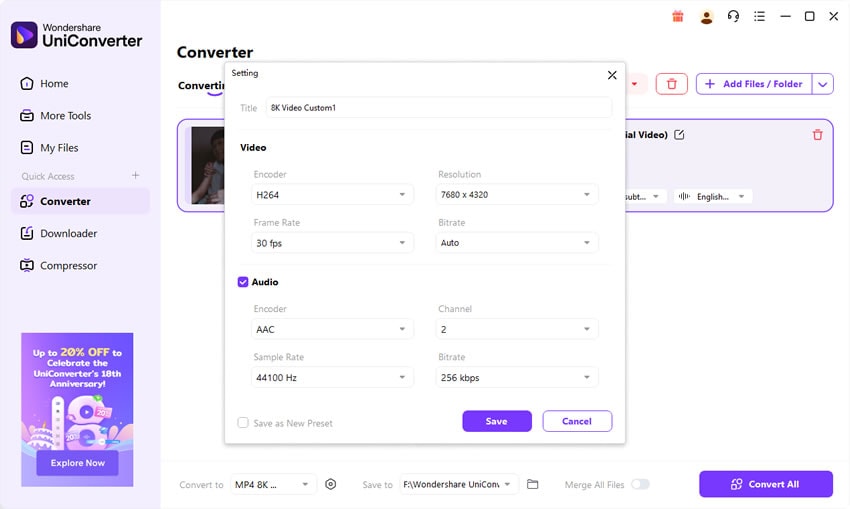
5. Convert and verify: start the conversion, then preview the output to confirm sharpness and sync before delivering or archiving.

Pro tips: If your source is already heavily compressed, avoid dropping bitrate too far. For heavy edits, consider higher bitrates to preserve detail during grading and effects. For web streaming, H.264 High Profile at a balanced bitrate is a safe default; HEVC (H.265) yields smaller files but may reduce compatibility on older devices.
Conclusion
4X Movie belongs to a legacy ecosystem and rarely plays smoothly on modern devices or inside current editing suites. Converting to MP4, MOV, AVI, or MKV solves compatibility barriers, reduces file sizes, and stabilizes your workflow for editing, review, and publishing. Whether you use the lightweight online tool or the full desktop application, UniConverter gives you quality-first conversion with the granular controls professionals need and the simplicity beginners appreciate.
Standardize your media today—convert 4X Movie to modern formats with UniConverter and future-proof your library for every platform and project.
Easy to Use Batch 4X Movie Converter
FAQs
-
1. What is a 4X Movie file, and why can’t I play it?
A 4X Movie file is a legacy video container that may use outdated codecs and proprietary headers. Most modern players and browsers don’t support it natively, which is why playback fails until you convert it to MP4 or MOV. -
2. What output format should I choose after converting?
MP4 (H.264) offers the widest compatibility across devices and web platforms. If your editor prefers it, MOV is also a strong choice. For smaller sizes at similar quality, consider HEVC (H.265), keeping in mind potential compatibility limits on older hardware. -
3. Will 4X Movie conversion reduce my video quality?
Quality depends on settings. Choose balanced or high bitrates, keep resolution consistent, and use constant quality where possible. UniConverter lets you fine-tune codec, bitrate, and resolution to safeguard visual fidelity. -
4. Do I need special hardware to convert 4X Movie files?
Not necessarily. Even older computers can handle the job, though faster CPUs and GPUs will speed things up. If your computer supports hardware acceleration, enable it in your converter’s settings. -
5. How can I keep file sizes small without visible artifacts when converting 4X Movie files?
Enable hardware acceleration, select an efficient codec (H.264 or H.265), and set a bitrate appropriate for your resolution and motion complexity. Preview short segments to validate quality before processing full batches.



Lukas Schneider
staff Editor