


In This Article
- Part 1: What is the APV codec and where is it used?
- Part 2: Why would I need to convert APV files?
- Part 3: How to Choose the Best APV Converter Tool (With Comparison Table)
- Part 4: Why Choose UniConverter for APV Conversion (Step-by-Step Guide)
- Part 5: Pro Tips for the Best APV Conversion Results
- Part 6: Is the APV codec likely to become more widely supported?
- Conclusion
- FAQ
Part 1: What is the APV codec and where is it used?
Understanding APV Codec
APV (Advanced Precision Video) is a high-efficiency video codec developed for professional and consumer-grade applications where storage and bandwidth optimization are critical. It delivers smaller file sizes without sacrificing visual quality, making it suitable for HD, 4K, and even 8K content. The codec supports HDR, wide color gamut, and high frame rates, aligning with modern demands for streaming, editing, and long-term archiving.
Key Features of APV Codec
- Compression Efficiency – Reduces storage usage while preserving quality.
- Scalable Quality – Suitable for everything from smartphone clips to cinema-grade footage.
- Flexible Containers – Commonly found in MP4, MKV, or camera-native wrappers.
- Future-Proof Resolutions – Handles ultra-HD workflows with ease.
APV Codec Use Cases
APV isn’t just a codec for niche professionals—it appears in multiple industries and workflows:
Professional Filmmaking and Post-Production
- Many modern cinema cameras and drones use APV to capture raw or near-lossless video.
- Editors often transcode APV to ProRes, DNxHD, or H.264 for easier editing.
Broadcasting and Live Streaming
- Broadcasters rely on APV for bandwidth-efficient delivery of HD/4K content.
- Sports and live event streams benefit from APV’s balance between speed and quality.
E-Learning and Corporate Training
- Educational content creators use APV for lecture recordings, training modules, and screencasts, later converting to MP4 for LMS or online platforms.
Archiving and Cloud Storage
- APV’s smaller file sizes make it ideal for storing massive video libraries.
- Archivists often convert APV to MKV or MP4 to ensure long-term accessibility.
Social Media and Content Creation
- Some video tools export in APV, but platforms like Instagram or TikTok require MP4.
- Conversion ensures uploads don’t fail or degrade.
Part 2: Why would I need to convert APV files?
Why Convert APV Files?
Despite its strengths, APV is not yet universally supported, which leads to compatibility issues. Users convert APV for several reasons:
- Playback Compatibility – Many devices (older TVs, smartphones, media players) can’t decode APV.
- Editing Limitations – Video editors like older Adobe Premiere or Final Cut versions may stutter or reject APV imports.
- Sharing Restrictions – Platforms such as Instagram, Facebook, or Zoom often reject APV uploads.
- Collaboration & Delivery – Clients, coworkers, or broadcasters may require formats like MP4, MOV, or AVI.
- Future-Proofing – Converting ensures accessibility even if APV adoption lags.
Quick Guide: Best APV Codec Workflow by Use Case
Comparison of APV Codec vs Other Codecs
| Codec | Strengths | Weaknesses | Common Use Cases |
|---|---|---|---|
| APV (Advanced Precision Video) | High compression efficiency, HDR, supports 4K–8K, good for archiving/storage | Limited device/software support, no widespread hardware acceleration yet | Professional filming, archiving, niche streaming |
| H.264 (AVC) | Universally supported, stable, works on all devices | Larger file sizes compared to modern codecs | Everyday video playback, online sharing, smartphones, TVs |
| H.265 (HEVC) | 40–50% smaller files than H.264, supports 4K/8K, efficient streaming | Licensing issues, not as widely supported on older devices | 4K streaming, Blu-ray, efficient storage |
| VP9 | Royalty-free, better compression than H.264, used by YouTube | Slower to encode, not always supported by hardware | Online streaming, WebM containers |
| AV1 | Open-source, future-proof, excellent compression, designed to replace VP9/HEVC | Encoding is very slow, limited current device support | Future online streaming, emerging platforms |
| ProRes / DNxHD | Optimized for editing, high quality with low CPU load in software | Huge file sizes, not efficient for streaming | Professional video editing and post-production |
Common Challenges in APV Conversion
- Compatibility Gaps
Issue: Players and devices may not recognize APV.
Solution: Convert to MP4 (H.264) for universal playback. - Slow Conversion Speed
Issue: APV decoding can tax CPUs, especially on long 4K/8K footage.
Solution: Use a GPU-accelerated converter like UniConverter. - Quality Loss
Issue: Re-encoding can degrade video clarity.
Solution: Choose high-quality or constant-quality modes, and avoid unnecessary scaling. - Audio Errors
Issue: APV files may use less common audio codecs, causing silent playback after conversion.
Solution: Convert audio tracks to AAC or MP3. - File Size Expansion
Issue: Converting APV to older codecs may inflate file sizes.
Solution: Choose HEVC (H.265) or MKV for smaller yet high-quality results. - Batch Workflow Needs
Issue: Converting files one by one is tedious.
Solution: Use batch conversion in UniConverter desktop to handle multiple APV clips at once.

Fast & Reliable APV Codec Converter
Part 3: How to Choose the Best APV Converter Tool
When picking an APV converter, look for a balance between speed, quality, and compatibility.
Key factors to consider:
- APV Support – Not all converters can decode APV natively.
- Batch Conversion – Essential if you work with multiple files.
- GPU Acceleration – Cuts conversion times significantly.
- Customizable Output – Control bitrate, resolution, and codec.
- Format Range – MP4, MOV, AVI, HEVC, MKV, and more.
Popular APV Converter Tools Compared
| Tool | Platform | APV Support | Batch Convert | GPU Acceleration | Output Formats | Pricing |
|---|---|---|---|---|---|---|
| UniConverter | Online/Desktop | Yes | Yes | Yes | MP4, MOV, AVI, HEVC, MKV | Freemium |
| HandBrake | Desktop | Limited* | Yes | Yes | MP4, MKV | Free |
| CloudConvert | Online | Yes | Yes | No | MP4, MOV, AVI, WebM | Paid |
| FFmpeg | Desktop | Yes | Yes | Yes | Almost any | Free |
Part 4: Why Choose UniConverter for APV Conversion (Step-by-Step Guide)
When you need to convert APV files, UniConverter makes the process faster, easier, and more reliable than other tools. It works both online for quick tasks and on desktop for full professional workflows.

Why UniConverter is a Great Choice for APV Conversion
- Wide Format Support – Convert APV to MP4, MOV, AVI, HEVC, MKV, ProRes, CineForm, and more.
- Fast Performance – Up to 130x faster with GPU acceleration, even for 4K and 8K videos.
- Flexible Options – Adjust bitrate, resolution, and codec to match editing, sharing, or archiving needs.
- All-In-One Workflow – Convert, compress, add subtitles, and even burn to DVD in one tool.
- Free Online + Desktop Power – Use the free online version for small files, or the desktop app for bulk and advanced settings.
- Cross-Platform – Works on Windows, macOS, and syncs with the cloud for mobile access.
How to Convert APV with VC
Desktop Version:
Step 1: Install and Open the Software
Start by downloading UniConverter Desktop and installing it on your computer. Once the setup is complete, launch the program. Make sure your system meets the basic requirements such as Windows 7 or later, a processor above 750MHz, 256MB of RAM, and enough free space

Step 2: Import APV Files
After opening the software, add your APV videos by clicking the Add Files button or by dragging them into the main window. You can import single clips or multiple files at once, and the program will automatically detect APV even if it is inside MP4, MOV, or MKV containers.

Step 3: Choose Output Format
Once your files are loaded, select the format you want to convert them to. MP4 with H.264 works best for general playback, MOV with ProRes is recommended for editing, HEVC offers smaller file sizes with high quality, and MKV is a good choice for archiving. Don’t forget to set the audio format to AAC or MP3 for smooth playback across devices.

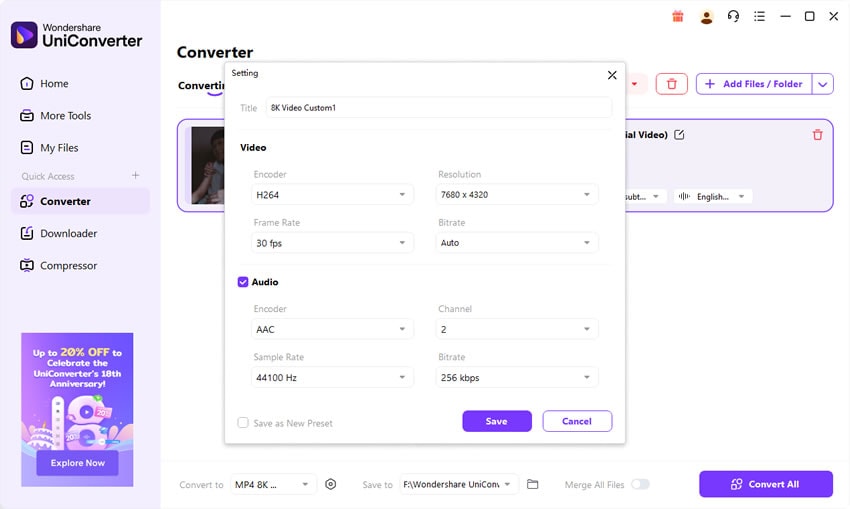
Step 4: Adjust Settings and Enable Acceleration
If needed, open the settings panel to fine-tune bitrate, resolution, and frame rate. Keeping the original resolution is usually best for maintaining quality. You can also enable GPU acceleration through Intel, NVIDIA, or AMD graphics, which makes the conversion process much faster—especially for 4K and 8K videos

Step 5: Start Conversion and Save Files
Finally, choose the folder where you want to save your converted videos, then click the Convert button. The program will process the APV files and save them in your chosen format. When the process is complete, open the folder to access your new MP4, MOV, HEVC, or MKV videos.

Fast & Reliable APV Codec Converter
Part 5: Pro Tips for the Best APV Conversion Results
Choose the right codec for your purpose. If you want universal playback on all devices, MP4 (H.264) is the safest choice. For smaller file sizes with good quality, HEVC (H.265) works better. If you are editing in professional software like Final Cut or Premiere, converting APV to ProRes or DNxHD is ideal because these codecs are designed for smooth editing performance.
Set bitrate and resolution carefully.
A bitrate that is too low will cause pixelation, while a bitrate that is too high wastes storage space. As a guideline, 8–12 Mbps works well for 1080p videos and 20–35 Mbps is good for 4K. Whenever possible, keep the original resolution and frame rate to avoid unnecessary quality loss or motion issues.
Pay attention to audio conversion.
APV files may use uncommon audio formats that won’t play everywhere. Converting the audio track to AAC ensures maximum compatibility across platforms. If you need lossless audio for editing or mastering, WAV or PCM is a better choice.
Use batch conversion to save time.
If you have many APV clips, converting them one by one can be exhausting. With VC’s batch conversion, you can process an entire folder of APV files in one go, saving hours of repetitive work.
Enable GPU acceleration whenever possible.
Converting APV, especially in 4K or 8K, can be very CPU-intensive. If your system supports NVIDIA, AMD, or Intel GPUs, enabling hardware acceleration in UniConverter can cut down conversion times drastically.
Always keep a high-quality master copy.
It’s smart to archive one version of your video in a high-quality codec like ProRes, DNxHD, or high-bitrate H.264. This gives you a reliable source file for future conversions without compounding quality loss.
Check platform requirements before exporting.
Each platform has its own preferences: YouTube favors MP4 H.264 or VP9, Instagram and TikTok only accept MP4 H.264 with AAC audio, and professional broadcasters often require MOV ProRes. Knowing this ahead of time saves you from having to reconvert.
Part 6: Is the APV codec likely to become more widely supported?
APV’s Strengths Going Forward
The APV Codec is technically well-prepared for the future. It offers high compression efficiency, HDR and wide color support, and resolutions up to 8K, putting it in the same league as HEVC and even next-gen codecs like AV1. These strengths make it valuable for filmmakers, broadcasters, and long-term storage solutions where saving space without losing quality is essential.
The Biggest Challenge: Limited Compatibility
Despite its technical promise, APV struggles with ecosystem adoption. Consumer devices like TVs, smartphones, and GPUs have native support for H.264 and HEVC, but APV is still absent from many mainstream platforms. Unless hardware makers and streaming services adopt it widely, APV may remain confined to niche use cases such as professional cameras or closed editing environments.
Possible Evolution Paths
- Develop into a standardized successor codec with better hardware acceleration.
- Remain a specialized tool, mainly used in professional workflows where its efficiency outweighs compatibility concerns.
What This Means for Users
For most users, the practical choice is still to convert APV into more established codecs like H.264, HEVC, or ProRes. This ensures easy playback, editing, and sharing. Professionals, however, may continue to use APV for high-resolution filming, archival storage, and specialized streaming setups, where its strengths truly shine.
Conclusion
The APV Codec offers excellent quality and efficiency but lacks universal support—making conversion a must for most workflows. UniConverter Media Converter bridges that gap with fast, flexible, and high-quality APV conversion both online and offline. Whether you’re compressing a single clip for social media or batch-processing a 4K video library for professional use, UniConverter makes it simple without compromising results.
FAQ
-
Q1: What’s the best format to convert APV to for everyday use?
For daily playback and sharing, MP4 (H.264 + AAC) is the safest choice. It works on phones, PCs, TVs, and social platforms without issues. -
Q2: What format should I use if I’m editing APV in Adobe Premiere or Final Cut?
Convert to MOV (ProRes) or DNxHD. These codecs are editing-friendly and won’t bog down your timeline with heavy compression. -
Q3: Why does my converted APV file look blurry or pixelated?
This usually happens when the bitrate is set too low or resolution was downscaled incorrectly. Try using constant quality mode or increase the bitrate. -
Q4: Does converting APV to MP4 increase file size?
It can. APV is very efficient, so if you convert to an older codec like H.264 without adjusting bitrate, the output might be larger. To reduce file size, try converting to HEVC (H.265) instead. -
Q5: Is APV better than H.265/HEVC?
APV offers comparable efficiency but isn’t as widely supported. HEVC has broader hardware support, so it’s often the more practical choice for everyday use. -
Q6: My APV file has no sound after conversion—why?
APV sometimes carries uncommon audio codecs. When converting, make sure to select AAC or MP3 as your output audio format for universal playback.

