Transform Your Footage with UniConverter's 4K Video Converter


Upscale Video to 4K for Unmatched Clarity
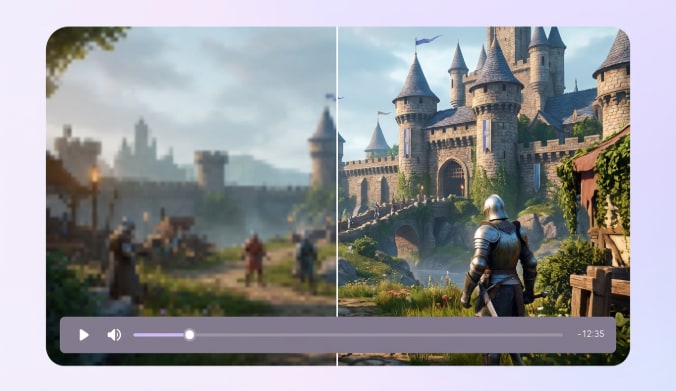
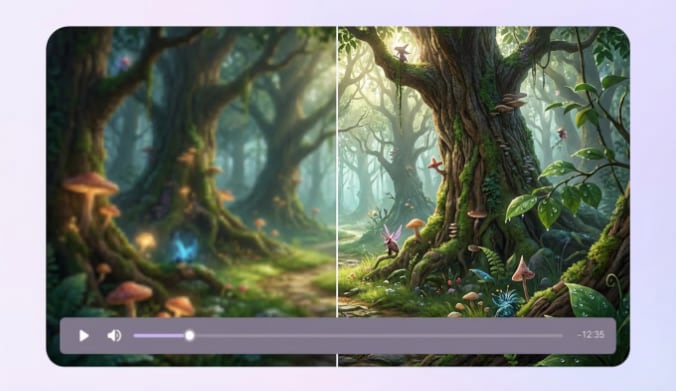
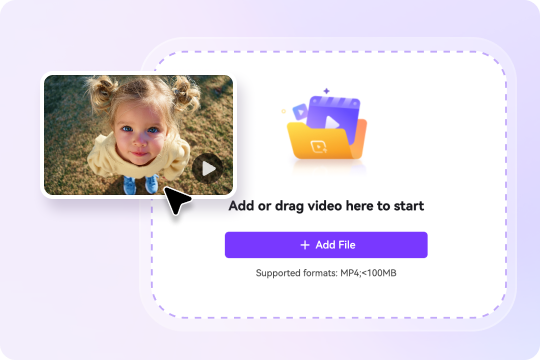
Use the 4K video converter above when you want to upscale an MP4 video directly in your browser. Add a supported file, select the AI model that fits the footage, preview the result, and export a 4K video. The online tool is suited to a quick, single-file task.
If you need to work with multiple local files, use UniConverter Desktop. Its Video Enhancer offers more model choices, while Converter provides format and output settings for separate conversion tasks. The visible quality of an upscaled result still depends on the source video.
Why Choose UniConverter 4K Video Converter
Upscale Video to 4K Online in a Few Steps
To upscale a video to 4K online, add an MP4 file to the tool at the top of this page and choose an available AI model. Preview the processed video, then export the 4K result. The online tool offers three free conversions per user; the upload interface currently accepts MP4 files below 100 MB.
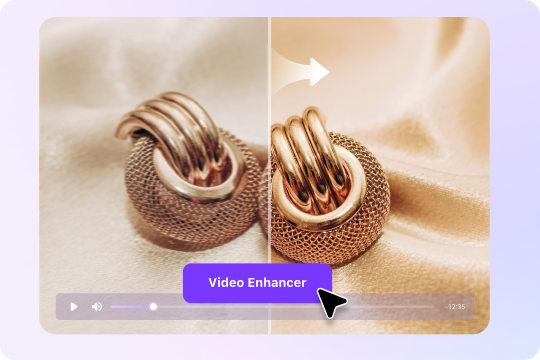
Convert Video to 4K Resolution and Review the Result
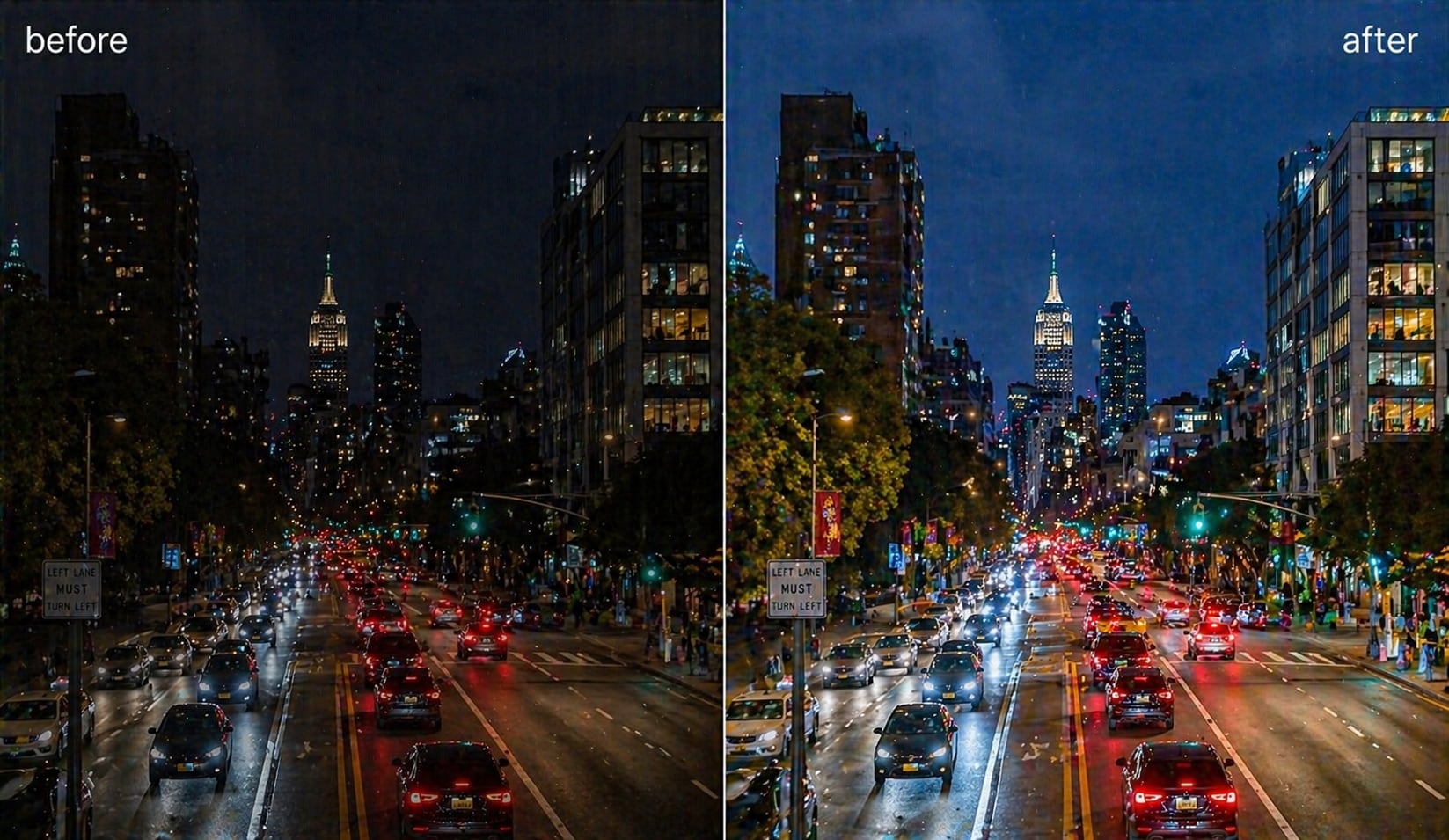
The online tool exports a 4K video, but a higher pixel count cannot guarantee that every missing detail in a low-resolution or heavily compressed source will be recovered. Preview edges, faces, and textures before export. For footage with separate blur or noise problems, choose the model that fits the source.
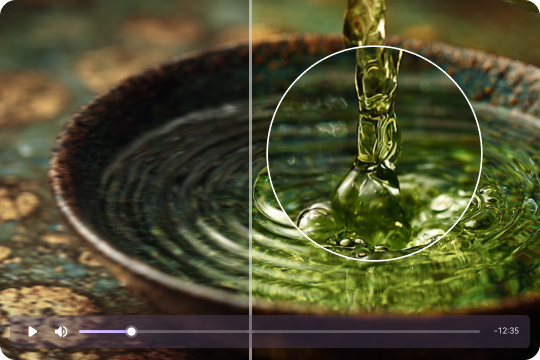
Batch 4K Video Upscaling with UniConverter Desktop
For several videos, UniConverter Desktop provides a local batch workflow. Add files to the desktop queue, choose the supported output settings for your task, and process the files together. If the goal is AI enhancement rather than format conversion, use the appropriate Video Enhancer workflow; available controls depend on the workflow.

Preview 4K Video Resolution Before Final Export
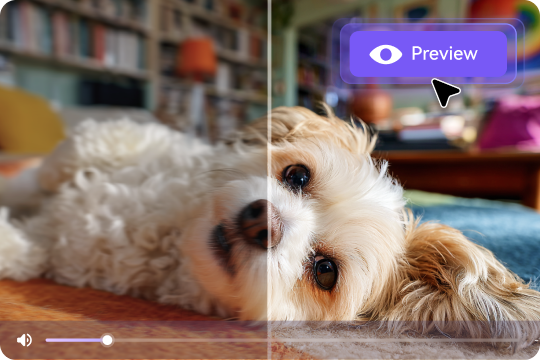
Use Preview to inspect the processed video before you export it. Compare facial details, edges, and fine textures with the source, and check whether blur or compression artifacts remain. The online interface provides Preview and Export controls, so you can review the result before saving the 4K file.
All-in-One 4K Video Enhancer with Multiple Models
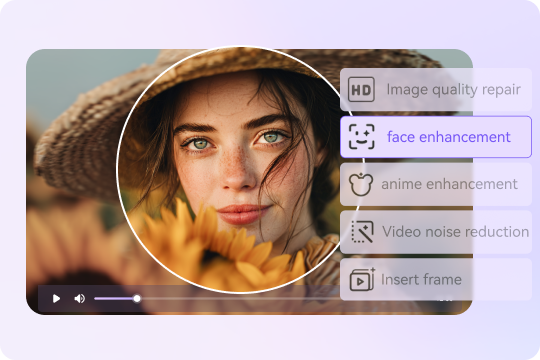
The online tool shows AI models including Quality Restoration, Face Enhancer, Anime Enhancement, and General Video Denoise. Choose a model based on the source problem, then preview the result. Desktop offers more enhancement options and batch processing when you need a larger local workflow.
Convert Video to 4K Free Online & on PC
Start with the free online 4K video converter when you have a supported MP4 file and want a quick browser-based result. Each user has three free online conversions. Choose UniConverter Desktop when you need to process multiple files, use broader format and output controls, or work locally with a larger project.
Popular Scenarios to Use UniConverter 4K Resolution Video Converter





Restore Old Videos with AI 4K Upscaler for Family Memories & Classics
Upscale older footage for a 4K output when you need to display it on a modern screen. If the source also has noise, blur, or damaged faces, select a suitable enhancement model and preview the result. Upscaling cannot recreate every detail missing from the original recording.
Convert Videos to 4K Ultra HD for Modern TVs & Home Theater
Use the 4K video converter to prepare an output for a 4K TV, projector, or presentation. A 4K export is 3840 × 2160 pixels, but its appearance still depends on the original video and processing choice. Preview the result before saving it for playback.
Enhance YouTube & TikTok Content with 4K Video Resolution
Prepare a higher-resolution video for a publishing or editing workflow when 4K output is useful. Upload platforms may recompress the file, so check their current requirements and keep a suitable master copy. Upscaling alone does not guarantee sharper source detail or higher viewer engagement.
Repurpose Old Clips with Free 4K Video Converter for New Projects
Use the free online 4K video converter for a supported short MP4 clip, then preview and export the result. For a collection of older clips, UniConverter Desktop can organize a local batch workflow and provide additional output options. Review each source for blur, noise, or compression before deciding whether it needs separate enhancement.
Upscale Gaming & Animation Videos to 4K Ultra HD
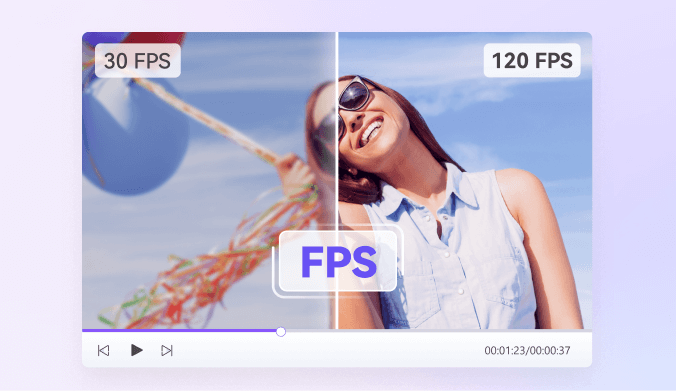
Upscale gameplay or animation when a 4K output is needed for a display or new edit. Choose an AI model suited to the content and inspect the preview for unnatural edges or textures. Resolution and frame rate are separate: converting a file to 4K does not by itself make motion smoother.
Want to improve AI-generated clips? You can also upscale Sora videos to 4K or use AI frame interpolation to make motion smoother after 4K conversion.
How to Convert Video to 4K Online or with UniConverter Desktop
How to convert video to 4K online free
- Add File: Upload a supported MP4 video below 100 MB in the tool above.
- Choose an AI model: Select the model that matches the footage, then use Preview to inspect the result.
- Export: Save the processed 4K video. Each user gets three free online conversions.
Need to process multiple files or adjust more output settings? Follow the UniConverter Desktop workflow below.

For the desktop workflow, open UniConverter and select Video Enhancer. If you have a supported MP4 file for a quick task, you can instead use the online tool at the top of this page.

Add your video to Desktop Video Enhancer, select the model that fits your footage, and choose an available 4K output setting. Desktop provides additional enhancement options and is better suited to repeated local work.

Select Preview to inspect the processed video. When the result meets your needs, use Export to save the 4K output and verify the finished file.