


Have you ever downloaded a video just to listen to its music or dialogue on your iPhone, and then notice, it eats up unnecessary space and drains your battery? Many iPhone users face this same struggle—wanting the audio without carrying the bulky video file. That’s where a video to MP3 iPhone solution makes life easier, giving you the freedom to enjoy songs, lectures, or podcasts in lightweight audio form.
This guide is designed to address that exact pain point, showing you when, why, and how to convert videos into MP3 with ease. By the end, you’ll have all the tools and tips you need to simplify your audio experience on iPhone.
In this article
Part 1: Why Convert Video to MP3 on iPhone
Not every video you save on your iPhone needs to stay as a video. Often, it’s the song, podcast, or speech you want on the go, not the visuals that drain storage and battery. Converting video to MP3 iPhone makes your files lighter, easier to share, and far more convenient to enjoy anytime.
Audio formats iPhone supports
iPhones are designed to handle multiple audio formats including MP3, AAC, ALAC (Apple Lossless), WAV, and AIFF. While this covers the most common standards, videos often come in heavier containers like MP4, MKV, AVI, or MOV. Without conversion, these formats keep unnecessary video data that you don’t actually need for listening.
Why you need conversion
- Free up storage space – An MP3 file is much smaller than a full video, giving you more room for other apps, music, or photos.
- Listen anywhere, anytime – Extract audio from music videos, interviews, or lectures and carry them as lightweight MP3 tracks.
- Boost compatibility – MP3 works smoothly across iPhone apps and media players, unlike certain video formats that may lag or fail.
- Save battery life – Playing audio alone consumes less power compared to keeping video running in the background.
- Easy to share – MP3s are quicker to send over AirDrop, email, or chat apps without long upload times.
Part 2: Use Cases When Needed to Convert Video for iPhone
Converting video to MP3 iPhone is more practical than it seems. From saving space to enjoying content more flexibly, it unlocks ways to make media consumption smoother and smarter. Below are some common real-life scenarios where this conversion becomes a game-changer.:
Creating music playlists from videos
Many users download live concerts, YouTube music videos, or covers they love. Instead of storing the bulky video files, converting them into MP3 allows you to enjoy just the audio and create a neat playlist on your iPhone. This way, your favorite tracks are always at your fingertips without consuming extra storage. You can even sync these MP3s with Apple Music or your preferred player for a seamless music experience.
Turning lectures and webinars into portable audio
Students and professionals often attend online classes, workshops, or meetings that are recorded as video. By converting these into MP3 files, you can listen to key sessions on your commute, during workouts, or while multitasking. It makes learning more convenient without staring at a screen. Plus, audio files are easier to organize into study folders for quick revision before exams or presentations.
Sharing lightweight audio with friends
Videos are large, slow to send, and not always supported across devices. MP3 files, on the other hand, are universally accepted and quick to transfer through AirDrop, WhatsApp, or email. This makes it easy to share your favorite song extract, a speech, or a podcast clip without long upload times. With MP3, your friends don’t need specific apps or large storage to access the content instantly.
Extracting audio from social media content
Trending reels, TikTok clips, or Instagram videos often have catchy sounds worth saving. By converting urls from these websites into MP3, you can store these soundtracks locally, reuse them for your own content, or just enjoy them offline. It’s a smart way to keep viral audio without cluttering your gallery with short videos. This also allows creators to repurpose trending audio for new projects without depending on the original platform.
Enjoying offline listening during travel
When traveling, streaming videos drains data and battery quickly. Converting them to MP3 ensures you carry the same entertainment in a lighter format that works offline. Whether it’s a podcast, audiobook, or your favorite songs, MP3 gives you uninterrupted listening without relying on internet connectivity. This makes flights, long drives, and commutes more enjoyable without worrying about poor network coverage.

Easy to Use Batch Video to MP3 Converter
Part 3: Bonus: How to Easily Batch Convert Any Video to MP3 on iPhone
When you have multiple videos that you only need as audio, converting them one by one can feel time-consuming. This is where batch conversion tools save the day. With the right software, you can process entire folders of videos at once, turning them into lightweight MP3 files perfect for your iPhone. This not only saves hours of manual work but also ensures a consistent audio quality across all your files. One such reliable option is Wondershare UniConverter, designed for speed, quality, and ease of use.
Key features of UniConverter for batch video-to-MP3 conversion
- Batch conversion support – Convert multiple videos into MP3 in one go, saving time and effort.
- Wide format compatibility – Handles MP4, AVI, MOV, MKV, and more, ensuring smooth conversion to MP3 for iPhone.
- High-speed processing – Uses GPU acceleration to convert files quickly without quality loss.
- Customizable output – Lets you adjust bitrate, sample rate, and other audio settings for optimal playback.
- Device-ready presets – Offers iPhone-optimized profiles, so you don’t need to tweak settings manually.
- Built-in editor – Trim, cut, or merge before conversion if you want only specific parts of the video.
How to Convert Multiple Video Files to MP3 for iPhone effortlessly
Wondershare UniConverter makes batch conversion simple by letting users process multiple files at once, saving valuable time and effort. With its intuitive interface, you can choose MP3 or any other output format for all files in one step and fine-tune resolution or audio settings with ease.
Step 1: Access the Converter Tool on UniConverter
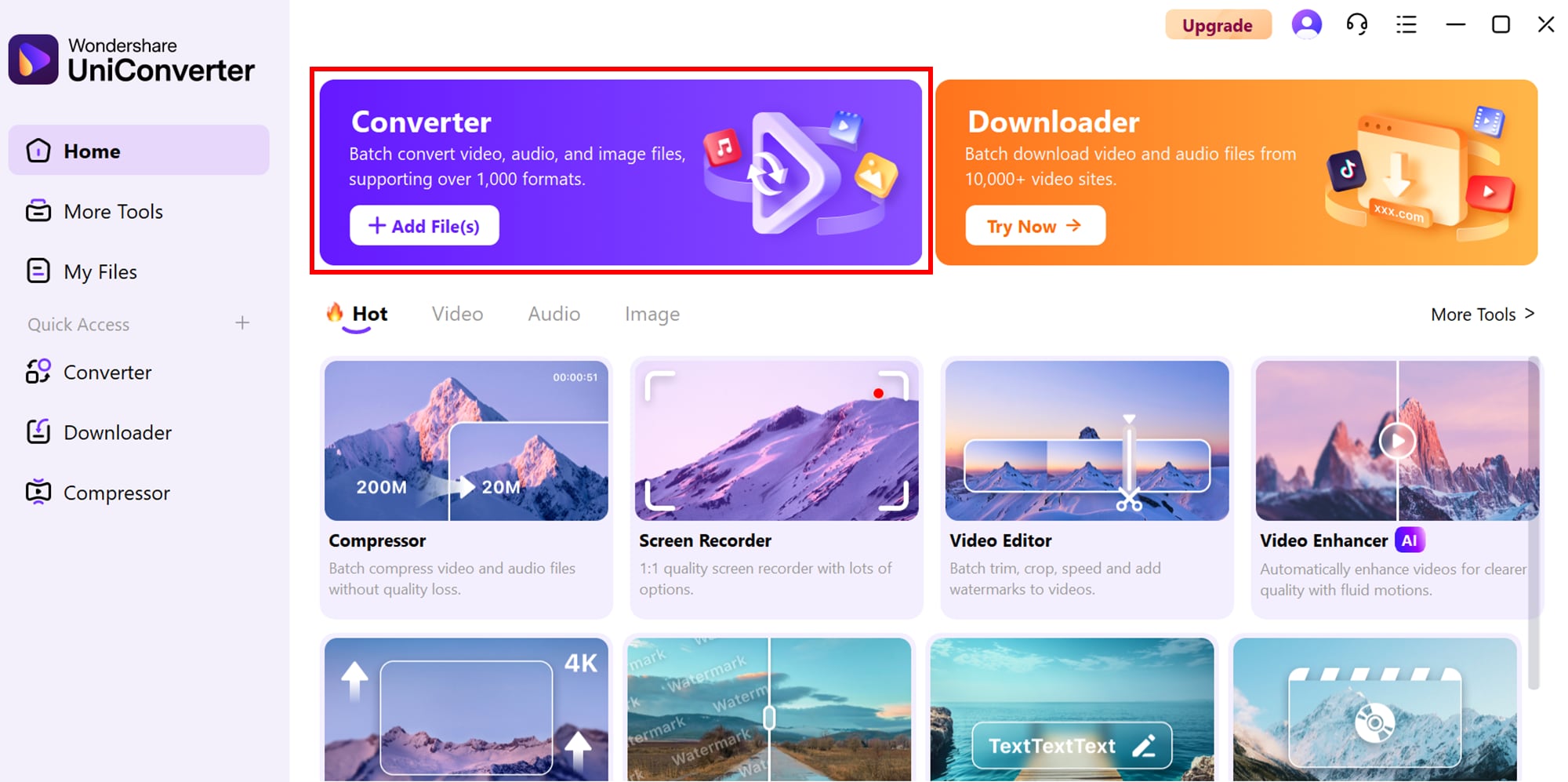
Start by downloading and installing Wondershare UniConverter on your device. Once launched, you’ll be welcomed by the main interface. From the Home tab, click on the Converter option located at the top to open the conversion panel.
Step 2: Add Video Files or Folders to the Converter Tab
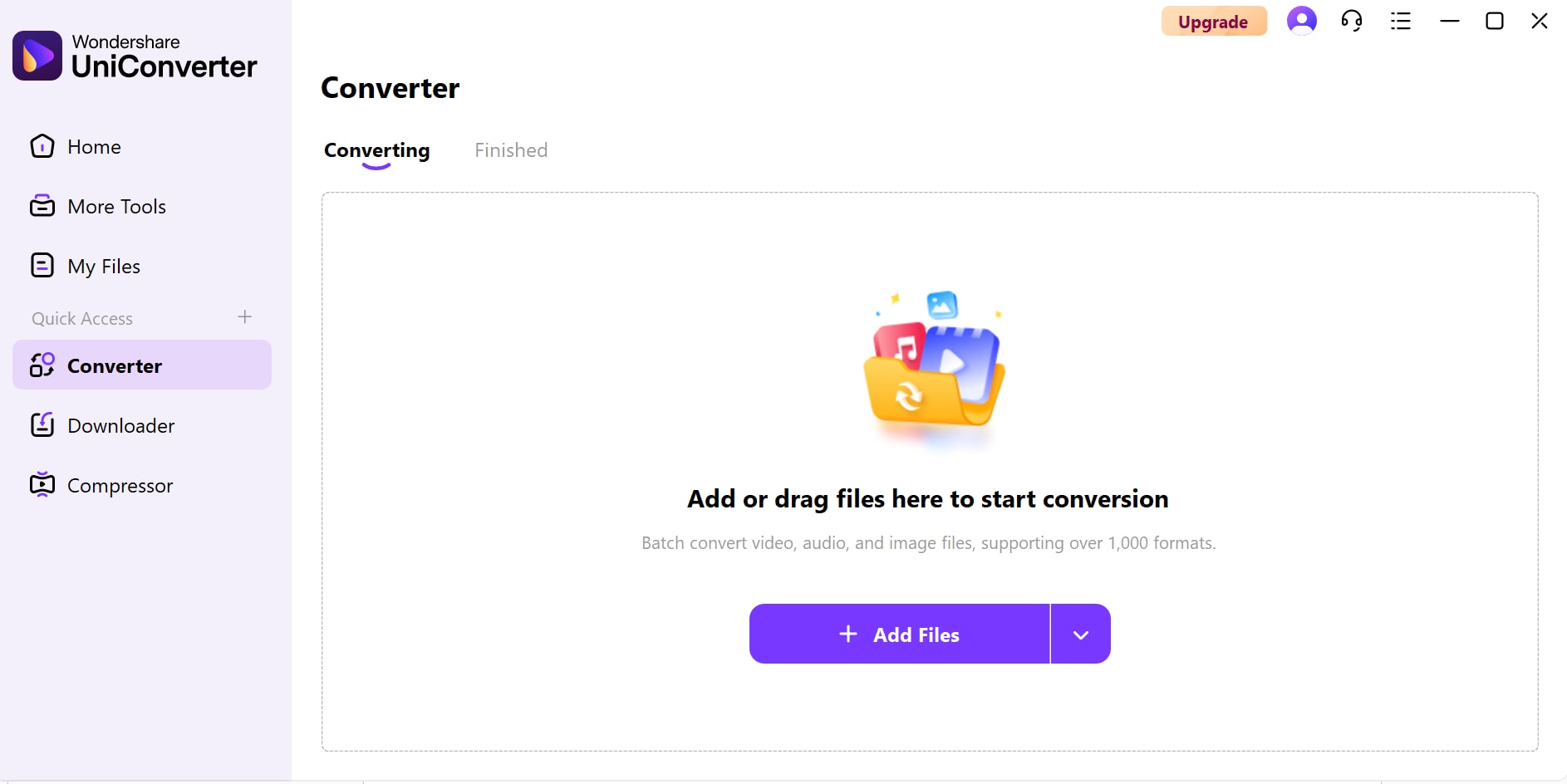
In the Converter panel, click the Add Files/Folder button in the middle of the interface. This will open your device’s file explorer, allowing you to import either single video files or entire folders. This feature makes it easy to prepare batches for conversion in one go.
Step 3: Choose a Video File Format for Batch Conversion
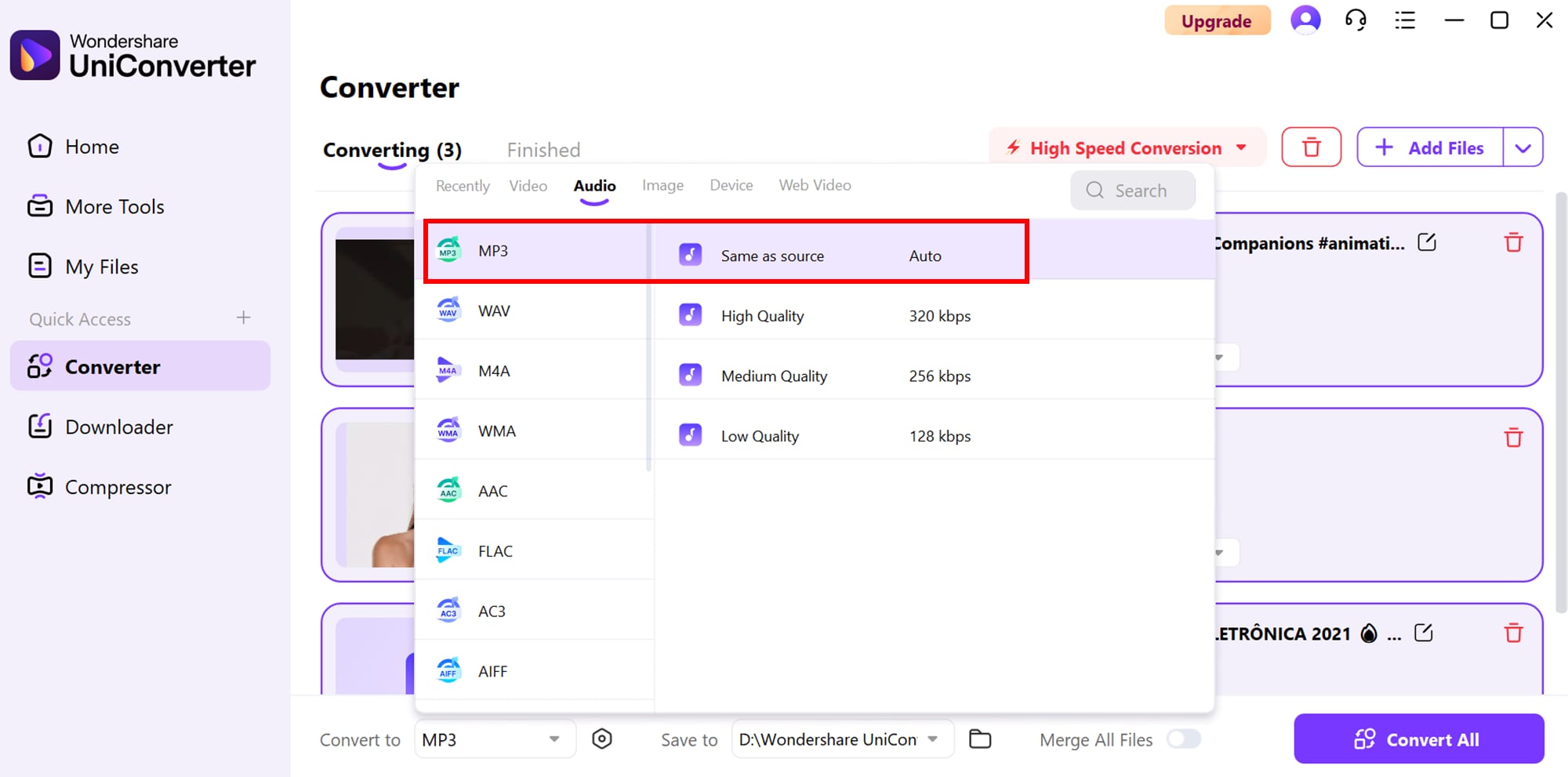
After importing your files, move to the Convert to tab at the bottom of the panel. Here you’ll see a list of over 1000 supported formats. Select MP3 or your preferred output format to begin the batch conversion process.
Step 4: Adjust Video File Settings and Start Conversion
Click on the Settings (gear icon) to open the Quick Settings dialog box. From here, adjust parameters such as bitrate, resolution, or audio quality to fit your needs and hit Save. Finally, press the Convert All button at the bottom. Once complete, your converted files will appear under the Finished tab, ready for use on your iPhone.
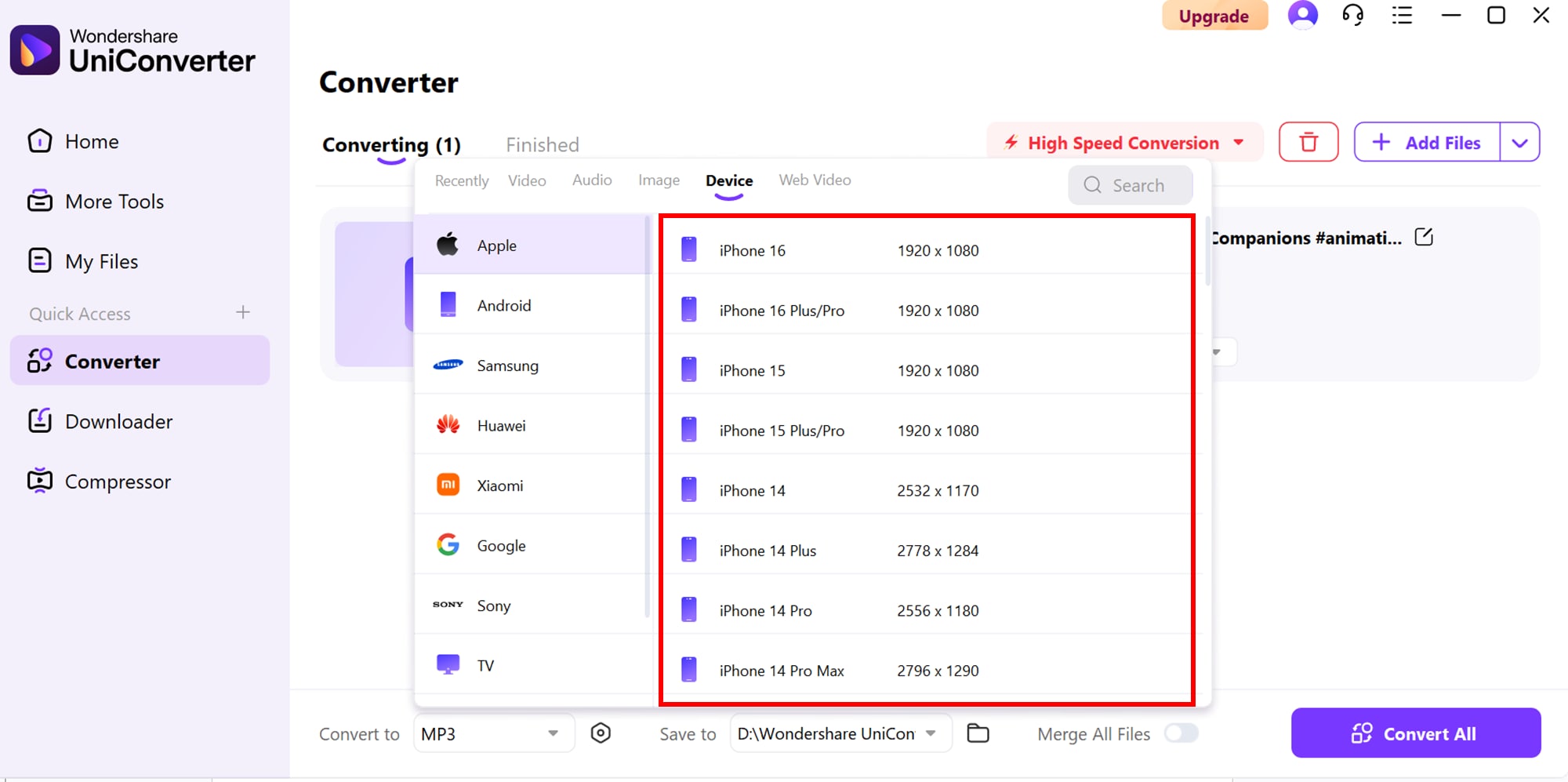
Step 5: Convert MP3 to iPhone
Once the conversion of video to MP3 is done, you can head over to the Conversion function to refine your file further. From there, simply select the iPhone-optimized output format, ensuring flawless playback and compatibility on your device.
Easy to Use Batch Video to MP3 Converter
Part 4: Tips for Better Converting Video to iPhone
Converting video to MP3 iPhone can be simple, but a few smart practices can help you get the best quality while avoiding common errors. Whether you’re managing music, lectures, or social media clips, these tips will ensure your files sound clear and play smoothly on your iPhone.
Choose the right output format
Always select MP3 or AAC when converting videos for iPhone. These formats are universally supported by iOS and ensure that playback is smooth across Apple Music, Podcasts, and other native apps. Sticking to these standards also avoids compatibility issues with third-party players.
Adjust bitrate for better audio quality
A higher bitrate (like 256 kbps) provides richer sound but takes up more space, while lower bitrates may reduce clarity. Strike a balance depending on whether you prioritize quality or storage. For music lovers, higher bitrates are ideal, while spoken audio like podcasts can work well with smaller file sizes.
Avoid unnecessary re-conversions
Each time you re-convert an MP3, the file loses a little more quality. Convert once into your preferred iPhone format and save a backup to avoid repeated conversions. Keeping an original high-quality copy ensures you can re-export in different formats without degrading sound.
Use batch conversion wisely
When converting multiple files, ensure all settings are applied consistently before hitting Convert All. Inconsistent settings across files can lead to uneven sound quality in your playlist. Reviewing settings beforehand saves you from redoing large batches later.
Keep an eye on metadata and file naming
Poorly tagged audio files can create a messy library on your iPhone. Always check metadata like track title, artist, and album info before finishing the conversion process. Properly organized files make it easier to browse, search, and enjoy your music collection on the go.
Conclusion
Converting videos to iPhone format is not just about compatibility but also about retaining high-quality playback, faster transfers, and smoother viewing experiences. By following the right steps and avoiding common mistakes, you can ensure your videos look crisp and professional on your iPhone. Wondershare UniConverter makes the entire process effortless with its intuitive interface, wide format support, and customizable settings tailored for Apple devices. Whether you want to convert videos to MP4, MP3, or optimize them specifically for iPhone, UniConverter provides a one-stop solution that combines speed, efficiency, and quality. It ensures that your content is ready to enjoy anytime, anywhere, without worrying about format restrictions.
Easy to Use Batch Video to MP3 Converter
FAQs
-
1. Can I convert videos to iPhone format without losing quality?
Yes, you can. By choosing the right settings such as resolution, bitrate, and codec, the conversion process ensures that the final output remains sharp and clear for iPhone playback. -
2. Which video formats work best on iPhone after conversion?
The most iPhone-friendly formats are MP4 (H.264), MOV, and M4V. These formats guarantee smooth playback, better compatibility, and no risk of unsupported file errors. -
3. Is it possible to batch convert multiple videos for iPhone?
Absolutely. With batch conversion tools, you can add multiple videos and process them together, saving time and keeping quality consistent across all files. -
4. Can I directly transfer the converted videos to my iPhone?
Yes. includes a built-in transfer feature that lets you move converted videos straight to your iPhone, avoiding the need for manual syncing or third-party apps. -
5. How do I ensure that converted videos don’t take up too much space on my iPhone?
You can adjust the output settings—such as lowering resolution to 720p or reducing bitrate—before converting. This keeps file sizes smaller while still maintaining smooth viewing quality on iPhone screens.

