


Are you struggling with iPhone audio files that won't play on your other devices? You're not alone. Your iPhone records voice memos in M4A format, and those Apple Music tracks come with protection that makes sharing nearly impossible. Converting an iPhone to MP3 instantly solves these compatibility headaches. MP3 works everywhere, from your car to your stereo to your friends' Android phones, without those frustrating "format not supported" errors.
This guide shows you the easiest ways to convert an audio file from iPhone to MP3, helping you unlock your audio files for universal playback and sharing across all your devices.
In this article
Part 1. Why Convert Audio to MP3 on an iPhone?
Converting iPhone audio to MP3 eliminates compatibility barriers that often frustrate you across different platforms and devices. iPhone records audio in M4A format, and Apple Music files are protected, making them difficult to use for ringtones or sharing with non-Apple devices. You may need to convert M4A audio to MP3 for the following reasons:
Universal Compatibility
MP3 plays on virtually every device, media player, and operating system. While M4A works best within Apple's ecosystem, MP3 ensures your audio files play seamlessly across Android devices, Windows computers, and older media players without compatibility issues.
Create Custom Ringtones
The iPhone requires a specific type of M4A file for ringtones. Converting to MP3 is often a first step before final conversion to the required M4A ringtone format, giving you more flexibility in creating personalized notification sounds.
Share Files Easily
Avoid "format not supported" errors when sending audio to Android or Windows users. MP3's universal acceptance means recipients won't need special software or converters to play your shared audio files.
Reduce File Size
For Spoken word or lower-quality needs, MP3 can offer smaller file sizes. While M4A typically provides better compression efficiency, MP3 at lower bitrates can significantly reduce storage requirements for voice recordings and podcasts.
Part 2. Understanding iPhone Audio Formats (M4A vs. MP3)
If you are confused about audio formats on your iPhone and want to convert M4A to MP3, this section will detail the different audio formats:
This is the standard format for your iPhone's Voice Memos and songs bought on iTunes. M4A uses the AAC codec, which gives you better sound quality at smaller file sizes. For instance, a 128 kbps M4A file can sound as good as a 192 kbps MP3, meaning your audio saves space without losing clarity.
MP3 (Universal Standard)
MP3 is the most widely recognized audio format. It works on almost any device or app, making it the safest option if you need your files to play everywhere. However, to match the quality of M4A, you might need to use a higher bitrate with MP3.
The Apple Music Limitation
Songs from Apple Music come with Digital Rights Management protection. Because of this, you can't simply convert these files to MP3 using regular apps; you will need special software or workarounds on your computer since no App Store tool can legally remove DRM directly on your phone.
Part 3. How to Easily Batch Convert iPhone M4A Audios to MP3
If you're looking for an easy way to convert your iPhone's M4A recordings into MP3 for seamless playback on any device, Wondershare UniConverter is a great pick. It supports multiple formats, including M4A, AAC, WAV, and MP3, and lets you batch-convert with custom bitrates, sample rates, and encoders, all with a clean drag-and-drop interface. Plus, its AI tools like noise removal and vocal extraction help polish your audio before conversion, making your final files smart, shareable, and ready for anything.
Key Features
- Easily handle iPhone related audio and video compability problems for free, like convert MP4 for iPhone, convert MP3 for iPhone, convert iPhone video to MP4, etc.
- With its noise removal, you can upload your recorded audio and remove the noise that your ears will not love.
- After converting audio to MP3, you can use its MP3 Cutter, and it will let you cut the unwanted segments. This way, you can create a ringtone.
- Voice changer lets you change the audio voice to male, female, radio, child, or robotic voice.
- With a vocal remover, you can separate the vocals and music, and sing a song in your own voice with the music.
How to Convert M4A to MP3 iPhone on Desktop using UniConverter
Here is the step-by-step guide to convert an iPhone to MP3 quickly:
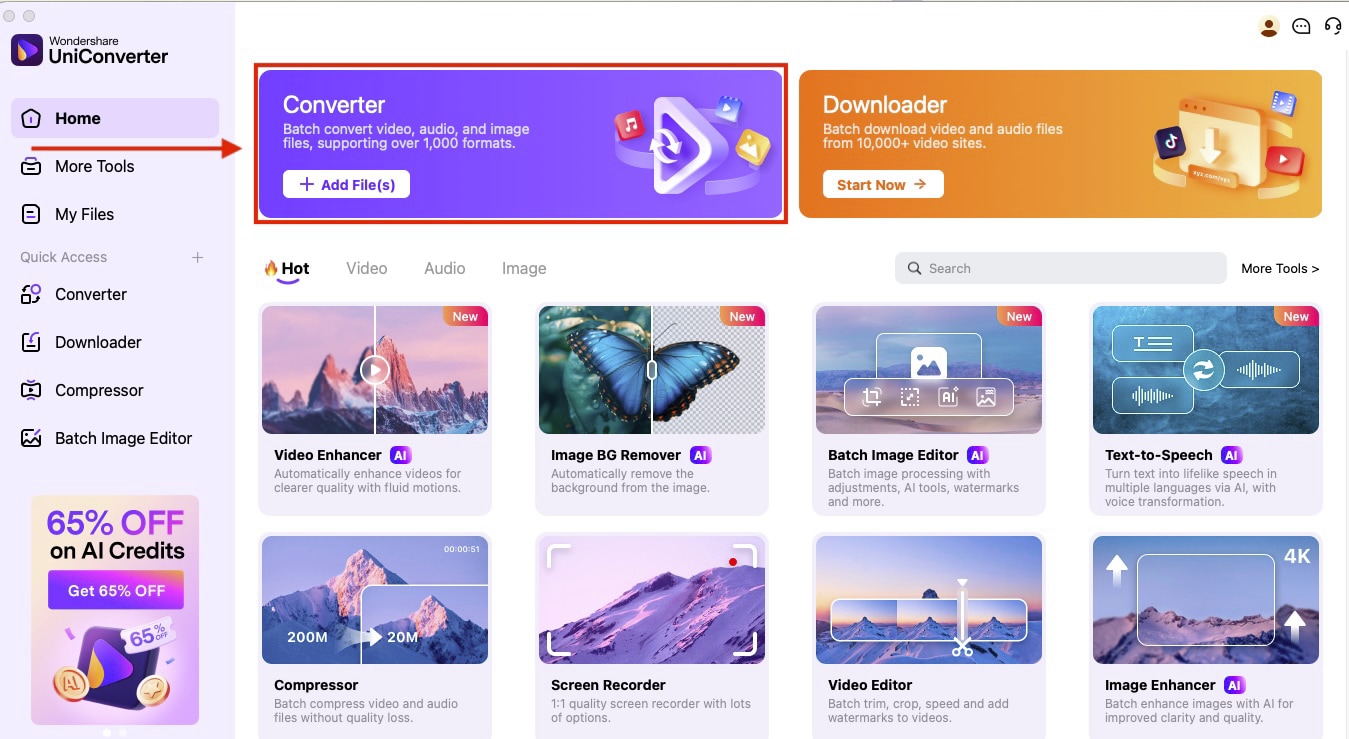
Step 1: Go to the homepage and click on "Converter."
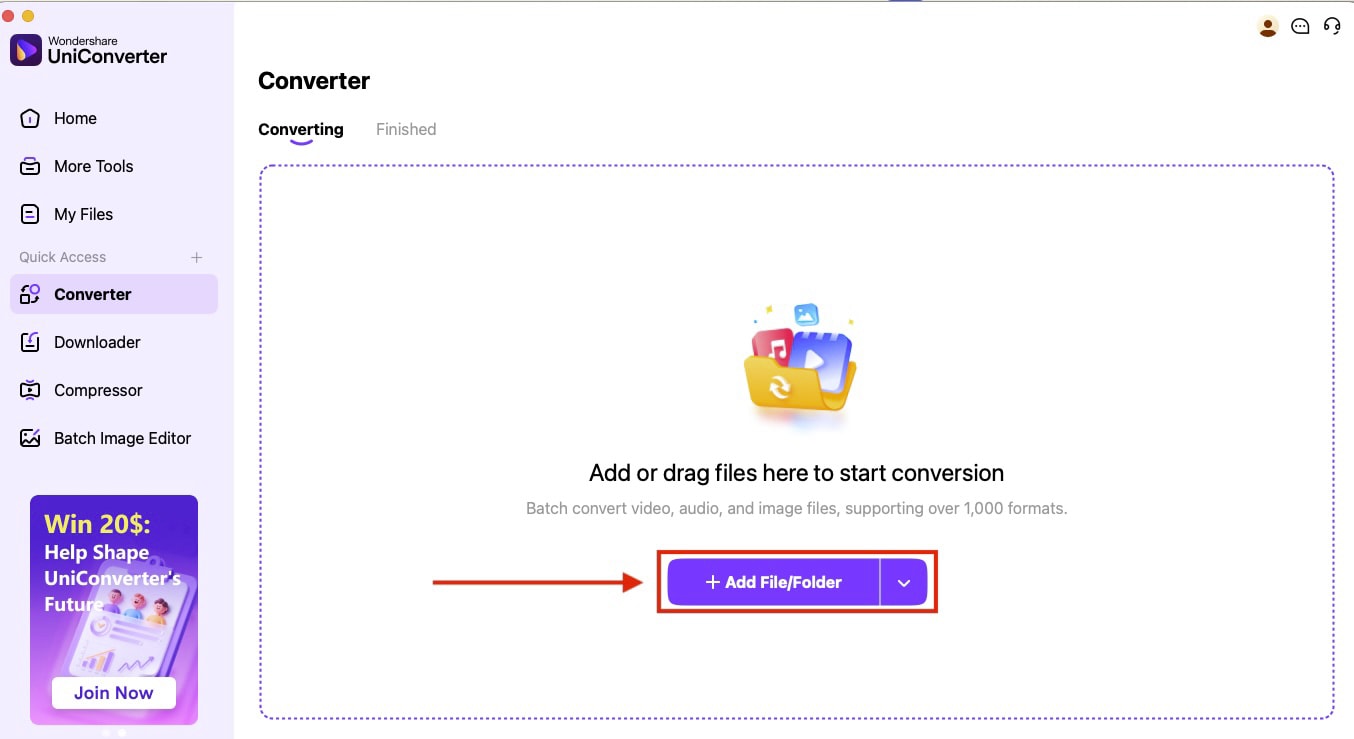
Step 2: Now you will see the next screen. Here, click on "Add Files/Folder."
Step 3: When you upload the file, click on the settings icon, click "Audio," and choose MP3.
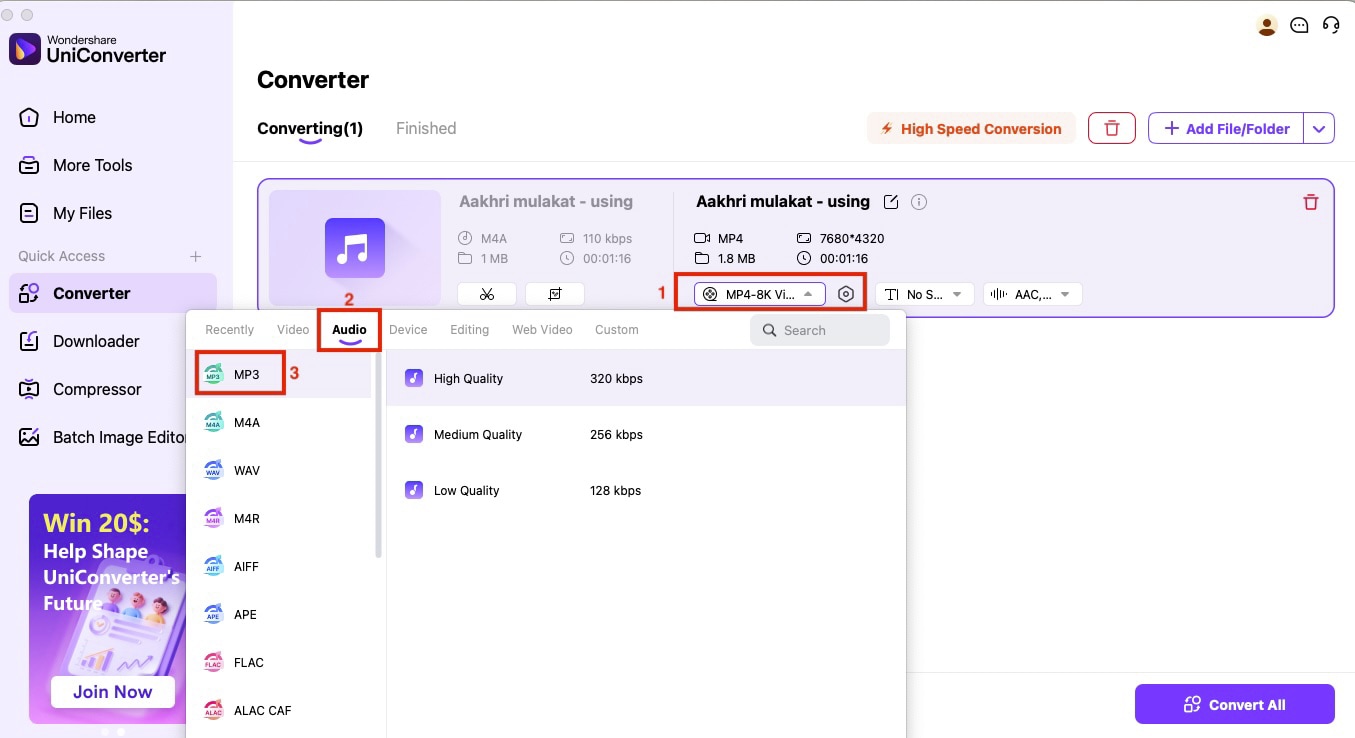
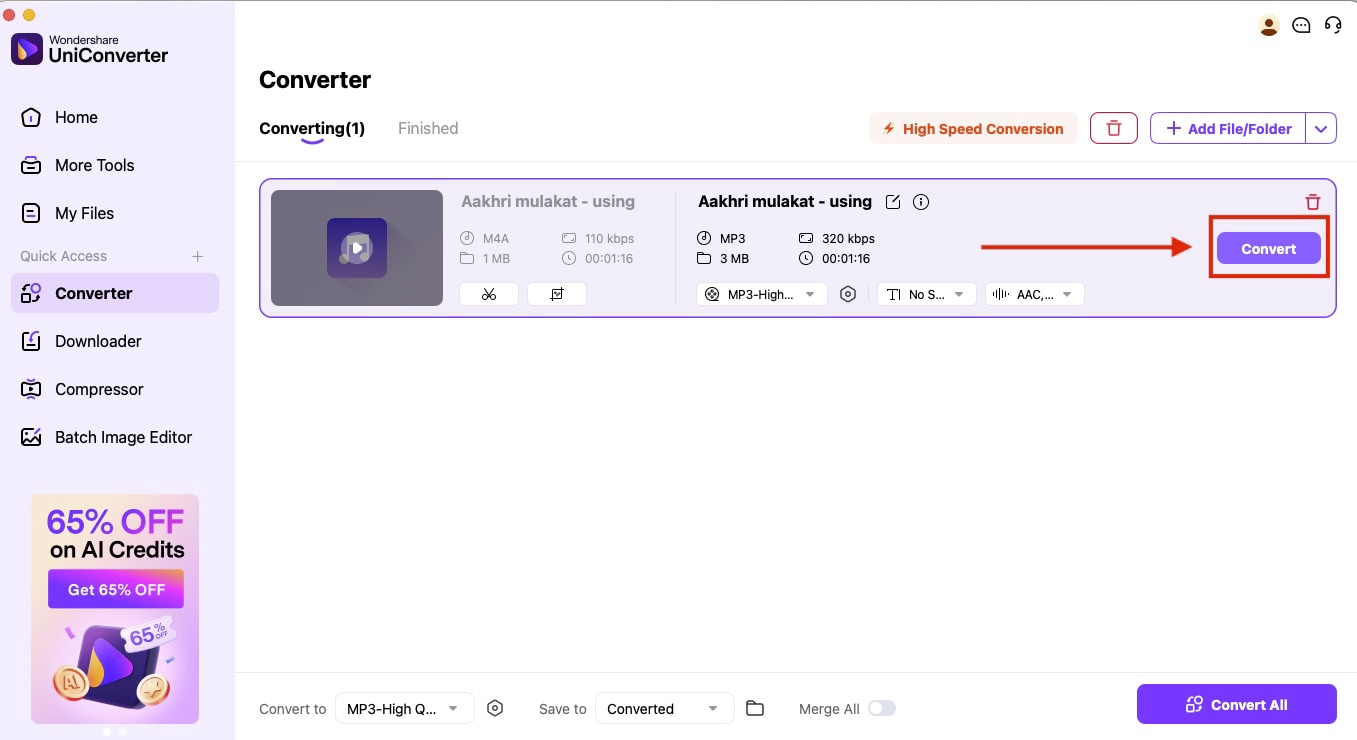
Step 4: Click on the "Convert" option and download the audio.
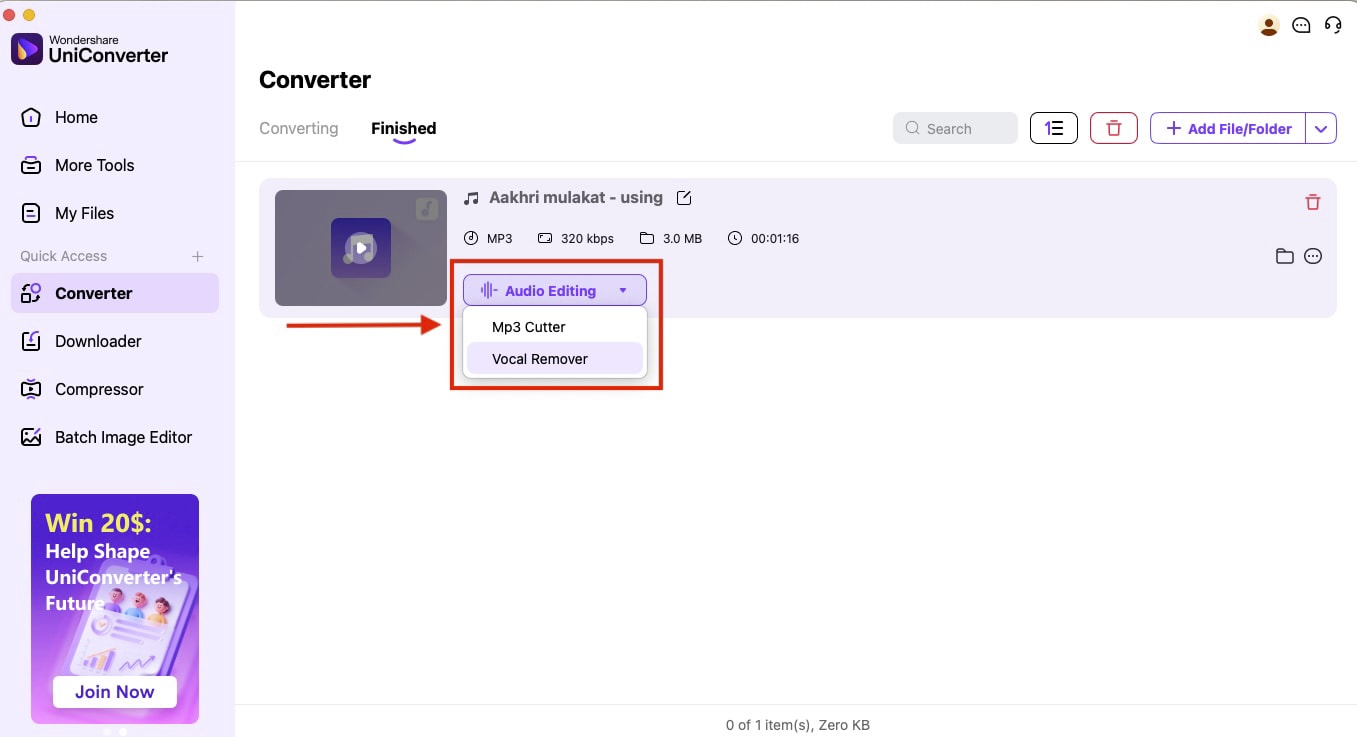
Note: After converting the iPhone to MP3, you will get the "Audio Editing" option, where you can use MP3 Cutter and Vocal Remover.
Part 4. Tips for iPhone Audio Conversion
Here are some practical tips to convert M4A to MP3 on iPhone:
Voice Memos to MP3
For quick, on-device conversion, try dedicated apps like M4A Converter from the App Store. If you have a bunch of files, using desktop software like UniConverter can save time by batch processing everything at once. Online tools like FlexClip offer a fast solution with simple editing features, all accessible from your browser.
Apple Music to MP3
Here's where things get tricky. Apple Music songs come with DRM protection, so no app on your iPhone can convert them directly. Instead, you'll need specialized DRM removal software on your computer. Some users also use the CD burning and re-import method through iTunes or the Apple Music app for a DRM-free MP3 copy.
Choose High Quality Settings
Don't settle for the default settings! Always pick the highest possible MP3 bitrate, 256 kbps or 320 kbps. This helps you keep the original audio's clarity and minimizes loss, especially if you're converting music.
For Ringtones, use a Ringtone Maker App
To set a custom ringtone, your audio must be in M4R format, not MP3. Apps like GarageBand make it simple, or you can convert MP3 to M4R with iTunes. Remember: keep ringtones between 30 and 40 seconds for the best results.
Optimize File Management
After conversion, use the Files app to organize and find your MP3s easily. For sharing or extra backup, save to iCloud or another cloud storage service for fuss-free access across all your devices.
Conclusion
Converting iPhone audio to MP3 solves a lot of headaches, from fixing "format not supported" errors to creating custom ringtones and saving storage space. Whether it's voice memos or music, MP3 ensures your files play smoothly anywhere. For quick, reliable conversion with extra AI tools like noise removal and vocal separation, Wondershare UniConverter makes it effortless. It's beginner-friendly, fast, and handles batch files like a pro. Try UniConverter today and take full control of your sound!
FAQs
-
1. Can I convert iPhone Voice Memos to MP3 directly on my phone?
Yes, you can use converter apps like M4A Converter from the App Store for direct on-device conversion. Alternatively, online tools like FlexClip provide browser-based conversion with additional editing features. -
2. Why won't my Apple Music songs convert to MP3?
Apple Music tracks are protected by DRM (Digital Rights Management), preventing direct conversion. You'll need specialized DRM removal software on a computer or use the CD burning method through the iTunes/Apple Music app. -
3. What's the best MP3 quality setting for iPhone conversions?
Use 256 kbps or 320 kbps for optimal audio quality. These higher bitrates minimize quality loss during conversion, which is especially important for music files. -
4. Can I use converted MP3 files as iPhone ringtones?
MP3 files need to be converted to M4R format for iPhone ringtones. Use GarageBand or iTunes to make the final conversion after trimming the audio to 30-40 seconds maximum. -
5. Will converting M4A to MP3 reduce file quality?
Yes, both M4A and MP3 are lossy formats, so converting between them introduces some quality loss. To minimize this, always use the highest available bitrate settings and avoid multiple conversions of the same file.

