


In this article
Part 1: Why Convert MP3 to Other Audios on iPhone
Although iPhones support MP3 playback, not all MP3 files deliver the best performance due to compatibility, quality, and storage factors. In many cases, converting MP3 to iPhone-friendly formats ensures smoother playback and optimized audio quality. Below are the formats iPhones support and why conversions may be needed.
iPhone-supported audio formats
AAC (Advanced Audio Coding) – Default format for iTunes Store and Apple Music.
MP3 – Widely supported but not always optimal in compression.
AIFF (Audio Interchange File Format) – High-quality, uncompressed format.
WAV (Waveform Audio File Format) – Uncompressed, large file size.
Apple Lossless (ALAC) – Lossless compression designed by Apple.
Reasons you may need conversion
To reduce file size by converting large WAV/AIFF to AAC.
To achieve better quality by shifting from low-bitrate MP3 to AAC or ALAC.
To ensure full compatibility with iTunes and Apple Music ecosystem.
To prepare audio for editing apps that require specific formats.
To maintain storage efficiency while keeping quality intact.
Simple comparison of iPhone audio formats
| Format | Compression | Quality | File Size | Best Use Case |
| MP3 | Lossy | Good | Small | General playback, universal use |
| AAC | Lossy | Very Good | Smaller than MP3 | Default iPhone playback, streaming |
| ALAC | Lossless | Excellent | Large | Archiving, high-quality music |
| AIFF | Uncompressed | Studio-grade | Very Large | Professional editing, music production |
| WAV | Uncompressed | Studio-grade | Very Large | Recording, professional use |
Converting MP3 to iPhone-supported formats like AAC or ALAC will give you a balance between quality and storage, ensuring seamless playback on your device.

Easy to Use Batch MP3 to iPhone Converter
Part 2: Use Cases When Needed to Convert MP3 for iPhone
There are several situations where converting MP3 files becomes essential for smooth playback or compatibility on iPhone. From storage management to high-quality playback, the need arises in different scenarios. Below are some common use cases:
Saving storage space
iPhones have limited storage, and large MP3 files may quickly consume memory. Converting MP3 into AAC (Apple’s preferred format) or HE-AAC reduces file size while maintaining good audio quality, helping you free up space for other apps and media. This makes it easier to store more songs, photos, and apps without constantly worrying about running out of memory.
Creating ringtones
iPhones do not directly support MP3 as ringtones. You need to convert MP3 files into M4R format, which is Apple’s official ringtone file type. This allows you to personalize your iPhone with custom tones instead of relying only on the default ringtones.
Ensuring Apple Music compatibility
Apple Music and iTunes are optimized for AAC, ALAC, and M4A formats rather than plain MP3. Converting MP3 to these supported formats ensures seamless syncing, playlist integration, and better audio playback within the Apple ecosystem. It also helps avoid playback errors when transferring files between devices.
Preserving audio quality for AirPods
AirPods and other Apple audio devices are designed to work best with AAC and ALAC formats. Converting MP3 to these formats improves compatibility and maintains audio fidelity, especially when streaming over Bluetooth. This ensures a smoother listening experience with crisp vocals and balanced sound.
Editing or mixing audio files
If you want to edit MP3 files in GarageBand or other iOS audio editing apps, conversion is often needed. Many Apple editing apps prefer WAV, ALAC, or AIFF for professional-quality output, making conversion a must before starting creative work. This gives you greater flexibility during editing and prevents potential loss of sound quality.
Part 3: Bonus: How to Easily Batch Convert MP3 for iPhone
When handling multiple audio files, converting them one by one can be time-consuming and frustrating. A batch conversion tool makes this process smooth and efficient, ensuring your audio is perfectly optimized for iPhone playback. Wondershare UniConverter Desktop Version stands out as a powerful all-in-one multimedia solution that not only converts MP3s for iPhone AAC and ALAC but also supports video, image, and DVD conversions.
Designed with a clean interface and advanced acceleration technology, UniConverter is built to simplify large-scale file management. Whether you’re preparing a playlist, optimizing audio for better storage, or ensuring compatibility, UniConverter provides speed, quality, and flexibility in a single package.
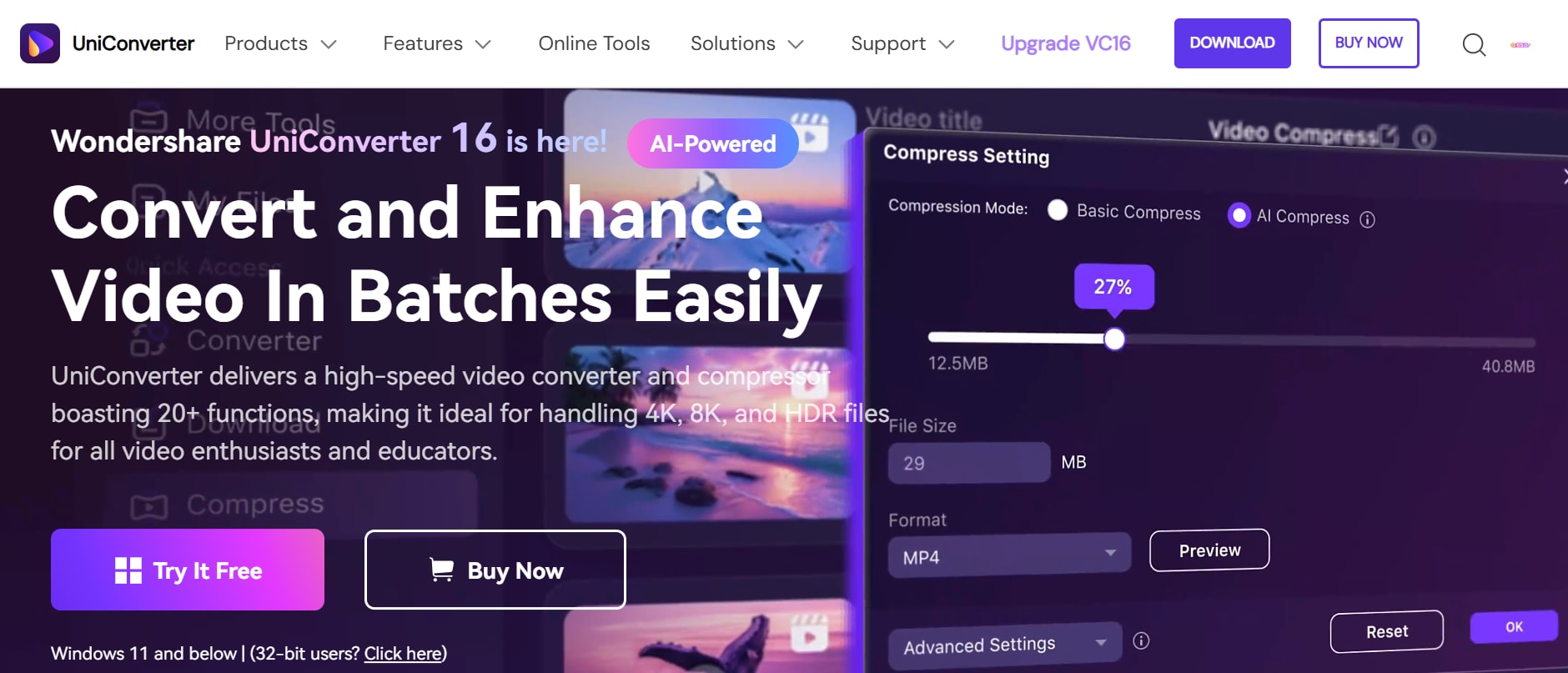
Key features of UniConverter for batch MP3 for iPhone conversion
- Batch processing support: Convert multiple MP3 files to iPhone-supported formats at once, saving time and effort.
- High-speed conversion: Take advantage of advanced NVIDIA acceleration technology that ensures faster conversions without sacrificing quality.
- Wide format compatibility: Seamlessly convert MP3 into iPhone-supported formats like AAC, ALAC, and WAV.
- Lossless quality retention: Maintain the original audio quality while adapting the format for iPhone.
- Built-in audio editor: Trim, adjust, or enhance your MP3 files before transferring them to your iPhone.
- With UniConverter, converting MP3 files in bulk for the iPhone becomes quick, simple, and professional.
How to Convert Multiple MP3 files to iPhone effortlessly
Managing several MP3s at once doesn’t have to be a hassle. With the right tool, you can convert and transfer multiple tracks in just a few clicks, ensuring seamless playback on your iPhone.
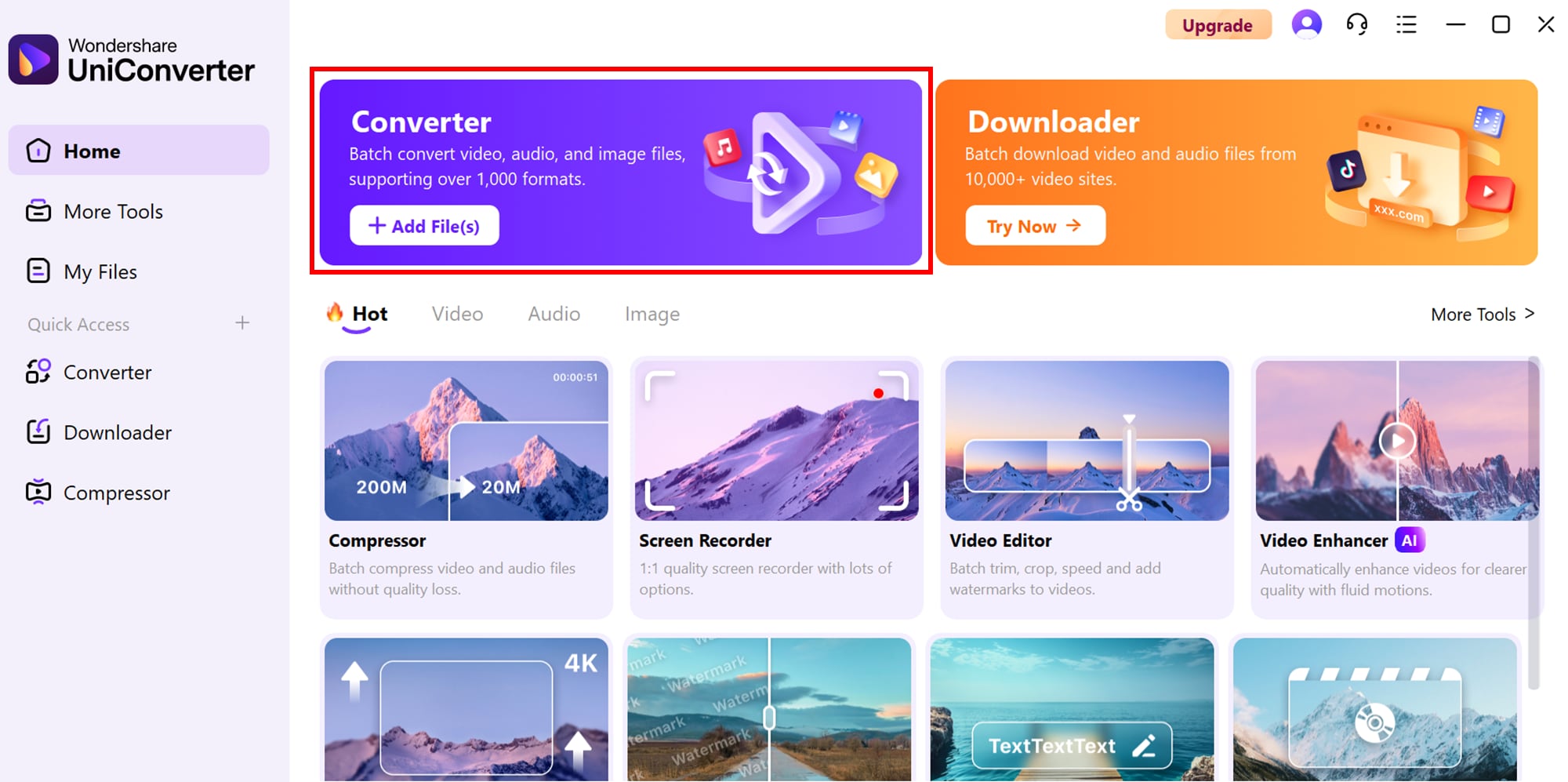
Step 1: Access the Converter Tool on UniConverter
Start by downloading and installing Wondershare UniConverter on your device. Once launched, you’ll be welcomed by the main interface. From the Home tab, click on the Converter option located at the top to open the conversion panel.
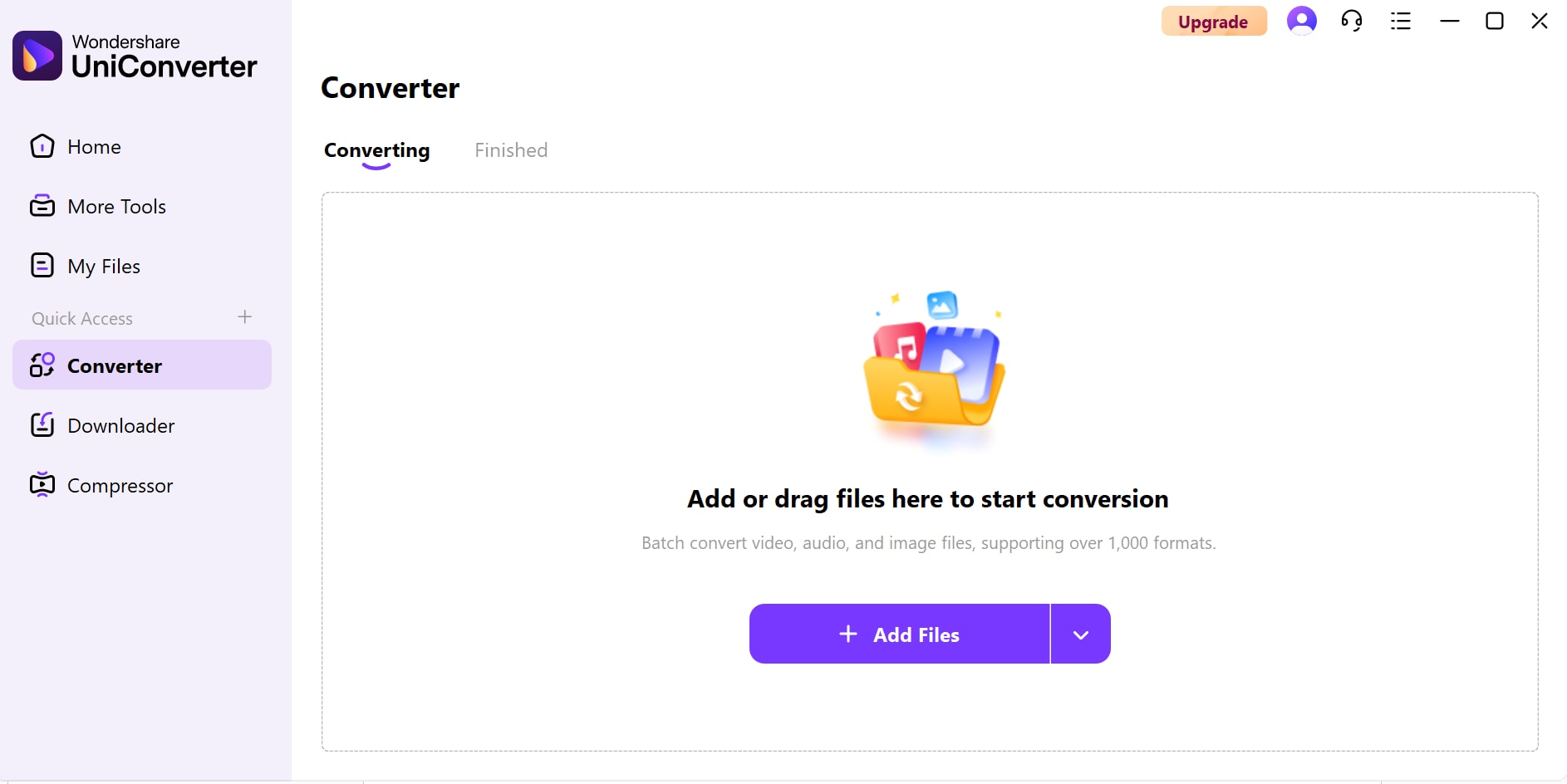
Step 2: Add Video Files or Folders to the Converter Tab
In the Converter panel, click the Add Files/Folder button in the middle of the interface. This will open your device’s file explorer, allowing you to import either single video files or entire folders. This feature makes it easy to prepare batches for conversion in one go.
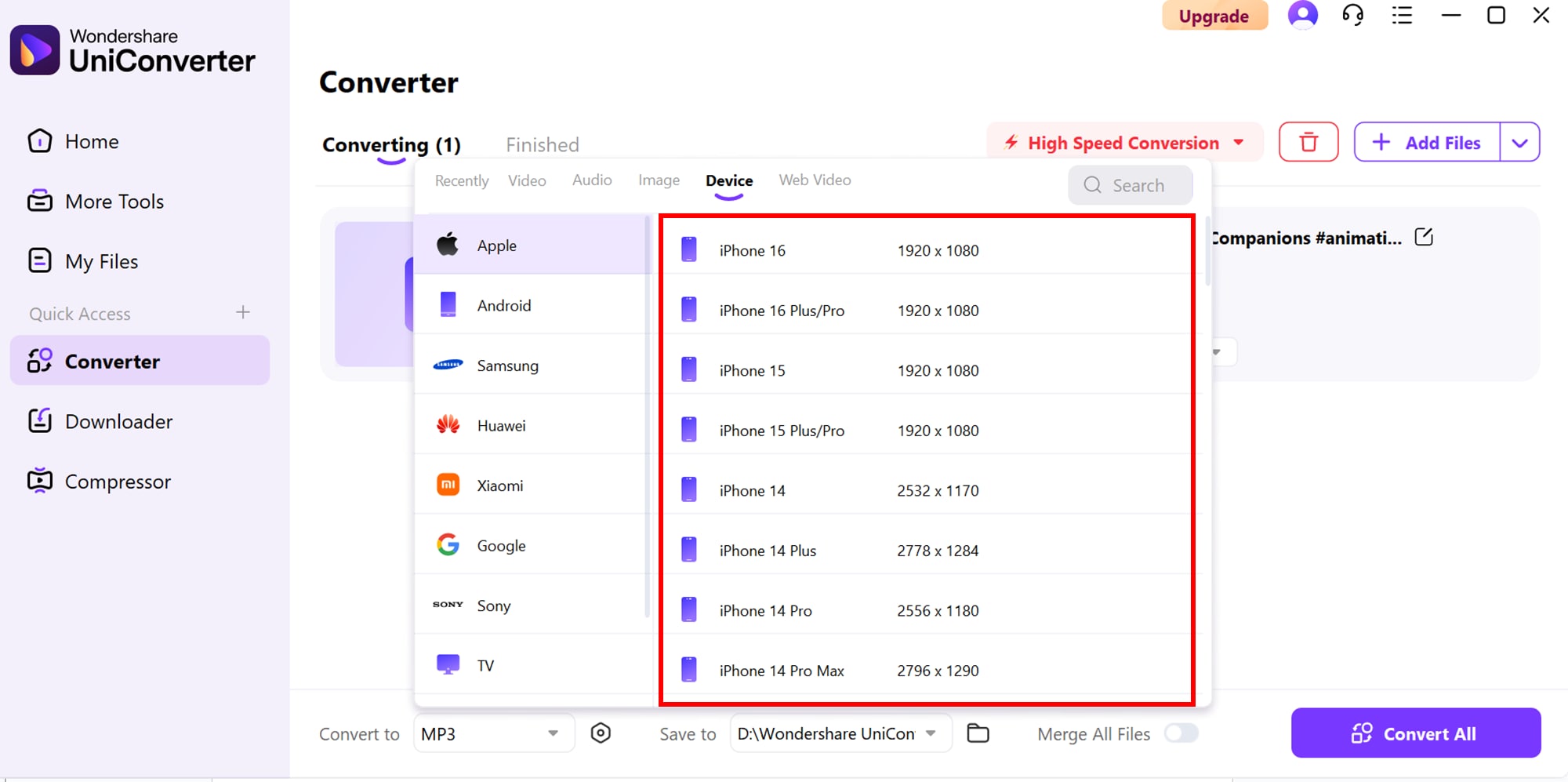
Step 3: Convert to iPhone
After uploading all your MP3 files, click on the “Convert to” dropdown menu and select “Device.” You’ll see multiple iPhone format options appear. Simply choose the format that best suits your device and finish by clicking “Convert All.”
Easy to Use Batch MP3 to iPhone Converter
Part 4: Tips for Better Converting MP3 to iPhone
Getting flawless sound quality on your iPhone is not just about hitting "convert." Paying attention to the right formats, settings, and practices can make your audio sharper and more enjoyable. Here are some expert tips to guide you through the process:
Choose the right output format
Apple devices are optimized for AAC and ALAC formats, which deliver high-quality audio without compatibility issues. MP3 may still work, but AAC offers better compression while preserving sound. By choosing the right format, you ensure your music plays smoothly across iPhone apps like Apple Music or iTunes. This small step saves you from annoying playback errors later.
Maintain the original bitrate
Bitrate directly impacts audio clarity, especially for music with high detail. For most iPhone users, 256 kbps AAC strikes the perfect balance between size and quality. If you’re an audiophile, ALAC at higher bitrates ensures lossless sound for a richer experience. Sticking close to the original bitrate prevents distortion and sound loss during conversion.
Check file size vs. storage
High-quality audio files take up more space, especially if you convert large playlists or albums. While ALAC is great for quality, it can quickly consume storage on 128GB or 64GB iPhones. Before converting, calculate the approximate file size to match your available storage. Balancing quality and space will keep your device running smoothly without frequent clean-ups.
Organize metadata properly
Nothing is more frustrating than a cluttered music library. Before hitting convert, edit tags such as artist, album, track number, and cover art. Proper metadata makes your iPhone library visually appealing and easy to browse. This step is especially useful when syncing with iTunes, as it keeps your playlists and albums well-structured.
Avoid unnecessary conversions
Every time a file is re-encoded, some audio quality is lost due to compression. Instead of converting back and forth between formats, decide once and stick to it. Always keep a copy of your original MP3s safe as a backup for future needs. This way, you get the best possible version without repeated degradation.
Conclusion
Converting MP3 files to iPhone-compatible formats ensures smooth playback, better sound quality, and hassle-free music management on Apple devices. With the right tools, users can easily handle compatibility issues, organize music libraries, and enjoy high-quality audio anytime. For bulk tasks or professional needs, batch conversion simplifies the process and saves valuable time.
Wondershare UniConverter stands out as a complete solution for this purpose. It not only supports MP3 to iPhone conversion but also offers fast processing, batch support, and advanced settings for customization. Whether you are preparing music for offline listening or syncing tracks to Apple Music, UniConverter guarantees a seamless and efficient workflow.
Easy to Use Batch MP3 to iPhone Converter
FAQs
-
1. Why won’t some MP3 files play on my iPhone?
Some MP3 files may fail to play if they are encoded with an unsupported codec, have variable bitrates, or are corrupted. Converting them to iPhone-supported formats like AAC or M4A usually solves the issue. -
2. Can I batch convert MP3 files for the iPhone?
Yes, most modern converters allow batch processing, letting you convert multiple MP3 files in one go. This saves time and ensures all your files are optimized consistently for playback. -
3. Does converting MP3 to iPhone reduce audio quality?
If you use high-quality settings like 256 kbps or 320 kbps during conversion, there is little to no audible loss. Compression at lower bitrates, however, may affect sound clarity. -
4. Can I directly transfer the converted MP3 files to my iPhone?
Yes, once converted, you can transfer files via iTunes, iCloud Drive, AirDrop, or third-party apps. These methods make it easy to sync music without needing cables. -
5. Is UniConverter only for MP3 to iPhone conversions?
No, supports 1000+ formats including MP4, WAV, AAC, and FLAC. It also offers features like video editing, compression, DVD burning, and screen recording, making it an all-in-one media solution.

