


Screen recording has become an everyday necessity. Educators rely on it for online lessons, professionals for presentations, and gamers for sharing highlights. Having the right tool makes a big difference in clarity, quality, and convenience. CamStudio has been around for decades as a free, open-source recorder. It’s simple and effective for basic needs but feels outdated in today’s fast-paced digital world.
That’s where UniConverter Screen Recorder comes in. Built for modern workflows, UniConverter supports cross-platform recording, advanced features, and integration into editing and sharing. This article reviews CamStudio, its strengths and weaknesses, and then introduces UniConverter as a reliable alternative.
In this article
Part 1: What is CamStudio?
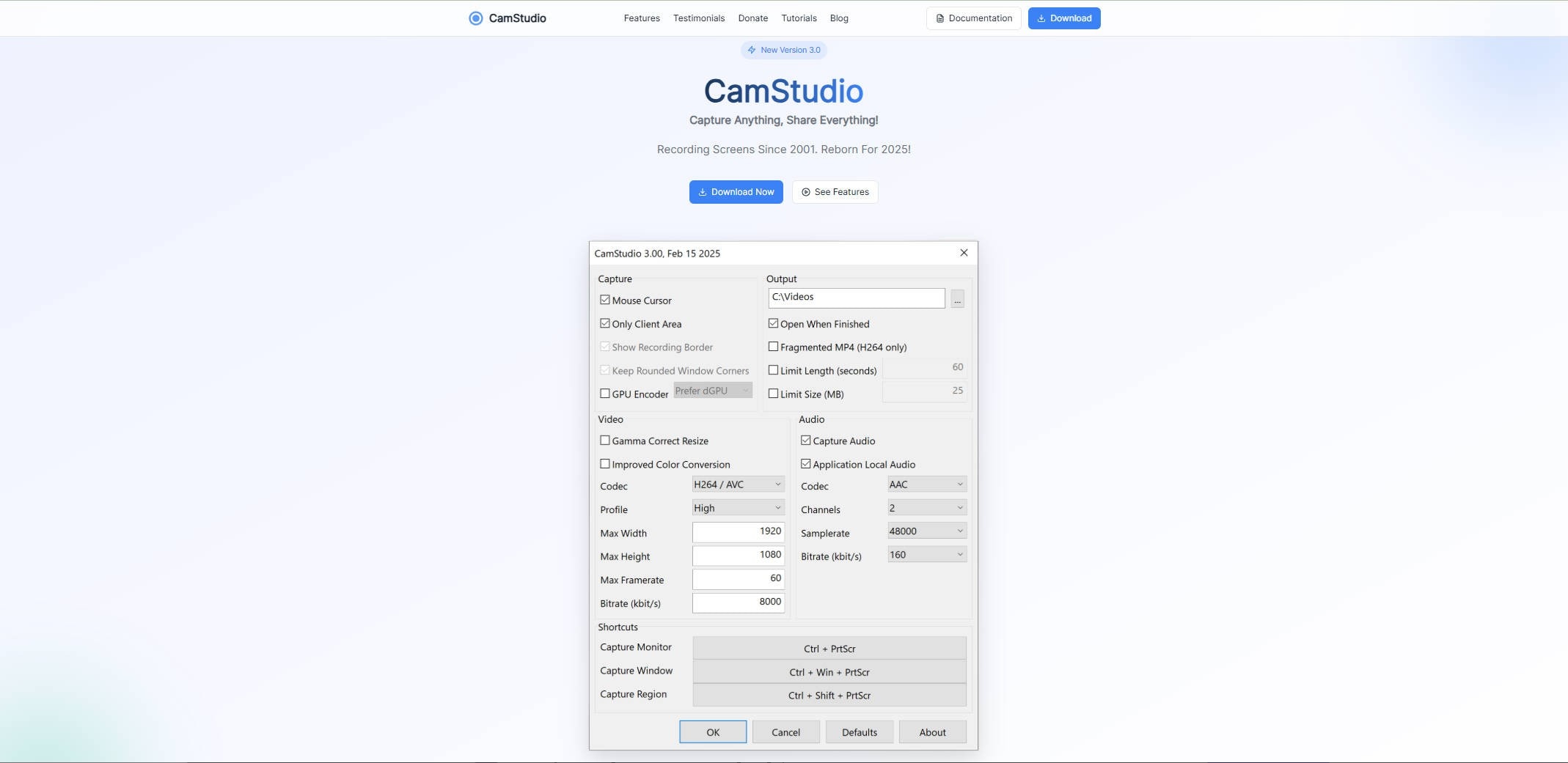
CamStudio is one of the earliest free screen recording tools for Windows. Launched in the early 2000s, it gained traction because it removed barriers like recording limits and watermarks, which were common in free software at the time. Even today, CamStudio remains a go-to for users who want a simple way to capture screen activity without cost.
Core Features of CamStudio
- Records screen activity in AVI format, with conversion to SWF (Flash Video).
- Audio recording from system sound or microphone.
- Annotations and captions, useful for tutorials.
- Cursor highlighting, to guide viewers’ attention.
Part 2: Pros and Limitations of CamStudio
CamStudio is not without its charm. While it may feel dated compared to new-generation recorders, it still has distinct advantages that explain why people continue to use it.
Pros of CamStudio
Free & Open Source – No license fees, no subscriptions.
Lightweight – Runs smoothly on older PCs with minimal RAM and CPU.
Easy to Learn – Simple menus and uncluttered interface.
Annotation Tools – Insert captions, add text, or highlight cursor.
No Watermarks – Outputs clean video, unlike many free tools.
Limitations of CamStudio
Outdated Formats – AVI and SWF are no longer industry standards. No MP4 export.
No Advanced Editing – You must rely on external editors to trim or enhance.
Compatibility Issues – Some instability on Windows 10/11.
Security Concerns – Past unofficial versions bundled with adware made downloads risky.
Windows Only – No support for macOS or Linux.
Part 3: Why Choose UniConverter Screen Recorder (Best Alternative)
UniConverter Screen Recorder addresses the gaps left by CamStudio. It is designed for today’s needs, with support for modern formats, advanced features, and cross-platform usability. While CamStudio may be suitable for quick, basic recordings, UniConverter empowers professionals, educators, and creators with flexibility and performance.
Why UniConverter Screen Recorder Excels
- Cross-Platform – Works seamlessly on Windows and macOS.
- Modern Formats – Direct export to MP4, MOV, MKV, and more.
- Advanced Editing – Built-in trimming, annotations, and audio mixing.
- Cloud Integration – Save or share recordings instantly online.
- High Performance – GPU acceleration for smooth 4K recording.
- User-Friendly – Intuitive interface with drag-and-drop recording zones.
Part 4: CamStudio vs. UniConverter Screen Recorder (Comparison Table)
Choosing between CamStudio and UniConverter comes down to your needs. CamStudio is fine for simple, free recordings, while UniConverter delivers broader compatibility, faster performance, and a polished workflow. The table below highlights the key differences.
|
Feature |
CamStudio |
UniConverter Screen Recorder |
|
Platforms |
Windows only |
Windows & macOS |
|
Output Formats |
AVI, SWF only |
MP4, MKV, MOV, AVI, WebM, etc. |
|
Editing/Annotations |
Basic captions, cursor effects |
Draw, text, highlight, erase |
|
Audio Recording |
System OR mic |
Mic + system together |
|
Use Cases |
Tutorials, bug reports |
Education, streaming, gaming, narration |
|
Workflow Integration |
Recording only |
Record + Convert + Edit + Share |
|
Reliability |
Free but outdated |
Freemium, updated regularly |

UniConverter Screen Recorder – Smarter Than Legacy Tools
Part 5: Why Choose UniConverter over CamStudio (Step-by-Step Guide)
Before the list, let’s give UniConverter a proper introduction.
UniConverter Screen Recorder isn’t just another screen capture tool—it’s part of a comprehensive media solution that combines speed, flexibility, and professional-grade features. With GPU acceleration, wide format support, and deep customization options, UniConverter is designed to handle everything from classroom lectures to 4K gaming clips recording.
Why UniConverter is the Best Choice
Cross-Platform Compatibility – Works on Windows & macOS.
Wide Format Support – Export in MP4, MOV, MKV, AVI, WebM, and more.
Fast Performance – GPU acceleration ensures smooth recording and faster exporting.
All-in-One Workflow – Convert, compress, edit, and share after recording.
User-Friendly – Clean UI for beginners, with pro-level depth for advanced users.
Step-by-Step Guide (Desktop Version Only)
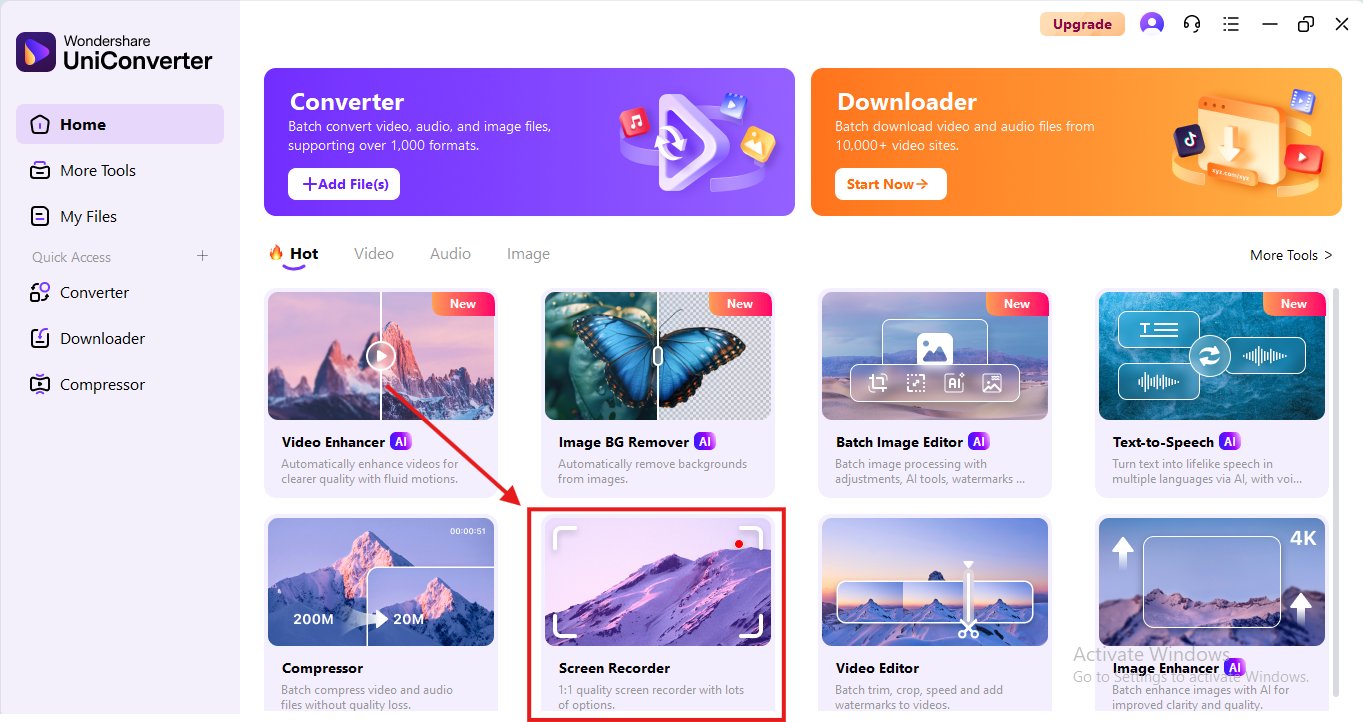
Step 1: Install and Launch UniConverter Screen Recorder
Download and install UniConverter for desktop. Launch the software and confirm system requirements (Windows 7 or later, 750MHz CPU+, 256MB RAM).
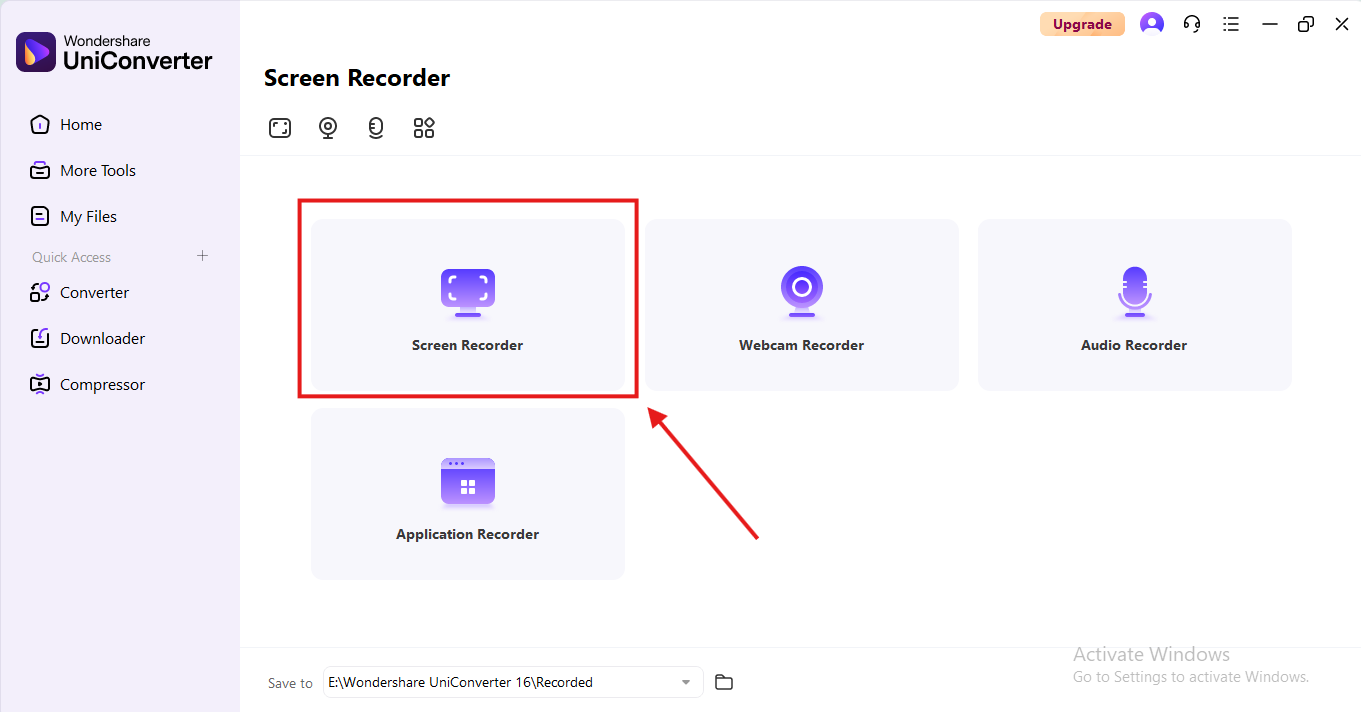
Step 2: Choose Recording Mode
Select whether you want to capture full screen, a region, or a single app window.
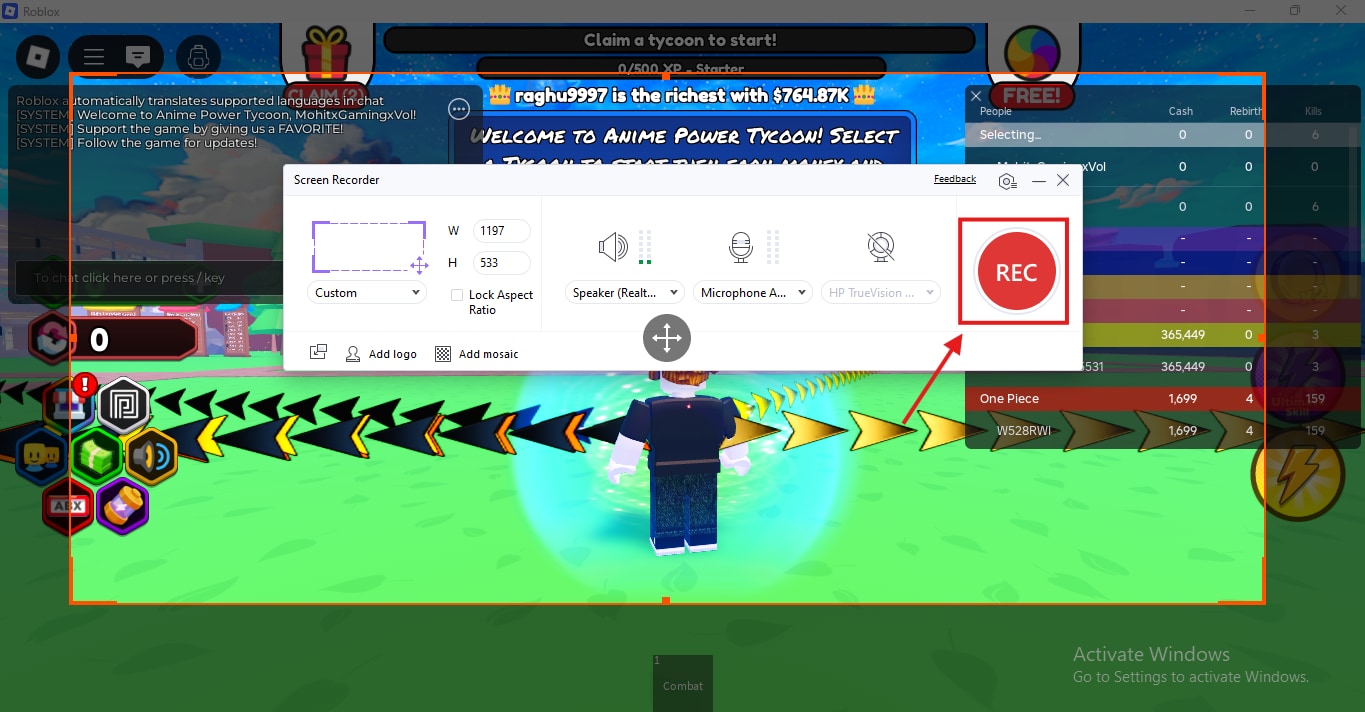
Step 3: Configure Audio
Pick your audio source: system sound, microphone, or both for narration and clarity.
Step 4: Enable Features
Activate annotation tools if you want to draw or highlight. Optionally, schedule a start/end recording time.
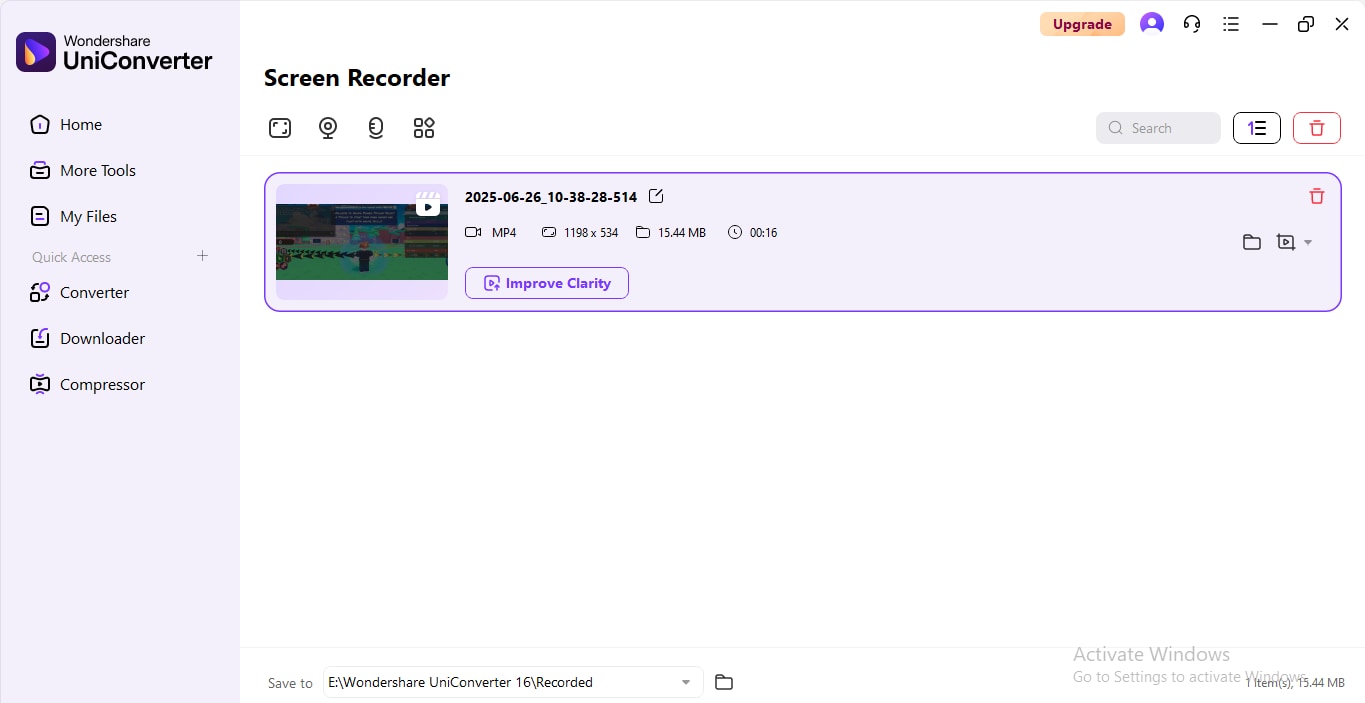
Step 5: Start Recording
Hit the Record button. UniConverter will capture your activity smoothly, whether it’s a video call, game, or tutorial.
Step 6: Save & Export
When done, save your recording. Choose from modern formats like MP4 (H.264), MOV (ProRes), or MKV for archiving.
Part 6: Pro Tips for Best Recording Results with VC
To get the most from UniConverter Screen Recorder, keep these tips in mind:
Choose the Right Output Format – For universal compatibility, use MP4 (H.264). For editing, MOV with ProRes is recommended.
Optimize Resolution & Bitrate – Keep original resolution to maintain quality; adjust bitrate based on purpose (8–12 Mbps for 1080p, 20–35 Mbps for 4K).
Use Annotations Strategically – Highlight steps in tutorials to keep viewers engaged.
Record System + Mic Audio – Great for podcasts, lectures, or narrated walkthroughs.
Enable GPU Acceleration – Especially for long or high-resolution captures.
Schedule Recordings – Automate capturing of webinars or live events.
Archive a Master Copy – Save one high-quality version for future editing or re-use.
UniConverter Screen Recorder – Smarter Than Legacy Tools
Part 7: Final Verdict – CamStudio in 2025
CamStudio has historical significance as one of the first free screen recorders. It’s still useful for basic tasks, but its limitations in format support, stability, and features make it outdated for professional or educational needs.
UniConverter Screen Recorder provides everything CamStudio lacks: modern formats, annotation tools, cross-platform support, and integration into a complete media workflow.
If you’re a beginner who only needs the occasional AVI recording, CamStudio may suffice. But for most users in 2025, UniConverter is the better choice for speed, flexibility, and reliability.
FAQ (5 Strong Community-Based Questions)
-
1. Is CamStudio safe to download in 2025?
Yes, but only from its official SourceForge page. Some unofficial versions have contained adware. -
2. Does CamStudio support MP4 recording?
No. CamStudio only records in AVI and SWF formats. To get MP4, you need to convert afterward—making UniConverter a faster alternative. -
3. Can UniConverter record both screen and audio at the same time?
Yes. UniConverter allows simultaneous recording of mic + system audio, useful for narrations, podcasts, or dual-source commentary. -
4. Which is better for recording games—CamStudio or VC?
CamStudio can record gameplay but struggles with high-quality, high-FPS footage. UniConverter supports GPU acceleration and multiple formats, making it better for gaming highlights. -
5. Is UniConverter free like CamStudio?
VC offers a free version with essential features and a paid upgrade for advanced functions (batch recording, 4K/8K export, editing).

