

If you have ever tried to save a sharp, high-quality Instagram Reel, you already know the struggle. As of 2025, Instagram does not offer a proper download button; the quality drops when you use basic screen recording; and many online tools either compress the clip or add annoying watermarks. When you want a clean Insta reels download 4K file for edits, reposts, or offline viewing, these hurdles can get frustrating.
This guide walks you through simple and reliable Instagram Reel Downloaders 4K. You will learn about free online tools, quick-access apps, and offline software that gives you more control.
Before we move forward and discuss how to download Instagram Reels in 4K resolution for free, here is a quick comparison table that would help you decide the best possible tool for your usage if you need watermark-free Instagram Reels:
Best For: Choosing the Right 4K Instagram Reels Downloader
| Method | Platform | Quality Options | Watermark | Ideal For | Outstanding Features |
| Desktop Tools (UniConverter) | Windows/ Mac | Full 4K control | No watermark | Creators downloading in bulk | Batch queue, fast speeds, editing + conversion suite |
| Online Reels Downloader (Free No App) | Browser on PC/ Mobile | 1080p to 4K (depends on upload) | Varies by site | Quick single downloads | No installation, works on any device |
| Mobile Apps (Android) | Android App | HD to 4K | Mostly no watermark | Saving Reels directly to phone | Built-in gallery, link auto-detection |
| Browser Tools for iPhone | Safari/ Chrome on iPhone | 720p to 4K | No watermark (most tools) | iPhone users who cannot install apps | Works without App Store restrictions |
| Screen Recording (Backup Method) | iPhone/ Android/ PC | Depends on the device | No watermark | Reels with restricted audio or private content | Captures protected clips when downloaders fail |
In this article
- Part 1: What Are Instagram Reels and Why People Download Them in 4K?
- Part 2: What are the benefits of downloading Instagram Reels in 4K
- Part 3: Desktop Solutions to Download Instagram Reels in 4K[Batch Downloading]
- Part 4: How to download Instagram Reels online in 4K without a watermark?
- Part 5: IG Reels Download in 4K on Mobile (iPhone and Android)
- Part 6: Common Issues When Using Instagram Reels Downloader 4K
- Part 7: Best Practices for Editing and Re-Using 4K Reels
- FAQs about Instagram Reels Downloader 4K
- Conclusion
Part 1: What Are Instagram Reels and Why People Download Them in 4K?
Instagram Reels are short, vertical videos that run for up to ninety seconds and are designed to be fast, fun, and visually sharp on mobile screens. When you look for an Instagram 4K downloader, you usually want to keep that crisp quality intact so your edits or reposts don't look blurry. Since Reels are encoded for high-resolution playback on the app, downloading them in 4K helps you preserve the original feel that creators work hard to produce.
Why creators prefer 4K quality for saving or using Reels:
- You get more room for editing when you start with a clean IG Reels download 4K file, since color grading and cropping don't break the pixels.
- You can repost the Instagram Reel on platforms like YouTube Shorts or TikTok without losing clarity.
- You can create compilations, reaction videos, or mashups without the soft edges that come with low-resolution downloads.
- You can store a proper archive of reference clips for future projects or inspiration.
Reels vs Videos: Quick Comparison
Here's a quick comparison between Instagram Reels and IG videos, so you will have a proper idea of what you are downloading when you are using tools to access Instagram Reels in 4K with no watermark:
| Feature | Instagram Reels | Instagram Videos |
| Format | Vertical short-form | Vertical or horizontal |
| Duration | Up to 90 seconds | Longer uploads allowed |
| Visibility | Strong algorithm push | Depends on profile activity |
| Editing Tools | Music, effects, and templates | Basic trims and filters |
| Best Use Case | Quick storytelling, trends, and discoverability | Detailed content, long-form sharing |
Part 2: What are the benefits of downloading Instagram Reels in 4K
When you choose the full HD 4K option for Instagram Reels downloads, you gain far more control over how the final video looks. A higher-resolution file keeps details sharp, motion smooth, and colors intact, which is a big advantage when you plan to edit or reuse the clip later.
Even if the original Reel is compressed on the platform, grabbing the best available resolution helps you maintain quality during reframing, transitions, or adding overlays. It also makes the content suitable for professional use, including client projects or cross-platform uploads.
Some of the key advantages of using an Instagram Reel downloader 4K tool are:
- You can keep the video crisp during heavy edits, since a reel downloader 4K version gives you more pixels to work with.
- You can crop, rotate, or zoom into specific moments without destroying the visual sharpness.
- You can repurpose the clip for YouTube Shorts, Facebook Reels, or TikTok without noticeable quality loss.
- You can maintain brand consistency when posting polished videos for clients or sponsored content.
- You can reduce grain and artifacts that usually appear when you save videos in lower resolutions.
Before we understand how to download Instagram Reels in 4K HD quality, it is important to understand the full comparison between Full HD 1080p and 4K:
| Feature | Full HD 1080p | 4K Quality |
| Resolution | 1920 x 1080 | 3840 x 2160 |
| Detail Level | Good for basic viewing | Superior clarity, sharper edges |
| Editing Flexibility | Limited zoom and cropping | Allows heavy edits with minimal loss |
| Reuse Across Platforms | Decent for mobile sharing | Ideal for professional cross-platform use |
| Visual Noise | More noticeable in dark scenes | Cleaner image with smoother gradients |
Part 3: Desktop Solutions to Batch Download Instagram Reels in 4K
When you want a stable way to download Instagram Reels 4K desktop on PC or Mac, a desktop tool gives you far more control than online or mobile options. You can batch download dozens of Reels at once, avoid glitches that usually appear on small screens, and save files directly into organized folders on your computer.
Desktop apps also tend to support higher resolutions more consistently, making them a good pick for creators who regularly edit, convert, or archive content. If you work on longer projects or manage multiple accounts, a desktop workflow feels smoother and more reliable.
Wondershare UniConverter
Wondershare UniConverter is one of the most reliable ways to batch download Instagram Reels 4K on your desktop without struggling with browser limits or unstable online tools. You can paste multiple Reel links, queue them, and let the software download everything in one go at a consistent speed. Since it runs locally on your PC or Mac, you get smoother performance, fewer errors, and better quality control for every file you save.

Best Instagram Reels Downloader 4K
Key Features of UniConverter for 4K Reel Downloads
- Batch Download Queue: You can paste several Reel links at once and UniConverter lines them up automatically. The software processes each file in sequence, giving you a smooth, uninterrupted batch workflow.
- Stable Desktop Performance: Since everything runs on your PC or Mac, you avoid browser slowdowns, random freezes, or half-processed videos. UniConverter keeps the downloads steady, even when you queue large batches.
- High-Quality 4K Extraction: When a Reel supports 4K, the tool pulls the highest available resolution with clear colors, steady motion, and no visible compression issues. This helps when you want premium-quality clips for editing.
- Full Video Conversion Suite: You can turn your downloaded Reels into MP4, MOV, MKV, or other formats based on your editing setup. This flexibility makes it easier to use the clips across different devices or software.
- Advanced Compression Tools: UniConverter reduces file sizes without crushing the details. This is helpful when you plan to upload or share the videos on other platforms where size limits can be restrictive.
- Integrated Editing Studio: You get access to a complete video editor tool where you can trim, cut, merge, adjust audio, add subtitles, or apply filters without switching to another program.
- Video Enhancer: You can use its video enhancer online to upscale the video quality.
How to Use the Instagram Reels Downloader 4K with No Watermark
Here's how to use UniConverter to download Instagram Reels in 4K:
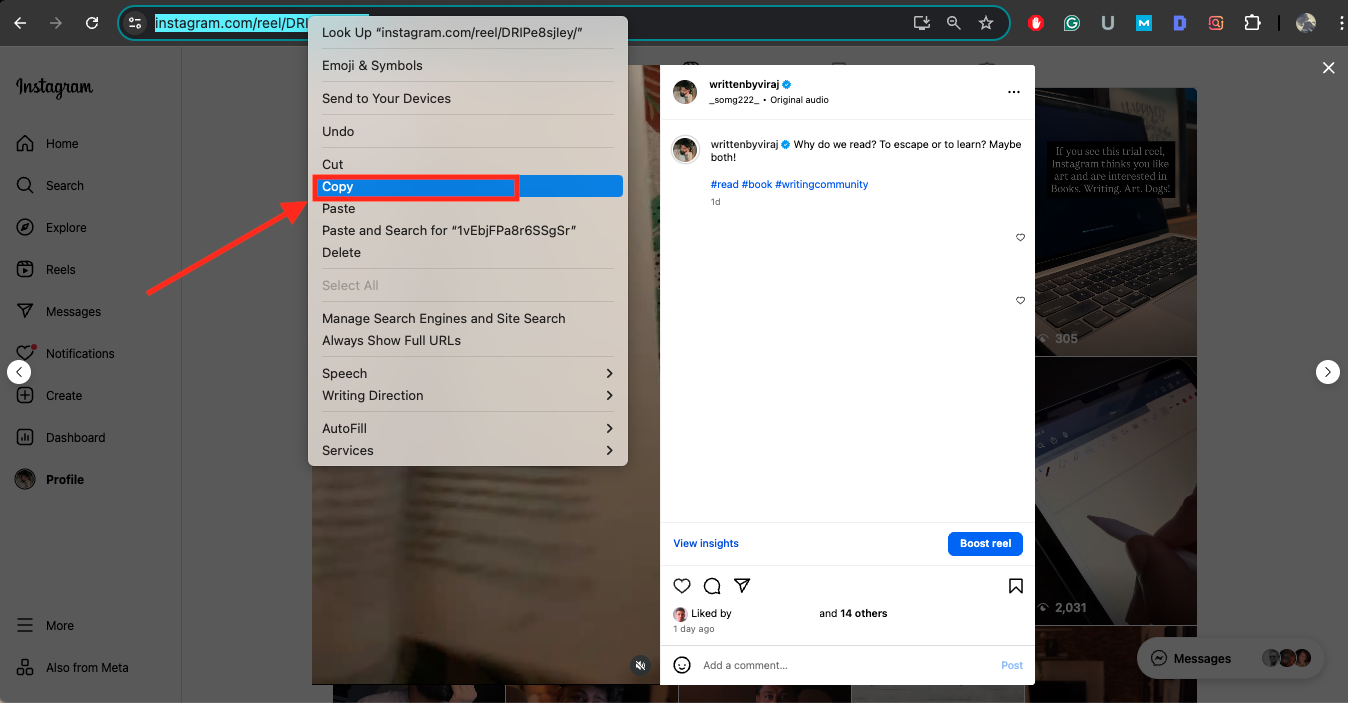
Step 1: Open the Instagram app or website, head to the Reel you want, tap Share, and select Copy Link. Keep this link ready since UniConverter will use it to fetch the video.
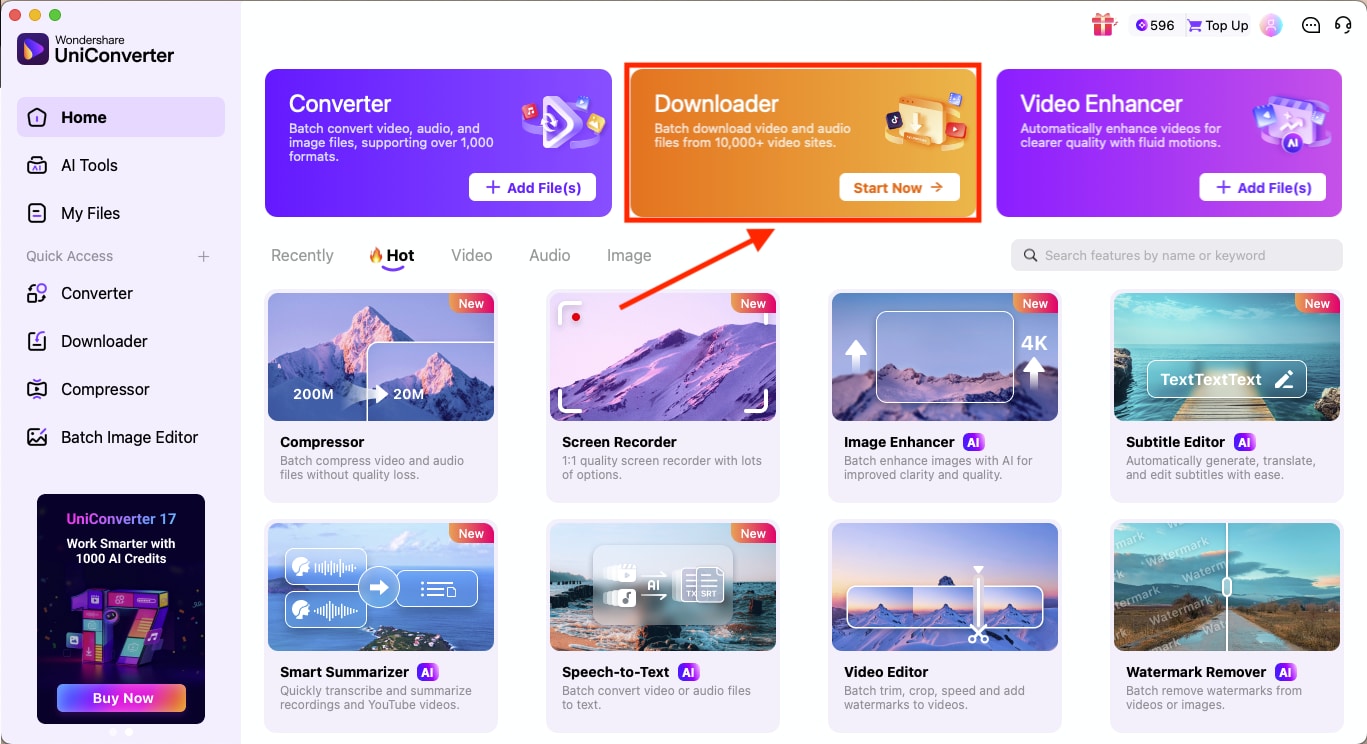
Step 2: Launch UniConverter on your PC or Mac. On the home screen, look for the Downloader option inside the Quick Access panel. Click it to open the download window.
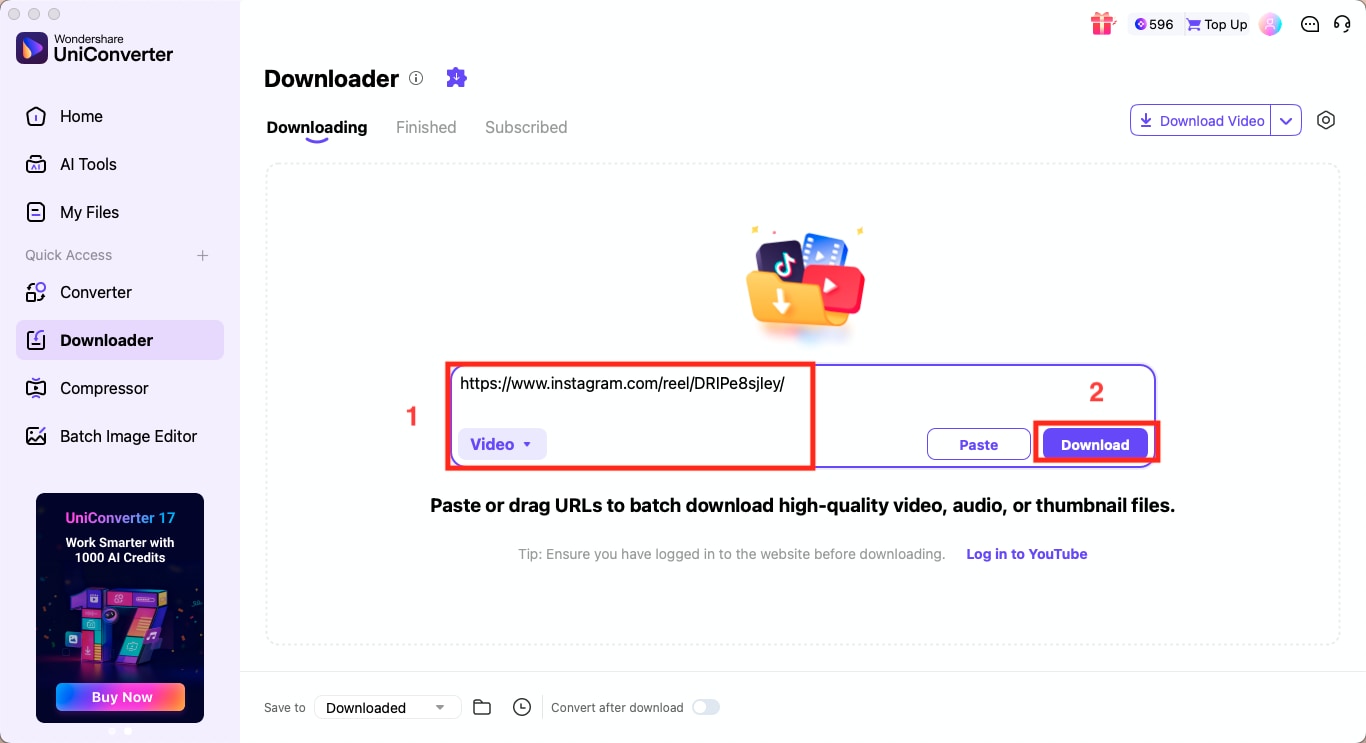
Step 3: Inside the Downloader, paste your Reel link into the URL field. UniConverter will detect it immediately. Click the Download button to fetch the video in the best available quality.
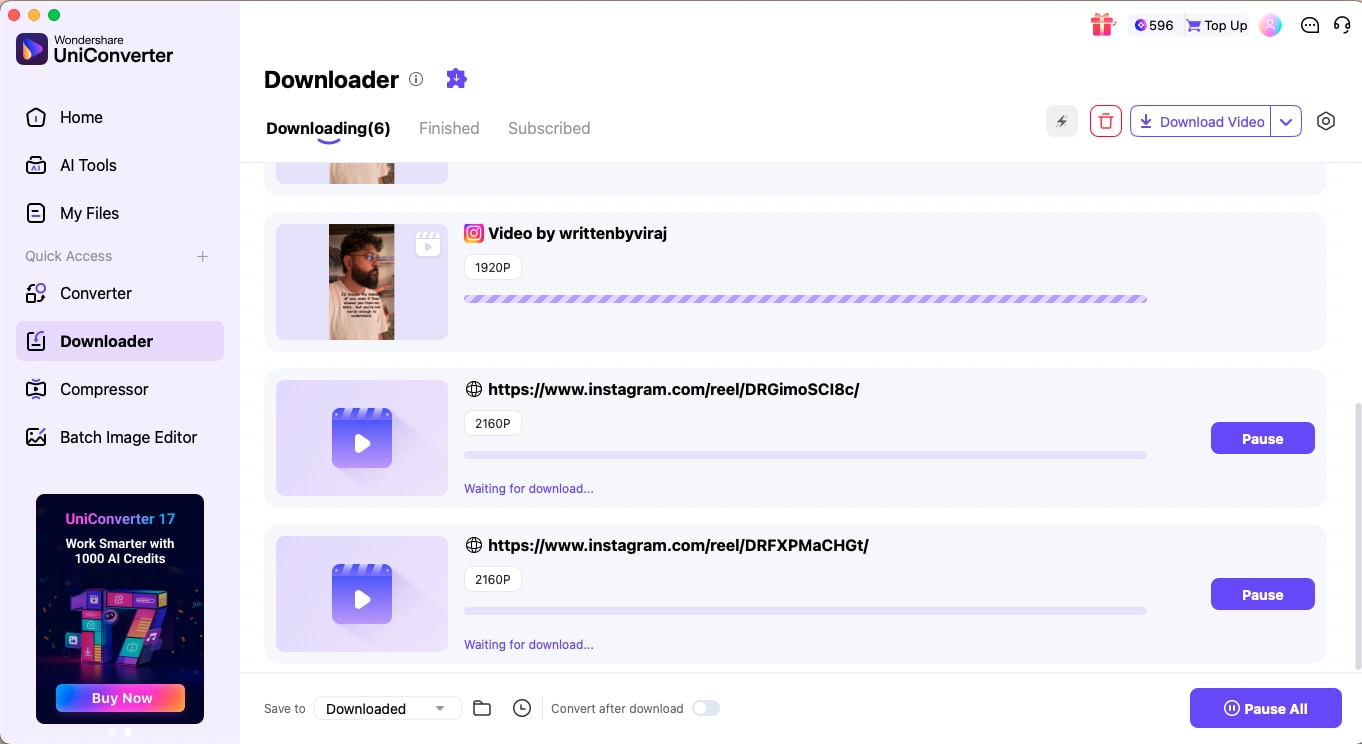
Step 4: If you want to download several Reels together, paste each URL on a separate line. UniConverter will queue them automatically and prepare them for batch processing.
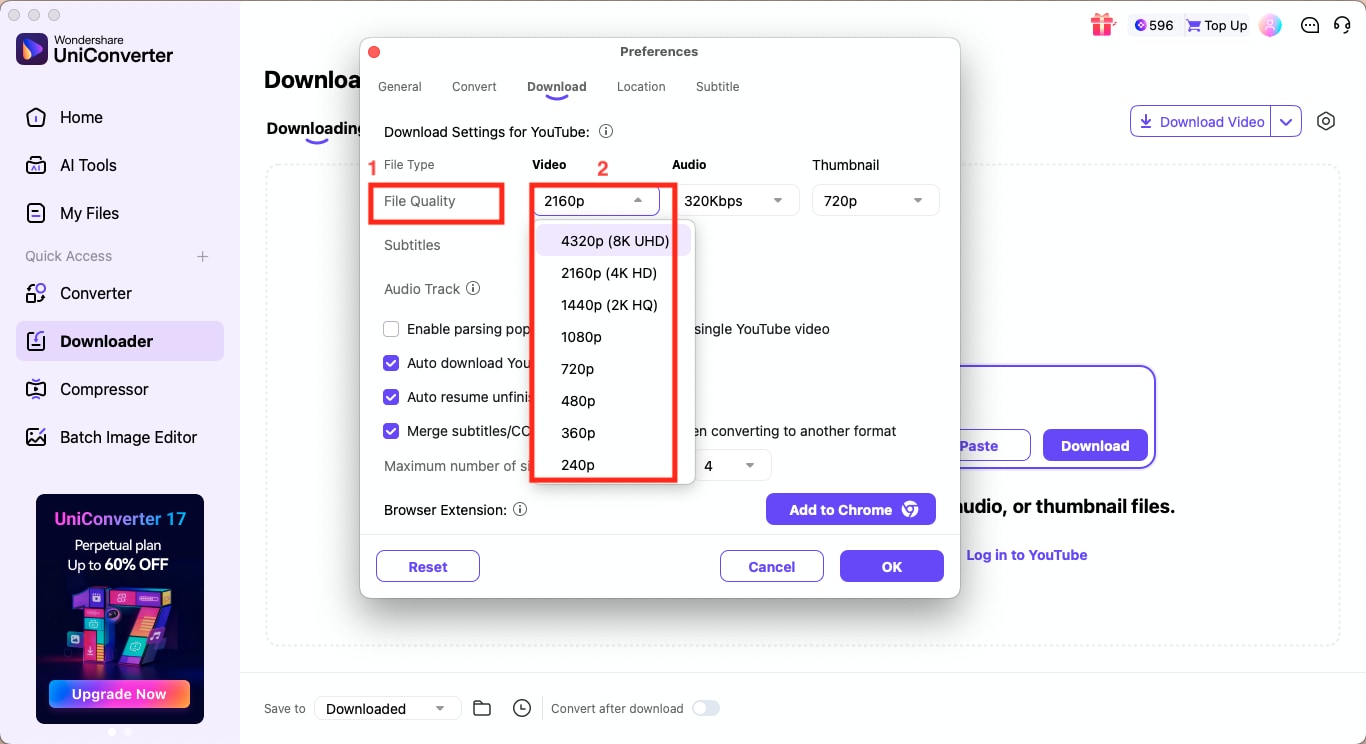
Step 5: Click the small Gear icon on the right side to open the settings panel. Choose the video quality you prefer, including 4K when available, then confirm your changes and click on the Download button to download Reels in high-quality 4K with no watermark.
When you start saving Reels regularly, you will notice a clear difference between online downloaders and a full desktop tool. Online sites are quick for one-off downloads, but desktop software handles larger workloads, maintains consistent quality, and avoids the usual browser errors.
If you plan to download and edit multiple clips, the difference becomes even more noticeable.
Online Tools vs. Desktop Software: Quick Comparison
How We Tested
How We Tested 4K Instagram Reels Downloaders
We reviewed each tool based on the factors that matter most for real-world Reel downloading and reuse:
- 4K quality retention: whether the downloaded Reel keeps strong visual clarity.
- Watermark handling: whether the final file stays clean enough for saving or editing.
- Download convenience: how easy the tool is to use across different devices.
- Practical value: overall balance of quality, speed, and workflow flexibility.
| Category | Online Reels Downloaders | Desktop Tools like UniConverter |
| Setup | No installation needed | One-time installation required |
| Speed | Depends on website load and ads | Fast and stable, even with large files |
| Quality Control | Limited resolution options | Full control, including 4K export settings |
| Batch Downloads | Usually not supported | Designed for batch workflows |
| Reliability | Can fail during peak traffic | Consistent performance on PC/Mac |
| Editing Options | None | Full editing suite built in |
| File Management | Manual downloads | Auto-sorted folders and organized the library |
| Watermark | Varies by site | Clean downloads with no watermark |
| Best For | Quick, occasional downloads | Regular creators who need quality and speed |
Part 4: How to download Instagram Reels online in 4K without a watermark?
When you want a quick way to download Instagram Reels 4K without installing anything, online tools become the easiest place to start. You can open a browser, paste the link, and get a clean file in a few seconds. Most platforms that support 4K Reels download work on phones and laptops, which helps when you need a fast solution on the go.
These tools are simple, lightweight, and perfect for saving clips you want to edit or reuse later with high clarity. Here's one such online tool that lets you download Instagram Reels online in 4K without the watermark:
Insta.SaveTube.me
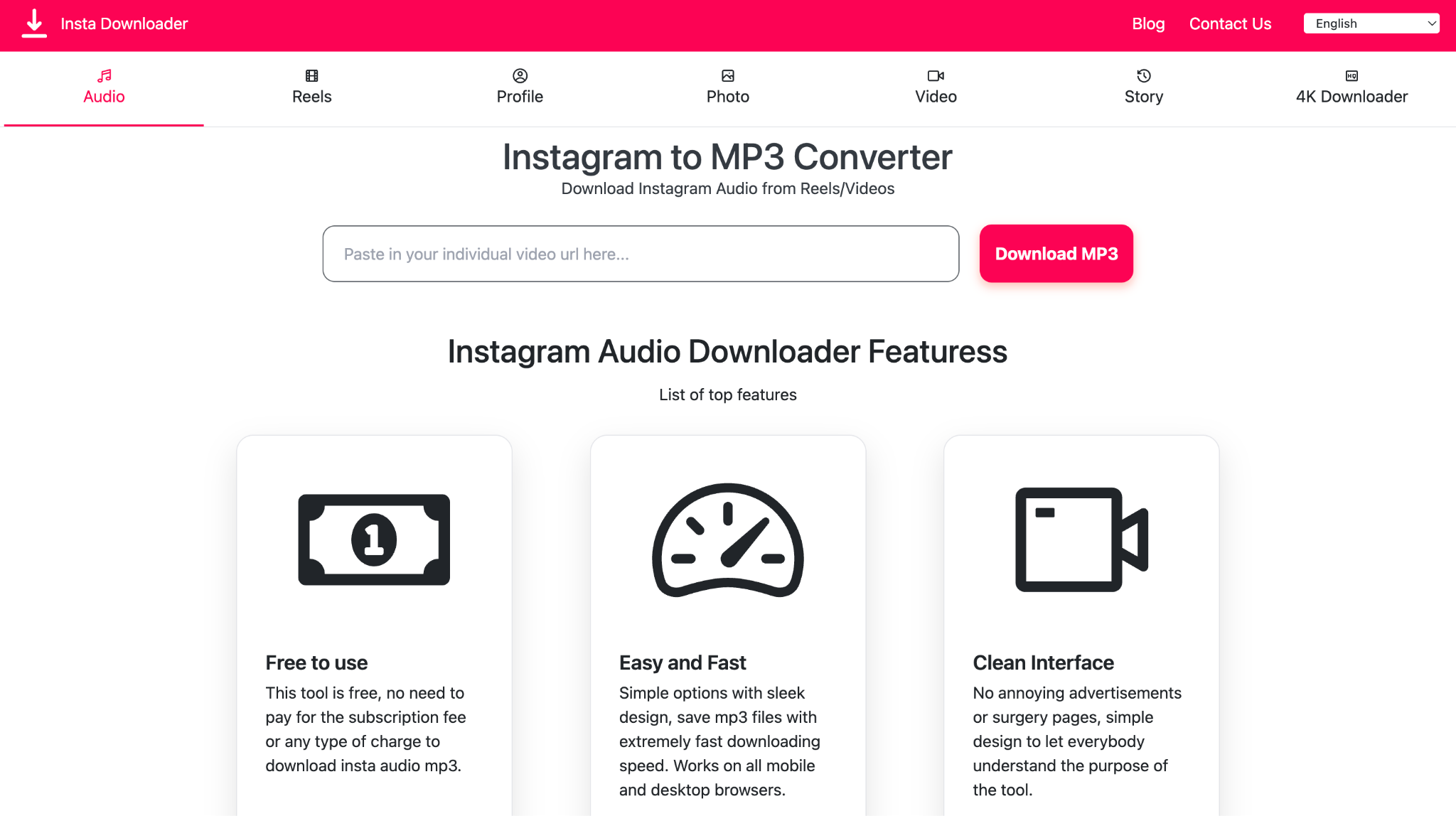
Insta.SaveTube.me lets you download Instagram Reels in 4K directly from your browser. It is lightweight, quick to load, and works well when you want a no-watermark file for edits or offline viewing. The interface is clean enough for beginners while still giving you straightforward control over the final download.
How to Download Instagram Reels in 4K Resolution for Free
Here's how to use Insta.SaveTube.me to download Instagram Reels in 4K:
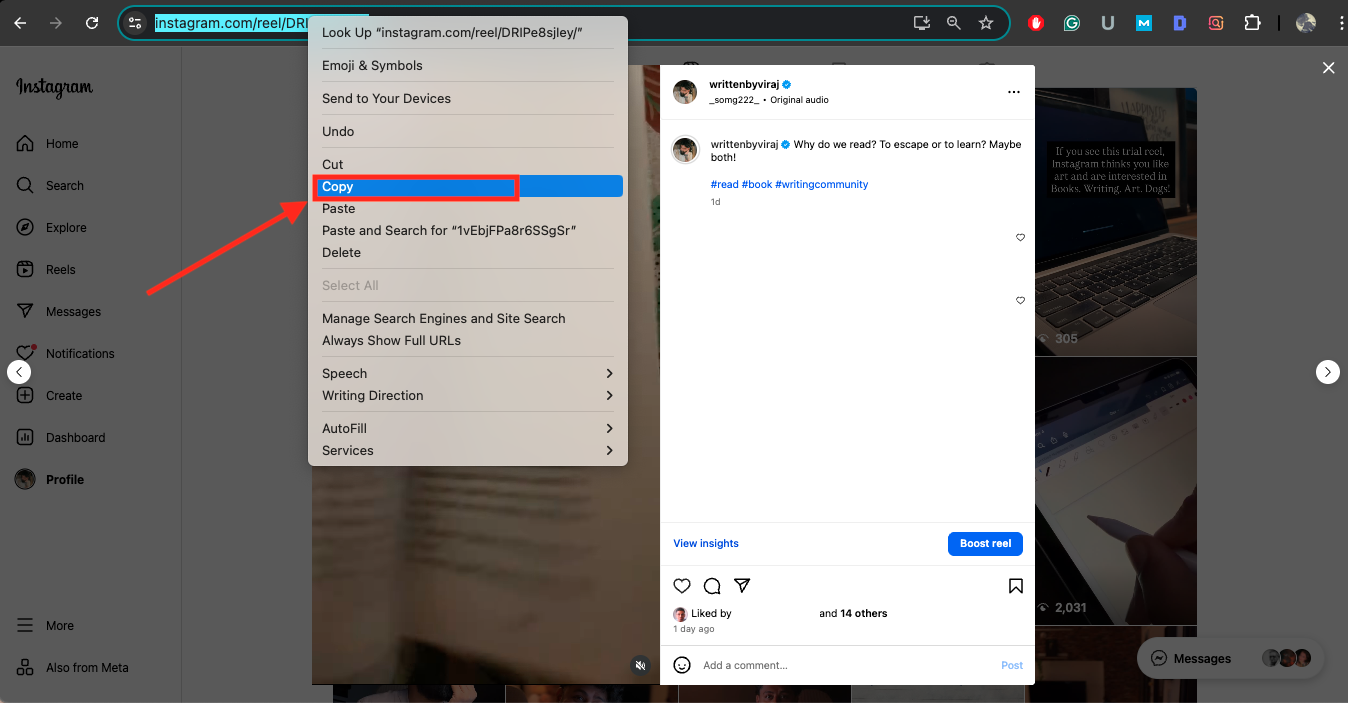
Step 1: Open the Instagram Reel in your browser or app. Tap the three dots, select Copy Link, and confirm that the URL has been copied to your clipboard. This is the link the downloader uses to fetch the video.
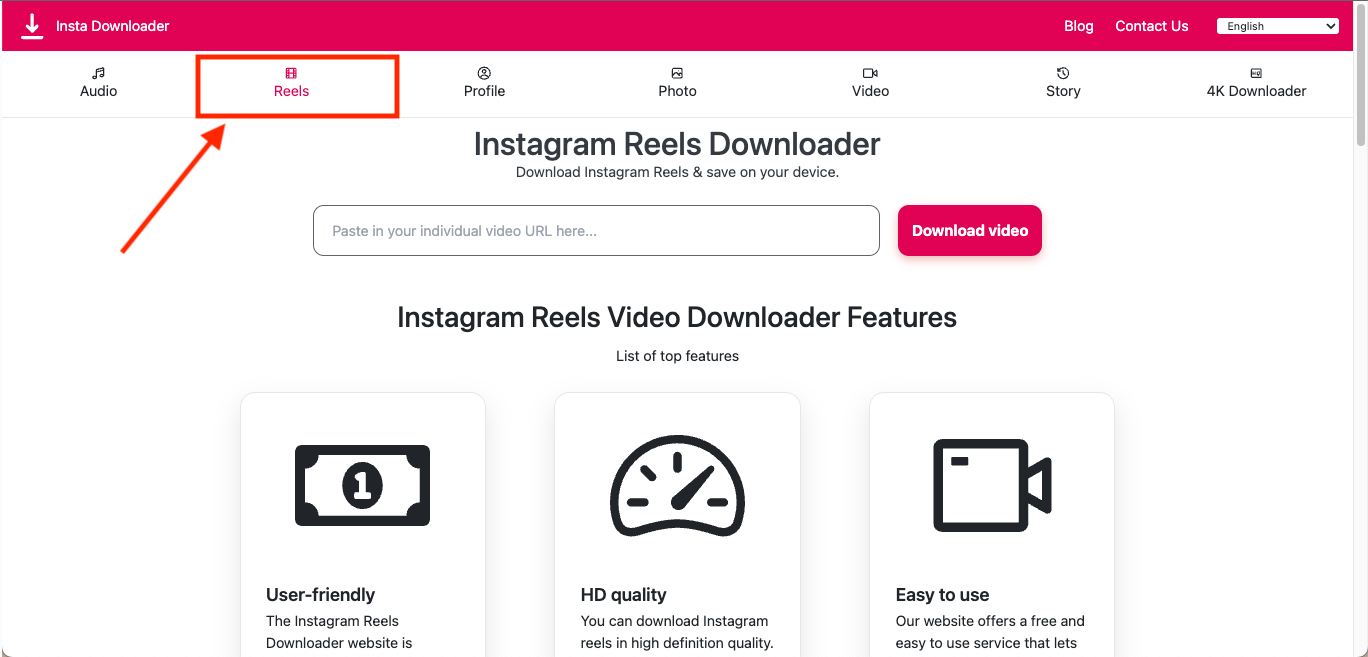
Step 2: Go to the official SaveTube's Insta subdomain on your phone or laptop. Once the homepage loads, switch to the Reels or Video section so you are on the correct download page.
Step 3: Click inside the input field and paste your copied link. The site will automatically detect it and prepare the preview. The tool will start processing and show you a preview of the Reel.
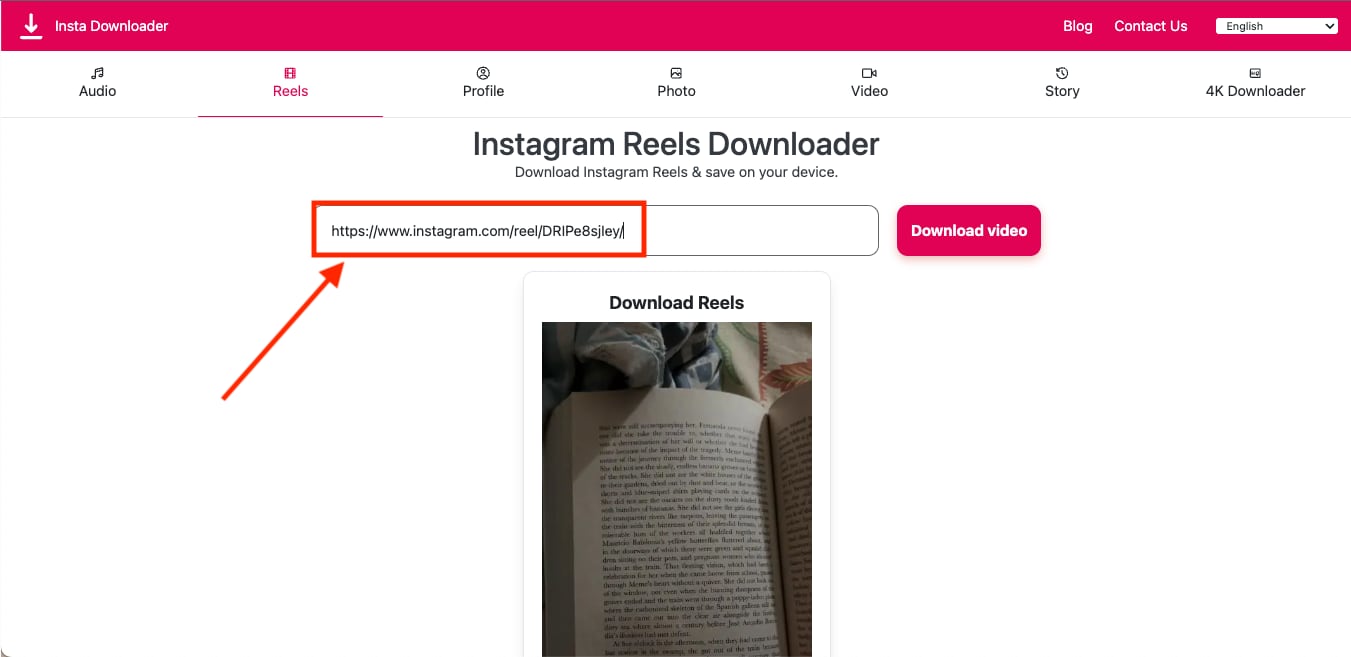
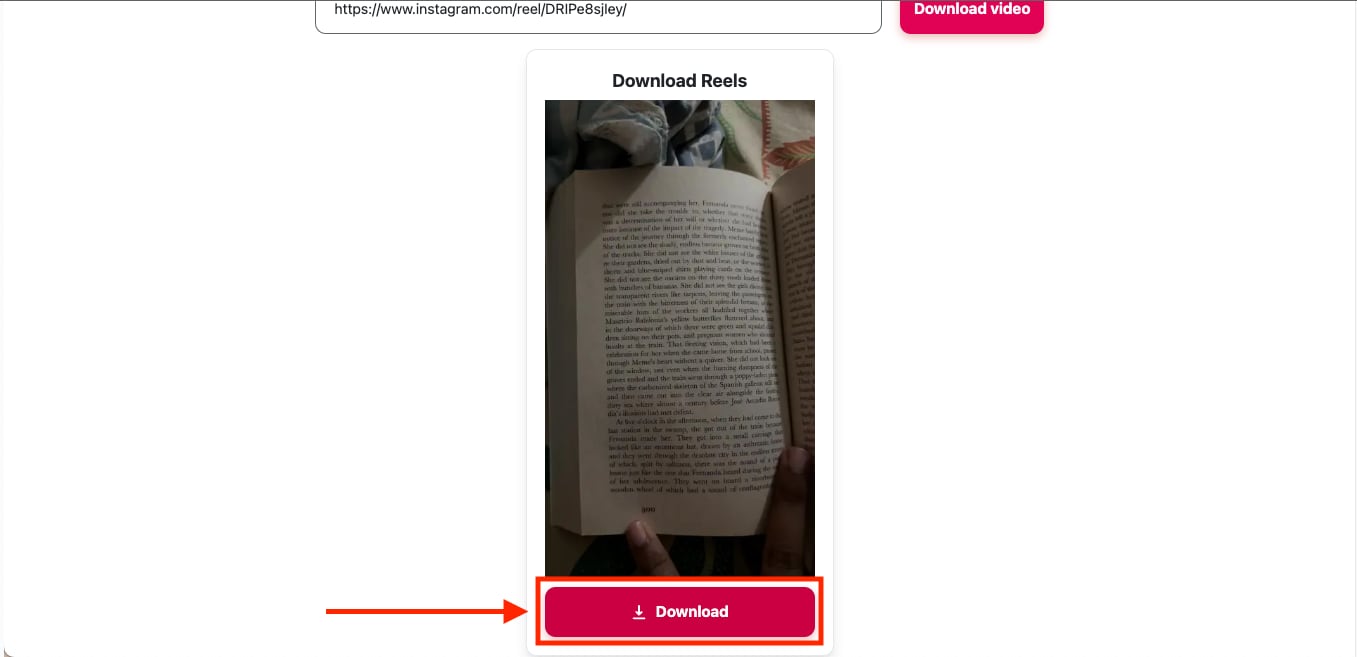
Step 4: Wait for the message that your download link is ready. Click the Download button below the preview and save the MP4 file to your device.
Part 5: IG Reels Download in 4K on Mobile (iPhone and Android)
If you want to download Instagram Reels in 4K on your phone, the process stays simple on both iPhone and Android. You paste the Reel link into a reliable mobile downloader and save a clean MP4 file in the highest available resolution, ready for edits, reposts, or offline viewing.
Reels Downloader: Video Saver
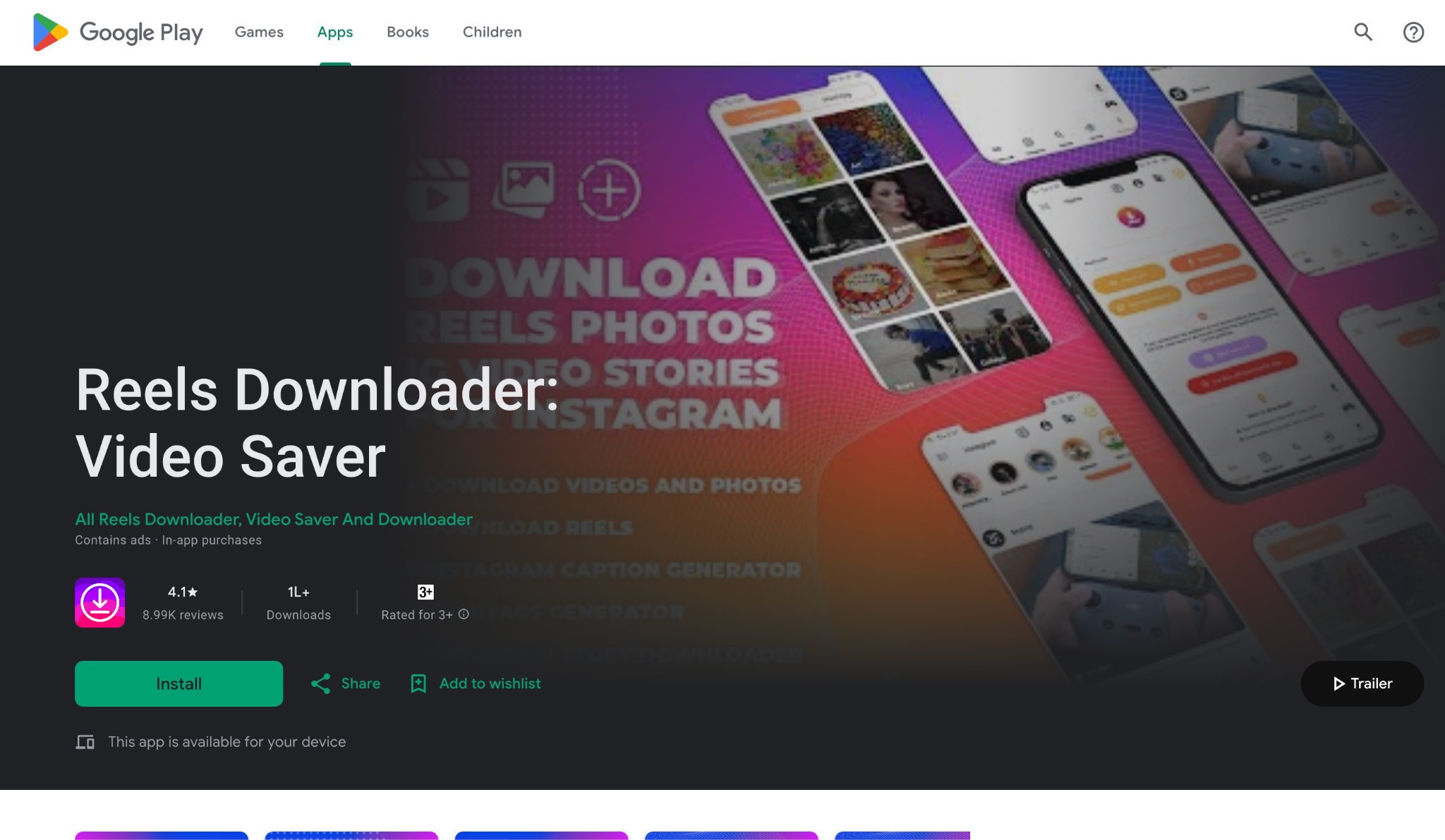
Reels Downloader: Video Saver is a popular mobile app that lets you download 4K Insta Reels surprisingly smoothly on Android phones. Paste the link, choose the quality you want, and the app saves the clip directly to your gallery with no extra steps. The layout is simple, the buttons are big enough for fast navigation, and the built-in player helps you preview your download before saving it.
How to Download Instagram Reels 4K
Here's how to use an Android app to download Instagram Reels in 4K without any watermark:
Step 1: Search for Reels Downloader: Video Saver on the Play Store and install it. Once it is installed, open the app and grant the basic storage permission so your downloads are saved properly.
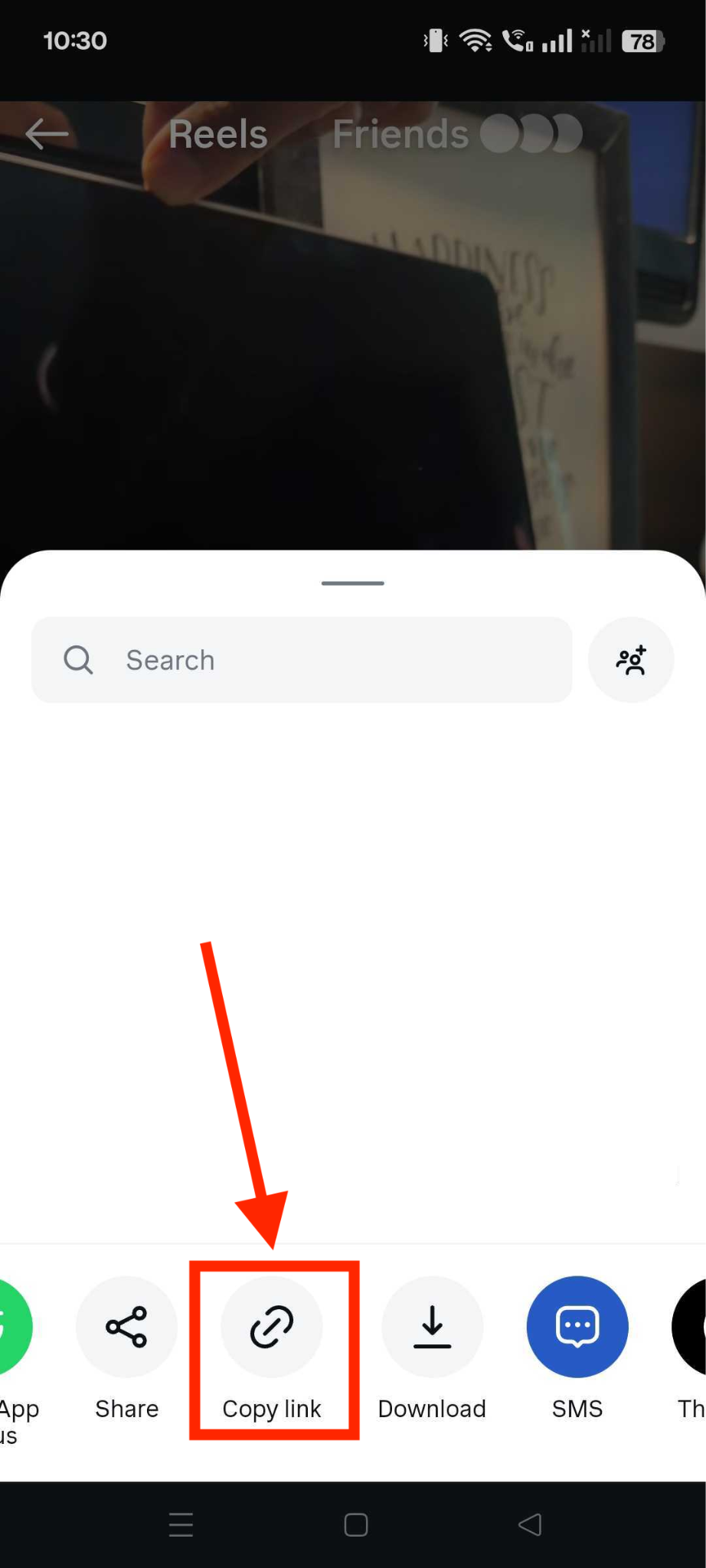
Step 2: Open the Instagram app, go to the Reel you want, tap Share, and then tap Copy Link. The link will be stored on your clipboard.
Step 3: Go back to Reels Downloader, tap inside the Paste Link box, and paste your copied URL. The app will fetch the preview automatically.
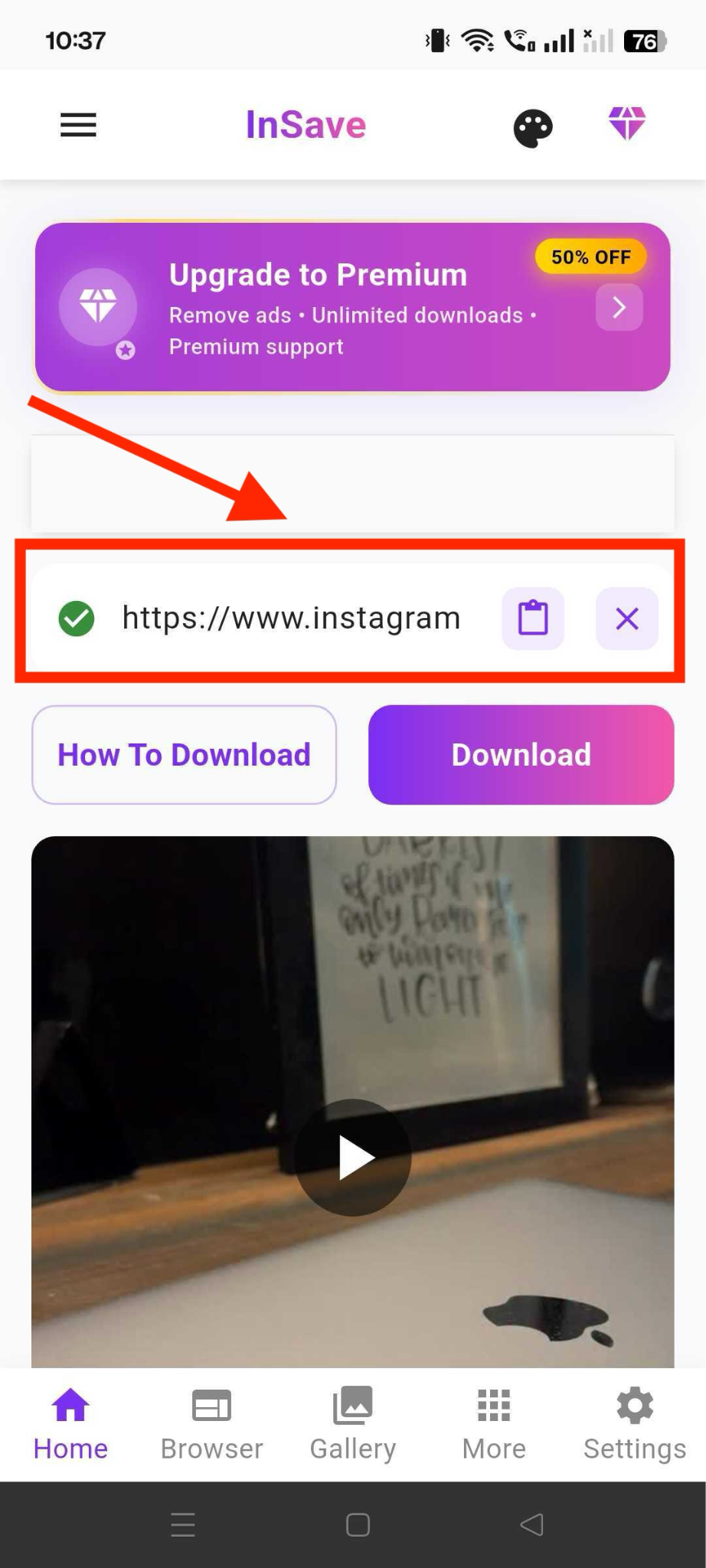
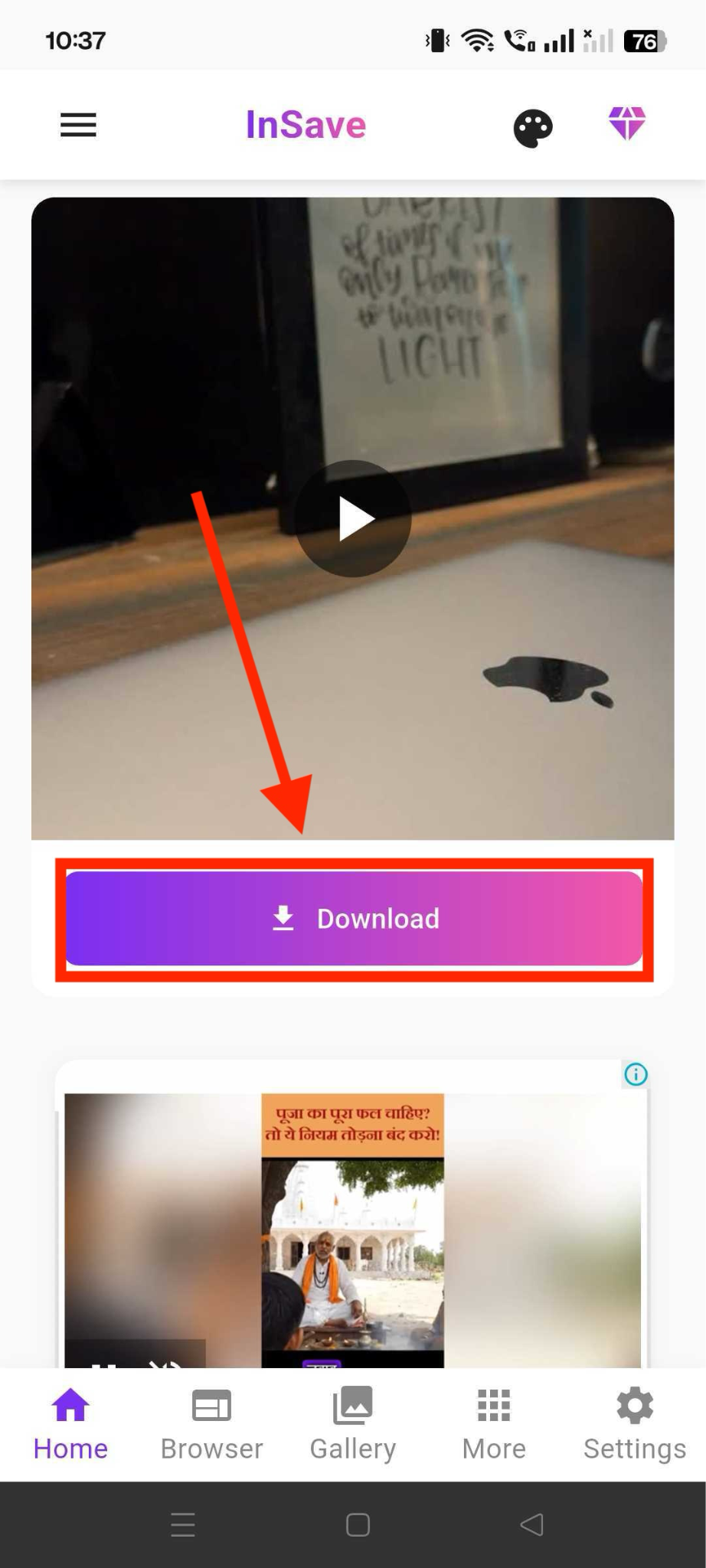
Step 4: Select the highest resolution available, ideally the 4K option if the Reel supports it. Press Download, then wait while the app processes the file; it can later be accessed from the File Management option.
SSSInstagram.com
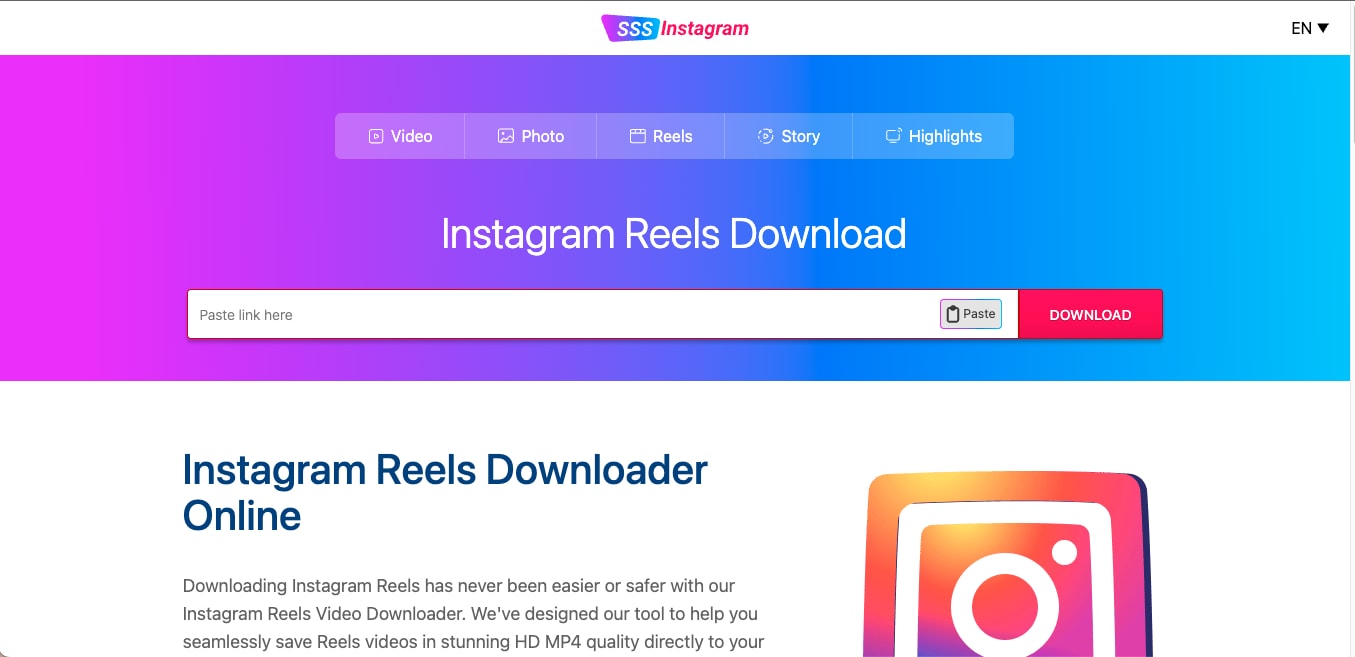
SSSInstagram.com is one of the most reliable options when you want to download Insta Reels 4K on iPhone or Android without installing anything. Since Apple blocks most downloaders and many tools on the App Store fail to work on iOS 26.0+, a browser-based solution is the safest choice. SSSInstagram loads fast, works directly from Safari or Chrome, and gives you access to every Reel from the profile link you enter. You can download a single clip or scroll through multiple videos if you want to batch save content for later edits or offline viewing.
How to Use Safe & Legal Instagram Reels Downloader 4K
Here's how to use this tool to download Instagram Reels on your iPhone or iPad:
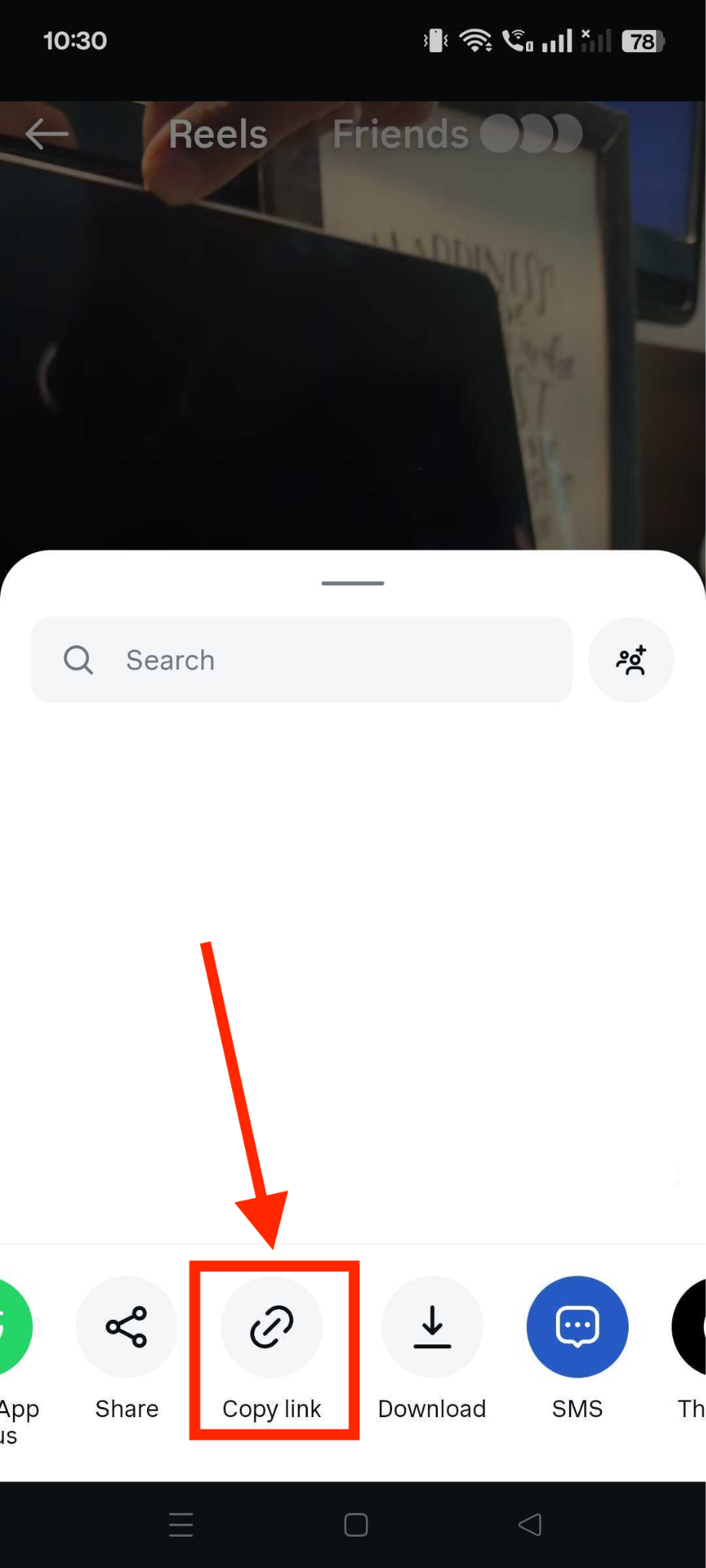
Step 1: Open Instagram, tap the Share button on the Reel, and select Copy Link. This link carries all the information the downloader needs.
Step 2: Type SSSInstagram.com into your mobile browser. The homepage will load with a single search bar where you can paste URLs.
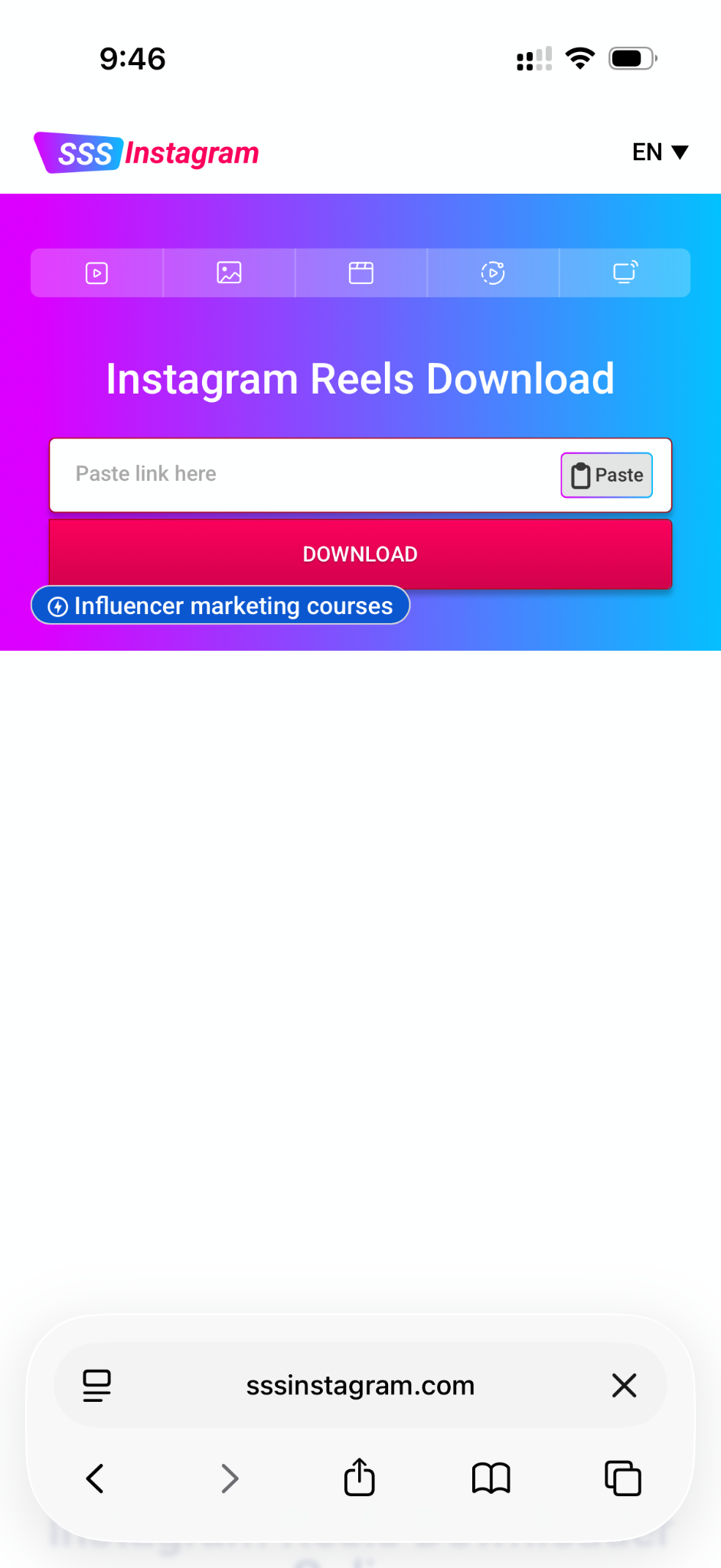
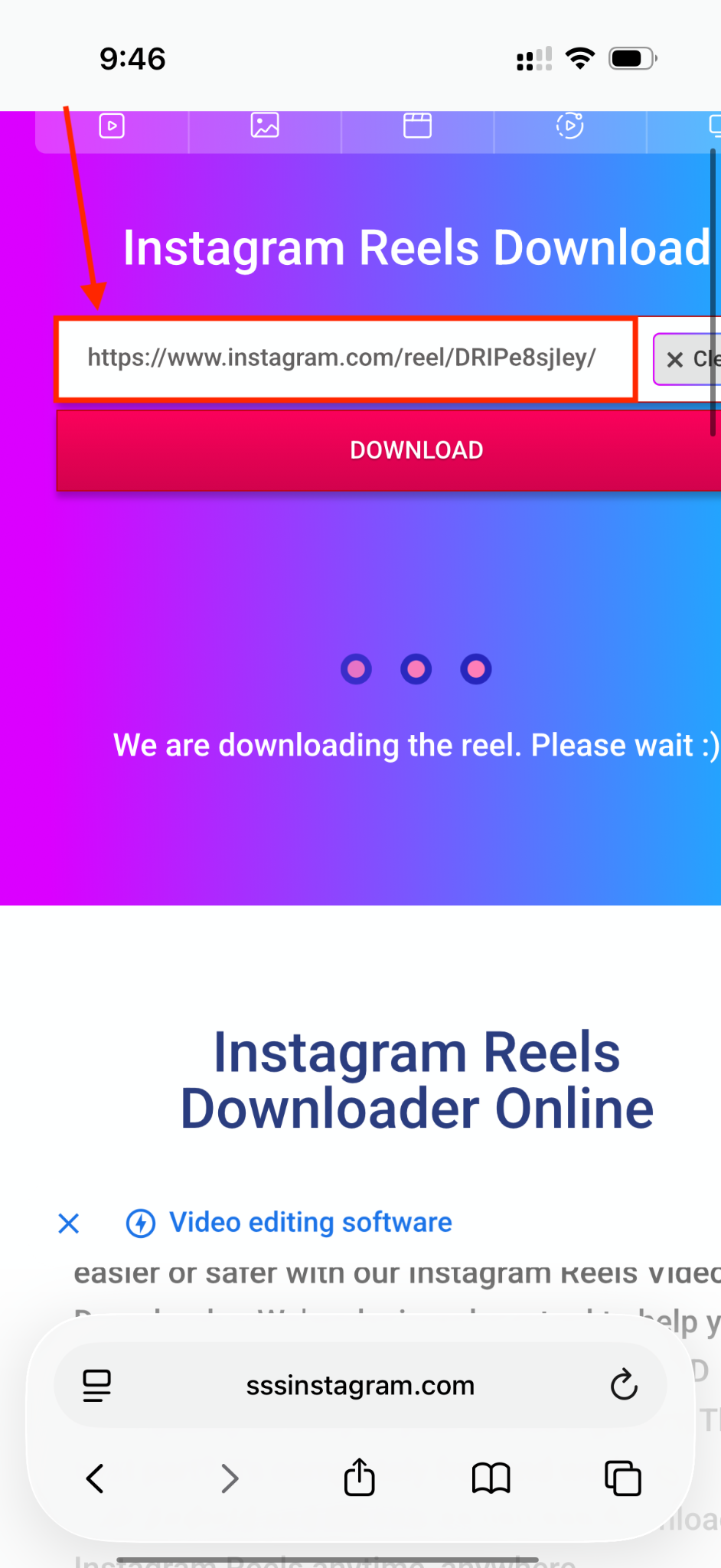
Step 3: Tap inside the search box and paste your copied link. The site will detect it instantly and start loading the preview.
Step 4: If you paste a profile link, SSSInstagram shows every Reel, Story, Post, or Highlight from that account. You can scroll and pick whichever clip you want to download.
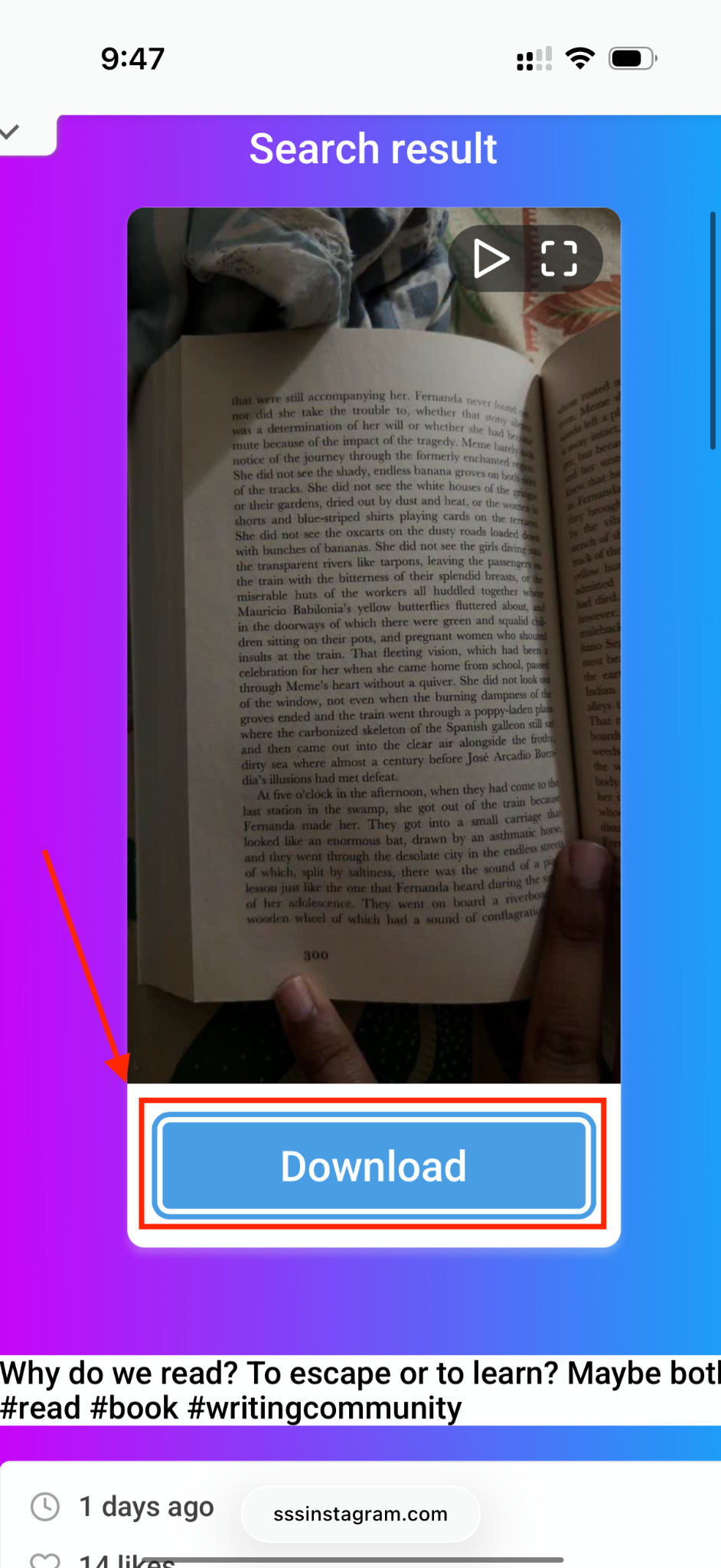
Step 5: Once the preview appears, tap the Download button. The file will save as an MP4 and can be found in your device's Files app or Video Gallery.
Part 6: Common Issues When Using Instagram Reels Downloader 4K
You might run into random errors while downloading Instagram Reels in 4K. The 4K option may vanish, audio might drop, or the link may fail. These issues usually come from how Instagram delivers the video, how the tool reads the link, or restrictions on private content.
Why Doesn't the 4K Option Show Up?
Possible Reasons
- The original Reel is uploaded in 1080p or lower.
- The downloader does not support 4K extraction.
- Network issues prevent proper quality detection.
- Some mobile browsers compress video streams.
Quick Fixes
- Try the same link in another downloader.
- Use a desktop tool like UniConverter for stable 4K output.
- Re-copy the Reel link and refresh the downloader page.
- Test a Reel you know is 4K to compare.
Audio Missing or Watermark Visible
Possible Reasons
- The downloader fails to merge audio and video.
- Free tools add their own watermark on export.
- Browser extensions interfere with processing.
- Licensed audio causes extraction issues.
Quick Fixes
- Switch to a downloader that supports full audio and no watermark.
- Try a desktop tool like UniConverter for clean MP4 results.
- Disable ad blockers or extensions and re-download.
- Test with another Reel to rule out clip-specific issues.
Invalid Link or Private Reel
Possible Reasons
- The Reel belongs to a private account.
- The link copied is incomplete.
- Privacy settings changed after you copied the link.
- Region or content restrictions block access.
Quick Fixes
- Copy the link directly using Instagram's Copy Link option.
- Check if the Reel is visible from an incognito browser.
- Try with a stable internet connection.
- Respect privacy rules for private or restricted content.
Part 7: Best Practices for Editing and Re-Using 4K Reels
After downloading your Instagram Reel in 4K, you still need the right format, frame rate, and bitrate to keep the clip smooth for edits or reposts. A 4K MP4 converter helps you standardize the file so it works across editing apps, social platforms, and devices while preserving the original clarity. Here are a few best practices to follow:
- Convert the downloaded clip to MP4 (H.264) at 30 fps with a bitrate between 15 and 30 Mbps to keep the file sharp without making it unnecessarily heavy.
- Stick to the vertical 9:16 aspect ratio so the video fits perfectly on Instagram, TikTok, YouTube Shorts, and other vertical-first platforms.
- Add captions, graphic overlays, or transitions only after converting to a stable MP4 format to avoid glitches in your editing software.
- Use copyright-safe audio or licensed music when reusing clips since platform algorithms can mute or block reposted Reels with restricted tracks.
- Use UniConverter when you need to refine the clip through codec conversion, video enhancement, or smart compression that reduces size while keeping the 4K look intact.
- Keep a separate, high-quality master file before exporting to various platforms, so you never lose the Reel's original crispness.
FAQs about Instagram Reels Downloader 4K
1. Can I use an Instagram reel downloader without watermark 4K on both desktop and mobile?
Yes. Many users switch between desktop and phone depending on the task. If you only need a quick save, an online Instagram reel downloader without watermark 4K can work on both mobile browsers and computers. If you download content more often, a desktop tool usually offers a more stable workflow, especially for larger files and repeated use.
2. Is Instareels4k the only option for downloading Instagram Reels in high quality?
No. Although many people search for Instareels4k, Instareels4k.com, or similar variations when looking for a quick solution, there are other tools that can also handle Instagram Reels download 4K tasks. The best choice depends on whether you want browser-based access, mobile convenience, or more advanced desktop features such as batch downloading and format conversion.
3. What should I look for in the best Instagram reels downloader 4K tool?
The best Instagram reels downloader 4K option should be easy to use, work without requiring account login, and keep the downloaded file as clean as possible. It also helps if the tool supports MP4 output, faster processing, and smooth performance across different devices. For users who save Reels often, quality consistency matters more than just speed.
4. Are online tools good enough for Instagram reels download 4K without watermark?
Online tools are often good enough for casual use, especially if you only need to save one public Reel occasionally. They are simple, fast, and do not require installation. However, for users who want more reliable Instagram reels download 4K results, better output control, or support for repeated downloads, desktop software can be a more practical long-term choice.
5. Why do people search for Instareel4k or Instagram reels download 4K alternatives?
Users often search for Instareel4k, Instagram reels download 4K tools, or related alternatives because availability, speed, and output quality can vary from one downloader to another. Some people want a faster browser tool, while others need a safer and more flexible option for editing, archiving, or saving multiple Reels across PC, Mac, iPhone, or Android.
Conclusion
Downloading Reels in the highest quality is much easier once you know which tools actually work and how Instagram handles video resolution. You can use quick online sites for a fast Instagram Reels download 4K, explore mobile-friendly options for saving clips on the go, or switch to a desktop workflow when you need speed, stability, and batch processing. Each method has its place, and choosing the right one depends on how often you save and what you plan to do with the files later.
If you want a smooth 4K Instagram Reels download experience with better control over quality, conversions, or editing, Wondershare UniConverter offers the most reliable setup. Try it for batch downloads, clean MP4 exports, and a full video toolkit that handles everything in one place.

