


Instagram Reels are where creativity meets community — a digital stage for storytellers, brands, and artists. But that small watermark can sometimes get in the way when you want to repost your content on other platforms or keep it for editing.
In this complete guide, we'll explore every reliable, updated way to remove watermark from Instagram Reels, covering trusted online IG reel watermark remover tools, mobile apps, AI photo/ video editors, and the most professional choice — UniConverter. This article will walk you through the safest tools to remove Instagram reel watermark and the smartest Instagram reels watermark remover platforms trusted in 2025.
Table of Contents
Part 1. The Legal & Ethical Rule of Removing Instagram Reel Watermark
Before you reach for an Instagram reel watermark remover, it's essential to understand the boundaries. The watermark — typically your username displayed subtly on your Reel — is Instagram's built-in way to credit the creator.
The golden rule
Only remove watermark from Instagram Reels you personally created. If you didn't post it, don't touch it. That watermark is intellectual property protection — stripping it from someone else's content could breach both Instagram's Terms of Service and copyright laws.
Why this matters
- Integrity: Keeping creators' rights intact builds a healthier digital ecosystem.
- Brand reputation: If you're a creator or influencer, using unauthorized clips can lead to account suspension or audience distrust.
- Algorithm trust: Instagram's AI recognizes duplicated content. Uploading others' videos without watermark often gets flagged or deprioritized.
What's allowed
- Removing watermark from your own Reels for reuse across TikTok, YouTube Shorts, or Facebook.
- Using an IG Reels watermark remover to clean your saved Reels for promotional edits.
- Screen recording your own clips to preserve clean, high-quality archives.
What's not allowed
- Removing watermark from another user's Reel.
- Reposting or monetizing downloaded Reels without credit.
- In short: You're free to remove Instagram watermark from your Reels, not from others'. Once you stay within those lines, every tool ahead is safe to use.
Part 2. Method 1: Online IG Reel Watermark Removers (No Download Needed)
These lightweight, web-based tools are the most accessible option if you want to remove Instagram Reel watermark online without installing anything. They work directly from your browser — fast, simple, and beginner-friendly.
How it works
Online reel watermark remover websites process your video link and regenerate a clean, watermark-free copy. Essentially, they fetch your Reel's video stream and extract it without overlay metadata. Many tools also provide HD download options.
Note: Most Instagram reel watermark remover online tools fetch your video and output a version without the username overlay.
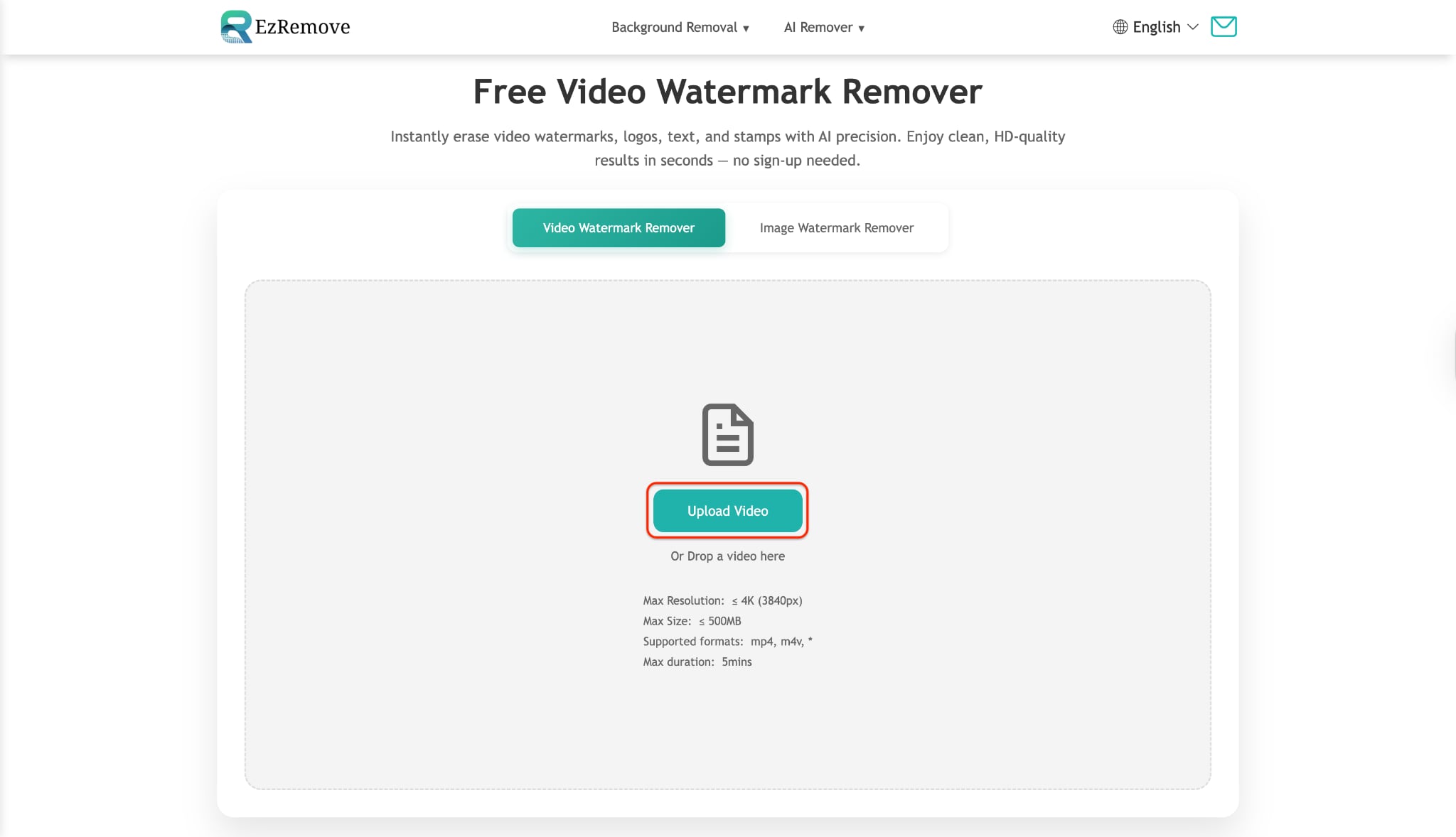
Step-by-step guide (Using EzRemove Free Video Watermark Remover)
Step 1: Download and Upload your Reel from Instagram
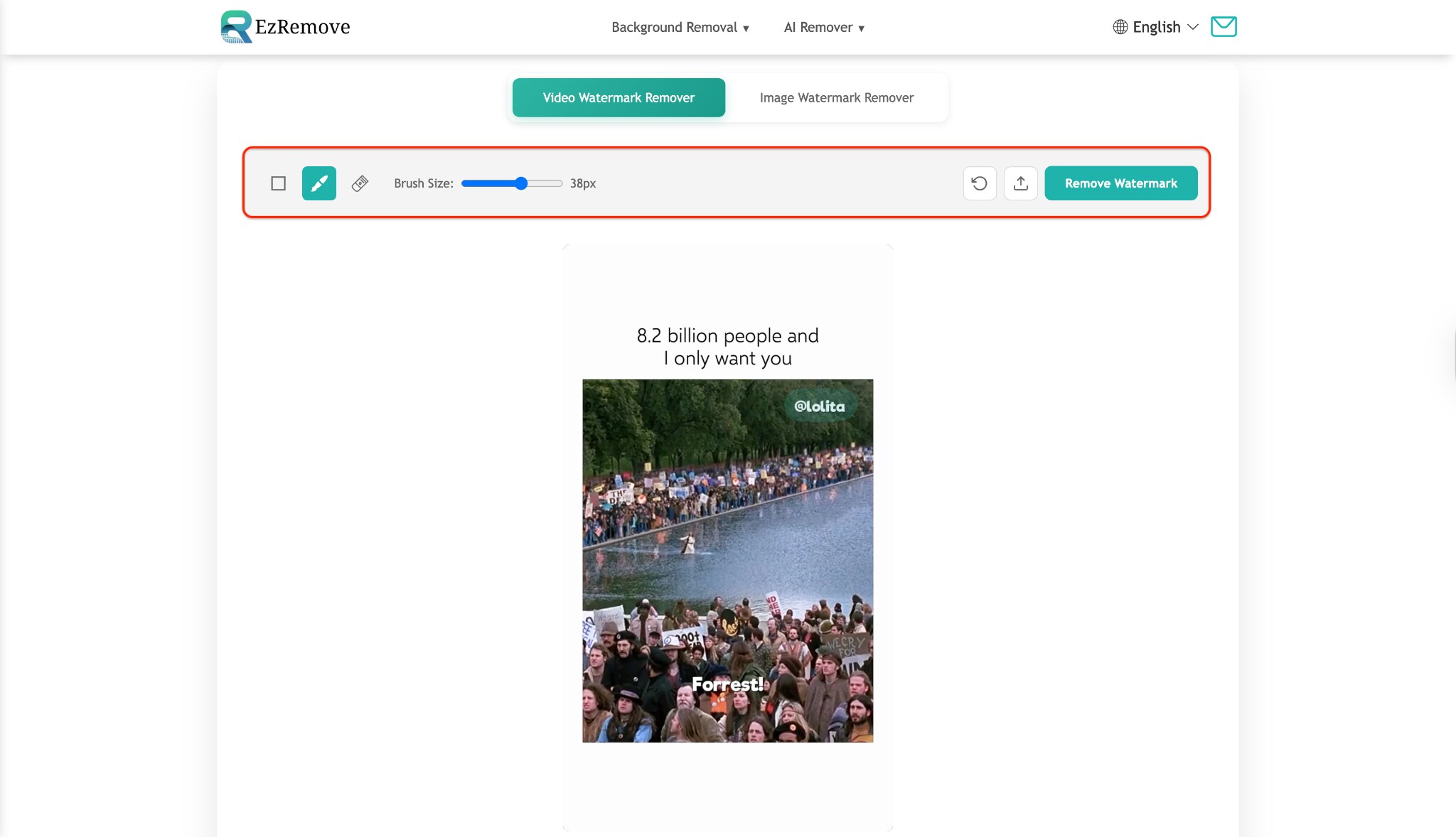
Step 2: Brush the watermark area
Now, select the brush size and then brush on the watermark area that you want to remove. After selecting the watermark area, click on Remove Watermark button. This will analyse the brushed area and blend it with perfection.
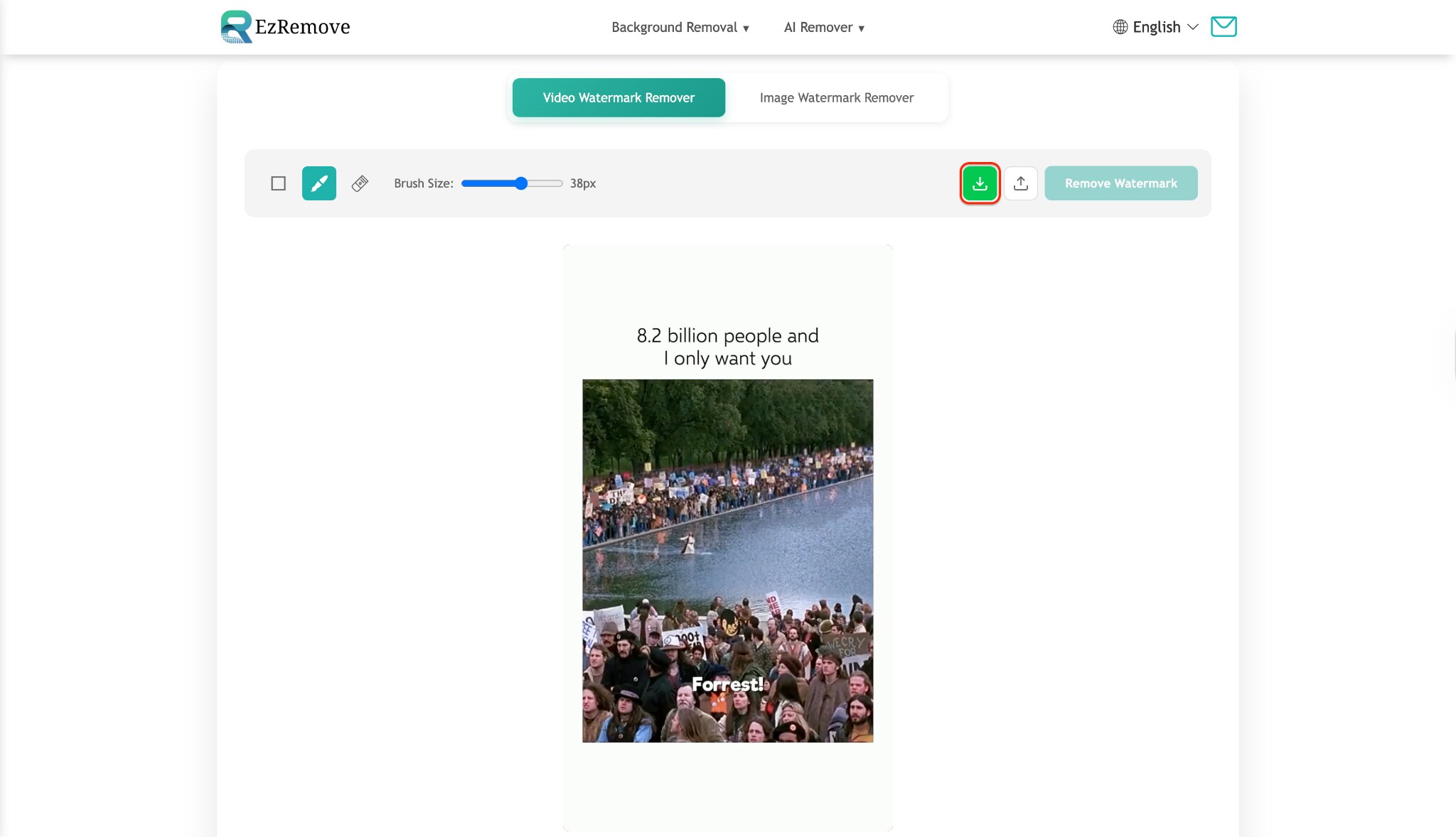
Step 3: Preview and download your watermark-free video
Pro Tip
Always test the result before posting. Some free tools may compress video quality — if clarity is vital, go for premium ones or use UniConverter afterward to enhance resolution.
Verdict
If you want a quick solution to remove IG watermark from Reels, these sites get the job done. But for consistent quality and security, pair them with UniConverter's editing and enhancement suite later.

Easy to Use Instagram Reels Watermark Remover
Part 3. Method 2: Safest & Free Method: Screen Recording
If you value safety over speed, screen recording remains the cleanest and most ethical route to remove watermark from Instagram Reels. It's an entirely offline process and keeps your content fully private.
How it works
You play your own Reel in full-screen mode and record it using your device's native or third-party screen recorder. Once done, you can crop or trim the top and bottom areas containing your username watermark.
Unlike online tools that scrape Instagram's servers, this method doesn't breach any policy or data-sharing clause — making it the safest IG Reel watermark remover technique.
Step-by-step guide (Using UniConverter)
Step 1: Open your Instagram Reel on-screen
Find the Reel you originally posted and play it in full-screen mode. Make sure your device's brightness and audio are properly set to capture clear visuals and sound. Keep the video paused at the starting frame for perfect timing.
Step 2: Launch UniConverter's Screen Recorder
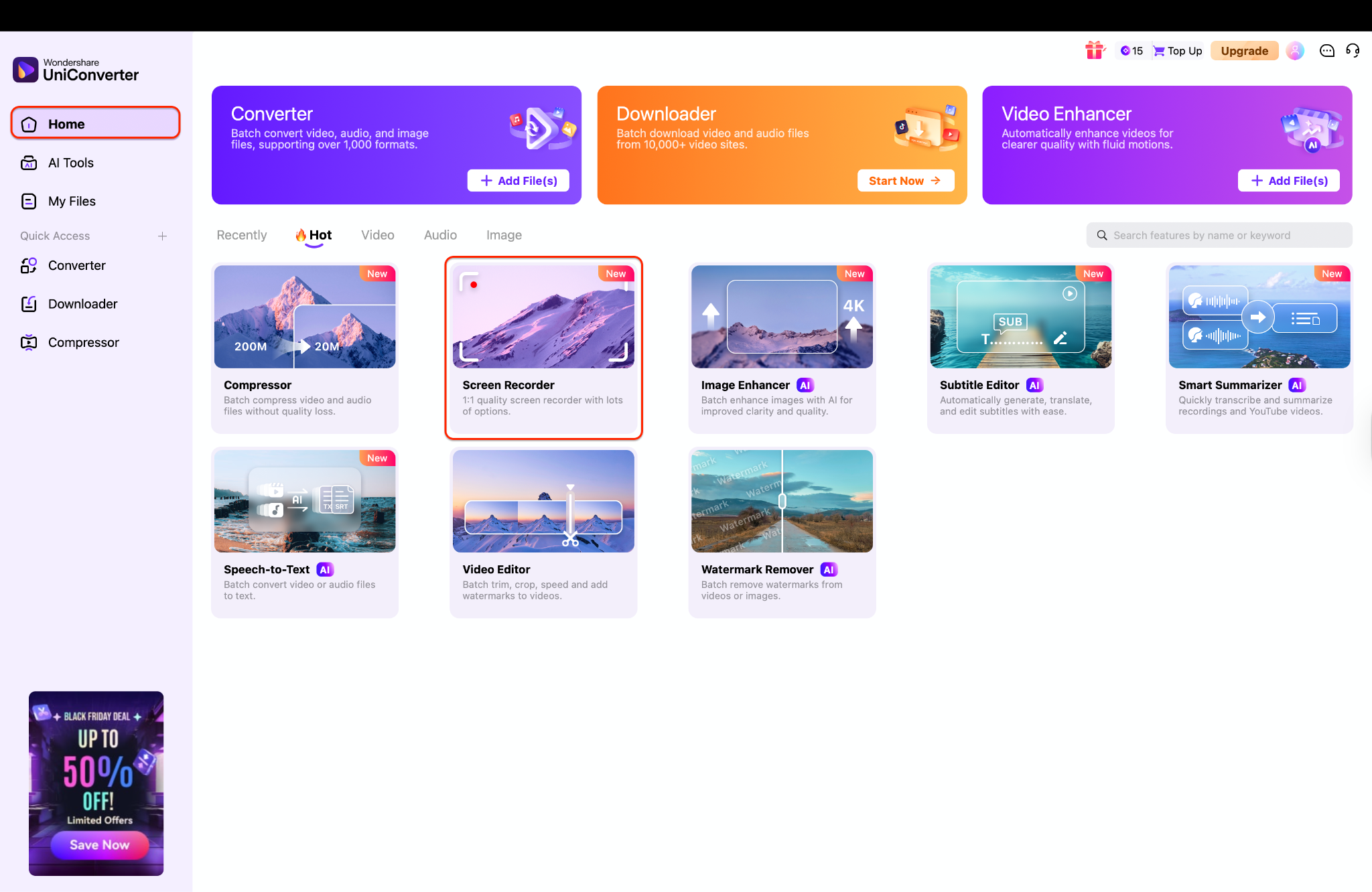
Step 3: Stop and Remove the Watermark from your recorded Reel
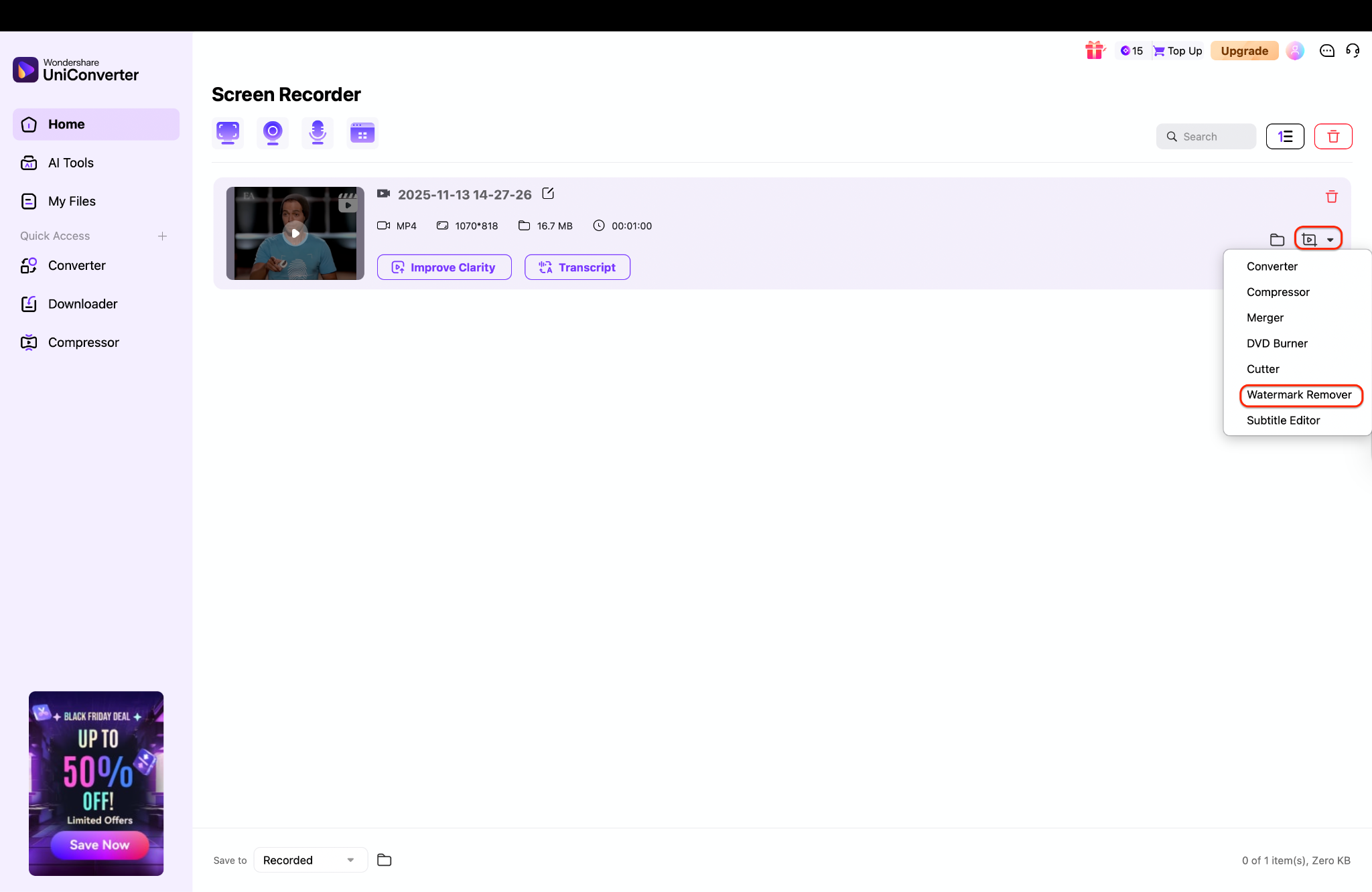
Step 4: Select the Watermark area to remove and Export
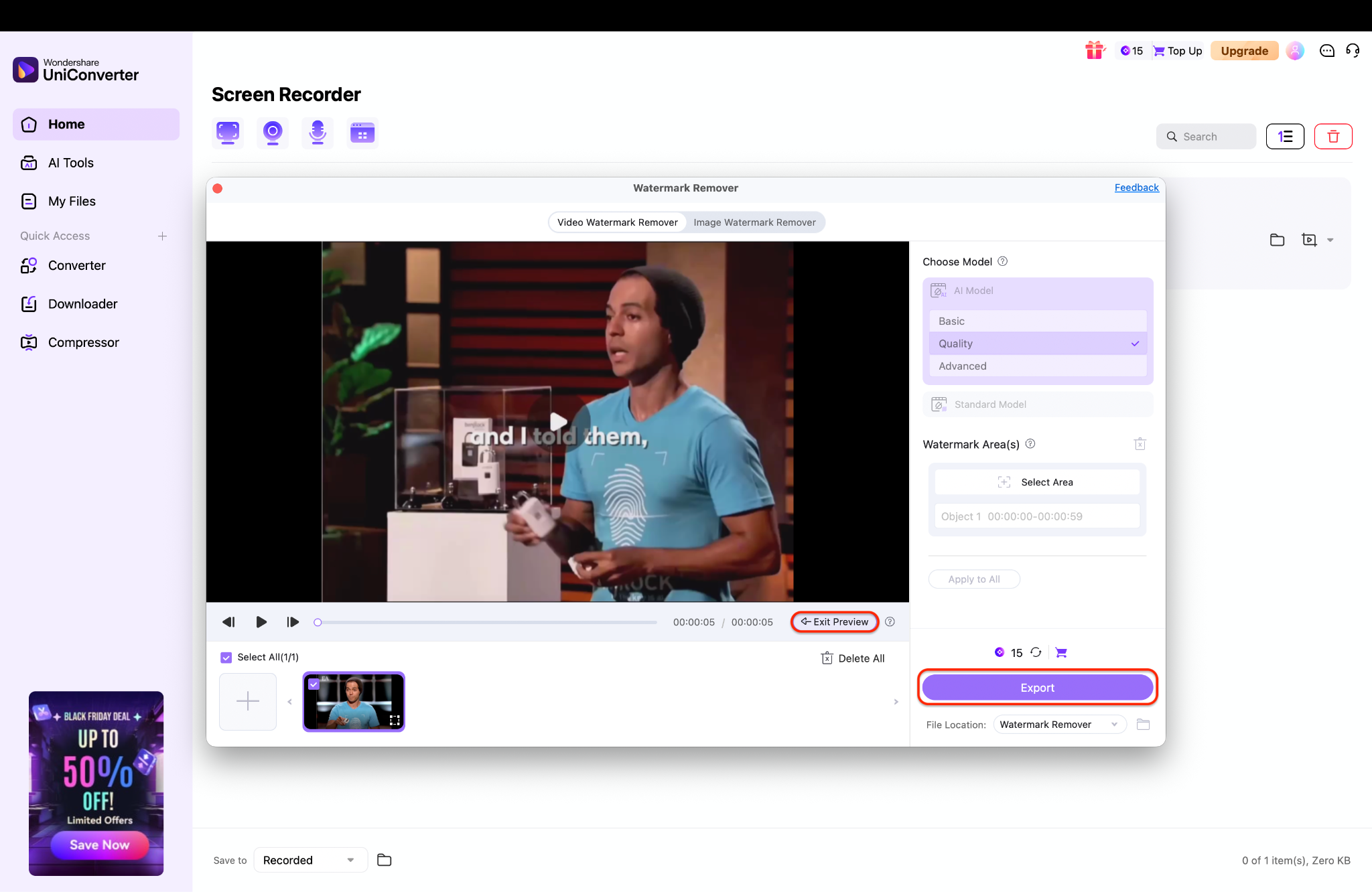
Why use UniConverter here
- It records system audio directly (no background noise).
- Captures up to 4K quality.
- Offers frame-perfect trimming and instant editing.
- Protects data with local storage only — zero cloud exposure.
Verdict
For anyone serious about ethical content management, screen recording via UniConverter is unbeatable. It's safe, free, and gives you total control over your footage.
Part 4. Method 3: Dedicated Mobile Apps (The Easiest "Remove Reel Watermark" Solution)
Dedicated mobile apps combine everything — convenience, precision, and speed — into a single tap. If you regularly create or repost content, these apps make it effortless to remove watermark from Instagram Reels right on your phone.
How it works
These apps use advanced blur or AI-based detection to mask, erase, or replace the watermark section of your video. Some even reconstruct missing pixels for a flawless finish.
Top app options (2025):
- Vmake (iOS & Android) – simple overlay remover.
- Watermark Remover Video, Photo (Android) – quick area-based watermark eraser.
Step-by-step guide (Using Vmake Watermark Remover for Android)
Step 1: Install the Vmake Watermark Remover app and Import Your Reel link
Firstly, download the Vmake Watermark Remover app on your Android or iOS. Then grant it permission to access your media files. After setting up the app, click the AI Remover, which gives you the option to either import a reel from your gallery or import a reel link directly if you don't have a downloaded reel.
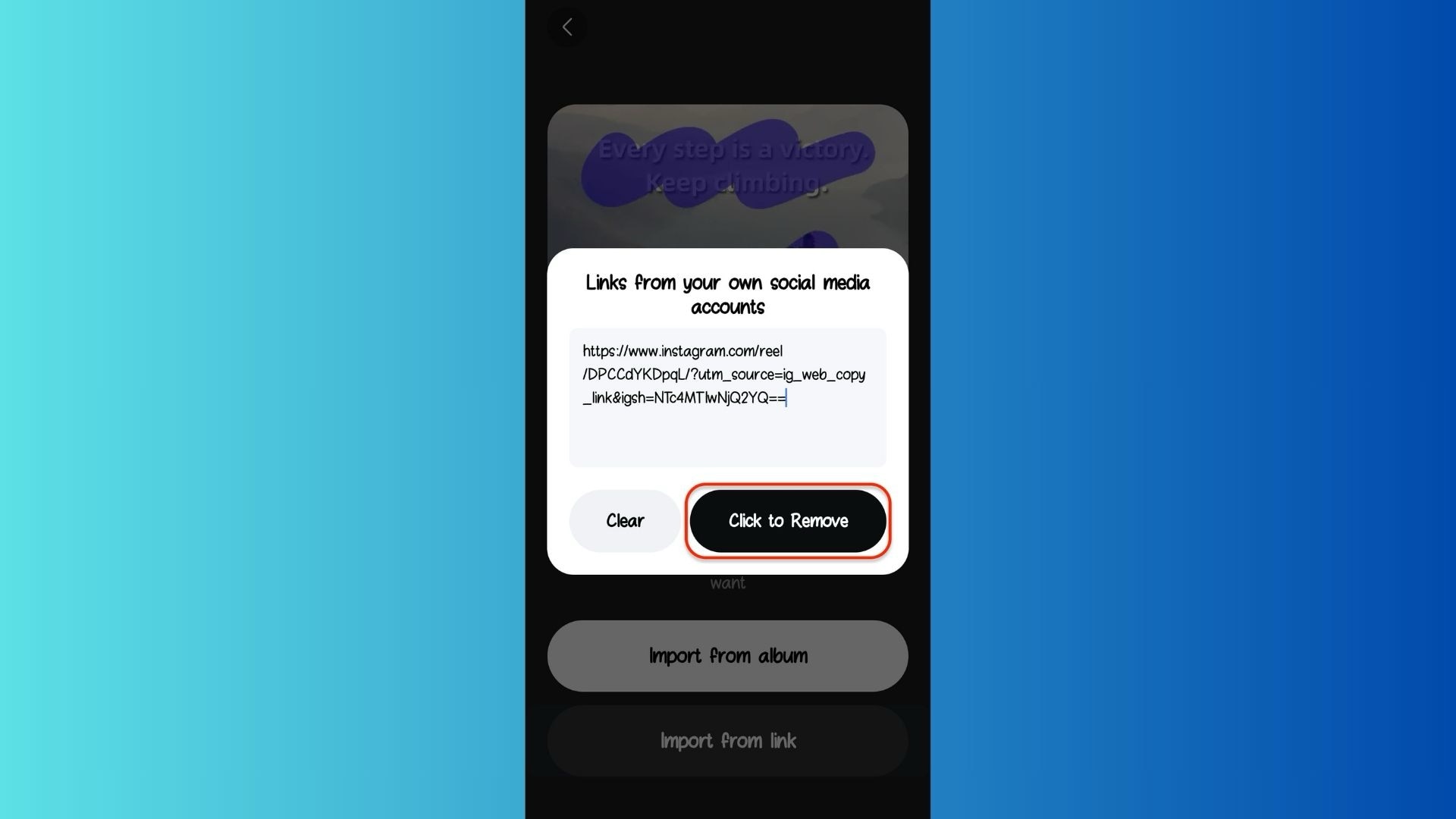
Step 2: Use manual brush mark the watermark area
Now, choose the Manual selection mode if the watermark area is smaller; otherwise, select the Auto mode. After selecting the manual mode, set the brush size and brush the watermark area that you want to remove. After marking the watermark area, hit the Remove now button.
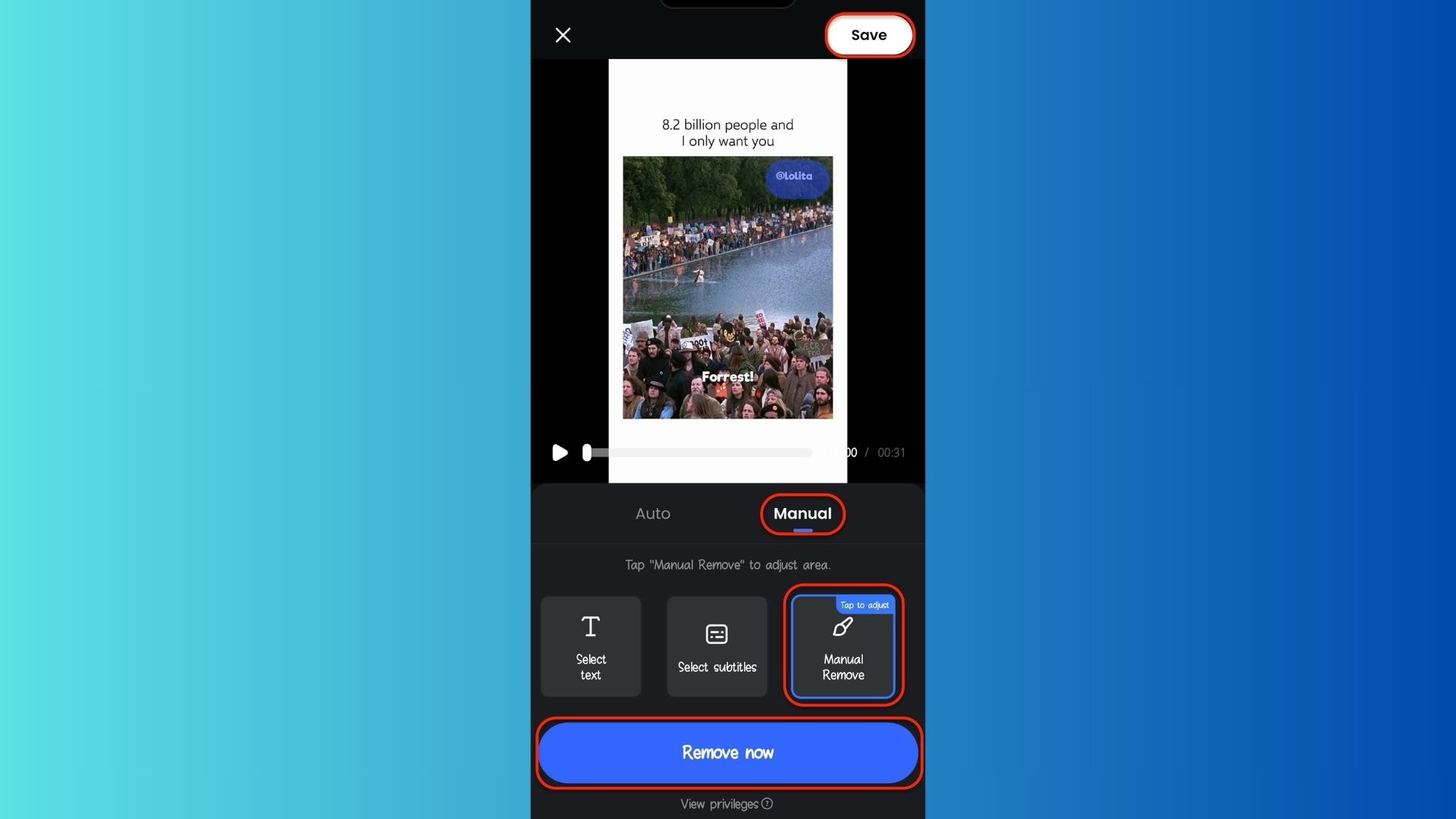
Step 3: Preview, and save your clean video
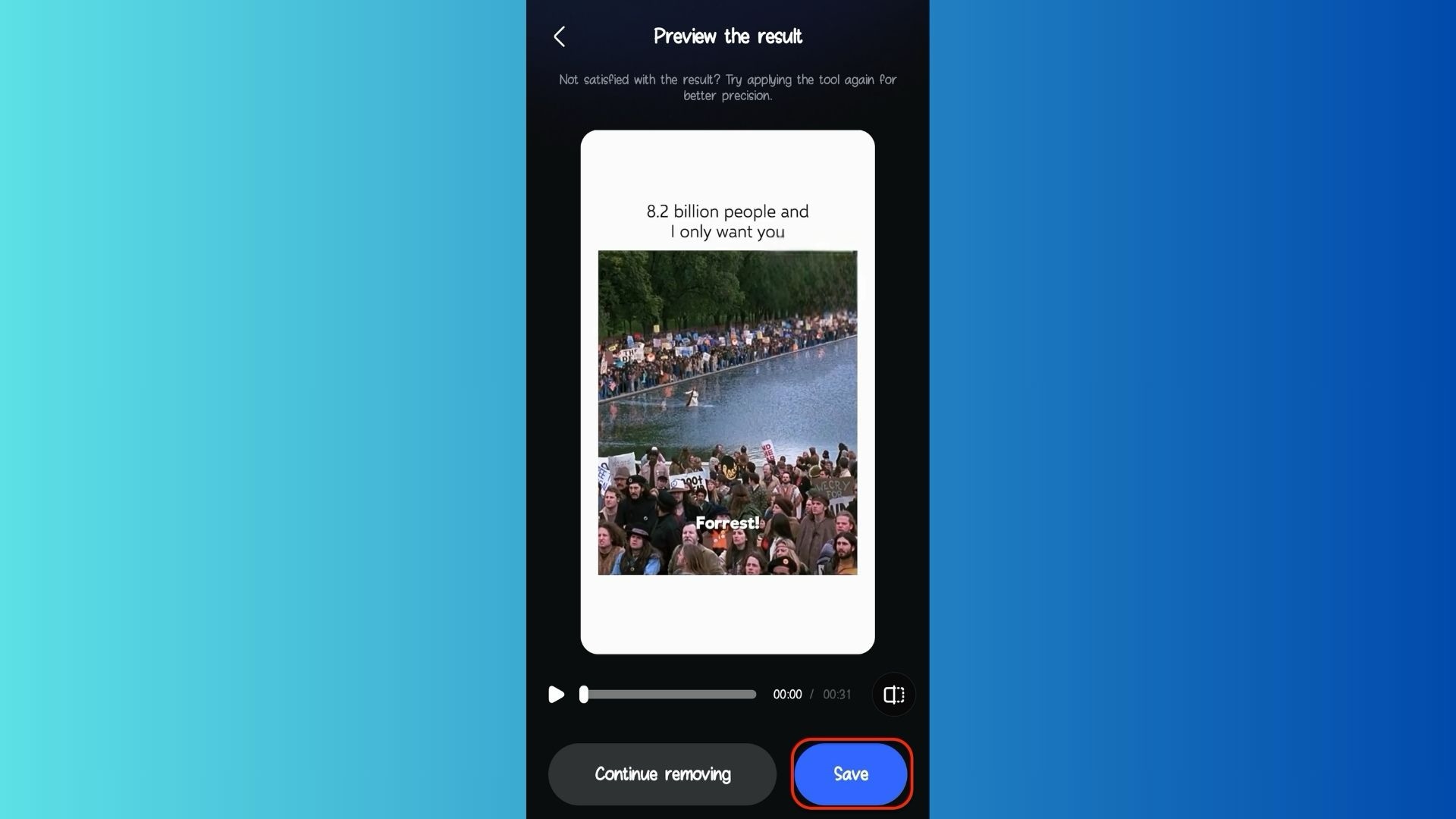
Now, wait for the app to process and blend the area naturally with the background. Preview your cleaned Reel, and once you're happy, tap on the "Save" button. After saving your watermark free Instagram reel, it will directly save to your gallery.
Extra features
- Trim and merge multiple Reels.
- Convert to MP4, MOV, or AVI formats.
- Apply filters, effects, and soundtracks instantly.
Verdict
If you're looking for the easiest, fastest, and most versatile option, UniConverter Mobile outshines others. It's precise, ad-free, and optimized for creators who post across multiple platforms daily.
Easy to Use Screen Recorder
Part 5. Bonus: Online Free AI Instagram Photos Watermark Remover
AI-driven editors are redefining how creators manage visual clean-up. For Reels that include watermarked covers or still frames, AI photo editors work wonders in removing text, logos, or unwanted overlays.
How it works
This Instagram reels watermark remover online tools don't edit videos directly but instead clean static images (e.g., cover thumbnails or captured frames). AI analyzes surrounding pixels and reconstructs them naturally where the watermark existed.
Popular tools
- UniConverter – top recommended for accurate watermark removal.
- Fotor – excellent for background restoration and text removal.
- Cleanup.pictures – minimal and accurate AI erasing tool.
Step-by-step guide (Using UniConverter Online Watermark Remover)
Step 1: Upload the Reel frame or thumbnail to UniConverter Online
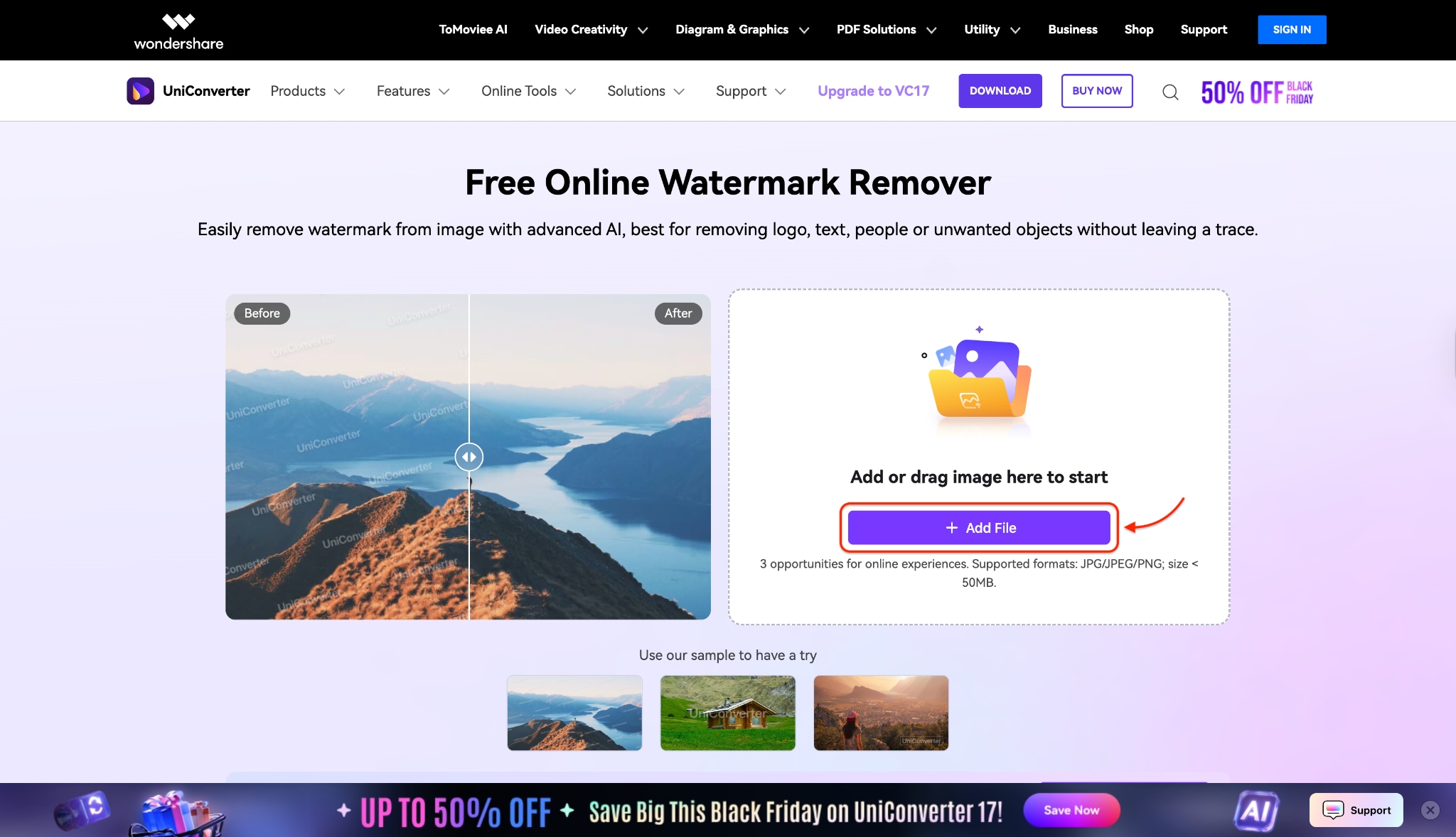
Open UniConverter's online watermark remover in your browser and click the + Add file to select the screenshot or extracted frame from your Reel (Post). Ensure the image is high-resolution so the AI can accurately reconstruct pixels where the watermark is located. Wait for the file to finish uploading before moving to the next step.
Step 2: Select and erase the watermark area
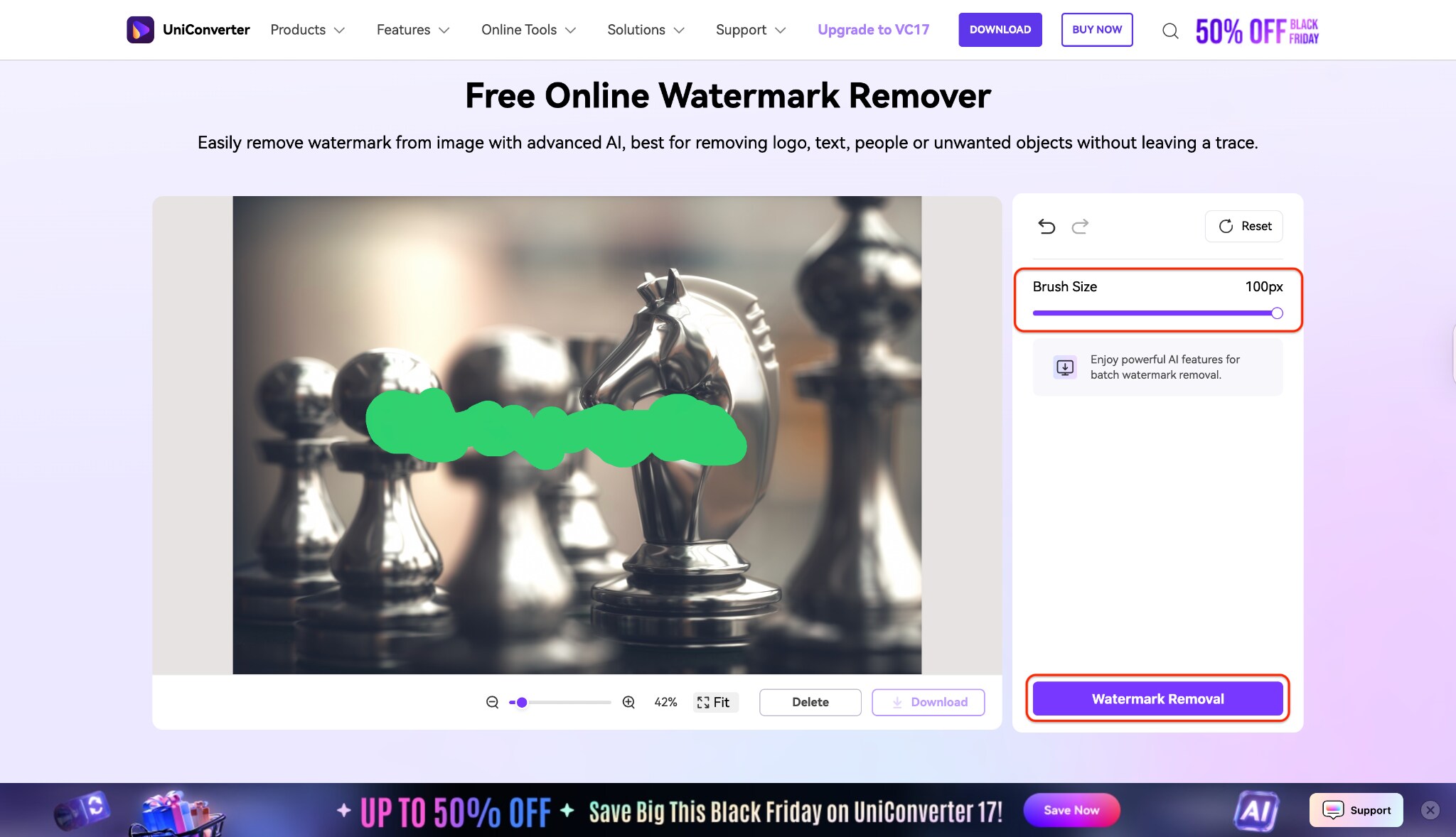
Choose the brush size, then carefully paint over the watermark or username until the entire mark is covered and click the Water Removal button. The online AI will analyze nearby pixels and intelligently fill in the brushed area to match the background. If the first pass leaves minor artifacts, use the brush again on small spots to refine the result.
Step 3: Preview, refine, and download the cleaned image
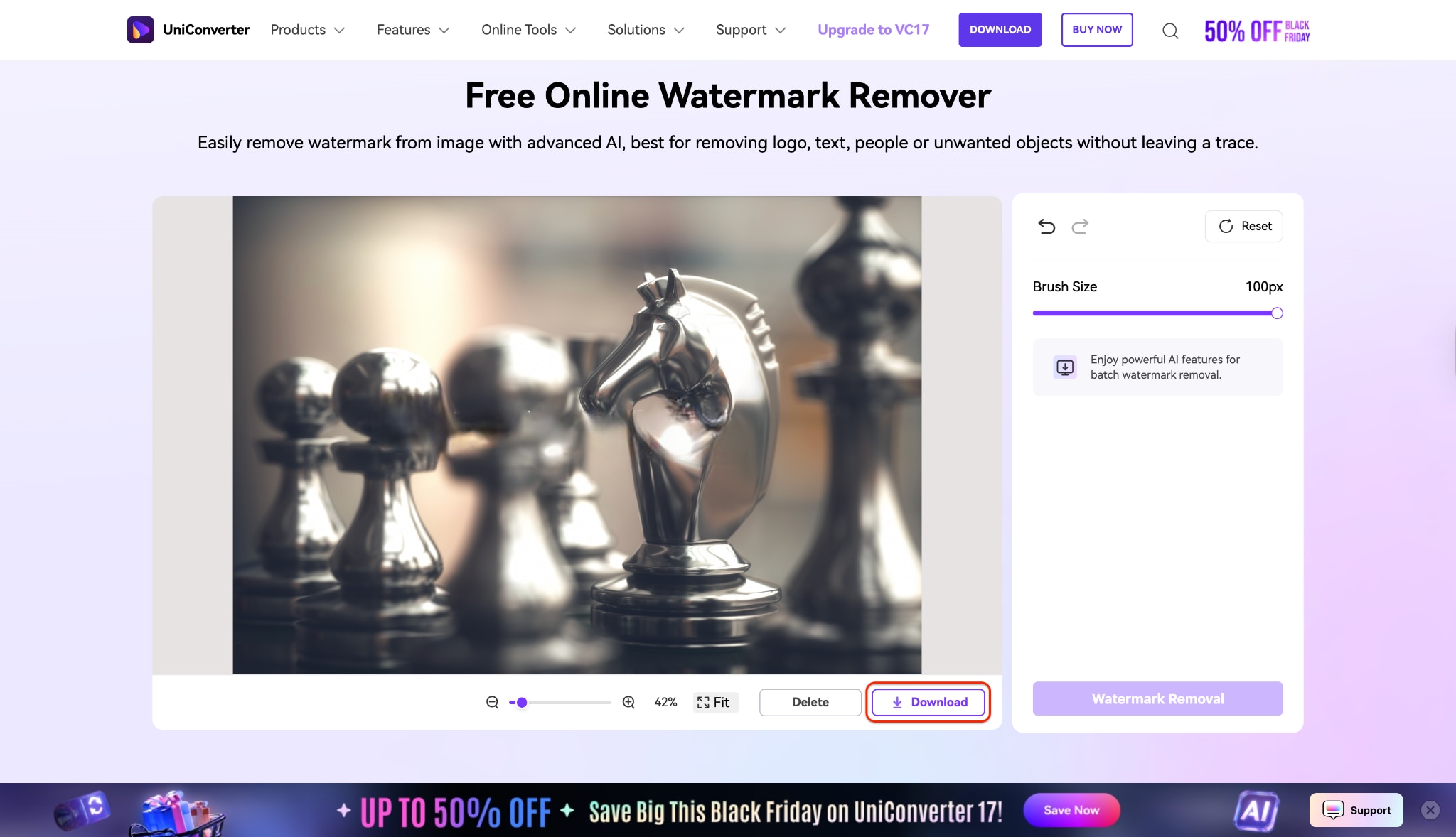
Preview the processed image at full size to confirm the watermark is gone and the background looks natural. If needed, use the touch-up or undo tools to make small corrections, and then run the remover one more time for a cleaner finish. When you're happy, download the cleaned image and set it as your new Reel thumbnail or use it in your video editor.
Creative applications
- Polish your Instagram Reels feed by replacing watermarked covers.
- Use for brand collaborations where watermark-free visuals are required.
- Maintain visual consistency when posting cross-platform.
Verdict
If your focus is on presentation rather than motion content, AI image editors are invaluable. They offer clean, professional-quality thumbnails that make your Reels stand out — especially before uploading or sharing.
Conclusion
By now, you've explored every safe and effective way to remove watermark from Instagram Reels — and more importantly, learned how to do it the right way. Whether you're a content creator, brand storyteller, or casual user, keeping your videos clean and platform-ready is key to a professional presence in 2025.
If you're looking for a quick online fix, browser-based tools get the job done. For refined visuals, AI photo editors are ideal for creating thumbnails and still images. Need an all-in-one, professional-grade solution? Screen recording and editing through UniConverter remains the most secure and reliable option.With UniConverter, you can record, edit, and enhance your Reels — all while keeping your data private and maintaining high quality.
Take the next step — Download UniConverter for free to create clean, watermark-free, and professional Instagram Reels effortlessly today.
Easy to Use Instagram Watermark Remover
FAQ
-
1. Is it legal to remove watermark from Instagram Reel?
Yes, it's legal only if the Reel is your own. Removing watermarks from someone else's content breaches Instagram's terms and can lead to copyright issues. Always keep your edits ethical and limited to your own videos. -
2. What's the best Instagram Reel watermark remover?
UniConverter is the most trusted choice for creators in 2025. It combines screen recording, AI watermark removal, trimming, and export in a single toolkit — perfect for professionals and casual users alike. -
3. Can I remove Instagram watermark from Reels online?
Yes, you can use Instagram Reels watermark remover online tools like SnapInsta or SaveInsta. However, for better video clarity, privacy, and safety, it's wiser to use desktop software like UniConverter. -
4. How to remove watermark from IG Reel without losing quality?
Opt for UniConverter or other AI-based tools that maintain HD resolution during export. Unlike free web tools that compress output, UniConverter preserves original clarity and color accuracy. -
5. How to remove watermark from Reels on mobile?
Use UniConverter Mobile or similar trusted apps. Upload your Reel, select the watermark area, and let AI handle it automatically. You can then trim, crop, and save the clean version directly on your phone.

