


If you’ve ever tried to play back an old webcam recording or video chat file from the MSN Messenger era, chances are you’ve encountered the Mimic (ML20) codec. While once functional for low-bandwidth video chats, today it’s practically unsupported. Modern players like VLC or QuickTime may fail, and editing software will reject it.
That’s why converting Mimic codec files into MP4 (H.264), MOV (ProRes), or MKV (HEVC) is essential. In this guide, we’ll explore Mimic, its history, and how you can easily convert it with UniConverter.
In this article
- What is Mimic Codec and Its Use Cases
- Why Convert Mimic Codec Files and Common Challenges
- How to Choose the Best Mimic Codec Converter Tool ( Comparison Table)
- Why Choose UniConverter for Mimic Codec Conversion (Steps Guide)
- Pro Tips for the Best Mimic Codec Conversion Results
- The Future of Mimic Codec – Outdated or Evolving?
- Conclusion
- FAQ
Part 1: What is Mimic Codec and Its Use Cases
The Mimic codec, identified by the FourCC code ML20, is a legacy video codec designed in the early 2000s. It was most famously used in MSN Messenger webcam conversations. Technically, Mimic works in the YUV 4:2:0 color space, compressing frames via 8×8 DCT (Discrete Cosine Transform) blocks. It supported both intra-frame and inter-frame compression, balancing quality and size for dial-up internet.
Key Features of Mimic Codec:
Designed for low-bandwidth video conferencing.
Supported in MSN Messenger and some legacy webcam drivers.
Decodable via open-source libmimic and FFmpeg.
Use Cases Back in the Day:
Video Chatting – Live webcam sessions in MSN Messenger.
Distance Communication – Early VoIP and online communication experiments.
Personal Archiving – Some users recorded conversations in Mimic containers.
Today, however, Mimic is obsolete and rarely recognized outside of specialized decoders.
Part 2: Why Convert Mimic Codec Files and Common Challenges
Converting Mimic codec files isn’t just about convenience—it’s about ensuring your memories and archives remain accessible. Many users discover old files saved on their hard drives that simply refuse to open in modern players. Without conversion, those videos are locked away forever. Whether it’s a cherished webcam chat or experimental early VoIP footage, converting ensures your media survives in today’s ecosystem.
Why Convert?
Playback Issues – Most modern players (Windows Media Player, VLC, QuickTime) can’t decode Mimic natively.
Editing Restrictions – Editing software like Premiere Pro or Final Cut Pro won’t import Mimic videos.
Compatibility – Mimic files can’t be uploaded to YouTube, Zoom, or social platforms.
Future-Proofing – Converting ensures long-term accessibility.
Common Challenges:
Unsupported Format – Few modern tools recognize ML20.
Quality Loss – Poor conversion tools may introduce artifacts.
Batch Limitations – Converting multiple Mimic files one by one can be tedious.
Best Fix:
Use a dedicated converter like UniConverter, which integrates Mimic decoding via FFmpeg and re-encodes into modern codecs.

Reliable Mimic Codec Converter
Part 3: How to Choose the Best Mimic Codec Converter Tool (Comparison Table)
With so many video converters available, it’s easy to assume any of them will handle Mimic files. Unfortunately, that’s not the case—many lack support for ML20 altogether. Choosing the right tool requires balancing compatibility, speed, and output quality. A good converter will not only decode Mimic correctly but also give you control over formats and performance.
Factors to Consider:
Mimic Support – Not all tools handle ML20.
Output Formats – MP4, H.264, HEVC, MOV, MKV.
Batch Processing – Save time with bulk conversion.
GPU Acceleration – For faster performance.
Quality Preservation – Retain maximum quality despite re-encoding.
|
Tool |
Platform |
Mimic Support |
Batch Conversion |
GPU Acceleration |
Output Formats |
Pricing |
|
Online/Desktop |
Yes |
Yes |
Yes |
MP4, MOV, MKV, HEVC |
Freemium |
|
|
Desktop |
Limited (via FFmpeg) |
Yes |
Yes |
MP4, MKV |
Free |
|
|
Online |
Yes |
Yes |
No |
MP4, MOV, AVI, WebM |
Paid |
|
|
Desktop (CLI) |
Yes |
Yes |
Yes |
Almost any |
Free |
Part 4: Why Choose UniConverter for Mimic Codec Conversion (Step-by-Step Guide)
When facing rare formats like Mimic, you need a tool that’s both reliable and versatile. Many free tools break down when handling unusual codecs, but UniConverter has been designed with legacy and modern workflows in mind. It combines intuitive controls with advanced technology, ensuring even obscure files like Mimic can be converted with ease.

Why UniConverter is Best for Mimic Codec Conversion
Full Codec Support – Reads Mimic (ML20) files using FFmpeg backend.
130x Faster – Hardware acceleration with NVIDIA/AMD/Intel GPUs.
Flexible Options – Adjust bitrate, resolution, and codec.
All-in-One Workflow – Convert, compress, edit, add subtitles, and burn to DVD.
Free + Pro Power – Online free version + desktop for heavy use.
How to Convert Mimic Codec Files with UniConverter
Step 1: Install and Open UniConverter
Download and install the desktop app. Launch the program.

Step 2: Import Mimic Files
Click Add Files or drag your ML20 videos into the interface.

Step 3: Choose Output Format
Select MP4 (H.264) for universal playback, MOV (ProRes) for editing, or HEVC for smaller but high-quality files.

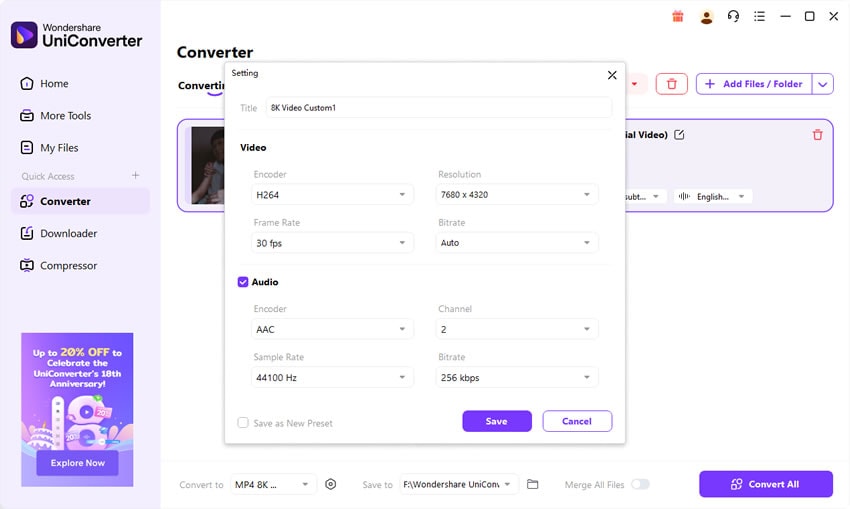
Step 4: Adjust Settings & Enable Acceleration
Open settings to tweak bitrate and resolution. Enable NVIDIA GPU acceleration for faster conversion.

Step 5: Start Conversion
Click Convert. Save the output files in your chosen folder.

Reliable Mimic Codec Converter
Part 5: Pro Tips for the Best Mimic Codec Conversion Results
Converting Mimic codec files successfully isn’t only about using a converter; it’s also about making smart settings choices. Paying attention to resolution, codec, and bitrate can make a huge difference in the final quality. Here are some expanded tips that give you more control and better results:
-
Choose the Right Codec – MP4 (H.264) for daily use, ProRes for editing, HEVC for storage. Think about your end goal: H.264 is excellent for universal playback, ProRes is ideal if you plan to edit in Final Cut or Premiere, and HEVC is perfect if you want to reduce file size without sacrificing clarity.
-
Preserve Original Resolution – Avoid unnecessary scaling to maintain clarity. Upscaling Mimic’s low-resolution sources can create blur, while downscaling may remove detail. Keep it at its native resolution unless you have a clear reason to adjust.
-
Set Bitrate Properly – Too low causes pixelation; too high wastes storage. A good rule is to stick to constant quality or variable bitrate modes that adapt to scene complexity.
-
Convert Audio Tracks to AAC/MP3 – Ensures compatibility across devices. Some Mimic files carry outdated or unsupported audio formats, so transcoding them to AAC or MP3 helps avoid silent playback on phones or media players.
-
Use Batch Conversion – Save time by processing multiple Mimic files simultaneously. This is particularly useful for users who archived long chat histories or entire sessions and want them all in one usable format.
-
Enable GPU Acceleration – Speeds up conversion, especially for longer recordings. By tapping into your NVIDIA, AMD, or Intel graphics card, you can achieve faster performance and keep your CPU free for other tasks.
Extra Tip: Always preview a short clip before converting your entire batch. This way, you can test the codec, bitrate, and resolution settings, and adjust if needed, without wasting hours re-doing large conversions.
Part 6: The Future of Mimic Codec – Outdated or Evolving?
Mimic was created for a very specific era—low bandwidth video chats on dial-up internet. While it served its purpose, the digital video world has evolved dramatically since then. Today’s codecs are built for HD and 4K streaming, AI processing, and cross-platform compatibility. Mimic, by contrast, has seen no updates or adoption for over a decade.
Why Mimic is Outdated
-
No Hardware Support – Modern devices don’t decode ML20, so you won’t find smartphones, TVs, or editing tools recognizing it natively.
-
Niche Legacy Use – Limited to MSN-era webcam archives, with almost no adoption outside of those historical contexts.
-
Better Alternatives – H.264, HEVC, VP9, and AV1 dominate today’s digital ecosystem, offering far better efficiency and support.
Will Mimic Codec Evolve?
Unlikely. Unlike VP8 → VP9 → AV1, Mimic has not seen new versions or research development. It remains a frozen-in-time codec. The open-source community maintains limited decoding through FFmpeg, but there’s no sign of a roadmap or successor.
The Importance of Conversion
For users with archived files, conversion is the only reliable way to safeguard their video history. Without converting, Mimic videos may remain unplayable as older software becomes harder to run on modern operating systems. By moving to widely accepted containers like MP4 or MOV, you ensure your files remain watchable on current and future devices.
Broader Perspective
The story of Mimic reflects the larger cycle of technology—formats born to solve a temporary problem often fade when infrastructure improves. Dial-up internet required highly compressed webcam codecs like Mimic; broadband and modern hardware ushered in codecs like H.264 and HEVC. For archivists and nostalgic users, Mimic is a reminder of how far video communication has come.
What Users Should Do
Convert Mimic files into modern formats like MP4, MKV, or MOV to ensure long-term usability. Keep a backup in a high-quality codec to avoid repeated conversions and possible quality loss.
Conclusion
The Mimic (ML20) codec was once crucial for early internet video chats but is now obsolete. For those with legacy files, conversion is the only way forward. With UniConverter, you can batch-convert Mimic videos to MP4, MOV, HEVC, and more—fast, reliable, and with quality preserved.
Reliable Mimic Codec Converter
FAQ
-
Q1: What is the Mimic codec?
The Mimic codec (ML20) is a legacy video codec used in MSN Messenger webcam conversations. It compresses video in YUV 4:2:0 using 8×8 DCT blocks. -
Q2: Why can’t I play Mimic files today?
Most modern players and editors don’t support Mimic, making conversion necessary. Without converting, you’ll see errors or black screens. -
Q3: What’s the best format to convert Mimic files into?
For universal playback, MP4 (H.264) is best. For editing workflows, MOV (ProRes). For efficient storage, HEVC works well. -
Q4: Can VLC play Mimic codec files?
Not directly. VLC alone won’t decode Mimic. You need to first convert the file with FFmpeg-based tools like UniConverter. -
Q5: Is Mimic still used in video conferencing today?
No. Modern platforms like Zoom, Teams, and Meet use codecs like H.264, VP9, or AV1. Mimic has been fully retired from active use.

