


Screen recording has always been an essential tool for gamers, content creators, educators, and professionals. In the past, Fraps became a household name for anyone who wanted to capture PC gameplay or check their frame rates. But times have changed. Today, users expect compact file sizes, cross-platform support, audio mixing, and editing features — things that older software like Fraps can’t provide.
This review explores Fraps’ legacy, its current state in 2025, and how it compares to modern screen recorders. If you’re wondering whether it’s still worth using Fraps — or if you should look at alternatives like OBS, Bandicam, or UniConverter Screen Recorder — this article will give you a clear answer.
In this article
Part 1: The Legacy & Status Quo of Fraps
If you were into PC gaming or YouTube content creation in the late 2000s, chances are you know the name Fraps. With its bright yellow FPS counter and easy one-click recording, Fraps was the gold standard for capturing gameplay footage and benchmarking PC performance.
But in 2025, the story has changed. The software hasn’t received an update since 2013, which makes it outdated in many respects. Modern technologies like DirectX 12, Vulkan, HDR gaming, and 4K recording are beyond its reach. While nostalgic gamers still download it for benchmarking or retro-style recording, Fraps simply doesn’t meet the expectations of today’s content creators.
Its status quo today can be summarized as follows:
- Still works for FPS benchmarking on some games.
- Can record, but only in AVI format, leading to huge file sizes.
- Compatibility with Windows 11 is inconsistent.
- No ongoing support or modern features.
Part 2: What is Fraps? Key Features & Use Cases
Fraps is a Windows-only application originally designed to serve two main purposes: benchmarking PC performance and recording gameplay. At its peak, it was extremely lightweight and simple compared to other tools, making it very popular among gamers.
Core Features of Fraps
- Screen Recording – Capture videos at 30fps, 60fps, or custom frame rates. Videos are stored in uncompressed AVI files, which preserves quality but consumes massive storage space.
- FPS Benchmarking – The iconic yellow FPS counter overlay became a signature feature of Fraps, allowing users to measure the real-time performance of their hardware.
- Screenshot Capture – Fraps also lets users capture high-quality screenshots with a single hotkey.
Common Use Cases in Its Prime
- Gaming Content Creation: Early YouTubers relied heavily on Fraps to record “Let’s Plays” and walkthroughs.
- PC Performance Testing: Reviewers and hardware enthusiasts used it to benchmark GPUs and CPUs.
- Personal Gameplay Capture: Gamers recorded highlights to share with friends before streaming platforms were widespread.
In short, Fraps thrived in an era when simple AVI capture and an FPS counter were all most users needed.
Part 3: Pros and Cons of Using Fraps
Even though it’s outdated, Fraps still has a few qualities that explain why it’s remembered fondly.
Pros of Fraps:
- Simplicity Above All – The interface is extremely straightforward. You launch the software, press a hotkey, and recording begins. No complex menus or settings to navigate.
- Accurate FPS Counter – The benchmarking feature is still valuable today, especially for retro games or systems where newer tools might not work.
- Stable with Older Games – Works reliably with older DirectX 9 and DirectX 11 titles.
- Nostalgic Appeal – Many gamers feel a sense of nostalgia when they see the Fraps overlay, as it brings back memories of the early YouTube gaming era.
Unfortunately, the limitations of Fraps outweigh its strengths in most modern scenarios:
Cons of Fraps:
- No Updates Since 2013 – Missing support for DirectX 12, Vulkan, or modern graphics pipelines.
- Massive File Sizes – AVI recordings are often several gigabytes for just a few minutes of footage. Post-processing or conversion is required before uploading to YouTube or social media.
- Windows Only – No support for macOS or Linux.
- Lack of Features – No built-in editing, no compression, no streaming tools.
- Compatibility Issues – Performance on Windows 10 and 11 is inconsistent.
For these reasons, Fraps is now seen as more of a relic than a practical solution.
Part 4: Is Fraps Still Worth Using in 2025?
The answer depends on your needs.
Yes, if you only need benchmarking: The FPS counter is still accurate and simple.
No, if you want screen recording for modern workflows: The large AVI files, lack of updates, and absence of features make it impractical.
In other words, Fraps still works for nostalgic gamers and retro PC enthusiasts, but it isn’t a competitive option for anyone looking to record, edit, or stream content in 2025.
Part 5: Comparison – Fraps vs Modern Screen Recorders
|
Feature |
||||
|
Last Update |
2013 |
Actively updated |
Actively updated |
Actively updated |
|
Platform |
Windows only |
Windows, Mac, Linux |
Windows |
Windows & macOS |
|
Formats |
AVI only |
MP4, MKV, FLV, MOV |
MP4, AVI |
MP4, MOV, others |
|
File Size |
Extremely large |
Compressed |
Smaller than Fraps |
Optimized, share-ready |
|
FPS Counter |
Yes |
Via plugin |
Yes |
Not primary, but smooth gameplay capture |
|
Audio Recording |
System OR Mic only |
Multiple tracks |
System + Mic |
System + Mic + Narration |
|
Editing/Annotations |
None |
Filters, plugins |
Basic trim & overlay |
Built-in annotations, highlights |
|
Extra Features |
Benchmarking |
Streaming, overlays |
Webcam overlay, scheduled capture |
Screen switching, scheduling, drawing while recording |
This table shows how Fraps stacks up against alternatives. While it’s fine for benchmarking, it’s not designed for today’s recording needs.

UniConverter Screen Recorder – Smart Recording for Gamers, Educators & Professionals
Part 6: Introducing UniConverter Screen Recorder – A Modern Alternative
While Fraps had its golden years, the screen recording landscape has changed. Users expect smaller file sizes, cross-platform compatibility, and integrated features.
This is where UniConverter Screen Recorder comes in. Unlike Fraps, UniConverteris actively updated for Windows and macOS, and it caters to gamers, educators, and professionals alike. You can easily record games like webpage game like roblox, PC game like BlackMyth, Console game like Oculus Quest, etc.
Key Highlights of UniConverter Screen Recorder
- Versatility – Record gameplay, streaming videos, meetings, or online lectures.
- Audio Control – Capture both system audio and microphone simultaneously.
- Efficient Output – Save directly to MP4 and other optimized formats.
- Productivity Features – Annotate, highlight, or schedule recordings.
- Cross-Platform – Compatible with Windows 11/10/8/7 and macOS.
It’s essentially what Fraps might have evolved into — had it continued development.
How to Record Your Screen with UniConverter(Desktop Guide)
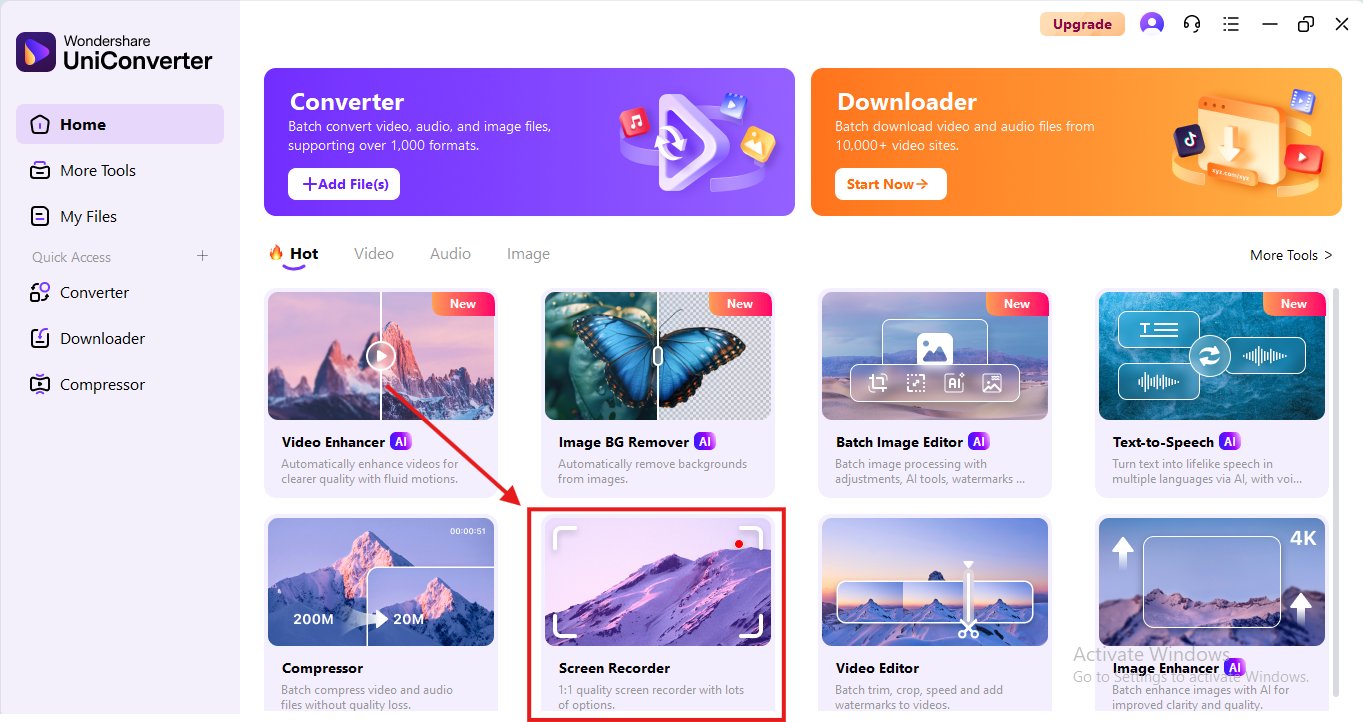
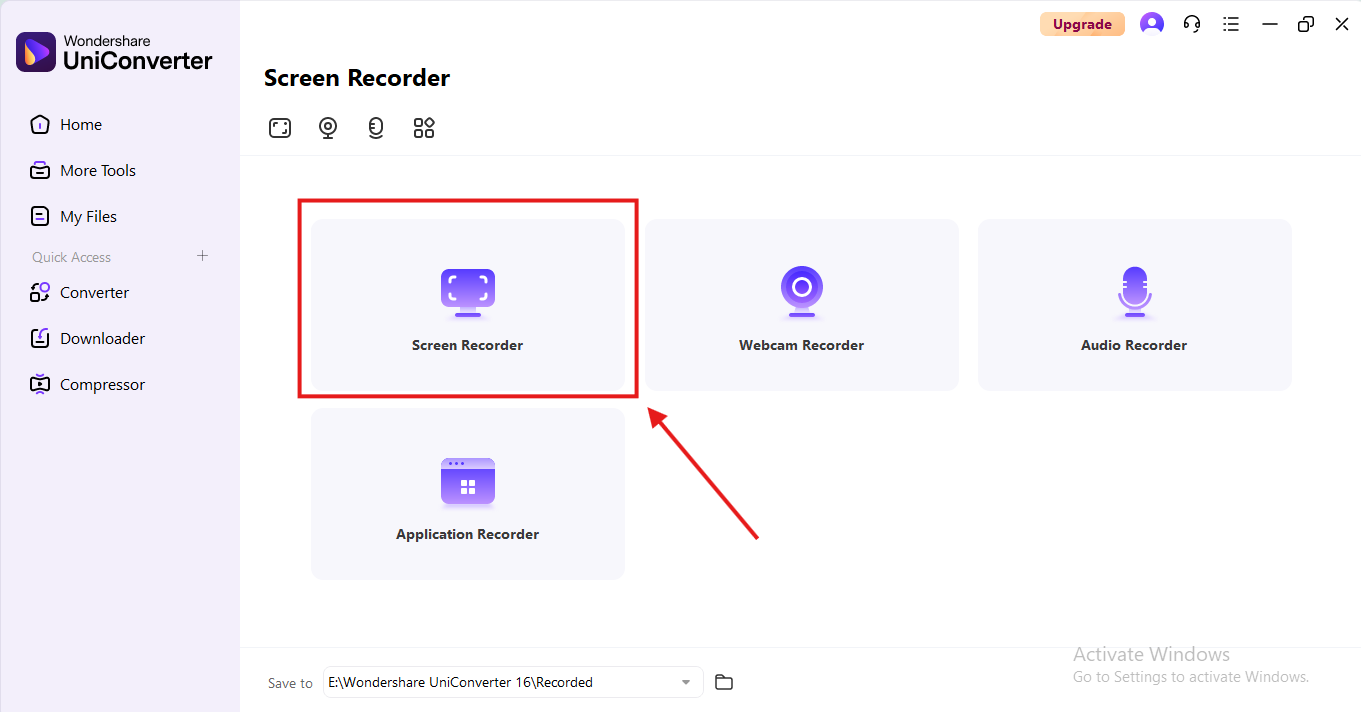
Here’s how to use UniConverter Screen Recorder (desktop) step by step:
Step 1: Install & Open UniConverter
Download and install the software. Once launched, you’ll see the recording control panel.
Step 2: Select Recording Area
Choose whether you want full-screen capture, a specific window, or a custom region.
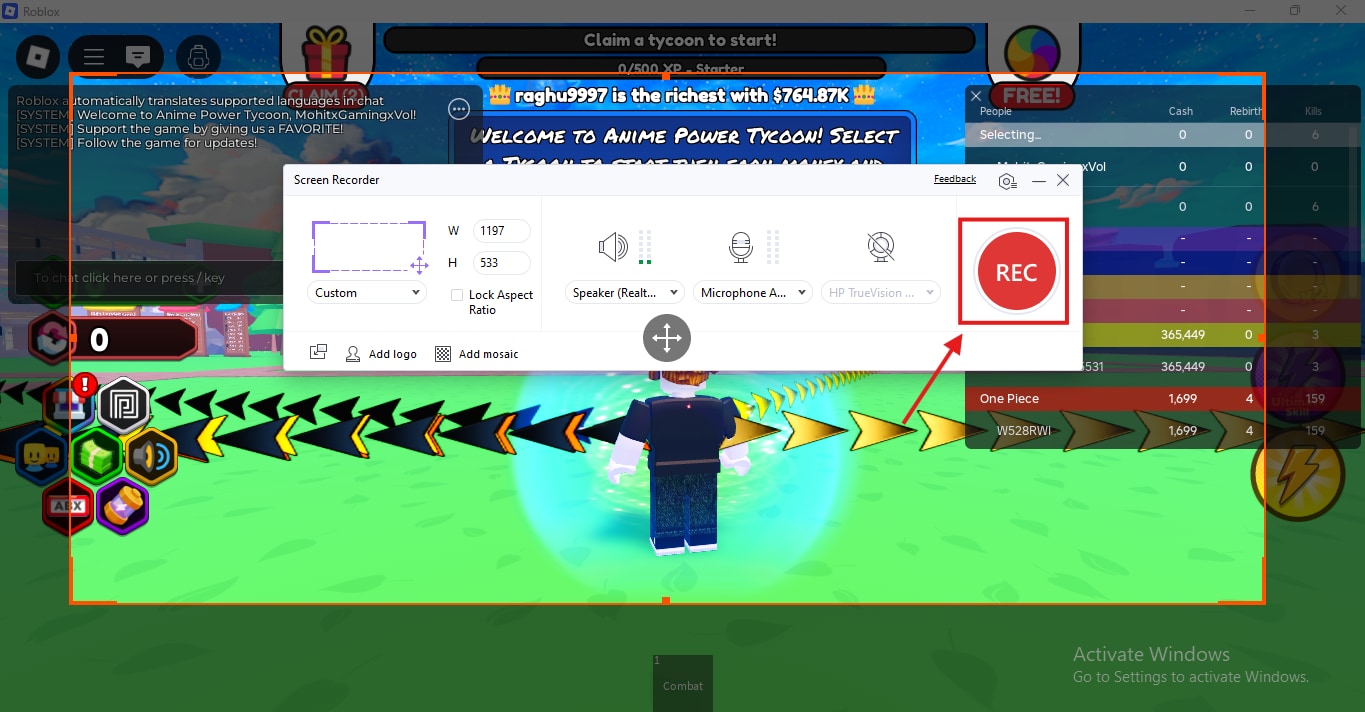
Step 3: Configure Audio Settings
Enable system audio, microphone input, or both for narration and commentary.
Step 4: Customize Recording Options
Select MP4 or MOV as output format, adjust resolution (up to 4K), and set frame rates. You can also enable annotations and mouse highlighting.
Step 5: Start Recording
Press the “REC” button to begin. Use hotkeys to pause, resume, or stop.
Step 6: Save & Share
Once finished, the video is automatically compressed into a share-ready format, perfect for uploading to YouTube, sharing on social media, or archiving.
Conclusion
Fraps deserves recognition as a pioneer of screen recording and benchmarking. However, in 2025, it functions more as a nostalgic tool than a practical solution. Its outdated file format, lack of updates, and limited compatibility make it unsuitable for serious content creators.
Modern tools like OBS, Bandicam, and UniConverter Screen Recorder provide everything Fraps once offered — plus the versatility and performance expected today. For benchmarking, Fraps is still fine. But for real-world recording, you’ll want something more modern.
UniConverter Screen Recorder – Smart Recording for Gamers, Educators & Professionals
FAQs
-
1. Is Fraps still safe to use on Windows 10/11?
Yes, though it may not run smoothly on Windows 11 due to lack of updates. -
2. Why are Fraps recordings so large?
Because Fraps uses uncompressed AVI format, which prioritizes quality but results in massive file sizes. -
3. Does Fraps support DirectX 12 or Vulkan?
No, it only works with older APIs like DirectX 9 and 11. -
4. What’s the best free alternative to Fraps in 2025?
OBS Studio is the top free option, while UniConverter Screen Recorder provides modern features for everyday users. -
5. Can I still use Fraps for YouTube or Twitch recording?
Yes, but you’ll need to convert its AVI files into MP4 before uploading.

