


OBS, or Open Broadcast Software, can be handy for streamers, content creators, and online educators due to its versatility and wealth of features. However, frame drops on OBS are more typical these days. They result in choppy streams, out-of-sync audio, and a subpar overall viewing experience. To make matters worse, the drops can be random, and users may struggle to pinpoint any specific reason that might have triggered them.
If you’re on the same boat, this is the right place. This comprehensive guide explains the reasons behind OBS file frame drops and provides troubleshooting tips. It also lists the top five OBS alternatives you can try out.
In this article
Part 1. Why OBS File Frame Dropped
There are several reasons why an OBS may drop frames, including an unstable internet connection, overloaded system software, browser source errors, and outdated software or drivers. These are detailed as follows:
Network Instability
An unstable internet connection typically causes dropped frame rates in OBS. This can result in an insufficient upload speed, which prevents OBS from maintaining a consistent stream.
Overloaded System Software
If you’re running a heavy application on your computer, the chances are that your CPU or GPU is overloaded. Your system also might lack sufficient processing power to handle streams. These cause OBS to struggle to encode in real-time and potentially experience frame drops.
Browser Source Error
It’s also a common reason behind OBS frame drops and can stem from incorrect OBS settings or resource limitations. High-quality settings exceeding your computer’s capabilities can strain your system and cause frame drops. It’s therefore crucial to adjust to balanced settings to avoid such issues.
Outdated Software or Drivers
Running an outdated OBS version or system drivers can also cause frame drops. It’s therefore crucial to check for updates and optimize your live streams and games.
Part 2. Ways to Check and Prevent OBS Frame Drop
As you understand the reasons behind OBS frame drops, you’ll also need solutions. So, here are a few practical yet straightforward ways to ensure high-quality and lag-free streaming with OBS:
Way 1: Optimize Network Connection
As mentioned earlier, dropped frame rates in OBS are often caused by an unstable network connection. If you’re connected to a WiFi connection, try switching to an Ethernet connection. Compared to WiFi, Ethernet is less prone to network congestion or interference, resulting in a faster and more consistent stream. So, this should boost your upload speed by at least 20-30%.
Ideally, a lag-free stream requires an upload speed of 1.5 Mbps or higher. You can also replace your router or switch with another internet provider to check the performance.
OBS also provides a solution to optimize the network. For that, follow the steps:
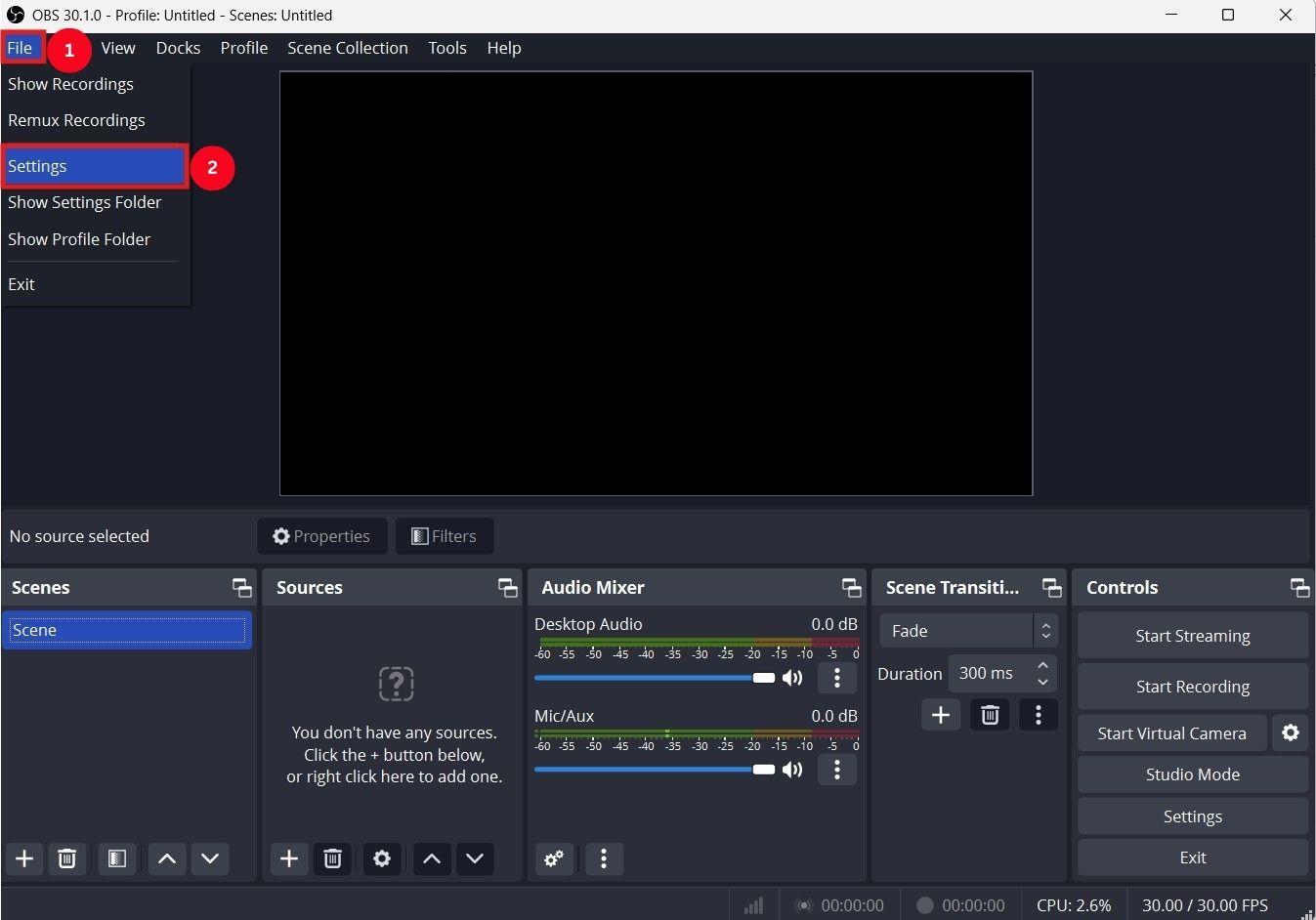
Step 1: On the home dashboard, click “File > Settings.”
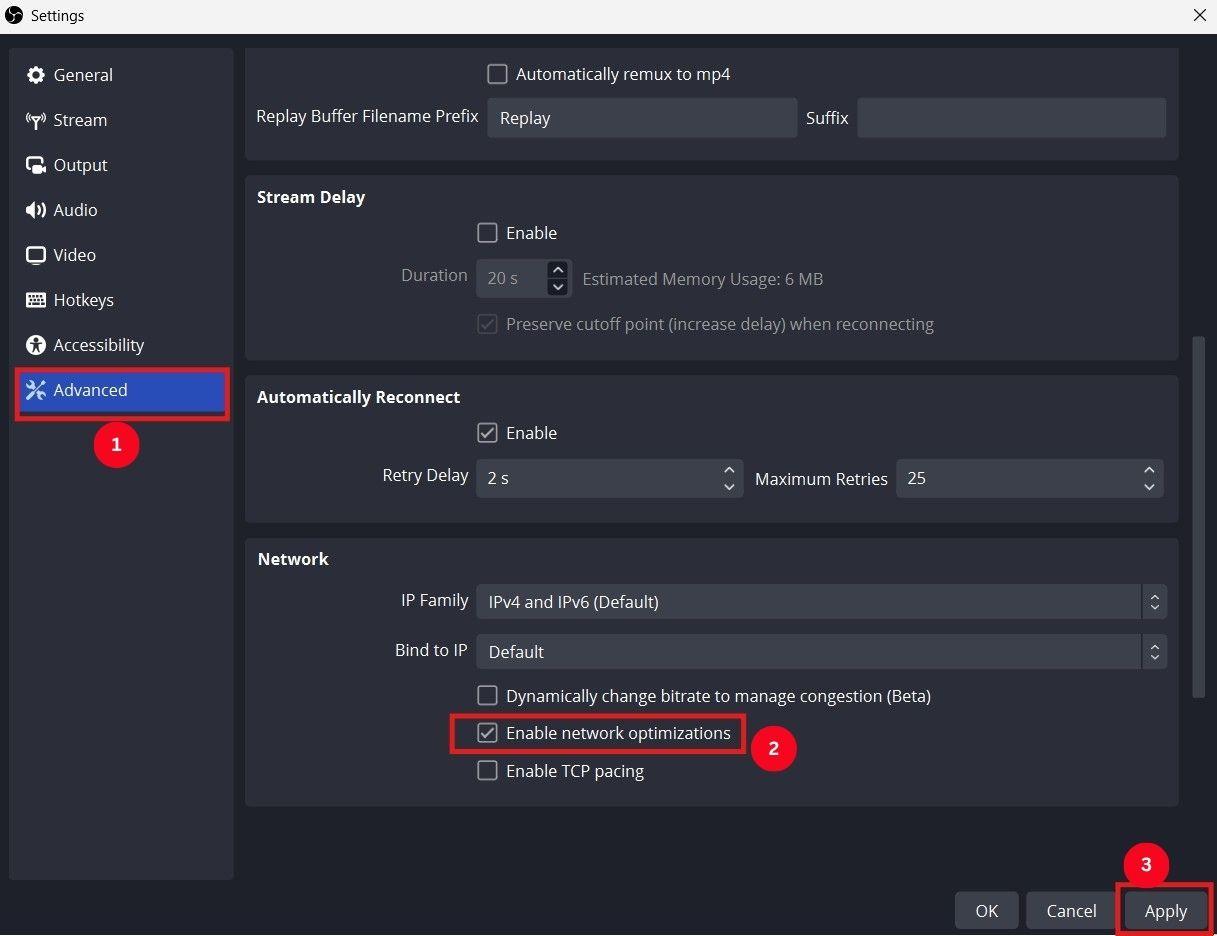
Step 2: Then, click “Advanced > Enable Network Optimizations > Apply.”
Way 2: Adjust Bitrate
If your bandwidth is lower than the set bitrate, you’ll see a frame drop in OBS. Typically, a bitrate of 3000-5000 works fine. But if you have a poor internet connection, you may need to lower the bitrate. This way, the OBS will maintain the bitrate and cause fewer interruptions. Here’s how to reduce the video bitrate settings:
Step 1: Launch OBS Studio on your computer and head over to “Files > Settings,” as outlined in the previous method.
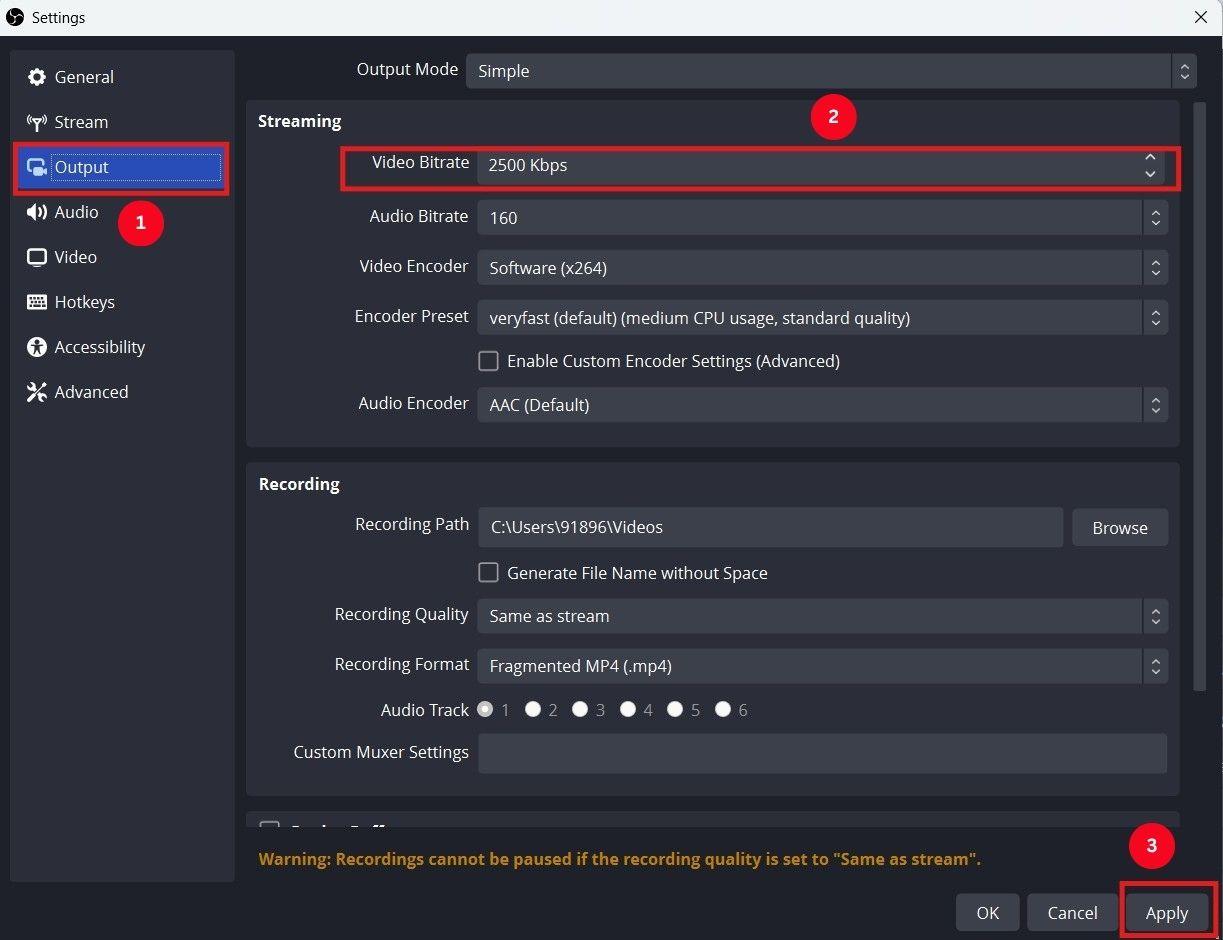
Step 2: Access the “Output” tab, followed by “Streaming,” and lower the bitrate value. If the internet isn’t great, reduce the bitrate to around 1500-2500. Then, click on “Apply.”
Way 3: Reduce the Hardware Workload
Another way of minimizing frame drops is to reduce the workload on the CPU. It’s possible to achieve this by enabling hardware encoding in OBS, which utilizes the computer’s GPU instead of the CPU, resulting in smoother streams. Here are the steps you can follow to enable hardware encoding:
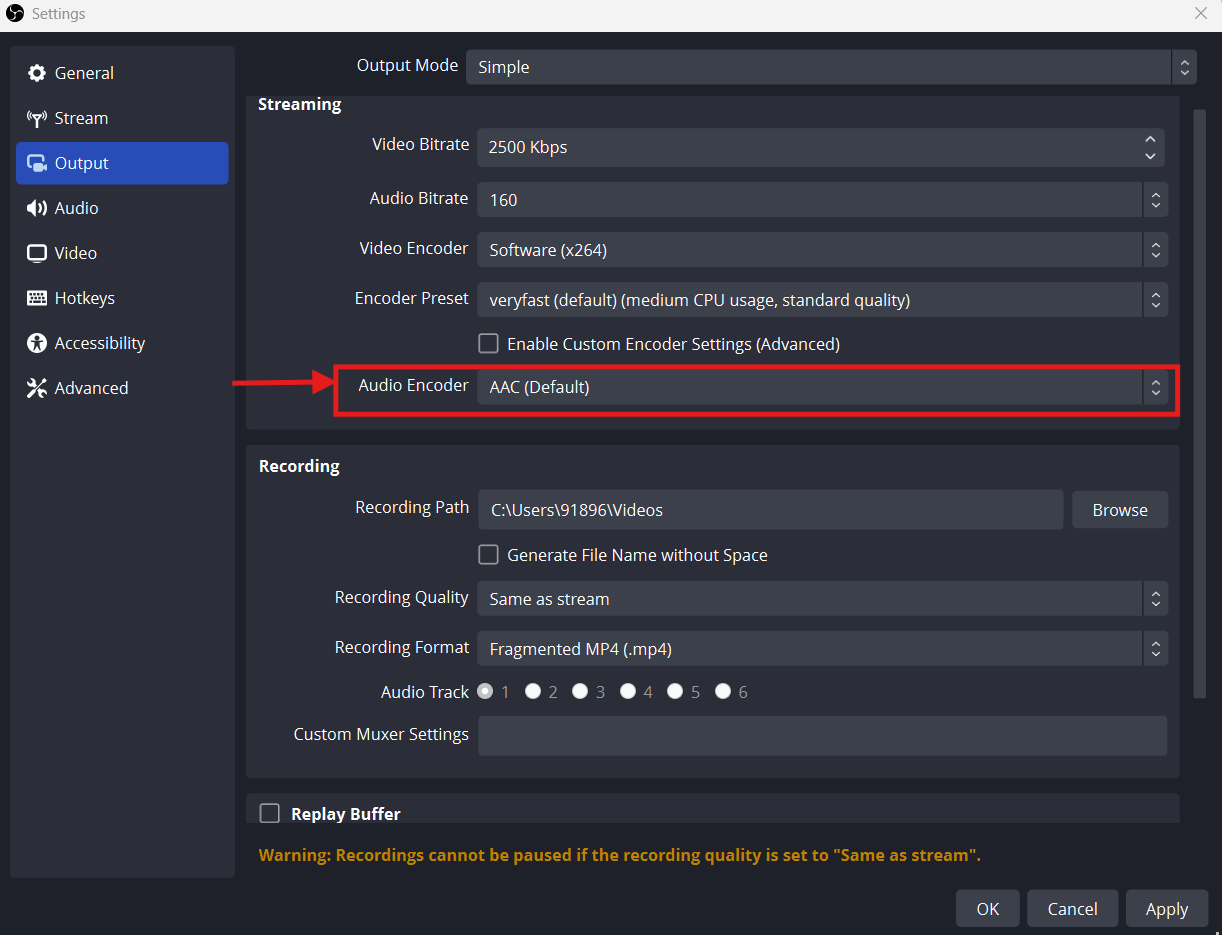
Step 1: Go to the “OBS Settings” and access the “Output” tab. Then, change the output mode to “Advanced” by dragging the dropdown menu.
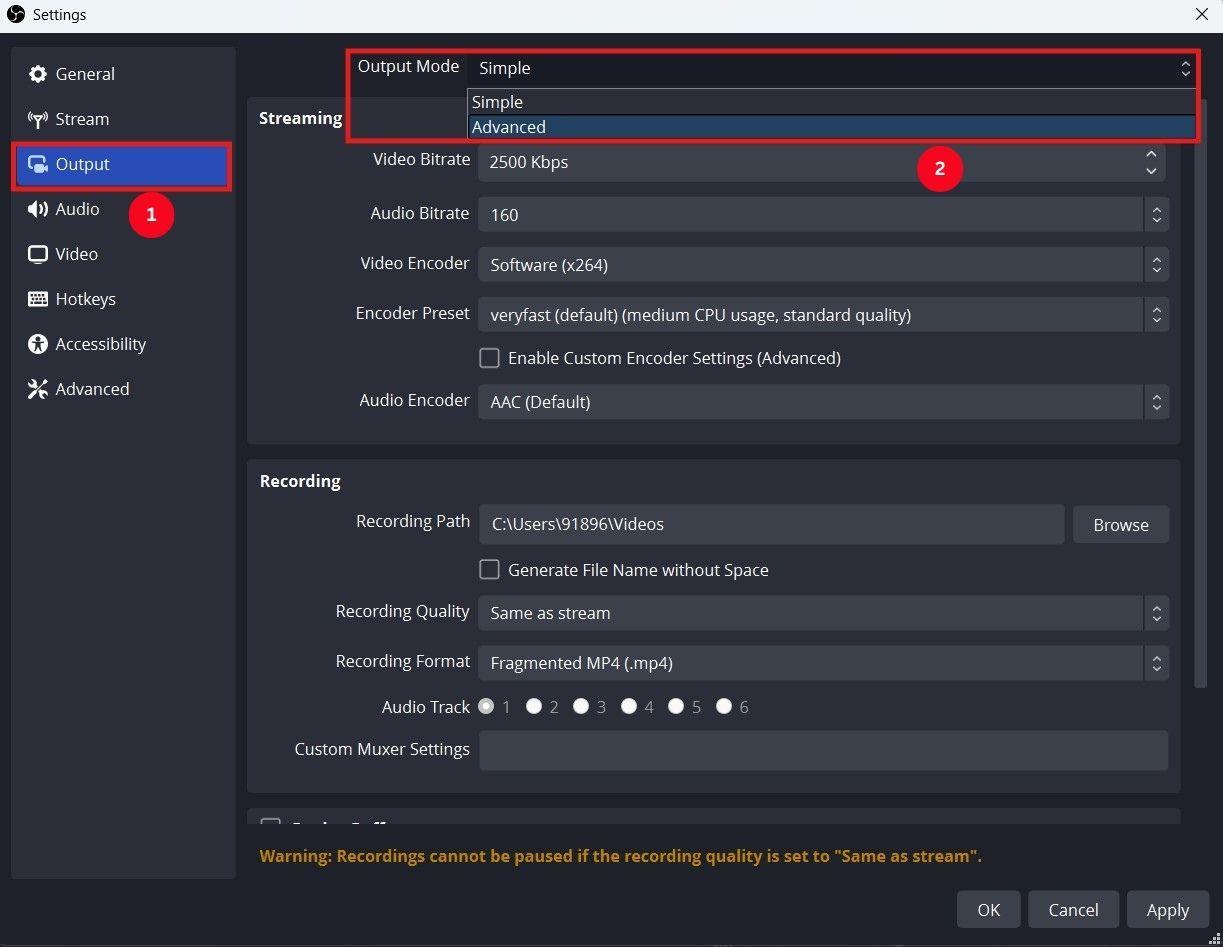
Step 2: Navigate to the “Audio Encoder” dropdown in the “Streaming” section. Here, pick NVENC H.264 to enable hardware encoding on your graphics card.
Way 4: Update Network Driver
The network driver is responsible for connecting the router to the stream server, and an outdated driver can cause sudden FPS drops in games. Follow the steps to update the network driver and ensure lagless streams:
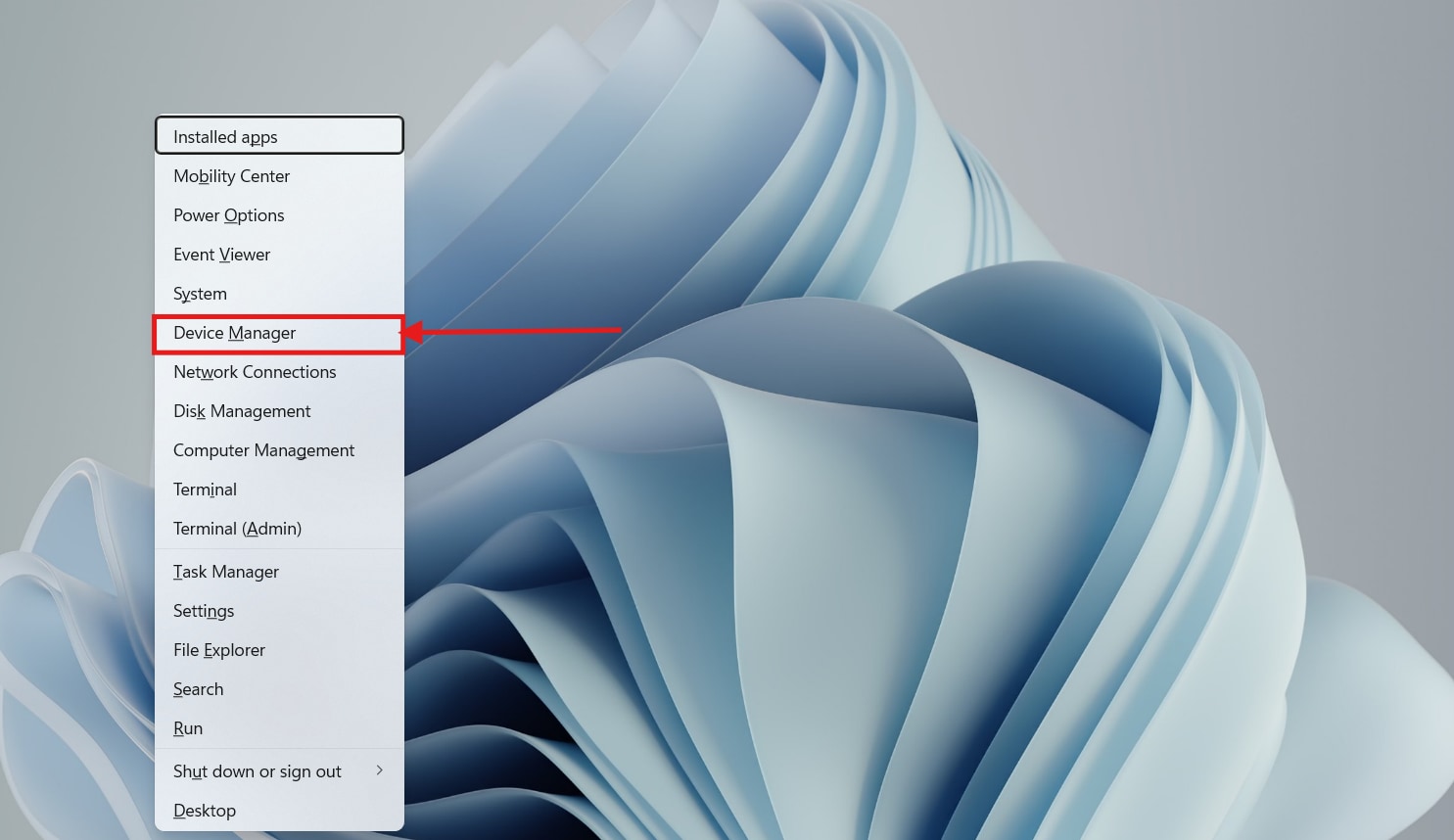
Step 1: Press “Windows + X” on your keyboard and click “Device Manager” from the pop-up menu.
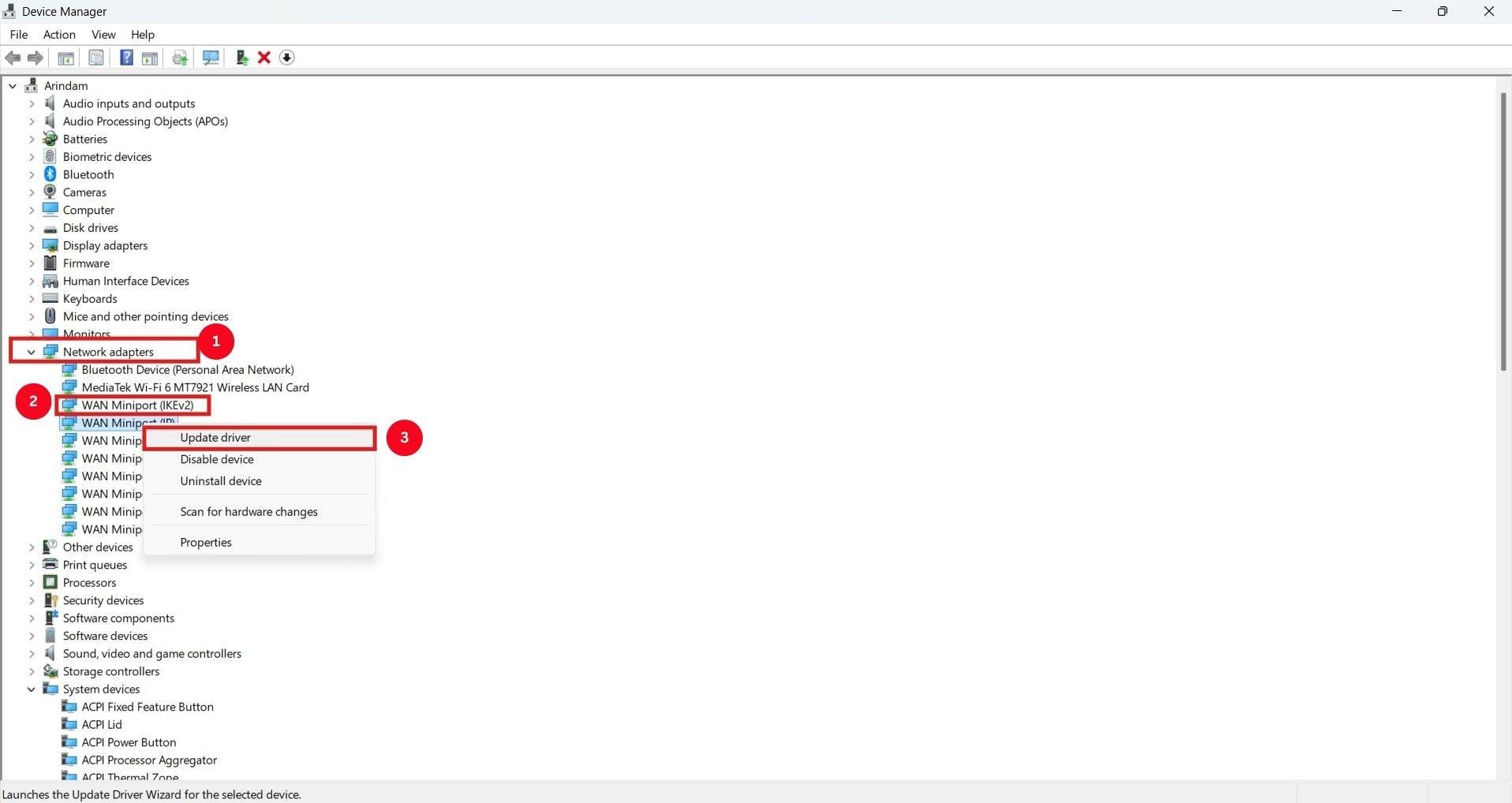
Step 2: Find and expand the “Network adapters” category, and right-click on your current network driver. Then click on the “Update driver” option from the pop-up menu.
Way 5: Disable Firewall
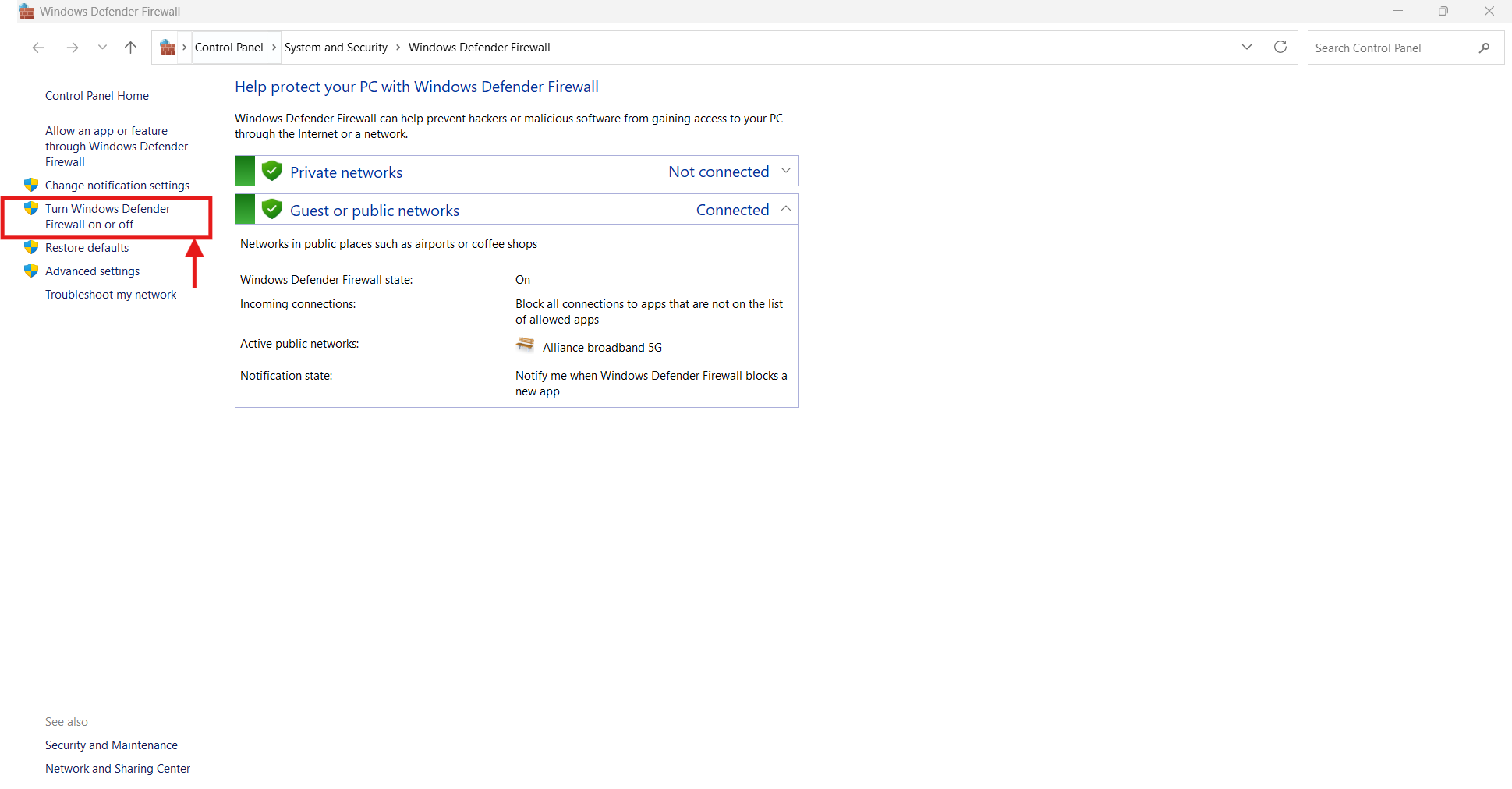
If none of the above-mentioned methods work, you can check your firewall software. The software might interfere with the internet connection, resulting in frame drops. If you have a third-party firewall or antivirus app installed, disable it. Or, to turn off the Windows Defender Firewall, follow the steps in order:
Step 1: Access the “Start” menu, search for firewall and click on “Windows Defender Firewall.”
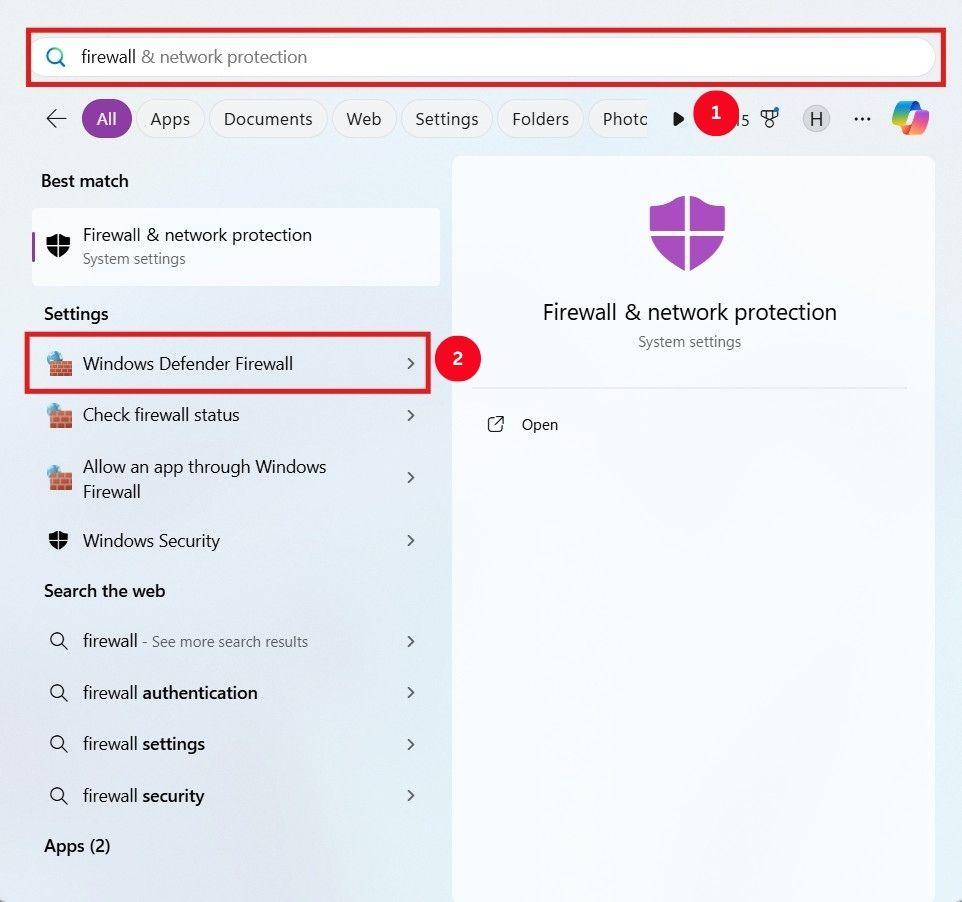
Step 2: On the new window, click the “Turn Windows Defender Firewall on or off.”
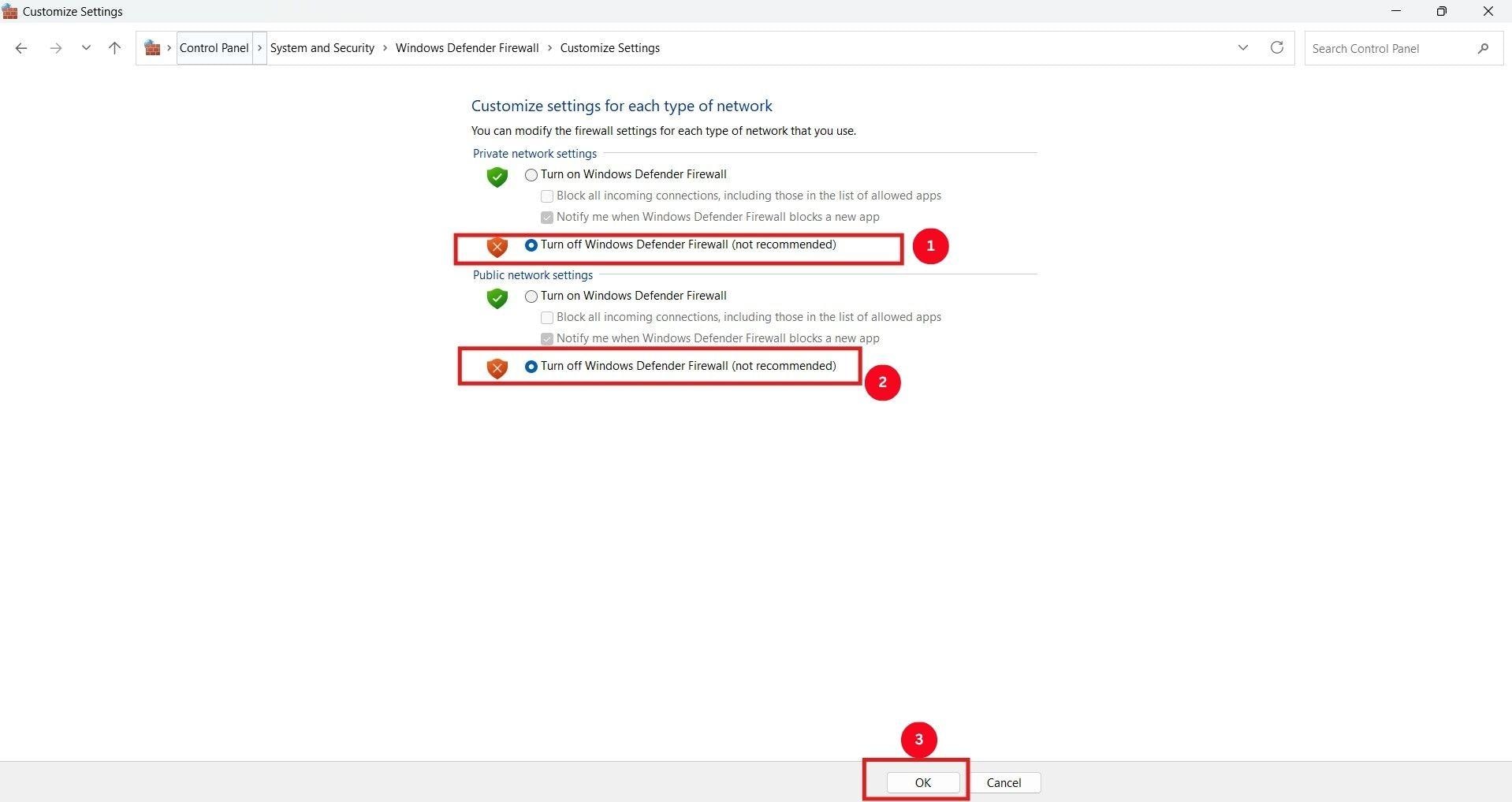
Step 3: Then, click the checkbox next to “Turn off Windows Defender Firewall” for both public and private networks, and click “OK.”

Batch Video Interpolation Made Easy
Part 3. Five OBS Alternatives to be Considered
If you have tried the mentioned solutions, but the OBS is still dropping frames, it’s time to switch to a different screen recording software. One that is simple to use and lets you record and edit videos without any lag. The listed tools fulfill most of the criteria:
1. Wondershare UniConverter
Best for computer screen recordings
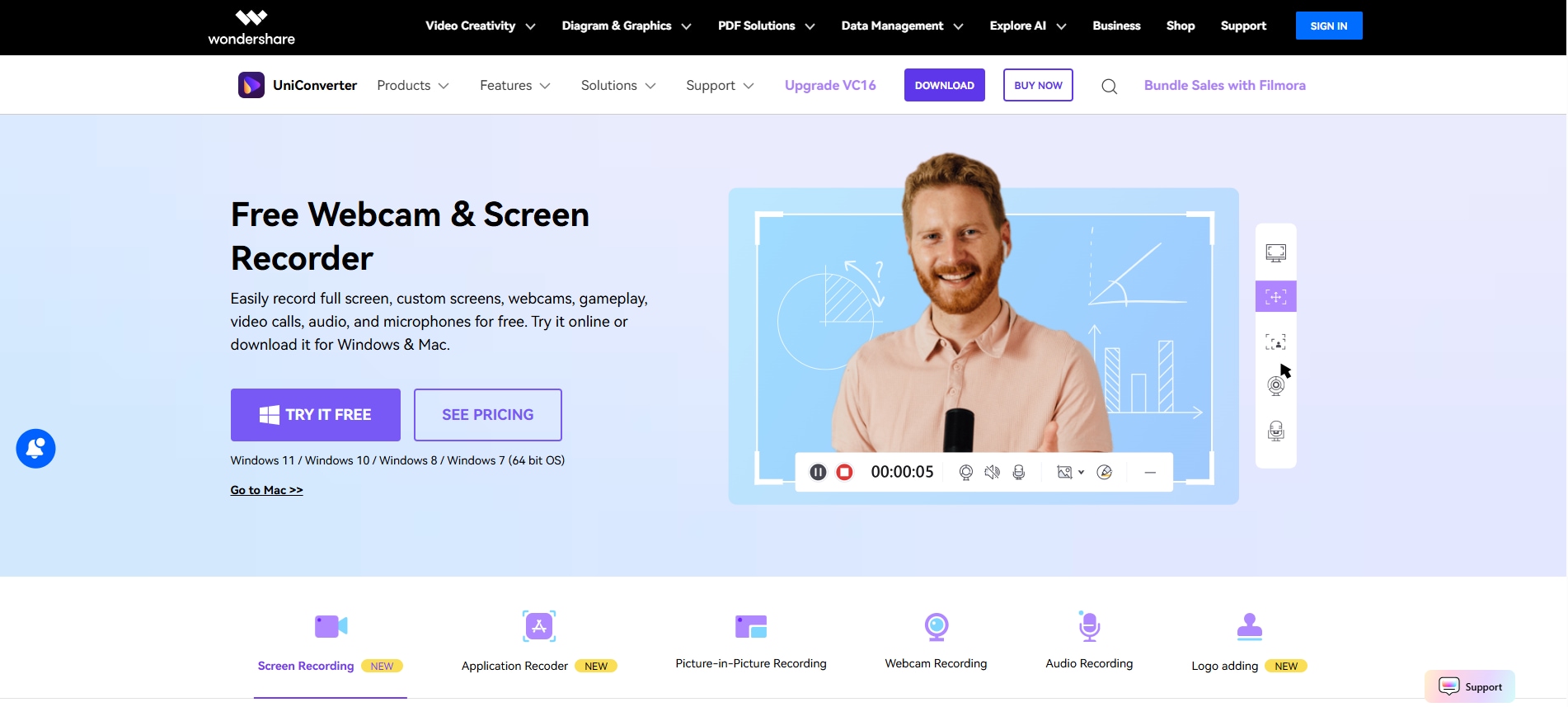
Wondershare UniConverter video recorder is a top OBS alternative that records your computer screen in high quality. Its simple interface lets you record your entire display or a part of it, as needed. During recording, you can highlight subjects using annotations, such as arrows, squares, lines, and other shapes, to help viewers better understand the content. Additionally, it allows you to add system sounds, voice narrations, and webcams while recording the stream.
Key Features
- Record your whole computer screen or a part, as needed.
- Preset the output quality, frame rate, recording timer, and folder path.
- Voice changer that adds newness to your live streams and online classes.
- Noise remover feature automatically denoises the background noise in your recorded video.
2. Riverside
Best for recording high-quality podcasts and live streams

Riverside.fm is another great alternative to OBS. It can record high-quality audio and video calls, as well as live stream on YouTube, Facebook, Twitch, and Twitter. You can also play music, clips, and effects during recording sessions. Just select from the tool's audio library or import your audio files. Also, its screen-sharing feature can be helpful for podcasters or live streamers to discuss articles or reports.
Key Features
- Magic editor feature that lets you trim unwanted sections and add music and transitions.
- Record calls, streams, videos, and podcasts.
- Recording, previewing, and exporting capabilities on mobile devices.
- Add sound effects and other media during recordings.
3. XSplit
Best for Twitch and YouTube streamers
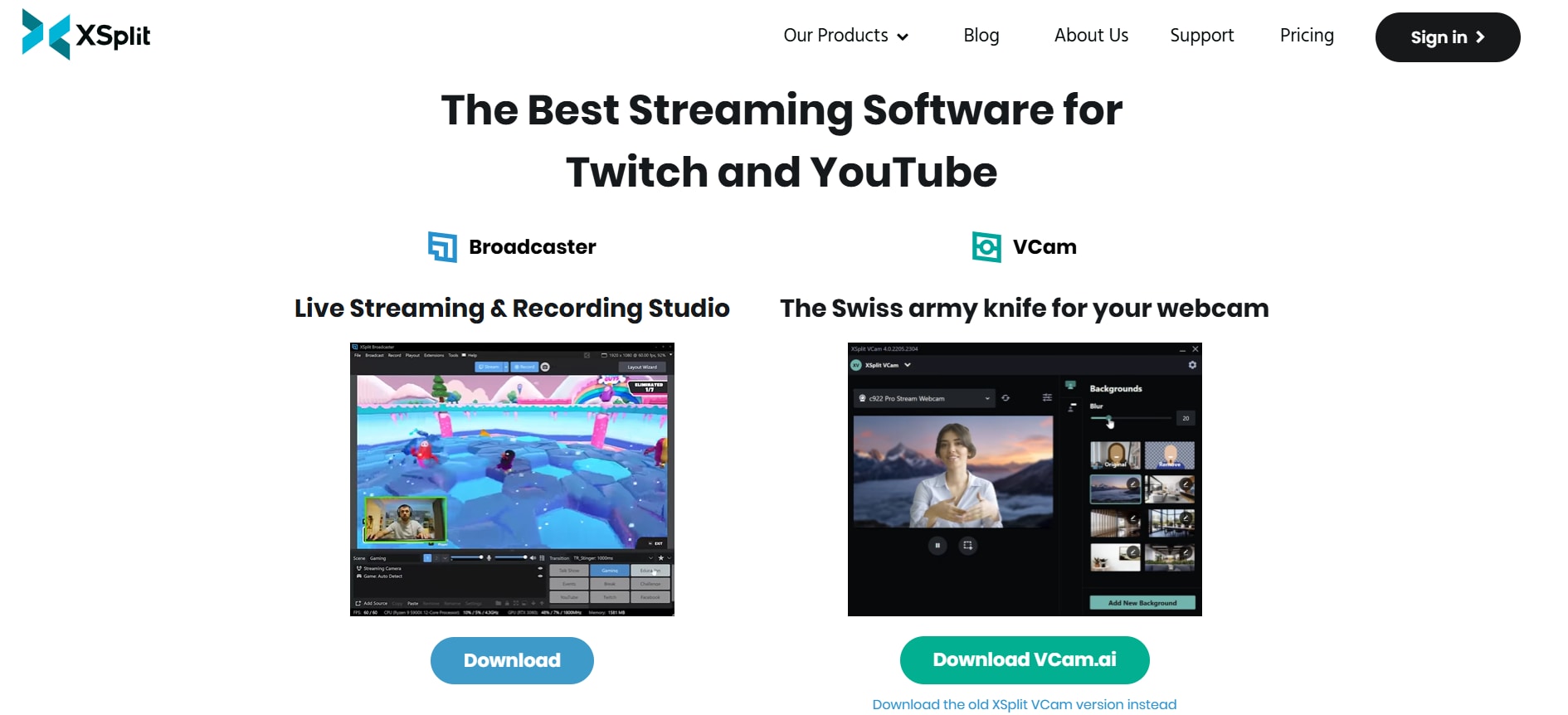
If you aren’t technically sound and struggle when fps drops in all games, then XSplit can be a viable alternative to OBS Studio. You can stream directly on Twitch, and there are fewer compatibility issues. It supports a variety of media sources, including webcams, gameplay, images, videos, and more. Furthermore, XSplit features a simulated green screen, which is not available in OBS. It allows users to remove, replace, or blur their background without needing a physical green screen.
Key Features
- Live stream on platforms like YouTube, Twitch, and Facebook, as well as record local files.
- Customize your streams with overlays, logos, and branding elements.
- Offers advanced features, including scene switching and source masking.
- Provides options to record multiple scenes simultaneously.
4. Streamlabs
Best for beginner live streamers
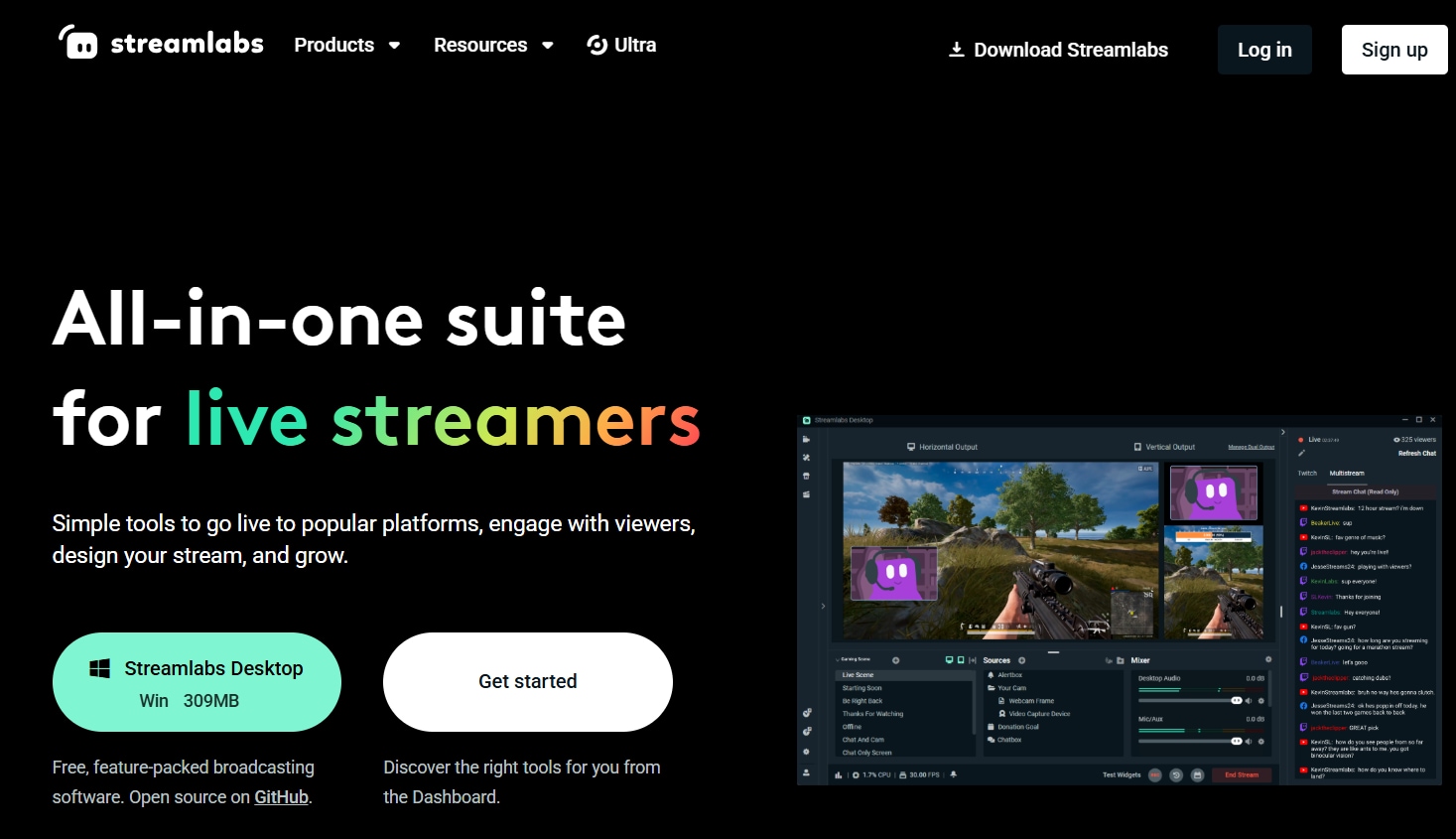
Streamlabs is an all-in-one livestreaming program that allows creators to record their screen and webcam footage and broadcast it to multiple platforms, including Twitch, YouTube, and Facebook Live. It supports high-quality videos in various formats and features an audio mixer that allows you to customize and optimize your audio output.
If you’re just starting with streaming, the preview feature of Streamlabs can be handy. You can use it to run a test stream, check the audio output and your appearance, and make necessary adjustments before going live.
Key Features
- Test feature to troubleshoot before going live.
- Built-in chat platform to chat with audiences directly.
- Free themes and overlays for easy customization.
- An audio mixer lets you customize and optimize your audio output.
5. ScreenPal
Best for beginners and one-timers
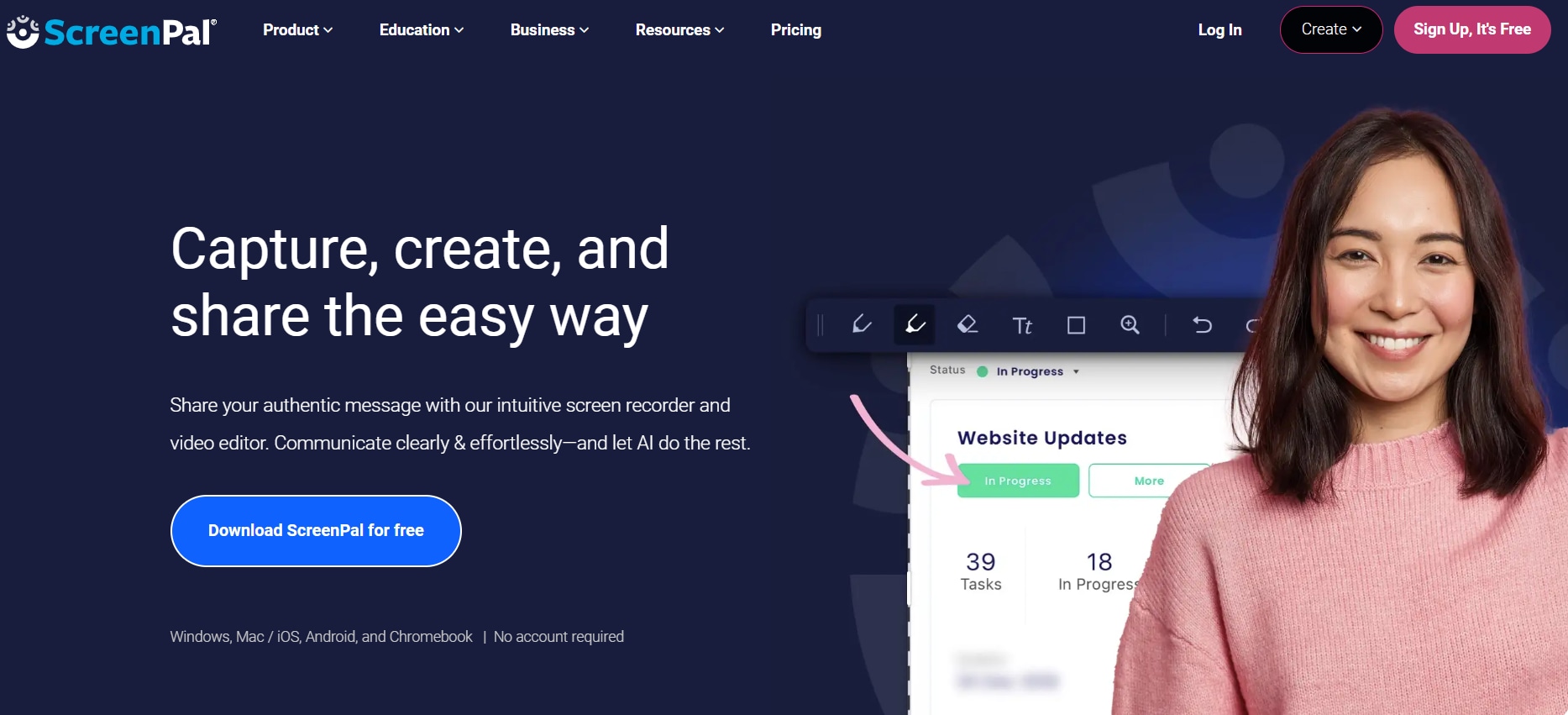
If you’re looking for a simple and easy-to-use alternative to OBS Studio, then check out ScreenPal. The tool is suitable for beginners, provides free access, and doesn’t require a sign-up. There are three recording modes on offer: webcam, screen, or both. You can blur, draw, add text, or replace the background of your recording, as well as cut, crop, or adjust speed. Besides, the tool isn’t very graphics-intensive, so the chances of frame rate drops on your laptop are low.
Key Features
- Takes screenshots while recording.
- Record screens and webcams at up to 720 FPS.
- Create quick video quizzes for audience engagement.
- Edit the recording for better audience engagement.
Conclusion
Frame drops in OBS are concerning as they affect your streaming quality and potentially the audience's viewing experience. This guide outlines the possible reasons and steps to resolve the issue. If the problem persists, try using Wondershare UniConverter. It’s one of the top alternatives to OBS Studio, offering high-quality recordings and features such as a voice changer and noise remover. It can also enhance your video quality using advanced algorithms.
Batch Video Interpolation Made Easy
FAQs
-
1. Why does the FPS drop when streaming?
High GPU usage or a poor internet connection are possible reasons for FPS drops when streaming. To resolve the issue, try enabling the hardware encoder or connecting the router directly to your computer. -
2. How do I stop frames from dropping?
To prevent frame drops, you can close the background process, update your network or graphics driver, or stop the Windows firewall. If that's the case, try to resolve the internet connection issue. -
3. How to make OBS run smoother?
To ensure OBS runs more smoothly, you must make specific adjustments to the settings. For example, you can lower the resolution or bitrate, update the network driver, or enable hardware encoding.

