

Are you tired of downloading bulky software just to change a simple file format? You are not alone. Online file converters remain incredibly popular because they offer a quick, friction-free way to process media directly in your browser. Whether you need to extract audio for a project or format a document for work, web tools promise instant results.
The Zamzar converter is one of the oldest and most widely recognized platforms in this space. But does it truly hold up against modern, heavy-duty media demands? In this comprehensive review, we will explore exactly who this tool is built for. We will cover its core features, pricing plans, and real user feedback. Furthermore, we will analyze its actual performance, its limitations, and how it compares to a powerful desktop alternative.
Table of Contents
Part 1. What Is a Zamzar Converter? Features, Supported Formats & How It Works
Founded in 2006, the Zamzar converter is a cloud-based platform that has served millions of digital users globally. It operates entirely within a web browser without requiring local plugins, eliminating the friction of downloading unknown software to a hard drive. While the system focuses on occasional format switching rather than heavy media editing, it delivers impressive versatility by supporting more than 1,200 distinct file types. From everyday video, audio, image, and document extensions to specialized formats like CAD drawings and older eBooks, the platform easily handles mixed media requirements in one accessible location.
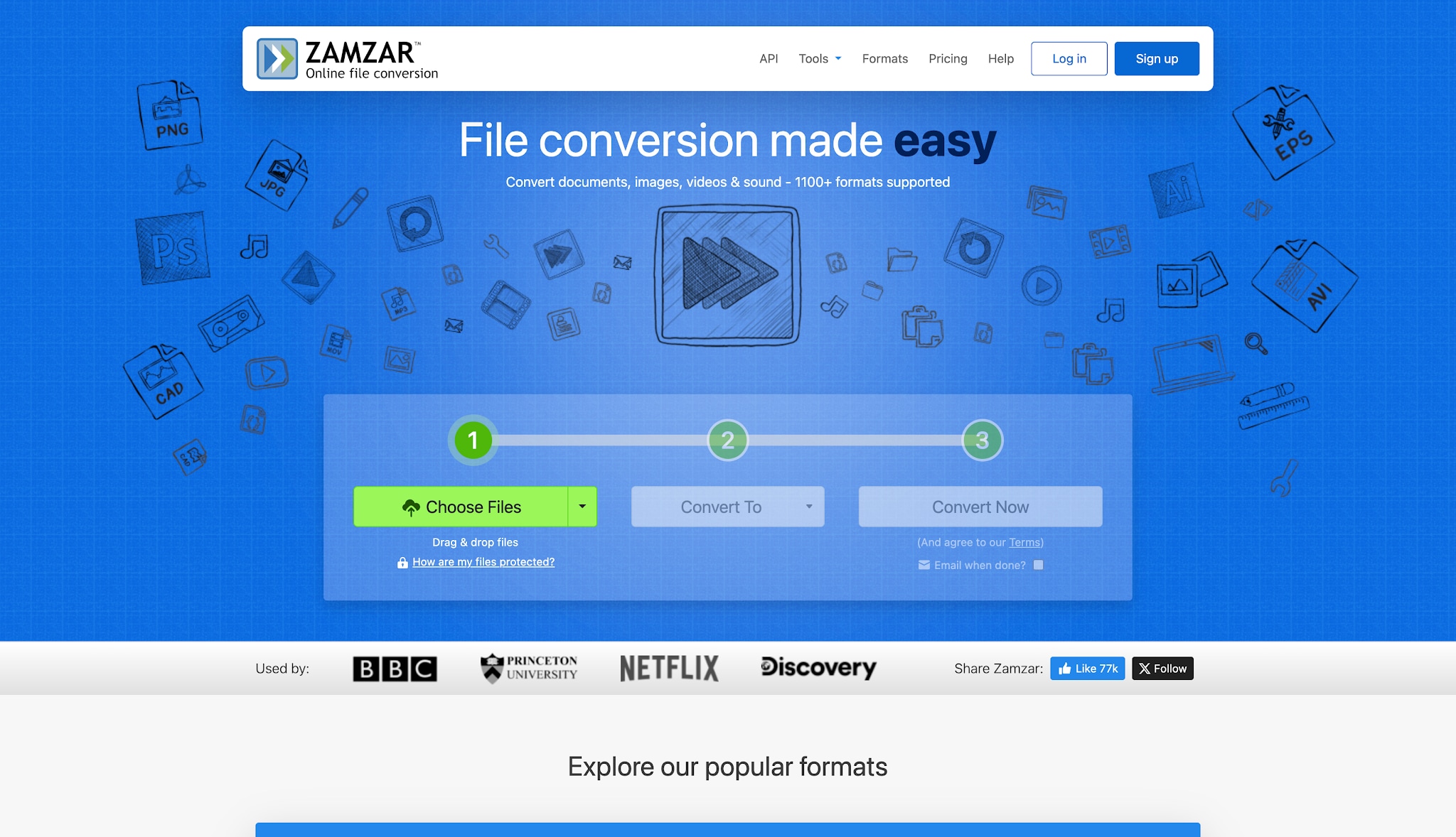
Key features
Zero Installation Required: Converts files directly inside a web browser with no software or plugin downloads required.
Cross-Platform Compatibility: Operates smoothly across Windows, macOS, Linux, iOS, and Android systems.
1,200+ Supported File Formats: Handles audio, video, documents, images, eBooks, CAD files, and compressed archives.
Multi-Source Cloud Uploads: Imports files directly from local device storage, direct URLs, or cloud platforms like Google Drive, Dropbox, Box, and OneDrive.
Batch File Conversion: Uploads and processes multiple files simultaneously to accelerate standard workflows.
Email Notifications & Delivery: Sends an automated email notification with a direct download link once processing finishes, eliminating the need to wait on the page.
Developer API Integration: Offers an automated API with webhook support for businesses seeking to embed conversion capabilities into custom applications.
How Zamzar MP4 to MP3 Conversion Works
Converting an MP4 video to an MP3 audio file using Zamzar's web interface requires 3 simple steps:
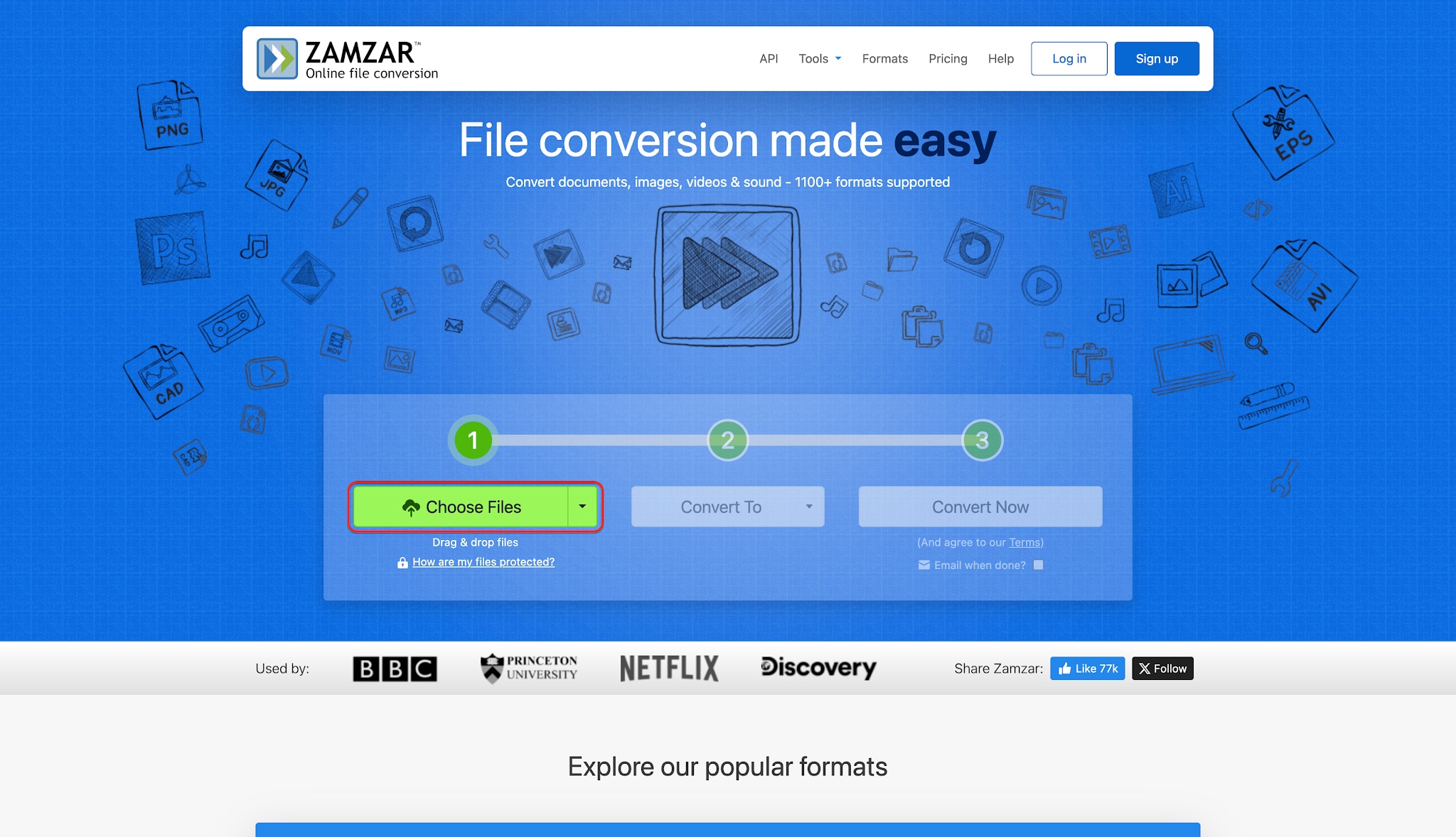
Step 1: Upload/ drag and drop your MP4 file
Click the green Choose Files button to select your MP4 video from your computer or cloud storage, or drag and drop the file directly into the blue upload area.
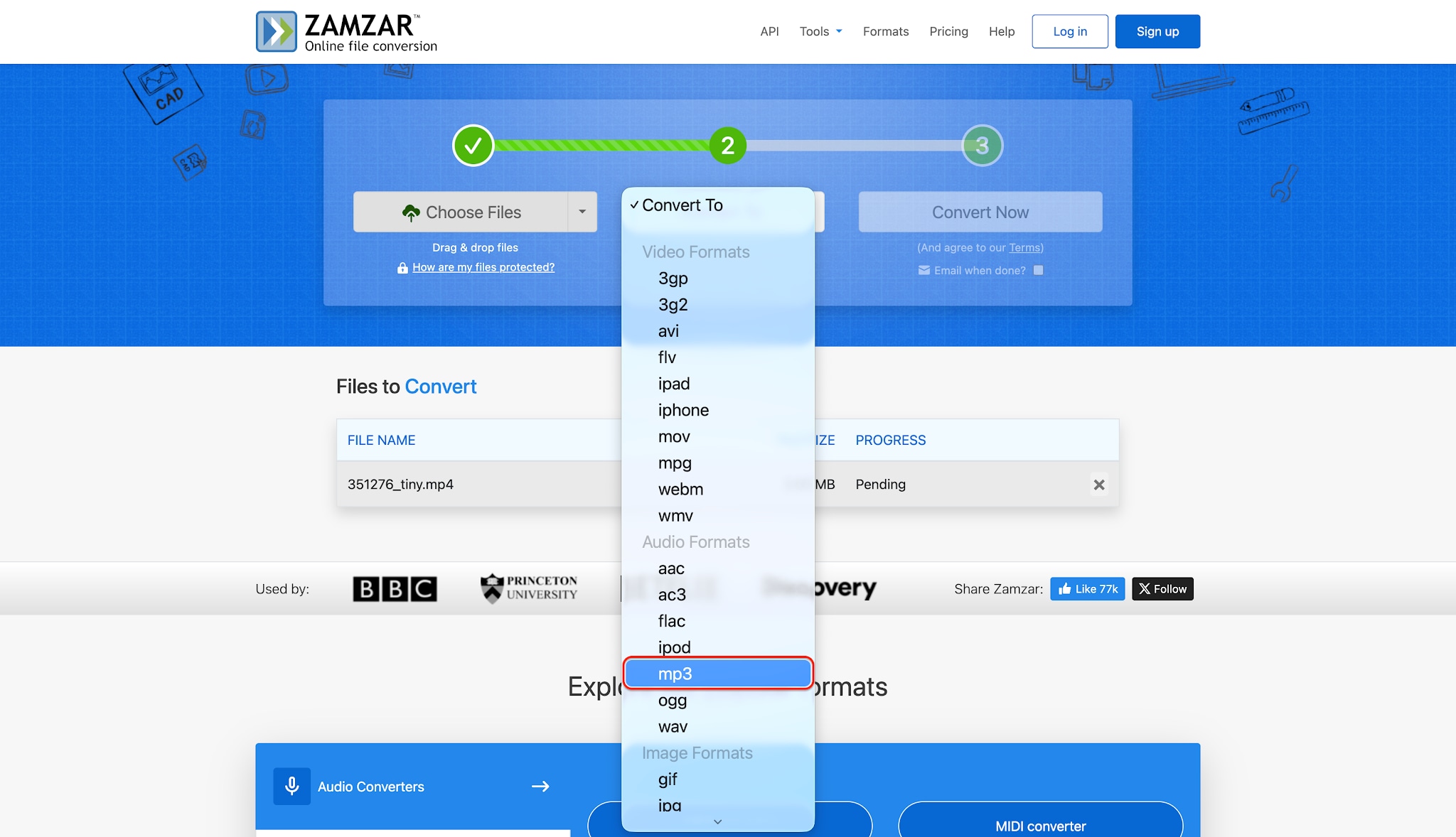
Step 2: Select MP3 as the output format
Click the Convert To drop-down menu, navigate to the Audio Formats section, and select mp3.
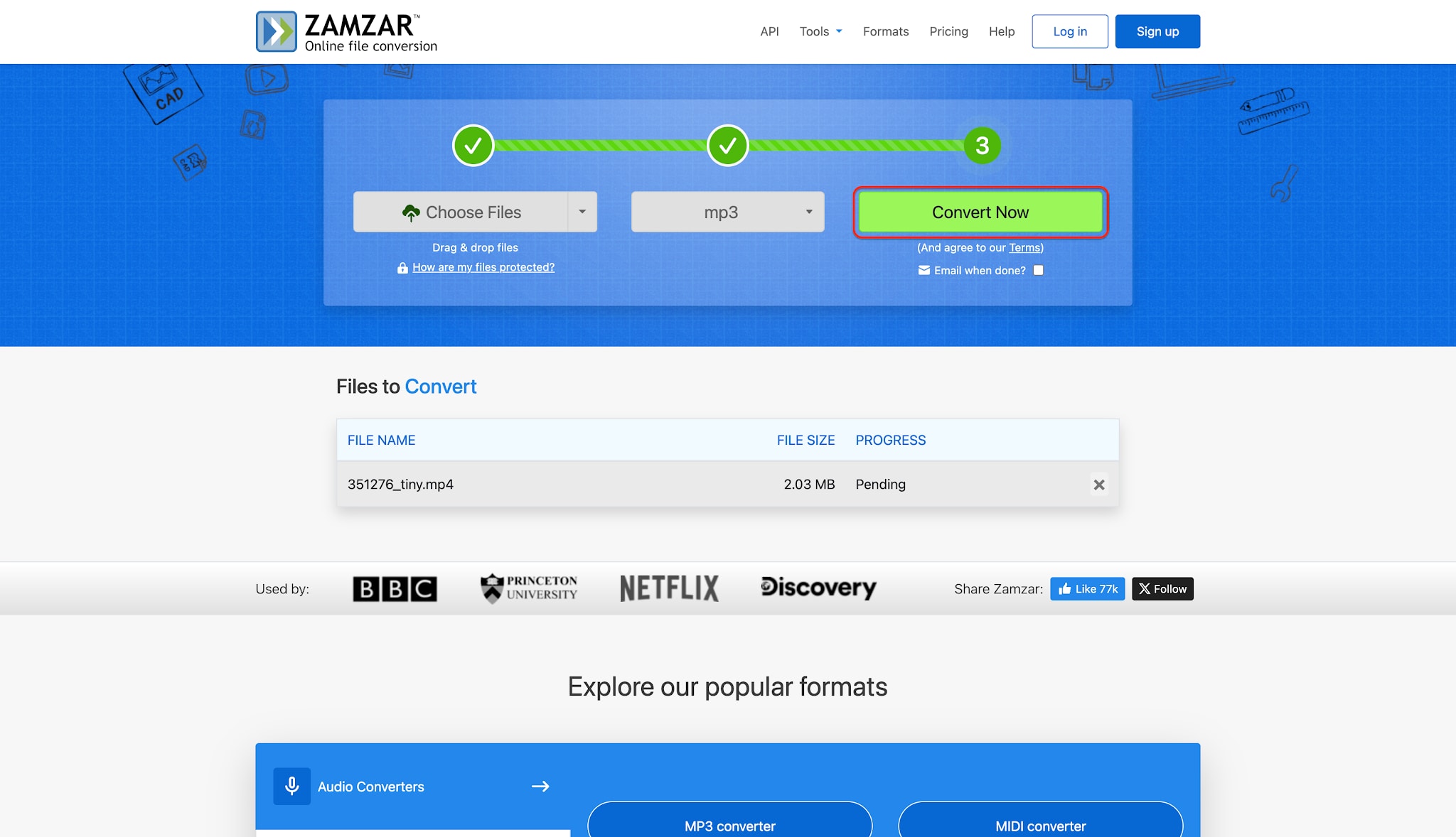
Step 3: Convert and download
Click the green Convert Now button to start processing. Once the conversion finishes, click Download to save your extracted MP3 file to your device.
Best use cases
Students: Change document formats quickly before assignment deadlines.
Office Professionals: Prepare presentations or fix broken image extensions easily.
One-Time Media Fixes: Process lightweight files instantly without needing technical skills.
Casual Users: Handle simple format changes, as heavy content creation falls outside its intended scope.
Part 2. Zamzar Converter Performance: Real-World Testing
To see how Zamzar holds up in daily workflows, we put its speed, output quality, and reliability through real-world testing.
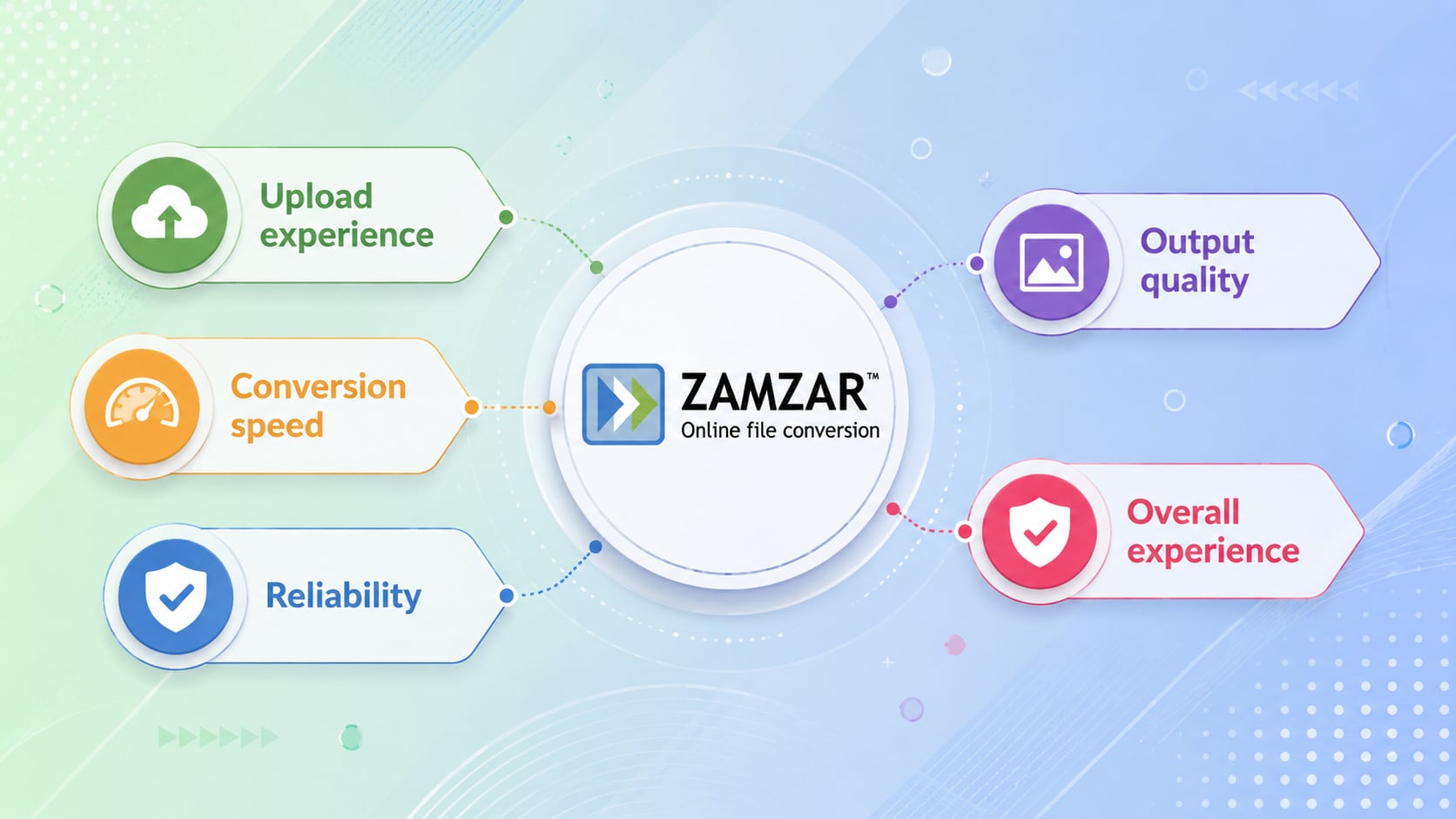
Upload experience
The web interface remains clean and remarkably distraction-free. Navigation is highly intuitive, even for complete beginners exploring file types. Drag-and-drop functionality speeds up the initial file selection process significantly. It functions seamlessly across modern web browsers like Chrome, Edge, and Safari.
Conversion speed
Small text documents process in a matter of a few seconds. Medium-sized images or audio tracks take slightly longer depending on active server load. Large media files often face delays and require extra patience from you. Speed heavily relies on maintaining a fast and stable internet connection.
Output quality
Basic document text retains its original formatting well during shifts. Standard audio extractions, such as a Zamzar MP4 to MP3 task, sound crisp. Video outputs occasionally suffer from minor visual artifacts if heavily compressed online. The platform prioritizes overall file accessibility over pristine, lossless media quality.
Reliability
The service maintains high server uptime for everyday casual tasks. Failed processes are rare but do happen with corrupted source files. Queue times increase slightly for free users during peak global usage hours. A dropped internet signal will immediately interrupt the entire active upload process.
Overall experience
The primary strength of the Zamzar converter is its sheer convenience. Anyone can change a file type in three clicks without reading manuals. However, the restrictive file size limits often frustrate frequent digital creators. It functions beautifully as a reliable backup tool rather than a main driver.
Part 3. Zamzar Converter Pricing: Free vs Paid Plans
Zamzar offers a free tier alongside 3 paid subscription plans tailored to different file size limits and processing volumes.
Free plan limitations
Unregistered visitors face a strict 50MB maximum upload cap per file. This limit prevents processing modern high-definition videos captured on smart devices. Free accounts also enforce daily conversion limits. The free tier works best for casual, low-volume requirements.
Basic plan
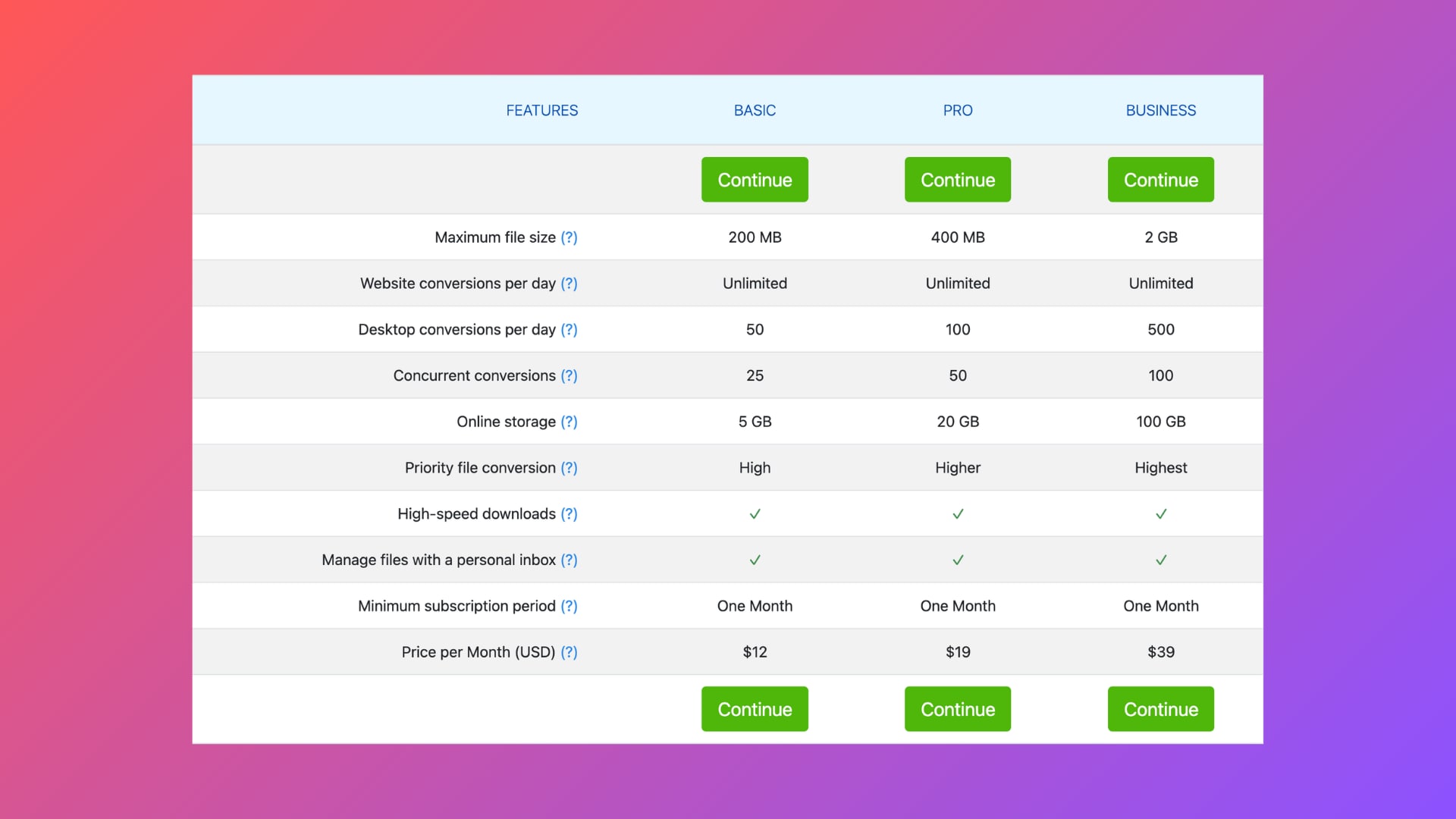
Priced at $12 per month, the Basic plan expands the maximum file size limit to 200MB. It includes 5GB of online storage, 25 concurrent conversions, and 50 daily desktop conversions. Subscribers also receive high-priority file conversion and high-speed downloads. It suits freelance writers or independent bloggers managing web images.
Pro plan
The Pro plan costs $19 per month and increases the file size allowance to 400MB. It offers 20GB of cloud storage, 50 concurrent conversions, and 100 daily desktop conversions. Higher-priority conversion speeds help streamline moderate daily workflows without local hardware. Small business teams benefit from the expanded online storage capacity.
Business plan
Priced at $39 per month, the highest tier supports individual files up to 2GB in size. It provides 100GB of online storage, 100 concurrent conversions, and 500 desktop conversions per day. Highest-priority conversion processing ensures smooth operations for heavy media assets. This tier caters directly to collaborative teams requiring maximum web throughput.
Which users each plan suits
Free Plan: Students and casual users handling occasional text documents or small image files.
Basic & Pro Plans: Freelancers, bloggers, and independent professionals managing regular web graphics and light media.
Business Plan: Enterprise teams and collaborative groups requiring consistent, high-volume web processing for larger assets.
Is the subscription worth paying?
Paying for a cloud service makes sense for office-based document management. However, professional video editors might find the 2GB maximum file limit too restrictive for 4K media. Desktop alternatives often provide better long-term value and offline privacy for heavy multimedia project work.
Part 4. Honest User Reviews: What Customers Like and Dislike
To understand how the platform performs daily, we gathered authentic user reviews from Trustpilot, G2, and Capterra.
Positive reviews
Harald Siemon relied on the tool as a Linux user. He praised its cross-OS utility for converting DOC files into PDFs smoothly without MS Office.
Qazi Nauman Mujahid called it a highly reliable platform. He noted it is the "Best PDF conversion tool available on internet" with "no scam" involved.
Indrajeet D. highlighted the seamless interface. He stated, "The platform makes it easy to convert files without any hassles. It's all drag-and-drop."
AG praised the API backend stability. He noted the developer tier has been "rock solid over the last couple of years with no down time."
Common complaints
Anonymous G2 Reviewer expressed frustration over the free tier limits. They noted, "The file size limit is a little low, can be increased for regular users."
Shanker Arvind I. criticized the processing speeds for heavy media. He warned that a "longer size file takes huge time to convert."
UH. found the premium business integration lacking. They pointed out that "pricing is high, deployment over cloud is relatively complex."
Overall customer sentiment
Most users love the Zamzar converter for its simplicity and document reliability. It shines when handling quick, small files. However, the recurring weaknesses center around strict file size caps and slow rendering times for large media.
Part 5. Best Zamzar Converter Alternative: Why Wondershare UniConverter Stands Out
If you need a more robust, offline alternative, Wondershare UniConverter provides a dedicated desktop multimedia toolkit designed for heavier media workflows. It is ideal for photographers, videographers, and content creators who require fast, lossless batch conversions without file size limits or privacy risks. Supporting over 1,000 formats alongside hardware GPU acceleration, it effortlessly processes demanding 4K and 8K media. For professionals needing advanced compression and editing utilities, it serves as a practical, high-performance desktop software option.

Why it outperforms browser converters
130x GPU acceleration: Hardware acceleration utilizes local graphics processing to render media files at unprecedented speeds. This eliminates server queue delays commonly experienced with web tools.
Unlimited file size: Large 4K and 8K video files process effortlessly without meeting restrictive storage caps. Heavy project workflows run smoothly regardless of file size.
Offline privacy: Local processing guarantees that sensitive corporate documents and personal media remain entirely secure. Files never leave the local drive or upload to external cloud servers.
Batch conversion: Users can batch convert hundreds of media files simultaneously with a single click. High-speed processing prevents browser lag or session timeouts.
Built-in editor: Intuitive tools allow trimming, cropping, and merging raw video clips directly within the application. Adjusting media properties occurs seamlessly prior to final export.
Compressor: Dedicated tools enable users to batch compress massive media files to save storage space. File sizes shrink significantly while preserving original visual quality.
Subtitle editor: Adding, editing, or extracting subtitle tracks happens quickly using automated tools. Precise timing controls ensure captions align perfectly with audio tracks.
Disc burner: Built-in authoring tools allow burning digital video files directly onto DVDs or Blu-ray discs. Custom menus and templates complement physical media creation.
How to convert files
You can batch convert your media effortlessly using this desktop software.
Step 1: Upload your media files
Launch the software and navigate to the main Converter interface on your desktop. Click the designated + Add File button to browse your local hard drive. Select your chosen media and load it directly into the secure workspace.
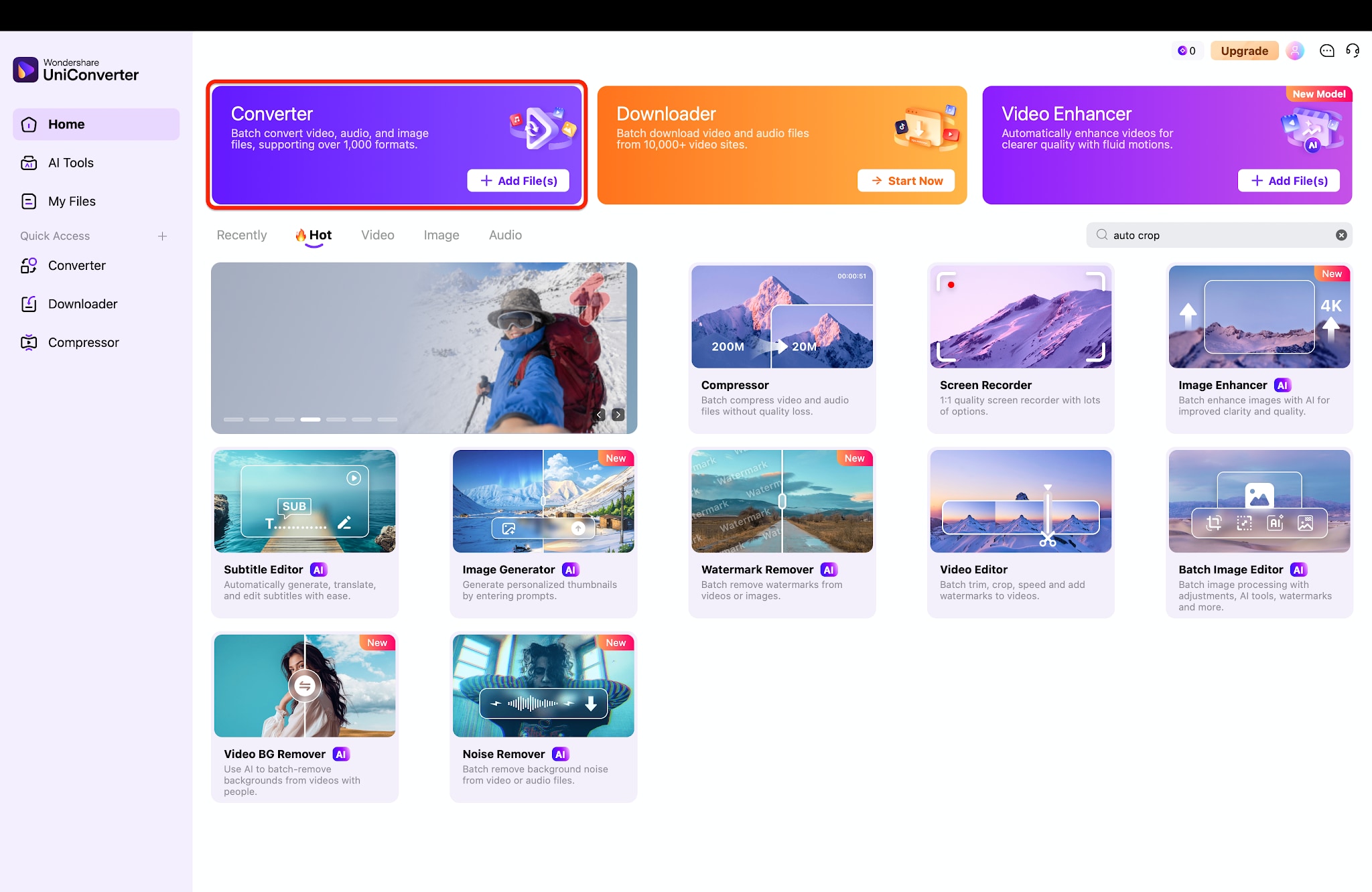

All-in-One Multimedia Processing Tool

Step 2: Choose the output format
Click the Convert to menu located at the bottom-left corner of the screen to open the format selection window. Switch to your desired category tab (such as Audio, Video, or Device), select your target format (like MP3), and choose your preferred quality or bitrate setting (e.g., High Quality – 320 kbps).
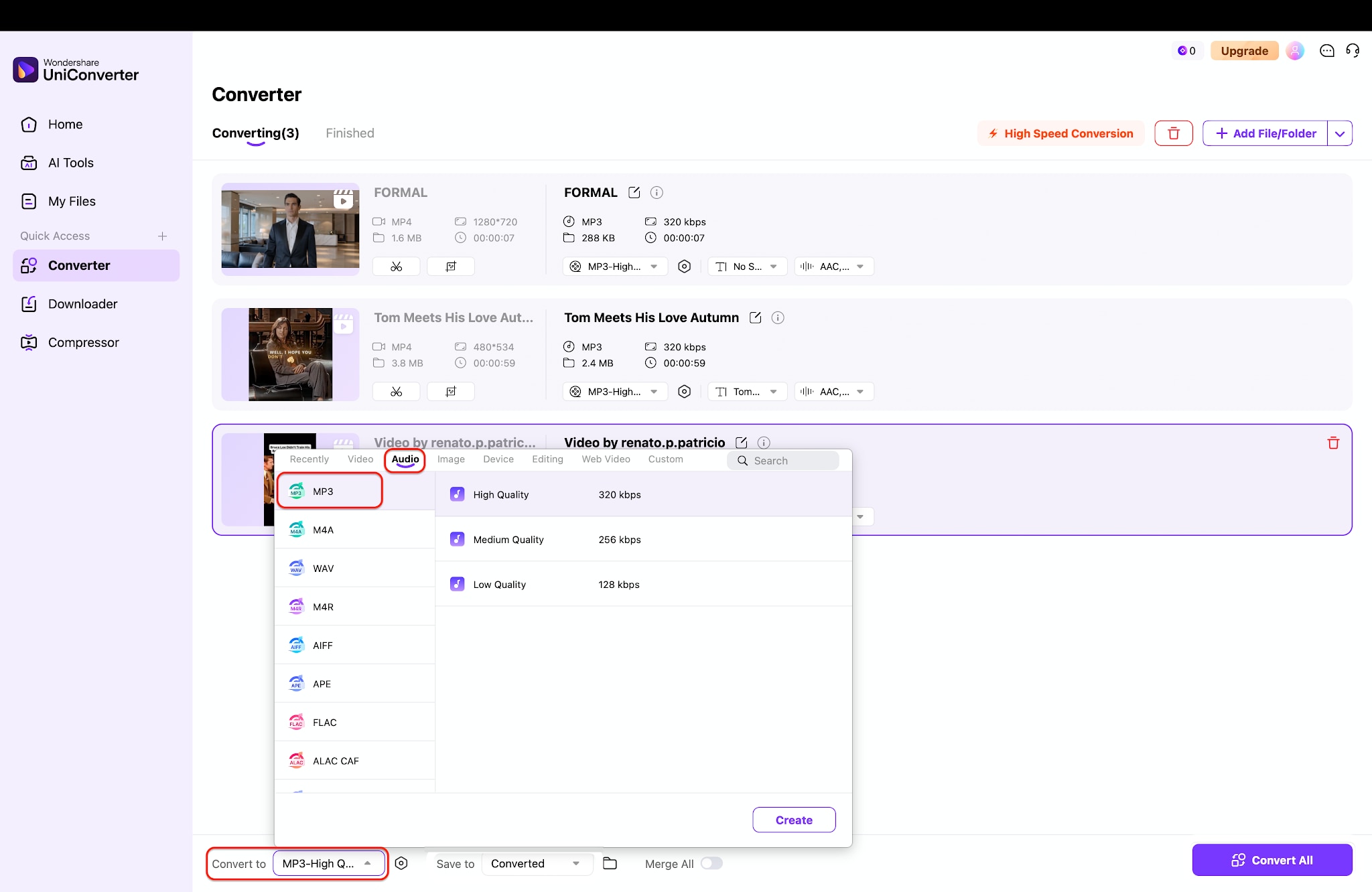
Pro Tip: Enable the High Speed Conversion toggle in the top-right corner to activate GPU hardware acceleration for significantly faster processing.
Step 3: Start the conversion process
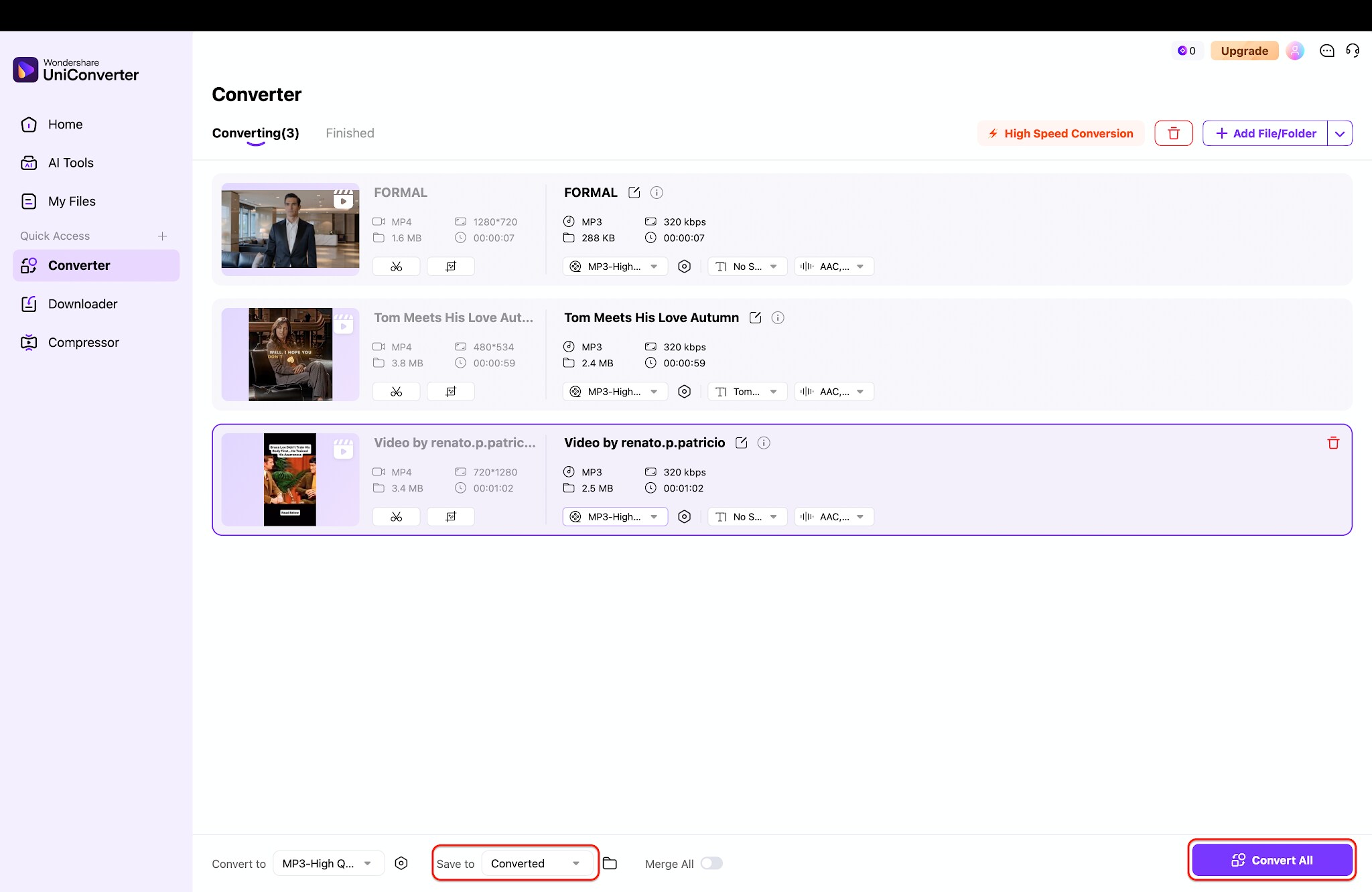
Set your output destination using the Save to menu at the bottom of the window. Once your output settings and folder path are confirmed, click the purple Convert All button in the bottom-right corner to process all queued files at once (or click Convert next to an individual track). The software will rapidly convert your files and notify you upon completion.
Part 6. Zamzar vs UniConverter: Feature Comparison & Core Use Cases
While Zamzar excels as a fast, browser-based tool for quick and lightweight file conversions, Wondershare UniConverter offers a heavy-duty desktop suite designed for offline batch processing, large media files, and advanced editing. The breakdown below highlights how their primary features, performance capabilities, and target use cases compare.
| Feature | Zamzar Converter | Wondershare UniConverter |
| Installation | Browser-only (No install) | Desktop software (Windows/Mac) |
| File size limit | 50MB (Free) | Unlimited |
| Supported formats | 1,200+ (Docs, CAD, Media) | 1,000+ (Specialized Media) |
| Speed | Relies on internet bandwidth | 90x faster GPU acceleration |
| Batch conversion | Throttled / Paid only | Unlimited / High-speed |
| Editing tools | None | Full suite (Trim, crop, effects) |
| Privacy | Cloud servers | 100% Offline and local |
| Offline availability | No | Yes |
| AI features | None | AI enhancer, Auto-subtitles |
| Pricing | Monthly subscription | Perpetual license / Subscription |
| Best users | Casual users, Students | Video editors, Creators, IT |
Which one should you choose?
Zamzar is recommended for:
Quick document conversions: When you need a PDF translated to Word immediately.
Rare file formats: Handling unusual CAD or old eBook extensions.
Occasional users: People who only convert one or two files per month.
UniConverter is recommended for:
Content creators: Anyone needing robust editing and formatting in one place.
Businesses: Teams handling sensitive data that cannot be uploaded to the web.
Video editors: Professionals managing heavy 4K timelines.
Bulk conversions: Processing massive folders of media simultaneously.
Large media: Bypassing strict web upload caps entirely.
Part 7. Final Verdict: Is Zamzar Converter Worth It?
When Zamzar is the right choice: This online service shines brightly when dealing with lightweight text files. Browser access means you can use it from a public computer easily. It remains a highly reliable choice for one-off media format corrections. Basic document formatting tasks rarely require anything more complex or demanding.
When UniConverter is the better investment: Frequent format conversions demand a robust, stable local ecosystem. Handling large video files online wastes valuable time and internet bandwidth. Strict offline security protects sensitive corporate or personal media data effectively. Professional workflows benefit immensely from integrated editing tools and AI-powered media enhancements.
If you regularly handle video files, edit media, or simply hate waiting for cloud uploads, it is time to upgrade. You can process, compress, and edit heavy files securely with Wondershare UniConverter today. Try it and experience true desktop performance.

