


Have you ever struggled to find high-quality, no-copyright sound effects without wasting hours jumping between random websites? Many creators face the same challenge—limited SFX options, confusing usage rights, slow downloads, and no way to batch-save entire playlists efficiently.
This article guides you through the YouTube Audio Library, a trusted and free resource that solves these problems with ease. You’ll learn how to access and use SFX correctly, download them directly, batch-download full playlists, and even speed up the process using a Chrome extension. With clear steps, practical tips, and FAQs, this guide ensures you never waste time hunting for safe, copyright-free audio again.
In this article
Part 1: What is the YouTube Audio Library?
The YouTube Audio Library is a curated and carefully organized collection of high-quality music tracks and sound effects made available directly by YouTube for creators. It’s designed to give YouTubers a safe, reliable, and easy way to enhance their videos without spending money or dealing with the stress of copyright claims. Every track is professionally categorized by genre, mood, duration, and instrument, making it simple for creators to find the perfect audio for any type of content.
The library offers two major benefits:
Completely free: One of its biggest advantages is that it is completely free. All music and SFX in the free audio library can be downloaded and used at no cost whatsoever. There are no subscriptions, hidden fees, or usage limits—making it accessible to beginners, small channels, and large creators alike.
Copyright safe: Another major benefit is that it is copyright-safe. Every audio file in the library is pre-cleared for use on YouTube, ensuring your videos won’t get copyright strikes or monetization issues. Some tracks do require attribution, and YouTube clearly labels these so creators know exactly how to credit the original artist. Many other tracks require no attribution at all.
Because of its reliability, ease of use, and complete copyright safety, the YouTube Audio Library remains one of the most trusted and creator-friendly audio resources online. Whether you need background music, cinematic soundscapes, transitions, or sound effects, it provides everything you need without legal confusion or extra cost.
Part 2: Use Cases of YouTube Audio Library SFX
The YouTube Audio Library SFX can be used in a wide variety of creative projects, making it a versatile resource far beyond YouTube alone. Here are the most common and practical use cases:
1. Content for Other Social Media Platforms
Creators often reuse YouTube Audio Library tracks for Instagram Reels, TikTok, Facebook Videos, and Shorts because they’re easy to access and attribution usually prevents issues. Although this falls outside YouTube’s official license, the risk of copyright problems is generally low. For commercial campaigns, however, broader licensed audio is safer. Still, for quick edits, personal content, or experimental posts, many rely on these SFX as a convenient YouTube Audio Library free download solution.
2. Non-Profit Projects (Student Films, School Presentations, Event Slideshows)
The library is perfect for educational and non-commercial work where creators need clean, professional audio without budget constraints. Students can enhance short films, classroom projects, or documentary-style videos, while event organizers can use SFX for slideshows, award functions, or small community events.
3. Prototyping in Game Development
Game developers often create early prototypes or demos that need placeholder audio to test pacing, atmosphere, or player feedback sounds. YouTube SFX offers a quick, free solution for testing explosions, footsteps, UI beeps, ambient loops, and more—without purchasing expensive sound packs during early development.
4. Personal and Hobbyist Projects (Art, DIY, Craft Videos & Home Videos)
Hobby creators who make tutorials, painting videos, journaling reels, pottery demos, or craft content can use these SFX to add polish and clarity. The library is ideal for personal channels or small creative projects where high-quality sound greatly improves viewer engagement.

Easy to Use YouTube Audio Library Downloader
Part 3: How to Download YouTube Audio Library SFX Directly
Before we dive into the steps, it’s important to understand that downloading SFX from the YouTube Audio Library is extremely simple—YouTube has built the entire process to be quick, direct, and beginner-friendly. Follow these three steps to download any sound effect you need without confusion or extra tools:
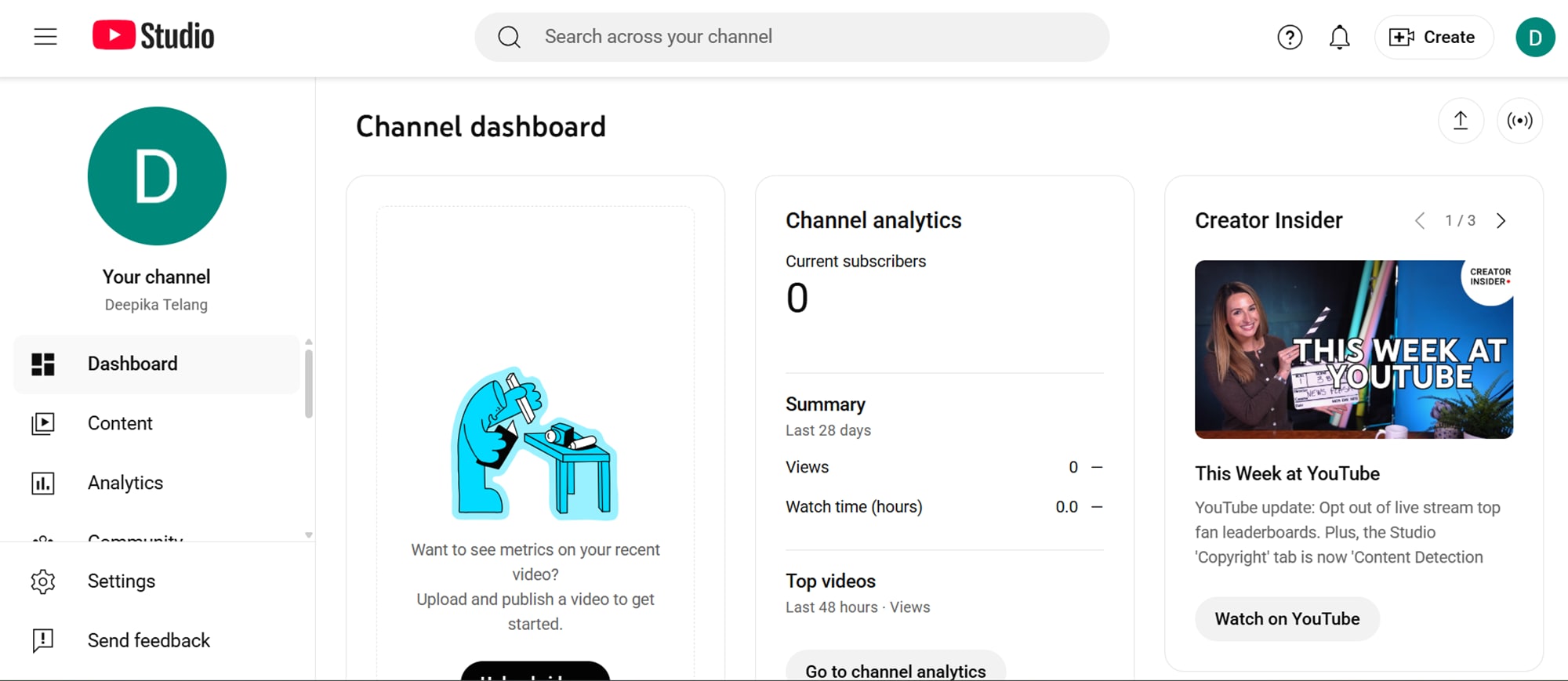
Step 1: Open YouTube Studio
To begin downloading sound effects directly, open YouTube Studio by visiting the official link at studio.youtube.com. Make sure you sign in using the Google account associated with your YouTube channel, as access to the Audio Library requires authentication. Once you’re inside the Studio dashboard, you’ll see a menu on the left that contains all the creator tools you need for managing your content.
Step 2: Navigate to the Audio Library and Open the Sound Effects Tab
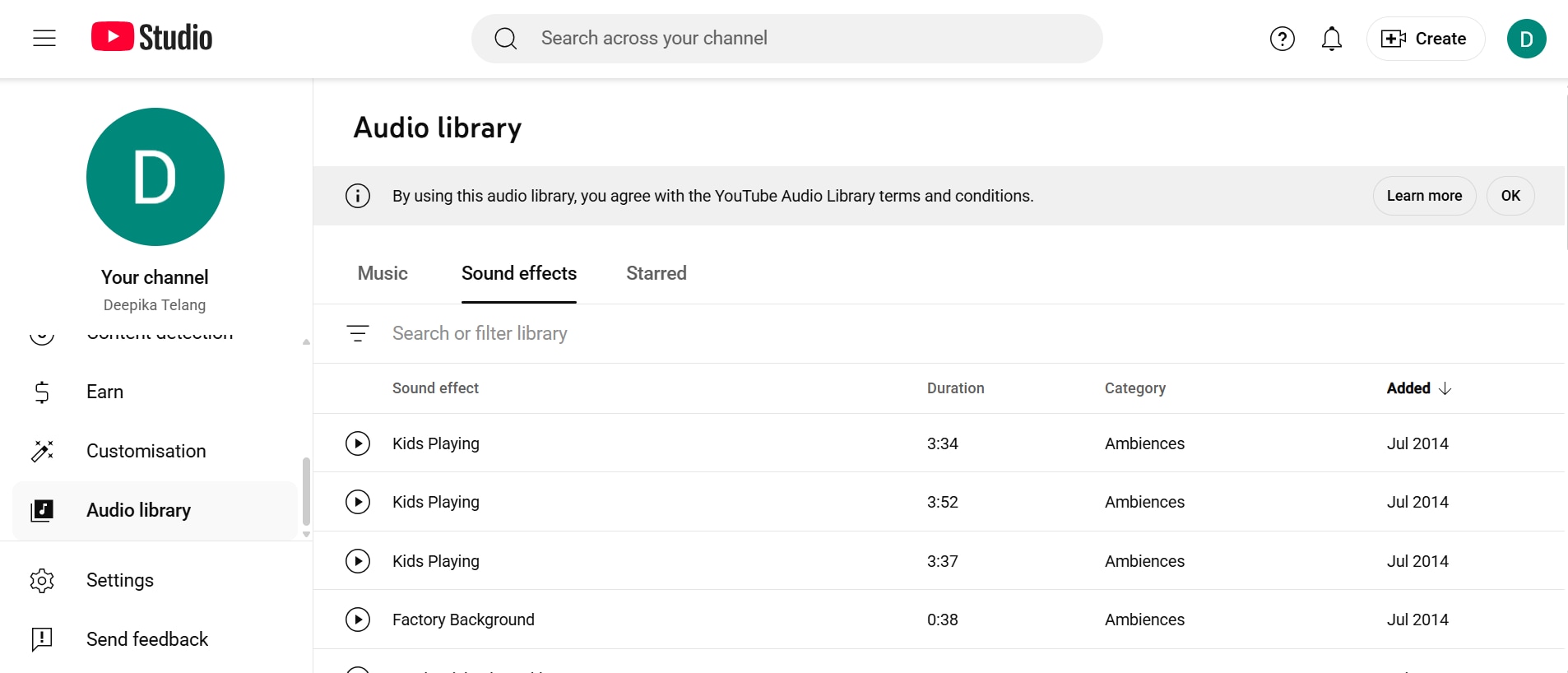
After accessing the dashboard, look at the left sidebar and scroll toward the bottom until you find the Audio Library option.
Once inside the Audio Library, you’ll notice multiple tabs at the top of the page, including Free Music, Sound Effects, and your Starred list. Click on the Sound Effects tab to view the complete collection of SFX available. Here, you can filter by category, type, or mood, or simply use the search bar to find specific sounds that fit your video needs. This helps you quickly narrow down the perfect effect without endless scrolling.
Step 3: Preview the SFX
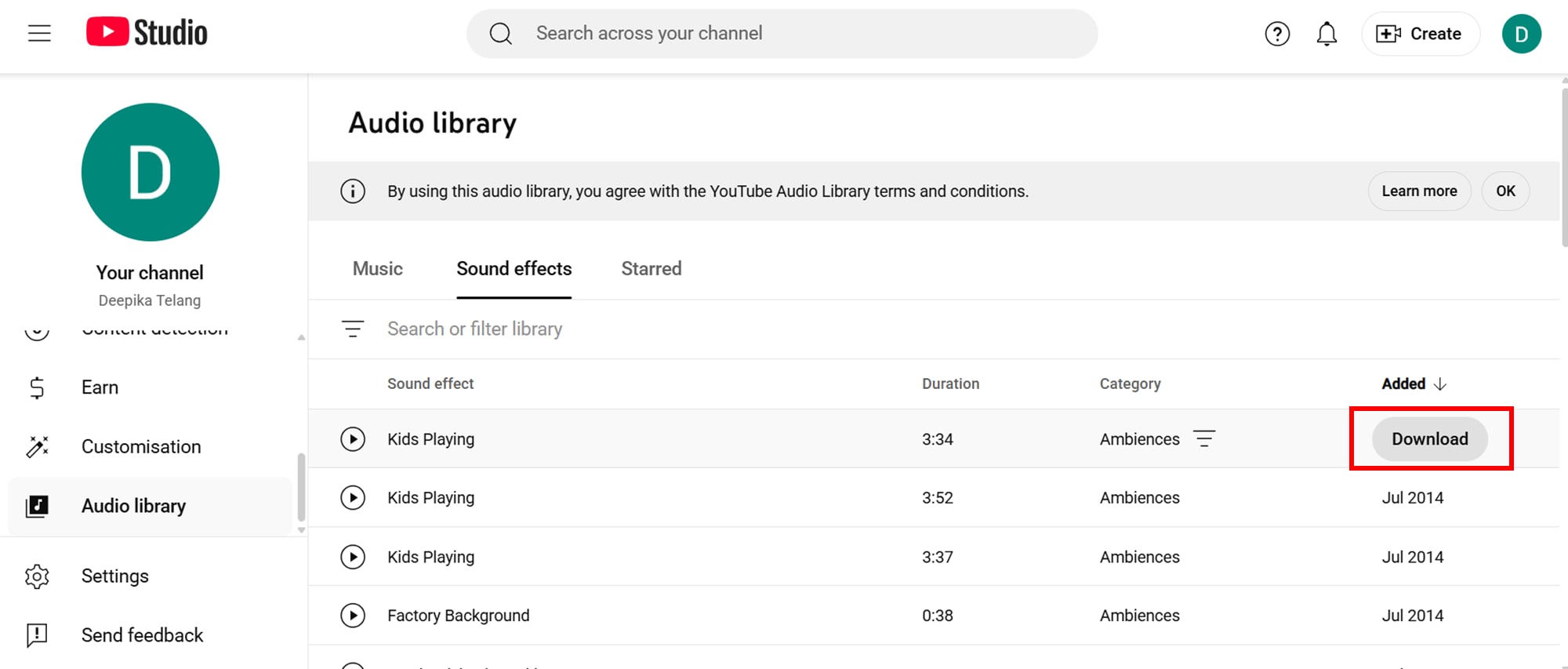
Before downloading anything, it’s a good idea to preview the sound by clicking the small Play icon next to the track. This allows you to listen to the full clip and determine whether it matches the tone and timing you’re looking for. You can test as many effects as you want, making this step crucial for choosing high-quality audio that enhances your video production.
Step 4: Download the Sound Effect
When you’ve found the right SFX, click the Download Arrow located on the right side of the sound. The file will instantly save to your device, typically in .WAV format, which gives you high-quality audio suitable for professional editing. Most effects are royalty-free and do not require attribution, but always check the usage label provided by YouTube to stay compliant.
Step 5: Import the File Into Your Editor
After the sound effect is downloaded, move it into your dedicated audio folder or import it directly into your editing software of choice. Organizing your files helps you maintain a clean workflow, while importing the SFX ensures it’s ready to be added to your project timeline instantly.
Part 4: How to Batch Download YouTube Audio Library Playlists
Step by step guide to batch download YouTube audio library playlist:
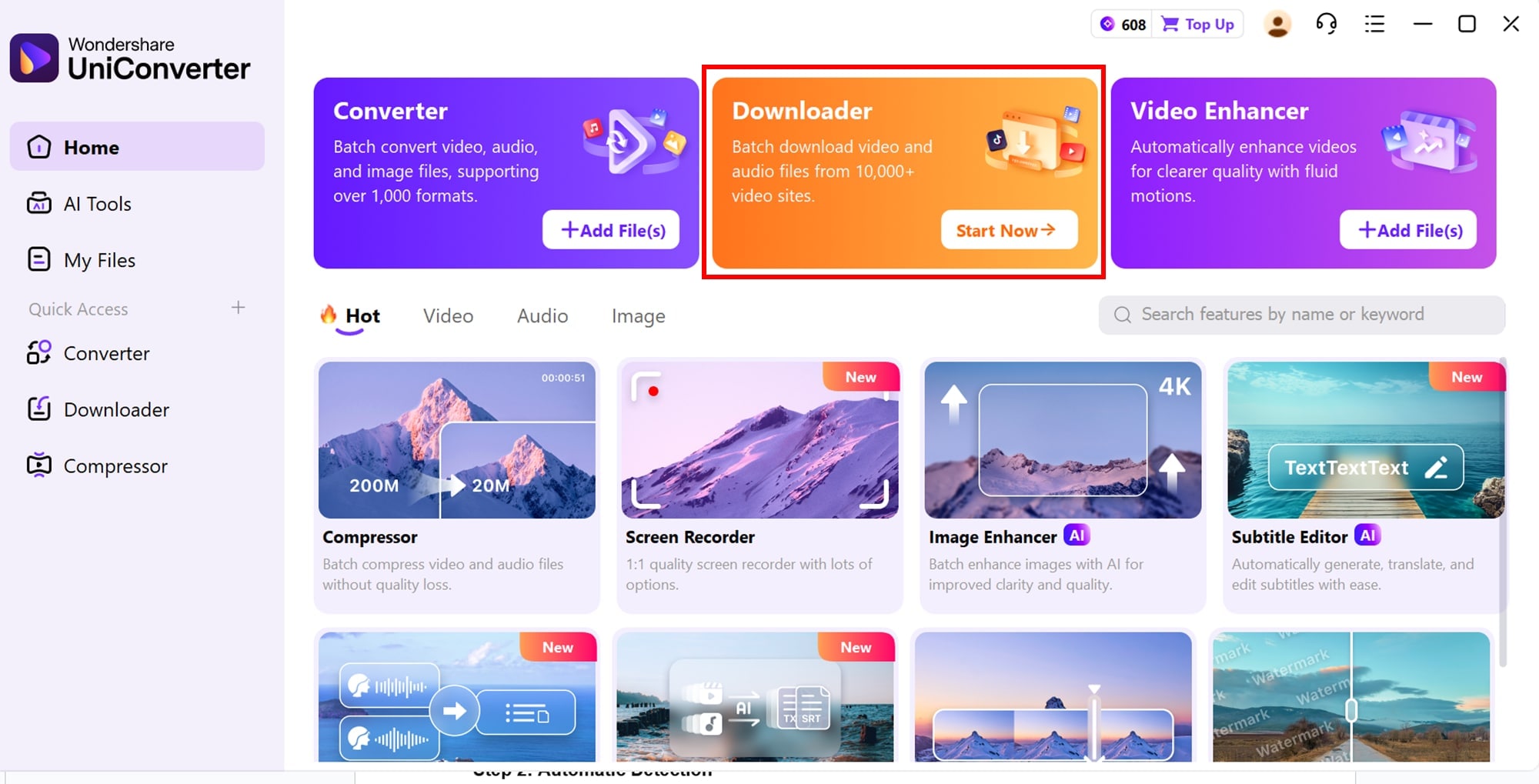
Step 1: Open UniConverter & Paste Your Playlist URL
Begin by opening the YouTube playlist you want to download. Copy the full playlist link from your browser’s address bar. Launch Wondershare UniConverter and go to the Downloader section. Click “+ Paste URL”, and the software will instantly detect the link as a playlist, preparing it for batch importing.
Step 2: Let UniConverter Detect All Videos Automatically
Once the link is added, UniConverter automatically scans the entire playlist and displays every video it contains. This auto-detection ensures you don’t have to copy links one by one, saving time—especially when downloading long SFX playlists or full collections.
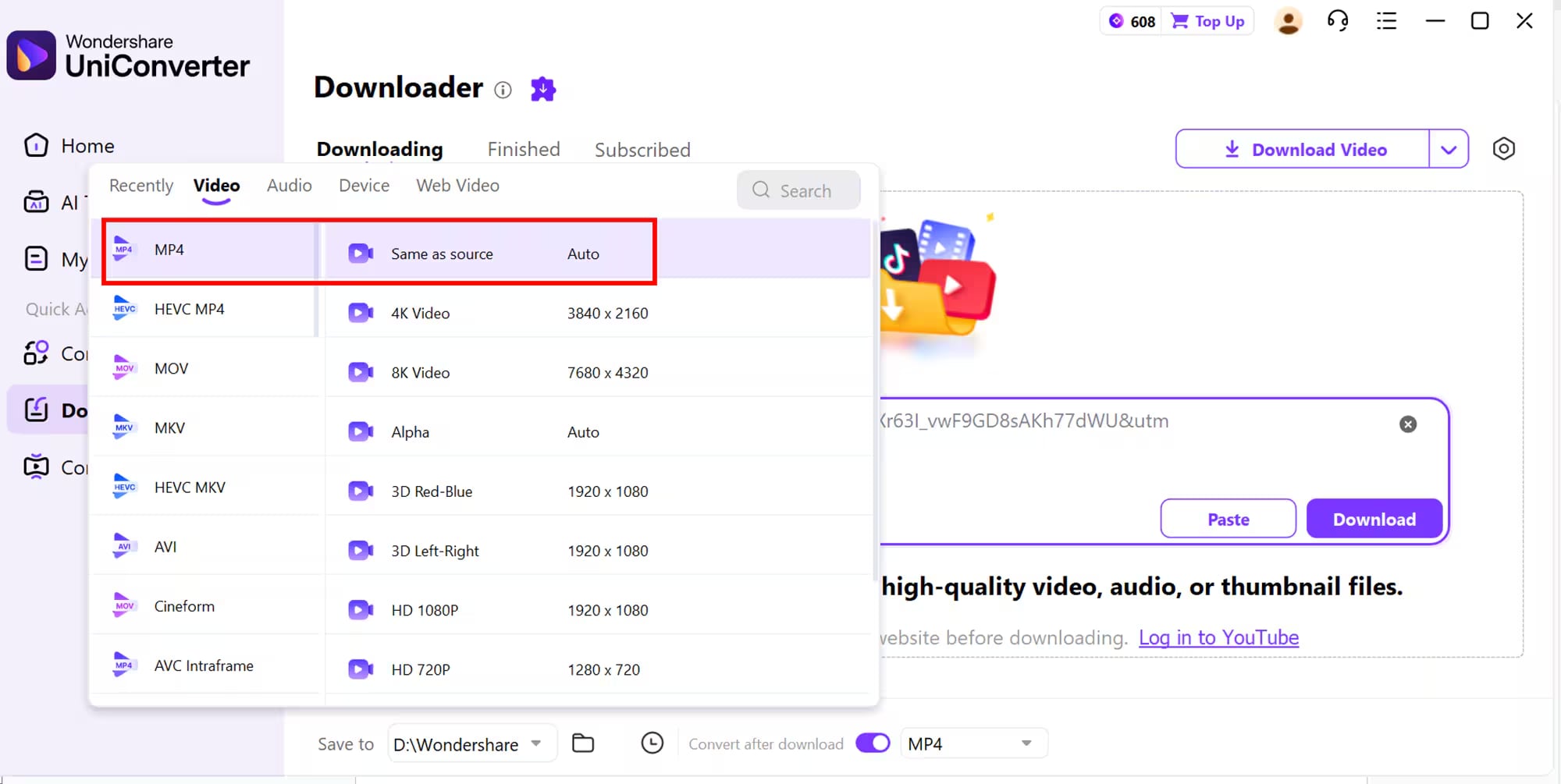
Step 3: Choose Preferred Output Format & Quality
After detection, select your desired output format, typically MP4 for maximum compatibility. UniConverter lets you choose between various resolution options like 1080p, 720p, or 480p. You can also fine-tune settings such as output location, enabling GPU acceleration, or organizing files into custom folders.
Step 4: Download Your Playlist in One Click
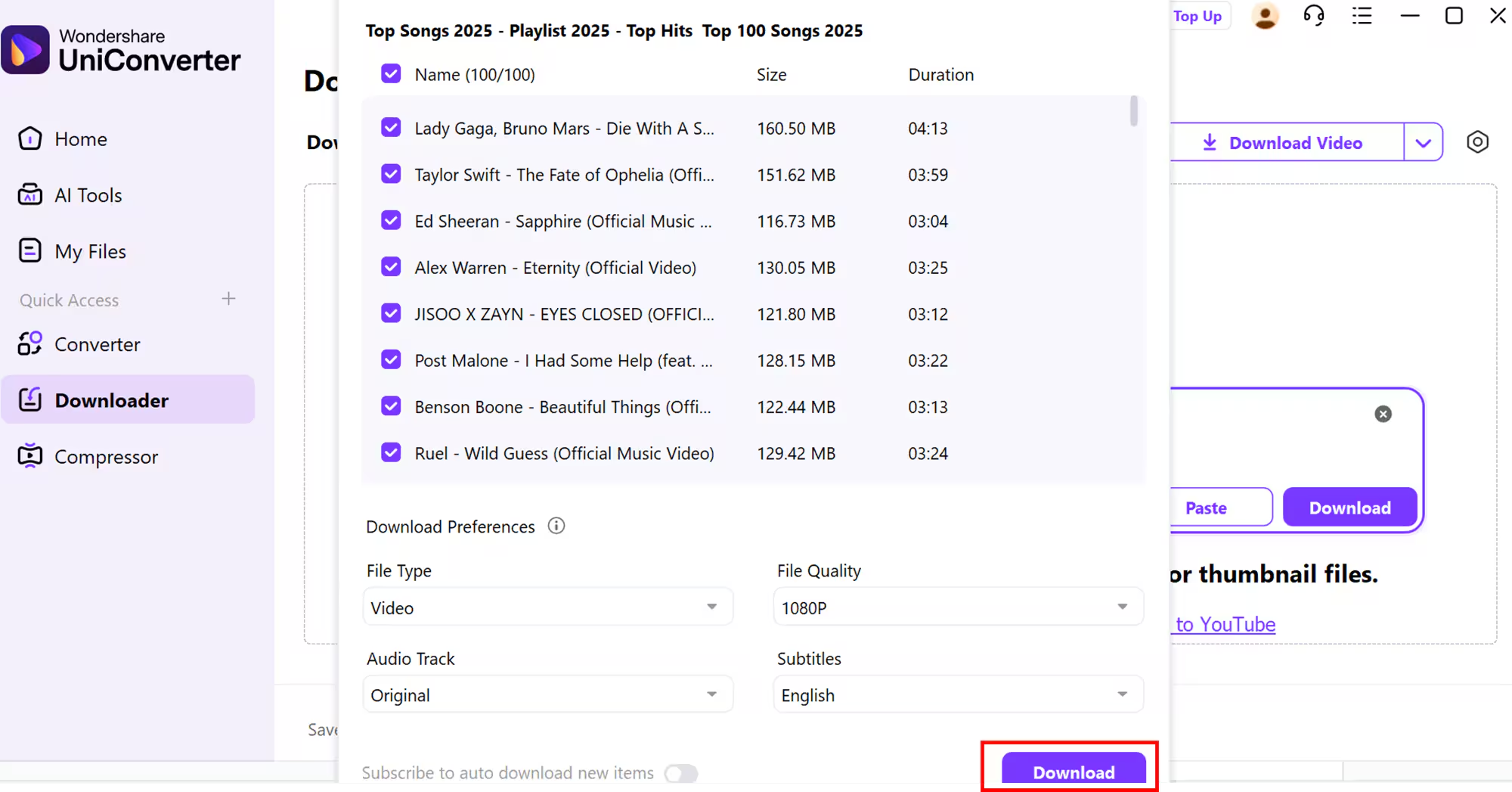
A settings window will pop up, giving you control over what to download—either the entire playlist or selected videos. Choose your preferred file type, video/audio quality, and language options if available. UniConverter automatically selects the highest quality when choices are limited. Once everything looks good, click “Download All.” The software will process the entire playlist and save the files for easy offline access
Easy to Use YouTube Audio Library Downloader
Part 5: How to Easily Download YouTube Audio Library with Chrome Extension
Step 1: Install UniConverter
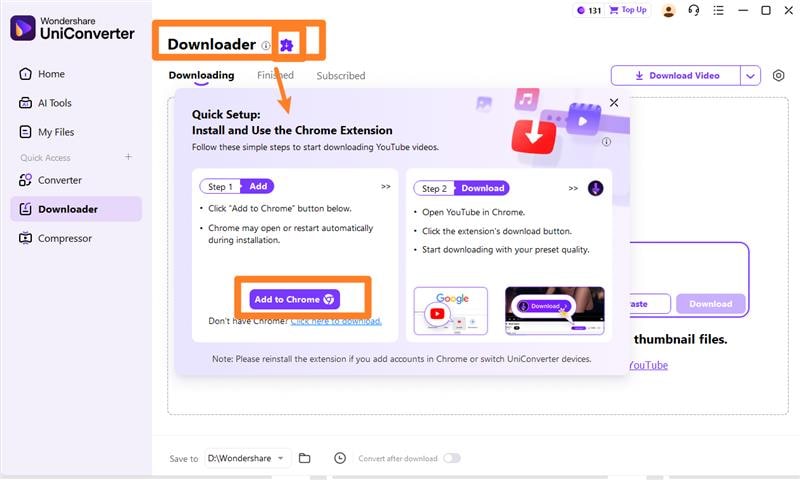
Head to the Chrome Web Store and install the UniConverter extension — once added, its icon appears in your browser toolbar for one-click access. Having the extension handy means you can convert videos without launching the full desktop app, which is great for quick tasks. Make sure you grant any required permissions so it can read and fetch video pages when you click it.
Step 2: Open the YouTube Video
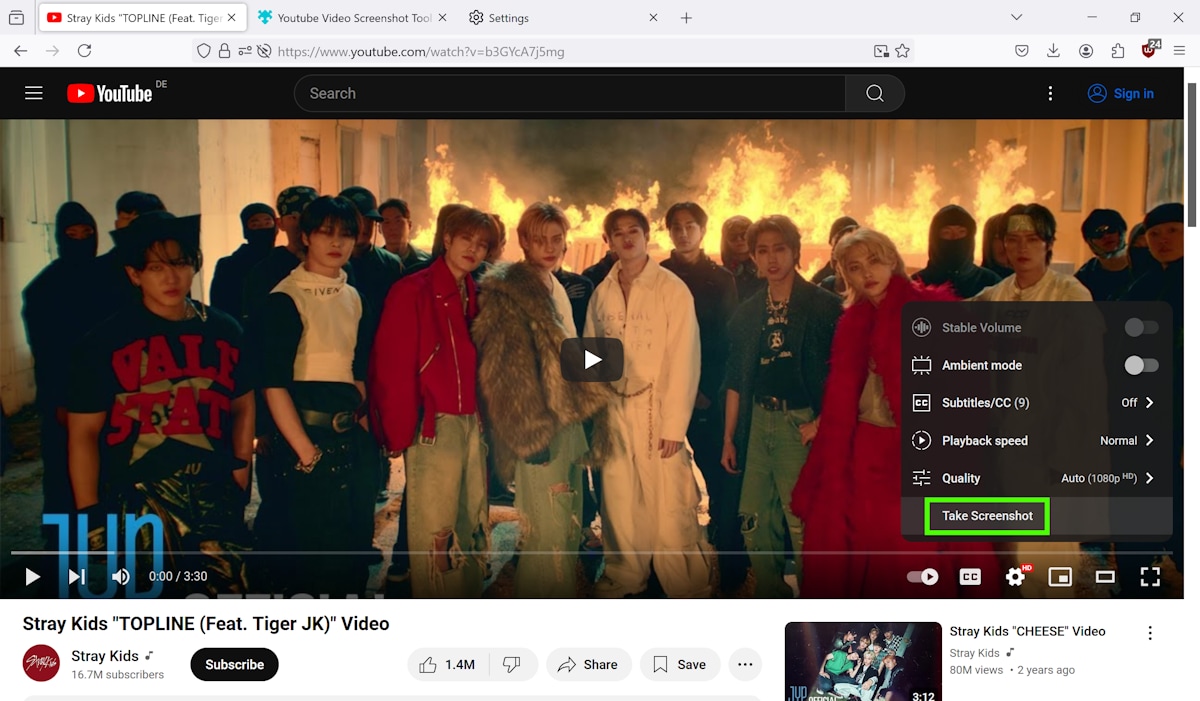
Navigate to the specific YouTube video page that you want to convert to MP4, and verify you have permission to download it (this protects you from copyright violations). Double-check the video is the right one — watch a short preview or confirm the title and uploader — so you don’t waste time converting the wrong file. If the video is part of a playlist, decide whether you’ll convert just that single video or the whole playlist.
Step 3: Launch the Extension
Click the UniConverter icon in the Chrome toolbar to open the extension popup, then paste the video URL into the input field (some extensions also detect the URL automatically when you open the popup). The extension will fetch the video’s metadata — title, duration, and available formats — so you can confirm it’s the correct file. If needed, rename the output file or pick specific start/end times before conversion.
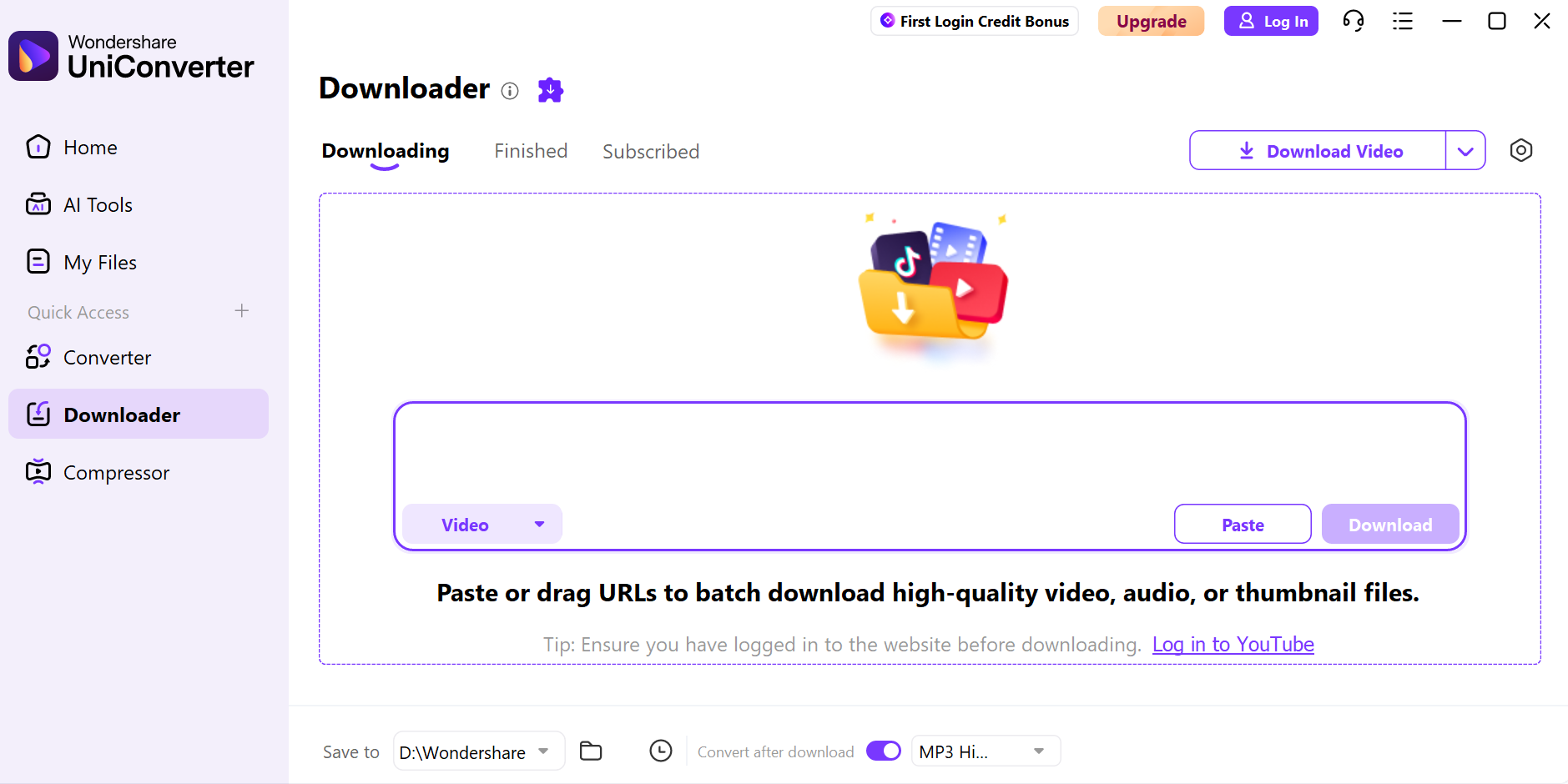
Step 4: Choose Format and Resolution
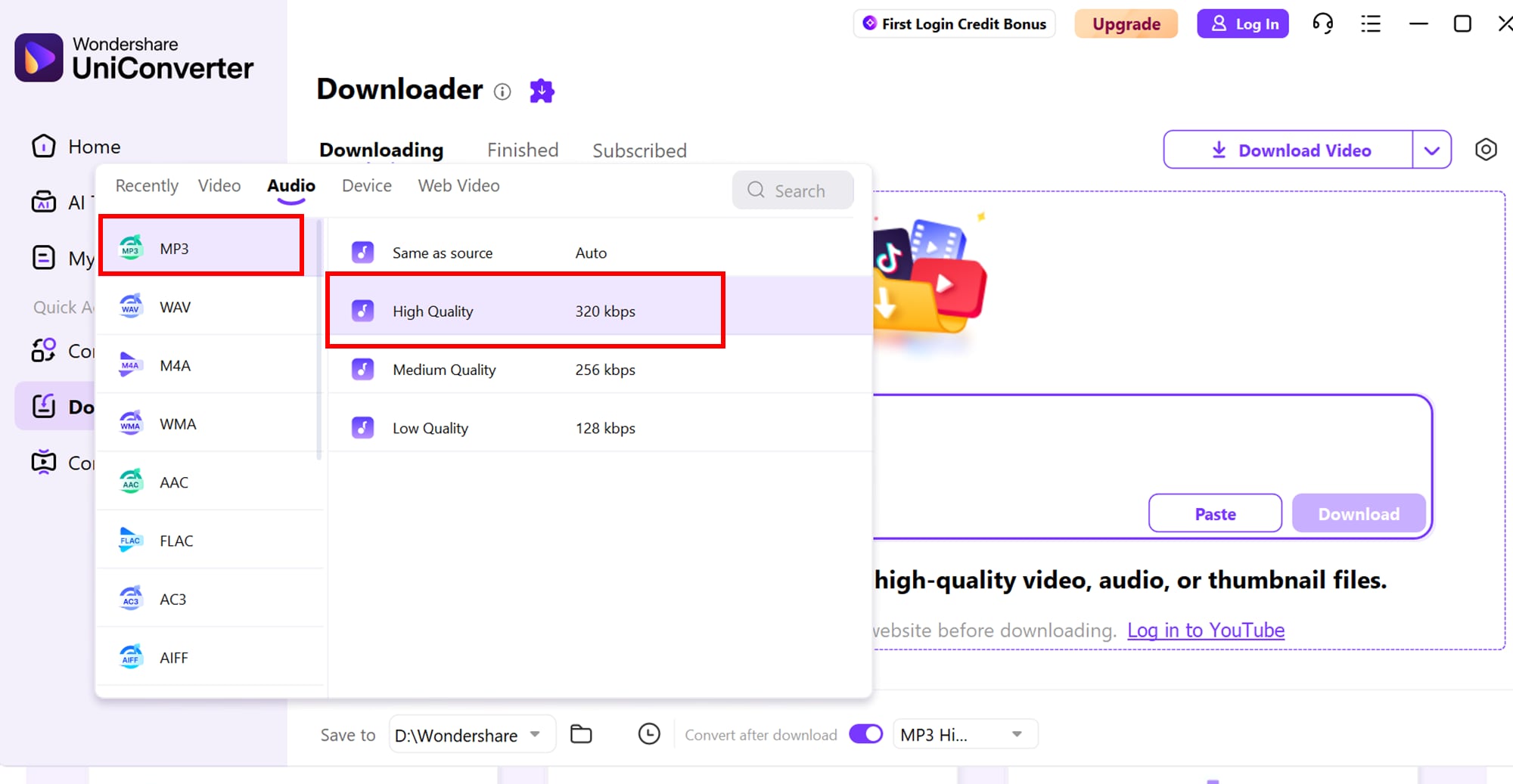
Select MP3 as the output format for maximum compatibility and choose high quality 320 kbps (if available) for Full quality; lower options save space but reduce clarity. Click download and wait for the process to finish, then download the resulting MP3 to your device; it will be ready for offline viewing or editing in your favorite video editor.
Easy to Use YouTube Audio Library Downloader
Conclusion
The YouTube Audio Library remains one of the most reliable and accessible sources for creators who need high-quality, no-copyright music and sound effects. Whether you're exploring a free audio library YouTube option for simple edits or looking for a safer way to gather YouTube Audio Library free download no copyright music, the platform provides unmatched convenience and clarity in usage rights. With its organized categories and vast collection of audio library music, creators can enhance their videos without legal concerns or added costs.
And if you want to speed up your workflow even further, Wondershare UniConverter offers powerful tools to batch-download playlists, convert files, and manage your entire audio library effortlessly. Altogether, this combination ensures creators always have fast, safe, and high-quality audio ready for any project.
FAQs
-
1. Can I use YMusic alternatives without a Google account?
Yes! Many alternatives like NewPipe, LibreTube, Piped, and SkyTube allow you to stream or download audio without signing in with a Google account. This ensures better privacy and prevents your listening habits from being tracked by Google. Most of these apps also store playlists and subscriptions locally, giving you full control over your data. -
2. Are these alternatives safe to install on my device?
Most of the alternatives discussed are safe if downloaded from official sources or trusted repositories. Open-source apps like NewPipe, LibreTube, and SkyTube are particularly transparent because their code can be audited for security risks. Always avoid unknown APKs from random websites to prevent malware. -
3. Can I listen to YouTube music offline with these alternatives?
Yes, several apps, including NewPipe, LibreTube, uYouPlus, ViMusic, and SkyTube, support offline downloads for audio playback. You can save individual songs, full playlists, or entire channels for uninterrupted listening without an internet connection. Offline playback is especially useful for travel, low-connectivity areas, or saving mobile data. -
4. Which alternative offers the most features across all devices?
For users looking for an all-in-one solution across multiple platforms, Wondershare UniConverter is the top choice. It not only downloads audio and video from YouTube and other platforms but also converts between formats, compresses files, and even integrates with a YouTube Chrome extension for browser-based downloads. Its versatility makes it perfect for users who want reliability and professional-grade tools on PC, Mac, and mobile. -
5. Are there iOS alternatives for YMusic?
Yes! While YMusic itself is Android-only, uYouPlus is an excellent iOS alternative. It provides ad-free streaming, background playback, high-quality downloads, and integration with SponsorBlock. Although it requires sideloading via AltStore or TrollStore, it remains the closest experience to NewPipe on iPhone devices.

