


In the quest for the perfect audio experience, we often find ourselves caught between two extremes: massive, uncompressed "lossless" files (such as WAV or FLAC) that consume storage, and small, low-quality MP3s that sound thin and lifeless. But what if there's a gold standard that offers the best of both worlds? Enter the 320 Kbps MP3 (also known as MP3 320kb or MP3 320k).
This format is widely regarded as the pinnacle of compressed audio, offering high-fidelity sound in a practical and manageable file size. This guide will explore everything you need to know about MP3 320k, why it matters, and the best tools to create your own high-quality library, whether you're converting WAV to MP3 320 or FLAC to 320Kbps MP3.
Table of Contents
Part 1. What does 320 kbps MP3 actually mean?
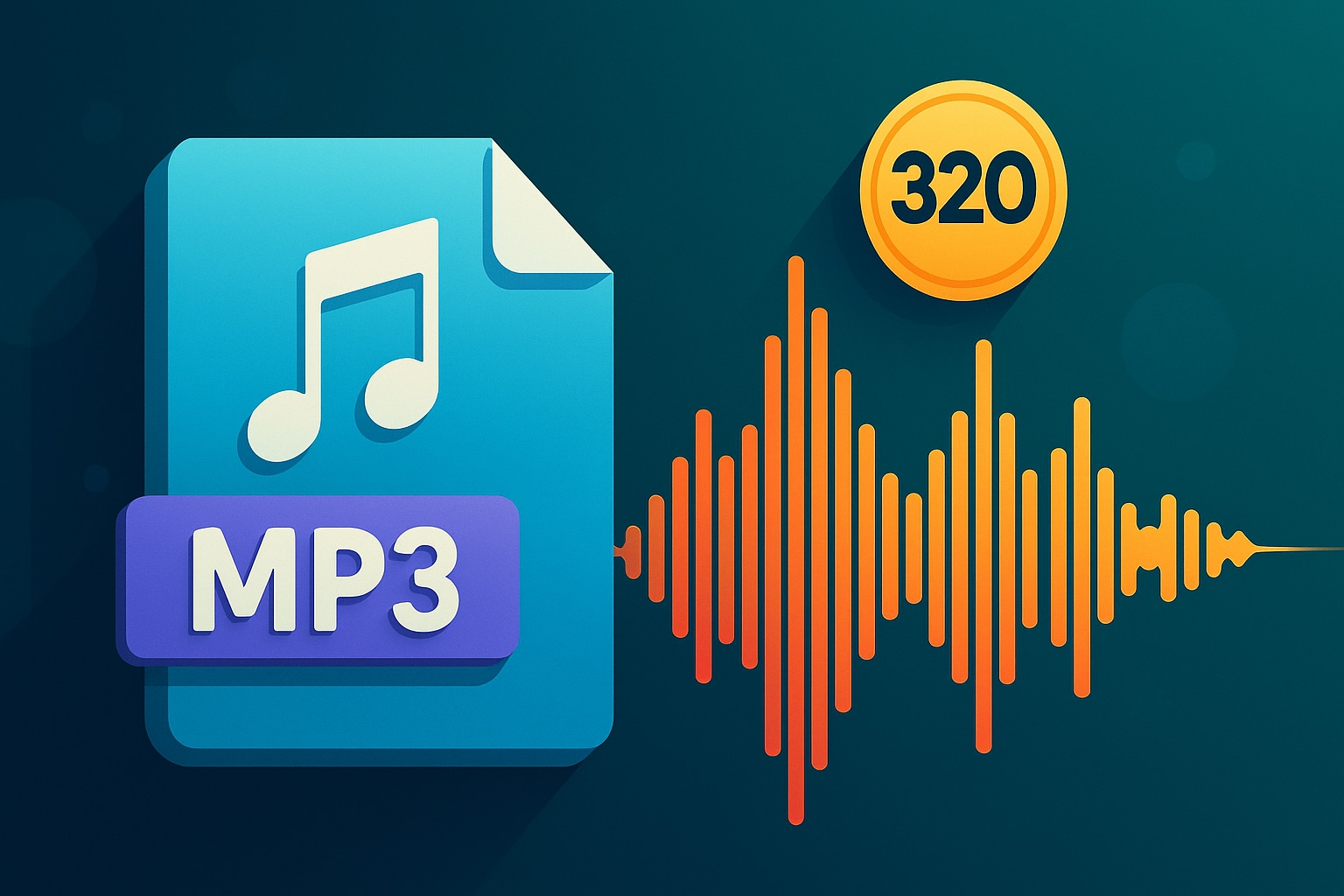
A 320 Kbps MP3 is widely considered the highest quality standard for the MP3 format. To understand why, let's break down the terms:
MP3 (MPEG-1 Audio Layer III): This is a "lossy" compressed audio file. To conserve space, it intelligently removes parts of the sound data that are imperceptible to the human ear.
Kbps (Kilobits per second): This is the bitrate, which measures how much data (in kilobits) is processed every second. A higher bitrate means more audio data is included, resulting in higher potential quality and a larger file size.
A 320 MP3 (or MP3 320kbs) file processes 320 kilobits of data per second, the maximum allowed by the MP3 standard. (Note: this is sometimes mistyped as 320kps, but 'Kbps' is the correct term). This makes it the richest, most detailed version of an MP3 possible.
Analogy: Think of it like a photo. A lossless WAV or FLAC file is the raw, uncompressed camera file. A 320 Kbps MP3 is a high-quality JPEG, while a 128 Kbps MP3 is a pixelated, heavily compressed JPEG. For most, the high-quality JPEG is perfect.
Part 2. Is 320 kbps MP3 good enough for music quality?
Choosing 320 Kbps MP3 is about finding the ultimate "sweet spot" between audio fidelity and practical storage.
Benefits:
Near-CD Quality: For the vast majority of listeners, using standard headphones or speakers, a 320k MP3 is indistinguishable from uncompressed CD audio.
Wide Compatibility: The MP3 format is universal. A 320 MP3 will play on virtually every smartphone, computer, car stereo, and digital audio player made in the last 25 years.
Manageable File Size: While larger than lower-bitrate files, a 320 Kbps MP3 is still significantly smaller than a lossless file. A 3-minute song in FLAC might be 30 MB, while the 320k MP3 version is only around 7-8 MB.
Drawbacks:
Not Truly Lossless: It is still a "lossy" format. A professional audiophile with high-end, thousand-dollar headphones in a silent room can discern subtle differences between a 320 Kbps MP3 and a FLAC original.
Larger than Lower Bitrates: It takes up more space than 128 Kbps or 192 Kbps MP3s. However, with modern storage being so cheap, this is less of a concern than it used to be.
Part 3. Top 5 Tools for MP3 320 Kbps Conversion
To create your own high-quality 320k MP3 library, you need a reliable MP3 conventer 320. The goal is to convert from a high-quality source (like WAV, FLAC, M4A, or even the audio from an MP4 to MP3 320 Kbps conversion) down to 320 Kbps. Here are the top 5 MP3 320 kbps converter tools for the job.
1. Wondershare UniConverter
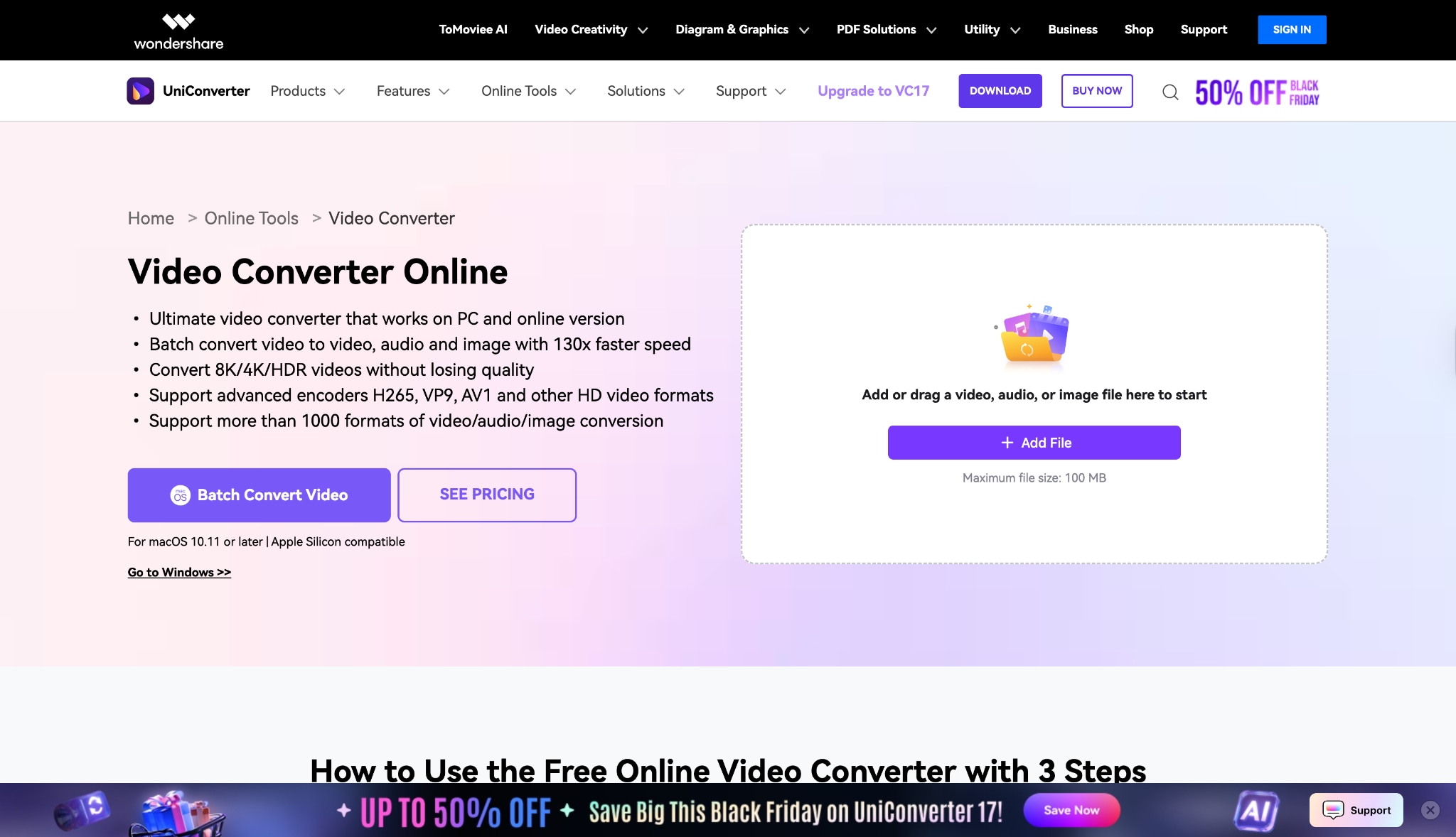
Wondershare UniConverter is our top recommendation because it's a powerful, all-in-one media toolkit that excels at high-speed, high-quality batch conversions. It's not just an audio converter; it's a complete solution for video, audio, and more. It makes complex tasks, such as converting an entire FLAC library to 320 MP3 or a FLAC to MP3 320 Kbps folder, simple, fast, and reliable. Its clean interface is perfect for beginners, while its detailed settings satisfy advanced users.
Simple Steps to Convert to 320 Kbps MP3:
Add Files: Open UniConverter and go to the Converter tab. Drag and drop your source files (e.g., WAV, FLAC, M4A, or MP4) into the window.
Choose Output Format: Click the "Output Format" icon at the bottom. Go to the Audio tab, select MP3, and then choose the 320 Kbps quality preset from the list.
Convert: Select your save location at the bottom and click "Convert" (for a single file) or "Start All" (for batch conversions). Your new 320 MP3 files will be ready in moments.
Safety Review: 5/5 – UniConverter is legitimate, professional software from a well-established company. It is 100% free of malware and adware.
Starting Price: Free trial available. Paid plans start from $29.99/quarterly or $49.99/annually.
Supported Device: Windows 11/10/8/7, macOS 10.11 or later.

Easy to Use Batch 320kbps MP3 Converter
2. CloudConvert
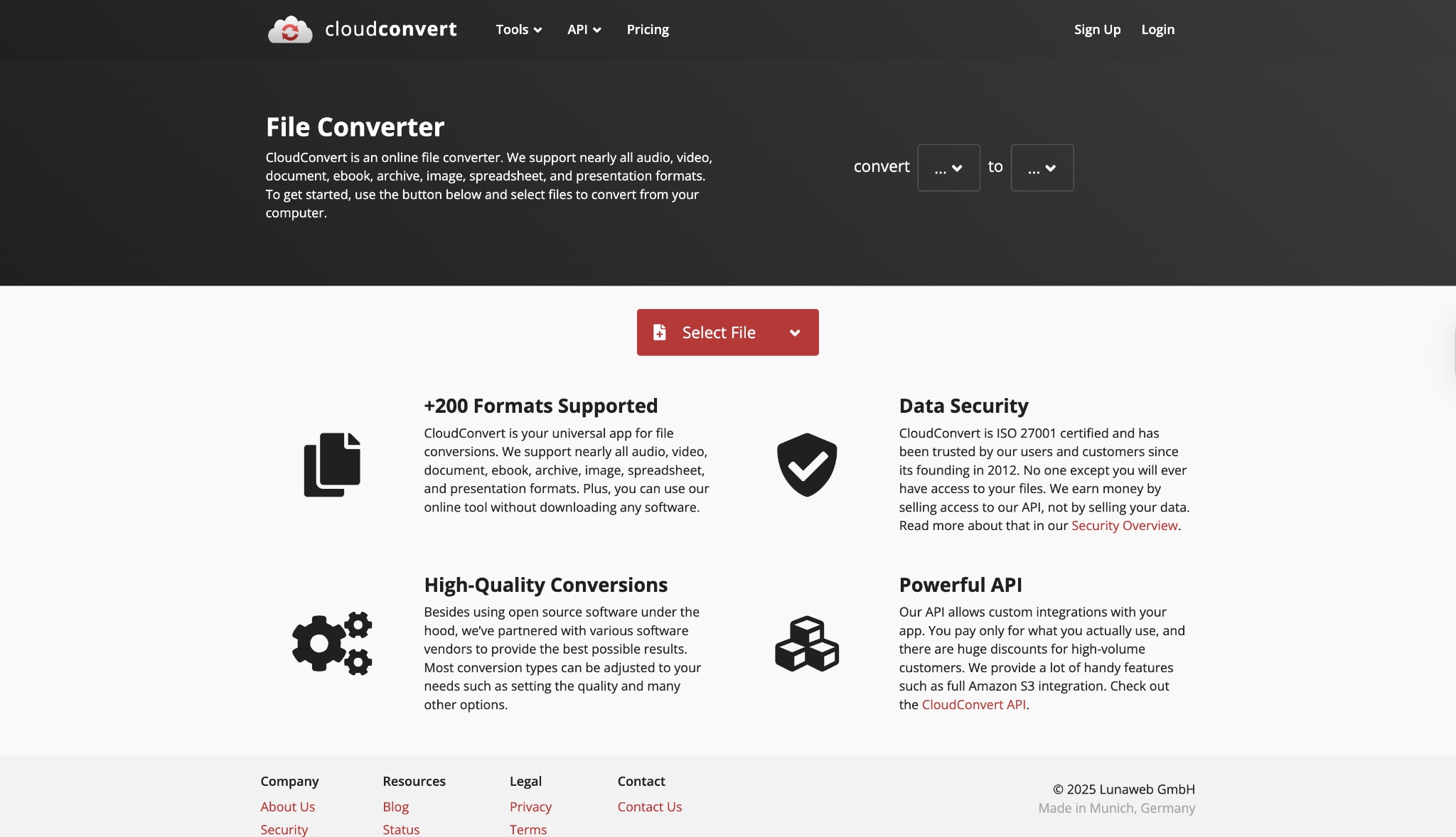
CloudConvert is a robust online converter that supports over 200 different file formats, including documents, images, and, of course, audio. It's an excellent choice for users who don't want to install any software. It offers detailed control over audio conversion, allowing you to specifically set the audio bitrate to 320k, as well as adjust audio channels and frequency. It also integrates directly with cloud storage like Google Drive and Dropbox.
Safety Review: 4/5 – It's a secure (HTTPS) service with a clear privacy policy stating files are deleted after conversion. It's a trusted online tool.
Starting Price: Free for up to 25 conversions/day. Packages start at $9 for 500 conversion "minutes."
Supported Device: Web-based (works on all operating systems).
3. Online Audio Converter
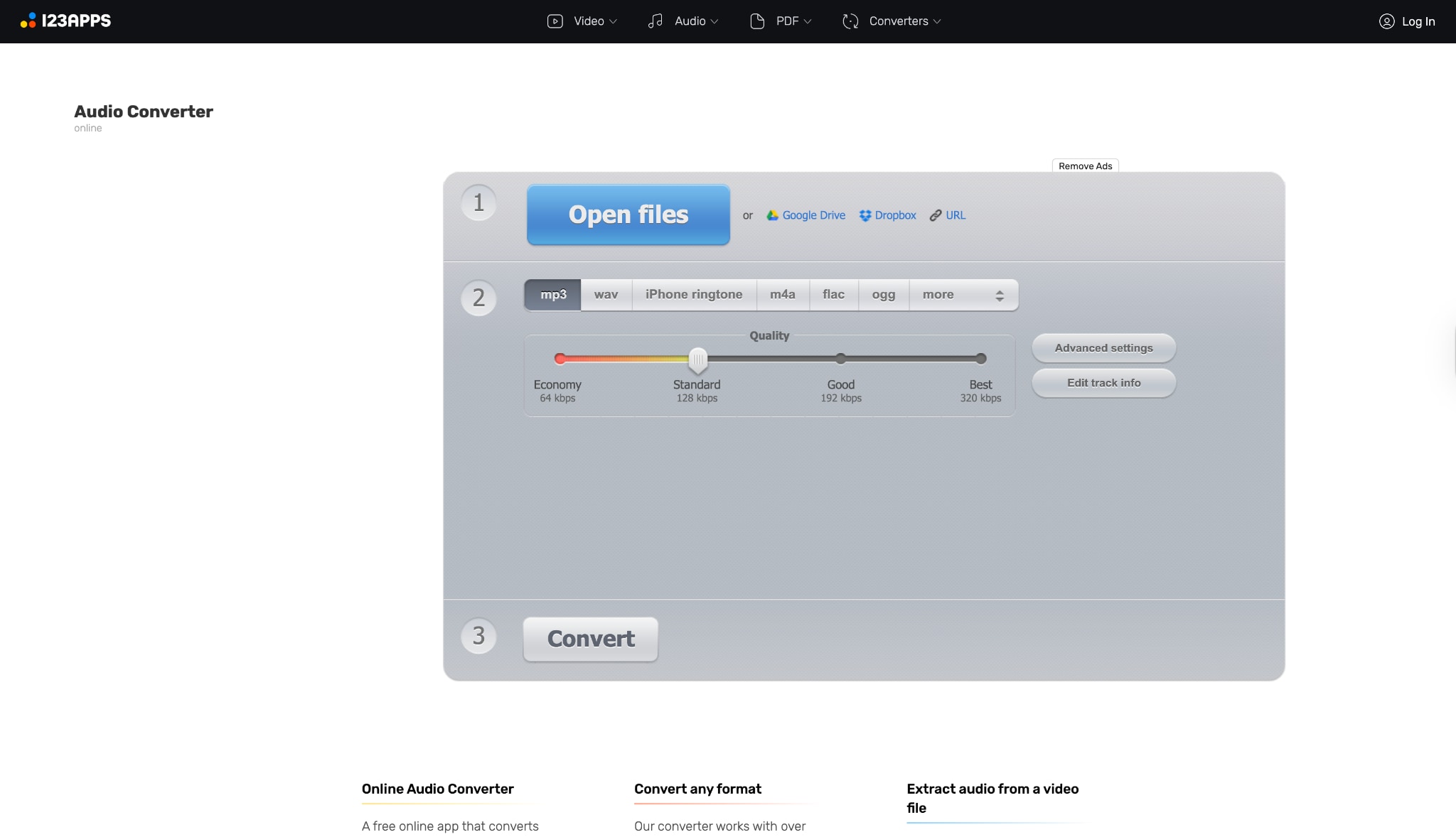
This is a dedicated, free, and simple web tool for quick, one-off audio conversions. If you need to convert one M4A to MP3 320Kbps file without any hassle, this is a great pick. It supports all common audio formats and features a simple slider to set the quality, with 320 Kbps as the highest option. You can even edit basic track information (title, artist, album) before converting.
Safety Review: 3/5 – The site utilizes HTTPS; however, as a free, ad-supported tool, users should exercise caution. It's generally safe for its intended purpose, but less robust than paid services.
Starting Price: Free.
Supported Device: Web-based (works on all operating systems).
4. Audacity
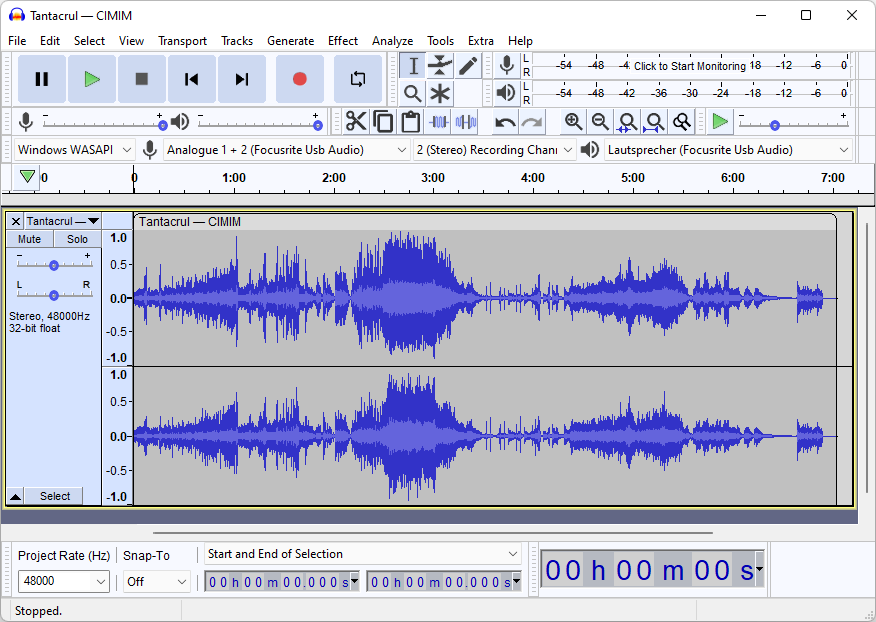
Audacity is a legendary free, open-source, and cross-platform audio editor. It is not just a converter; it's a full-featured digital audio workstation. For those who want complete control, Audacity is unbeatable. You can import a WAV or FLAC file, edit it, apply noise reduction, normalize the volume, and then export it as an MP3. Setting the 320 Kbps bitrate is a standard option in the "Export Audio" dialog.
Safety Review: 5/5 – As one of the most respected open-source audio programs in the world, Audacity is 100% safe and clean.
Starting Price: Free.
Supported Device: Windows, macOS, Linux.
5. Free Audio Converter (Freemake)
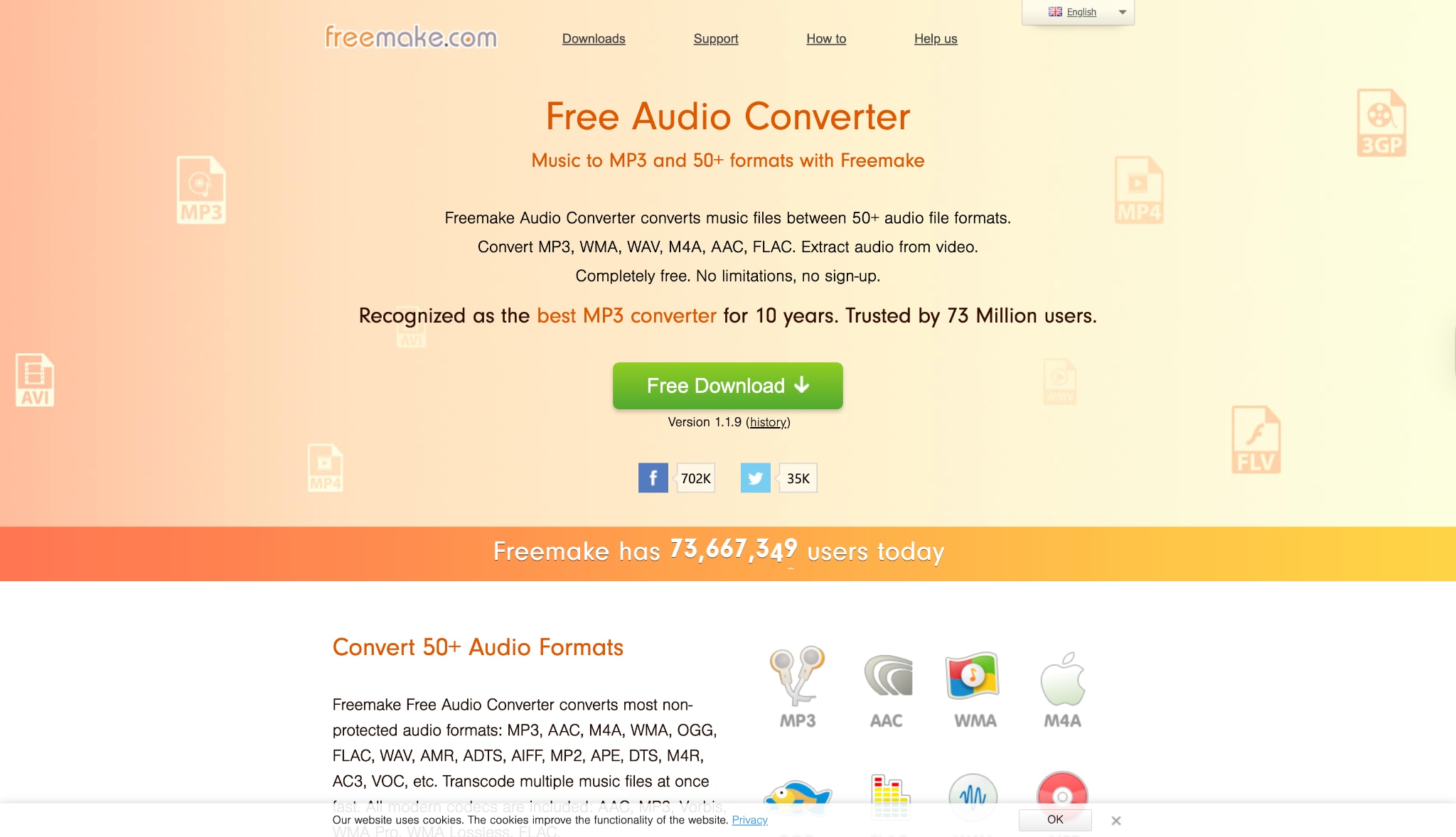
Freemake Audio Converter is a user-friendly and dedicated audio conversion tool for Windows. It has a clean, simple interface that makes conversions easy. It supports over 50 audio formats, making it a reliable choice for common tasks like FLAC to 320Kbps MP3. The process is very straightforward: add your files, select the "to MP3" preset, and then choose a "320 Kbps" profile.
Safety Review: 3/5 – The software itself works, but the "freemium" model and the history of bundled software in its installer mean users must be very careful during installation.
Starting Price: Free (with limitations). A paid "Pack" is required to unlock full features and remove branding.
Supported Device: Windows.
Part 4. When to Choose 320 Kbps as Audio Quality Benchmark
The 320 Kbps benchmark is most important when you are working with lossy formats—formats that compress audio by removing data. It represents the "best version" of a compressed file.
Audio Formats Where 320 Kbps is the Best Choice
This bitrate is the high-quality target when you are saving files in these formats:
- MP3 (MPEG-1 Audio Layer III): The most common format. MP3 320kps is its highest standard quality setting.
- AAC (Advanced Audio Coding): A more modern and efficient lossy format than MP3. A 256 Kbps AAC file is often considered equivalent in quality to a 320 Kbps MP3.
- OGG Vorbis: A popular open-source lossy format. Its 320 Kbps setting (or equivalent "quality" slider) is also a high-fidelity target.
Audio Formats Where 320 Kbps is NOT the Best Choice (or Irrelevant)
You do not "choose" 320 Kbps for these formats. Instead, you convert from them.
Lossless Formats (FLAC, ALAC, WAV, AIFF): These formats are either uncompressed (WAV, AIFF) or losslessly compressed (FLAC, ALAC). Their purpose is to be a perfect 1:1 copy of the original source. A standard CD, for example, has a bit rate of 1,411 kbps. You don't aim for 320 Kbps when creating a FLAC; you convert your 1,411 Kbps WAV/FLAC down to a 320 Kbps MP3 to save space for a portable device.
Conclusion
For music lovers, the 320 Kbps MP3 remains the undisputed king of practical high-fidelity audio. It delivers a listening experience that is virtually identical to lossless originals, all while saving precious storage space and guaranteeing playback on any device. To build this high-quality library, you must start with a high-quality source (like FLAC or WAV) and use a reliable and powerful tool like UniConverter. While free online tools are fine for a single file, anyone serious about their music collection needs a tool that is fast, powerful, and consistent.
Ready to hear the difference? Download the free trial of Wondershare UniConverter and take control of your high-fidelity audio library today.
Easy to Use Batch 320kbps MP3 Converter
Frequently Asked Questions (FAQs)
-
1. Can humans really hear the difference between 320 Kbps MP3 and lossless (FLAC/WAV)?
For most people on most equipment (like smartphones, Bluetooth headphones, or car stereos), the answer is no. The difference is extremely subtle and often only detectable by trained audiophiles using high-end, wired headphones in a quiet environment. -
2. Is 320 Kbps MP3 better than 256 Kbps AAC?
This is debatable. The AAC codec (used by Apple/iTunes) is more efficient than MP3. Many tests show that a 256 Kbps AAC file has equivalent or slightly better audio quality than a 320 Kbps MP3. However, 320k MP3 remains more universally compatible. -
3. How much storage space does a 320 Kbps MP3 file take?
A good rule of thumb is approximately 2.4 MB per minute of audio. A typical 3-minute song will be about 7-8 MB. -
4. Can I convert a 128 Kbps MP3 to 320 Kbps? What about a simple MP3 to 320 or 320 to MP3 conversion?
No. This is a critical point. You cannot add back quality that is already lost. This process of "up-converting" will only make the file larger, but it will still sound like the 128 Kbps original (or worse). Always convert from a high-quality lossless source (WAV, FLAC) down to 320 Kbps. -
5. What does WAV to MP3 320Kbps mean?
This is the process of converting a WAV file (which is uncompressed, lossless, and very large) into a 320 Kbps MP3 file (which is compressed, "near-lossless" quality, and much smaller). This is the ideal method for creating high-quality MP3s.

