

There are many reasons you might want to convert a video into an audio file. You may need to extract music, turn a webinar into a podcast, or save a lecture for offline listening. Turning video into audio saves device storage and allows you to listen while commuting. When looking for a quick solution, FreeConvert MP4 to MP3 stands out as a popular browser-based tool. It offers an easy way to extract audio without downloading software.
However, while online tools offer convenience, they have limitations regarding file size and processing speed. Desktop software like UniConverter offers distinct advantages for larger projects. These benefits include faster batch conversion, larger file support, strict privacy, GPU acceleration, and advanced audio settings. Throughout this guide, you will learn how to use these tools effectively and find the best converter for your specific workflow.
Table of Contents
Part 1. What Is FreeConvert MP4 to MP3 and How Does It Work?
FreeConvert is a web-based file conversion platform that allows you to easily change file formats directly in your browser. It simplifies the process of extracting audio from video files. The platform is designed for users who need a quick conversion without navigating complex software settings.
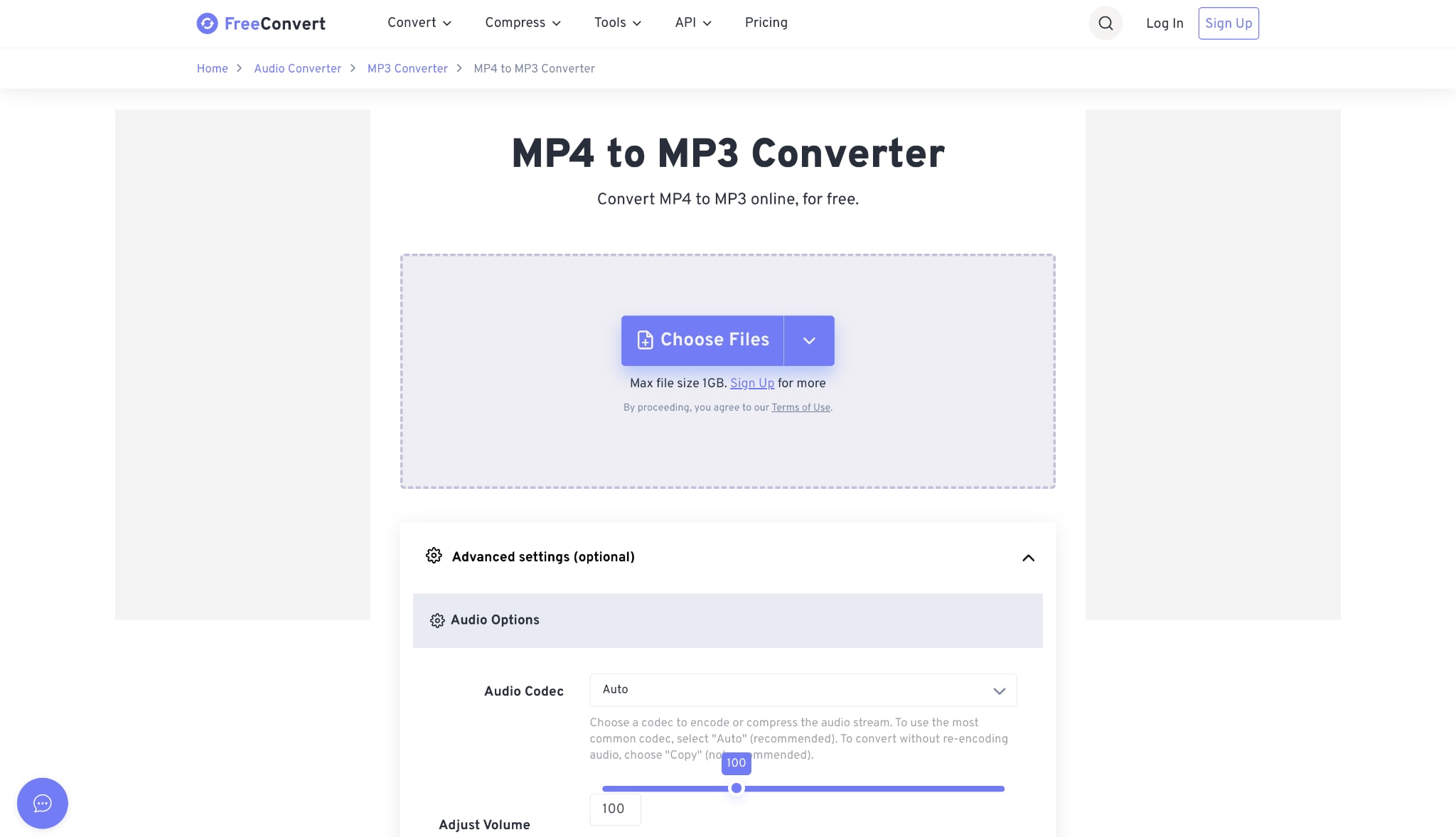
The service provides multiple convenient upload methods. You can upload files directly from your local computer storage. If your files are stored in the cloud, FreeConvert connects seamlessly with Google Drive and Dropbox. You can also paste a direct URL if the video is hosted online.
Once you upload your video, you can select from multiple export audio formats. While MP3 is the most common, the platform also supports WAV, OGG, FLAC, and AAC. The tool works across all modern web browsers, including Google Chrome, Safari, Firefox, and Edge. It functions smoothly on both desktop and mobile devices.
An online converter like FreeConvert com MP4 to MP3 is the right choice when you have a fast internet connection and only need to process one or two small files. It is ideal for occasional users who want immediate results.
However, situations arise where desktop converters perform much better. If you regularly handle large video files, a desktop tool prevents frustrating upload and download delays. Desktop converters also ensure complete privacy since your files never leave your computer. When you need to convert dozens of files at once, desktop software handles batch processing much more efficiently than browser tools.
Part 2. How to Use FreeConvert MP4 to MP3 (Step-by-Step)
Using FreeConvert MP4 is a straightforward process. You do not need technical expertise to extract your audio. Just follow these 3 simple steps:
Step 1: Upload Your MP4 Files
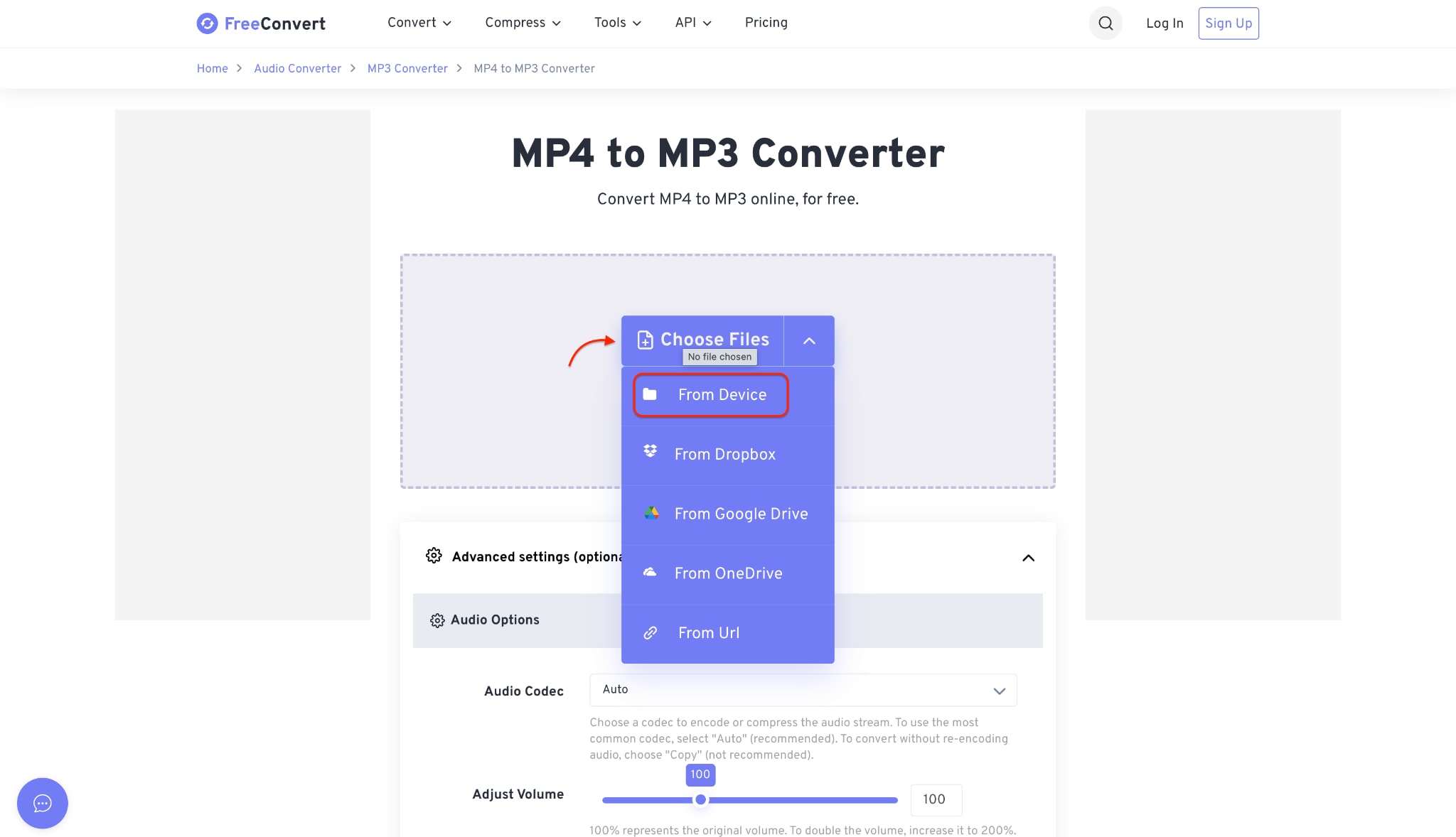
Open the FreeConvert website and click the central dropdown menu to begin. Select the "From Device" option to locate the video on your local computer storage. The platform also supports importing media directly from cloud services like Google Drive and Dropbox.
Step 2: Start the Conversion Process
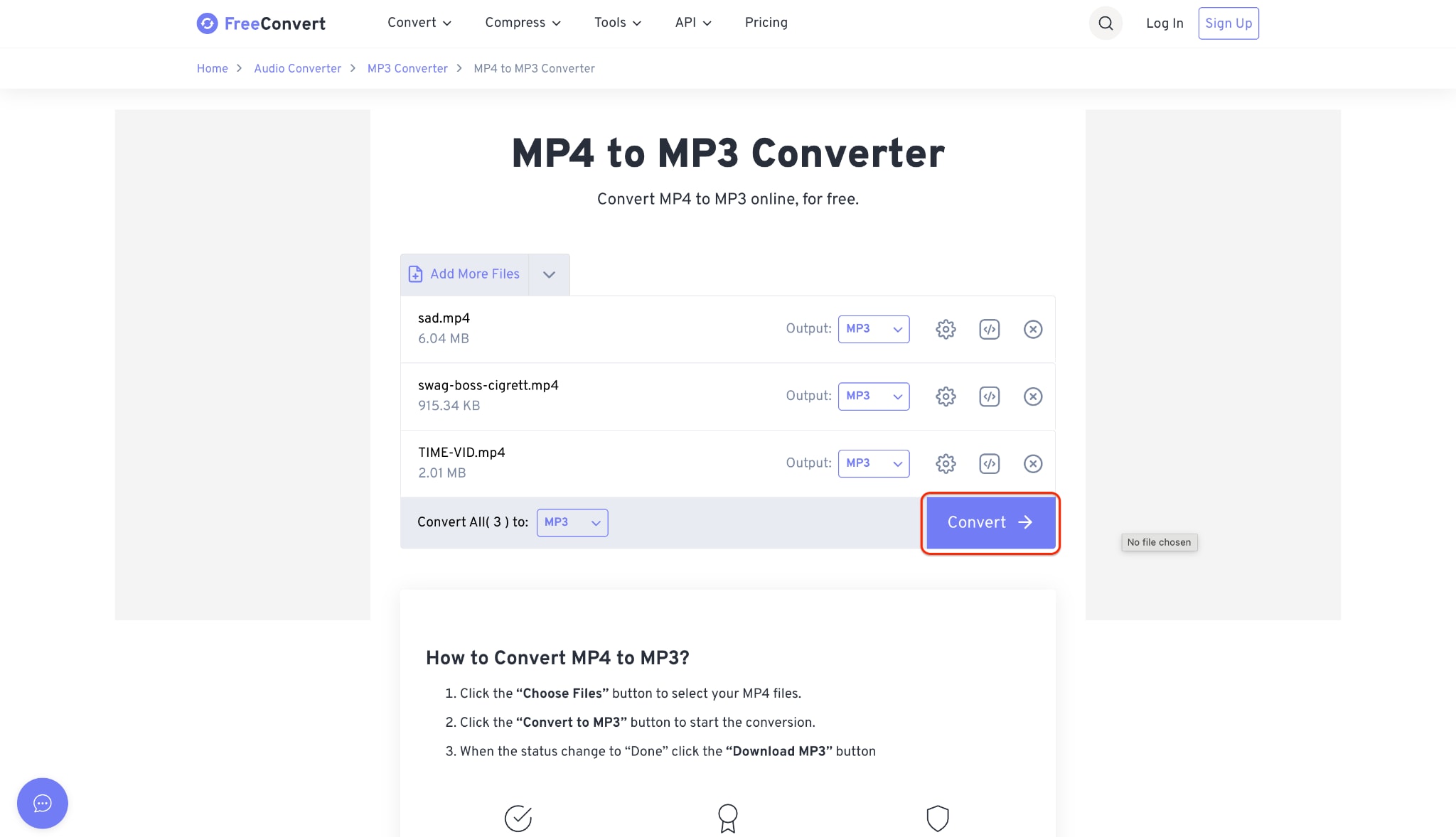
Verify that the output format for your uploaded videos is set to MP3. If necessary, add more items by using the provided upload controls at the top of the list. Click the prominent blue "Convert" button to initiate the audio extraction process.
Step 3: Download the Converted Audio
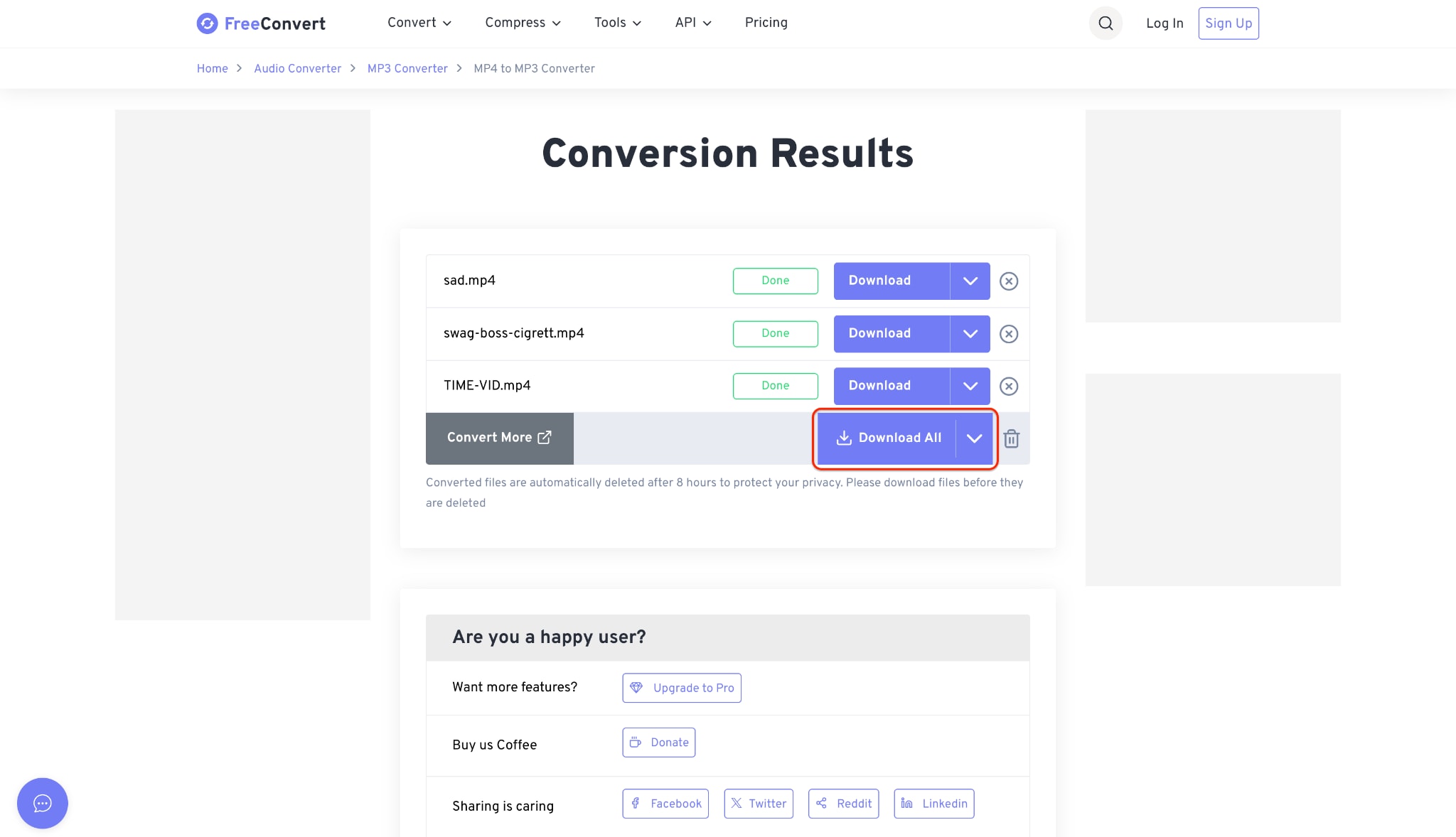
Wait briefly until the status indicator next to each file changes to "Done". Save the new tracks individually or collect them quickly by clicking the "Download All" button. These converted files remain available temporarily and are automatically deleted after eight hours for privacy protection.
Pros and Cons of Using FreeConvert MP4 to MP3
Before relying entirely on this browser tool, it helps to understand its strengths and limitations.
While online tools offer excellent convenience for quick tasks, professionals increasingly prefer desktop software like Wondershare UniConverter. Desktop software handles recurring conversions involving sensitive or large media files effortlessly. CloudConvert is another option, though it still relies on internet speeds. A dedicated desktop tool eliminates upload wait times and ensures your data remains strictly private.
Part 3. FreeConvert vs Desktop Converters: Which One Fits Your Workflow?
| Tool | Batch Conversion | Max File Size | GPU Acceleration | Audio Customization | Offline Conversion | Best For |
| FreeConvert | Limited | 1GB (Free) | No | Basic | No | Quick, small single files |
| UniConverter | Unlimited | No Limit | Yes (up to 130x) | Advanced | Yes | Fast, large batch projects |
| CloudConvert | Limited | 1GB (Free) | No | Basic | No | Cloud storage users |
| VLC Media Player | Manual | No Limit | Basic | Medium | Yes | Basic offline extraction |
| FFmpeg | Advanced | No Limit | Yes | Advanced | Yes | IT and developers |
| Any Video Converter | Yes | No Limit | Basic | Medium | Yes | Simple offline edits |
| Zamzar | Limited | 50MB (Free) | No | Basic | No | Email delivery |
Part 4. Top 6 FreeConvert MP4 to MP3 Alternatives Worth Using
If you frequently need to convert media, exploring alternatives ensures you find a tool that matches your exact needs. Here are the top six options available.
1. Wondershare UniConverter (Editor's Choice)
Wondershare UniConverter is an AI-powered media file processing tool designed for fast, high-quality batch converter handling. It simplifies complex video and audio tasks for educators, creative professionals, and casual users. You can process high-resolution videos using full-process GPU acceleration, making conversions up to 130 times faster. It supports over 1,000 formats and processes large files without compromising original quality.


All-in-One Multimedia Processing Tool

Supported Device: Windows, macOS
2. CloudConvert
CloudConvert is a robust online alternative for users who prefer working in the cloud. It supports over 200 formats and integrates tightly with cloud storage providers. It offers a clean interface and does not bombard you with intrusive advertisements.
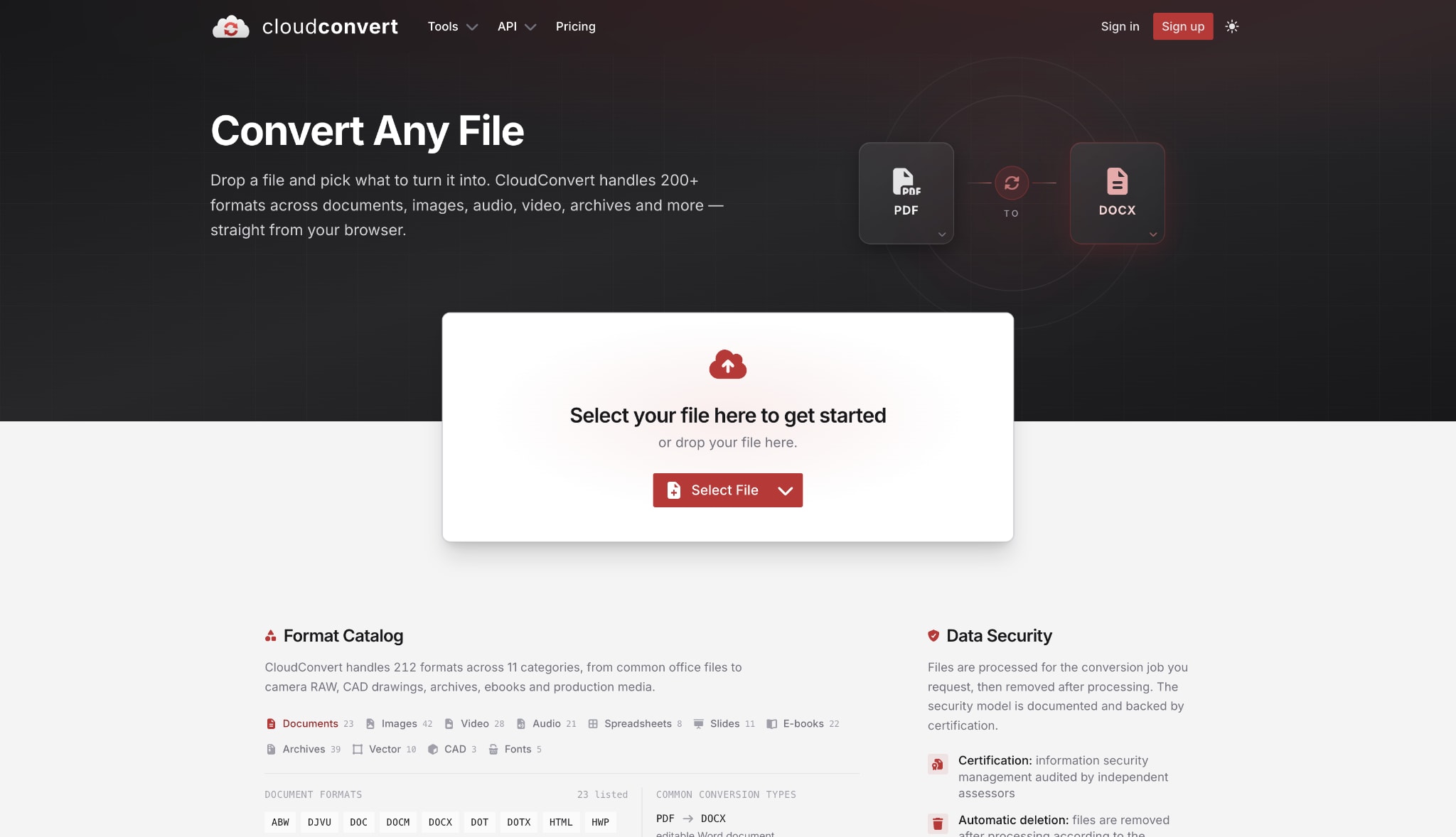
Supported Device: Web-based (All modern browsers)
3. VLC Media Player
VLC Media Player is a famous, open-source media player that includes a hidden conversion feature. It handles nearly any media file you throw at it. While primarily a player, it reliably extracts audio for offline users who do not want to install dedicated converter software.
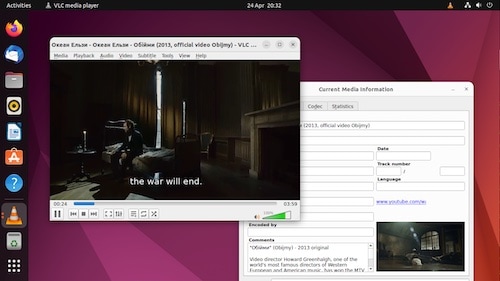
Supported Device: Windows, macOS, Linux, Android, iOS
4. FFmpeg
FFmpeg is a powerful, open-source command-line tool used by developers and IT professionals. It handles multimedia handling at the highest technical level. You can use it to convert, compress, and stream audio and video with precise control over every parameter.
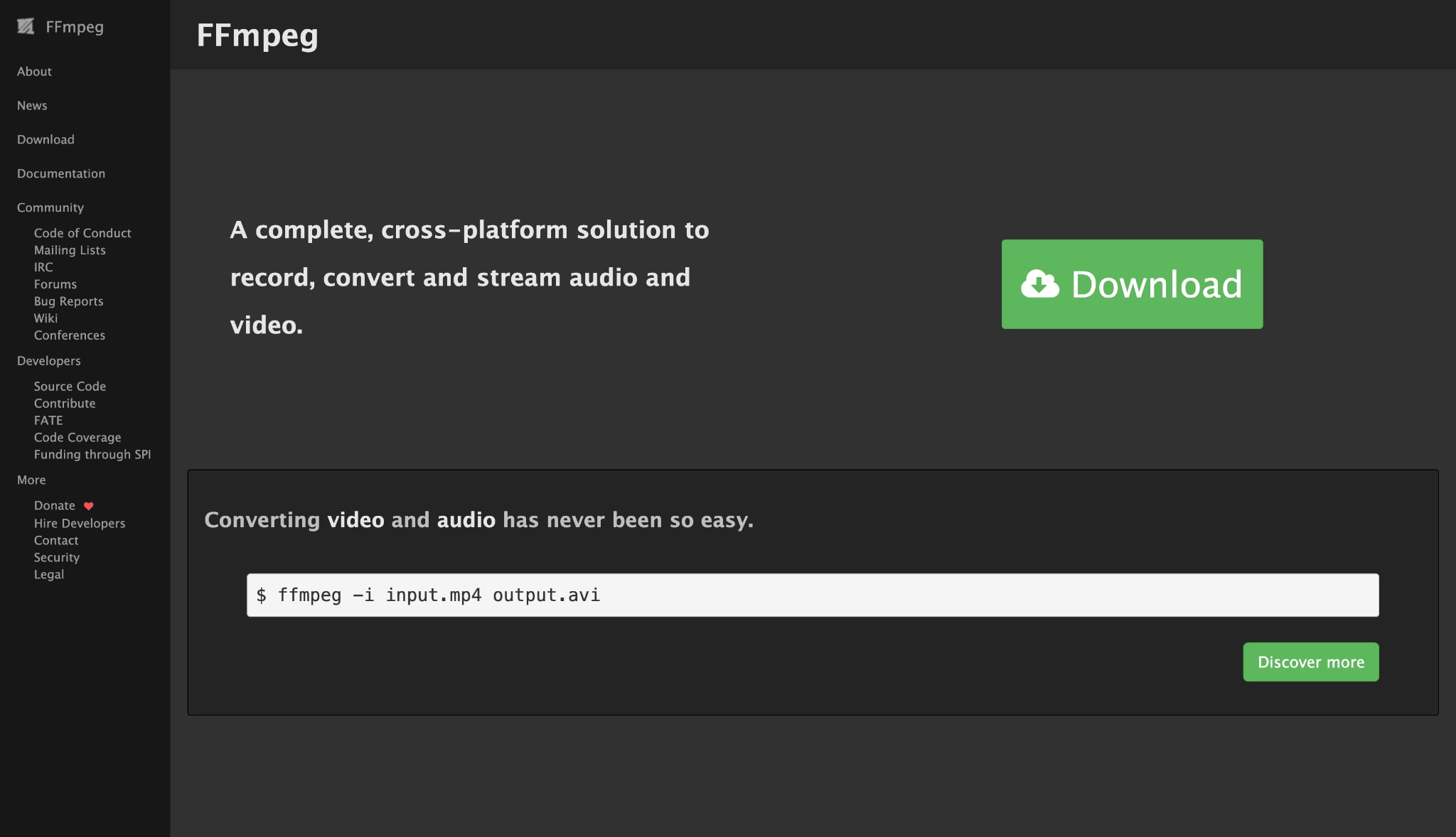
Supported Device: Windows, macOS, Linux
5. Any Video Converter Free
Any Video Converter Free is a desktop tool that offers basic conversion features without a price tag. It helps you extract audio, trim video clips, and download online media. It is a solid choice for users who want offline processing without paying for a premium license.
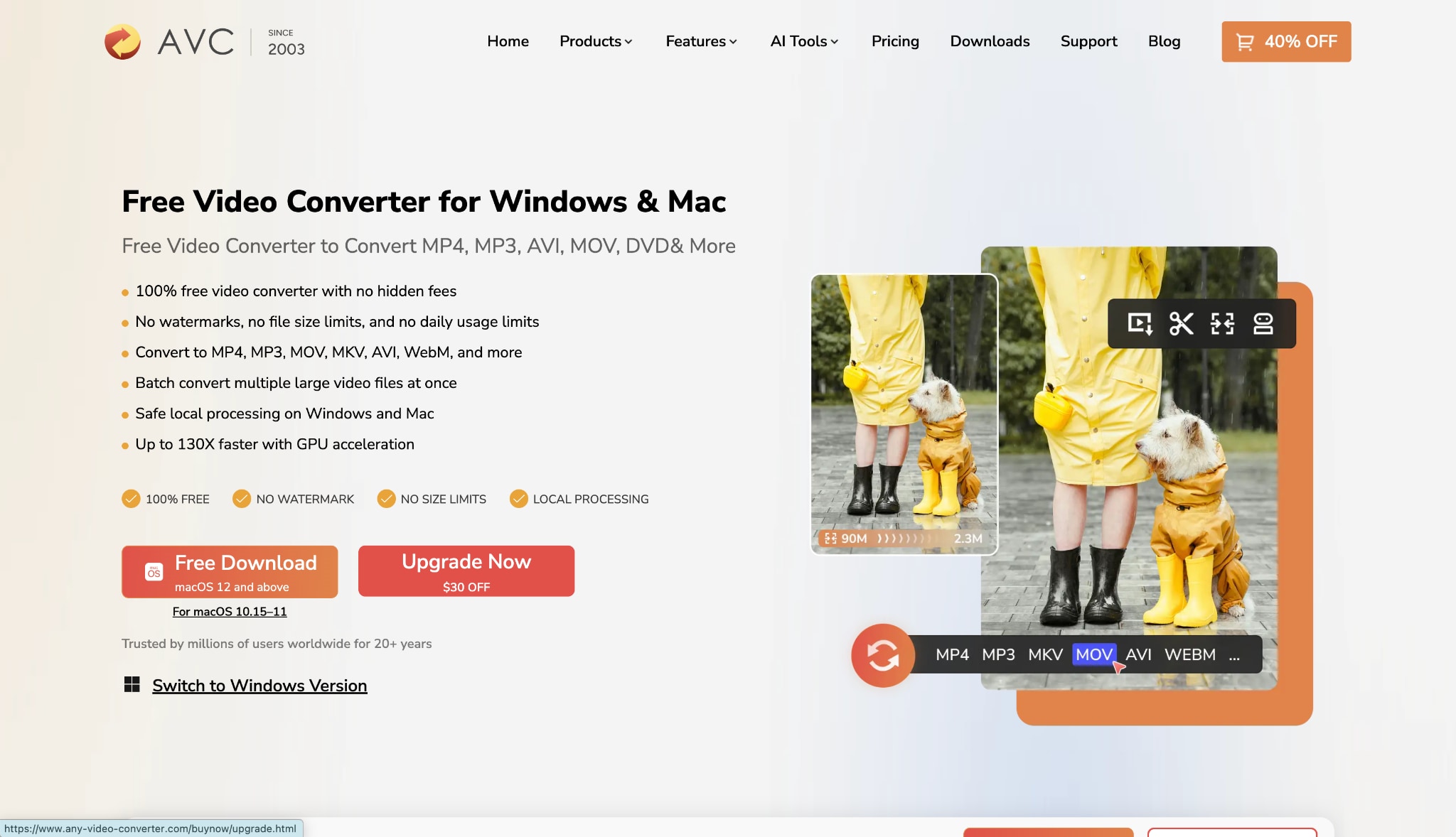
Supported Device: Windows, macOS
6. Zamzar
Zamzar is a veteran online conversion service that has operated for over a decade. It supports converting a massive variety of file types, including documents and images alongside video and audio. It is straightforward and delivers converted files via email if you choose to close the tab.
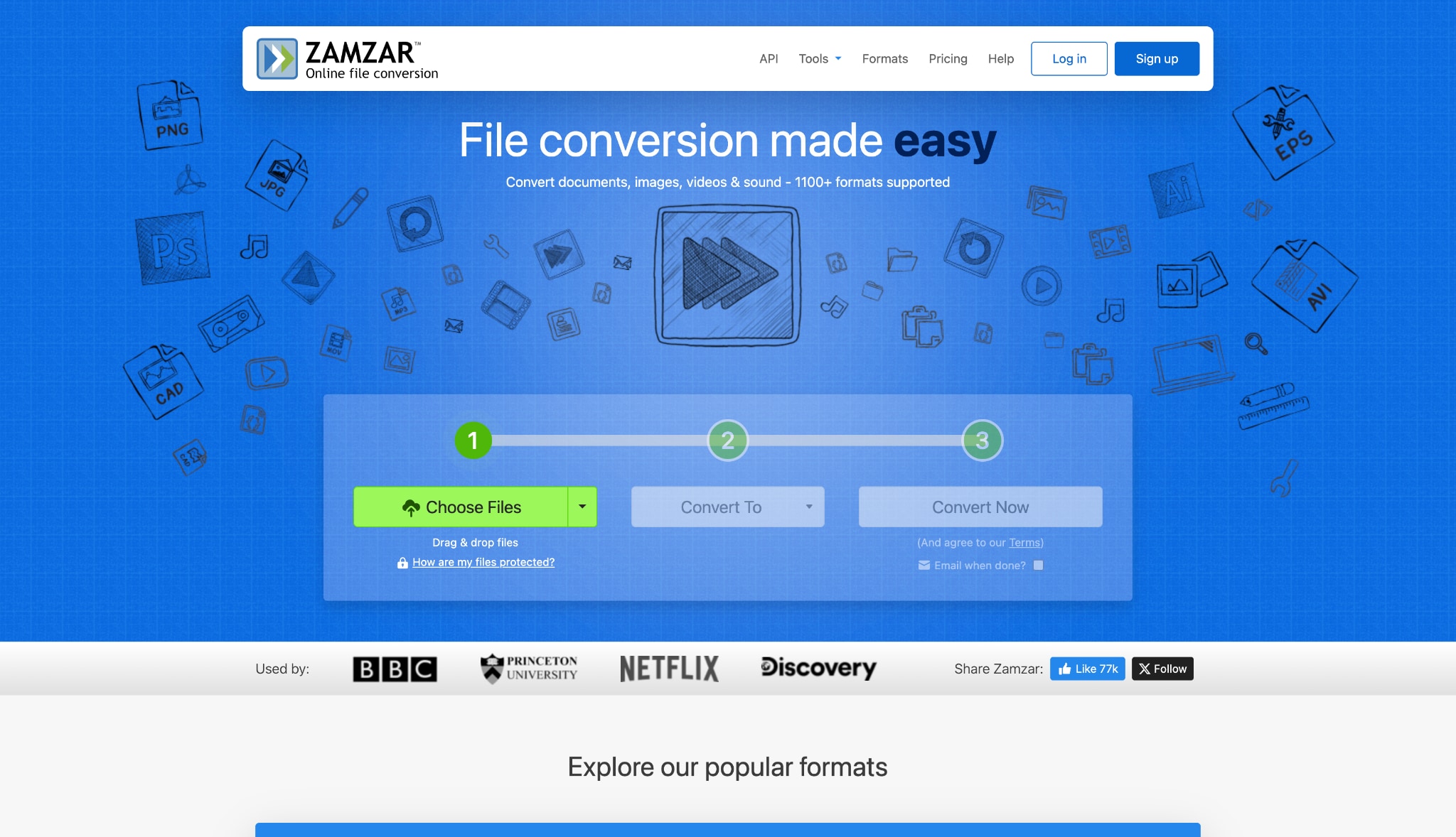
Supported Device: Web-based (All modern browsers)
Part 5. Step-by-Step: How to Convert MP4 to MP3 Safely
When dealing with large files, sensitive data, or batch projects, desktop software provides a much safer and faster workflow. You can easily turn FreeConvert MP4 videos into high-quality audio using Wondershare UniConverter. This process utilizes GPU acceleration to save you time.
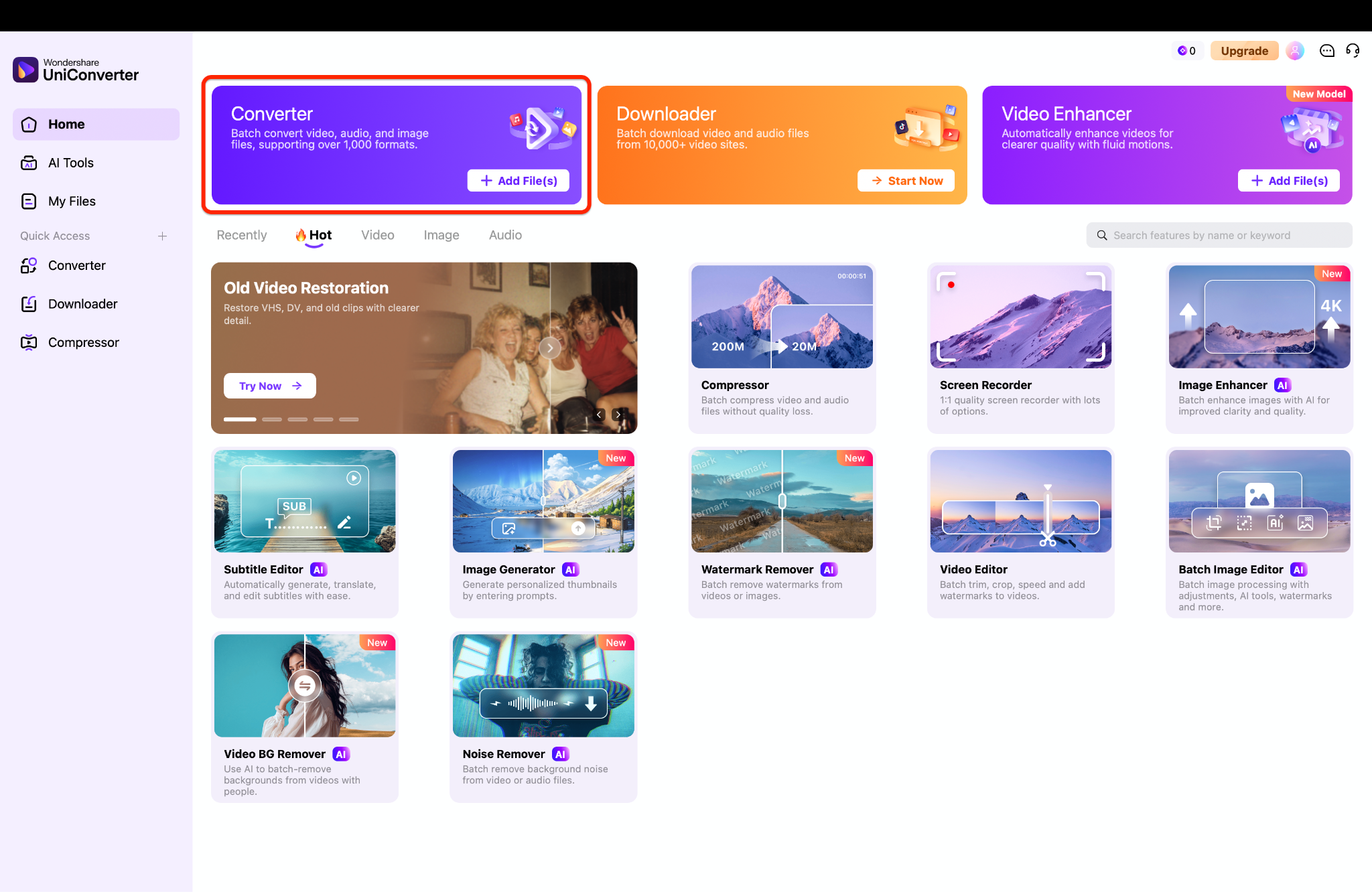
Step 1: Launch the Software and Add Video Files
Open Wondershare UniConverter on your computer and select the Converter tool from the home screen. You can add your media by clicking the "Add Files" button or by simply dragging and dropping your videos directly into the interface. The software instantly loads your files, regardless of their size.
Step 2: Choose Your Output Audio Format
Locate the Output Format menu at the bottom of the screen and click it to open the format options. Navigate to the Audio tab and select MP3 from the list provided on the left panel. You can then choose your preferred audio quality or bitrate from the right panel.
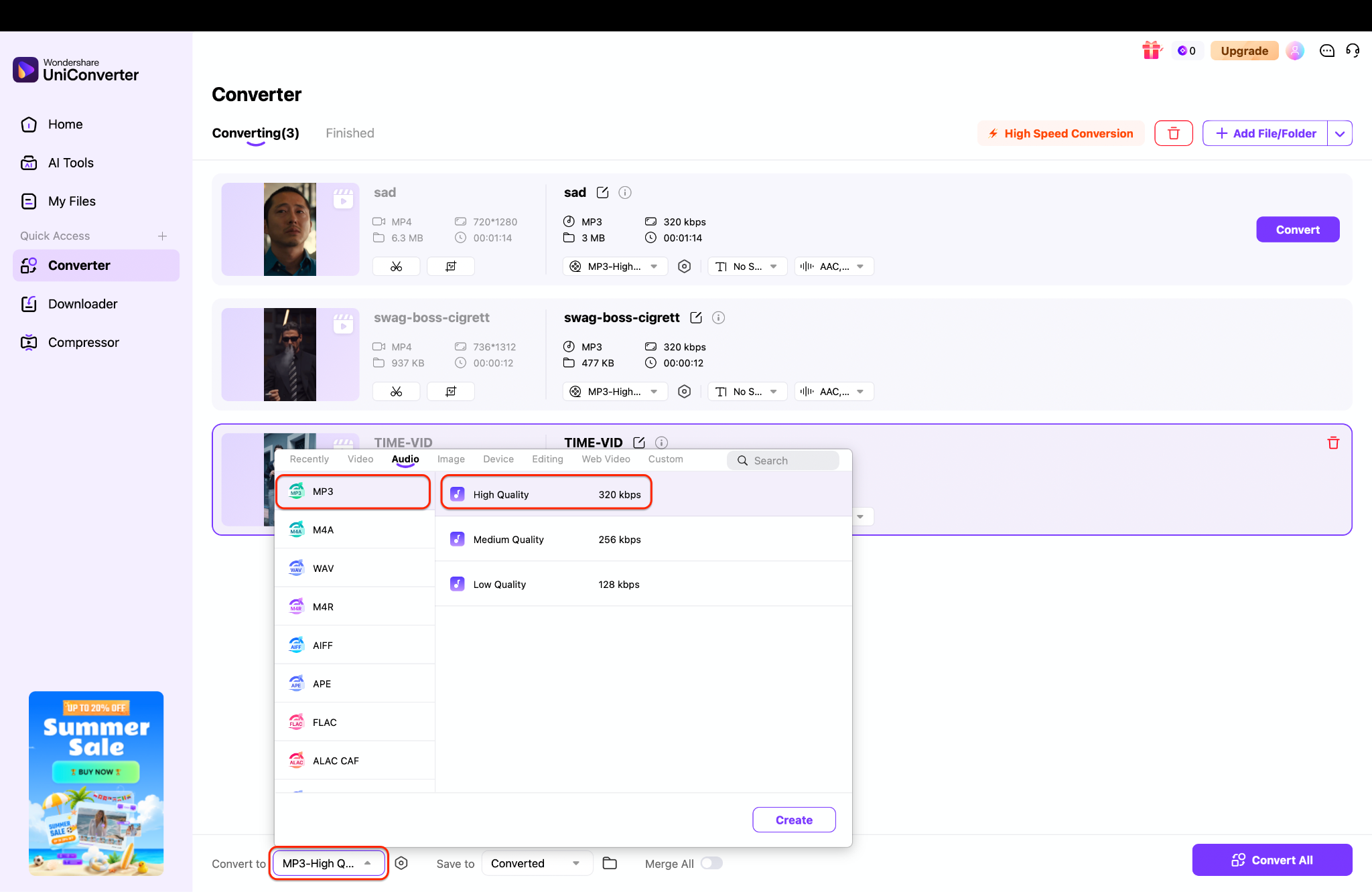
Pro Tip: Choose a higher bitrate like 320kbps if you are converting music files to ensure the highest possible audio fidelity.
Step 3: Convert and Access Your New Files
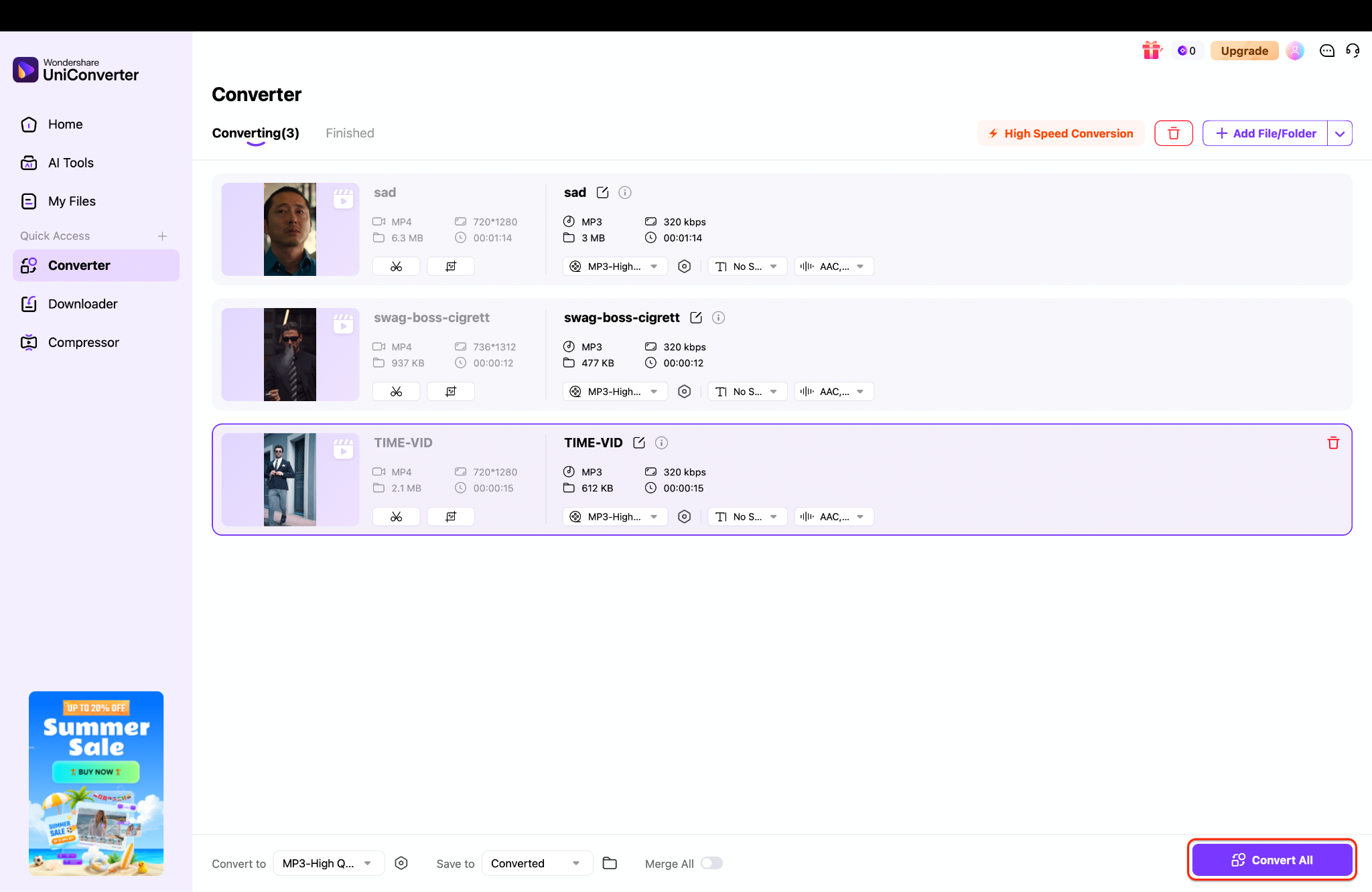
Click the "Convert" button next to your file, or click "Convert All" to process multiple files simultaneously. The software uses hardware acceleration to finish the job quickly. Once the process is done, the word "Success" will appear, and you can find your MP3 in the "Finished" tab.
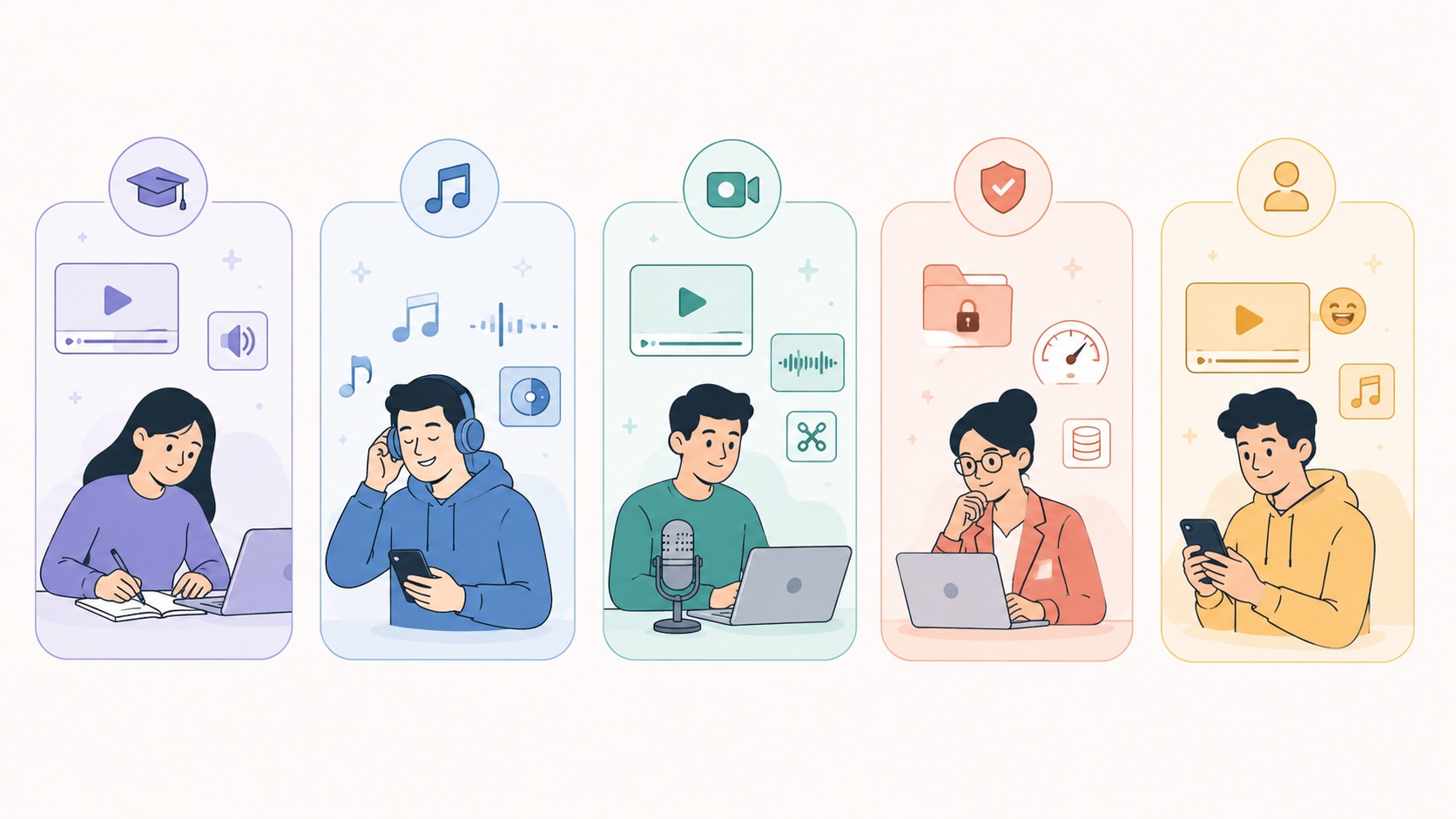
Part 6. Choosing the Right MP4 to MP3 Converter for Different Users
Different tasks require different tools. Here is how to choose the right converter based on your specific daily needs.
For Students
Students frequently deal with long lecture recordings, online class videos, and language learning clips. You need tools that make it easy to listen to educational content on the go.
Use an online tool for a quick, one-off lecture clip.
Use desktop software if you need to convert an entire semester's worth of video lectures into audio simultaneously.
For Music Lovers
When converting music videos or concert footage, audio quality is the most important factor. You also need to organize your files properly.
Preserve maximum audio quality by selecting 320kbps MP3 or lossless formats like FLAC.
Ensure your converter allows metadata editing so you can add album art and track names.
Build your album organization smoothly by batch-converting entire concert folders.
For YouTubers & Podcasters
Content creators run on tight schedules. If you are repurposing a YouTube video into a podcast episode, efficiency is vital.
Look for tools that offer fast batch extraction so you do not waste time waiting for files to process.
Consider software that allows basic trimming before exporting, so you only extract the audio you actually need.
Integrate your conversion tool into a broader audio cleanup workflow to remove background noise.
For Professionals
Educators, IT practitioners, and business professionals often handle sensitive company videos or massive project files. Reliability and security are non-negotiable.
Prioritize offline processing to ensure confidential company data never touches an external server.
Utilize faster GPU conversion to handle large files without freezing your computer.
Ensure better privacy by keeping all media local.
Manage large project handling efficiently with reliable desktop software like Wondershare UniConverter.
For Occasional Users
If you only convert a funny video to a ringtone once a year, you do not need heavy software.
FreeConvert MP3 remains a convenient browser option because it requires no commitment.
You can process small files in seconds and move on with your day.
Part 7. Conclusion
Using FreeConvert MP4 to MP3 is a highly convenient option when you need to quickly extract audio from a small video file. It requires no installation, works directly in your browser, and handles basic tasks with ease. However, when you start working with larger files, face slow internet speeds, or need to process multiple videos simultaneously, online tools often become frustrating bottlenecks.
For these more demanding tasks, desktop software becomes a smarter investment. We recommend Wondershare UniConverter for users who need fast batch processing, high-quality audio exports, and complete offline privacy. It removes file size limits and leverages your computer's hardware to work significantly faster. Ultimately, choose the tool that matches your workflow—stick to web tools for quick, occasional tasks, and upgrade to desktop software when efficiency and quality matter most.

