


If you want to make your videos more accessible, searchable, or ready for translation, extracting subtitles is one of the most effective ways to do it. With advancements in AI, extracting subtitles is no longer limited to professional software; there are now simple yet free tools that cater to different needs. In 2025, the choices are broader, as some tools focus on speed while others concentrate on accuracy.
However, if you are still exploring the most advanced yet reliable subtitle extractor, this guide is for you. This article takes a close look at the best free and paid ways to extract subtitles from videos.
In this article
- Things to Know About Subtitles Before You Start
- Method 1: Easily Batch Extract Subtitles with Desktop Software
- Method 2: Using Free Online Subtitle Extractors
- Method 3: Using Free Command Line Subtitle Extractors
- Method 4: Using Browser Extensions to Extract Subtitles
- Method 5: Using a Dedicated Subtitle Editor to Extract Subtitles
- Conclusion
- FAQs
Part 1. Things to Know About Subtitles Before You Start
It is imperative to know the fundamentals regarding subtitles before you can extract subtitles from a video. Subtitles are text files synchronized with the spoken language or audio signals at certain time points in a video.
Nonetheless, it appears easy, but selecting the appropriate format is critical since it will dictate the compatibility, the editing needs, and the playback quality of the video. So, we shall take our little way through which kinds of subtitle formats are commonly in existence:
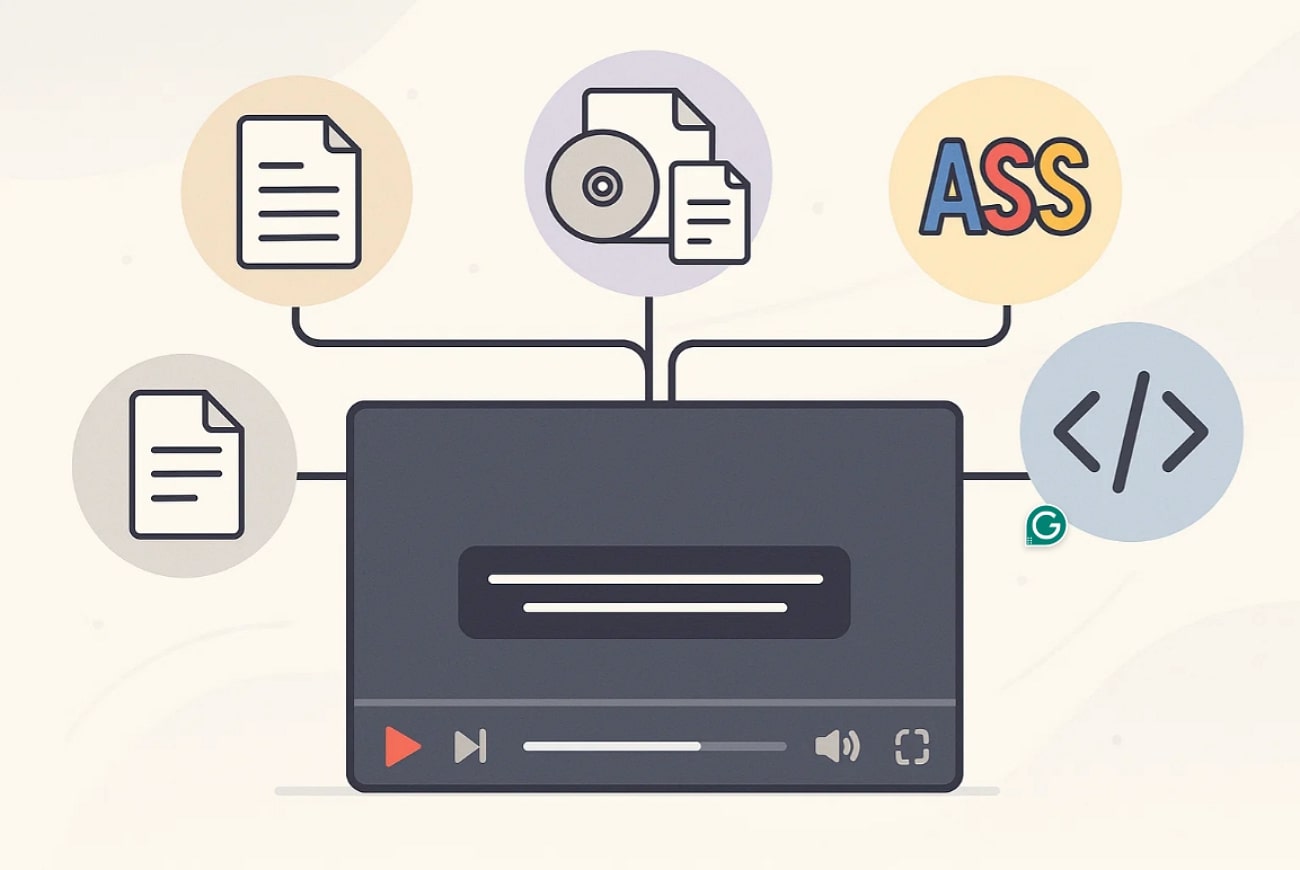
SRT (SubRip Subtitle): SRT stands as the most popular subtitle format with text entries and time stamps in plain text. This format is compatible virtually with any media player.
VTT (WebVTT): This is a commonly used format in web video, website video players, and streaming sites, and it supports styling and placement.
SUB/IDX: This is a less flexible format, and it is a pair of files that are commonly used together. The SUB file contains the text or image of a subtitle, allowing it to be deployed across DVDs.
ASS/SSA (Advanced Substation Alpha): This is among the most common formats used in anime and fan-sub circles, as it is capable of styling, fonts, and effects.
TTML (Timed Text Markup Language): It is an XML markup standard commonly employed in professional broadcasting and is most suitable for high-quality captioning in controlled conditions.
Hardcoded vs. Soft Subtitles: A Needed Comparison
Before you extract hardcoded subtitles from a video, here’s a detailed comparison with soft subtitles to clarify all concepts:
| Features | Hardcoded Subtitles | Soft Subtitles |
| Visibility | Always visible, embedded in the video. | Can be turned on/off by the viewer. |
| File Structure | Permanent part of the video file. | Separate subtitle file (e.g., .srt, .vtt, .ass) |
| Customization (User) | No customization possible (size, font, color fixed) | Customizable (size, font, color, language) |
| Editing/Updates | Requires re-editing and re-exporting the entire video | Easily edited or updated without changing the video |
| Device Compatibility | Universally compatible, no special player needed | Requires player support for subtitles |
| Storage/Export Size | Larger file size per language version | Video file remains unchanged; subtitle files are small |
| Accessibility (Deaf/HOH) | Always available, but not customizable for visibility needs | Customizable for accessibility; can include SDH/CC elements |
| Removal | Cannot be removed or hidden | Can be removed, replaced, or left out entirely |
| Typical Use Cases | Social media clips, promo videos, platforms without subtitle support | Streaming, DVDs, online courses, multilingual releases |
| Distribution/Sharing | Simpler, as only one file (the video) is needed | Both video and subtitle files must be shared and managed together |
| Sync Issues | Always in perfect sync (burned into frames) | Risk of out-of-sync or missing subtitles if files are mismatched |
| Language Support | One language per video version | Multiple language tracks are easily supported |
Crucial Disclaimer: It’s important to note that the methods covered in this guide apply only to “soft subtitles.” Extracting soft subtitles is straightforward because they exist as independent data and can be accessed easily. However, hardcoded (also called burned-in) subtitles are permanently embedded and can’t be extracted as text using conventional tools.

Subtitle Extractor & Generator
Part 2. Method 1: Easily Batch Extract Subtitles with Desktop Software
Best For: Users who want an all-in-one solution for automatically generating, extracting, and exporting subtitles.
If you are eager to extract captions from video, then Wondershare UniConverter provides a versatile subtitle extraction tool, especially for videos with soft subtitles. The tool provides a clear system to extract subtitles by importing any video format, including MKV, MP4, or MOV. With its AI subtitle generator, it automatically generates subtitles in the target language.
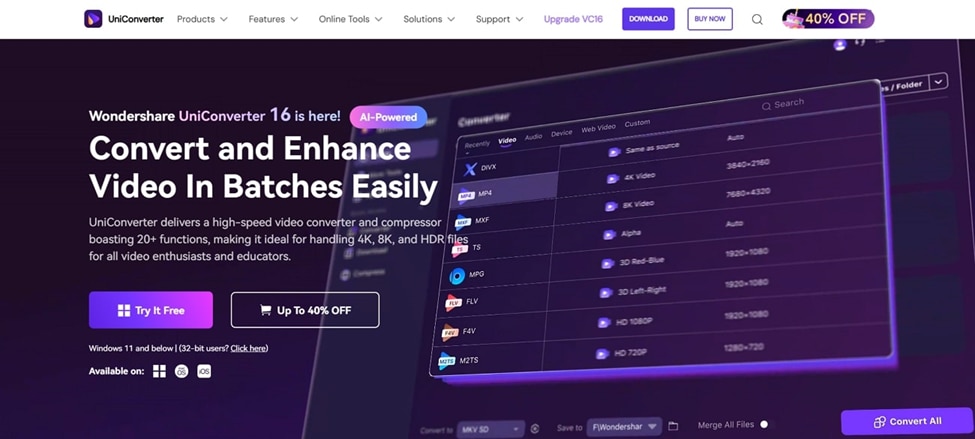
Along with AI automation, it allows adding manual text while changing their styles. UniConverter is not limited to offering subtitle generation facility, as it provides several other advanced features. From image enhancement to video editing, the tool does it all.
Detailed Stepwise Guide to Extract Subtitles with UniConverter
Upon learning about its key features, let's explore a detailed stepwise guide to extract subtitles of your videos efficiently:
Step 1. Access the Tool and Select the Subtitle Editor
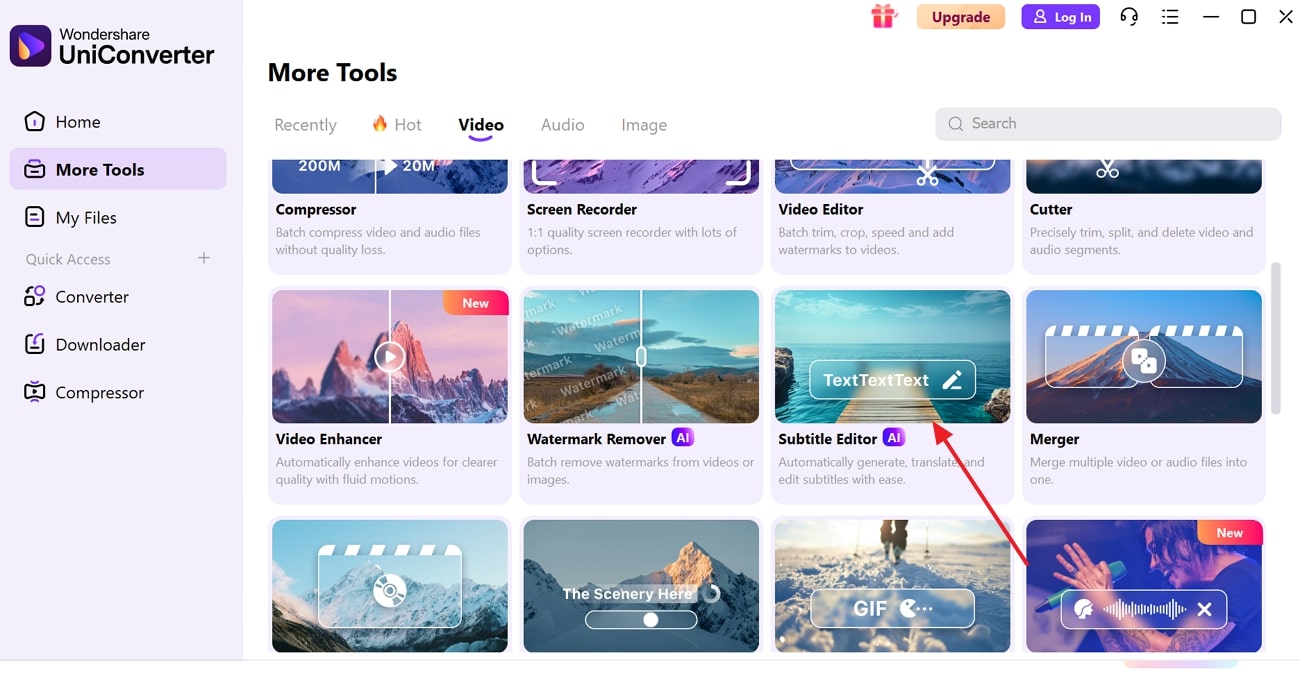
Upon launching the tool, click on the “More Tools” tab and select the “Subtitle Editor” to enter the editing interface.
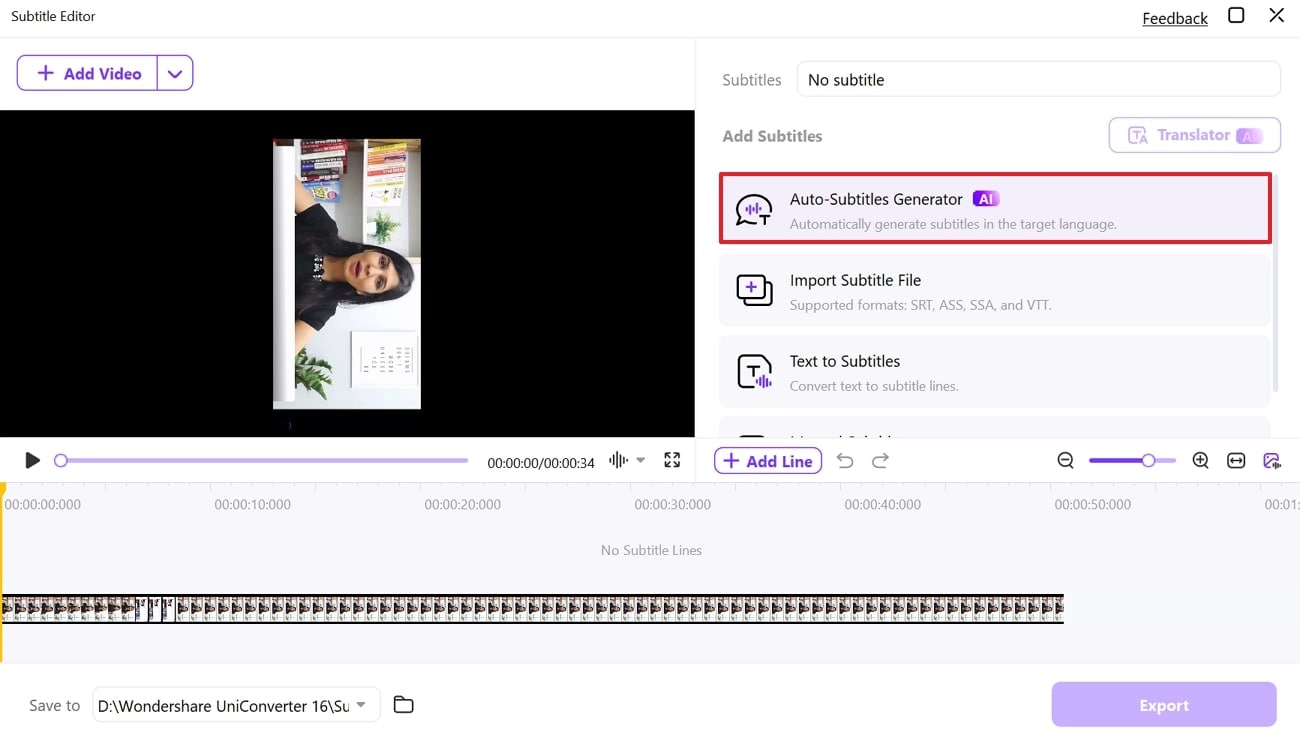
Step 2. Choose Auto Subtitle Generator for Automated Subtitles
As you import the video file, choose the “Audio Subtitle Generator” from the given options.
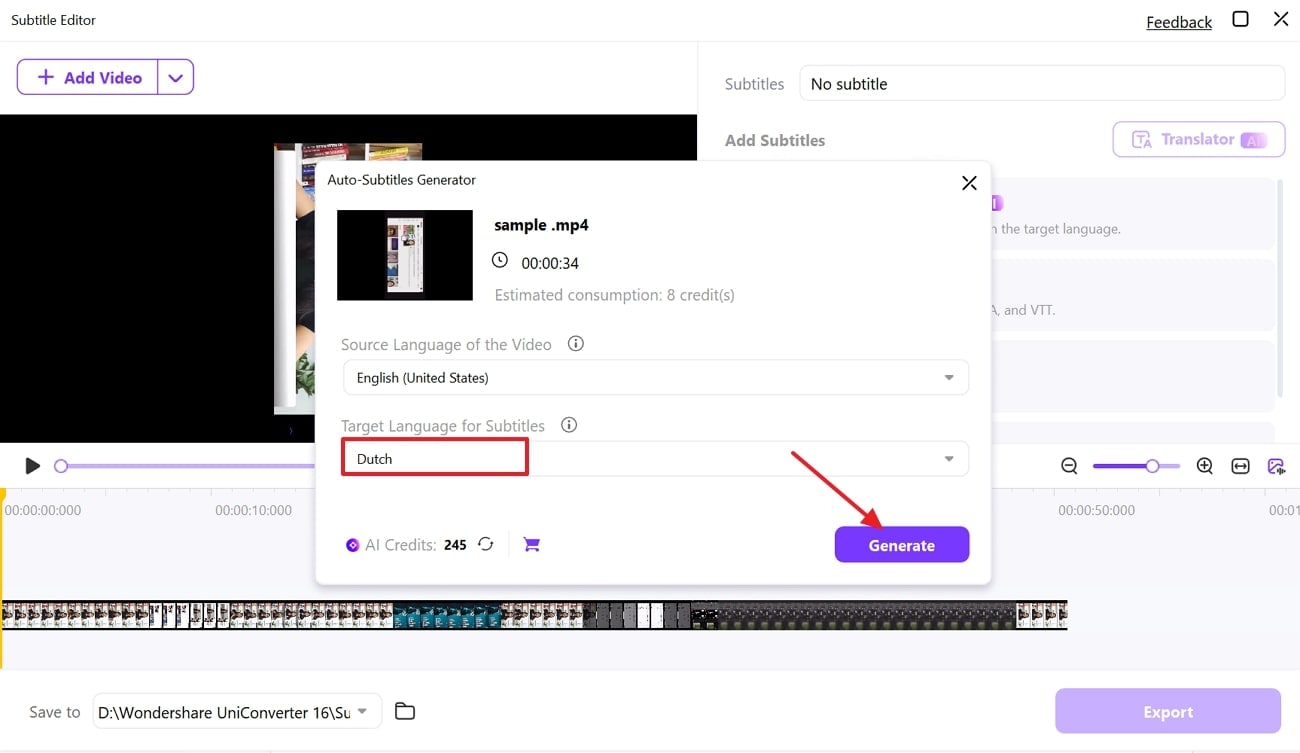
Step 3. Select the Desired Target Language and Hit the Generate Button
Choose your output language from the “Target Language for Subtitles” menu and select the “Generate” button to initiate the process.
Part 3. Method 2: Using Free Online Subtitle Extractors
Best For: Creators who need fast, accurate subtitles for videos without software installations.
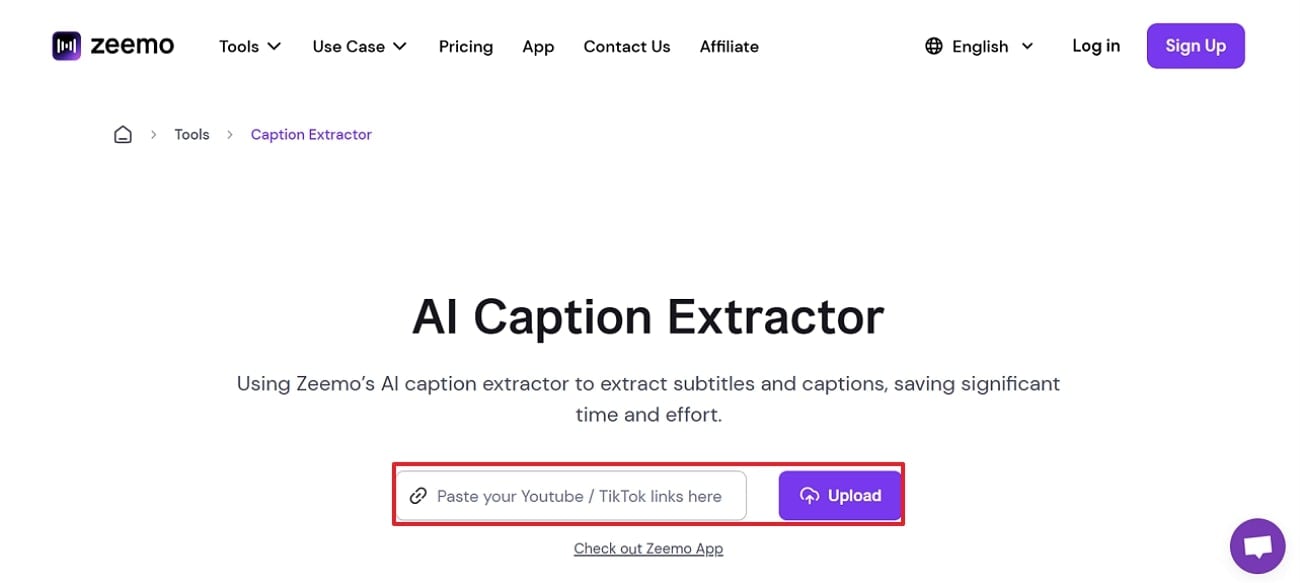
If you are the one who doesn't like to download software, using a free online subtitle extractor is a great option. Among numerous tools, you can opt for Zeemo AI subtitle extractor, which lets you simply add a video, and it will extract subtitles for you. Besides uploading video directly, you can even add the video URL directly, which can be observed in the step-by-step guide below:
Step 1. Access the Zeemo AI web-based subtitle extractor and add your video URL before hitting “Upload” to start the process.
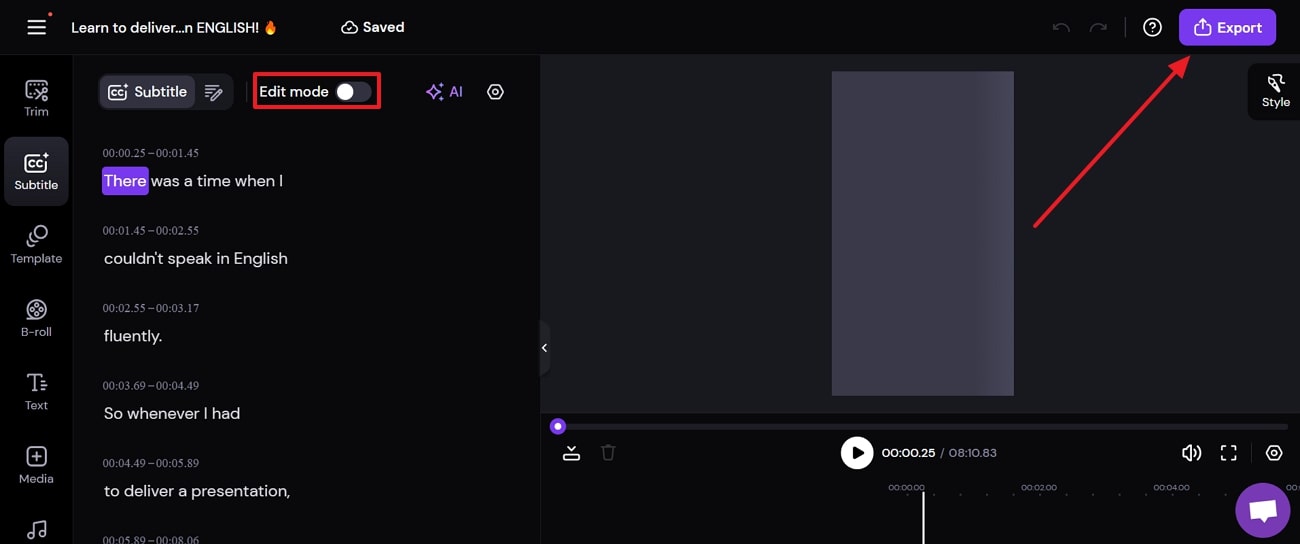
Step 2. As it extracts the subtitles, you can observe all video content within the “Subtitles” tab on the left. Review all subtitles and proceed onto the “Export” button for saving the content.
Part 4. Method 3: Using Free Command Line Subtitle Extractors
Best For: Advanced users who need precise and flexible subtitle extraction.
To get maximum control and flexibility, users can opt for a free command-line video subtitle extractor like FFmpeg. You can find the method beneficial in situations with multiple tracks or with a lesser common format. Being a free option, you can use it across Windows, macOS, or Linux, as per your requirements. As it helps users generate subtitles instantly without any delays, have a look at its detailed guide:
Step 1. Begin by adding the file name of the video which is to be processed for subtitle extraction.
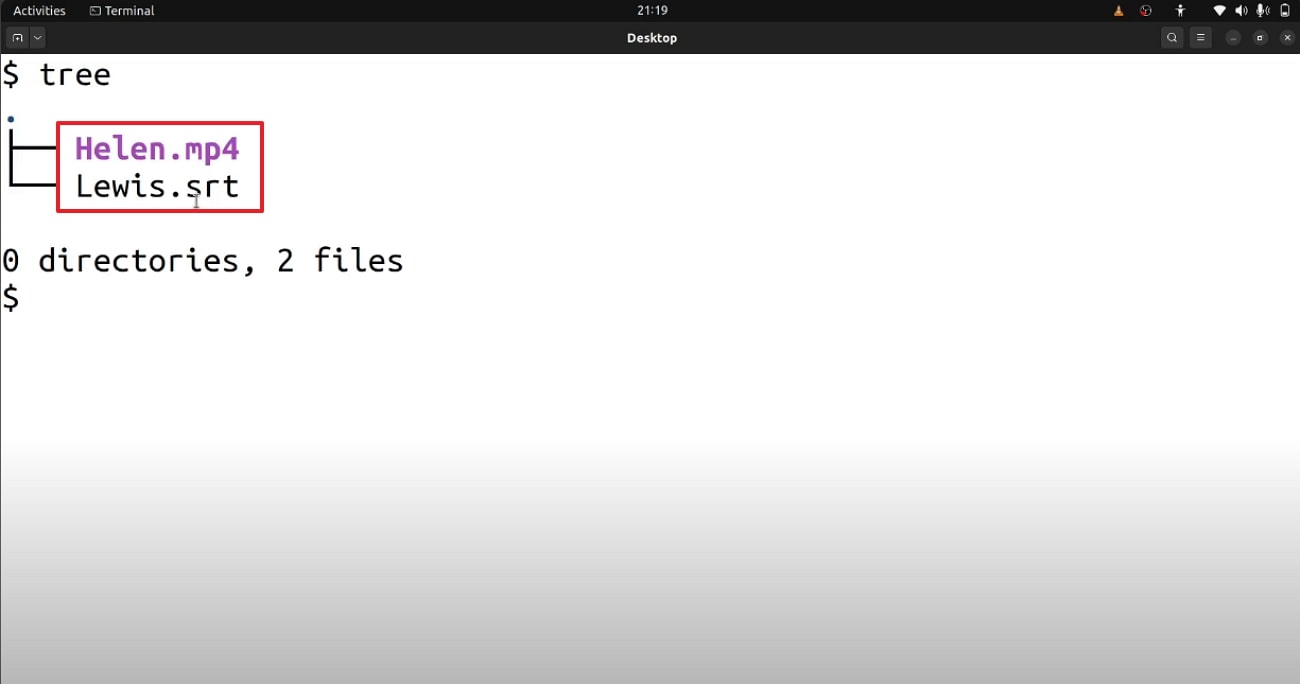
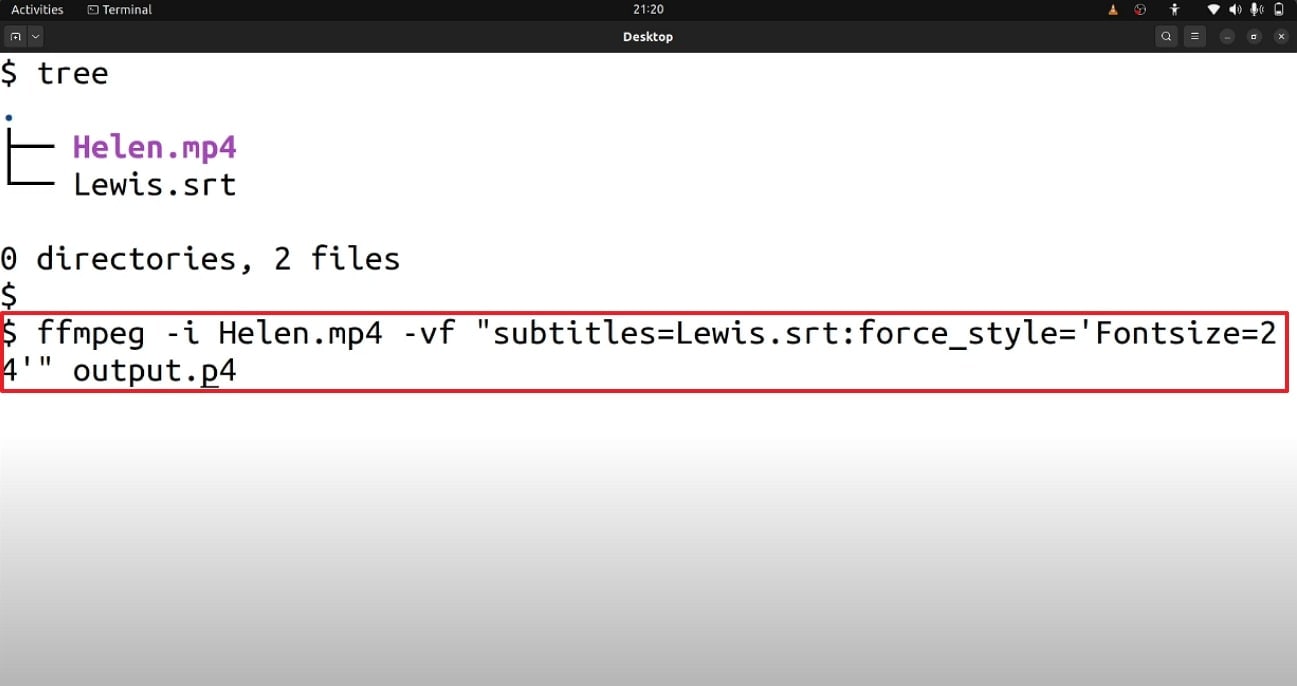
Step 2. To create a subtitle file out of the video, use the following command:
ffmeg-i (file name)-vf "subtitles style"= font size "output"
With the command added, tap the “Enter” button on your computer’s keyboard to initiate the process.
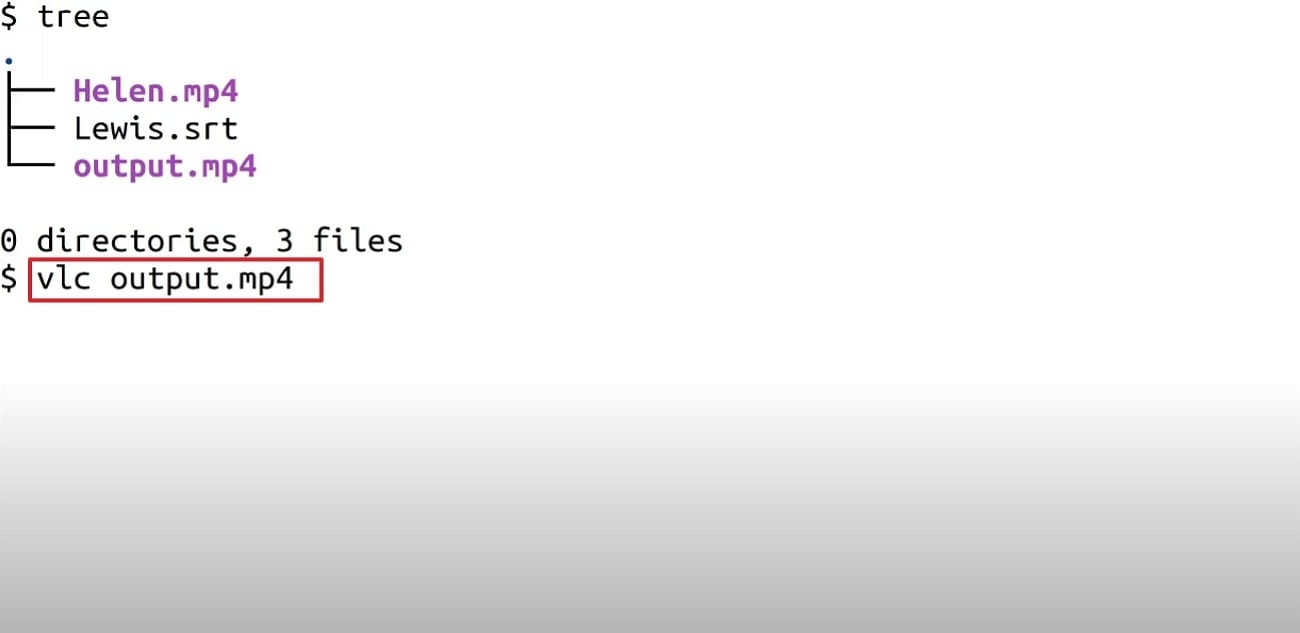
Step 3. Navigate back to the main page and add the command “(media player) output.mp4” to access the subtitle file across your desired media player.
Subtitle Extractor & Generator
Part 5. Method 4: Using Browser Extensions to Extract Subtitles
Best For: Casual users and social media creators who want a fast solution.
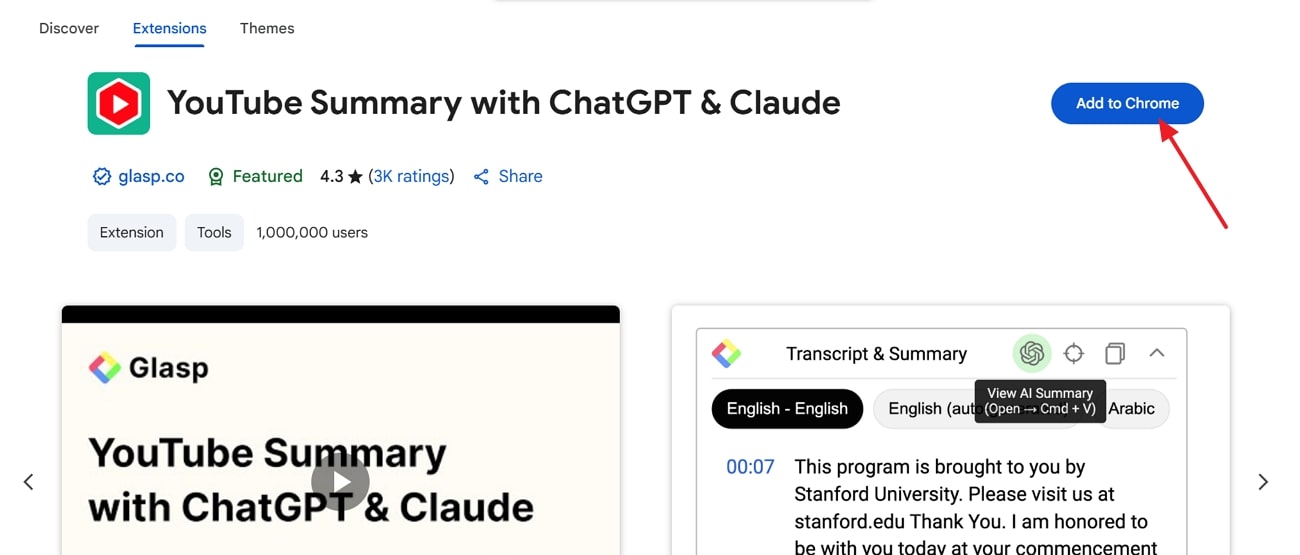
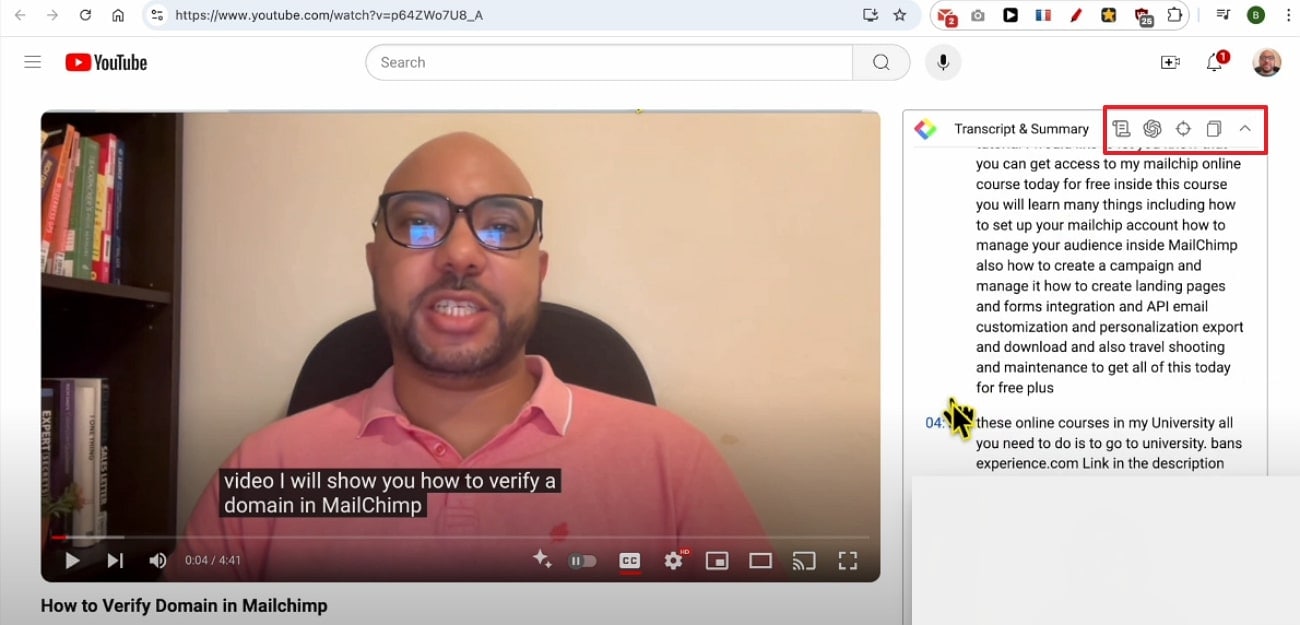
For instant subtitles, browser extensions are another solution that can be considered instead of online tools. There are numerous extensions available for this purpose, out of which YouTube Summary with ChatGPT& Claude has made its name. This extension supports exporting SRT, VTT, and other standard text formats. For a better idea on how to use extensions properly, let's go through the following guide of this subtitle extractor online:
Step 1. Look for the necessary extension across Chrome Web Store and add it using the “Add to Chrome” button onto your browser.
Step 2. As you access the video across the browser, the extension automatically transcribes and displays instant subtitles for copying.
Part 6. Method 5: Using a Dedicated Subtitle Editor to Extract Subtitles
Best For: Professionals who need customization and compatibility with many file types.
Professional subtitle extraction is possible through various tools, including a dedicated option presented as follows. Subtitle Edit allows users to open video files and extract soft subtitles (SRT, ASS, VTT, PGS, etc.) It supports over 300+ formats and provides features like robust subtitle management and editing translation. This subtitle extractor is ideal for anyone who needs advanced subtitle management. It also provides you with batch processing to save time, so let's explore its guide:
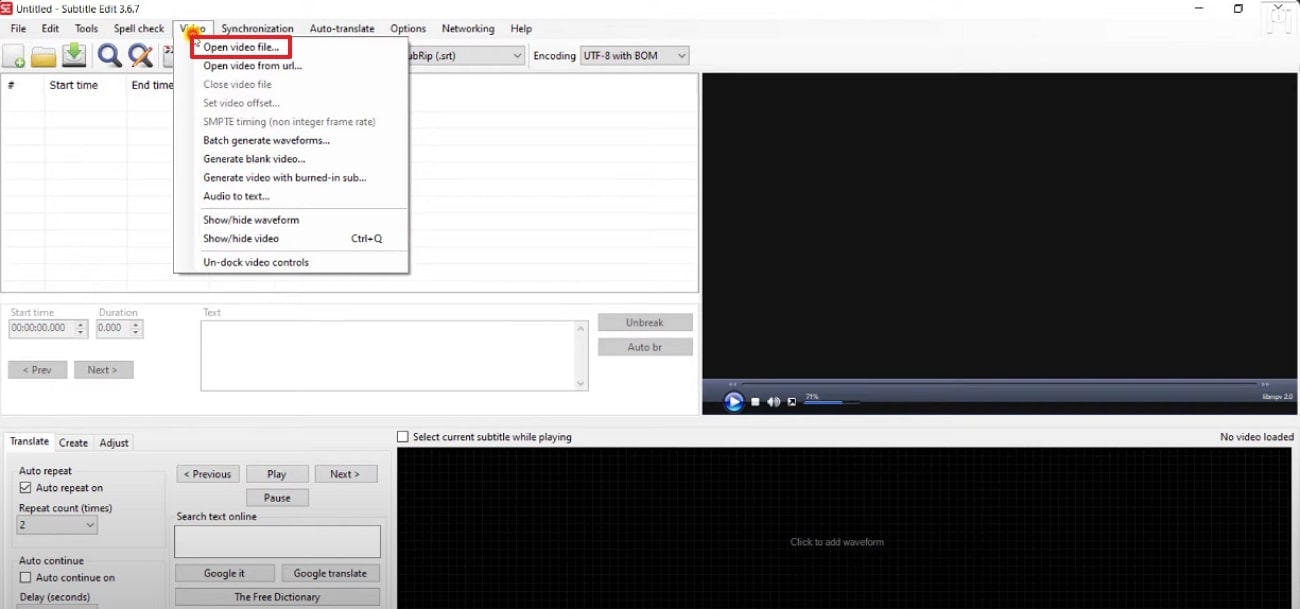
Step 1. As you launch the tool, click on the "Video" menu in the toolbar and select "Open Video File" to insert the desired video.
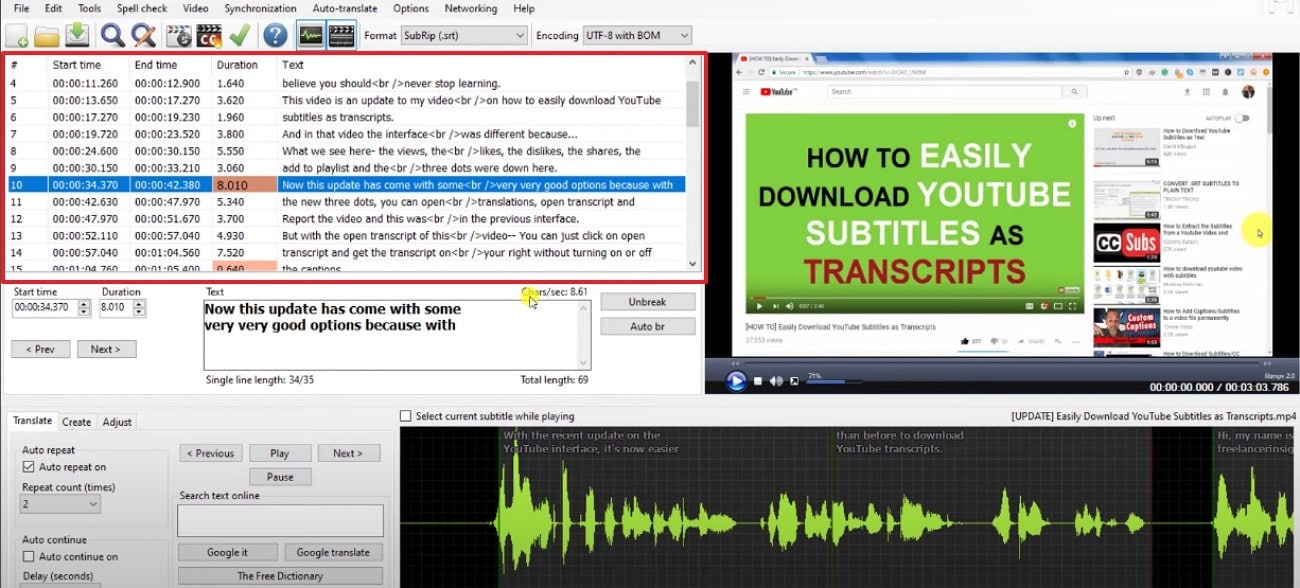
Step 2. Here, your file's subtitle will be shown on your screen specifying "Start Time, End Time, and Duration,"
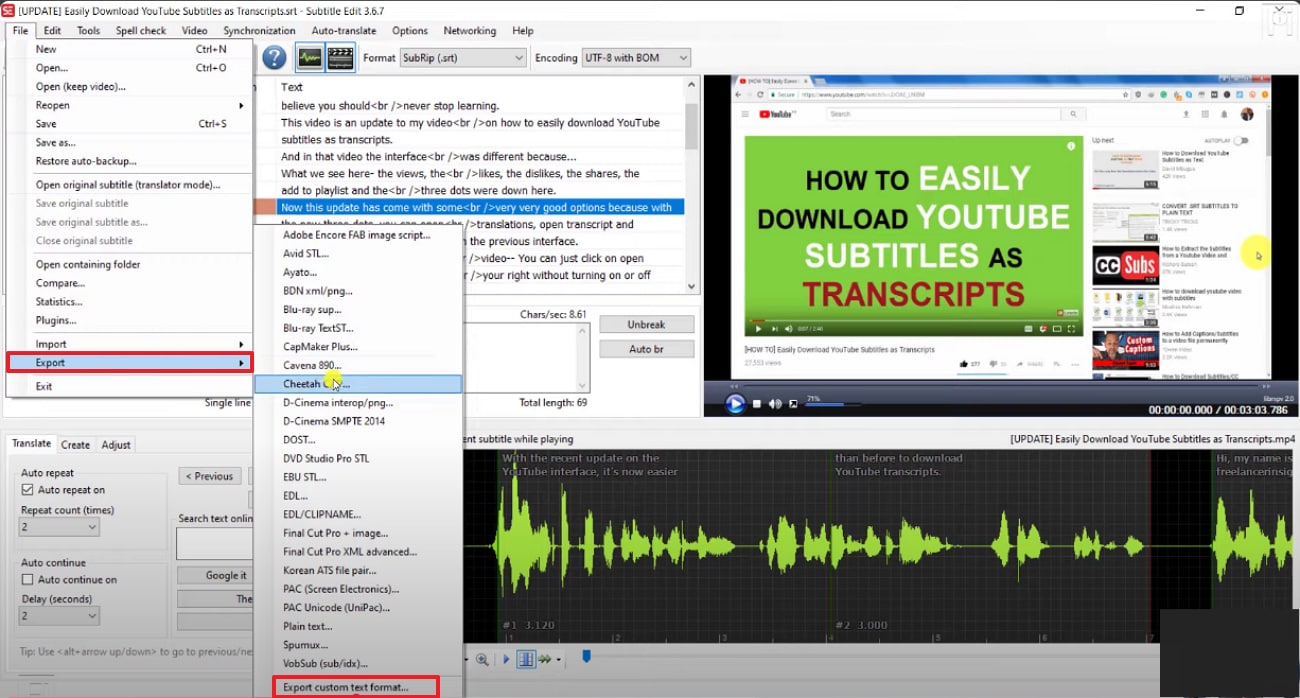
Step 3. Afterwards, select the "File" menu in the toolbar, select the “Export” option, and choose "Export Custom Text Format."
Step 4. Select the "New" button on this pop-up menu to create a new folder for these subtitles.
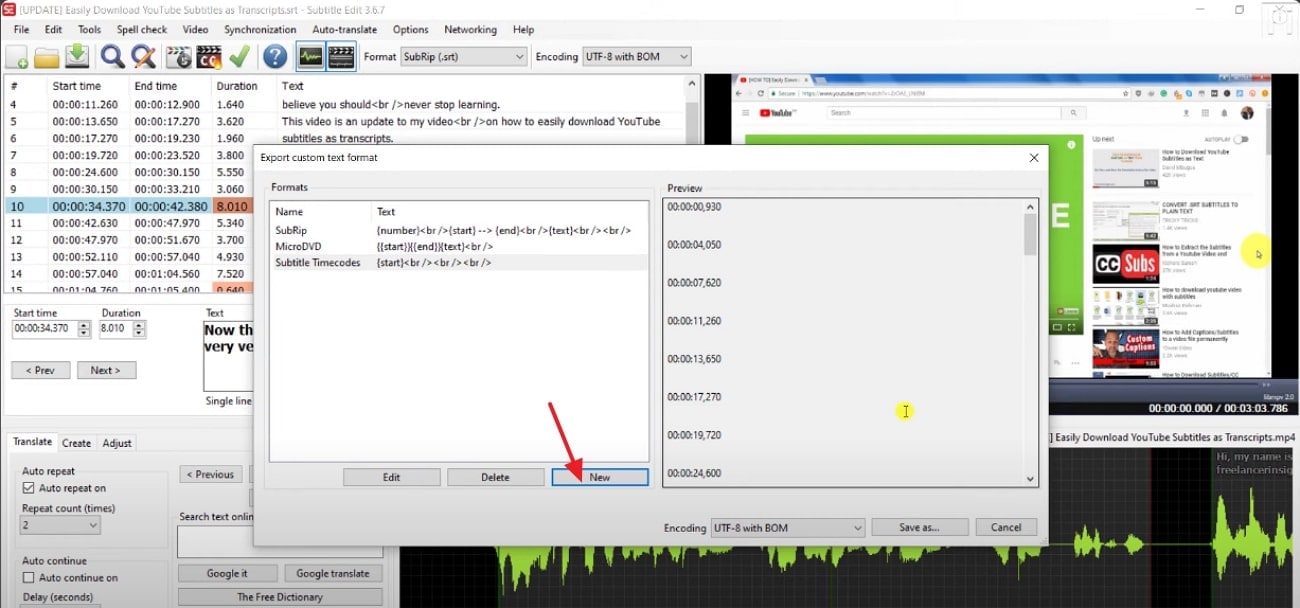
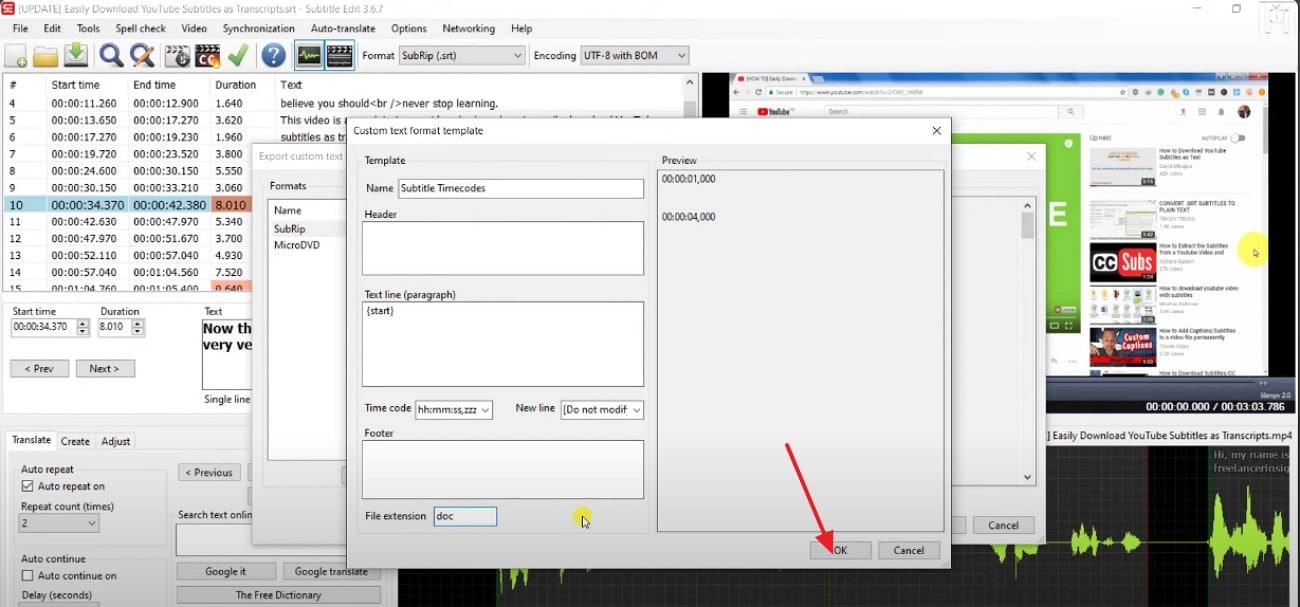
Step 5. Insert all the required information within this menu and click the "OK" button to create a new file for your subtitles.
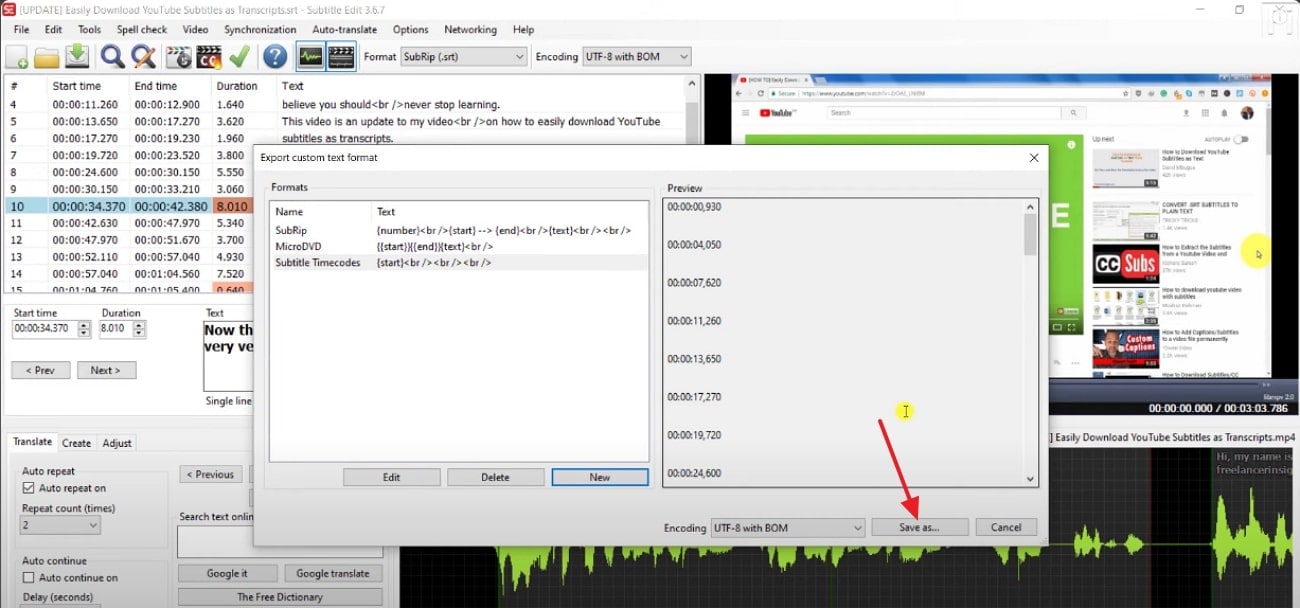
Step 6. Click on the "Save as" button to render the textual file into the selected folder of the device.
Subtitle Extractor & Generator
Conclusion
Summing up, in this article, we have covered you all with all the necessary information about subtitle formats. You'll get to know about the most efficient subtitle extractors that you can use. Among these tools, we recommend using UniConverter, which provides you with a dedicated AI Subtitle Editor to extract your subtitles.
FAQs
-
1. What are the main ways to extract subtitles from videos?
There are numerous ways to extract subtitle files from your long-format videos. However, we recommend using UniConverter, which lets you extract and edit your subtitles instantly. -
2. What subtitle formats do these tools support?
Most online tools support all standard formats, including SRT, VTT, ASS, SUB, and TXT. However, while choosing a tool, ensure that it supports your required video format. -
3. Which method is best for beginners?
Free online subtitle extractors and browser extensions are appropriate options for beginners, as these tools have a lower learning curve and require no installation. However, UniConverter provides a basic system for subtitle generation and editing, making it an all-in-one easy solution. -
4. Is subtitle extraction legal?
If you are extracting subtitles for personal use, then it is legal to extract them using a reliable method. However, if you aim to distribute copyrighted subtitles for commercial use, then it's illegal and poses punishments.

