Downloading a video in higher resolution comes down to the versions the source offers and the quality you ask UniConverter for. A preferred quality gives UniConverter a target for supported video links. It does not turn a lower-resolution source into a native 4K recording. Download only videos you own or are authorized to save.
What Determines Whether You Get a Higher-Resolution Download?
The source controls which versions exist; the download preference tells the app what you want. If the source does not match the selected value, the app’s tooltip says it will choose the best available option. Check the saved file before assuming that it matches your preference.
| Quality | Common dimensions | When to choose it |
|---|---|---|
| 720P | 1280 × 720 | Smaller playback files where HD is enough. |
| 1080P | 1920 × 1080 | Full HD viewing and everyday editing. |
| 2160P / 4K UHD | 3840 × 2160 | UHD playback or editing when the source offers it. |
| 4320P / 8K UHD | 7680 × 4320 | 8K sources where the video, source and task support that quality. |
MP4 identifies a container; it does not tell you resolution or guarantee sharpness. Bitrate and source compression can also affect visible detail. If Convert after download is enabled, review its output format and settings separately: conversion may re-encode the file.
How to Set 1080p or 4K as Your Default Download Quality
Set a preferred Video File Quality before submitting your link. The steps and screenshots below show the Windows interface. On Mac, Wondershare’s Mac preferences guide describes opening the Wondershare UniConverter menu, selecting Settings, and entering the Download tab.
- Open Downloader. Launch UniConverter and select Downloader on the Home screen or in the navigation.
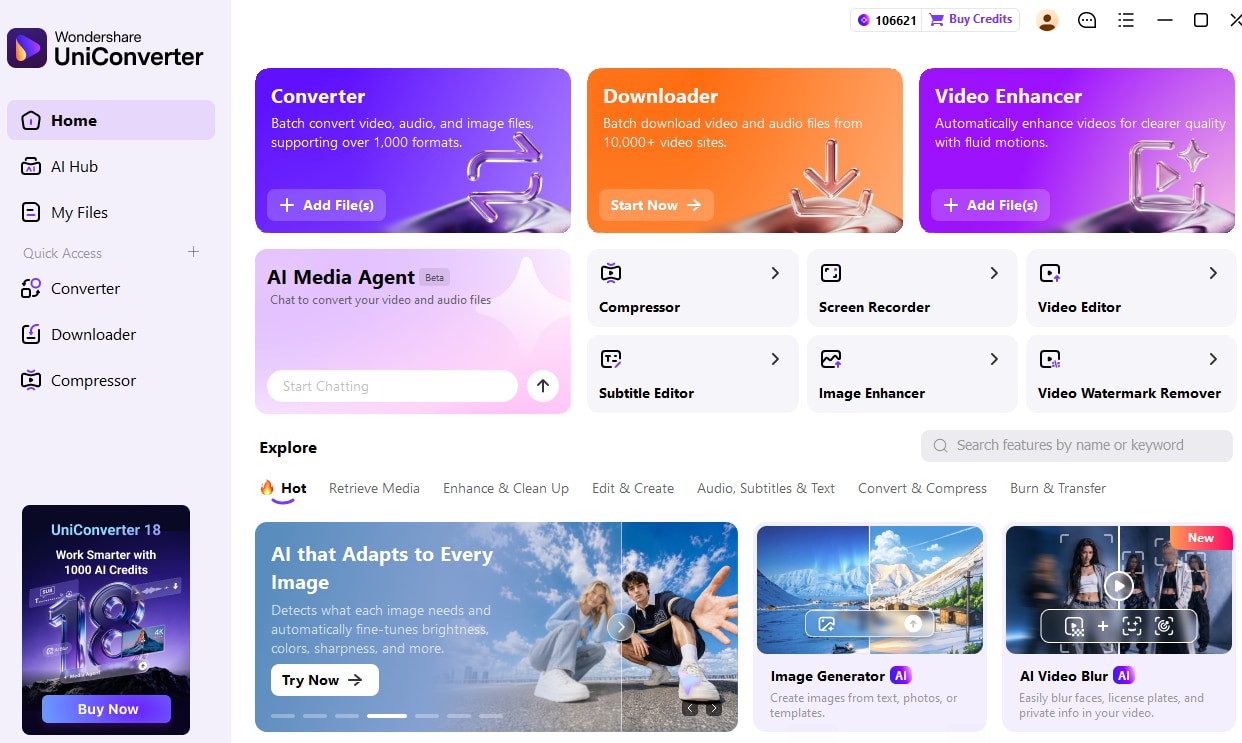
Open Downloader from Home or the left navigation. - Open Preferences. Open Preferences from the Downloader interface.
- Choose Download. Select the Download tab in Preferences.
- Set Video File Quality. Under File Quality, open the Video menu and choose 1080P for Full HD, 2160P for 4K UHD, or 4320P when you need 8K.
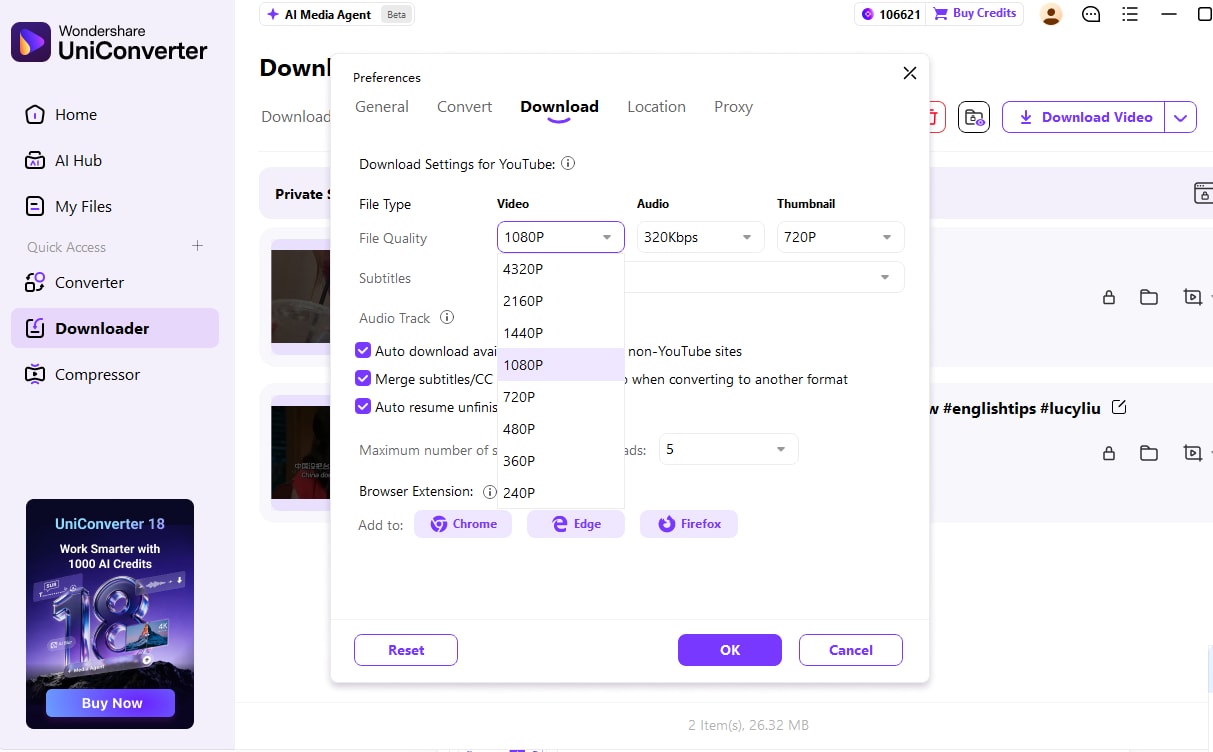
The Windows example shows 1080P selected and 2160P and 4320P available in the menu. - Save the preference. Click OK. The setting is saved for subsequent supported download tasks.
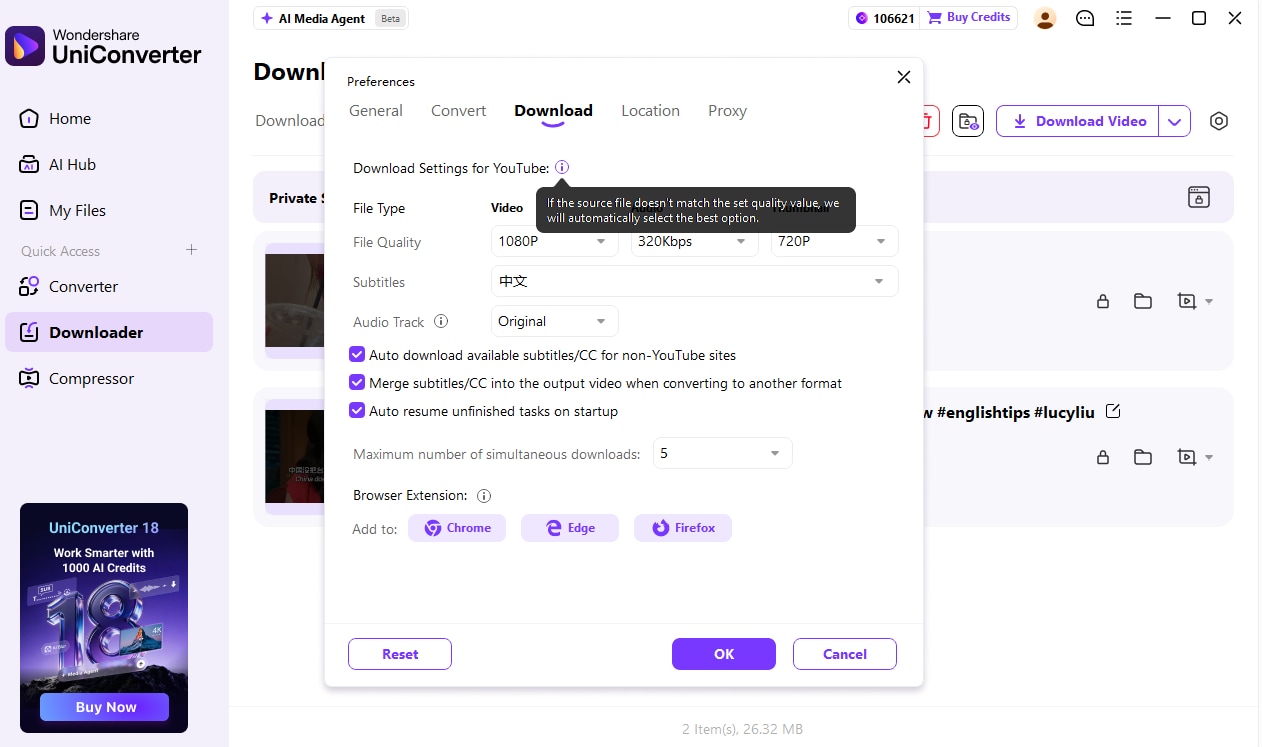
The tooltip explains that the app selects the best available option when the source does not match the chosen quality.
Windows interface note: The screenshot labels this area “Download Settings for YouTube.” In UniConverter 18, the quality preference also applies to other supported sites. The label is reproduced as shown; it is not a guarantee that each source provides the requested quality.
How to Download a Video in Higher Resolution (1080p / 4K)
Once the preference is saved, copy the individual URL of a supported video you are authorized to save. Use a source-provided download option when that is the best fit for your task.
- Copy the link. Open the individual video page and copy its complete URL.
- Paste the URL. In Downloader, keep Download Video selected and paste the link. For a batch, add multiple supported URLs, one per line.
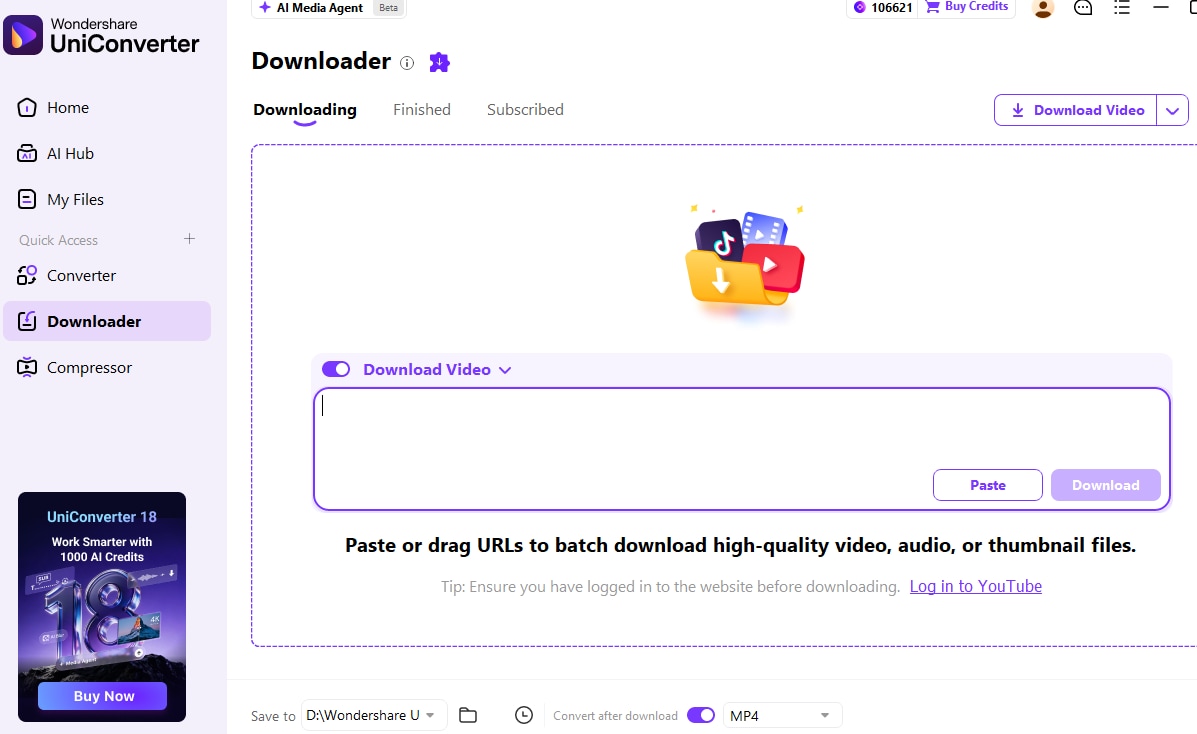
The Windows Downloader interface accepts video URLs and shows the destination and conversion controls. - Check the output controls. Choose a folder under Save to. Review whether Convert after download is enabled and the output format shown next to it.
- Start the task. Click Download and follow the task under Downloading. A batch contains separate tasks; the Windows example shows a simultaneous-download setting of five, which is the value shown in that screenshot.
- Find and inspect the file. Open Finished and use the folder control. Play the completed video and check its dimensions, duration, and sound.
Downloader keeps supported tasks together; the selected save folder and Finished list make completed files easier to locate.
For a longer walkthrough, see the video downloader from a link and batch video downloader guides.
Why Did My 4K Download Save as 1080p?
Start by comparing the source, the selected preference, and the actual file. A 4K preference cannot supply a version that the source or supported task does not make available.
| What you see | Check | Next action |
|---|---|---|
| 2160P preference, 1080p file | Does the source provide an accessible 2160p version? | Check the source and the file dimensions; the app may have selected the best available option. |
| Dimensions are correct, image looks soft | Compare the source and output; review Convert after download. | Inspect the conversion settings and compare copies before attributing the difference to a cause. |
| Setting did not persist | Was OK selected after changing the menu? | Reopen Preferences, choose the value, and save with OK. |
| Sound is missing | Does the source contain sound and is the saved task a video? | Play the original and the output, then check the available task details. |
Three checks before retrying:
- Check the source. Look at the source’s own quality options to determine whether it offers a 2160p version for that video.
- Check the task. Review the preference and the status or information shown for the specific task. A 2160P preference is a target; the interface says the best available option is selected when the source does not match it.
- Check the saved file. Inspect the actual frame width and height, then play the file. If the completed file is 1920 × 1080, it is a 1080p file; an ordinary 4K UHD file is 3840 × 2160.
Check the Resolution of Your Saved Video
In Finished, open the folder containing the file. On Windows, right-click the file, open Properties → Details, and inspect frame width and height. On Mac, open the file in QuickTime Player and use Window → Show Movie Inspector. A completed 4K UHD file should show a frame width of 3840 and height of 2160; other 4K formats can use different dimensions. Play a section with sound as a separate check.
What If the Source Only Offers 720p or 1080p?
Save an available version that meets your needs, or obtain a higher-resolution original from the rights holder. AI video enhancement is a separate post-download process and does not turn the output into the original native 4K recording. When reducing file size, review the video compression guide and compare the result with the original.
FAQs About UniConverter Download Quality
-
How do I set 1080p as the default download quality?
Open UniConverter Downloader, open Preferences → Download, select 1080P under File Quality → Video, and click OK.
-
Is 2160p the same as 4K?
2160p commonly means 4K UHD at 3840 × 2160 pixels. Digital cinema 4K can use different dimensions, so inspect the file properties when exact dimensions matter.
-
Does UniConverter offer an 8K / 4320P download setting?
Yes. The Windows Preferences screenshot shows 4320P under Video File Quality. An 8K result requires an accessible source and a supported task that provide that quality.
-
Why did my 4K download save as 1080p?
The accessible source or supported task may not provide a matching 2160p stream. UniConverter’s Preferences tooltip says it automatically selects the best option when the source does not match the selected quality. Check the source and the completed file.
-
Why is my selected resolution unavailable for some videos?
A saved preference cannot create a stream the source does not provide or the downloader cannot access. Check the individual video and use the best available supported option.
-
Can I batch download videos at high resolution?
Yes. Add multiple supported video URLs in Downloader and manage them as separate tasks. Each video needs an accessible stream at the intended quality.
-
What does Convert after download do?
Convert after download applies a selected output format to the completed download. Conversion can involve re-encoding, so compare the resulting file and its settings if preserving source detail is important.
-
Does MP4 automatically mean high quality?
No. MP4 is a container format. Resolution, encoding, bitrate, and the source itself all influence what the saved video looks like.
-
Where are downloaded videos saved on Windows and Mac?
Check the Save to destination in Downloader, or open Finished and use the file or folder control to locate a completed item. The specific folder is the one configured on your computer.
-
Why does UniConverter show a website login prompt?
The interface reminds users to sign in before downloading from some websites. A prompt does not establish that the particular video is accessible or downloadable; use only a source and account you are authorized to access.
For a broader overview of the feature, read the 4K video downloader guide.