


If you want smaller image files without making your visuals look noticeably worse, converting JPG to WebP is a practical place to start. This modern format is widely used for websites because it often reduces file size more efficiently, which helps pages load faster and makes image-heavy content easier to manage. Whether you are updating blog images, product photos, landing pages, or media assets for regular publishing, choosing the right method can save time and improve workflow efficiency. In this guide, we will look at four practical ways to handle this process, explain when each option makes sense, and show why UniConverter is especially useful for batch conversion and repeated image tasks.
Table of Contents
Part 1. What This Conversion Actually Does
JPG is one of the most widely used image formats. It is especially common for photos, blog visuals, youtube banners, and product images because it balances visual quality with manageable file size. It is also supported almost everywhere, which is why it has remained a standard format for years.
WebP is a newer format designed for web efficiency. In many cases, it creates smaller files than older image types while still keeping visuals clear enough for websites, blogs, and online stores. That is why many users now change their original files into this format before publishing them online.
This conversion is useful when you want to:
- reduce image file size
- improve website loading speed
- optimize blog and landing page visuals
- make image-heavy pages more efficient
- support a cleaner publishing workflow
For web publishing, the format you choose can affect both performance and user experience. That is why JPG to WebP conversion has become a practical step for many content teams and site owners.
JPG vs. WebP at a Glance
JPG works well for general photography and remains highly compatible across platforms. WebP, however, is better optimized for modern websites because it can often keep images visually clean while lowering file size more effectively. For creators who publish image-heavy content, that difference can lead to faster page speed and easier asset management.
Part 2. Why Convert JPG to WebP
The main reason people use this process is to make images lighter without causing a major drop in visual quality. For modern websites, that matters a lot. Large files can slow down pages, especially on mobile devices or layouts with multiple visuals.
When you make this change, you can often gain several benefits:
- Smaller files: This format frequently compresses images more efficiently than traditional options.
- Faster load times: Lighter visuals help pages open more quickly.
- Better user experience: Visitors are more likely to stay on fast, smooth-loading pages.
- Improved content workflows: Smaller assets are easier to upload, organize, and publish.
- Stronger website performance: Image optimization supports a more efficient site overall.
If your work involves publishing articles, managing product listings, updating media libraries, or handling landing page assets, this can become a useful habit.
Who Benefits Most from Using WebP
This format is especially useful for bloggers, eCommerce sellers, website operators, digital marketers, and content teams. These users often work with multiple images at scale, so even small file-size improvements can make a meaningful difference in upload speed, page performance, and workflow efficiency.
Part 3. 4 Ways to Convert JPG to WebP
Some users want the fastest no-install option, while others care more about batch image conversion, editing flexibility, or mobile convenience. To help you choose quickly, the table below compares four common methods based on the pain points users care about most.
| Method | Recommended Tool | Best For | Main Advantage | Main Limitation | Pain Point Solved |
| Online Converter | CloudConvert | One-off conversions | No installation required | Less efficient for large batches | “I just need a fast result right now.” |
| Desktop Software | Wondershare UniConverter | Frequent or batch conversion | Fast, stable, and better for multiple files | Requires software installation | “I need a smoother workflow for repeated image tasks.” |
| Mobile App | The Image Converter | Phone users and creators on the go | Convert directly on mobile | Not ideal for large image libraries | “I need to handle this without using a computer.” |
| Image Editor | GIMP | Users who edit before export | Edit and export in one workflow | Slower if you only need format conversion | “I want to resize or adjust the image before saving.” |
If you want the shortest route, use an online converter. If you need the most efficient repeatable workflow, desktop software is usually the better choice. If you work from your phone, a mobile app makes more sense. And if you already edit images before publishing, an image editor with WebP export can save an extra step.

Method 1: Use an Online Converter for Fast One-Time Tasks
If your top priority is speed and convenience, an online converter is usually the easiest option. This method works best when you only need to process one or a few files and do not want to install anything.
Recommended Tool: CloudConvert
CloudConvert is a popular browser-based tool for image format conversion. It is a practical choice for users who want a quick result with minimal setup.
How to Convert with CloudConvert
- Open the CloudConvert tool in your browser.
- Click Select File and upload your image.
- Choose WebP as the output format.
- Click Convert to start processing.
- Download the converted file.
Why Choose This Method: It is best for users who want the quickest possible solution without downloading software.
Method 2: Use Desktop Software for Batch Conversion and Better Efficiency
If your main pain point is having to process multiple files again and again, desktop software is a much better fit. It gives you a more stable local workflow and reduces the friction of repeated uploads.
Recommended Tool: Wondershare UniConverter
Wondershare UniConverter is a strong option for users who need a simple but more efficient workflow, especially when working with multiple images.
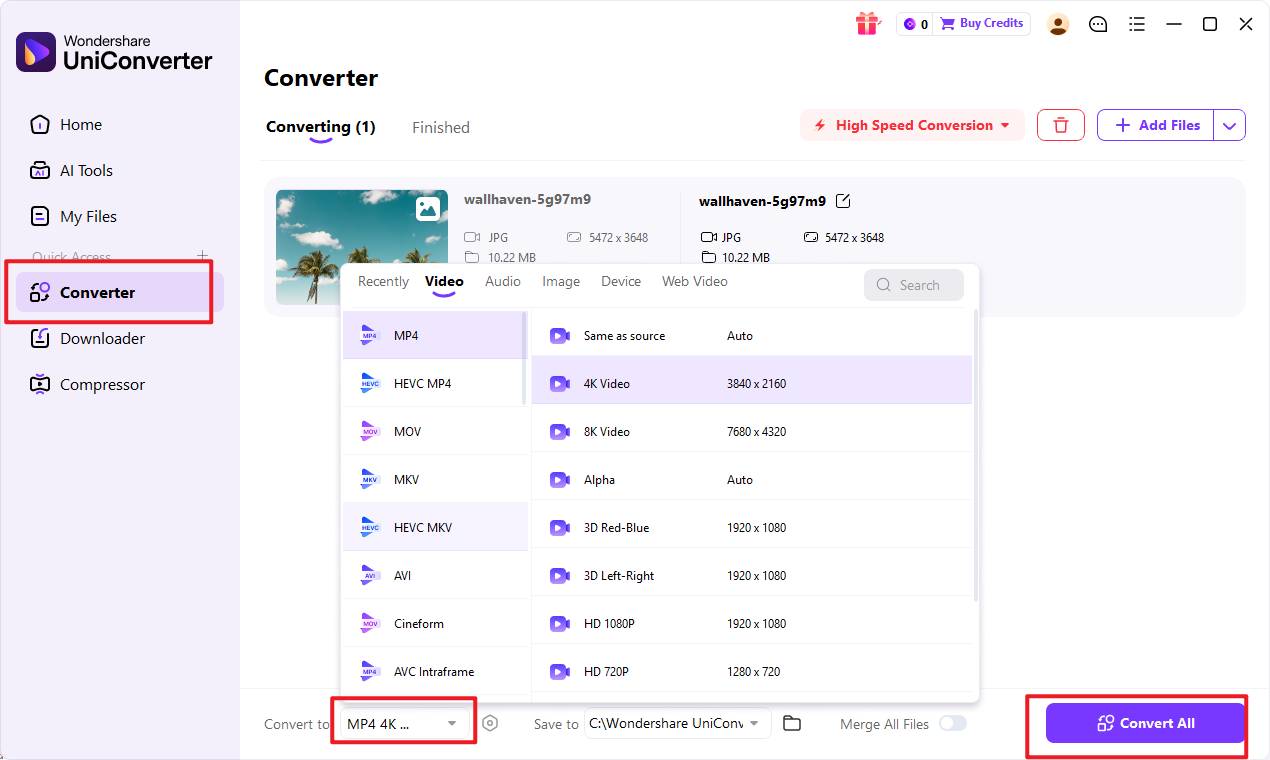
How to Convert with UniConverter
1.Launch Wondershare UniConverter on your computer.Open the image conversion tool.

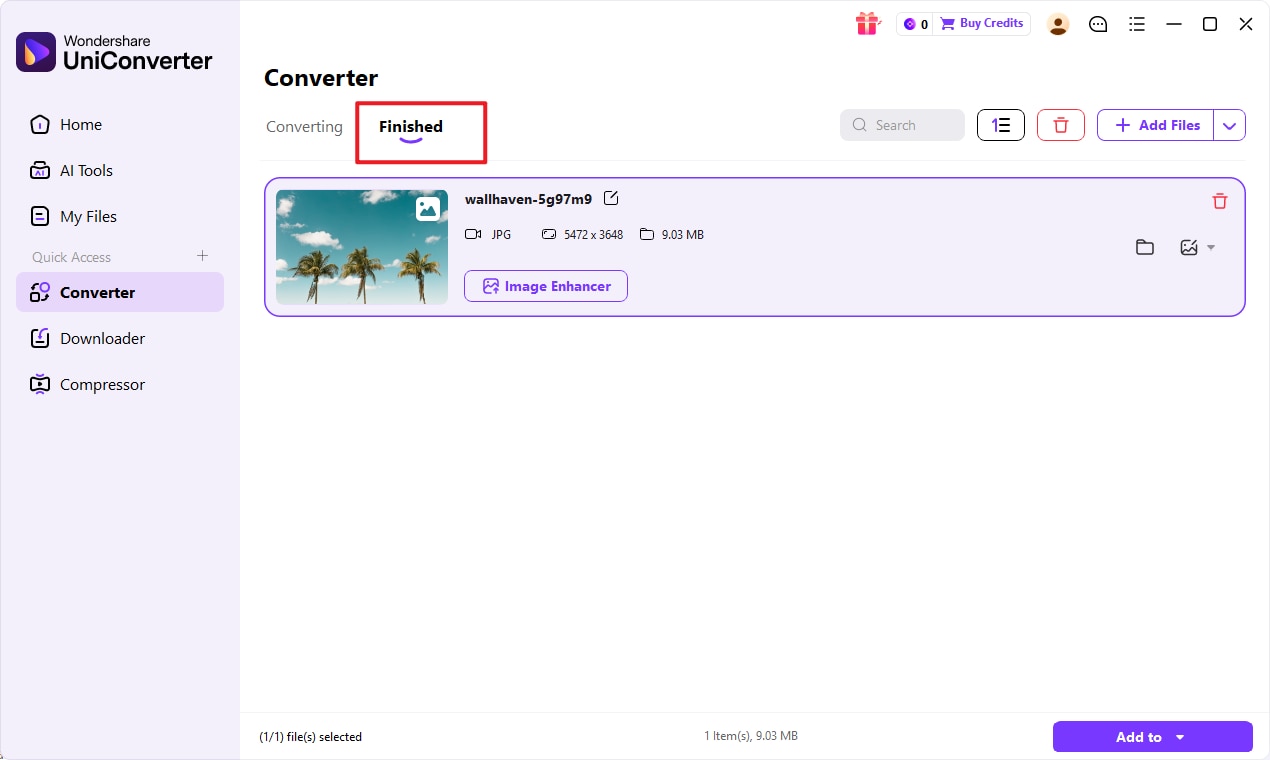
2.Add one file or import multiple images at once.Set WebP as the output format.Choose the output location if needed.Click Convert to start the process.
3.Open the new files and review them.
Why Choose This Method: It is the best choice for users who care about batch handling, repeatability, and a smoother long-term workflow.
Method 3: Use a Mobile App for On-the-Go Conversion
If you work mainly from your phone, mobile conversion is the most convenient path. This method is useful for creators, marketers, and casual users who need quick access without opening a desktop program.
Recommended Tool: The Image Converter
The Image Converter gives iPhone users a simple way to change standard image files directly on mobile.
How to Convert with The Image Converter
- Install The Image Converter from the App Store.
- Open the app and grant photo access if prompted.
- Select the image you want to process.
- Choose WebP as the export format.
- Start the conversion.
- Save the new file to your device.
Why Choose This Method: It is ideal for users who need to convert images directly from their phones while traveling or posting on the go.
Method 4: Use an Image Editor If You Need to Edit Before Export
If your problem is not just format conversion but also image preparation, an editor with WebP export support is the smarter choice. This method works best when you want to resize, crop, or polish an image before saving it.
Recommended Tool: GIMP
GIMP is a free image editor that lets users make visual adjustments and then export the final file in a more web-friendly format.
How to Convert with GIMP
- Open GIMP on your computer.
- Import your image through File > Open.
- Make any needed edits, such as cropping or resizing.
- Go to File > Export As.
- Rename the file with the .webp extension.
- Confirm export settings and save the image.
Why Choose This Method: It is best for users who want editing and export in one workflow instead of using separate tools.

Part 4. Why UniConverter Works Better for Repeated Tasks
If your main goal is simply to convert JPG to WebP in a straightforward and repeatable way, UniConverter is one of the most practical options.

A Smarter Way to Convert JPG to WebP
Simple Conversion Workflow
UniConverter keeps the process easy. You import your files, choose the target format, and convert them in a few steps. That simplicity is useful for both beginners and professional users who do not want an overly technical workflow.
Better for Repeated Work
A one-off online conversion might be enough for a single image, but many users need to process multiple assets over time. UniConverter is better suited for that kind of repeated workflow because it is faster to reuse and easier to manage locally.
Batch Processing Support
One of the biggest reasons to use UniConverter for this task is batch handling. If you work with blog images, product photos, landing page assets, or media libraries, converting files one at a time can quickly become inefficient.
Batch support is especially useful for:
- bloggers
- eCommerce sellers
- web content teams
- digital marketers
- site operations managers
Good Fit for Web Publishing
The point of this process is not just to change the format name. The real goal is to create lighter files that are more practical for websites. UniConverter fits that need well because it helps users handle conversion more efficiently as part of a real publishing workflow.
Useful Beyond a Single Conversion Task
Although this article focuses on one image task, it is worth noting briefly that UniConverter can also support other media workflows. Still, for this use case, its main value is clear: it gives users a smoother way to handle repeated image processing without adding unnecessary complexity.
Part 5. How to Pick the Right Tool
If you are comparing tools, the best option depends on how you plan to use it. A free converter is not always the best one for every situation, so it helps to look at a few practical points.
| Factor | Why It Matters |
| Ease of Use | A good converter should be simple to understand and quick to use. |
| Conversion Speed | Fast processing helps whether you are working on one file or many. |
| Batch Support | Processing multiple images at once saves time for larger workloads. |
| Output Reliability | A useful tool should create files suitable for websites and publishing. |
| Workflow Match | Online tools fit occasional use, while desktop tools fit repeated work. |
In short, the best tool is the one that matches your actual workflow. A browser-based option works well for light use, while a desktop solution makes more sense for repeated tasks and larger image libraries.

Part 6. Tips for Better Output Quality and Smaller Files
To get cleaner and more efficient results, it helps to follow a few simple practices during conversion.
Resize Images Before Conversion
If the image is larger than necessary for the final webpage, resize it first. This reduces unnecessary file weight and helps make conversion more effective.
Keep the Original JPG File
Always save the original image. If you need to edit it again later or export it for another use case, the source file may still be useful.
Use the Right Method for the Job
For one image, an online converter may be enough. For many images, desktop software is usually a better choice. Matching the method to the task can save time.
Test Before Large-Scale Conversion
If you plan to process a full image library, test a few files first. This helps confirm that the result works well for your website and content needs.
Part 7. Conclusion
Converting JPG to WebP is a practical way to make images more web-friendly. Smaller files can improve page speed, reduce upload weight, and support a smoother publishing experience across blogs, websites, and online stores.
If you only need a quick solution, an online converter like CloudConvert can work well. If you want a mobile option, The Image Converter is convenient. If image editing is already part of your workflow, GIMP gives you more control during export. But if you need a more efficient and repeatable solution for regular image work, Wondershare UniConverter is a strong choice for batch conversion and long-term workflow efficiency.
For modern content workflows, image optimization is no longer optional. Choosing the right method can help you work faster and publish smarter.

