User Guide
How to use Wondershare UniConverter (originally Wondershare Video Converter
Ultimate)?
Learn the step-by-step guide below.

UniConverter User Guide
-
Get Started
-
Video Converter
- Convert DVD to Any Format | Wondershare UniConverter for Windows
- Add Media Files | Wondershare UniConverter for Windows
- Convert Video from Camcorder | Wondershare UniConverter for Windows
- Convert Videos for iPhone/iPad/Android Devices | Wondershare UniConverter for Windows
- Convert Videos for Social Network | Wondershare UniConverter for Windows
- Convert Videos from iOS & Android Devices | Wondershare UniConverter for Windows
- Convert Videos to Any Format | Wondershare UniConverter for Windows
- Convert Video to Audio | Wondershare UniConverter for Windows
- Mute Video | Wondershare UniConverter for Windows
- Add Audio to Video | Wondershare UniConverter for Windows
- Convert Multiple Video In Batches | Wondershare UniConverter for Windows
- Easily Convert 4K and 8K Videos | Wondershare UniConverter for Windows
- Convert Video to MP3 | Wondershare UniConverter for Windows
- Convert Video to GIF | Wondershare UniConverter for Windows
- Convert SDR Video to HDR | Wondershare UniConverter for Windows
- Convert Video to Image Sequence | Wondershare UniConverter for Windows
-
Audio Converter
-
Video Compressor
-
Downloader
-
Screen Recorder
- Record Screen | Wondershare UniConverter for Windows
- Record Webcam | Wondershare UniConverter for Windows
- Record Audio | Wondershare UniConverter for Windows
- Record Application | Wondershare UniConverter for Windows
- Geme Recorder | Wondershare UniConverter for Windows
-
Merger
-
DVD Burner
-
Media Player
-
Video Editor
- Trim Video | Wondershare UniConverter for Windows
- Add Watermark | Wondershare UniConverter for Windows
- Crop Video | Wondershare UniConverter for Windows
- Apply Effect | Wondershare UniConverter for Windows
- Add Subtitle | Wondershare UniConverter for Windows
- Audio Track Volume | Wondershare UniConverter for Windows
- Auto Video Cutter | Wondershare UniConverter for Windows
-
Tools
- Image Converter | Wondershare UniConverter for Windows
- GIF Maker | Wondershare UniConverter for Windows
- Fix Video Metadata | Wondershare UniConverter for Windows
- CD Burner | Wondershare UniConverter for Windows
- Convert CD to MP3 | Wondershare UniConverter for Windows
- Convert Video to VR | Wondershare UniConverter for Windows
- Transfer Video/Audio Files to iOS Device | Wondershare UniConverter for Windows
- Transfer Video/Audio to Android Device | Wondershare UniConverter for Windows
- Subtitle Editor | Wondershare UniConverter for Windows
- How to Remove Subtitles, Watermarks & Objects | UniConverter for Windows
- Smart Trimmer | Wondershare UniConverter for Windows
- Background Remover | Wondershare UniConverter for Windows
- Auto Crop Video | Wondershare UniConverter
- AI Portrait | Wondershare UniConverter
- Intro & Outro | Wondershare UniConverter
- Vocal Remover | Wondershare UniConverter for Windows
- Noise Remover | Wondershare UniConverter for Windows
- Video Stabilization | Wondershare UniConverter for Windows
- How to Enhance Video Quality with AI | UniConverter for Windows
- AI Image Enhancer | Wondershare UniConverter for Windows
- AI Script Generator | Wondershare UniConverter for Windows
- Text To Speech | Wondershare UniConverter for Windows
- AI Subtitle Translator | Wondershare UniConverter for Windows
- AI Thumbnail Maker | Wondershare UniConverter for Windows
- Auto Highlight | Wondershare UniConverter for Windows
- Scene Detection | Wondershare UniConverter for Windows
- Remove Watermark | Wondershare UniConverter for Windows
- Voice Changer | Wondershare UniConverter for Windows
- AI Video Enhancer | Use AI Batch Image Enhancement
- Crop Image | Wondershare UniConverter for Windows
- Rotate Image | Wondershare UniConverter for Windows
- Resize Image | Wondershare UniConverter for Windows
- Image Edit | Wondershare UniConverter for Windows
- Anime Enhancement | Wondershare UniConverter for Windows
- How to Enhance Faces in Videos with AI | UniConverter for Windows
- Adjust Speed of TTS Audio | Wondershare UniConverter for Windows
- Voice Clone | Wondershare UniConverter for Windows
- Enable NVIDIA Acceleration | NVIDIA Graphics Driver Installation Tutorial on Win
- Smart Summarizer | Wondershare UniConverter for Windows
- How to Blur Faces and Moving Objects in Videos | UniConverter for Windows
- AI Media Agent | Wondershare UniConverter for Windows
FAQs
Video/Audio Solutions
User Guide: Game Recorder
Part 1: Introduction
Game Recorder is a powerful recording tool designed to help you capture gameplay with high clarity and smooth performance. Whether you’re streaming, editing tutorials, or simply preserving your in-game highlights, this feature ensures you record high-quality video without lag. It supports a wide range of resolutions and formats while allowing microphone capture, system audio recording, and webcam overlays. With its intuitive interface and optimized recording engine, Game Recorder makes it easy for gamers, creators, and streamers to record, save, and share gameplay effortlessly.
Part 2: Guide
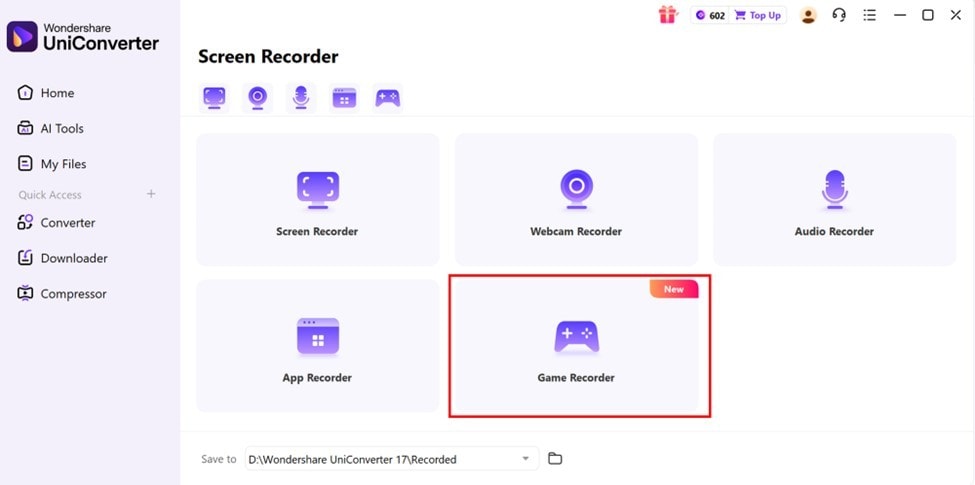
Step 1: Open the Game Recorder Tool
Download and install UniConverter if you haven't already. Then launch Wondershare UniConverter on your computer and navigate to the Toolbox from the left panel. Inside the Toolbox, locate the Screen Recorder tool and click on Game Recorder to open the dedicated recording interface.
Here, you’ll be able to configure your recording preferences before capturing your gameplay.
Step 2: Select the Game Window and Configure Settings
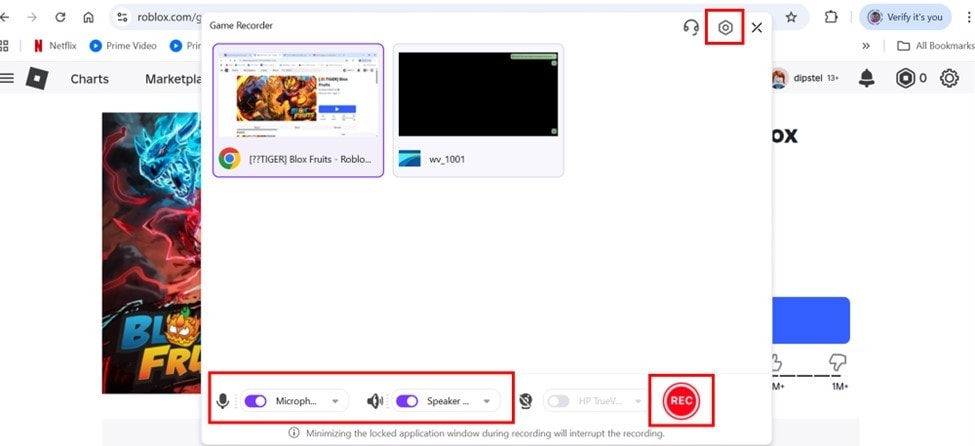
Once the Game Recorder opens, choose the specific game window you want to record. Next, click on the hexagonal shape icon at the top right.From here, you can customize your recording settings including frame rate, resolution, audio input (microphone or system sound), and optional webcam overlay.
After configuring the setup to match your gameplay style, click the Record button to start the capture. The recorder runs efficiently in the background, ensuring smooth performance even during high-intensity gameplay.
Step 3: Record and Manage Gameplay Footage
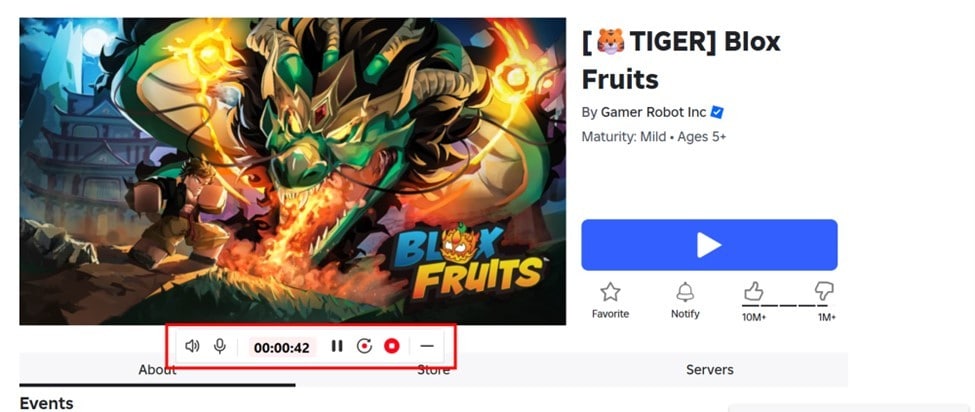
Once recording begins, a small floating control panel will appear, allowing you to pause, stop, or take screenshots during gameplay. The recording happens in real time with minimal resource usage, ensuring you don’t experience lag or interruption.
When your session is complete, click Stop, and UniConverter will save the captured footage automatically to your recording library.
Step 4: Edit and Export Your Gameplay
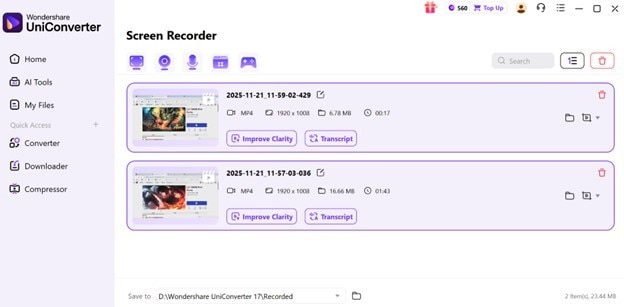
After recording, you’ll find your video listed in UniConverter’s preview area. Here, you can play it back or use editing tools to trim, add overlays, enhance audio, or convert it into formats suitable for YouTube, Twitch, or social platforms.
Once you’re satisfied, click Export to save the file in your desired format and location. The file can also be optimized for sharing, uploading, or post-processing in other editing software.
 print
print