Want to breathe new life into faded memories? Today's AI-powered tools make it incredibly easy to colorize old photo collections—whether it's restoring vintage family albums, enhancing historical archives, or adding vibrancy to pencil sketches. Even with no editing skills, you can transform black and white photos into vivid, realistic images in seconds.
If you've ever wondered how to turn a black and white photo into color, or searched for ways to colorize photos free online, you're in the right place. From web-based tools to professional-grade software like UniConverter, these AI solutions offer automatic and customizable features that cater to all levels of expertise. In this guide, we'll walk you through the best tools, real-world use cases, and a step-by-step tutorial to help you colorize your past beautifully.
Table of Contents:
Part 1. Use Cases of AI Black and White Photo Colorizers
Colorizing black and white photos has moved far beyond being a creative trend—it's now a meaningful way to reconnect with the past, document family legacies, and preserve cultural history. Thanks to AI-powered tools, users can effortlessly colorize old photos online, making this once-expert-only process accessible to everyone. Whether you're restoring vintage portraits or creating colorized historic photos for presentations, the applications are vast. Below are some of the most popular and impactful use cases that show how AI is reshaping visual storytelling:
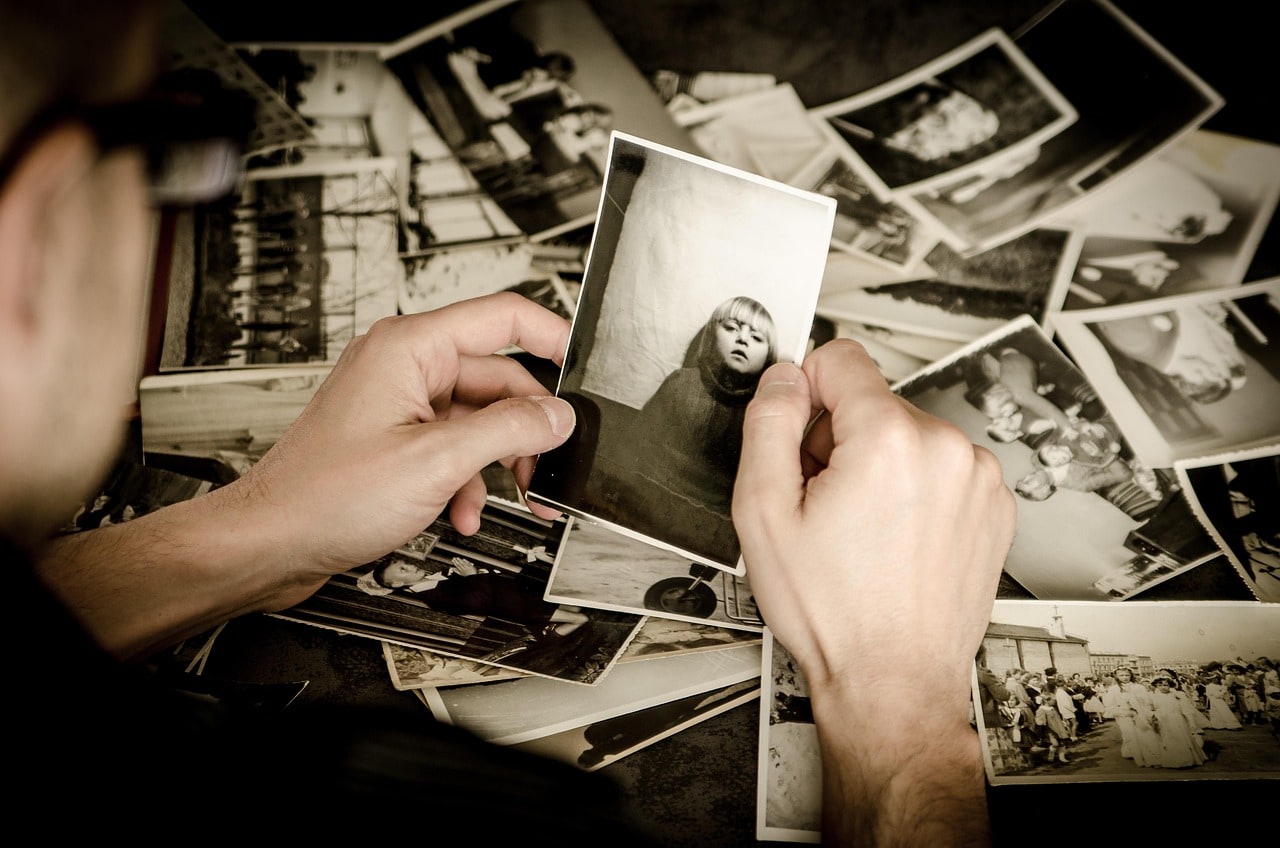
1. Bring Old Family Photos to Life
Modern AI tools make it easier than ever to colorize old photos with a natural, realistic touch. Platforms like UniConverter's AI Photo Colorizer automatically detect facial features, clothing textures, and lighting to restore black-and-white family portraits—helping you relive milestones in full color. Whether it's grandma pictures to color or early childhood memories, these tools transform grayscale into vivid nostalgia.
2. Add Depth to Historical Moments
When working on historical pictures colorized for documentaries, archives, or educational content, tools like Palette.FM is a top choice. Built on deep-learning models trained on historical references, they generate highly accurate colorized historic photos—capturing everything from uniforms to landscapes with cultural authenticity. It's ideal for storytellers who want emotional impact with visual accuracy.
3. Restore Art and Sketches with Ease
Looking to breathe life into pencil sketches, manga panels, or hand-drawn illustrations? AI features available in platforms like Canva Colorize can recolor old photos and even black-and-white artwork with intelligent shading and natural color palettes. Just upload and let the AI do the heavy lifting—perfect for artists, creators, and storytellers working under tight deadlines.
4. Fix and Refresh Damaged Photos
Got faded or damaged prints? AI photo restoration tools like those behind Colourise.com are designed to recover lost color and detail. These platforms go beyond basic fixes—they offer deep analysis and AI colorize old photo capabilities that restore skin tones, balance lighting, and remove scratches. Great for both personal archiving and professional-grade restoration.
Why AI Is the Smartest Way to Colorize
Still unsure about the best approach for how to turn a black and white photo into color? AI solutions offer unmatched ease, speed, and realism. Unlike manual methods, they provide automatic tone detection, brilliant background rendering, and high-resolution output. Whether you're a beginner or a restoration pro, these tools let you recolor old photos with confidence—no design skills required.
Part 2. How to Convert Black and White Photos to Color with UniConverter
If you're looking for a fast, easy, and professional way to colorize old photos, Wondershare UniConverter is an excellent tool. This all-in-one media toolkit features an advanced AI Photo Colorizer that can automatically turn black and white photos into color with just a few clicks. Whether you're working on old photographs colorized for historical preservation, restoring family pictures to color, or simply want to colorize old photos online, UniConverter offers a smooth, accurate, and beginner-friendly experience.
Additionally, it provides options for batch processing, photo enhancement, and free online color restoration of old photos through a limited trial—making it ideal for both casual users and professionals.
Best For:
- Beginners who want quick results
- Users looking for high-resolution output
- Those who prefer offline desktop tools over online apps
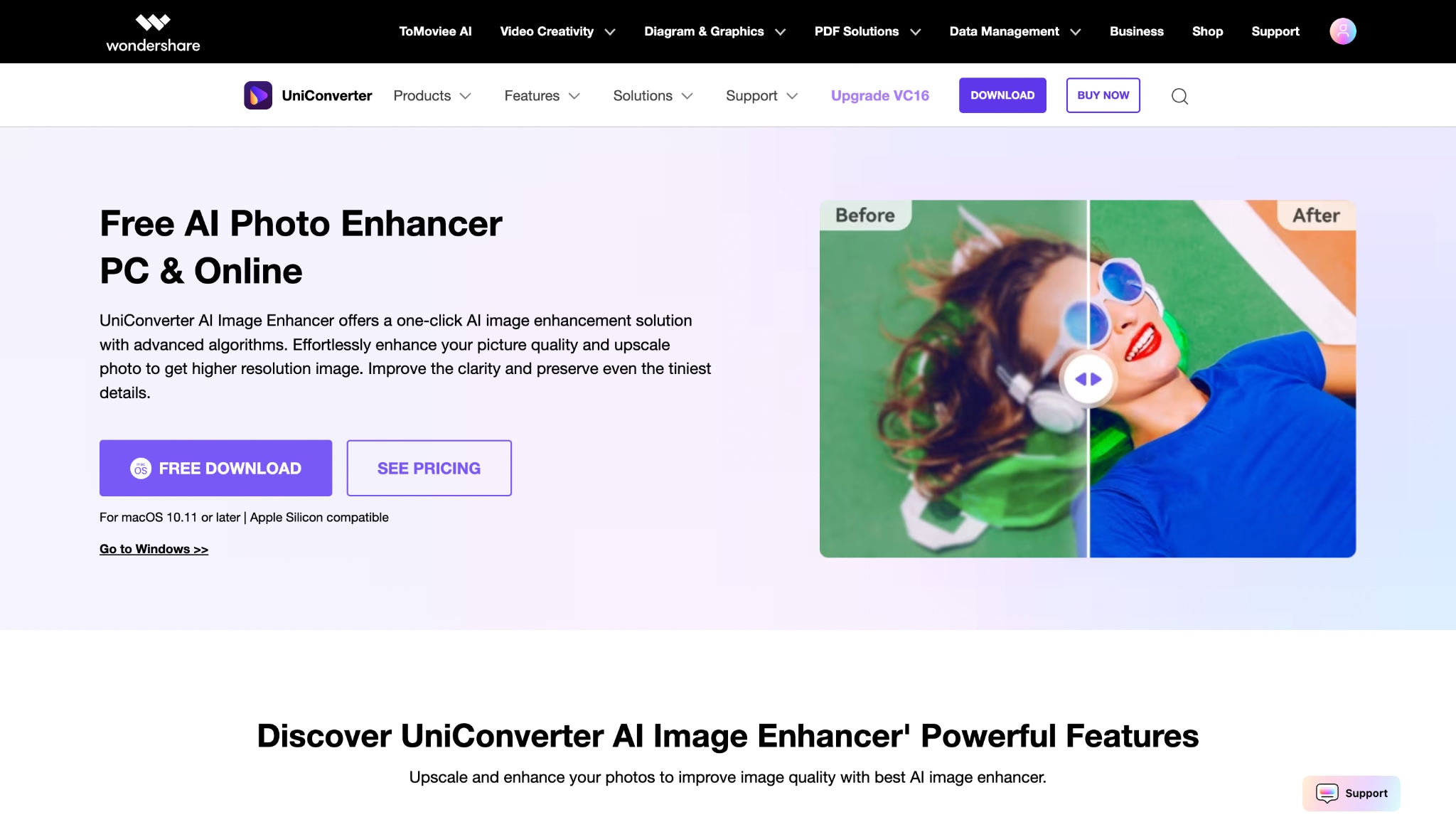
Steps to Colorize Old Photos Using UniConverter
It's one of the few desktop apps that strikes a balance between ease of use and powerful AI enhancements, making it a reliable choice for anyone needing to colorize old photos AI-style with just a few clicks:
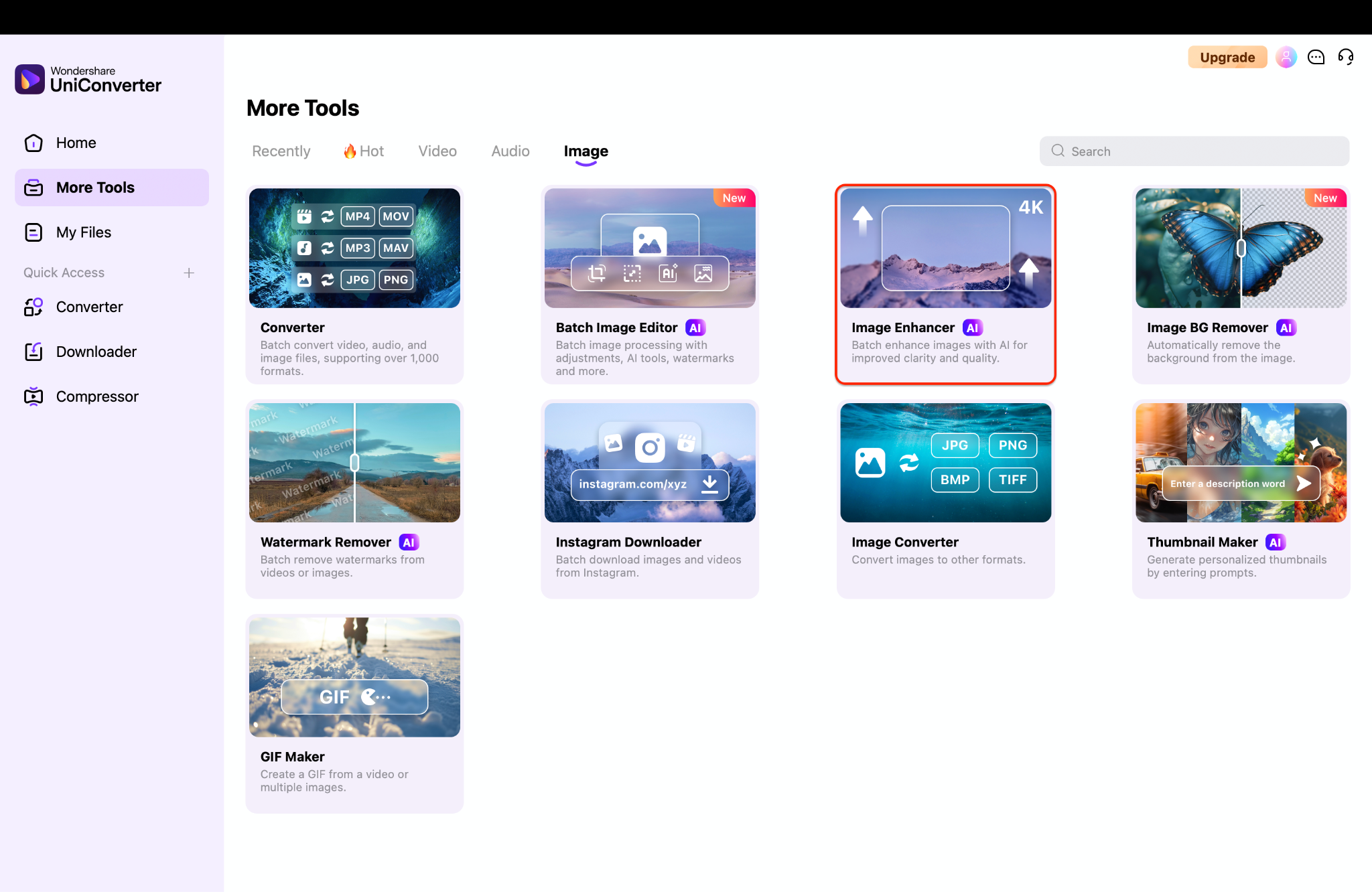
Step 1: Launch UniConverter and Navigate to the Image Enhancer
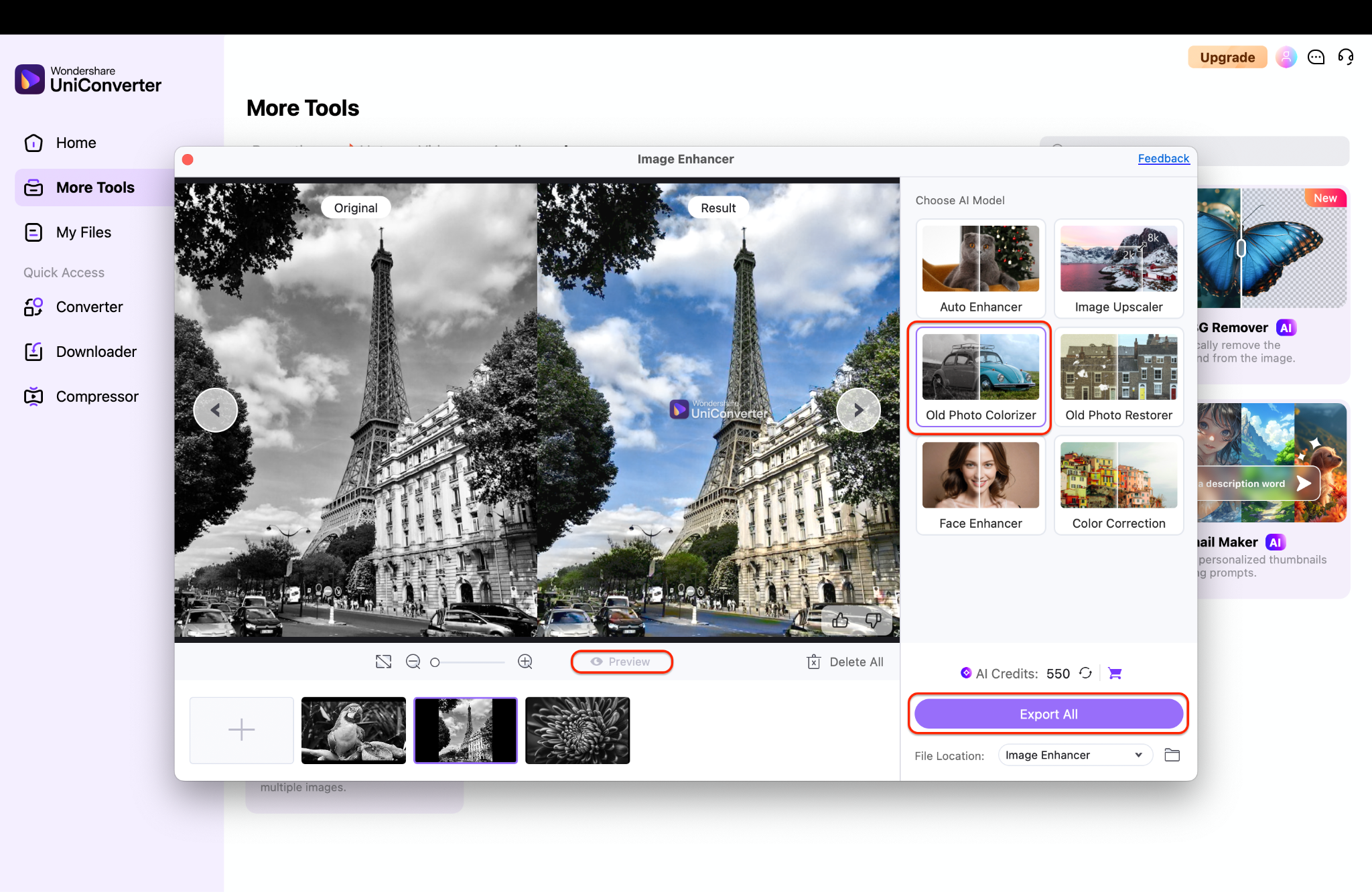
Open Wondershare UniConverter on your computer to get started. From the left-hand sidebar, navigate to More Tools and inside the Image section, go for AI Image Enhancer. Click + Add Images to upload your black-and-white photos—whether they're scanned portraits, old family albums, or pencil-drawn sketches.
UniConverter supports batch uploading, allowing you to colorize multiple photos simultaneously.
Step 2: Automatically Colorize Old Photos with AI
Once the photos are added, select the "Old Photo Colorizer" option, which is available within the enhancement AI Models. Click Preview to let UniConverter's powerful AI engine bring color to your grayscale images. It automatically detects skin tones, backgrounds, and faded areas, applying lifelike colors with impressive accuracy. You'll also see a side-by-side comparison of the original black-and-white photo and its newly colorized version.
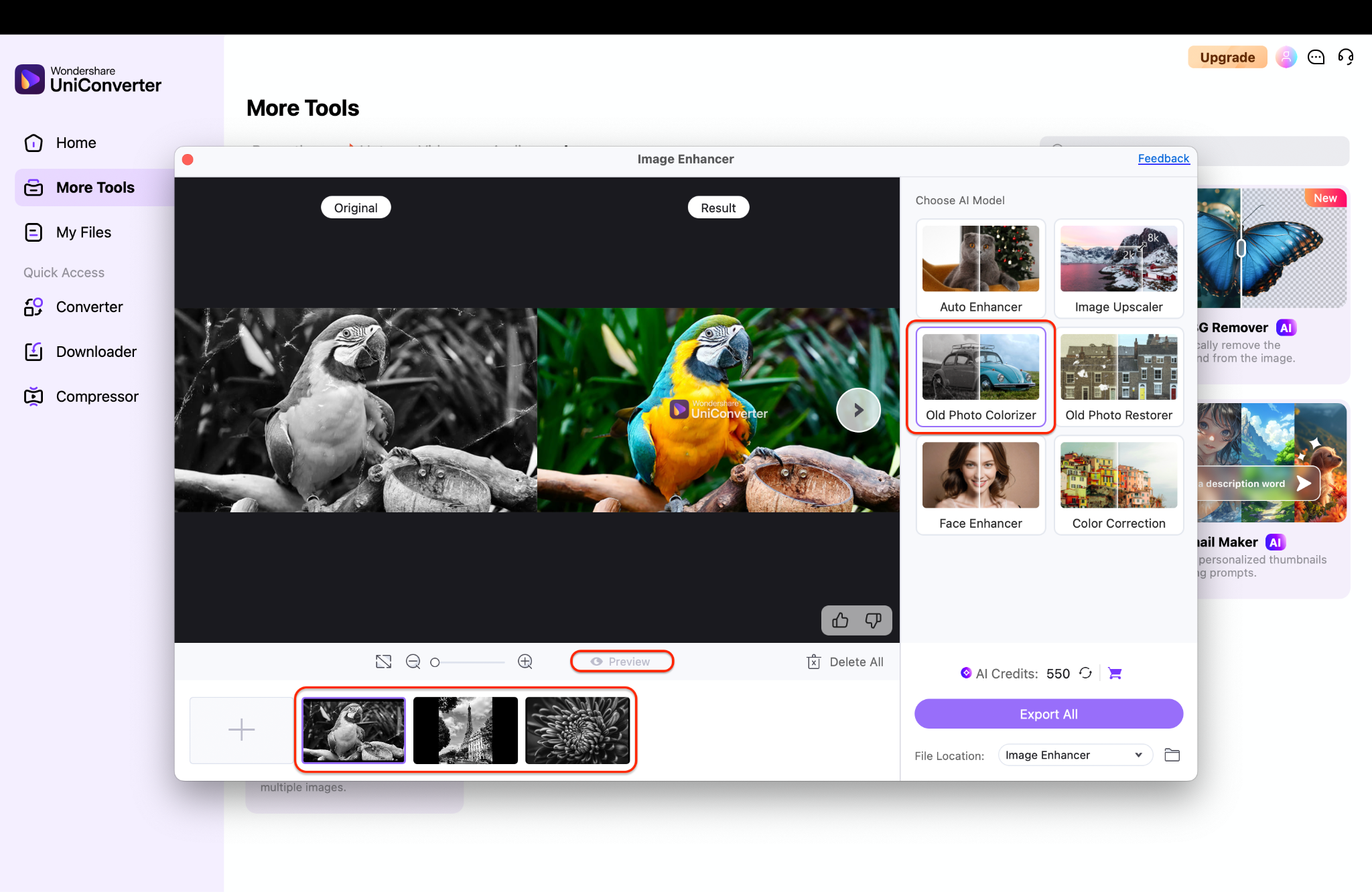
Note: Your black and white or old photo should have dimensions of 2000 x 2000 pixels or less.
Step 3: Preview, Edit, and Save the Colorized Photos
After the AI finishes processing, you can preview the enhanced results directly within the app.
If needed, make minor touch-ups using UniConverter's built-in tools, such as brightness, contrast, or cropping. Select your preferred file format—JPG or PNG—before saving. Click "Export All" to batch save your restored memories with just one click.

Easy to Use Old Photo Colorizer
Part 3. How to Turn Black and White Photos to Color with Palette.fm
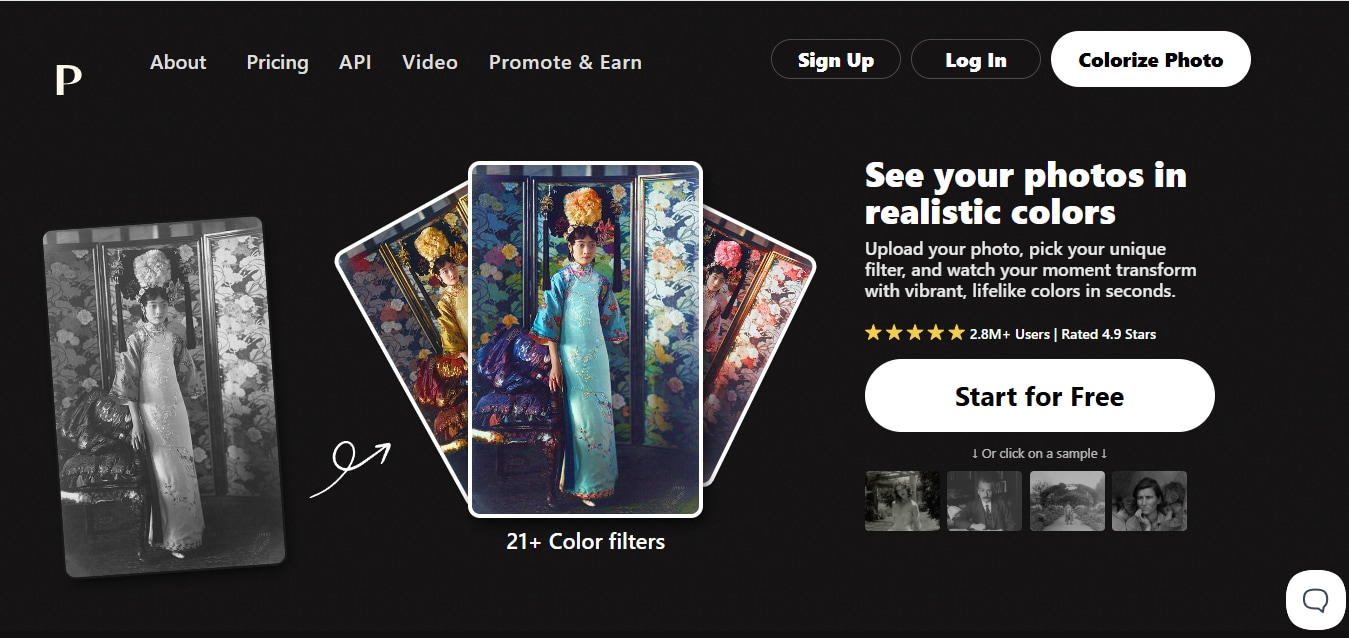
Palette.fm is one of the most accurate and user-friendly tools available for turning black and white photos into color using AI. Whether you're restoring a vintage family portrait or reviving historical images for a project, Palette.fm makes the process simple, fast, and realistic—no editing skills required. This tool is ideal for users who want quick, visually rich colorizations without having to tweak every detail manually.
Best For:
- Users who want AI to auto-guess colors with high realism
- Anyone looking for multiple colorization styles
- Creators who prefer browser-based tools with no downloads required
Step guide to use Palette.fm
Palette.fm is a powerful online AI tool that helps you effortlessly turn black and white photos to color with just a few clicks. Just follow these steps to bring your black and white memories back to life in color:
Step 1: Visit the Palette.fm Homepage
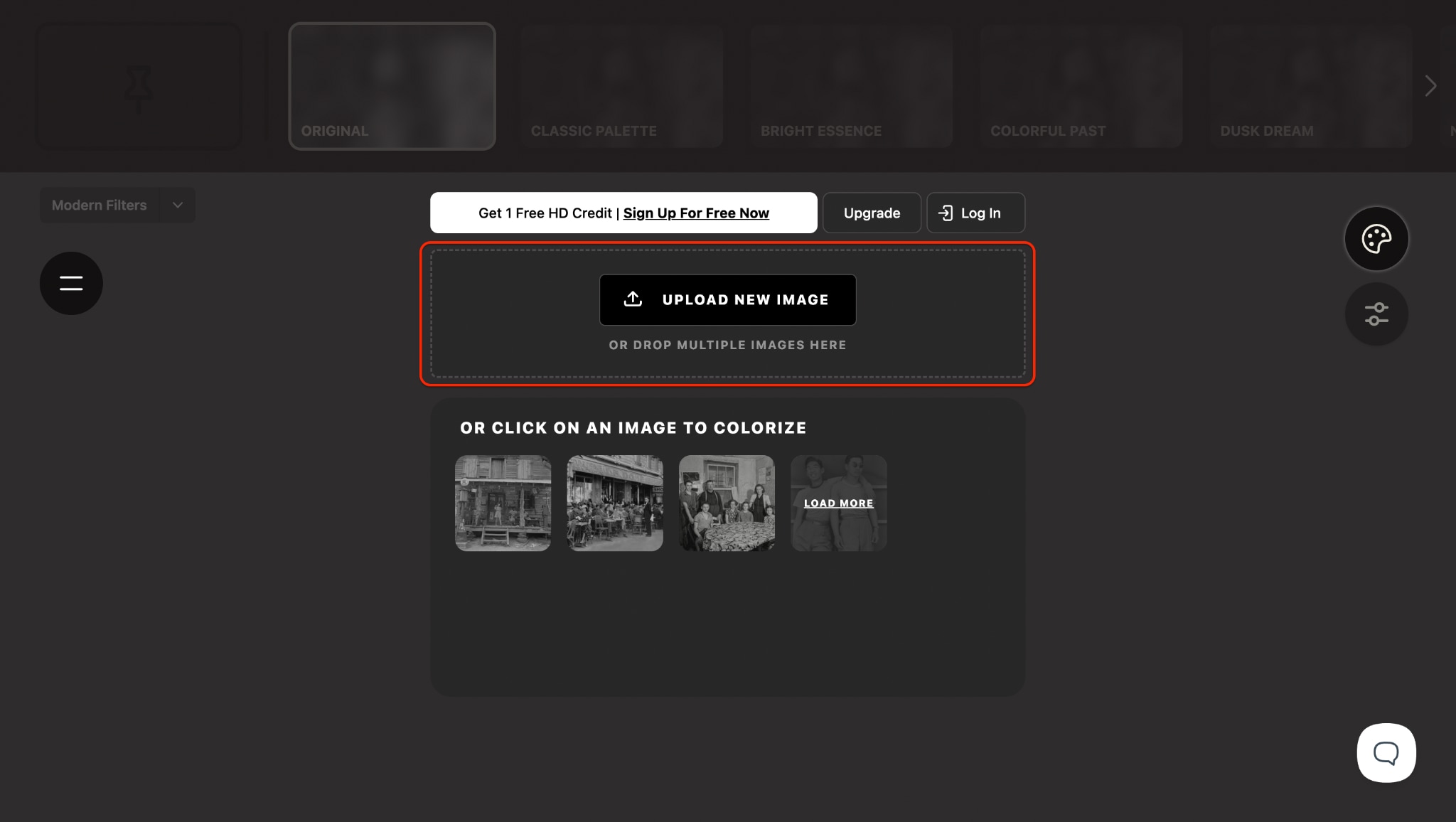
Start by going to https://palette.fm. The interface is clean and beginner-friendly—you'll instantly see a prompt to upload your photo. You don't need to create an account or download any software, making it a convenient option.
Drag and drop your image, or click the box to browse and select your black and white photo.
Step 2: Upload Your Black and White Photo
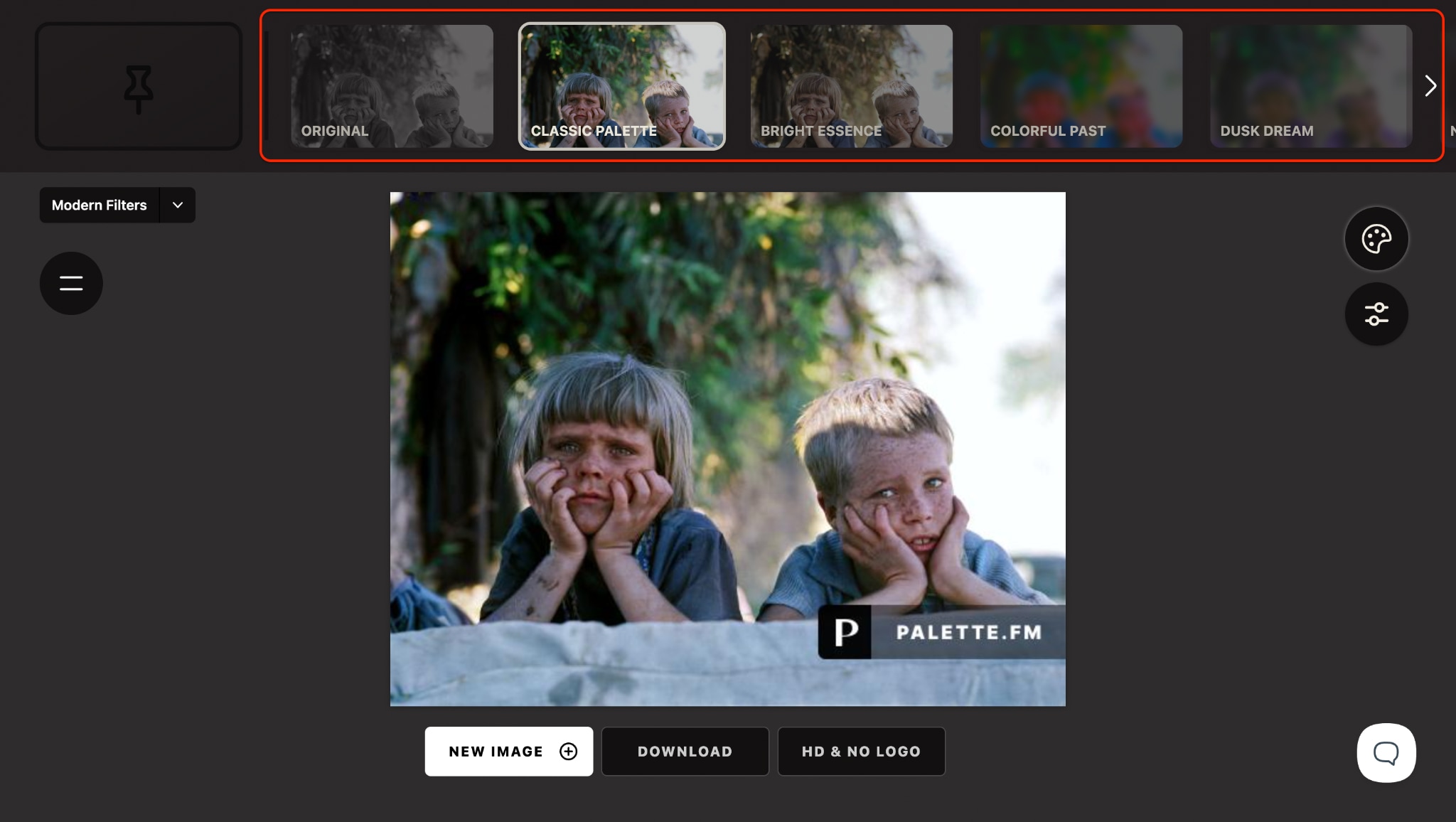
Once uploaded, Palette.fm automatically analyzes and starts colorizing your image using its smart AI engine. In just a few seconds, you'll see a preview of your colorized photo. The tool also provides multiple artistic styles—like Classic Palette, Colorful Past, or Bright Essence—to choose your preferred finish.
This makes it ideal if you're trying to colorize old photos online with visual flair.
Step 3: Preview, Refine, and Download
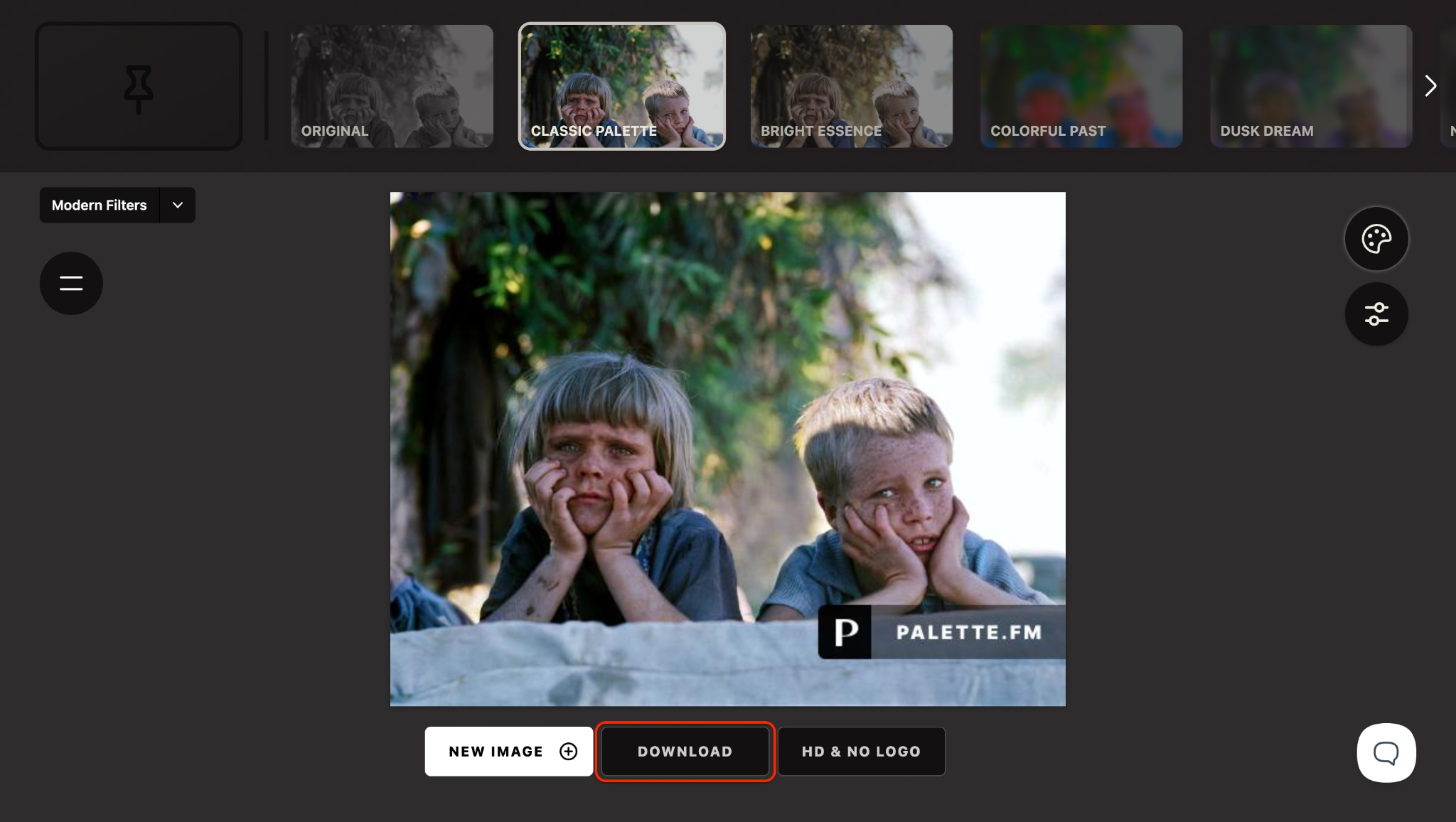
Its ease of use, free preview model, and stunning AI output make it one of the top picks for AI colorize old photo solutions today.
Part 4. How to Make Black and White Photos to Color with Canva Colorize App
Canva's AI-powered Colorize feature makes it easy to restore and enhance black-and-white photos in a visually appealing and customizable way. Known for its drag-and-drop design simplicity, Canva is perfect if you want more creative control over layouts, text, and sharing options—beyond just colorizing.
You can colorize old photo collections online for free using Canva's limited-access tools. It's beneficial for creating vintage-style posters, scrapbooks, or social media tributes. While it's not as advanced in photo enhancement as some tools, it offers a creative suite ideal for storytelling with colorized images.
Best For:
- Designers who want to colorize and customize images in one place
- Students or teachers adding life to historical photos in presentations
- Users looking for an all-in-one platform to colorize photos free online with added text and design elements
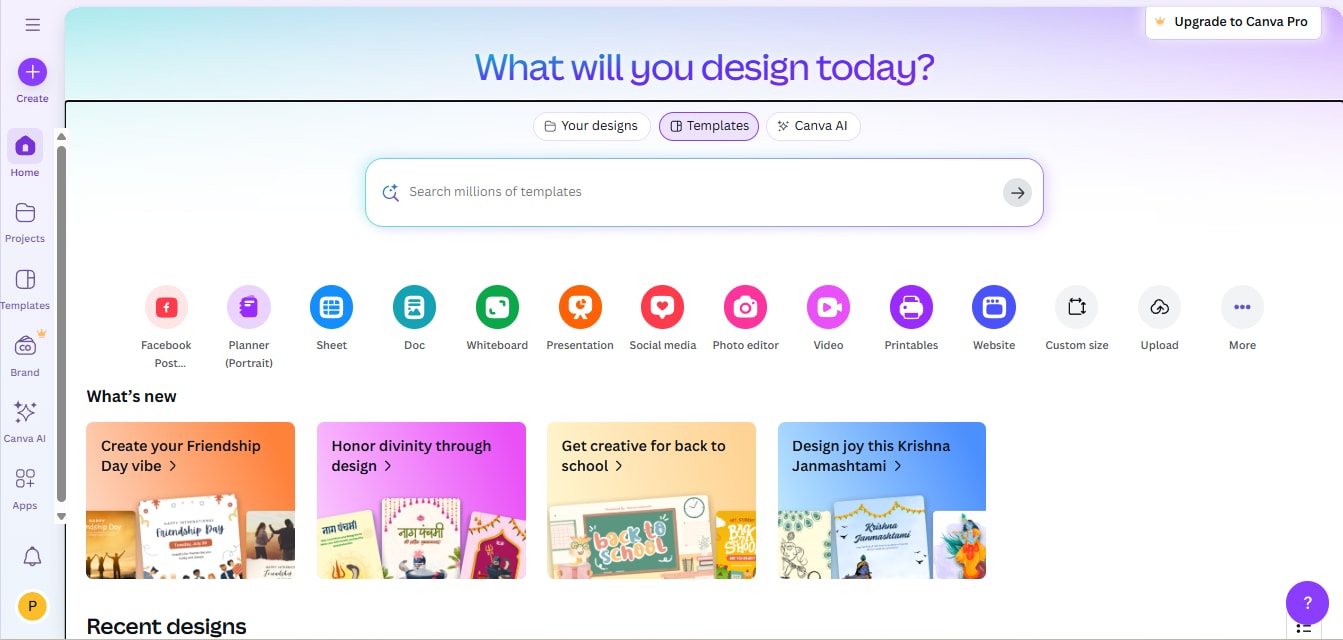
Step guide to use Canva
Colorize to turn black and white photos to color in just a few steps:
Step 1: Sign in and Upload the Image
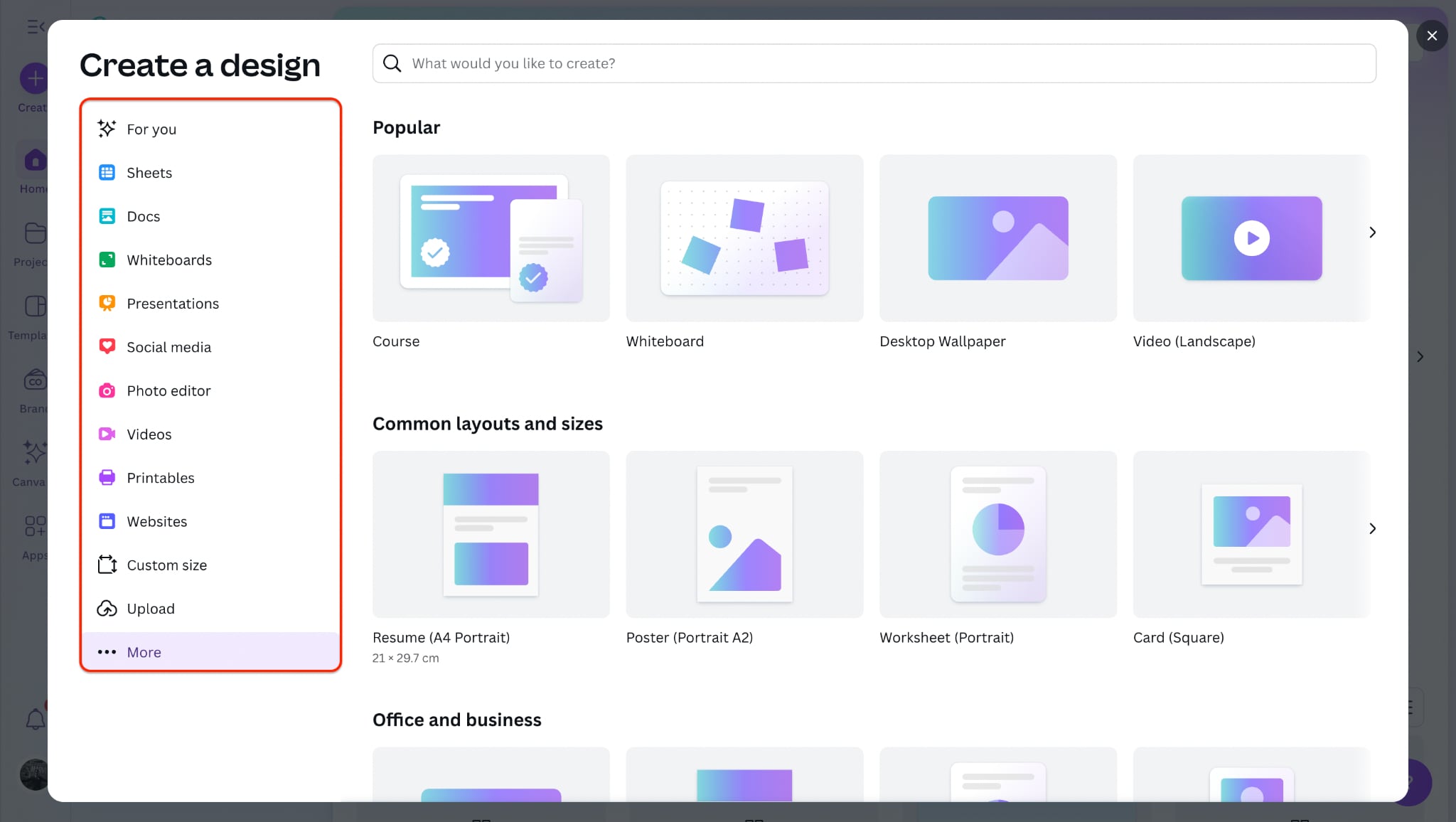
Head to https://www.canva.com and sign in to your account. Once inside the dashboard, click Create a design and choose any size (e.g., Instagram Post or A4) depending on where you plan to use the photo. Then, upload your black-and-white photo using the drag-and-drop feature or the Uploads tab on the sidebar.
Canva supports JPG and PNG, so your old photos should upload without issues.
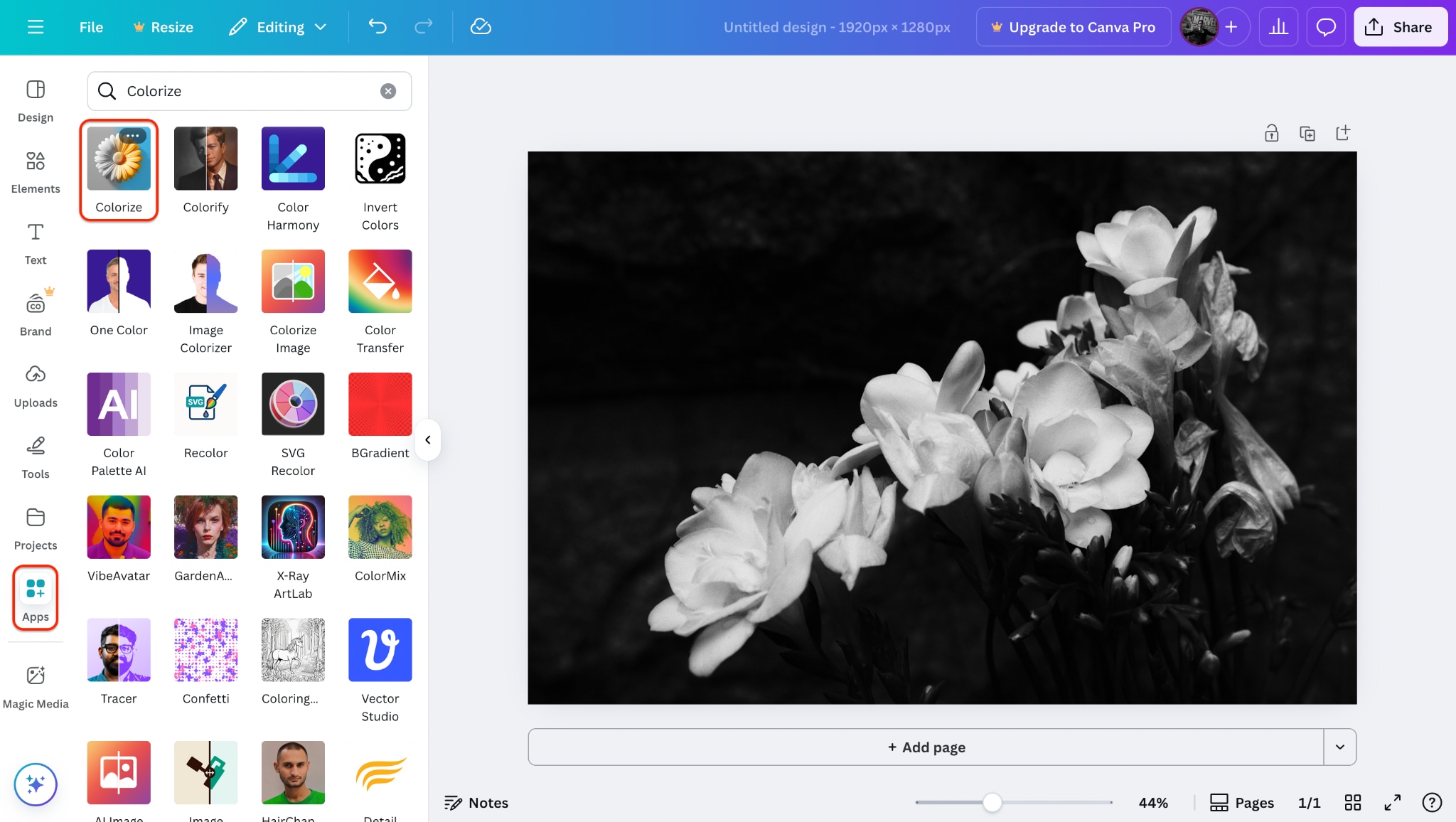
Step 2: Apply the Colorize App
After uploading, click your image to place it on the canvas. Now, go to Apps (from the left menu) and search for "Colorize." Select "Colorize", then click "Colorize and replace". The AI will automatically process your black and white image and apply realistic color tones.
This is ideal if you're working on creative presentations or want to colorize old photos online free within a complete design project.
Step 3: Edit and Export
Once the photo is colorized, you can further enhance it by adjusting brightness, adding text, or creating a photo collage. Canva gives you complete control to layer and refine your project. When you're done, click "Share" at the top-right corner, then select "Download" and then choose your preferred format and resolution.
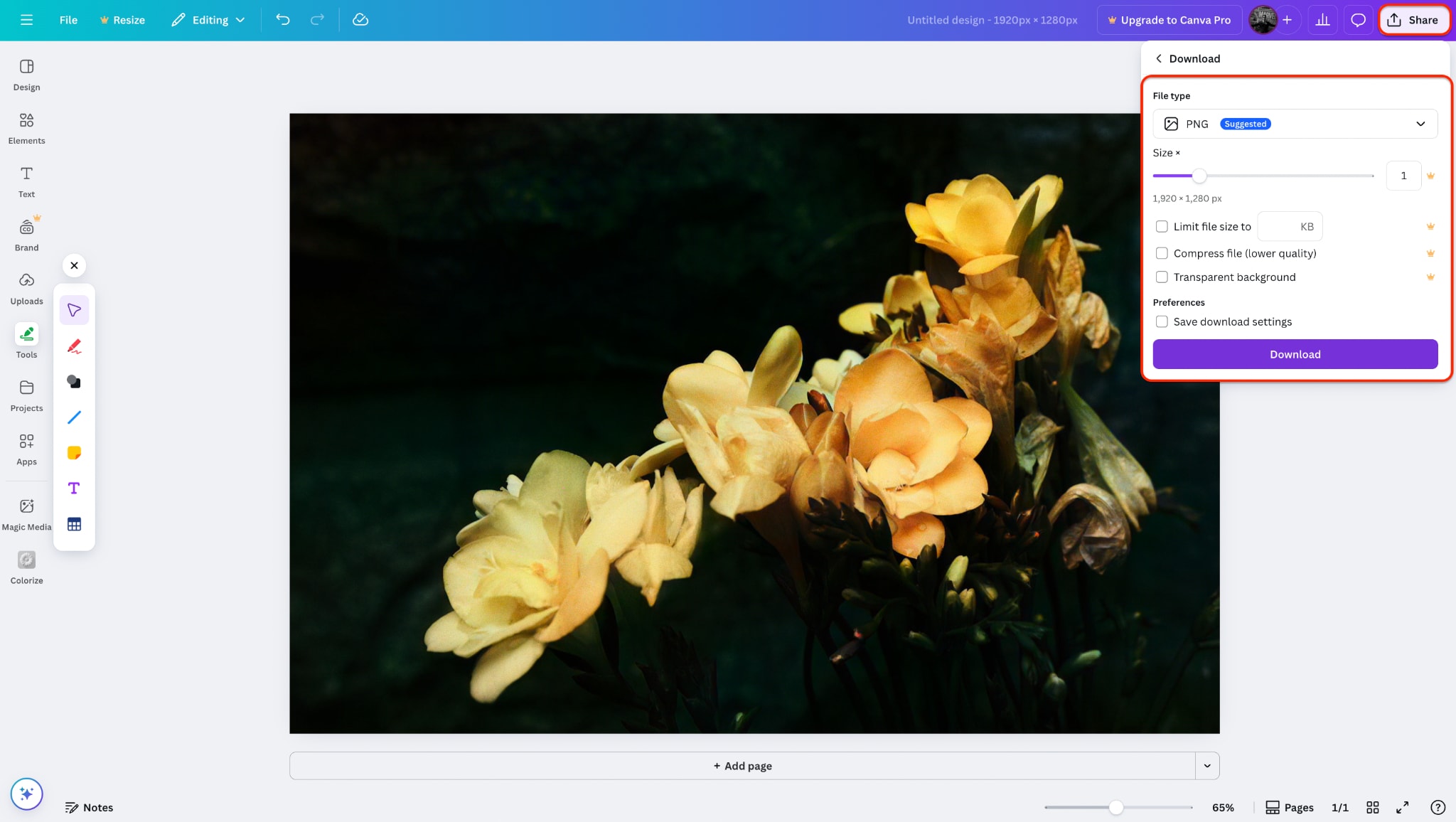
Whether you're restoring grandma pictures to color or building a historical slideshow, Canva Colorize combines ease and versatility in one platform.
Part 5. How to Colorize Old Photos Online Free with Colourise.com
Colourise.com offers a clean and minimal online platform to colorize old photos online free using AI. It's perfect for users who want fast, realistic colorization without the need for account creation or complicated editing steps. This tool is designed to deliver quick results for old photo color restoration online free with a strong focus on natural skin tones and scene accuracy. Colourise.com is entirely web-based, supports drag-and-drop uploads, and requires no technical skills—making it ideal for both beginners and casual users.
Best For:
- Users looking to colorize old photos online free with zero setup
- Anyone needing quick, no-frills results for historical pictures colorized
- Beginners who want automatic colorization without editing tools or logins
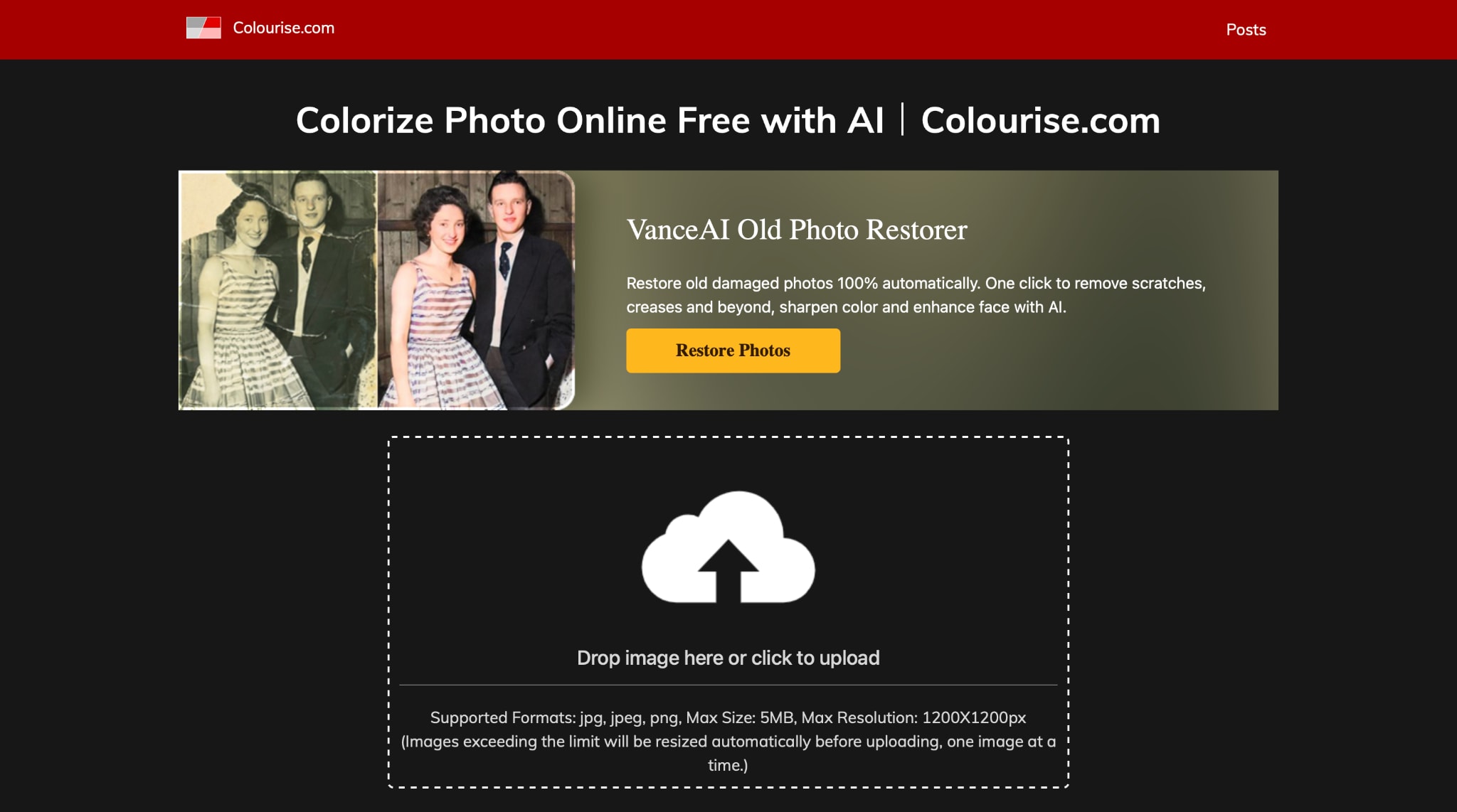
Step Guide to Use Colourise.com
Whether you're getting historical pictures colorized or enhancing archival documents, Colourise.com brings AI-powered color back to your memories in just a few steps:
Step 1: Visit Colourise.com's AI Colorizer Tool
Go to https://colourise.com using your desktop or mobile browser. You'll be taken straight to the main tool interface, which features a sleek upload area with minimal distractions. Click the Upload button or simply drag and drop your black-and-white photo into the upload box. Colourise.com supports standard file formats, such as JPG and PNG, with no signup or installation required to get started.
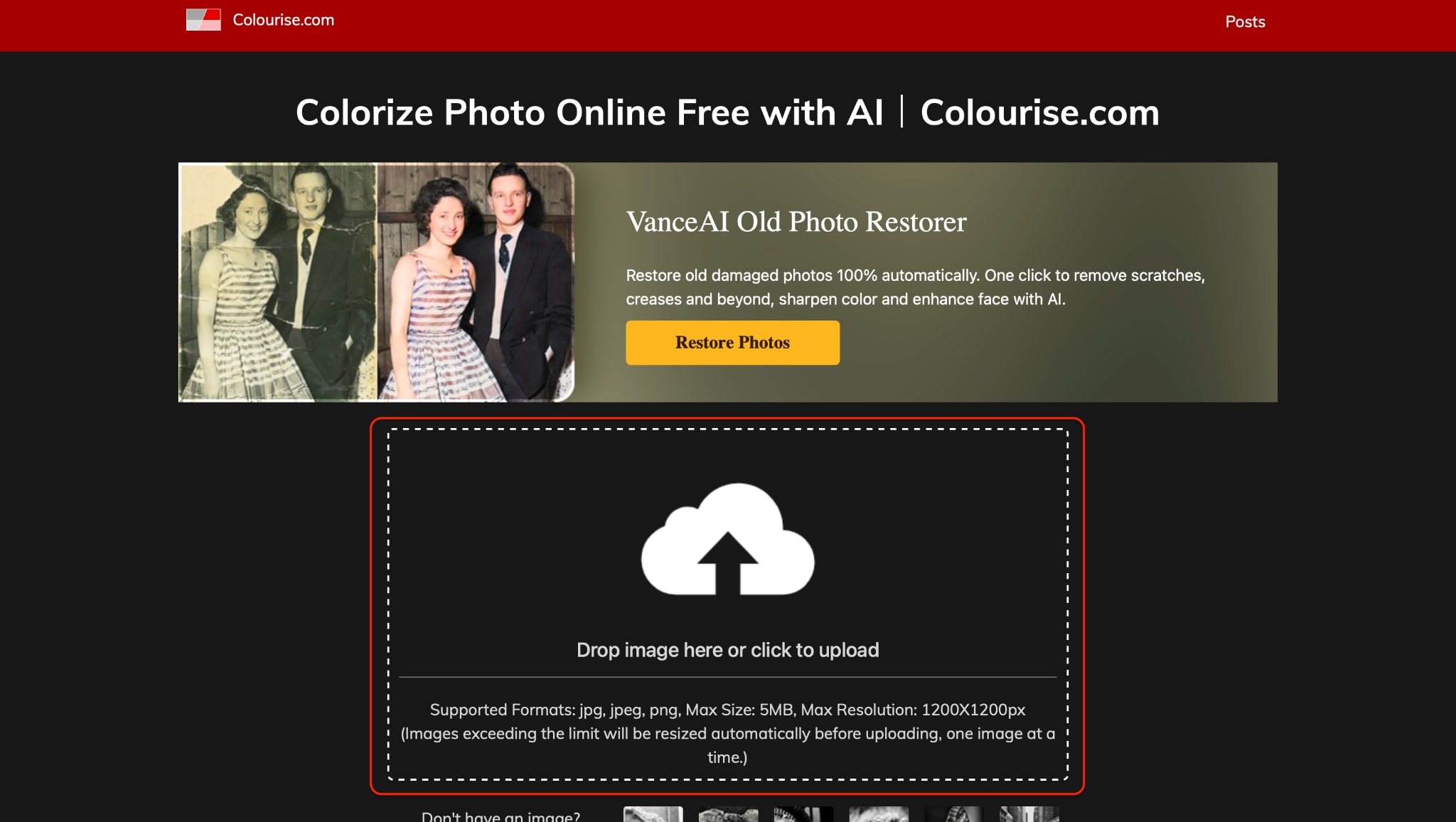
Step 2: AI-Powered Colorization in Seconds
As soon as your image is uploaded, Colourise.com will begin processing it using its deep learning AI engine. Within moments, your grayscale image is transformed into a vibrant color version with balanced tones and natural-looking details. The AI does a great job at reviving skin tones, environment hues, and even vintage textures without over-saturation. It's a smart option for those looking to recolor old photos for family keepsakes, blog posts, or digital archives.
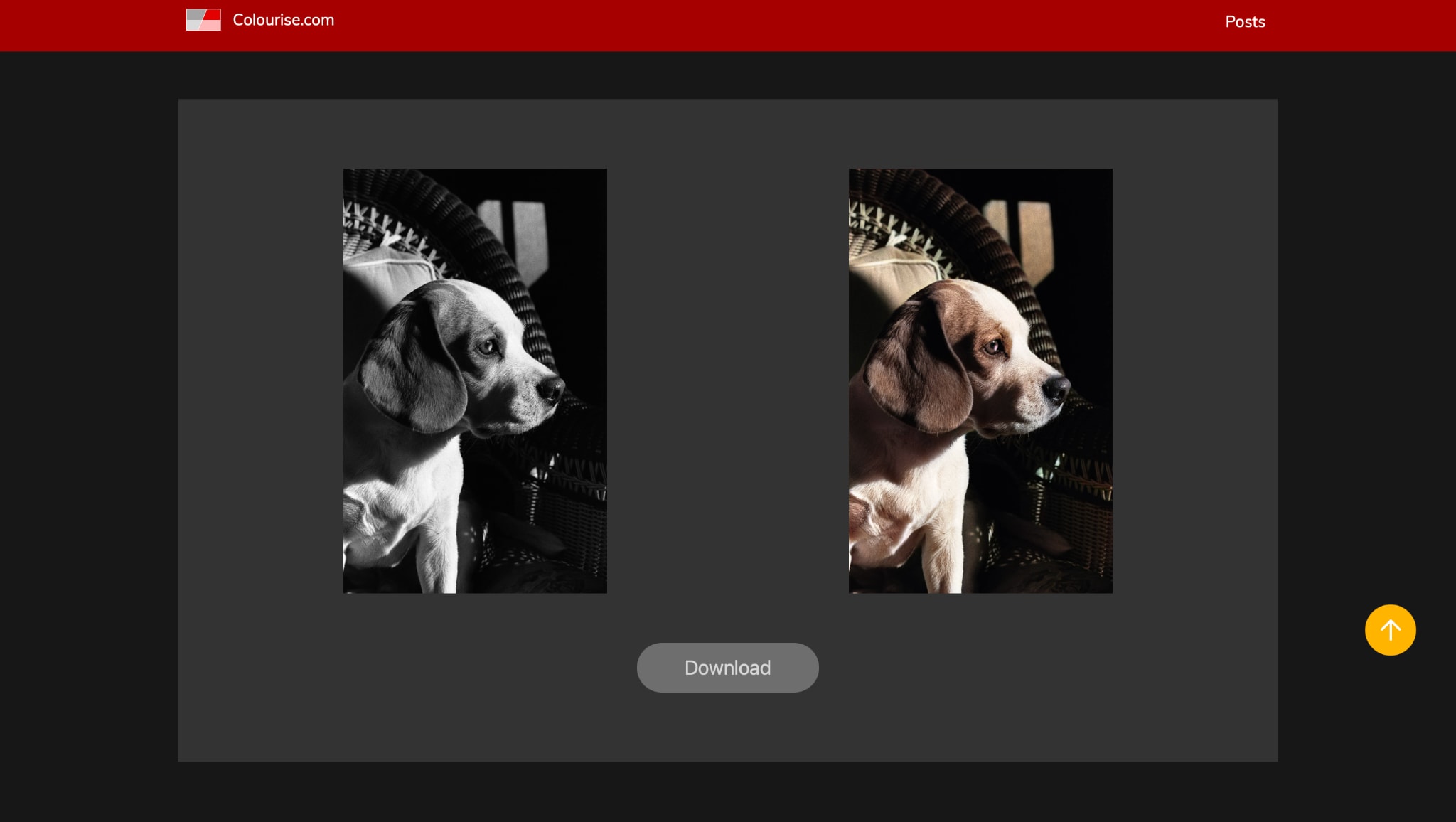
Step 3: Preview and Download the Colorized Image
Once processing is complete, you'll see a full-color preview of your photo. If you're happy with the result, simply click the Download button to save your image in high quality. Colourise.com does not offer in-app editing, but you can always fine-tune brightness or contrast using any basic photo editor later.
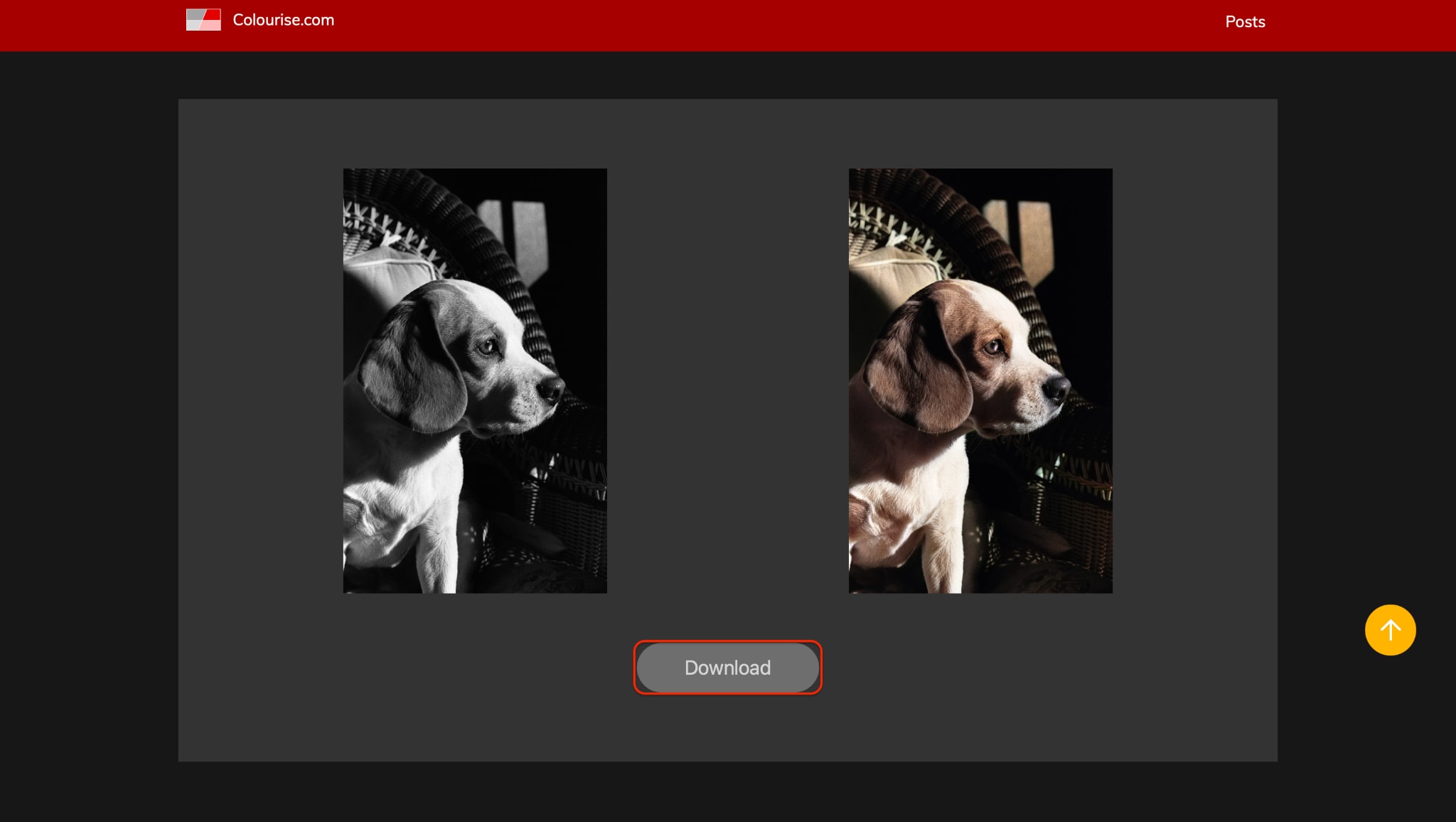
Overall, it's a dependable and fast way to colorize old photos online free—especially for users who want instant, no-frills results.
Final Thought
Colorizing black and white photos is now easier and more stunning with AI-powered tools. Whether you're restoring vintage portraits or reviving historic memories, platforms like Palette.FM, Canva Colorize, and Colourise.com offer quick and realistic results. For a complete solution, UniConverter goes beyond simple colorization—it also enhances image quality, supports batch processing, and converts media formats. It's ideal for anyone looking to colorize old photo collections with professional polish and ease.
Easy to Use Old Photo Colorizer
Try UniConverter's AI Photo Colorizer now and transform your black-and-white photos into vibrant, full-color memories.
FAQs
-
1. Can I colorize old photos for free?
Yes. Some tools like Canva offer limited free colorization features, though advanced options may require a paid plan or upgrade. -
2. Is Palette.fm good for photo restoration?
Palette.fm is excellent for automatic and realistic colorization, but it does not include restoration tools such as retouching, repair, or resolution enhancement. -
3. Does UniConverter allow batch photo colorization?
Yes. UniConverter supports batch colorization, making it ideal for processing entire albums, archives, or multiple photos at once. -
4. Can I enhance photo clarity in UniConverter after colorizing?
Absolutely. UniConverter includes AI-powered enhancement tools that sharpen and upgrade photo clarity after colorization. -
5. Is UniConverter available on both Mac and Windows?
Yes. UniConverter runs smoothly on both macOS and Windows, offering a consistent experience across platforms.